# ScanSKU Device
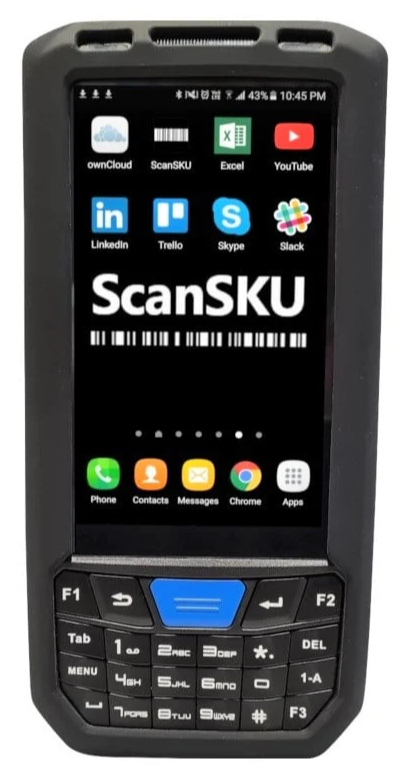
The device is an external purchase to use with the software
The device is uses three basic apps
1. Stock Take count used for Purchase Orders, Sales orders, stock count and stock take
2. ScanSKU lookup
3. Picking slip for Sales order
[](https://hugeerp10.co.za/hsofmanual/uploads/images/gallery/2024-02/r-series.png)
---
#### Setup device
There are two basic setups required
1. Keyboard Mode
2. Enter key
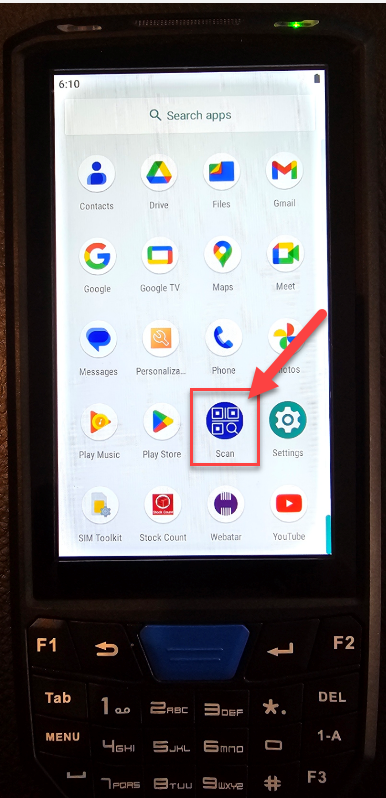
Under apps, go to Scan app
[](https://hugeerp10.co.za/hsofmanual/uploads/images/gallery/2024-02/Khgimage.png)
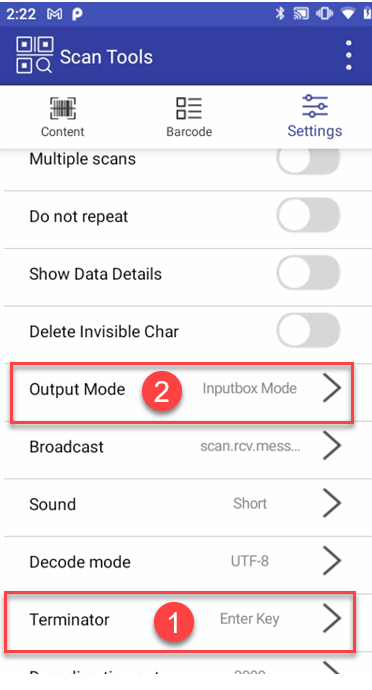
Click on Settings and find the two settings
Output Mode - must be Keyboard
Terminator - must be Enter Key
[](https://hugeerp10.co.za/hsofmanual/uploads/images/gallery/2024-02/YXjimage.png)