# Adding Build Kit To Documents

<span lang="EN-US" style="mso-ansi-language: EN-US;">To add the build to documents involves the same process as adding items or template task</span>

<span lang="EN-US" style="mso-ansi-language: EN-US;">The advantage of using Build kits as opposed to using template tasks is that the quantity of the build can be amended</span>

<span lang="EN-US" style="mso-ansi-language: EN-US;"> e.g </span><span lang="EN-US" style="mso-ansi-language: EN-US;">Go to<span style="color: rgb(45, 194, 107);"> **Debtors Module&gt; Activity&gt; Quotation**</span></span>

<span lang="EN-US" style="mso-ansi-language: EN-US;">Create a new quote as normal. For more info on how to create a quotation click [here](https://hugeerp10.co.za/hsofmanual/books/bdm-activity/page/basic-add-quotation "Add Quote")</span>

<span lang="EN-US" style="mso-ansi-language: EN-US;"> </span><span lang="EN-US" style="mso-ansi-language: EN-US;">You will note there are 2<span style="mso-spacerun: yes;"> </span>options returned:</span>

1. <span lang="EN-US" style="mso-ansi-language: EN-US;">The stock item – which is the resultant BOM item</span>
2. And the Custom Item which is the build Kit item

[![image.png](https://hugeerp10.co.za/hsofmanual/uploads/images/gallery/2024-08/scaled-1680-/3RTimage.png)](https://hugeerp10.co.za/hsofmanual/uploads/images/gallery/2024-08/3RTimage.png)

<span lang="EN-GB" style="mso-no-proof: yes;">Since we intend to manufacture the item, we will use the Build item as this will return the default components required as per the BOM recipe.</span>

<span lang="EN-GB" style="mso-no-proof: yes;">We can then choose to edit, add or remove items</span>

[![image.png](https://hugeerp10.co.za/hsofmanual/uploads/images/gallery/2024-08/scaled-1680-/RFgimage.png)](https://hugeerp10.co.za/hsofmanual/uploads/images/gallery/2024-08/RFgimage.png)

<span lang="EN-GB" style="mso-no-proof: yes;">Once you have selected the build item, you will notice the Build Kit tab becomes active. This is because we have set this item as a Build Kit in the item setup.</span>

<span lang="EN-GB" style="mso-no-proof: yes;">Click the Build Kit Tab</span>

<span lang="EN-GB" style="mso-no-proof: yes;">The grid will be blank initially.</span>

[![image.png](https://hugeerp10.co.za/hsofmanual/uploads/images/gallery/2024-08/scaled-1680-/dW7image.png)](https://hugeerp10.co.za/hsofmanual/uploads/images/gallery/2024-08/dW7image.png)

<span lang="EN-GB" style="mso-no-proof: yes;">To populate the component items, click the Build update items button</span>

<span lang="EN-GB" style="mso-no-proof: yes;">The items will then be displayed on the grid</span>

[![image.png](https://hugeerp10.co.za/hsofmanual/uploads/images/gallery/2024-08/scaled-1680-/rDqimage.png)](https://hugeerp10.co.za/hsofmanual/uploads/images/gallery/2024-08/rDqimage.png)

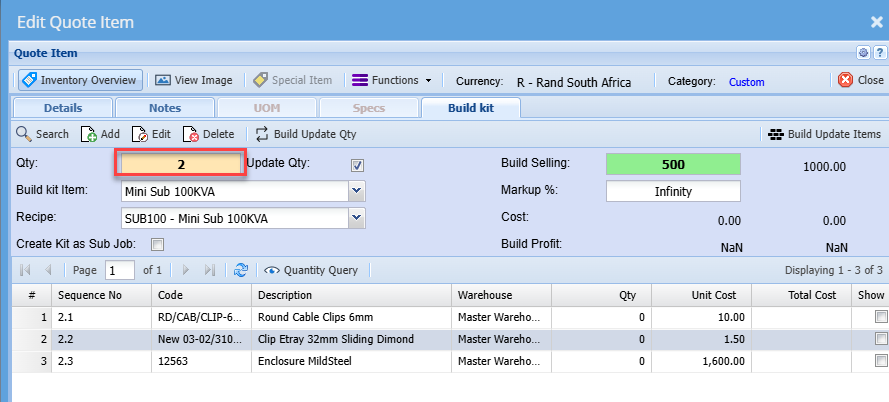
<p class="callout info"><span lang="EN-GB" style="mso-no-proof: yes;">If you need to build more than 1 of these items, then you will need to change the quantity on this screen. This will automatically update the quantity on the detail tab screen. ( where you usually edit quantities)</span></p>

[![image.png](https://hugeerp10.co.za/hsofmanual/uploads/images/gallery/2024-08/scaled-1680-/XK1image.png)](https://hugeerp10.co.za/hsofmanual/uploads/images/gallery/2024-08/XK1image.png)

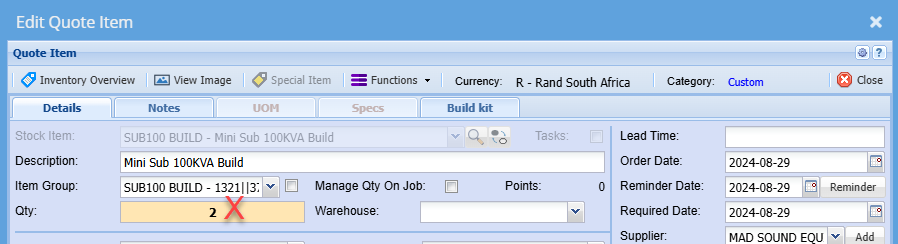
<p class="callout warning"><span lang="EN-GB" style="mso-no-proof: yes;">Do not change the quantity on the normal item line under the details tab as one would typically do with standard items, because that will not update the required quantity of the build and subsequently not update the respective quantities of the components required.</span></p>

[![image.png](https://hugeerp10.co.za/hsofmanual/uploads/images/gallery/2024-08/scaled-1680-/lfvimage.png)](https://hugeerp10.co.za/hsofmanual/uploads/images/gallery/2024-08/lfvimage.png)

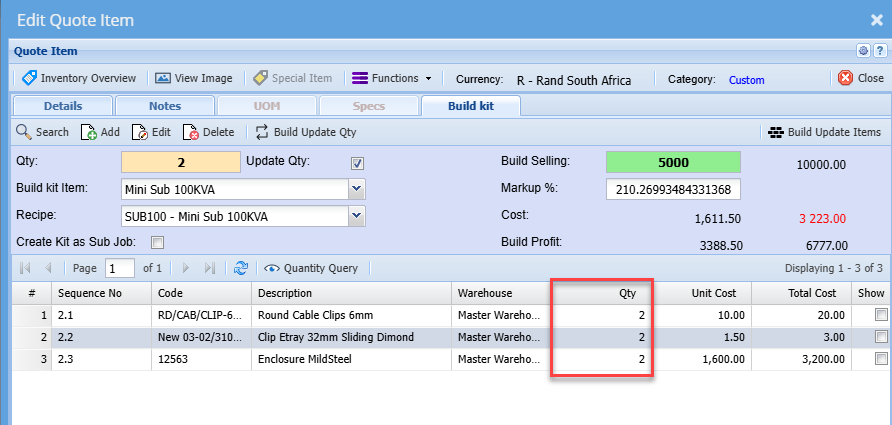
<p class="callout info"><span lang="EN-GB" style="mso-no-proof: yes;">Once you have entered the required quantity of the item on the Build Kit tab, click the **Build update Qty** button</span></p>

<span lang="EN-GB" style="mso-no-proof: yes;">This will update the quantities of the component items required to manufacture the quantity specified of the resultant item (Build)</span>

[![image.png](https://hugeerp10.co.za/hsofmanual/uploads/images/gallery/2024-08/scaled-1680-/EB8image.png)](https://hugeerp10.co.za/hsofmanual/uploads/images/gallery/2024-08/EB8image.png)

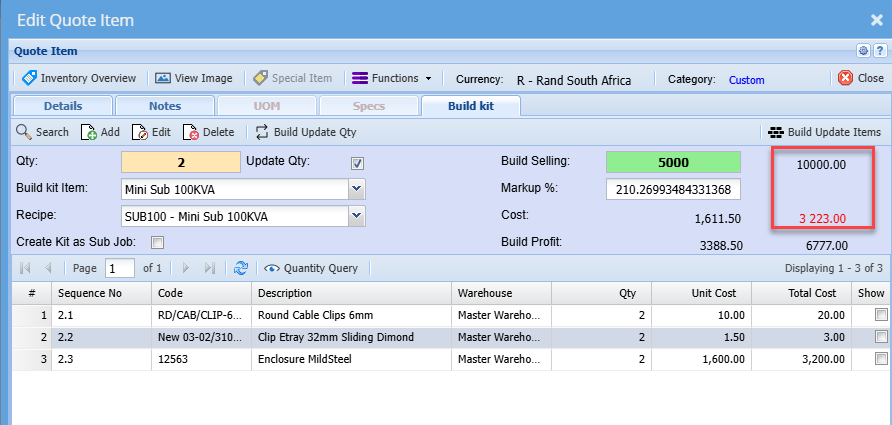
<span lang="EN-GB" style="mso-no-proof: yes;">You will also note the selling and cost prices are updated accordingly</span>

[![image.png](https://hugeerp10.co.za/hsofmanual/uploads/images/gallery/2024-08/scaled-1680-/NIdimage.png)](https://hugeerp10.co.za/hsofmanual/uploads/images/gallery/2024-08/NIdimage.png)

<span lang="EN-US" style="mso-ansi-language: EN-US;">Click Save and Close</span>

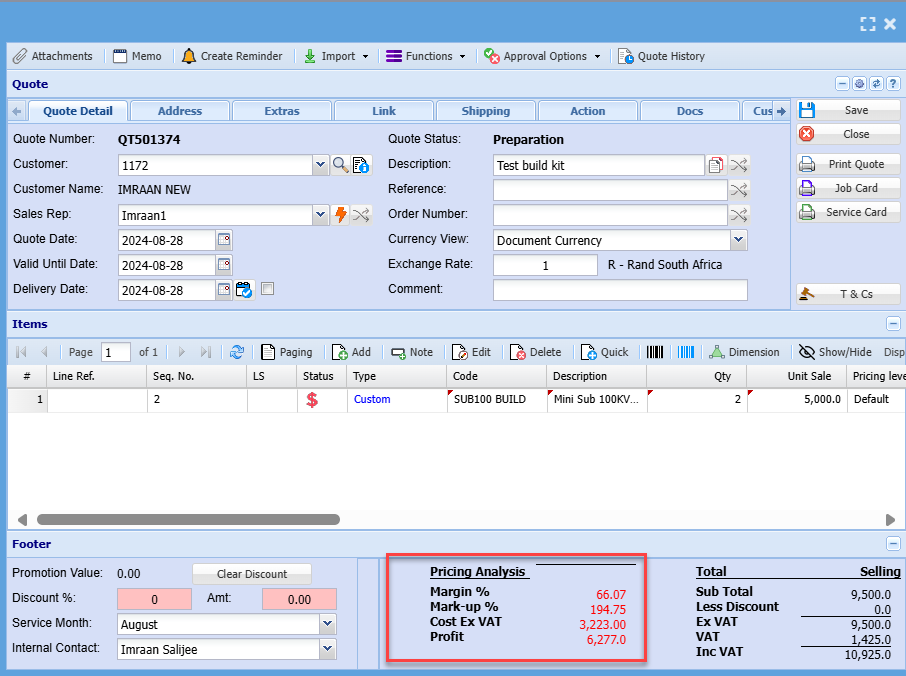
<span lang="EN-US" style="mso-ansi-language: EN-US;">This will return you to the main screen, where you can see the costs, markups, etc. as normal.</span>

[![image.png](https://hugeerp10.co.za/hsofmanual/uploads/images/gallery/2024-08/scaled-1680-/sLyimage.png)](https://hugeerp10.co.za/hsofmanual/uploads/images/gallery/2024-08/sLyimage.png)

---

#### <span lang="EN-US" style="mso-ansi-language: EN-US;">Printing the Quote</span>

<span lang="EN-US" style="mso-ansi-language: EN-US;">There are 2 options to print the quote</span>

<span style="text-decoration: underline;"><span lang="EN-US" style="mso-ansi-language: EN-US;">Option 1</span></span>

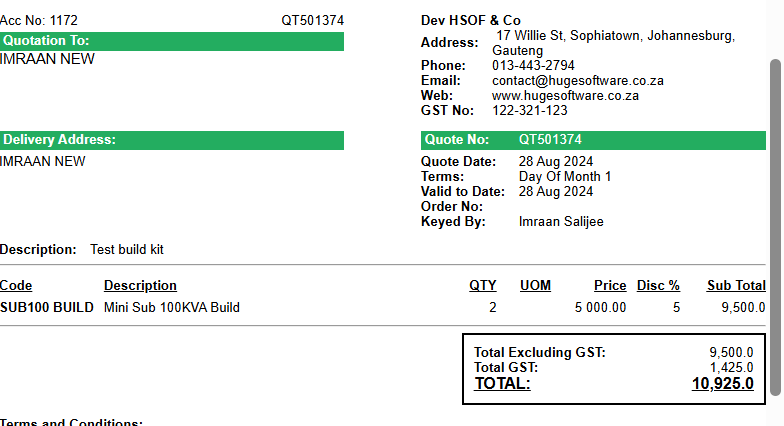
- <span lang="EN-US" style="mso-ansi-language: EN-US;">Displaying only a single line item for the build</span>
- This option is used in instances where the client does not need to see the individual component

[![image.png](https://hugeerp10.co.za/hsofmanual/uploads/images/gallery/2024-08/scaled-1680-/Y9fimage.png)](https://hugeerp10.co.za/hsofmanual/uploads/images/gallery/2024-08/Y9fimage.png)
<span style="text-decoration: underline;">Option </span>

<span lang="EN-US" style="mso-ansi-language: EN-US;">Displaying all or part of the component items as well on the quote</span>

<span lang="EN-US" style="mso-ansi-language: EN-US;">This option displays the build item with full prices but also shows the component items used in the build</span>

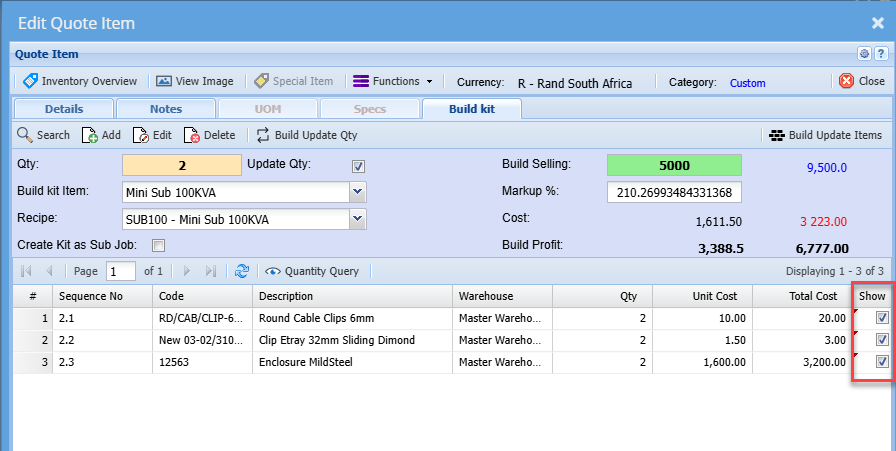
<span lang="EN-US" style="mso-ansi-language: EN-US;">To print the quote using this option, you will need to indicate the items you wish to display on the quote.</span>

<span lang="EN-US" style="mso-ansi-language: EN-US;">To do this, edit the item line.</span>

<span lang="EN-US" style="mso-ansi-language: EN-US;">Click the Build Kit tab</span>

<span lang="EN-US" style="mso-ansi-language: EN-US;">Tick the box next to the items you wish to display on the quote</span>

<span lang="EN-US" style="mso-ansi-language: EN-US;">Save and close</span>

[![image.png](https://hugeerp10.co.za/hsofmanual/uploads/images/gallery/2024-08/scaled-1680-/m6Iimage.png)](https://hugeerp10.co.za/hsofmanual/uploads/images/gallery/2024-08/m6Iimage.png)

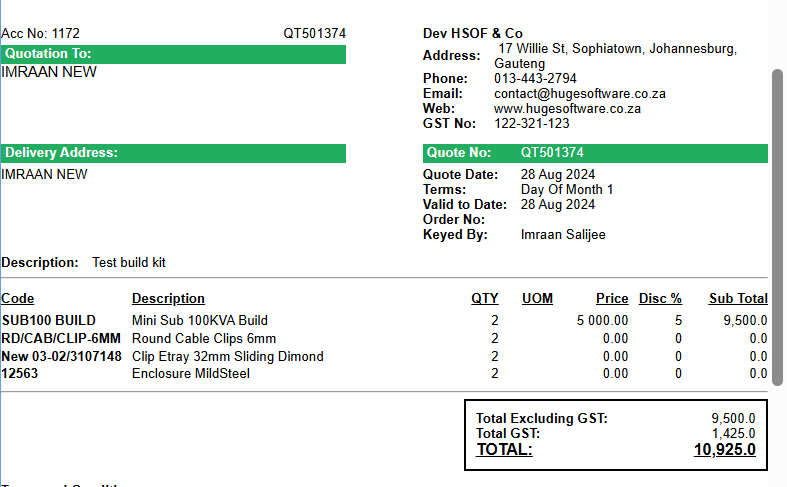
<span lang="EN-US" style="mso-ansi-language: EN-US;">When you print the quote, notice all the components selected will be displayed and the values of the individual components will be zero</span>

[![image.png](https://hugeerp10.co.za/hsofmanual/uploads/images/gallery/2024-08/scaled-1680-/KHyimage.png)](https://hugeerp10.co.za/hsofmanual/uploads/images/gallery/2024-08/KHyimage.png)

<span lang="EN-US" style="mso-ansi-language: EN-US;">You can now send the quote off to the client <span style="mso-spacerun: yes;"> </span>and upon approval, promote the quote to sales order or invoice or Job as normal.</span>