# Security
# View Security Button
This only applies to users who have access to view the security button
The security button is found under each menu, on the top right
[](https://hugeerp10.co.za/hsofmanual/uploads/images/gallery/2024-08/2SQimage.png)
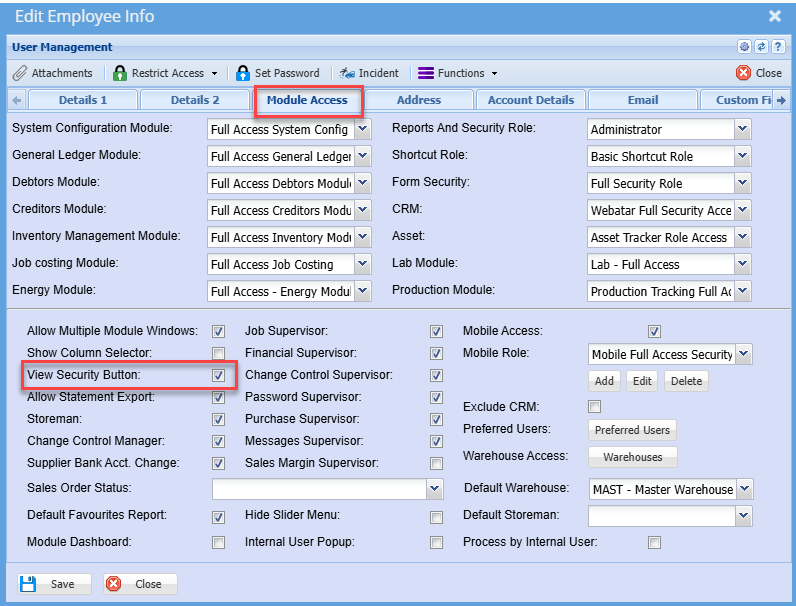
First one needs to give administrator access to this button from the module access screen
**Go to System Configuration Module> General User Setup**
If the user already exists, search for the user you would love to give access to then double-click or click edit
The screen below will be displayed
Click on the Access Module Tab
Then put a tick on View Security
[](https://hugeerp10.co.za/hsofmanual/uploads/images/gallery/2024-08/zAcimage.png)
Once the security has been set the user will need to logout then login so the change can apply
When logging back in the user will see the security icon at the top right corner of almost each screen
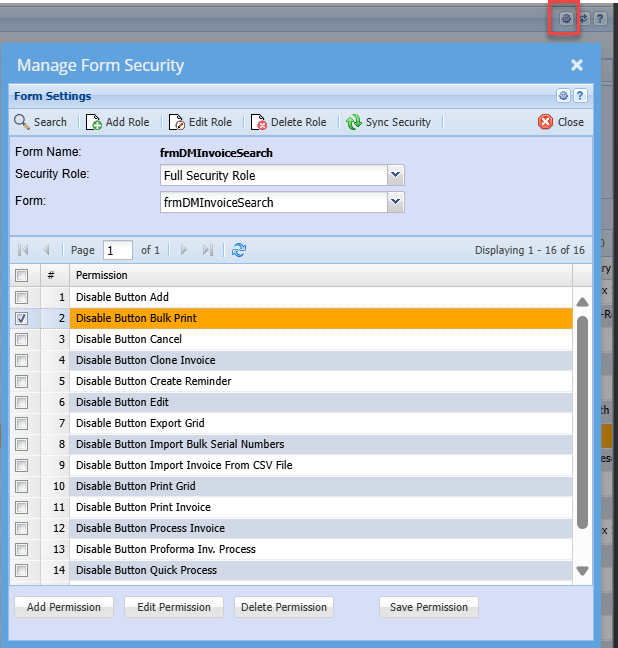
Here is an example of how it works on the invoice screen
Go to **Debtors Module> Activity> Invoices**
Then click on the security icon in the top right corner and the screen below will appear
You can edit a new role or add a new one
You can also see other security roles on the drop down menu selection and from menu
You can select anyone you want to create or edit a role for
[](https://hugeerp10.co.za/hsofmanual/uploads/images/gallery/2024-08/fQmimage.png)
Once complete and the permission is saved
If editing an existing role the permission will apply
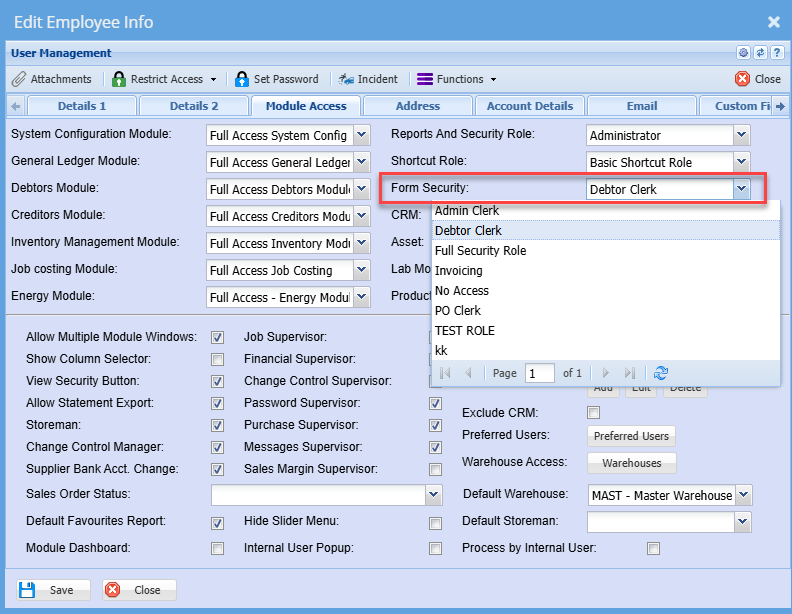
If its a new role then you need to apply the role on the user setup screen
[](https://hugeerp10.co.za/hsofmanual/uploads/images/gallery/2024-08/fnyimage.png)