# Document Functions

This section gives useful information on various areas in the system

# Searching Inactive Records

<span class="ts12">There is a way to search for customers, suppliers, inventory and GL accounts marked inactive in the various analysis screens.</span>

<span class="ts12">So on the following analysis sections, add in a tick box that when ticked only searches for those items that are marked inactive</span>

<span class="ts12">This is relevant for</span>

1. <span class="ts12">Debtors / Customer analysis</span>
2. Creditors / Supplier analysis
3. Inventory analysis
4. GL account analysis

e.g To get to the analysis, go to any module mentioned above&gt; Click analysis then click the document analysis (Debtor Analysis)

[![image.png](https://hugeerp10.co.za/hsofmanual/uploads/images/gallery/2024-07/scaled-1680-/e78image.png)](https://hugeerp10.co.za/hsofmanual/uploads/images/gallery/2024-07/e78image.png)

Click on the tick box shown above

When selecting a debtor/customer, creditor/supplier, or any of the mentioned documents, the drop-down menu will only show inactive customers, suppliers, inventory item codes, or GL analysis

# Document Management Spec

<span class="ts0">The purpose of Document Management is to help customers add attachments to the system that are not linked to any transaction documents.</span>

<span class="ts0">Some examples are as follows</span>

- <span class="ts0">VAT / GST returns with all of its attachments</span>
- Supplier monthly statements
- Customer contracts
- Customer payment advises
- Company document legal information which I would put under system configuration
- The general company contracts like insurance I would put under the General Ledger

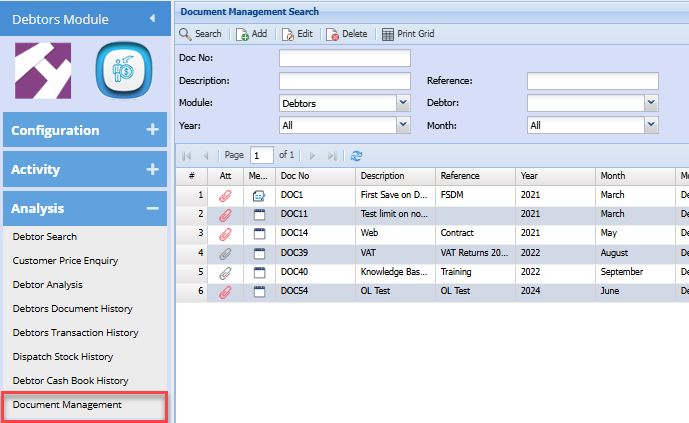
<span class="ts0">This will be available on all modules under the analysis section.</span>

<span class="ts0">The document number that is produced will be the line ID in the table with a prefix of DOC</span>

<span class="ts0">When you go into the specific module the search criteria for a module will automatically populate.</span>

<span class="ts0">This will be greyed out by default and to enable it you need to go to with additional security on the top right-hand corner.</span>

<span class="ts0">Again this is similar to how the report list works when you go into the modulator defaults to the module.</span>

<span class="ts0">The drop-down will have additional security based on whether the user has access to that module.</span>

<span class="ts0">It doesn't matter what type of security a user has as long as they have security to that module </span>

<p class="callout info"><span class="ts0">The delete function doesn't delete the item but just flags it as deleted and then the search will not search for deleted items</span></p>

<span class="ts0">If somebody deletes the document, we need to record this under the user management section.</span>

<span class="ts0">You can find the document management menu under the following modules:</span>

- <span class="ts0">System configuration</span>
- General Ledger6
- Debtors/ Customer
- Creditors/ Supplier
- Inventory
- ob costing
- CRM
- TrackIT

[![image.png](https://hugeerp10.co.za/hsofmanual/uploads/images/gallery/2024-07/scaled-1680-/CzAimage.png)](https://hugeerp10.co.za/hsofmanual/uploads/images/gallery/2024-07/CzAimage.png)
---

#### <span class="ts0">Add</span>

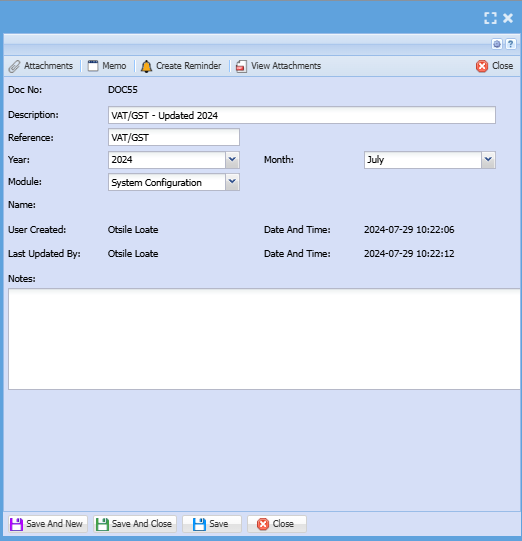
<span class="ts0">To add a new document to the system, click add </span>

[![image.png](https://hugeerp10.co.za/hsofmanual/uploads/images/gallery/2024-07/scaled-1680-/HNjimage.png)](https://hugeerp10.co.za/hsofmanual/uploads/images/gallery/2024-07/HNjimage.png)

<table border="1" id="bkmrk-doc-no-the-document-" style="border-collapse: collapse; width: 100%; height: 177.6px;"><colgroup><col style="width: 27.8052%;"></col><col style="width: 72.17%;"></col></colgroup><tbody><tr style="height: 29.6px;"><td style="height: 29.6px;">**Doc No**</td><td style="height: 29.6px;">The document number is system-generated</td></tr><tr style="height: 29.6px;"><td style="height: 29.6px;">**Description**</td><td style="height: 29.6px;">Enter a description for the document you wish to manage</td></tr><tr style="height: 29.6px;"><td style="height: 29.6px;">**Reference**</td><td style="height: 29.6px;">Enter reference</td></tr><tr style="height: 29.6px;"><td style="height: 29.6px;">**Year**</td><td style="height: 29.6px;">Select the year </td></tr><tr style="height: 29.6px;"><td style="height: 29.6px;">**Month**</td><td style="height: 29.6px;">Select the month for the document</td></tr><tr style="height: 29.6px;"><td style="height: 29.6px;">**Module**</td><td style="height: 29.6px;">Select the module you want to save the document under on the drop-down selection</td></tr></tbody></table>

<span class="ts0">The user that created this and the date and the time that it was created are recorded.</span>

<p class="callout info"><span class="ts0">The last updated by with date and time which effectively records who made changes on this when they click on save or save and close</span></p>

<span class="ts0"></span>

# Line Item Note - Hover over

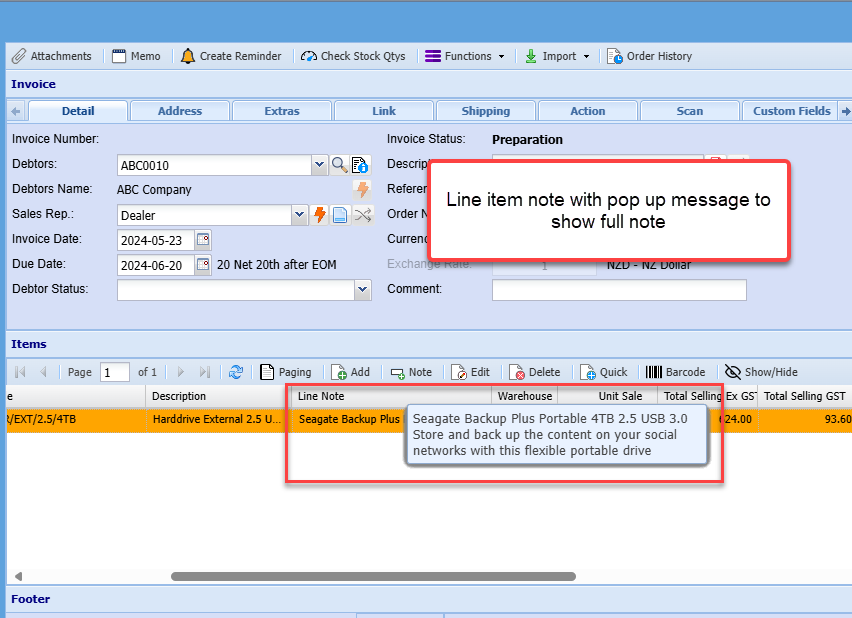
Line item note on the document grid with hover over allows users to see additional information about a specific line item without having to click on it

The feature is implemented under debtors/ customers and creditors/ suppliers transaction documents

[![image.png](https://hugeerp10.co.za/hsofmanual/uploads/images/gallery/2024-07/scaled-1680-/9Fvimage.png)](https://hugeerp10.co.za/hsofmanual/uploads/images/gallery/2024-07/9Fvimage.png)
# Substitute Item on Sales Documents

You can substitute an item on sales documents

You first need to set it up [here](https://hugeerp10.co.za/hsofmanual/books/aim-configuration/page/advanced-stock-item-add#bkmrk-%C2%A0-24 "Substitude item")

Once it has been set up

Add the sales document as per normal, then a pop-up will appear confirming that the item has a replacement and asking if you want to change the item to a replacement.

You need to click Yes to change to a replacement or No to leave it as it is

[![image.png](https://hugeerp10.co.za/hsofmanual/uploads/images/gallery/2024-08/scaled-1680-/jb9image.png)](https://hugeerp10.co.za/hsofmanual/uploads/images/gallery/2024-08/jb9image.png)
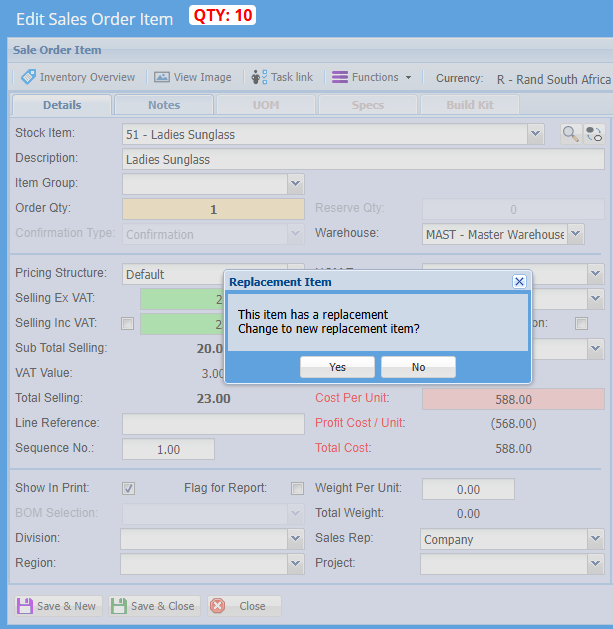
Once complete click save and new to add a new item line or click save and close.

Should you have saved the item as it is and later on realize that you don't have enough of the initial item and want to change to a replacement item click on the change icon below:

[![image.png](https://hugeerp10.co.za/hsofmanual/uploads/images/gallery/2024-08/scaled-1680-/Mcfimage.png)](https://hugeerp10.co.za/hsofmanual/uploads/images/gallery/2024-08/Mcfimage.png)
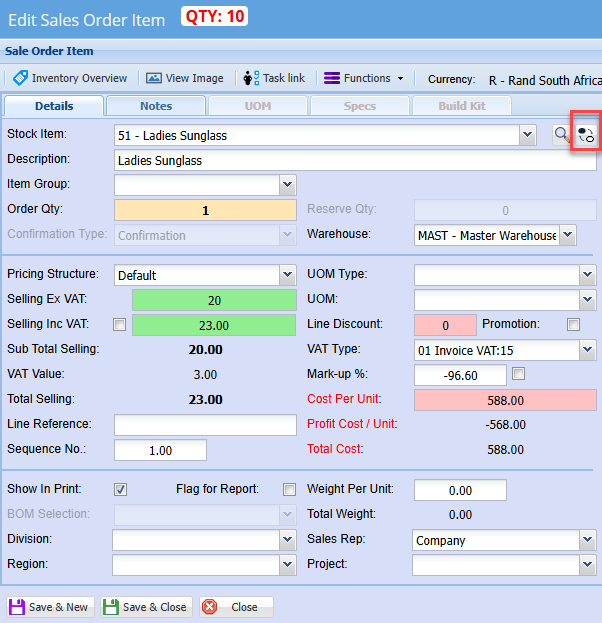
The screen below will appear and you can select the replacement product

[![image.png](https://hugeerp10.co.za/hsofmanual/uploads/images/gallery/2024-08/scaled-1680-/Dwvimage.png)](https://hugeerp10.co.za/hsofmanual/uploads/images/gallery/2024-08/Dwvimage.png)
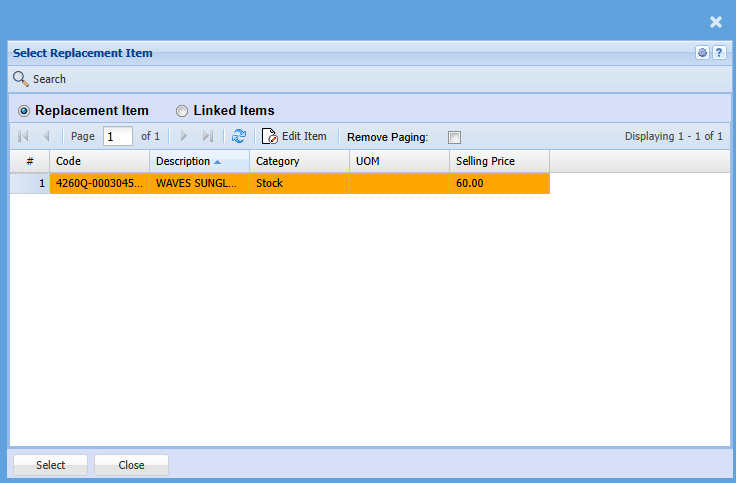
Click select then it will take you back to the item line screen.

You can add notes, change warehouse if required and update quantity as per normal

Then click save and new to add another item line or save and close when completed

Then action the sales document

# Linked Documents on Transactions Document

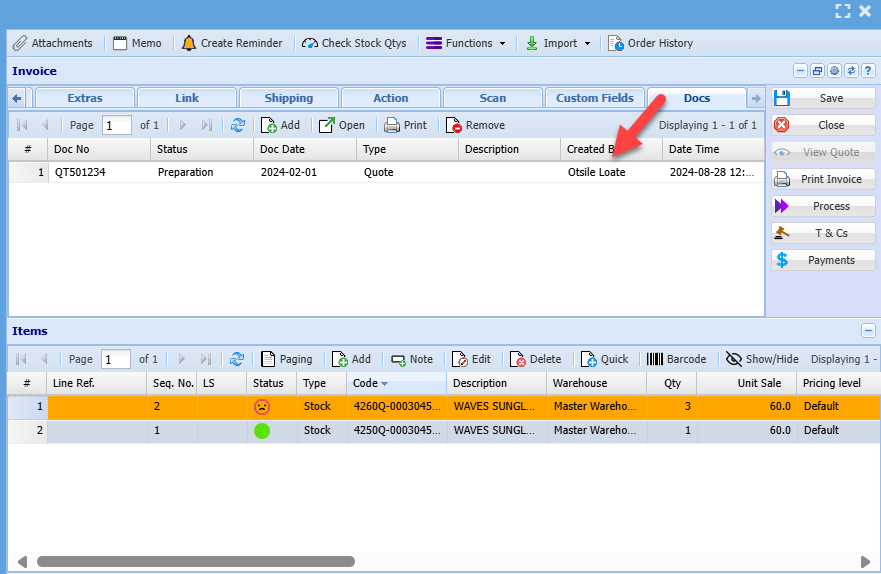
<span style="font-size: 11pt;">You can manually link other documents to an existing document or the system will automatically link certain documents</span>

<span style="font-size: 11pt;">Go into any transaction document</span>

<span style="font-size: 11pt;">Double-click on the one you wish to link a document to, the go-to Docs and link a document</span>

[![image.png](https://hugeerp10.co.za/hsofmanual/uploads/images/gallery/2024-08/scaled-1680-/0Fwimage.png)](https://hugeerp10.co.za/hsofmanual/uploads/images/gallery/2024-08/0Fwimage.png)

<span style="font-size: 11.0pt; mso-fareast-font-family: 'Times New Roman'; color: black;">  
</span>