Barcodes
Barcodes
In this section we cover printing and scanning of barcodes
1.Printing barcodes direct from system
2.Scanning using ScanSKU device
Printing barcodes setup
Look under Trouble shooting Barcode print setup
Scanning using ScanSKU
View various video files for setups
Barcode Labels
The system allows for printing barcodes directly
The areas these are possible are
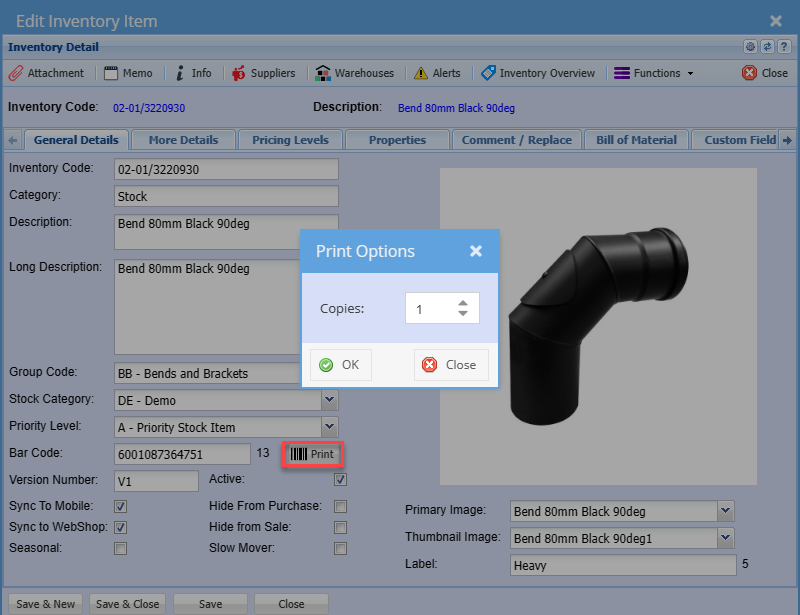
1.Inventory setup barcode single print
2.Inventory setup search screen, multiple barcode and single barcode print
3.Purchase Order edit screen
4.Receive stock edit screen
Multiple print barcodes are limit to the number of items shown on the grid.
If you are viewing 100 records, print will only work on the 100 records displayed
Single item print
.png)
Purchase Order
.png)
Receive Stock
.png)
Barcode Labels Integration
The system now allows you to print barcodes.
You will see the barcode icon across the system.

For example, on the inventory module, when you click on the print button a prompt will appear, allowing you to specify the number of copies you wish to generate.
When you click OK a physical printing of a barcode label, displays the layout containing information specific to the selected item.
For this feature to work you need to set up a barcode template in the system configurations
The places that we currently integrate with are:
- Inventory set up
- Assets scanning
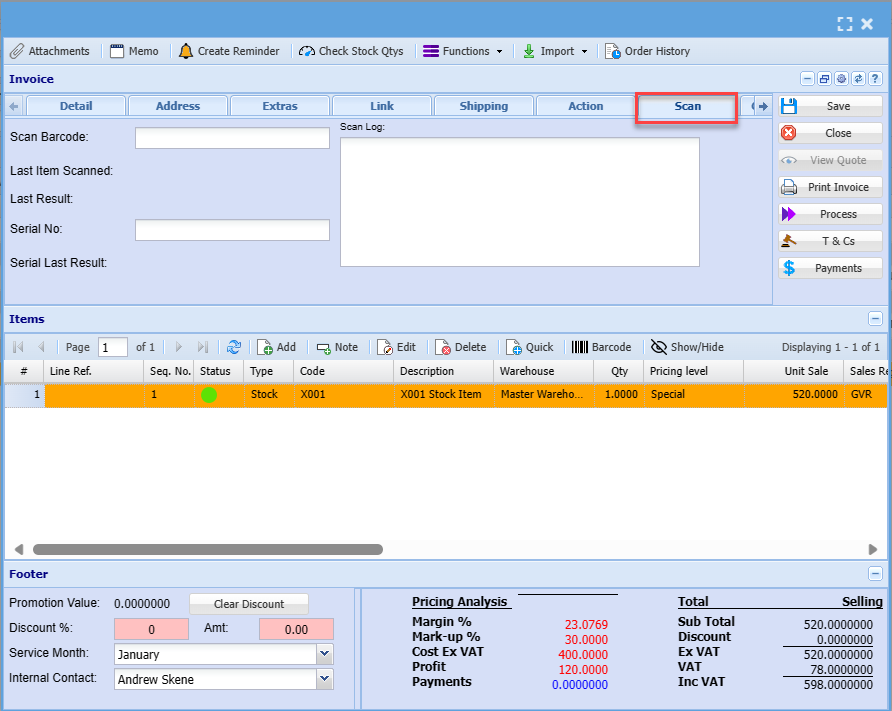
- Barcode printing Scan
- Debtor documents
Barcode scanners Integration
The Barcode Scanning feature allows you to scan items in various sections of the system and you can also receive scans.
You can scan items into the system and the system will automatically add them for you.
The barcode scan helps to eliminate capturing errors and increases productivity.