ENGYB - Activity
Energy Activity
- RFP - Request For Proposal
- Request For Proposal - RFP Search
- Add Request For Proposal RFP
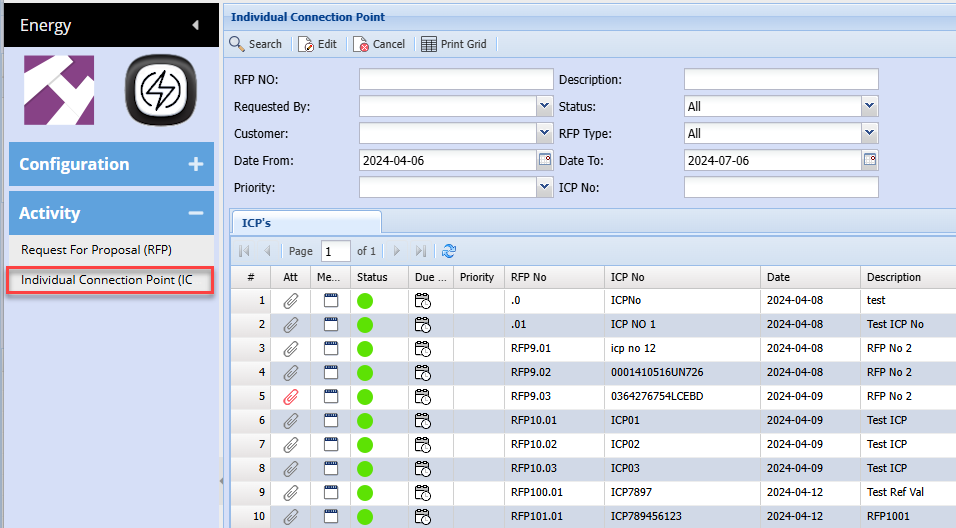
- Individual Connection Point ICP
- ICP Import for Consumption data
- Retailer Quotes
- Retailer Quotes Import
- Retailer Quote Import NHH
- ICP - Individual Connection Point
RFP - Request For Proposal
Request For Proposal - RFP Search
Search for all active RFPs
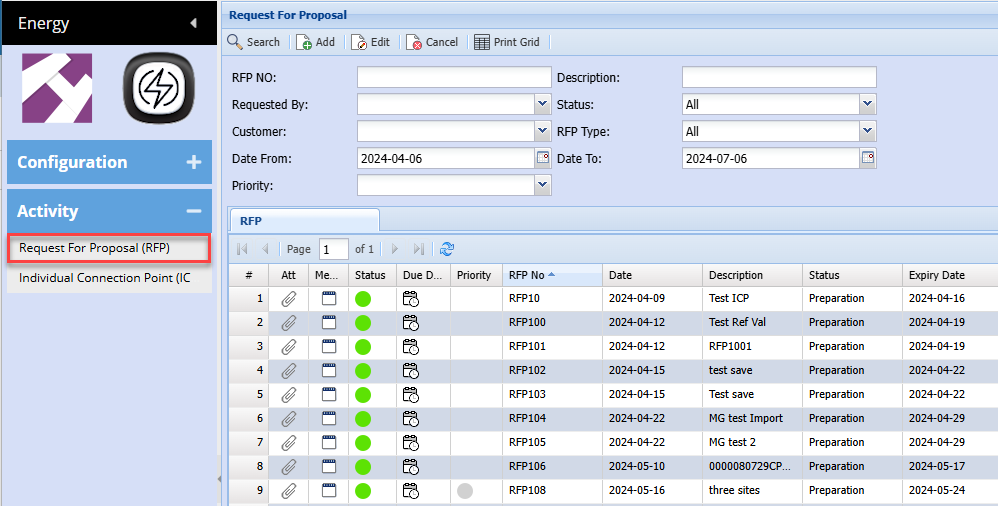
| Search | Search for RFPs |
| Add | Add a new RFP |
| Edit | Edit an existing RFP |
| Delete | Delete an RFP |
| Print Grid | Print searched results |
Add Request For Proposal RFP
Fill in the information of the client wanting an RFP
Save the RFP
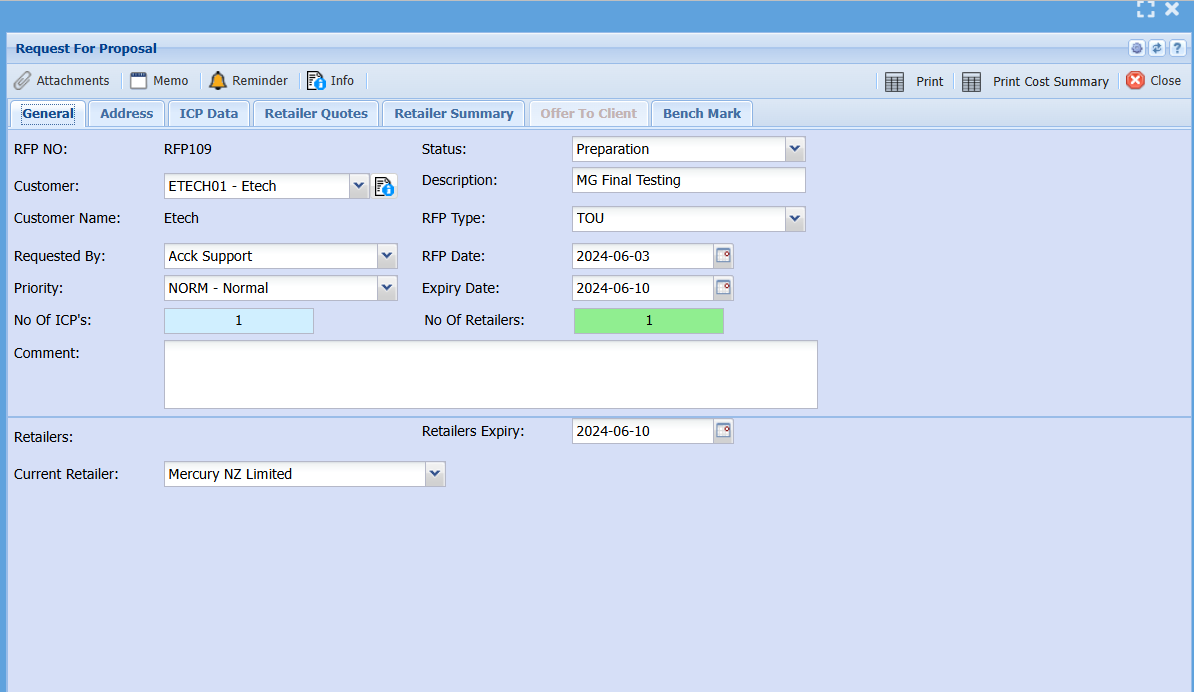
ICP Data
Go to the ICP Data tab
Click on Add to add in ICP.
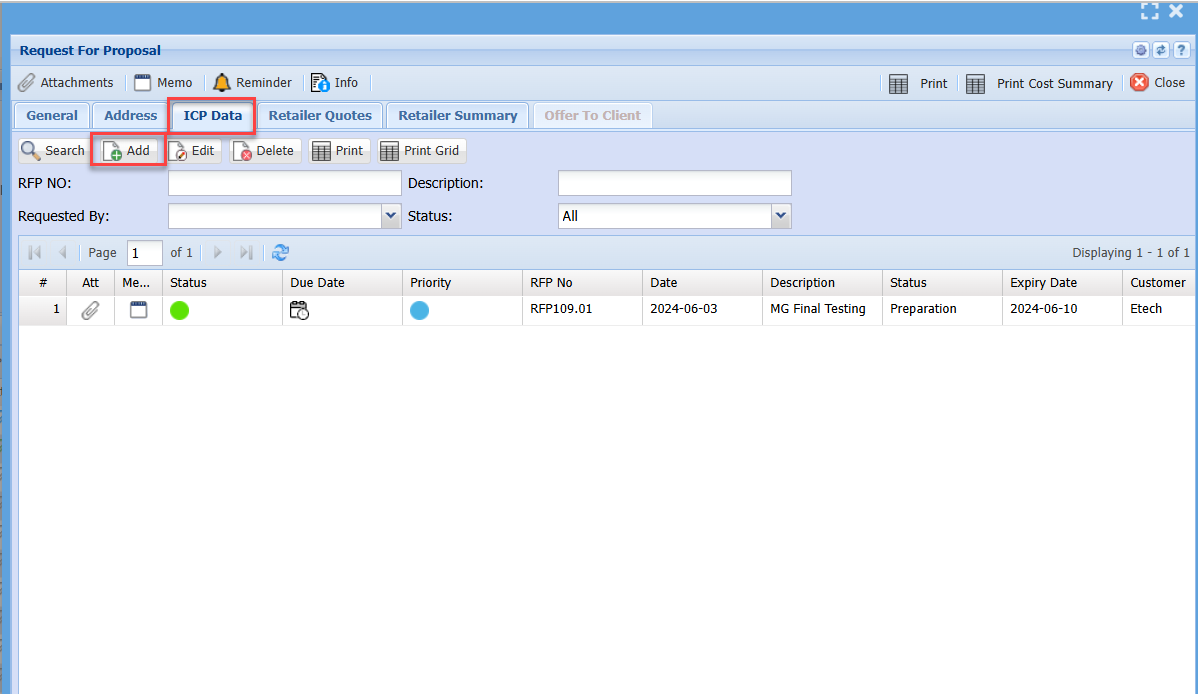
Enter the ICP number and save
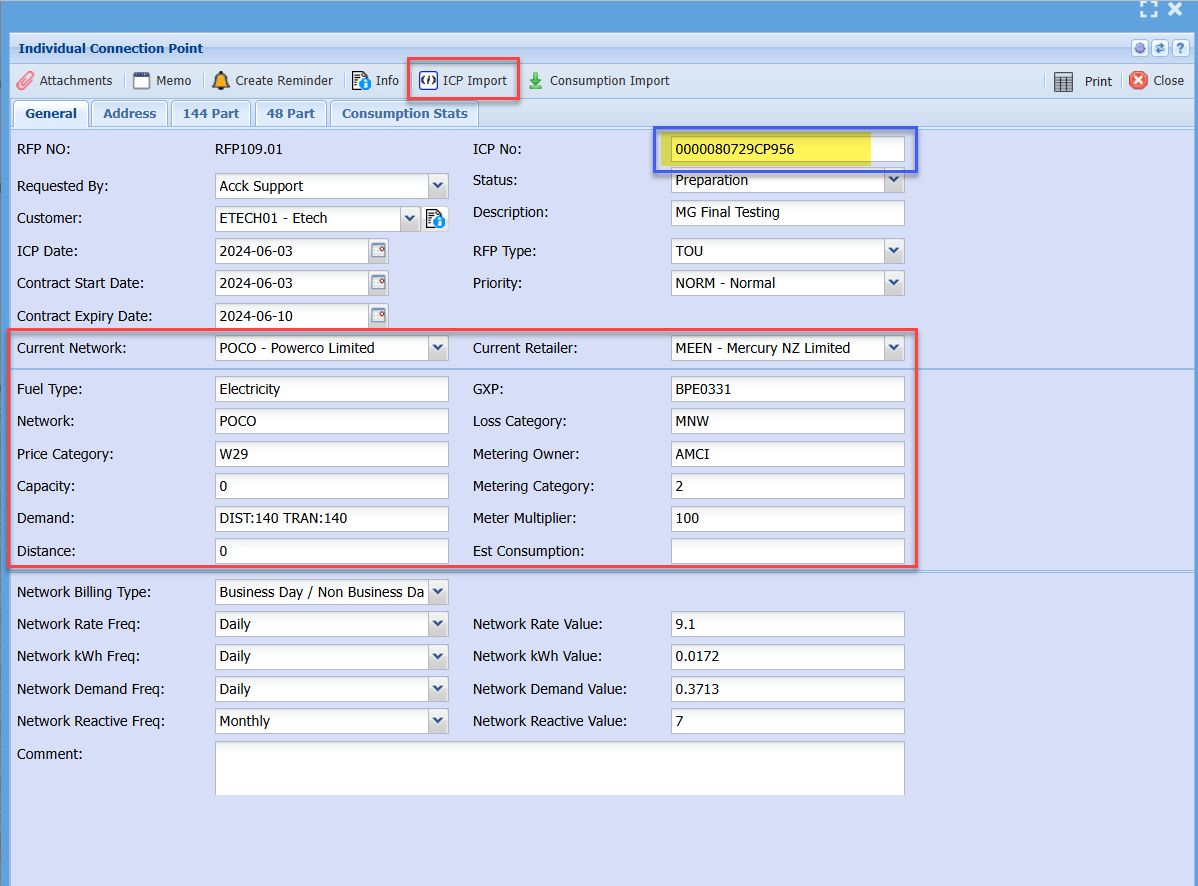
ICP Import (Scrape)
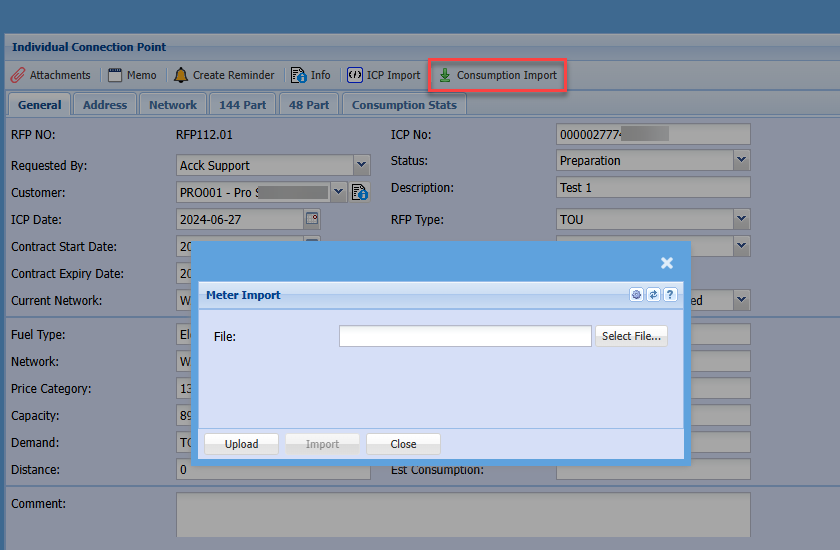
Then click on the ICP import
This will update the various information, click on save again
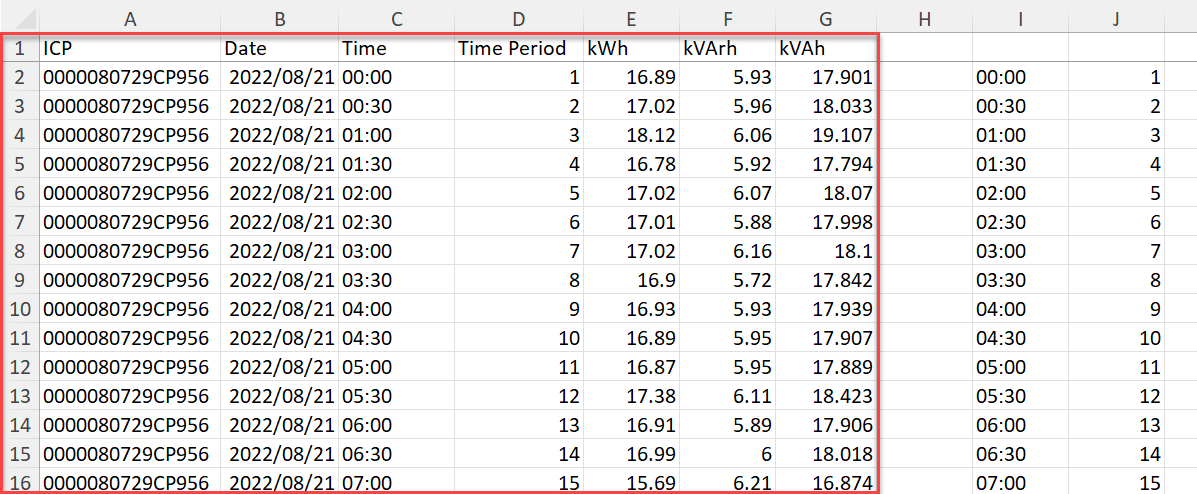
Consumption data import
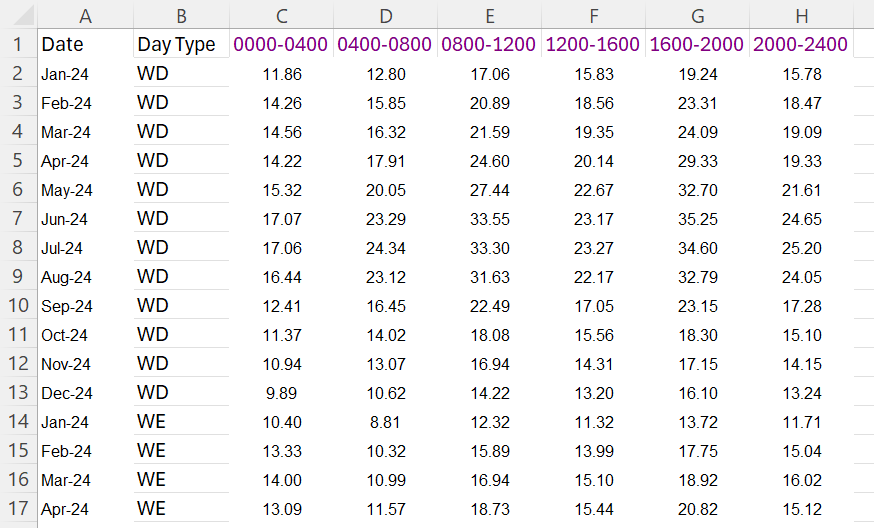
Once you have fixed the spreadsheet, make sure it is in this format
A sample of the Excel file is attached - Consumption Data Import.xlsx
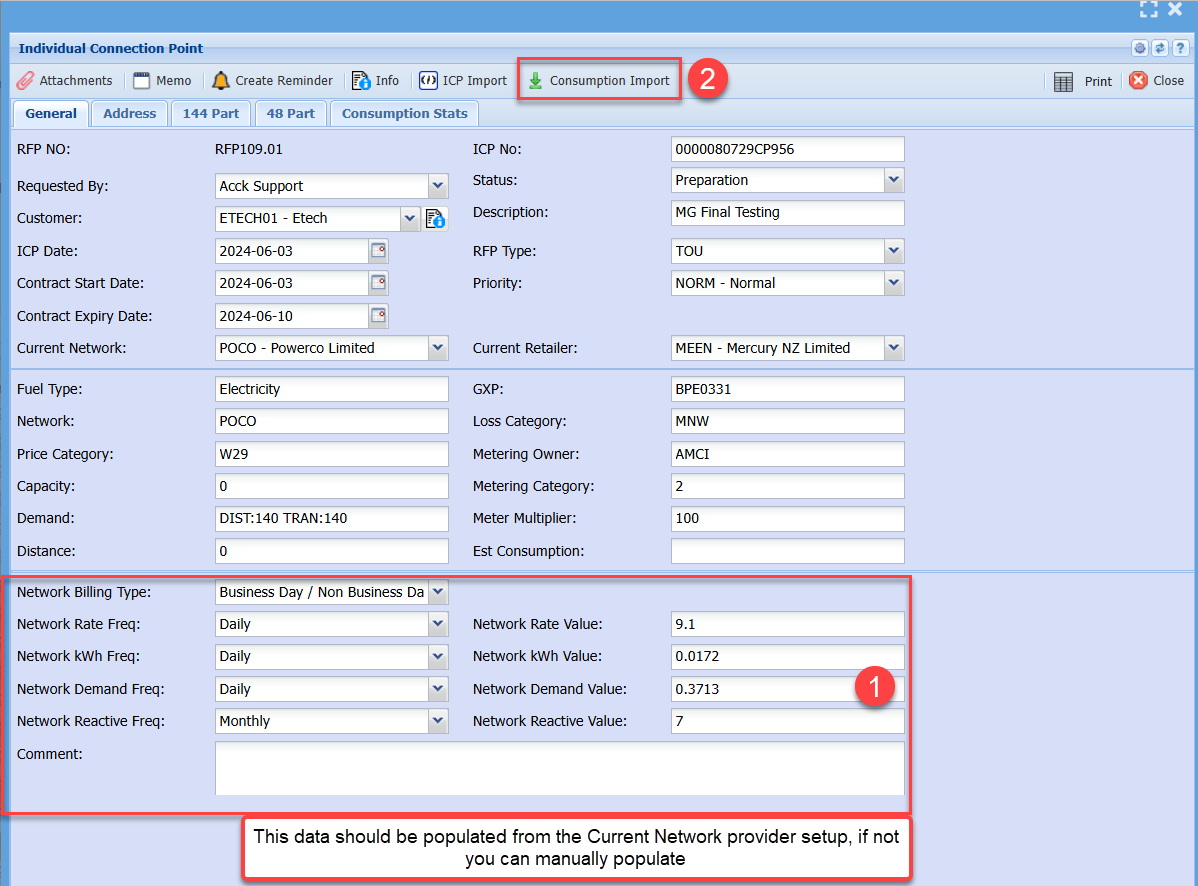
Import the consumption data
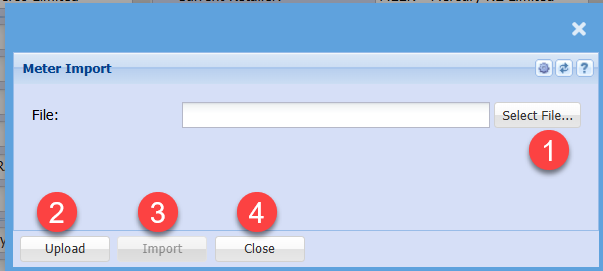
Find the file to import
Make sure the Excel sheet is saved and closed before importing
After the file is imported, it will update the following tabs
- 144 Part
- 48 Part
- Consumption Stats
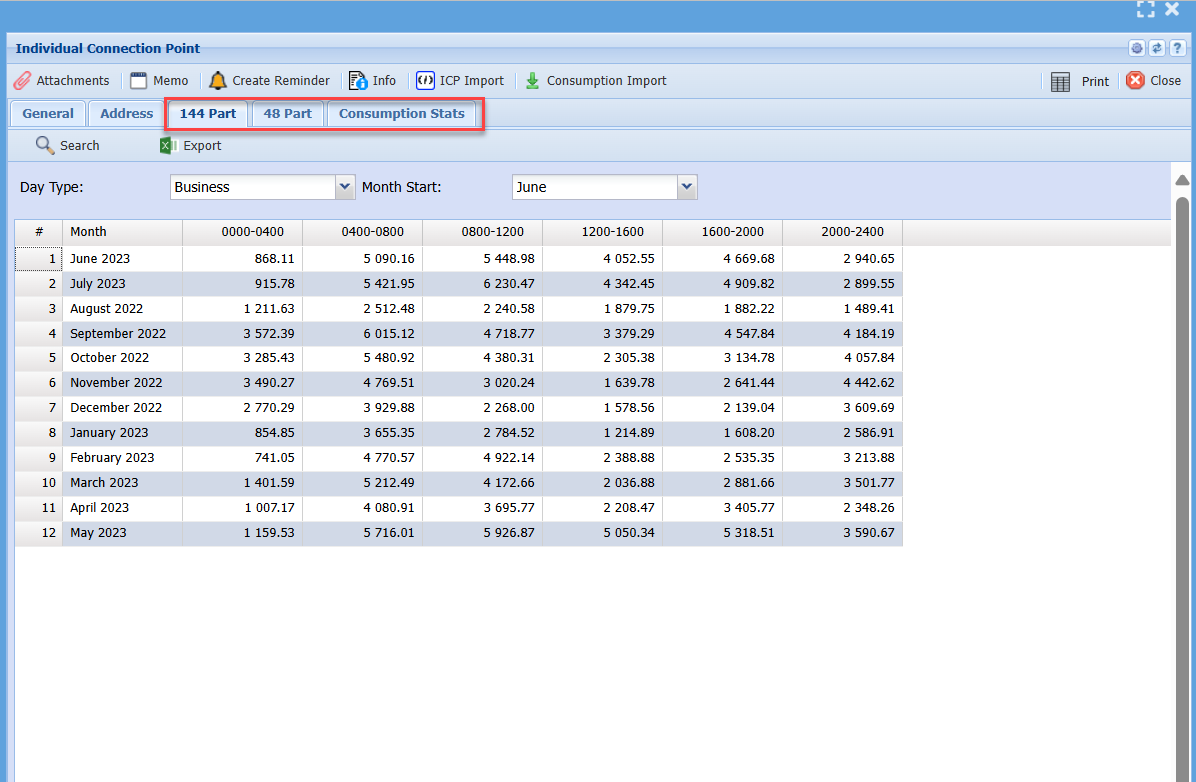
After all the ICPs have been entered and Consumption data imported.
Save and Close and go back to the RFP
Retailer Quotes
Go to the retailer quotes tab to enter all your retailer quotes
Click on Add to add the quotes
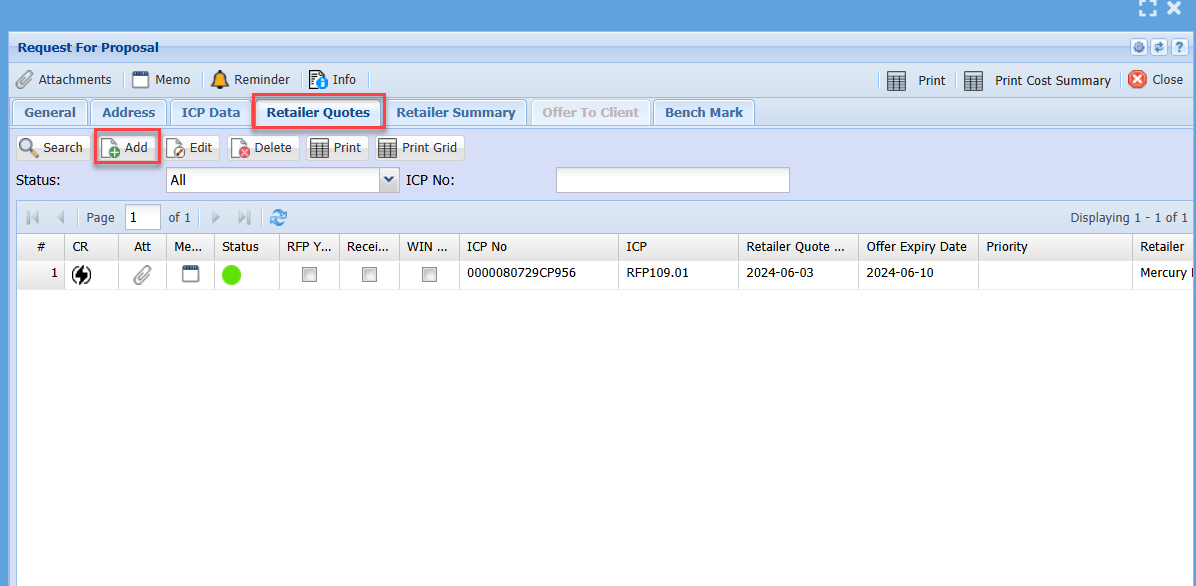
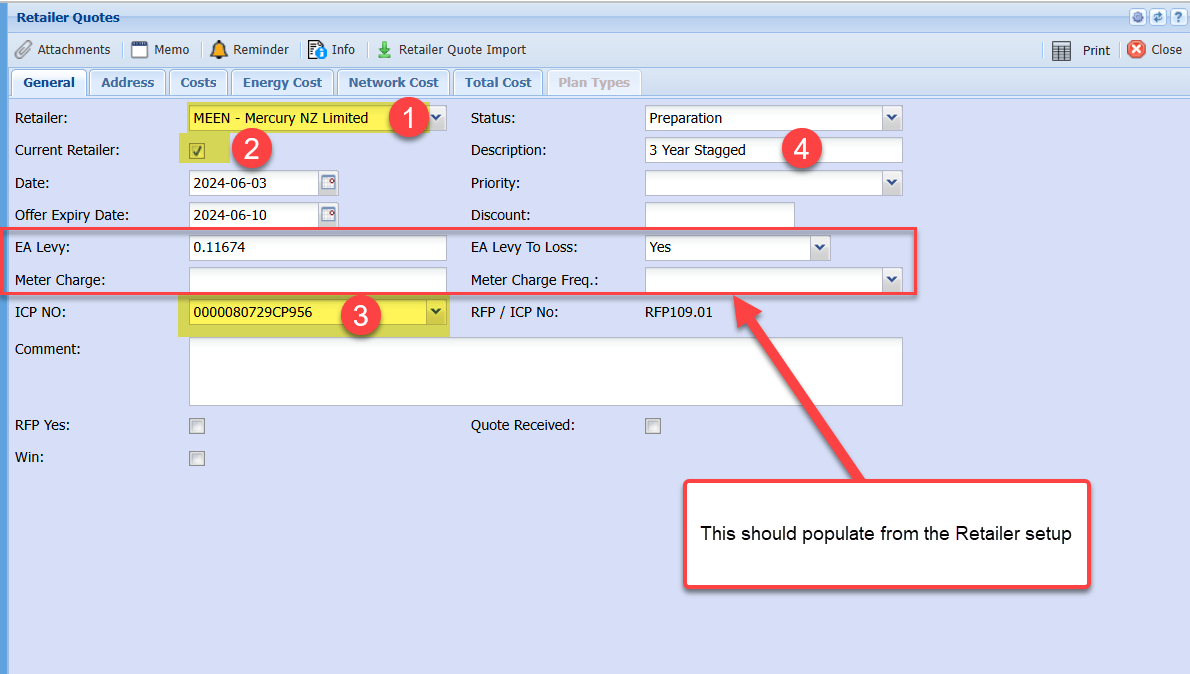
Enter the Retailer that the quote is for.
If this is the current retailer, put a tick on
Select the ICP that this quote is for
Put in a description
EA Levy and Meter charge will populate from Retailer selected
After you have saved, tabs become available
Retailer Quote Import
Prepare the import file from the Retailer Quote
See sample file - Retailer quote import.xlsx
Enter both WD and WE OR BD and NBD
under each other
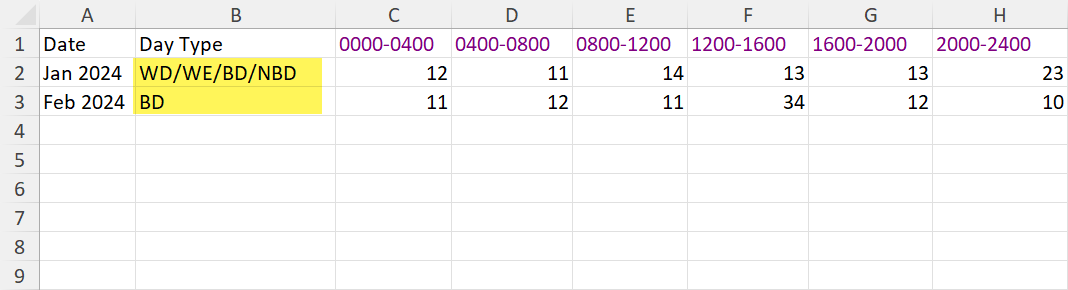
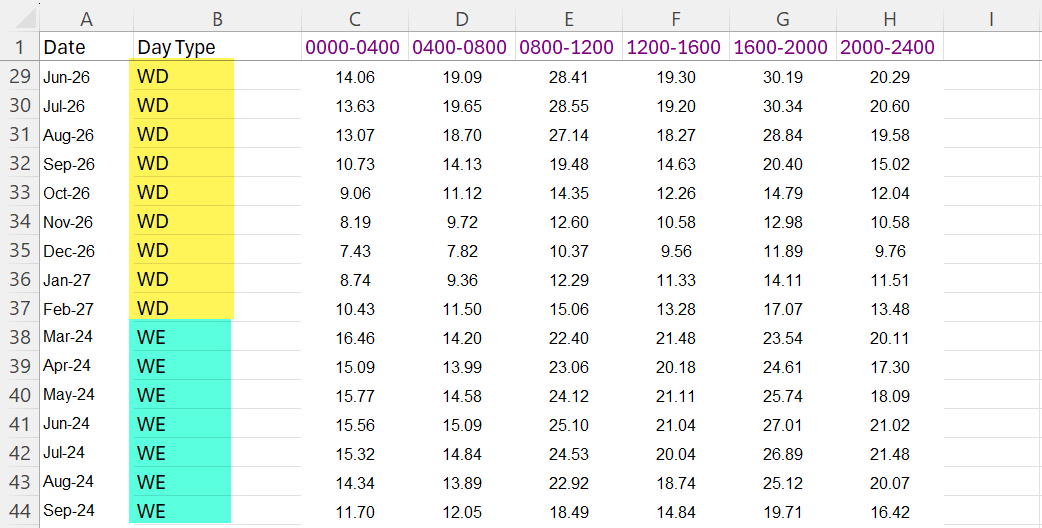
Here is a sample of a 3 Year Stagged file
Sample attached - Mercury 2-3yr.xlsx
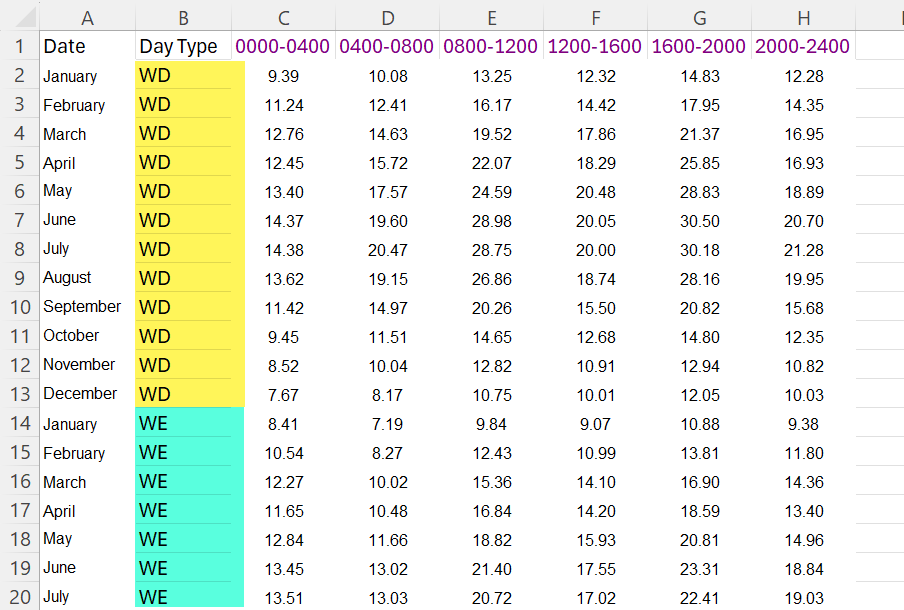
Here is a sample of a 5 year flat file
Sample Attached - Mercury 5yr Flat.xlsx
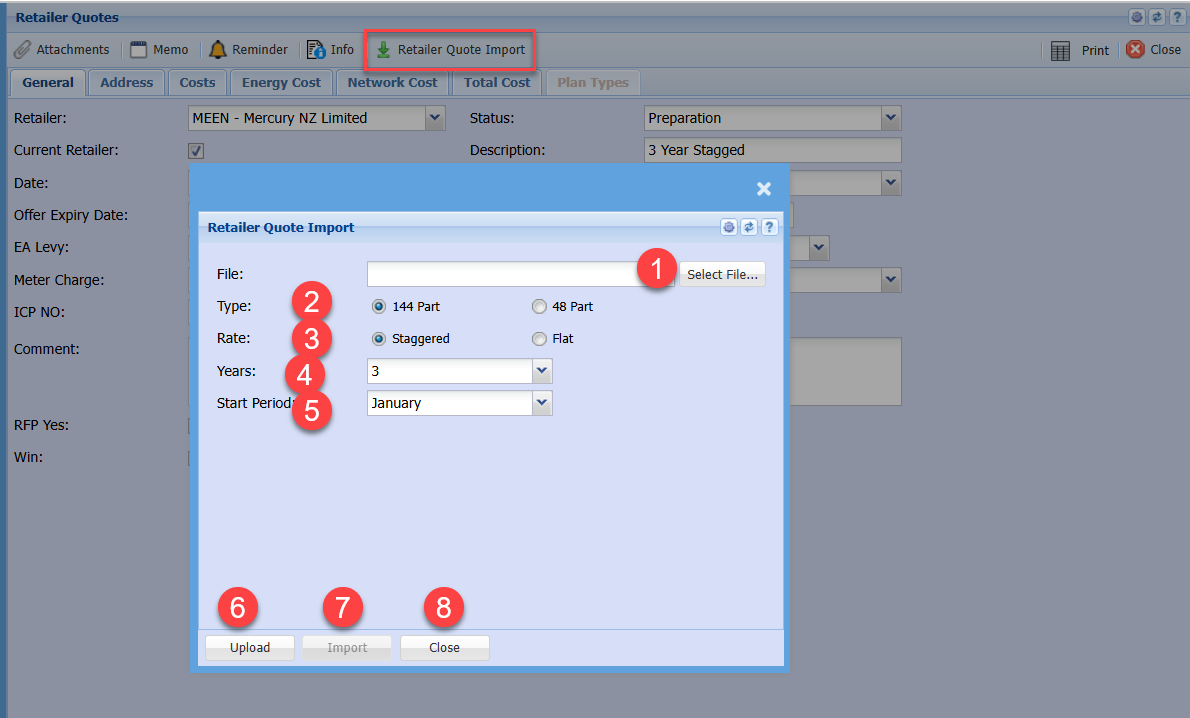
Once the Excel files are prepared, go to Retailer quote import
Fill in the information as to the Type, Rate, Years and Start Period
Then Upload and Import
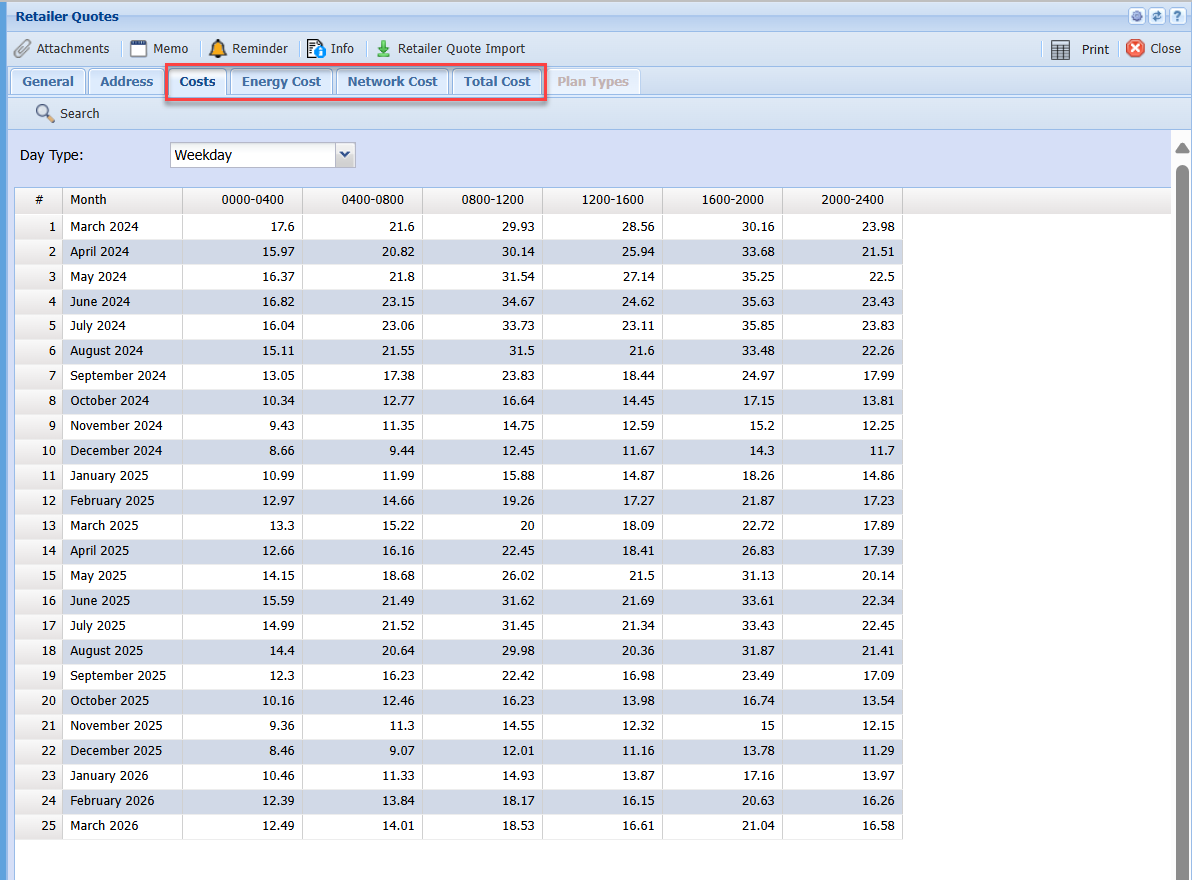
After import is done, it will populate all Tabs with cost data
- Costs
- Energy Cost
- Network Cost
- Total Cost
Retailer summary
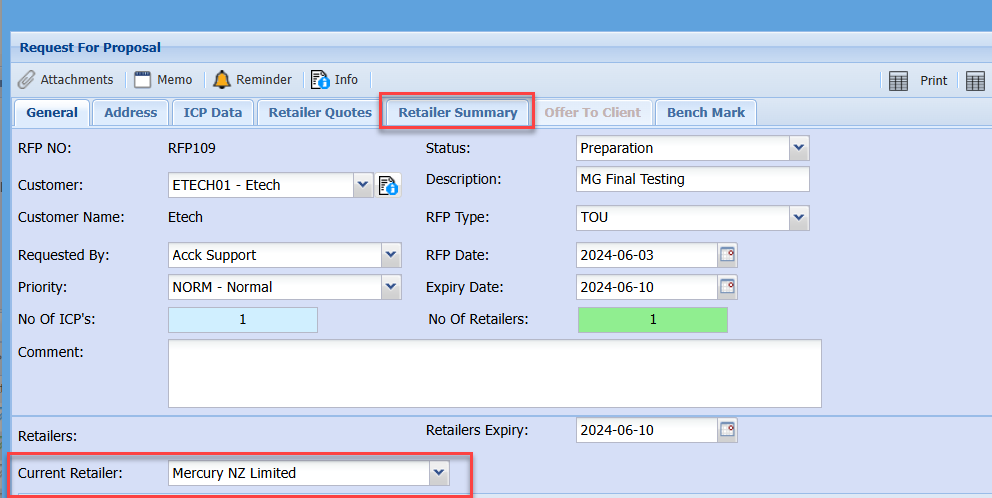
In order for the Retailer Summary and Benchmarks to work
The Current Retailer needs to be set.
This will show all the information on the various Retailers
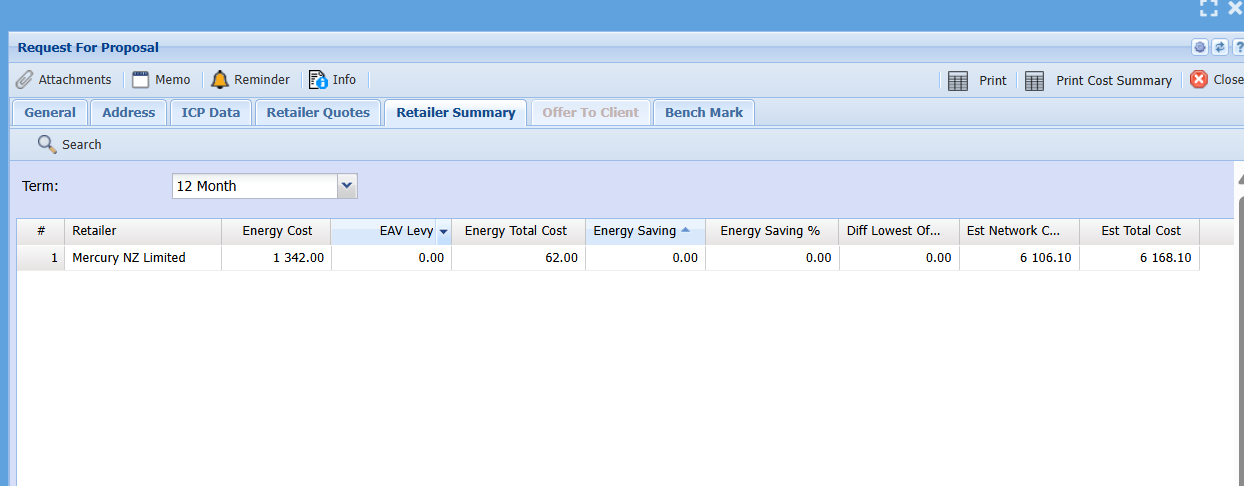
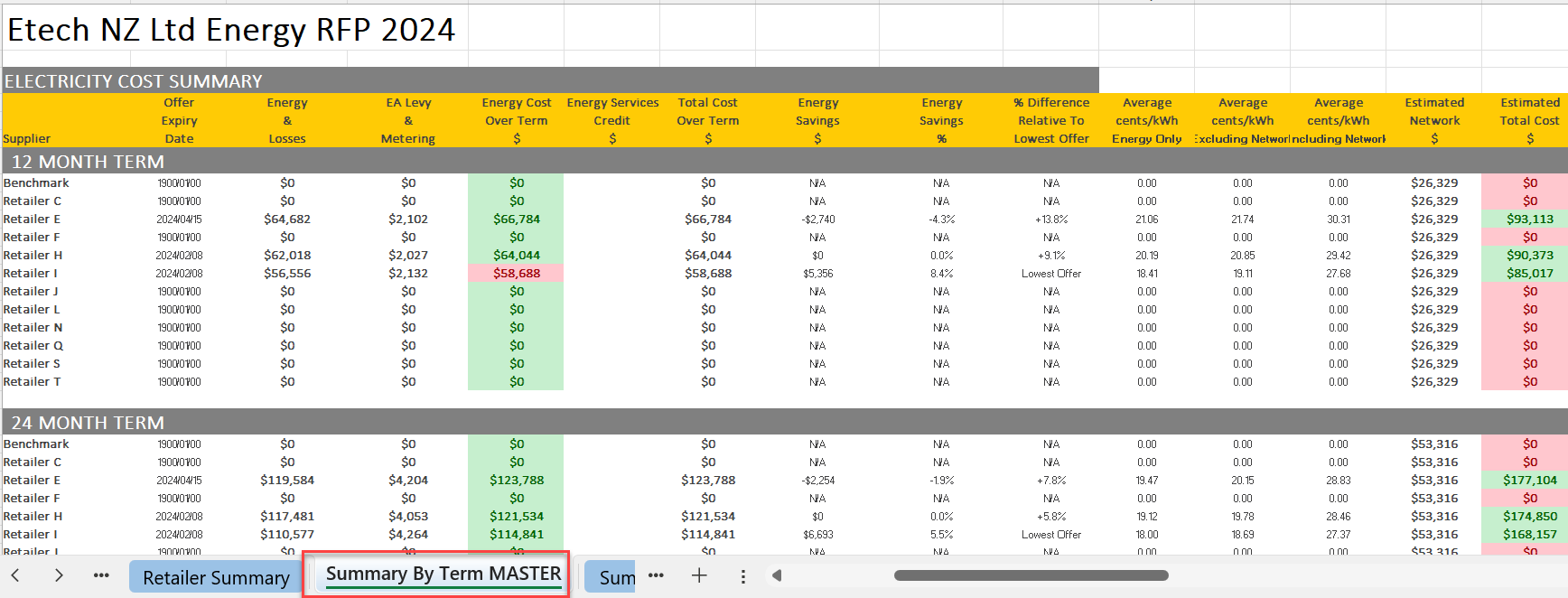
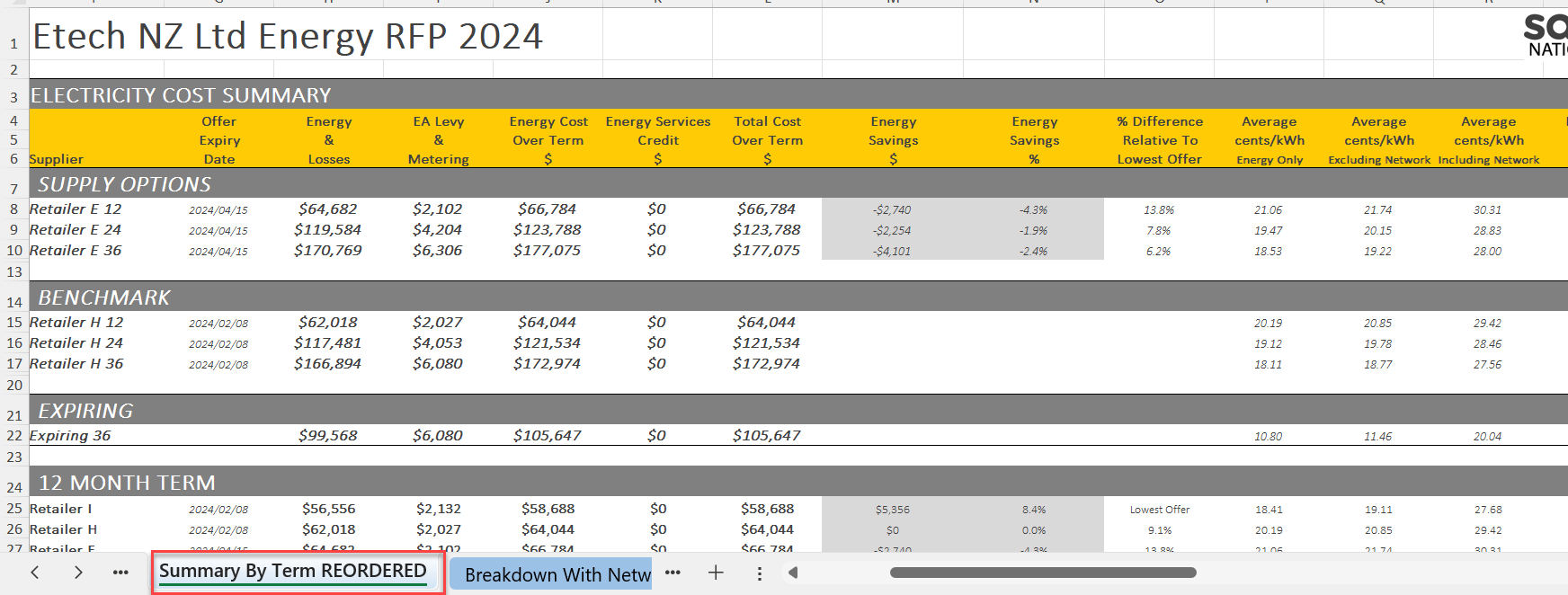
This is similar to your Excel sheet for Summary by Term Master
Benchmark
This shows the information on the various levels of benchmark
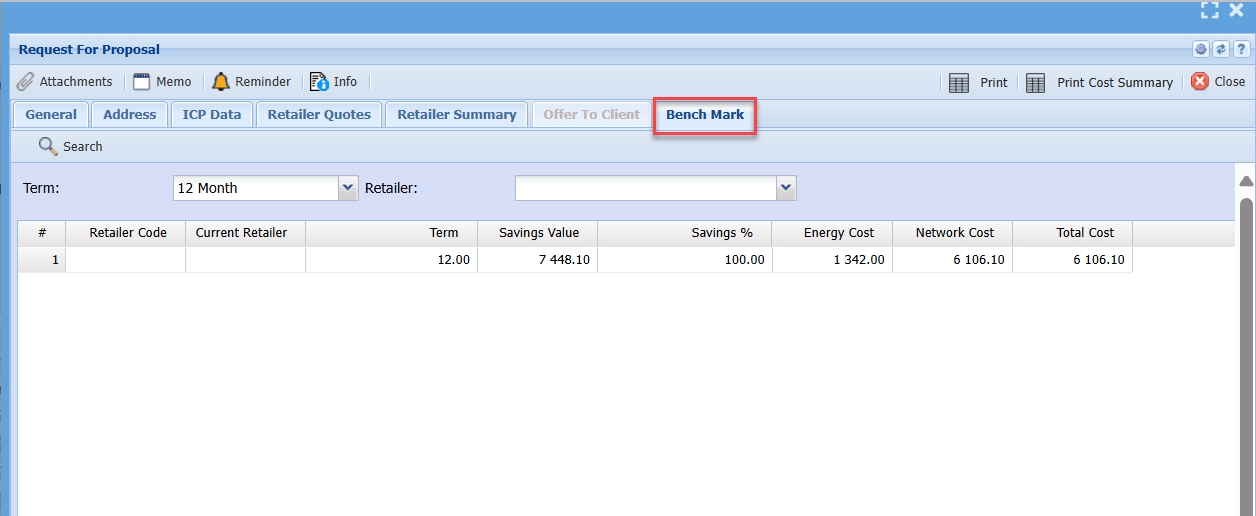
This is similar to Summary by Term
Individual Connection Point ICP
ICP Data
Go to the ICP Data tab
Click on Add to add in ICP.
Enter the ICP number and save
ICP Import (Scrape)
Then click on the ICP import
This will update the various information, click on save again
Consumption data import
Once you have fixed the spreadsheet, make sure it is in this format
A sample of the Excel file is attached - Consumption Data Import.xlsx
Import the consumption data
Find the file to import
Make sure the Excel sheet is saved and closed before importing
After the file is imported, it will update the following tabs
- 144 Part
- 48 Part
- Consumption Stats
After all the ICPs have been entered and Consumption data imported.
Save and Close and go back to the RFP
ICP Import for Consumption data
Import data from current retailer for Consumption data
Fix data with Day Light savings before importing
See attached Sample file - Consumption Data Import_ June 2024.xlsx
Retailer Quotes
Adding retailer quotes into the RFP
Go to the retailer quotes tab to enter all your retailer quotes
Click on Add to add the quotes
Enter the Retailer that the quote is for.
If this is the current retailer, put a tick on
Select the ICP that this quote is for
Put in a description
EA Levy and Meter charge will populate from Retailer selected
After you have saved, tabs become available
Retailer Quote Import
Prepare the import file from the Retailer Quote
See sample file - Retailer 5yr Flat.xlsx
Enter both WD and WE OR BD and NBD
under each other
Here is a sample of a 3 Year Stagged file
Sample attached - Retailer 2-3yr.xlsx
Here is a sample of a 5 year flat file
Sample Attached - Mercury 5yr Flat.xlsx
Once the Excel files are prepared, go to Retailer quote import
Fill in the information as to the Type, Rate, Years and Start Period
Then Upload and Import
After import is done, it will populate all Tabs with cost data
- Costs
- Energy Cost
- Network Cost
- Total Cost
Retailer Quotes Import
Prepare the import file from the Retailer Quote
See sample file - Retailer quote import_Test Run.xlsx
Enter both WD and WE OR BD and NBD
under each other
Here is a sample of a 3 Year Stagged file
Sample attached - Retailer 2-3yr.xlsx
Here is a sample of a 5 year flat file
Sample Attached - Retailer 5yr Flat.xlsx
Once the Excel files are prepared, go to Retailer quote import
Fill in the information as to the Type, Rate, Years and Start Period
Then Upload and Import
After import is done, it will populate all Tabs with cost data
- Costs
- Energy Cost
- Network Cost
- Total Cost
Retailer Quote Import NHH
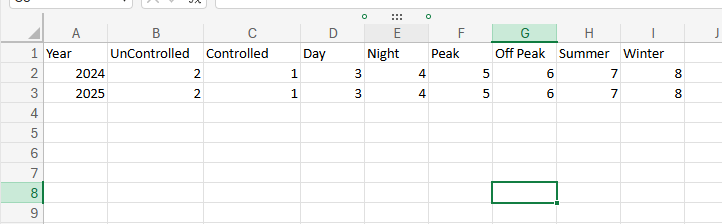
Import layout for Retailer Quote Import for NHH values
One needs to repeat the values per year.
Example, if you want three years of data, repeat the values 3 times per year
Sample import - Retailer Quote NHH Import.xlsx
ICP - Individual Connection Point
ICP Search
Search for all ICPs on every RFP Document