# Time Tracker Log
# Time Tracker Clocks
Video training manual 2016 - [Click Here](https://vimeo.com/357000741)
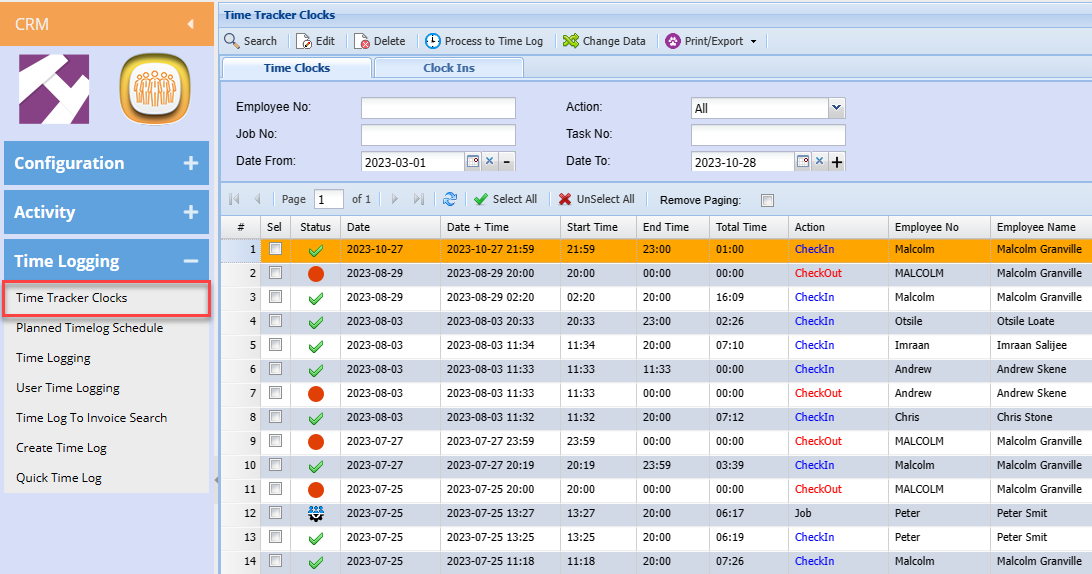
** CRM>Time Logging>Time Tracker Log**
Note:
This has moved from System Configuration Module
[](https://hugeerp10.co.za/hsofmanual/uploads/images/gallery/2023-10/G0Jimage.png)
It’s a method for recording the amount of a worker’s time spent on a job
All buttons are at the top of the window
Search button - As per the criteria entered or selected in the items on the Detailed panel or the Custom Search panel
Add button - Add a new time log
Edit button - Edit a selected time log from the grid
Cancel button - Cancel a selected time log from the grid
Process button - Process button is a split button with additional buttons listed below it
Process To Invoice - Allows the user to process particular time logs to an invoice
Add To Job - Allow the user to process a particular time log to a job This button is only available if the time log has been setup accordingly.
Flag All for Invoice - Allows the user to flag a selected subset of time logs for invoicing based on the search criteria
Flag All for Archive - Allows the user to flag a selected subset of time logs for archiving based on the search criteria
Print button - Print button is a split button with additional buttons listed below it
Print - Prints the selected time log detail
Print Grid - Prints the selected subset of time log in a grid report
Export - Exports the selected subset of time logs to an Excel format
Detailed Tab Search
Search according to the selection made
Debtor – search by debtor
SLA – Search by selecting the SLA customers from the drop down arrow
Employee – search by selecting the employee from the drop down arrow
Date From – Enter the date from which the time log search should run from
To Date – enter to date to limit the time log run
Custom Fields Tab
Select the category rom the drop down arrow
# Time Tracker Clock Job
When clocking for Checkin and Jobs, one is able to use this window outside of the system to capture time.
.....\\wab\\acck\\TimeTracker.csp
.png)
# Time Tracker Setups
Before starting to use the time tracker clock, some setups need to be done
Make sure that Codes are more than 5 characters long and letters need to be in capital
1.User setup with barcodes
2.Contract tasks setup
3.Inventory service items setup
Setup your users with Barcodes
.png)
Make sure that you have setup your contracts and SLA maintenance tasks
These tasks will be used on the Time Tracker clock
.png)
Setup some inventory service items which link onto the job with a budget quantity
These are used to link the time logs to the specific job line, otherwise it will create a new line on the job.
If it creates a new link, you cannot compare your budget to actual time
.png)
# Setup quotes and jobs ready for Time Tracker
It is a good idea to setup a quote with estimated values that is going to be taken over to the job
.png)
Prompted quotes to job
Assign specific line items to appear on your barcode print out
Put the tick on for Time Log Link Barcode - This tick tells the Barcode printout to put that item on the barcode printout
.png)
# Barcodes Prepare
One would need to setup barcodes for the following:
1.Employee / user list of barcodes
2.Contract tasks to be used
3.Existing active jobs
4.Job Line Links for each job
An Excel sheet with barcodes can be used to set this up.
The barcode font39 needs to be installed on your computer
.png)
Jobs for the week created print out
Use the Job barcodes to print out new job numbers with their job line links
.png)
# Clock In Monitor
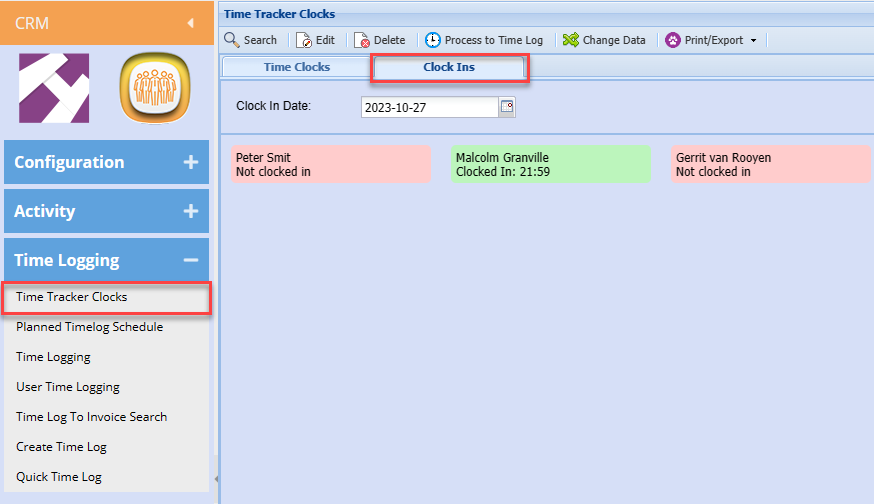
View all users that have clocked in for the day and those that have not
View what jobs the users are working on currently
[](https://hugeerp10.co.za/hsofmanual/uploads/images/gallery/2023-10/BUuimage.png)
| **Green** | Clocked in for day |
| **Red** | Not clocked in |