Time Logging
- Time Log
- Add or Edit Time Log
- Details 2
- Travel Expense Tab
- Invoice Line Tabs
- Custom Fields Tab
- Timelog to Outlook Calendar
- Timelog Time Increments
Time Log
Video manual training 2016 - Click Here
.png)
It’s a method for recording the amount of a worker’s time spent on a job
Search button - As per the criteria entered or selected in the items on the Detailed panel or the Custom Search panel
Add button - Add a new time log
Edit button - Edit a selected time log from the grid
Cancel button - Cancel a selected time log from the grid
Process button - Process button is a split button with additional buttons listed below it
Process To Invoice - Allows the user to process particular time logs to an invoice
Add To Job - Allow the user to process a particular time log to a job This button is only available if the time log has been setup accordingly.
Flag All for Invoice - Allows the user to flag a selected subset of time logs for invoicing based on the search criteria
Flag All for Archive - Allows the user to flag a selected subset of time logs for archiving based on the search criteria
Print button - Print button is a split button with additional buttons listed below it
Print - Prints the selected time log detail
Print Grid - Prints the selected subset of time log in a grid report
Export - Exports the selected subset of time logs to an Excel format
Detailed Tab Search
Search according to the selection made
Debtor – search by debtor
SLA – Search by selecting the SLA customers from the drop down arrow
Employee – search by selecting the employee from the drop down arrow
Date From – Enter the date from which the time log search should run from
To Date – enter to date to limit the time log run
Custom Fields Tab
Select the category rom the drop down arrow
Add or Edit Time Log
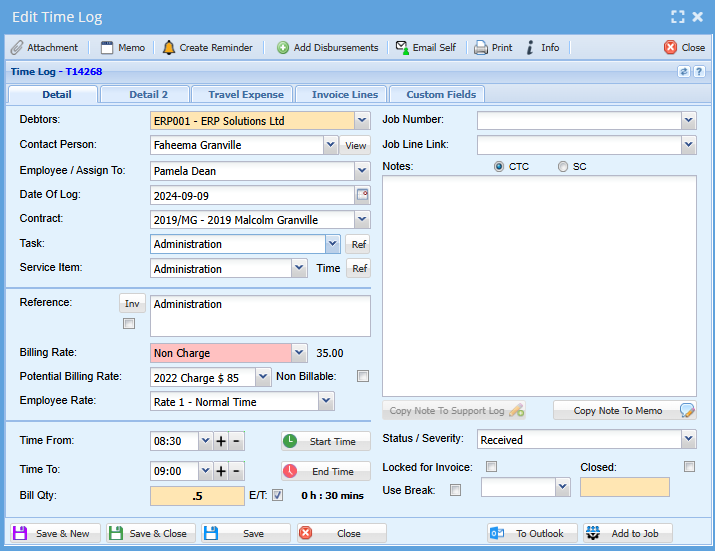
Details:
|
Details |
|
|
Debtor |
Select the debtor |
|
Contact Person |
Your Superior/Manager |
|
Employee |
Select the employee responsible for the Time Log |
|
Date Of Log |
Select/enter the date for the Time Log |
|
Contact |
|
|
Task |
Select the desired task or type of work you are doing at this time |
|
Service Item |
Select the desired Service Item for the Time Log |
|
Reference |
Enter a brief description/reference (The tick box next to the Reference field, when tick will automatically copy the contents of the Reference field to the Notes field and add it to the beginning of the notes in the Notes field if there are already any notes entered there.) |
|
Billing rate |
Select the desired task |
|
Potential Billing Rate |
What you could charge for this task |
|
Non-Billable |
Tock box you could tick if this is not a chargeable task |
|
Employee Rate |
What this time spent costs the company (Employee hourly rate) |
|
Service Level Agreement |
Select the desired SLA. Only SLA that are related to this Debtor will be available for selection. |
|
Time From |
Time when the Time Log was started |
|
Time To |
Time when the Time Log was ended / finished |
|
Bill Qty |
This will auto populate the house when you have added your to and from time |
|
Job Number |
To allocate this time to a specific job |
|
Job Line Link |
To link this time to a specific task |
|
Notes |
To add notes to a job |
|
Status / Severity |
This refers to the status of the job completed at this time (Closed, pending etc) |
|
Locked for invoice |
This time log is locked as its being invoiced |
|
Use Break |
|
Details 2
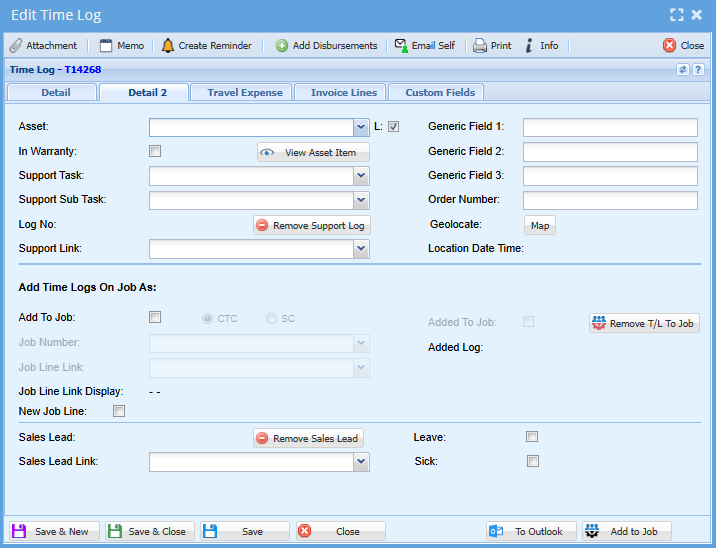
| Details 2 | (This is where you add your sick leave or annual leave) |
| Asset | |
| In Warranty | |
|
Support Task |
|
| Support Sub Task | |
| Log No. | |
| Support Link | |
| Generic Field 1-3 | Text field to add your own note |
| Order Number |
Should you have received an order number for the task you are doing at this time |
| Geolocation | Maps to add where you were |
| Location Date and Time | |
| Add Time Logs on Job as: | |
| Sales Lead Link | You can add a link here form a sales lead that has lead to this time being done |
| Leave | Tick the tick box if you had annual leave on this specific day |
| Sick | Tick the tick box if you were sick on this day |
Travel Expenses
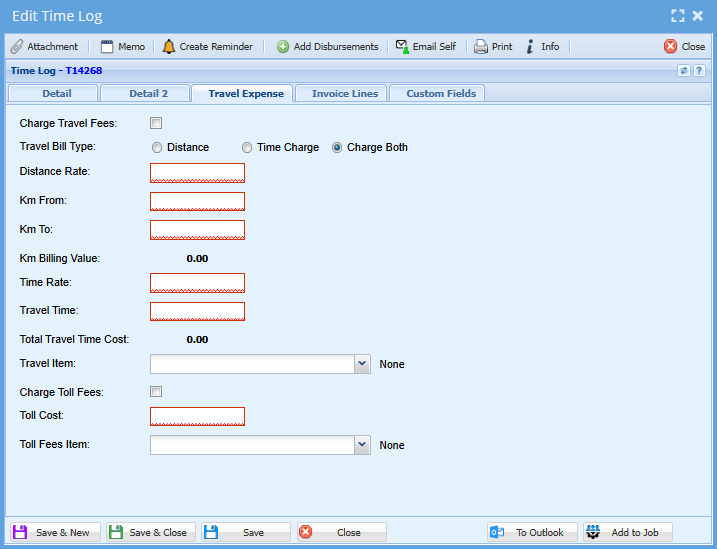
| Charge Travel Fee | Tick the tick box if travel fee applies |
| Travel Bill Type | Choose if this is a time charge or if you charge per KM or for both |
| Distance Rate | Dollar charge per km |
| Km From: | Add area traveling |
| Km to: | Add area you are traveling to |
| Km billing Value | This will be auto calculated with the above information |
| Time Rate: | Add your hourly rate |
| Travel Time: | Add how many hours your travel was |
| Total Travel Time Cost | This will be auto calculated with the above information |
| Travel Item: | Here you can add what the travel was for (Sales, admin, consulting) |
| Charge Toll Fees: | Tick the box if you crossed any toll roads |
| Toll fee item: | Here you can add what the travel was for (Sales, admin, consulting) |
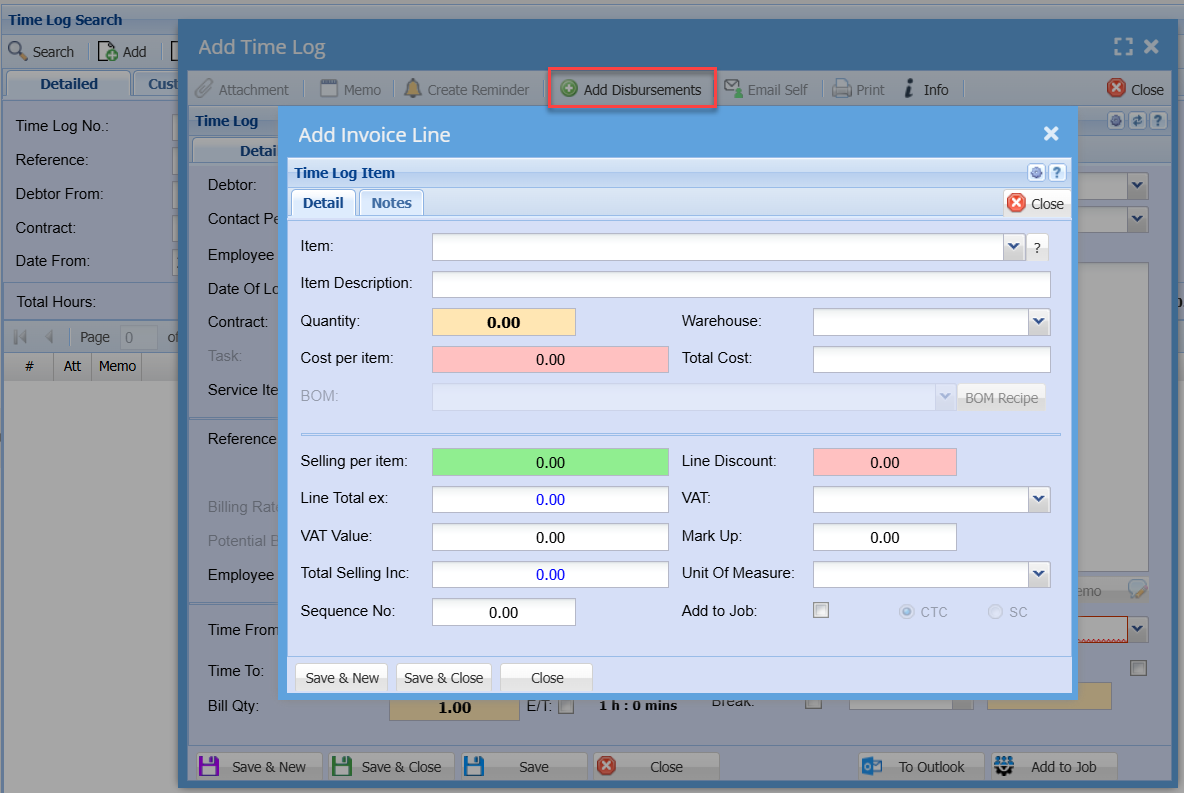
Add Disbursements
Details 2
Add or Edit Time Log
.png)
Details Tab 2
|
|
|
|
Support task |
Select the desired Task |
|
Support Sub Task |
Select the desired Sub-Task |
|
Log No |
Support Log Number - in the event that this Time Log was created from a Support Log then the Support Log Number will be displayed here. |
|
Add To Job |
Allows the user to capture labour time for the selected Debtor onto a Job. The job must be either started or not started and related to this selected Debtor. |
|
CTC / SC |
Specifies whether the labour will be add to the job as Cost To Company or Scope Creep |
|
Job Number |
Select the applicable Job number. Only Jobs that are related to the selected Debtor will be available for selection. |
|
Employee Rate |
Select the desired Employee Rate. |
|
|
|
Travel Expense Tab
Add or Edit Time Log
.png)
|
Travel Expenses Tab |
|
|
Charge Travel Fees |
Tick if Travel Fees are to be charged |
|
Travel Bill Type |
Select either Distance or Time Charged |
|
Distance Rate |
A distance value to be used in the calculations of a travelled billing value |
|
Kilometres From |
Enter the Starting kilometres value |
|
Kilometres To |
Enter the Ending kilometres value |
|
Kilometres Billing Value |
A calculated value to be billed |
|
Time Rate |
A time value to be used in the calculations of a time travelled billing value |
|
Travel Time |
Time duration of the journey |
|
Total Travel Time Cost |
A calculated travel time value to be billed |
|
Travel Item |
Select the appropriate inventory item for travel |
|
Charge Toll Fees |
Tick if Toll Fess are to be charged |
|
Toll Cost |
Toll Fee value |
|
Toll Fee Item |
Select the appropriate inventory item for toll fees |
|
Delete button |
Allows a user to delete a time log item |
Invoice Line Tabs
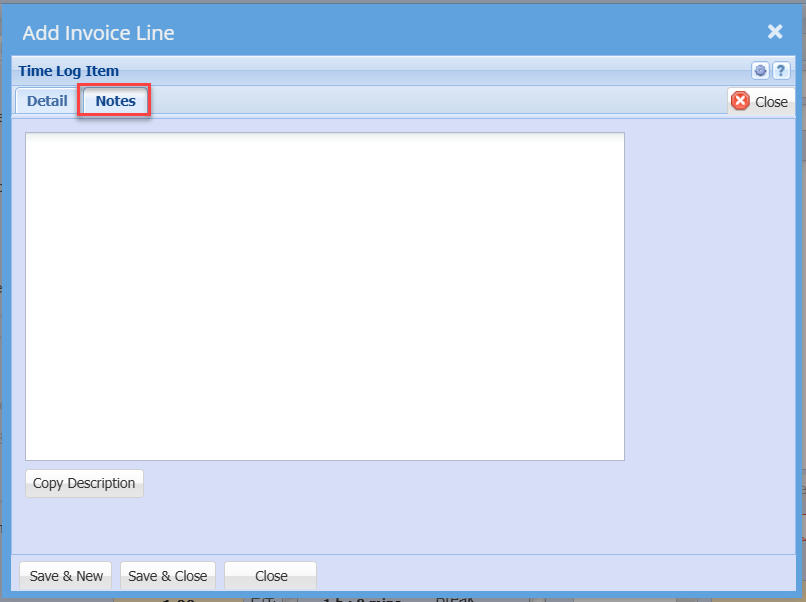
.png)
|
Invoice Tab |
|
|
Add button |
Allows a user to add an invoice associated with the time log |
|
Edit button |
Allows a user to make changes to the time log item |
|
Delete button |
Allows a user to delete a time log item |
|
|
|
|
Custom Fields Tab |
Select category from the drop down arrow and save |
|
|
|
Custom Fields Tab
.png)
|
Custom Fields Tab |
Select category from the drop down arrow and save |
|
System buttons |
|
|
Save button |
Save the Time Log |
|
Save And New button |
Save the Time Log and open a new Time Log |
|
Save And Close button |
Save the Time Log and close Time Log |
|
Close button |
Close Time Log |
|
Attachment button |
Open Attachment window for managing attachments |
|
Print button |
Print current Time Log |
Timelog to Outlook Calendar
Video training manual 2019 - Click Here
Creating time logs and pushing these to your outlook calendar.
It is a great way to get your staff to first capture in the system and then push it to the outlook calendar.
This way your time logs are up-to-date and you reduce having to double enter.
.png)
Timelog Time Increments
Time log time increments are defaulted to 5 minutes up or down.
The increments can be set under the Time Tracker Config
Time can be set for 10 minutes or 15 minutes or 30 minute intervals
.png)