DGL Reports
- Financial Performance Menu
- Trial Balance Menu
- Financial Position Menu
- Audit Trail Menu
- GL Report List Menu
- Account List
- Balance Enquiry
- BankIt Report
- Cash Book Report
- Cash Flow Report
- Customer Link Financial Performance
- Export Bank Manager Data
- Financial Performance by Cost Centre
- Financial Performance by Period
- Financial Performance Summary Report
- Financial Performance with Cost Centres
- General Ledger Budget Summary
- GL Cashbook Recon Report
- GL Cashbook Report
- GL Journal Report
- GL Transaction Report
- GL Transaction Report (No1)
- GL Transaction with Balances (No2)
- GL Tree Report
- Ledger Graph
- Post Dated Cheques
- Project Group Profit and Loss Report
- Project Line Profit and Loss Report
- Report Displaying All Unprocessed Documents
- Sales Profit Analysis
- Statistics Report
- Trial Balance By Period
- View the Transaction Lines for a Specific Document
- Dashboard Display Menu
- Report Request Menu
- VAT / GST Reports Menu
Financial Performance Menu
Financial Performance (Income Statement)
Run a quick view of your financial Performance, Profit and Loss or Income statement report
Go to General Ledger Module > Reports > Financial Performance
.png)
Check that you are running the correct date range
The system defaults to Level 1, should you wish to see more details on your income statement change this to higher levels.
Print Type – is set to standard layout by default, one can change this to see Budget View, Year to Date and compare a period last year.
Click on the search button.
On screen is a summary of your Financial Performance , on the right column the system gives you the year to date figures.
Click on the Print button to view the Financial Performance
The user can click on the account name to view related transaction that amounted to the figures shown.
.png)
.png)
Trial Balance Menu
Trial Balance Report
Run the Trail balance report
General Ledger>Reports>Trial Balance
.png)
Check that you are running the correct date range
Click on Search Button
The on-screen sorts by Name A-Z by default.
To change this to sort by Account Type click on the Account Type Column Header.
.png)
Click on the Print button to view the Trial Balance.
.png)
.png)
Financial Position Menu
Financial Position (Balance Sheet) Report
General Ledger>Reports>Financial Position
.png)
The statement of financial position (sometimes called the balance sheet) presents an entity’s assets, liabilities and equity as of a specific date—the end of the reporting period.
The statement of financial position can be searched and printed by using the Search button and the Print button.
To search for a certain statement of financial position, the user has to select from the drop down arrows necessary fields
The user must check that he/she is running the correct date range
The system defaults to Level 1, should the user wish to see more details on the statement of financial position, change this to higher levels.
When searching, on the screen is a summary of statement of financial position.
Click on the Print button to view the statement of financial system
After printing to screen, one can print to a printer, email the document or copy to clipboard to take to Excel.
View Detail
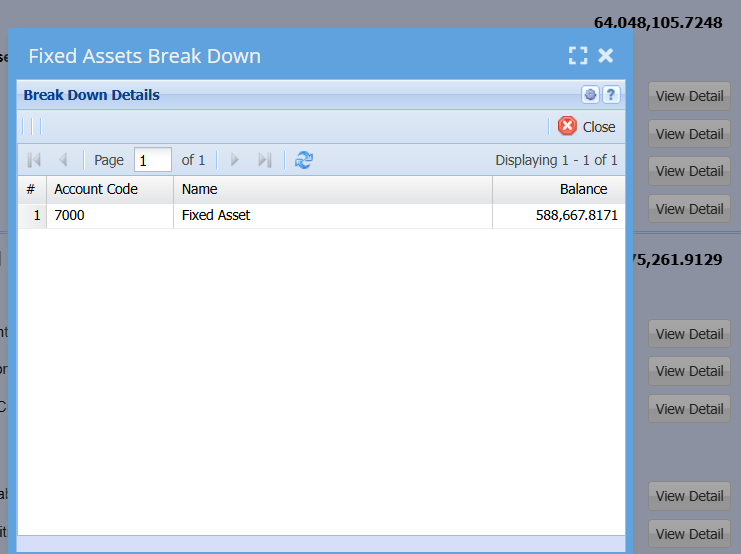
Audit Trail Menu
Audit Trail
Run the audit trail to which shows all transactions in the system.
- Verify transactions
- Look at audit trail number
- Check for out of balance entries
- Look for Audit date different from transaction date
General Ledger>Reports>Audit Trail
.png)
.png)
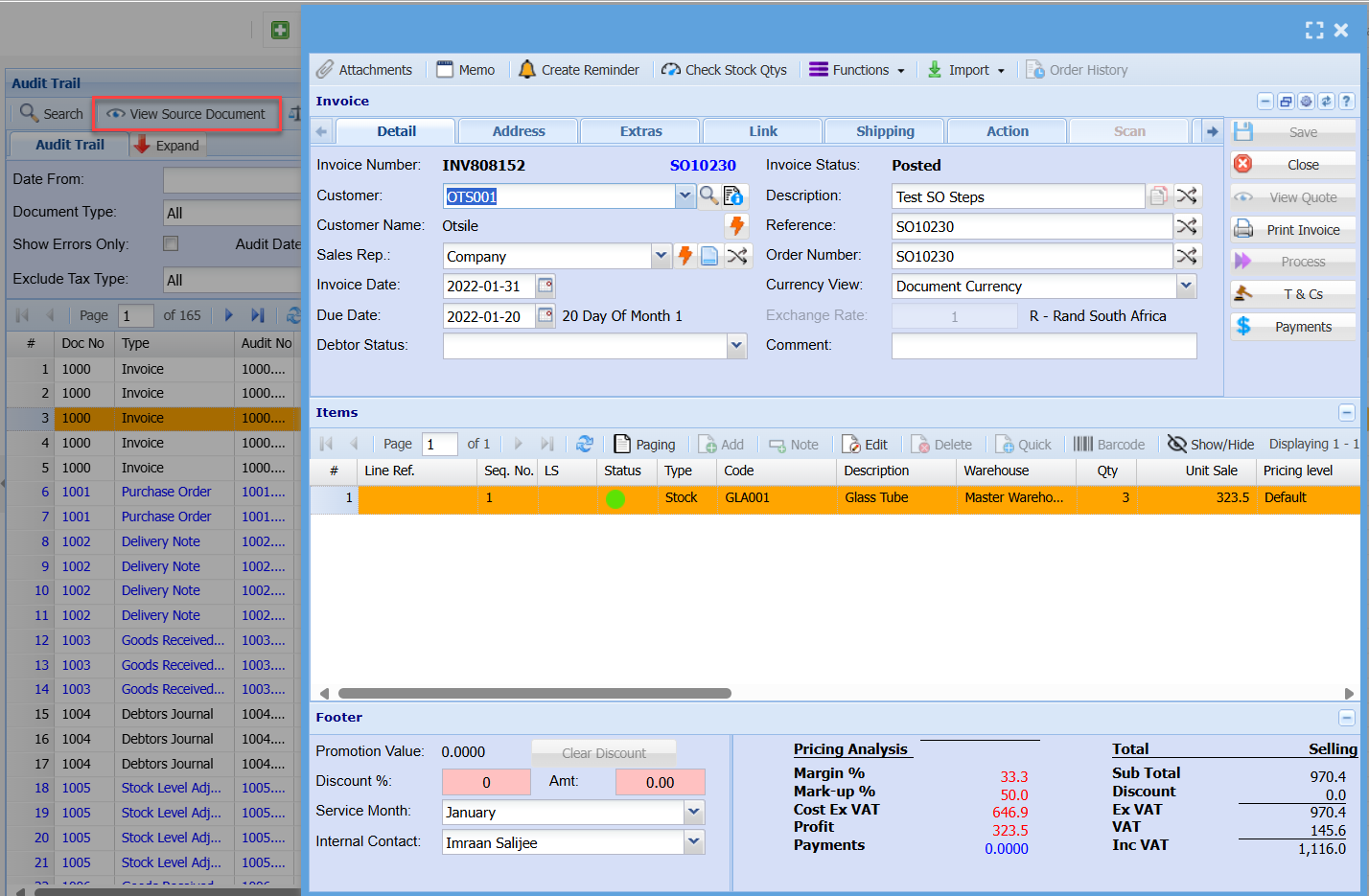
View Source Document

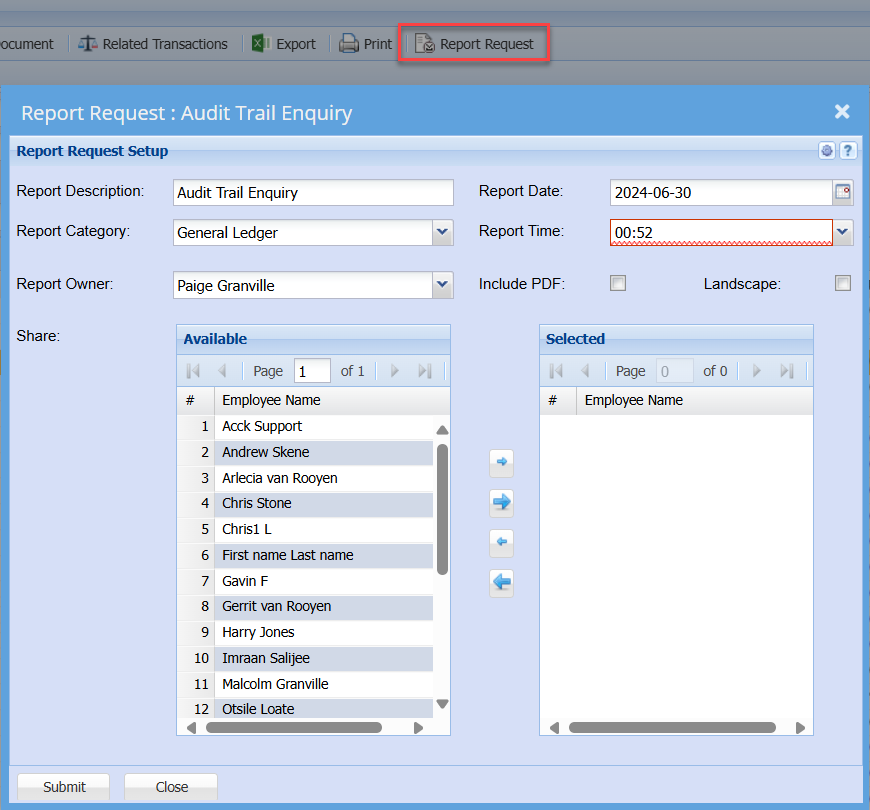
Report Request
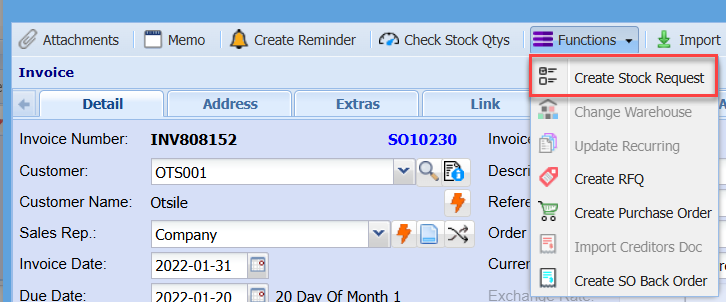
Keyboard quick keys for Invoice Detail
Quick keys help access functions using the keyboard
Used with Alt + Letter
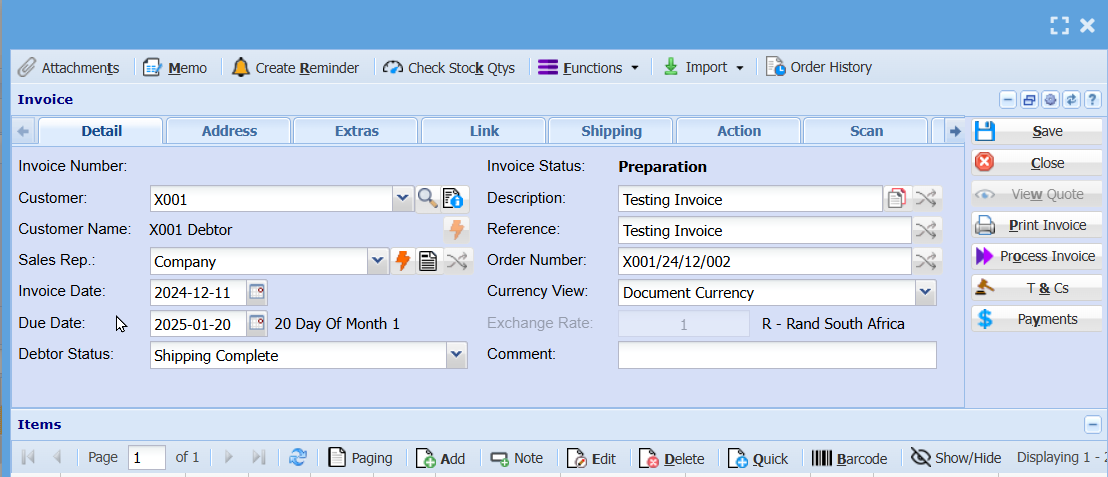
| Attachment | Alt + t | Opens the Attachment window |
| Memo | Alt + m | Opens the Memo window |
| Create Reminder | Alt + r | Opens the Reminder window |
| Check Stock Qtys | Alt + k | Opens the Stock Quantity window |
| Functions | Alt + f | Focus on the Function split button |
| Save | Alt + s | Saves the Invoice |
| Close | Alt + c | Closes the Invoice window |
| View Quote | Alt + w | Opens the quote associated with this invoice |
| Print Invoice | Alt + p |
Print the Invoice |
| Process Invoice | Alt + o |
Process the Invoice |
| T & Cs | Alt + 7 |
Opens the Terms and Conditions setup window |
| Payments | Alt + y |
Opens the Point Of Sale payments process window |
| Add |
Alt + a |
Opens a New Invoice Line Detail window |
| Edit | Alt + e |
Opens the Invoice Line Detail window for the selected invoice line |
| Delete | Alt + d |
Deletes the selected line from the invoice |
| Quick Add | Alt + q |
Opens the quick add window to add an invoice line to the invoice |
| Barcode | Alt + b |
Opens the barcode scan windoe to add an invoice line to the invoice |
| Attachment button | Alt + 0 |
Set the focus to the Attachement button |
| Tab Invoice Detail | Alt + 1 | Sets the tab notebook to the Quote Detail tab |
| Alt + 2 | Pressing Alt + 2 repeatedly will step through the various tabs in the tabnotebook |
Keyboard quick keys for Invoice Line Item Detail
Quick keys help access functions using the keyboard
Used with Alt + Letter


| Inventory Overview | Alt + t | Opens the Inventory Overview window |
| View Image | Alt + i | Opens the View Image window |
| Task Link | Alt + t | Opens the Task Link window |
| Functions | Alt + f | Focus on the Function split button |
| Close | Alt + c | Closes the quote window |
| Reminder | Alt + r | Opens the Reminder window |
| Save & New | Alt + n |
Saves the Quote Item Detail window and opens a new Quote Item window |
| Save & Close | Alt + v |
Saves the Quote Item Detail window and then closes the window |
| Update Cost |
Alt + u |
Updates the cost of the selected item to the latest cost price |
| Recalculate | Alt + l |
Recalculates teh Inventory Item Value |
| Inventory Overview button | Alt + 0 |
Sets the focus on the Inventory Overview button |
| Tab Invoice Item Detail | Alt + 1 | Sets the tab notebook to the Invoice Item Detail tab |
| Alt + 2 | Pressing Alt + 2 repeatedly will step through the various tabs in the tab notebook |
GL Report List Menu
Account List
General Ledger>Reports>Report List
Report on all general ledger accounts and the structure path which have being added to the general ledger Setup.
This is a list of all the accounts
Accounts can be sorted out according to the user’s preference before they are generated
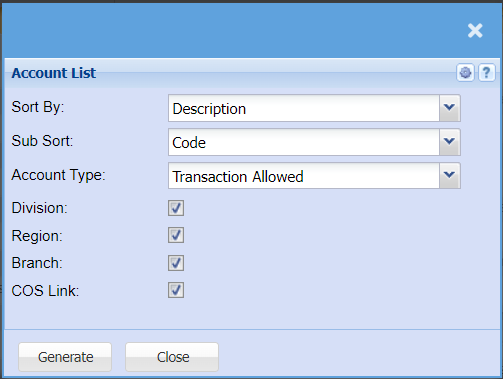
| Sort By |
Sort the report by selecting one option from the drop-down arrow. Options area: by Code, Description, Group Code or Bin Location |
| Sub Sort | Select a sub sort by Code from the drop-down menu to narrow down the search, select from Description, Group Code or Bin Location |
| Account Type | select account type from the drop-down arrow |
| Division | If you have Divisions, this will add Divisions to the report. |
| Region | If you have Regions, this will add Regions to the report. |
| Branch | If you have Branches, this will add Branches to the report. |
| COS Link |
Balance Enquiry
General Ledger>Reports>Report List
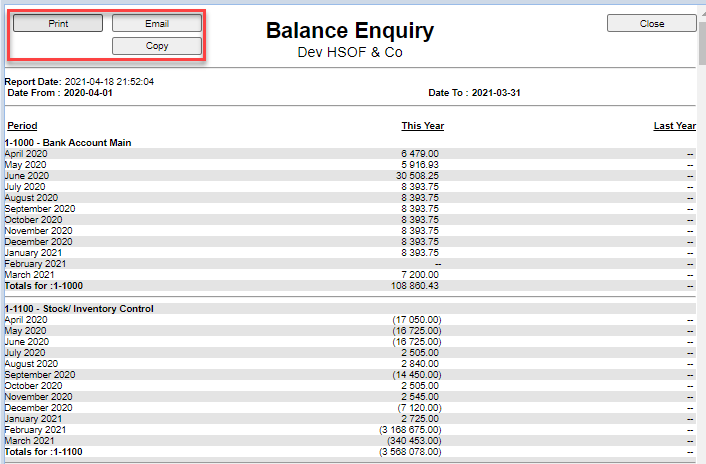
This Report has been modified, will open on chrome and edge.
has no export button as yet but can be copied to excel.
Balances by period for year Financial Year
Report that allows the user to check the performance and balance of the subaccounts
Select account from which the report will run from and the account to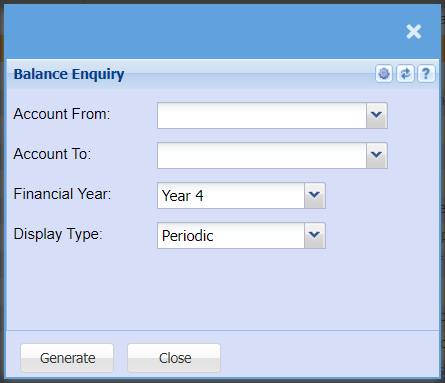
| Account From / To | Select the account from which you want to run the report from and to. |
| Financial Year | select the year for running the report |
| Display Type | to select the type of display form the drop-down arrow |
BankIt Report
General Ledger>Reports>Report List
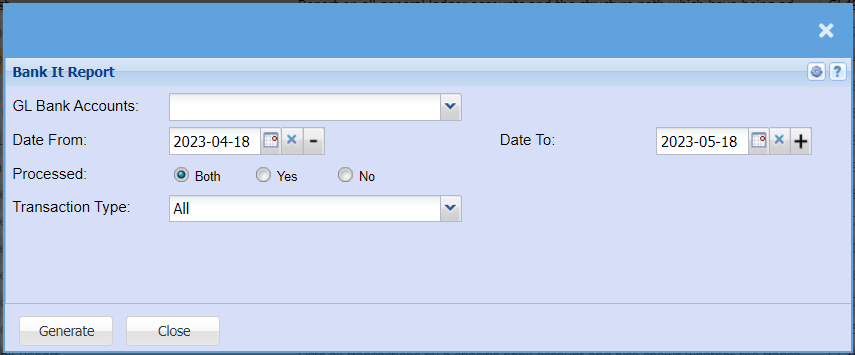
| GL Bank Accounts | Choose the account you want to run the report for. |
| Date From / To | Choose the date range for which you want to view the report from / Select a date range of when you want to see up to on the report. |
| Processed | Select weather you want to run the report for Processed or unprocessed transactions or both. |
| Transaction Type | Select the type of transactions you want to run the report for. |
Cash Book Report
General Ledger>Reports>Report List
Cash Book Report printed from the Cash Book not from the Transaction table.
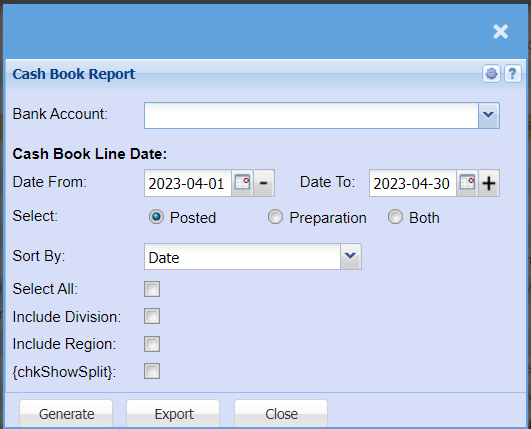
| Bank Account | Select the bank account for which you would like to run the report. |
| Date From / To | Choose the date range for which you want to view the report from / Select a date range of when you want to see up to on the report. |
| Select | Select whether you want to pull a report for Posted transactions, Transactions still in preparation or both. |
| Sort By | Sort the report by selecting one option from the drop-down arrow. Options area: by Code, Description, Group Code or Bin Location |
| Select All | Select all filters |
| Include Division | Include Division in your report |
| Include Region | Include Region in your report |
| chkShowSplit |
Cash Flow Report
General Ledger>Reports>Report List
Cash flow is a financial statement that shows how changes in balance sheet accounts and income affect cash and cash equivalents, and breaks the analysis down to operating, investing, and financial activities.
The user has to select the Year, From Period and To Period in order to generate a report
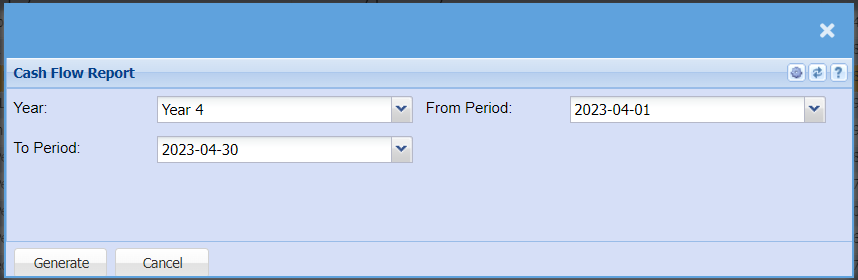
| Year | Select the year you would like to pull a report for |
| From Period / To Period | Select the from and to period for your report. The From Period will always be the first of the month you select and the To Period will always be the last day of that month. |
Customer Link Financial Performance
General Ledger>Reports>Report List
Customer Link financial performance report monthly
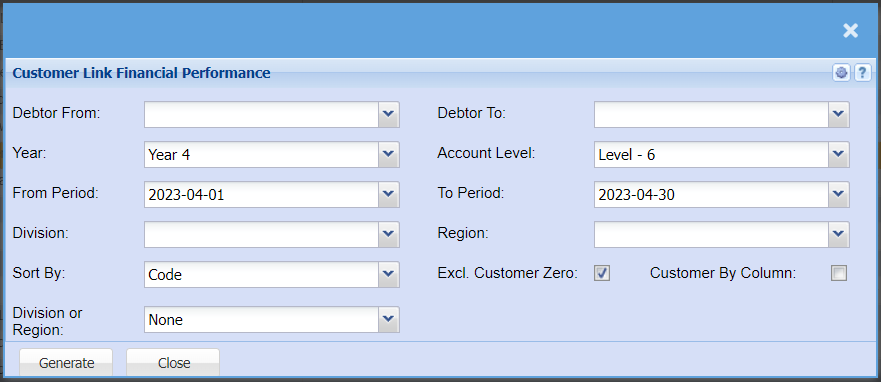
| Debtor From / To | Select a Customer/Debtor you wish to view the report from / Select the Customer/Debtor you wish to see up to in the report. |
| Year | Select the financial year you are running the report for |
| From Period / Period To | Select the period From and the period to from the drop-down arrow |
| Division | If you have multiple Divisions, by selecting this will add this column to your report. |
| Sort By | Sort the report by selecting one option from the drop-down arrow. Options area: by Code, Description, Group Code or Bin Location |
| Division or Region | Select if you are wanting to pull your report by Division or Region |
| Account Level | |
| Region | If you have Regions, this will add Regions to the report. |
| Excl. Customer Zero | |
| Customer By Column |
Export Bank Manager Data
General Ledger>Reports>Report List
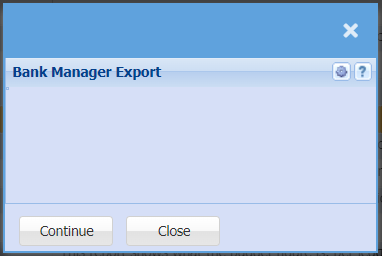
Pressing continue will download the report
Financial Performance by Cost Centre
General Ledger>Reports>Report List
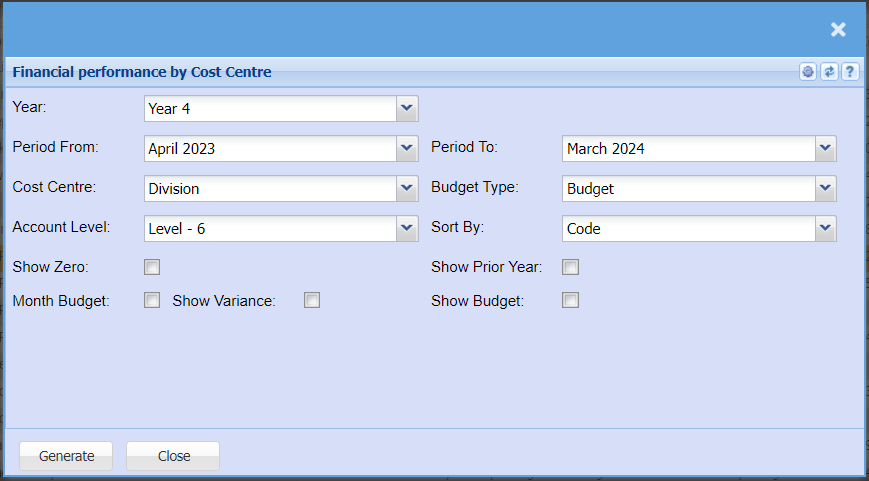
| Year | Select the financial year you are running the report for |
| Period From / Period To | Select the period From and the period to from the drop-down arrow |
| Cost Centre | Select which cost centre you want to enable for division and region. Division and region is disabled until a cost centre is stipulated |
| Account Level | Select the level that you want to report on, the lower the number the more roll up will occur. Default is always the last level |
| Budget Type | |
| Sort By | Sort the report by selecting one option from the drop-down arrow. Options area: by Code, Description, Group Code or Bin Location |
| Show Zero | |
| Month Budget | |
| Show Variance | |
| Show Prior Year | |
| Show Budget |
Financial Performance by Period
General Ledger > Reports > Report List
View a year of Financial Performance per period in one report, one can also drill down on the values to the detail
Report is also known as Financial Performance / Income Statement or Profit and Loss
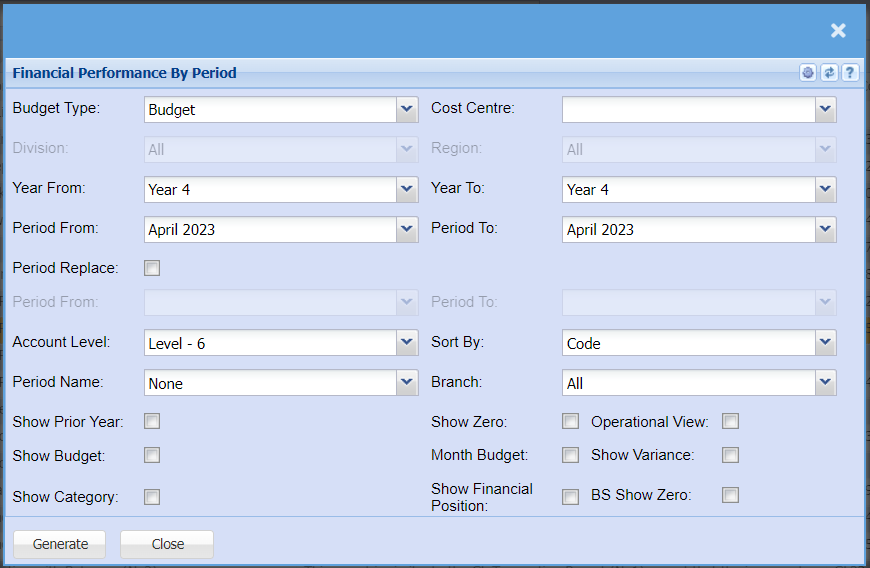
Report criteria defined
| Budget Type |
View the budget or the revised budget for this report Budget is the default |
| Cost Centre |
Select which cost centre you want to enable for division and region Division and region is disabled until a cost centre is stipulated |
| Division | Run the report for a specific division |
| Region | Run the report for a specific region |
| Year From | Select the year from to start your report |
| Period From | Select the period from which is derived from your year from |
| Year To | Select the year To for the end of your report |
| Period To | Select the period from which is derived from your year To |
| Period Replace |
Enable period replace so that your budgets replace the months that are still to come. Great report if you're looking at the whole year and you still have a few months to go to the end of the financial year. |
| Period From | Select the period from that you want budgets to replace actuals |
| Period To | Select the period To that you want budgets to replace actuals |
| Account Level | Select the level that you want to report on, the lower the number the more roll up will occur. Default is always the last level |
| Sort By | Allow the report to sort by General Ledger code or by General Ledger name |
| Period Name | These are three customizable names to run reports, mainly used in the dairy farming industry. |
| Branch | Filter the report by branch |
| Show Prior Year | Show the prior year for the same time in that period |
| Show Zero | Enable show zero to show all accounts that have not had a movement in them within the period that you have selected |
| Operational View |
This is a great report for operational managers, it splits the profit and loss into two versions, operational profit and loss and then general profit and loss. There is a tick on each ledger account to enable the ledger account to be in the operational view |
| Show Budget |
Show the budget total at the end of the report Shows total variance between actual and budget |
| Month Budget | Show the monthly budget |
| Show Variance | Show the variance between your actual and budget per month |
| Show Category |
Show the category of each ledger account Good to have when you're exporting and want to summarise by category |
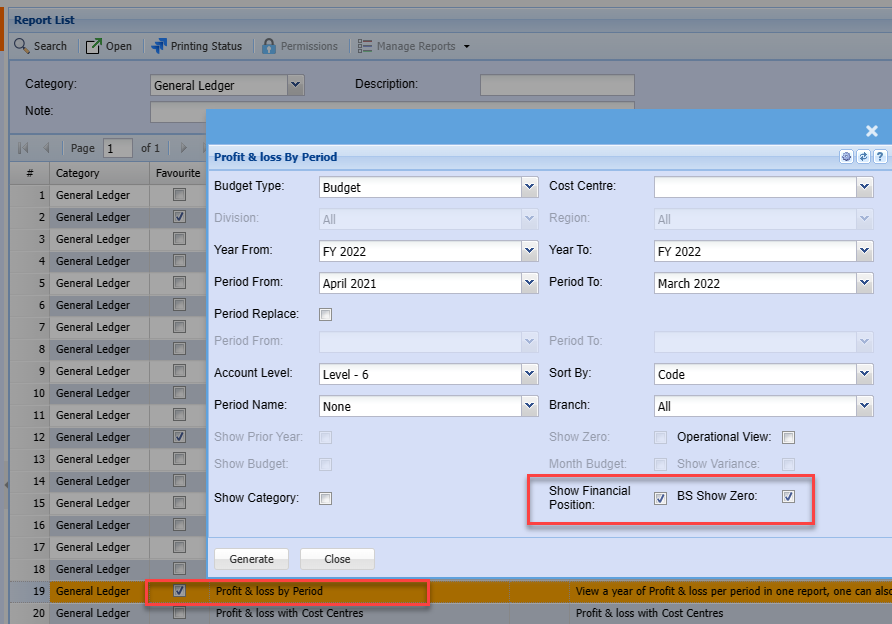
| Show Financial Position |
Show the financial position / Balance sheet at the bottom of the profit and loss report. This will show as a monthly movement with each month. The report shows the opening balance sheet balance and closing balance sheet balance with the movement in between |
| Show BS show zero | Show all accounts in the balance sheet that have not had a movement in that month |
Report example
The report allows for drill downs to source data
Click on a value to transaction detail

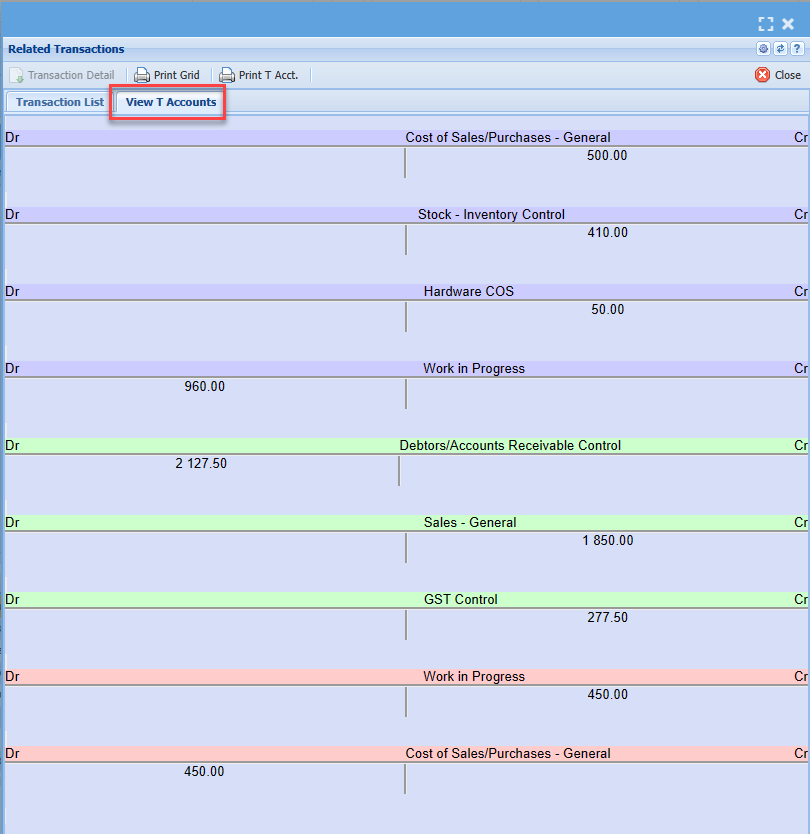
Click on the Date for Document T-Accounts debit and credits
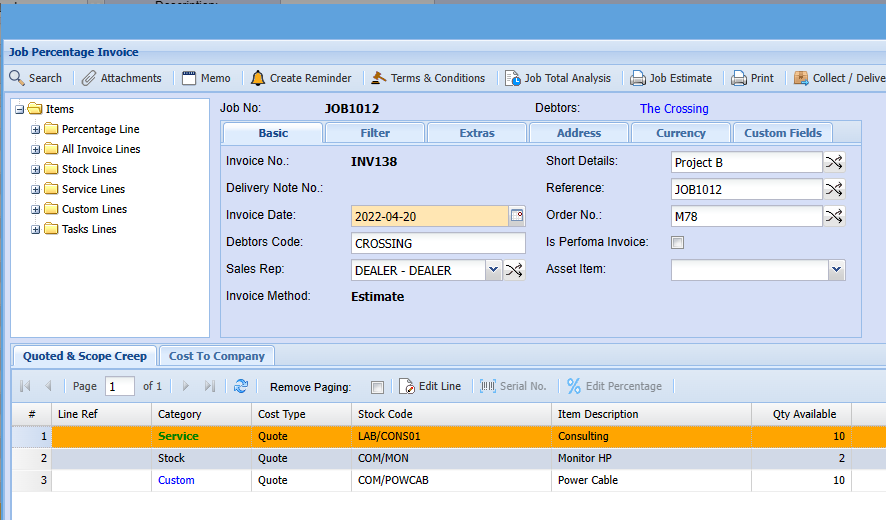
Click on the Document number to view the source document
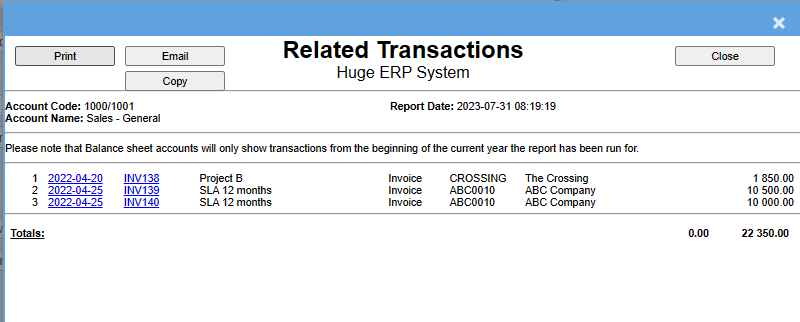
Date shows document GL transaction detail
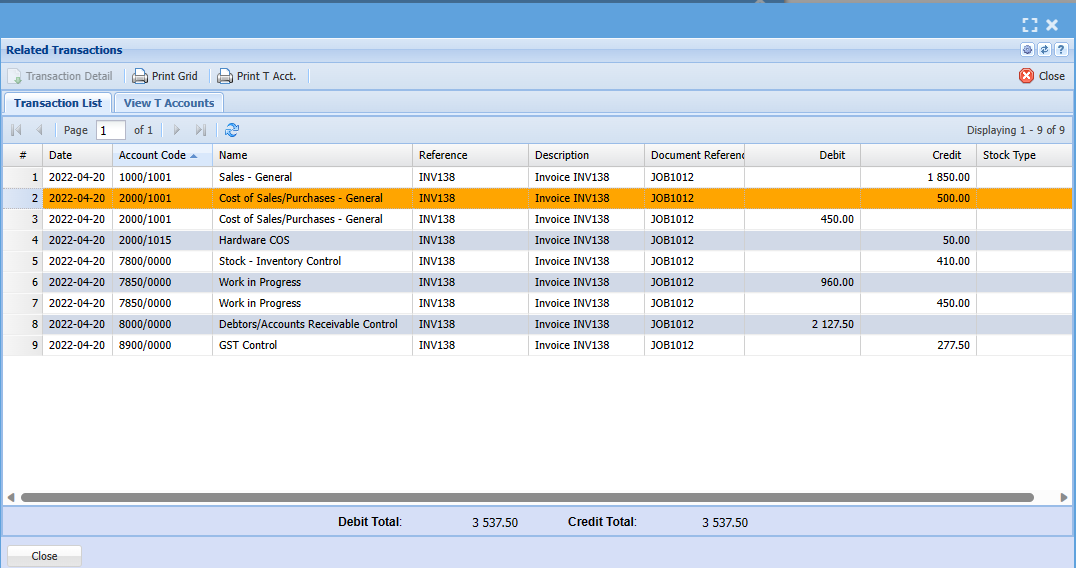
Click on the tab for T-Account view
Click on the document number to view the source document
Show Profit and Loss and Financial Position
Display both profit and loss and financial position in one report by selecting two ticks.
The Financial position will show at the bottom of the report
Financial Performance Summary Report
General Ledger > Reports > Report List
Gives a monthly to yearly summary per financial period of Turnover less Cost of sales giving Gross Profit plus Income less expenses to Nett Profit. Can also be viewed as a summary income statement.
Income statement report shows an income statement for the selected month or a financial period
The user has to select to generate a report or graph report type then select the following from the drop down arrows
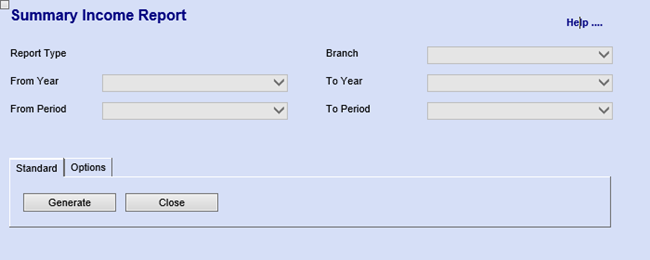
Options Tab has one button
| Recalculate button | to recalculate the report |
Financial Performance with Cost Centres
General Ledger > Reports > Report List
This is a financial performance report with cost centres and can be printed on screen to view financial performance with cost centre analysis.
Before printing the report, the user has to select from the following
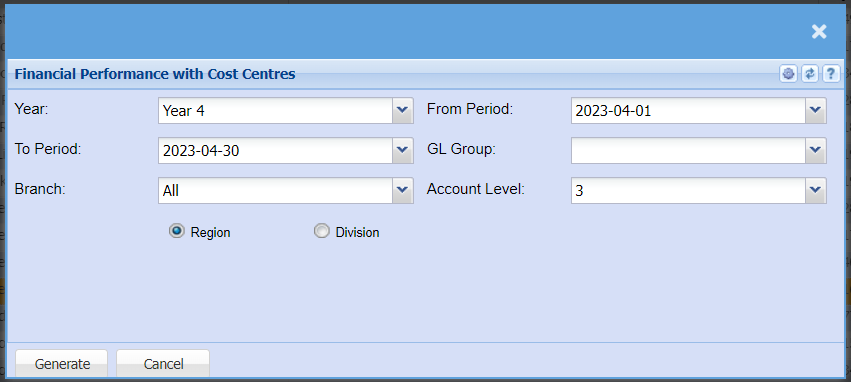
| Year | to select from the drop down arrow |
| To Period | select From period and To period from the drop down arrow |
| Branch | to select branch from the drop down arrow |
| From Period | select From period and To period from the drop down arrow |
| GL Group | to select general ledger group from the drop down arrow |
| Account Level | Select the level from the drop down arrow |
| Region or Division | Select either Region or Division |
General Ledger Budget Summary
General Ledger > Reports > Report List
This report shows what the budget figure is, per ledger account, per financial period, setup under the GL activity budget setup.
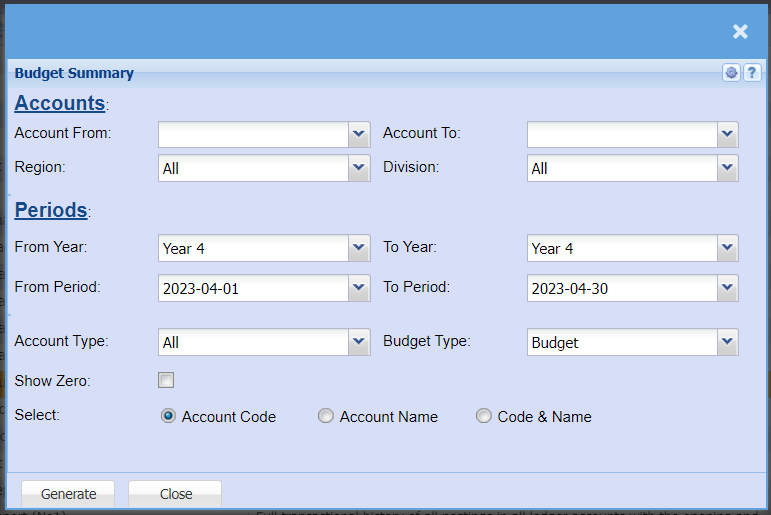
| Account From | to select the account from which the report will run from |
| Account To | to select the account from which the report will stop at, to limit the report run |
| Region | |
| Division | |
| From Year / To Year | to select the year from and the year to from the drop down arrow |
| From Period / To Period | to select the period from and the period to |
| Account Type | |
| Budget Type | |
| Show Zero | |
| Select | Select either account code and account name or both |
GL Cashbook Recon Report
General Ledger > Reports > Report List
This report looks at unposted cashbooks, journals and documents which affect the bank and put onto a report with cashbook balance forward and all transactions which would affect the bank
This is a GL cashbook recon report
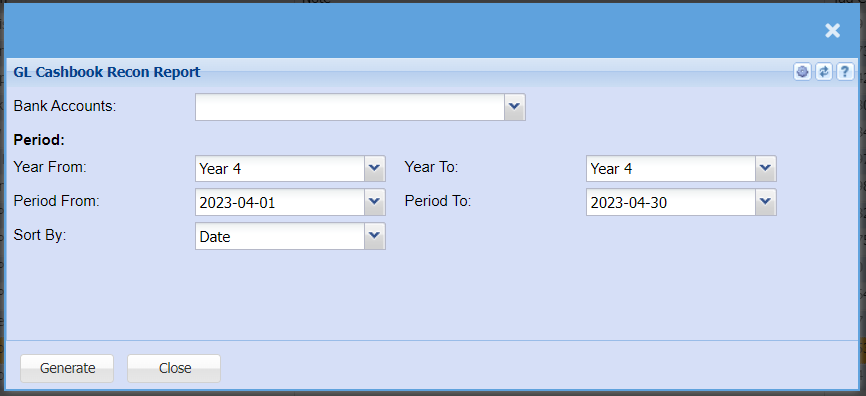
| Bank Accounts | to select the bank account from the drop down arrow |
| To select the Year From and Year To | for generating the report |
| To select Period From and Period To | for generating the report |
| Sort By | to sort the report by selecting from the drop down arrow |
GL Cashbook Report
General Ledger > Reports > Report List
Lists all transactions by a specific bank account and also shows whether the transaction has been reconciled or not, gives the opening and closing balance based on the date selected.
This is a report that lists all transactions by a specific bank account and also shows whether the transactions has been reconciled or not. 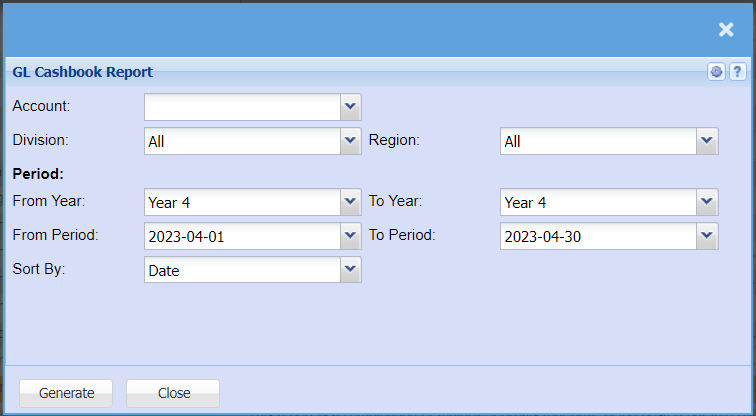
| Account | to select the account from the drop down arrow |
| Division | to select the division from the drop down arrow |
| Region | to select the region from the drop down arrow |
| From Year | to select the year from which the GL cashbook report will run from and year to, for limiting the report run |
| From Period | to select the period from which the GL cashbook report will run from and the period to, for limiting the report run |
| Sort By | to sort the report by selecting from the drop down arrow |
GL Journal Report
General Ledger >Reports >Report List
This report is a combination of multiple journals that have being posted put into one report with debits and credits. It will show the user which journal the transaction came from.
Journal report provides a summary of general ledger transactions sorted by a variety of user defined criteria
The report will allow you to choose different criteria’s
Select Posted under Journal Status
Take your date from far back
If you want to see the additional notes on the journal lines, tick the Additional Comments.

| Journal No. | enter journal number to view a certain detailed journal report |
| Journal Status | to select status from the drop down arrow |
| Date From / Date To | to select the date from and the date to for running a report |
| Order By | to select order by, from the drop down arrow |
| Detail | to run the report by either detail or summary from the drop down arrow |
| Additional Comments | tick the box to include additional comments on the report |
GL Transaction Report
General Ledger >Reports >Report List
Full transactional history of all postings in all ledger accounts with the opening and closing balance per Ledger Account and movement between specified dates.
This is a full transactional history of all postings against all ledger accounts with the opening and closing balance per Ledger accounts and movement between dates specified
| Ledger Accounts | select the start account and the end account for the report |
| Periods | select the year, period from, period to, from the drop down arrow |
| Options | select sheet type, sort by and sub sort by options from the drop down arrow |
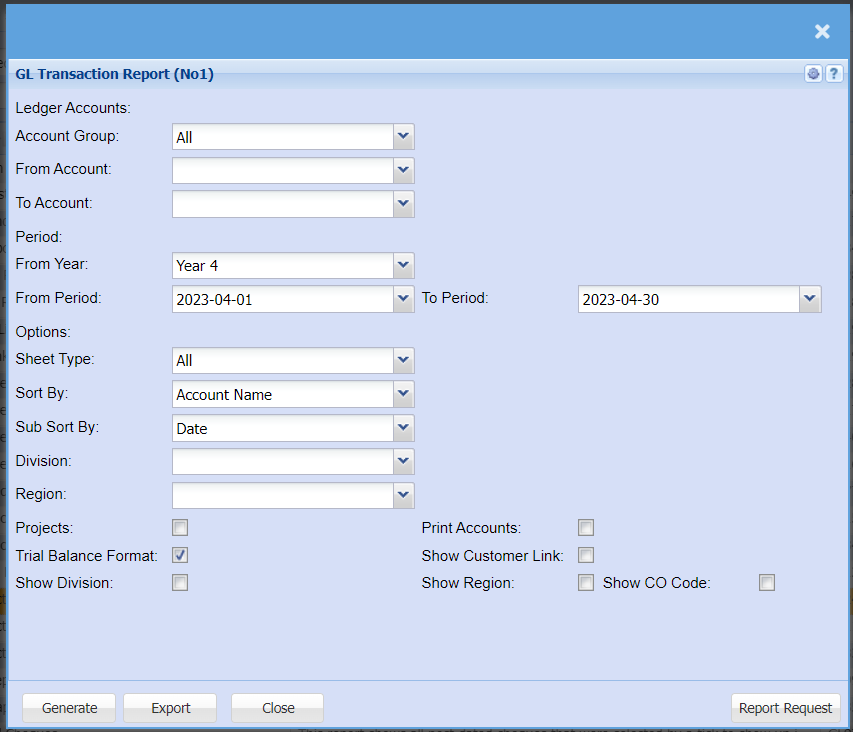
| Account Group | |
| From Account | |
| To Account | |
| From Year | |
| From Period | |
| To Period | |
| Sheet Type | |
| Sort By | |
| Sub Sort By | |
| Division | |
| Region | |
| Projects | if these options are selected, the accounts with no transactions and projects will be included in the report |
| Trail Balance Format | This button allows you to run the report in a Trial Balance Format. i.e., If the account has a debit opening balance, the report will open with a positive value. It will add each debit transaction and subtract each credit transaction. If the account opening balance is a credit, the report will reflect each asset account as a positive opening balance if the opening balance is a debit. It will also reflect each liability account as a positive if the opening balance is a credit. |
| Show Division | |
| Print Accounts | if these options are selected, the accounts with no transactions and projects will be included in the report |
| Show Customer Link | |
| Show Region | |
| Show CO Code |
GL Transaction Report (No1)
General Ledger >Reports >Report List
Full transactional history of all postings in all ledger accounts with the opening and closing balance per Ledger Account and movement between specified dates report No1
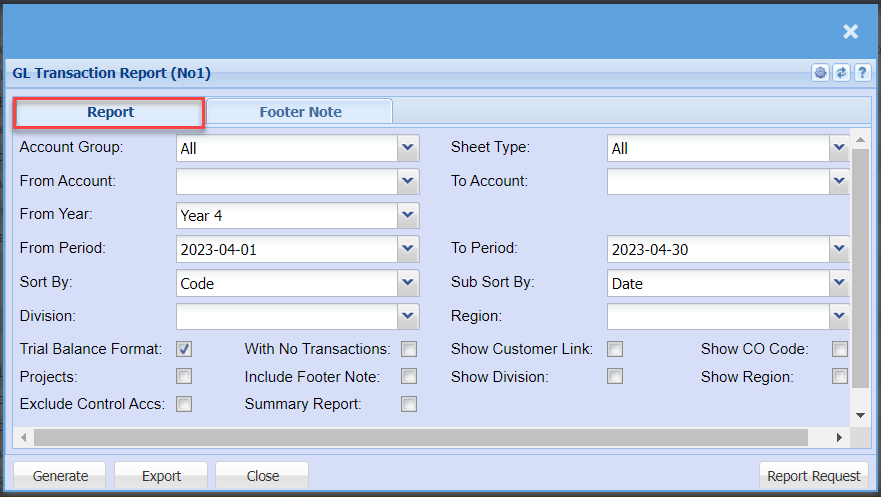
| Account Group | |
| From Account | |
| From Year | |
| From Period | |
| Sort By | |
| Division | |
| Sheet Type | |
| To Account | |
| To Period | |
| Sub Sort By | |
| Region | |
| Trial Balance Format Tick | |
| Projects Tick | |
| Exclude Control Accs Tick | |
| With No Transactions Tick | |
| Include Footer Note Tick | |
| Summary Report Tick | |
| Show Customer Link Tick | |
| Show Division Tick | |
| Show CO Code Tick | |
| Show Region Tick |
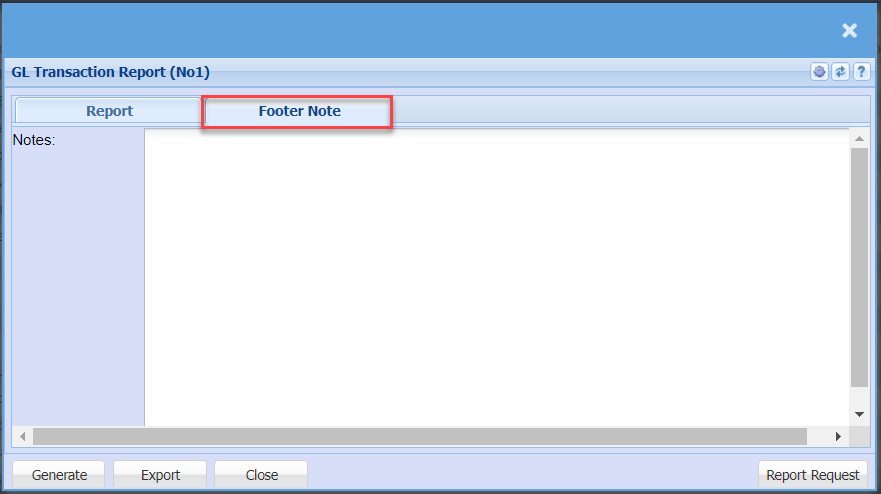
GL Transaction with Balances (No2)
General Ledger >Reports >Report List
This report is similar to the GL Transaction Report (No1) except that the income statement values show the opening balance from Year 1 of operating the package.
It does not reset to zero on each financial year like the GL Transaction Report (No1).
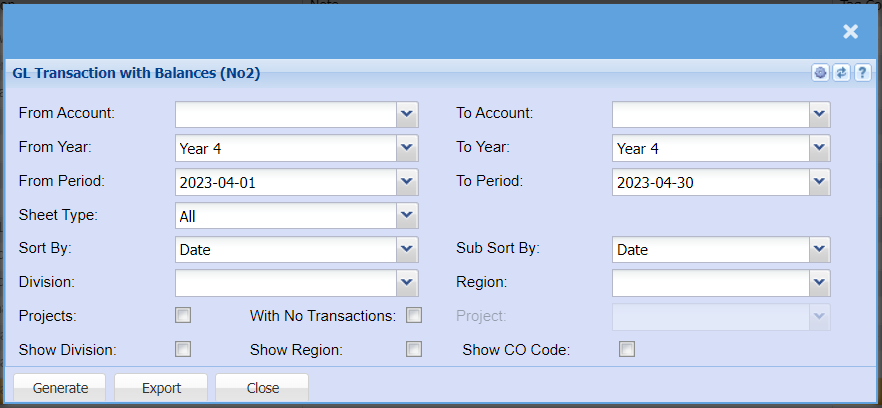
| From Account | |
| From Year | |
| From Period | |
| Sheet Type | |
| Sort By | |
| Division | |
| To Account | |
| To Year | |
| To Period | |
| Sub Sort By | |
| Region | |
| Project | |
| Projects Tick | |
| Show Division Tick | |
| With No Transactions Tick | |
| Show Region Tick | |
| Show CO Code Tick |
GL Tree Report
General Ledger >Reports >Report List
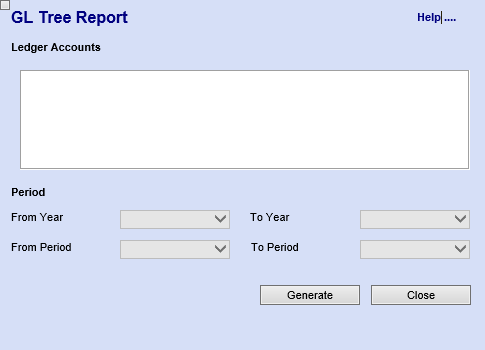
Gives a report using the tree structure of the general ledger setup to find the values of all children account values under the main structure.
The report that gives a tree structure of all general ledger accounts. Select one of the accounts first and generate the report to get detailed view of the select account report.
Period: this allows the user to select the year and period for running the report
Ledger Graph
General Ledger > Reports > Report List
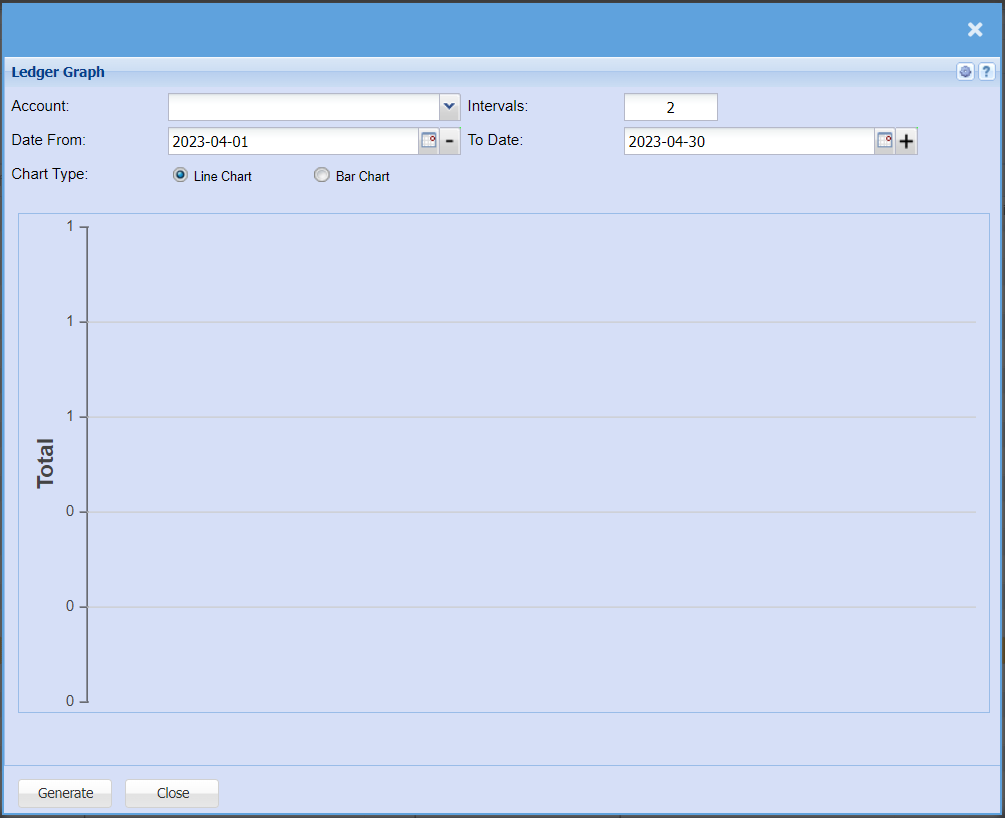
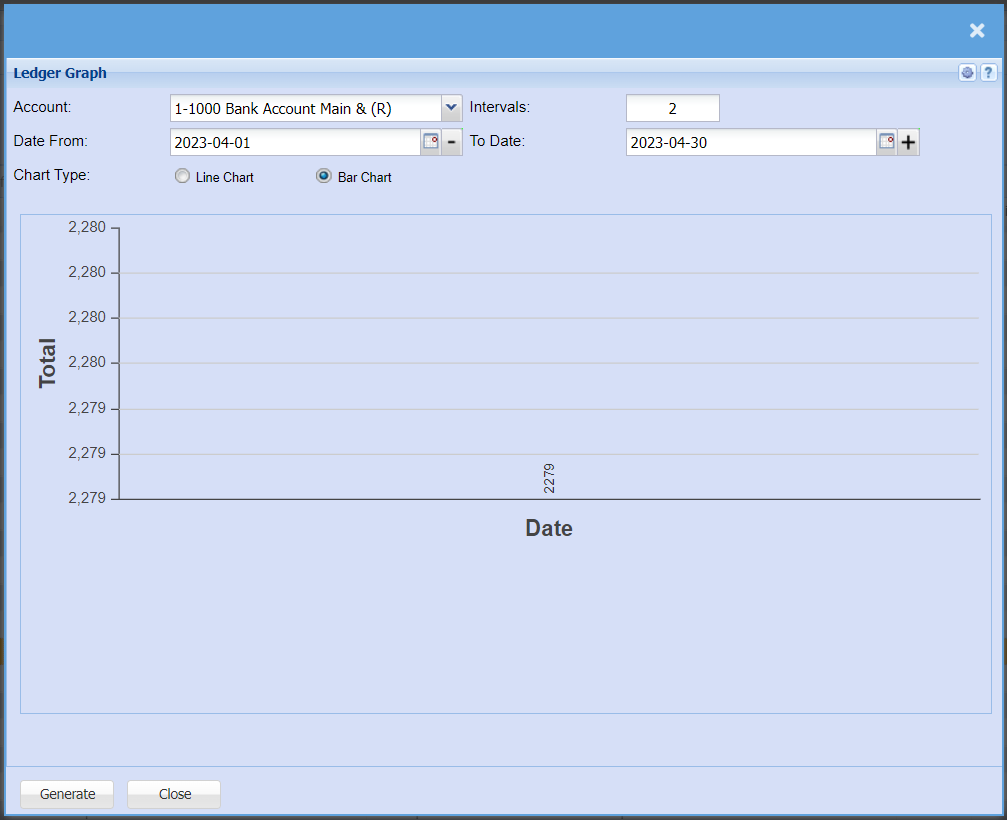
Displays a line or bar graph of all values of debits less credits depending on the specific general ledger account. Day intervals can be specified.
Post Dated Cheques
General Ledger >Reports >Report List
This report shows all post-dated cheques that were selected by a tick to show up in this report.
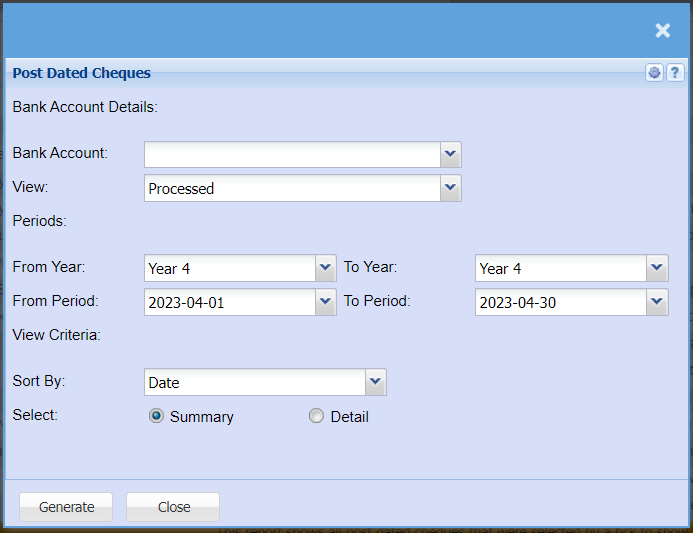
| Bank Account | |
| View | |
| Periods | |
| From Year / To Year | |
| From Period / To Period | |
| View Criteria | |
| Sort By | |
| Select | select either summary or detail |
Project Group Profit and Loss Report
General Ledger >Reports >Report List
Gives an income statement report based on the project group selected. Project groups can have many project lines within it.
This is an income statement report based on the project group selected
Note: If the report returns zeros. Then please check that the GL Account setup (Sales Accounts) has a linked cost of sales account.
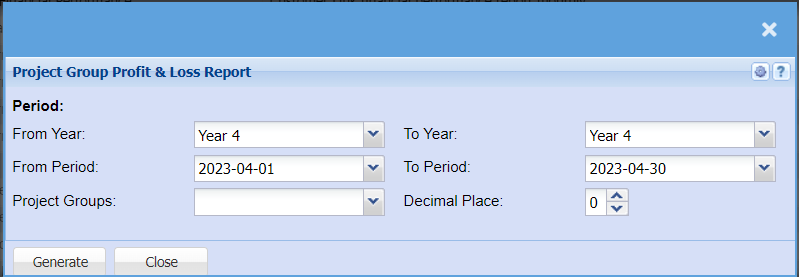
| From Year / To Year | To run the report, the user has to select the year from which the report will run from, and the year to |
| From Period / To Period | Select the period from and report to |
| Project Groups | Select group from the drop down arrow |
| Decimal Place |
Project Line Profit and Loss Report
General Ledger >Reports >Report List
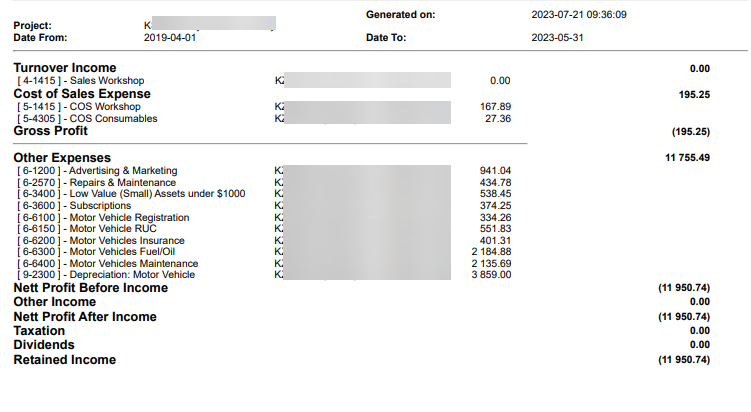
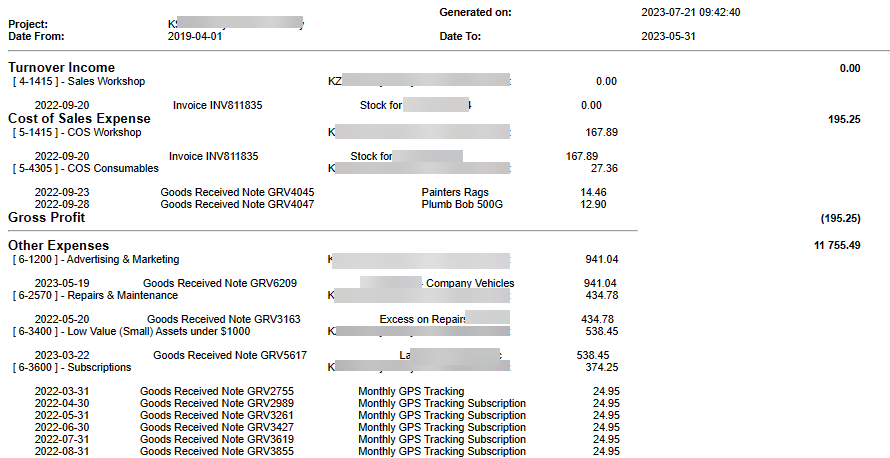
Shows an income statement report based on the project line selected.
Project lines are singular projects setup and are not part of a group.
The report comes in summary and detail
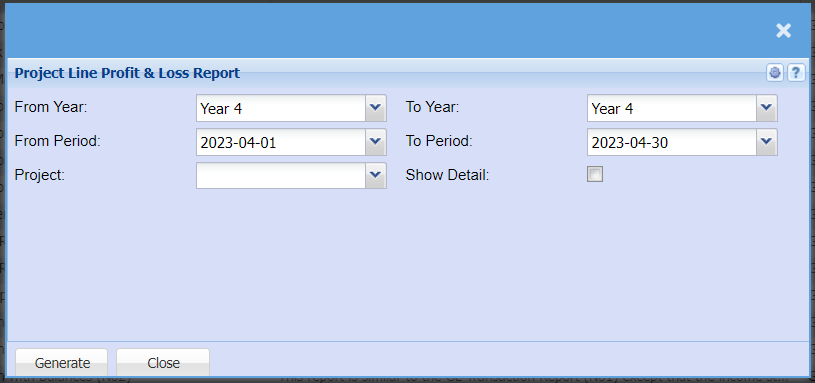
| From Year / To Year | To run the report, the user has to select the year from, and the year to |
| From Period / To Period | select the period from and report to |
| Project | select project from the drop down arrow |
| Show Detail | Tick the Show detail to have the detail report or Remove the tick to run the summary report |
Report is found under General Ledger
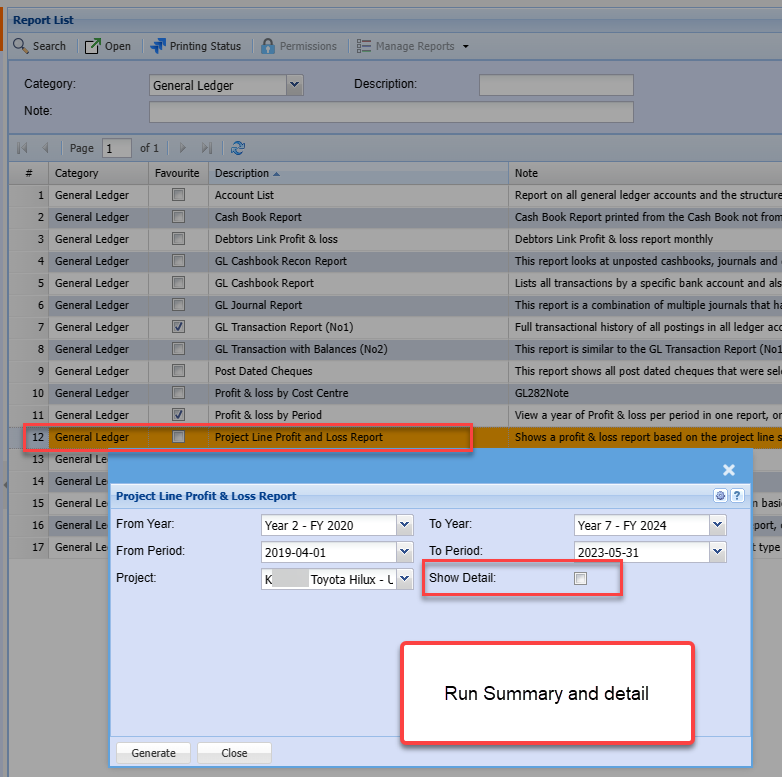
Summary report
Detail report
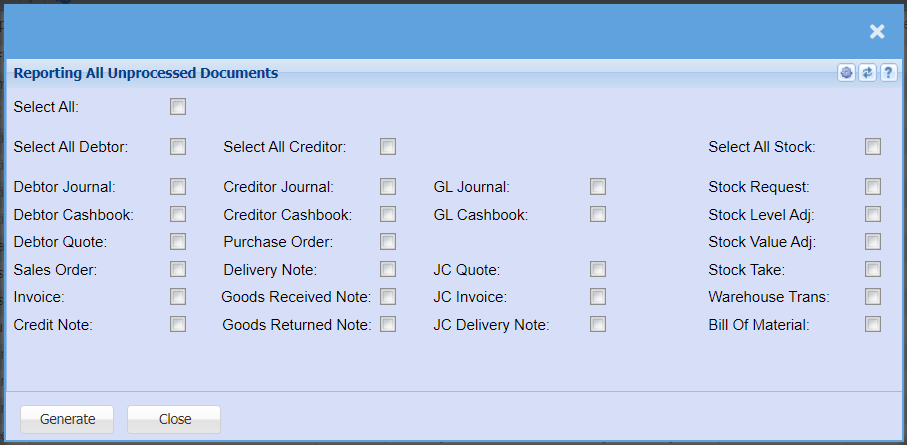
Report Displaying All Unprocessed Documents
General Ledger >Reports >Report List
Sales Profit Analysis
General Ledger >Reports >Report List
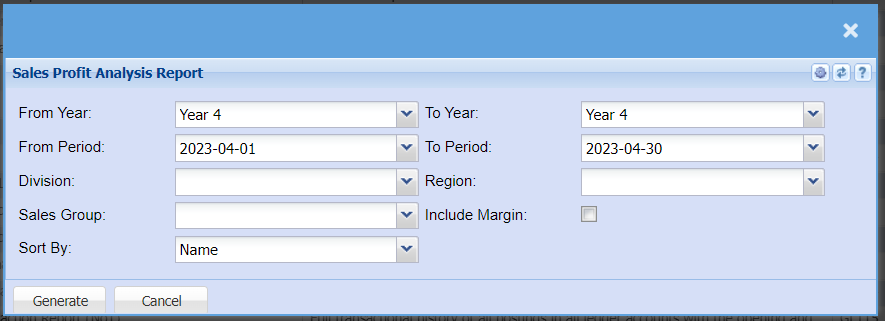
| From Year / To Year | |
| From Period / To Period | |
| Division | |
| Region | |
| Sales Group | |
| Include Margin Tick | |
| Sort By |
Statistics Report
General Ledger >Reports >Report List
This report shows statistics for a certain period on basic information
It’s a report on collection of methods used to process accounts amounts of data and report overall trends.
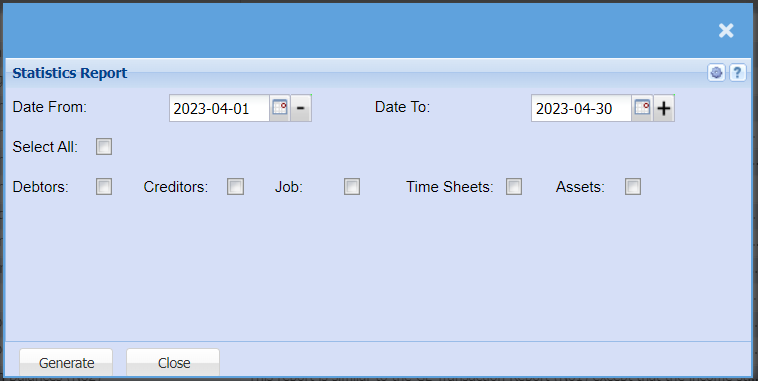
| Date From / Date To | To generate the report, the user has to select the date from which the report will run from and the date to |
| Select Ticks | select the debtors, creditors, job, time sheets, assets or select all of them. |
Trial Balance By Period
General Ledger >Reports >Report List
View a year of Trial Balances per period in one report, one can also drill down on the values to the detail
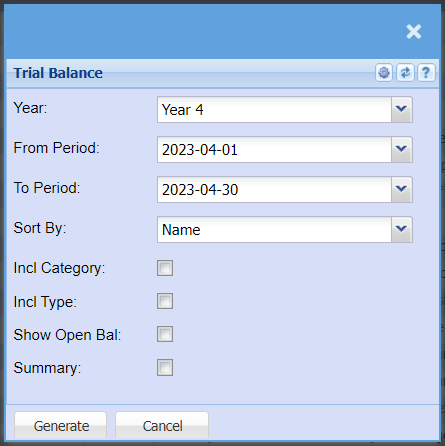
| Year | |
| From Period / To Period | |
| Sort By | |
| Incl. Category | |
| Incl. Type | |
| Show Open Bal | |
| Summary |
View the Transaction Lines for a Specific Document
General Ledger >Reports >Report List
View the transaction lines for a specific document type and date range.
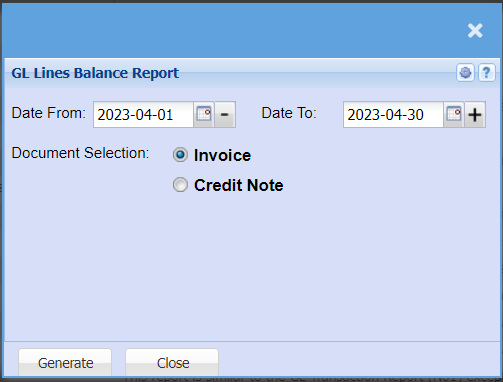
Dashboard Display Menu
Dashboard Display
Run dashboard for the system
General Ledger > Reports > Dashboard Display
Allows the user to select and display desired dashboards.
Under "select Dashboard" - you will select from the drop-down menu the desired dashboard
The User will be required to enter the password - This is the password that was also added under the setup
Click enter key on your keyboard to activate the password
Once this is done the start button will be activated
you can then click start and it will display the information.
.png)
.png)
The Dashboard can be created by various departments in the company and display information that is relevant to that department.
.png)
Report Request Menu
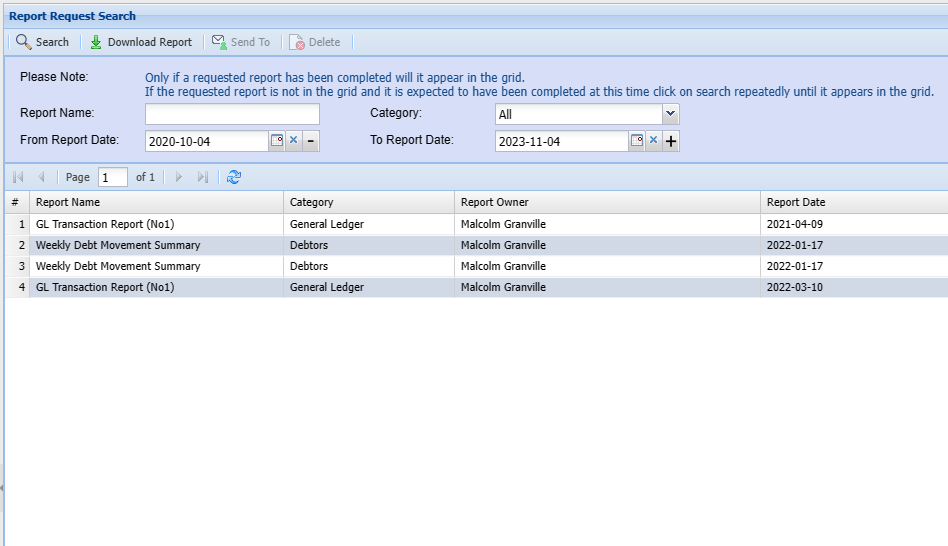
Report Request
Download Reports which were generated and assigned to you
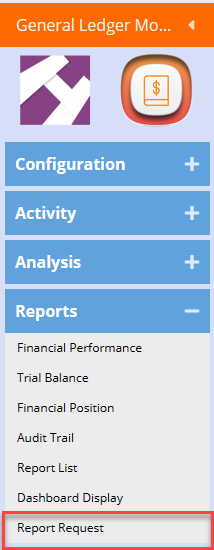
Report download PDF or CSV file
Search for the file, highlight and download
VAT / GST Reports Menu
Tax Payment Method Preparations
Payment method works strictly through bank account cashbooks.
Whenever you are correcting values to a customer or supplier, you should do this via the GL cashbook.
This is because the customer and supplier transaction journals are not picked up via the payment method report.
Before we start running the VAT / GST reports, we need to exclude some of the suppliers from the VAT / GST claim.
Herewith a snip of some of the suppliers setup in the system which need to be excepted from the VAT / GST payment method report.
The same process can be done for the customers.
This is the report that is run to look at all the transactions running through the banks
.png)
Report for suppliers
.png)
At the supplier setup, mark the supplier to be a 07 Non GST account.
This will then exclude the payment values in the report
.png)
VAT / GST Report - Payment Method
This report is a more complex payment method report.
It relies on allocations been completed successfully in order to work.
It also relies on VAT / GST periods been completed after each submission.
The VAT / GST Payment method report looks at all payments and deposits made within the period.
These payments and deposits are specific to the customer and supplier module and look at fully allocated transactions.
.png)
When running the report, check your period
Should the period be wrong, check the financial periods and VAT / GST period closes.
.png)
Run the Summary and Detail report and ensure you print the reports before completing and closing off the periods.
Once the complete has run, the current period report will not show.
Summary report
Breaks down the Tax types into categories
.png)
Detail report
This is a detail report showing line transaction for tax report claim
.png)
Run the complete VAT / GST flag
This will flag all the transaction lines on the report, so that it will not show on the next report.
.png)
VAT / GST close period
Go to System Configuration > Administration > Financial periods
When on a payment method and you have not flagged completed transaction lines on report.
The close period will not be allowed.
After the complete has run, then the period can be closed.
.png)
Run the Complete VAT / GST close period before Closing VAT / GST period
.png)
Unallocation of Customers and Suppliers after completing the VAT / GST complete WILL NOT ALLOW one to unallocate if this was part of the closed period.