DCR Reports
- Report List
- Time Log Exception Report
- Asset Additional Information Report
- Customer Coverage Report
- Debtor Interactions
- Over and Under Recoveries on Time Sheets
- Rep Sales Visit Report
- Sales Call Report
- Sales Force Report
- Sales Pipeline Report
- Support Log Points
- Support Log Statistic Report
- Support Log Summary
- Support Logs / Time Logs not Invoiced
- Support Report
- Time And Attendance Report
- Time Log Age Analysis
- Time Log Audit as Per Employee
- Time Log Employee Summary of Hours Logged
- Time Log Report
- Time Log Summary
- Time Log Task Values
- Time Log Transaction
- To Do Report
- Dashboard Displays
Report List
Time Log Exception Report
CRM> Reports> Report List
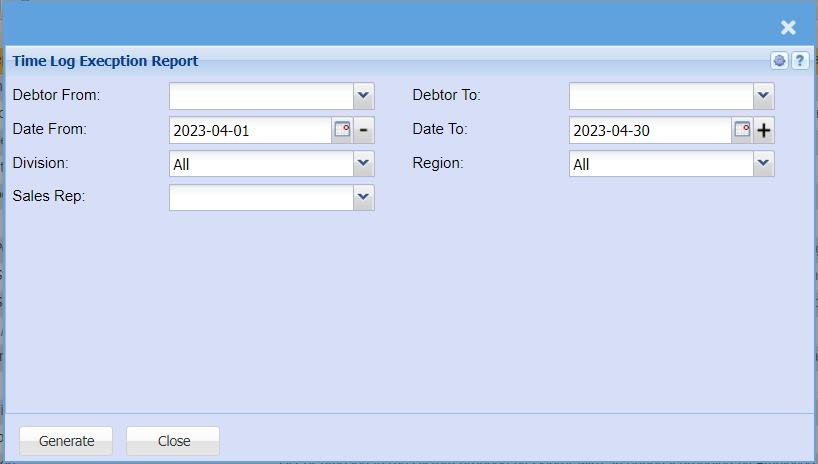
| Debtor From | |
| Date From | |
| Division | |
| Sales Rep | |
| Debtor To | |
| Date To | |
| Region |
Asset Additional Information Report
CRM> Reports> Report List
This report generates details prior to asset details in terms of what has been implemented on the generic branch table located in system configuration.
The form generates details which are depicted in the table found in system config example make, brand, track it number, serial no, etc.
A list of all items linked to the customer will be generated will the asset item number assigned to each item.
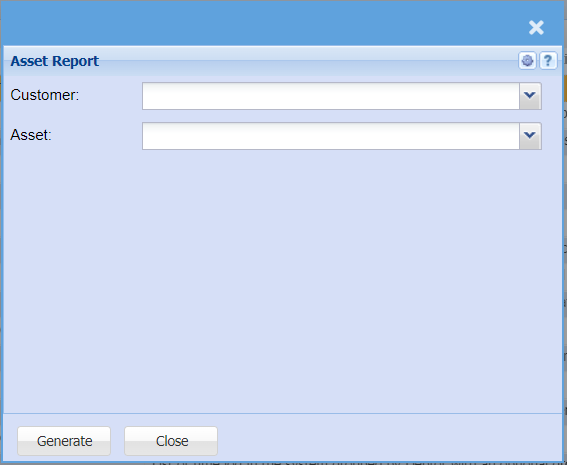
| Customer | |
| Asset |
Customer Coverage Report
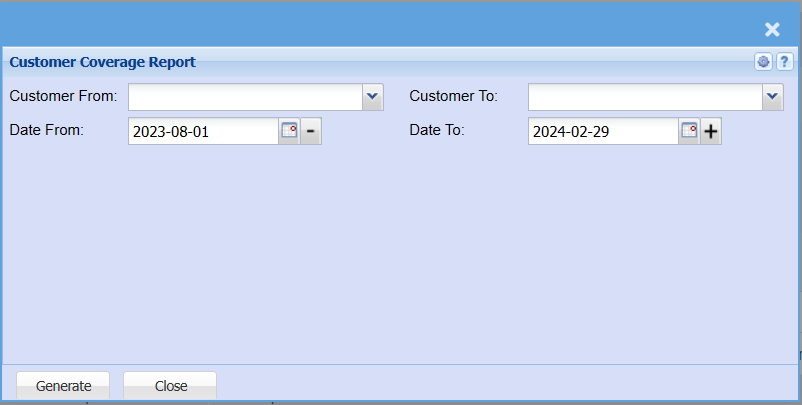
| Customer From | |
| Date From | |
| Customer To | |
| Date To |
Debtor Interactions
CRM> Reports> Report List
This report shows all the interactions with Debtors, Prospects or opportunities. This report can be grouped by Debtor, Contact person or interaction type as well as Interaction Status.
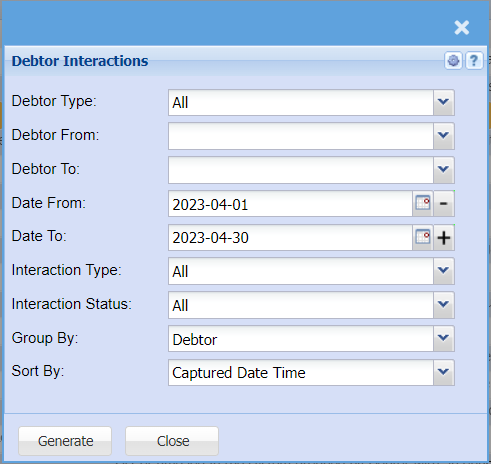
This is a report on the interaction between the user and the customers
To run the report, select from the following fields:
| Debtor Type | select the debtor’s type from the drop down arrow |
| Debtor From | select the debtor from or leave it blank |
| Debtor To | select the debtor to or leave it blank |
| Date From | select the date from which the report will run from. |
| Date To | select the date to which the report will run from. |
| Interaction Type | select the interaction type from the drop down arrow |
| Interaction Status | select the interaction status from the drop down arrow |
| Group By | group the report by selection either a debtor or contact person or interaction |
| Sort By | sort the report by selecting one option from the drop down arrow |
Over and Under Recoveries on Time Sheets
CRM> Reports> Report List
Over and Under Recoveries on Time Sheet Invoices and Credit Notes.
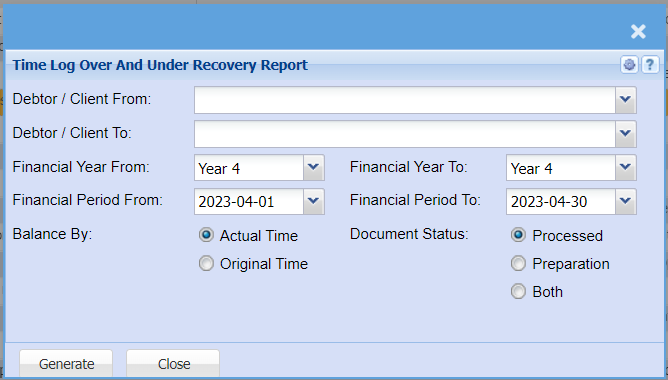
| Debtor / Client From | |
| Debtor / Client To | |
| Financial Year From | |
| Financial Year To | |
| Financial Period From | |
| Financial Period To | |
| Balance By - Actual Time or Original Time | |
| Document Status - Processed, Preparation or Both |
Rep Sales Visit Report
CRM> Reports> Report List
This report shows a list of assets linked to a customer
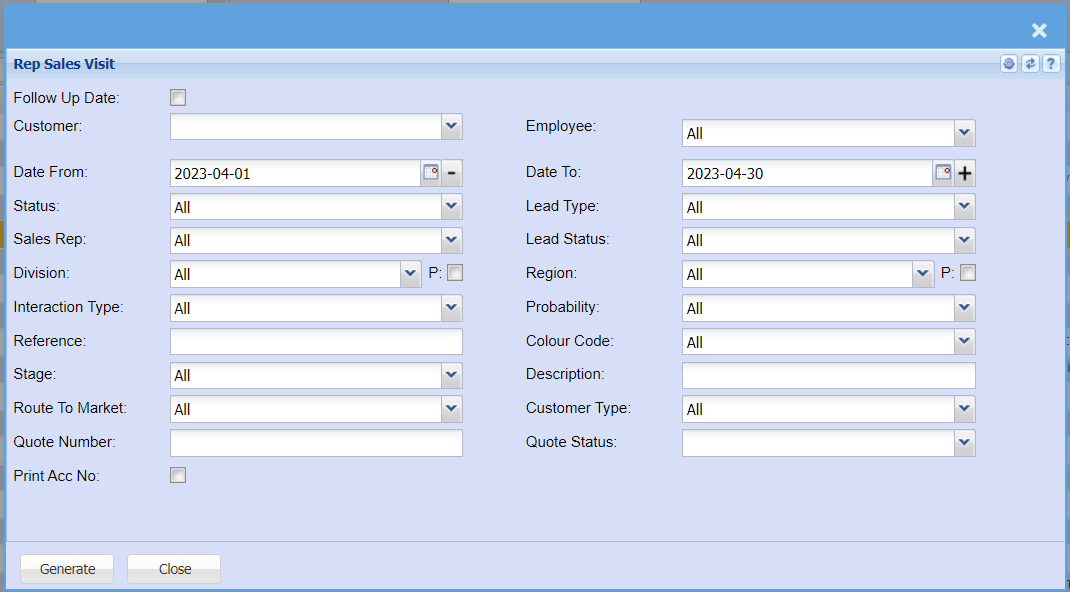
| Follow Up Date | |
| Customer | |
| Date From | |
| Status | |
| Sales Rep | |
| Division | |
| Interaction Type | |
| Reference | |
| Stage | |
| Route To Market | |
| Quote Number | |
| Print Acc No | |
| Employee | |
| Date To | |
| Lead Type | |
| Lead Status | |
| Region | |
| P: Tick | |
| Probability | |
| Colour Code | |
| Description | |
| Customer Type | |
| Quote Status |
Sales Call Report
CRM> Reports> Report List
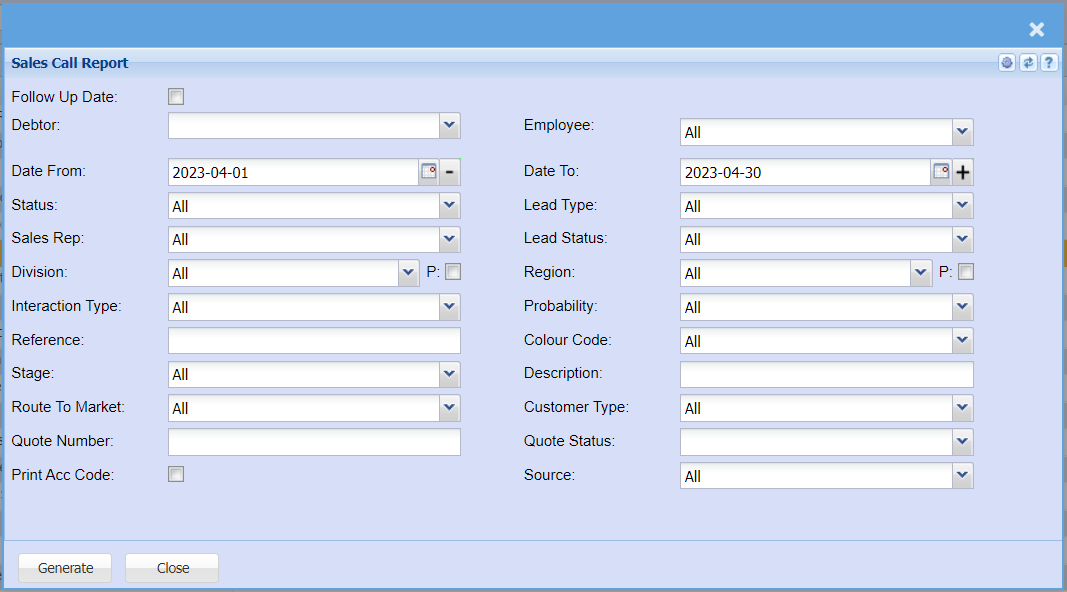
| Follow Up Date | |
| Debtor | |
| Date From | |
| Status | |
| Sales Rep | |
| Division | |
| Interaction Type | |
| Reference | |
| Stage | |
| Route To Market | |
| Quote Number | |
| Print Acc No | |
| Employee | |
| Date To | |
| Lead Type | |
| Lead Status | |
| Region | |
| P: Tick | |
| Probability | |
| Colour Code | |
| Description | |
| Customer Type | |
| Quote Status |
Sales Force Report
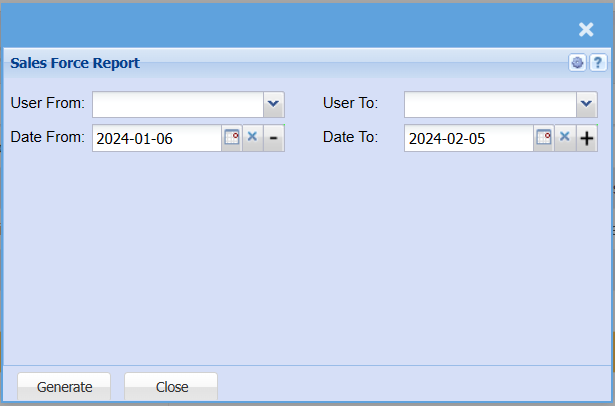
| User From | |
| User To | |
| Date From | |
| Date To |
Sales Pipeline Report
CRM> Reports> Report List
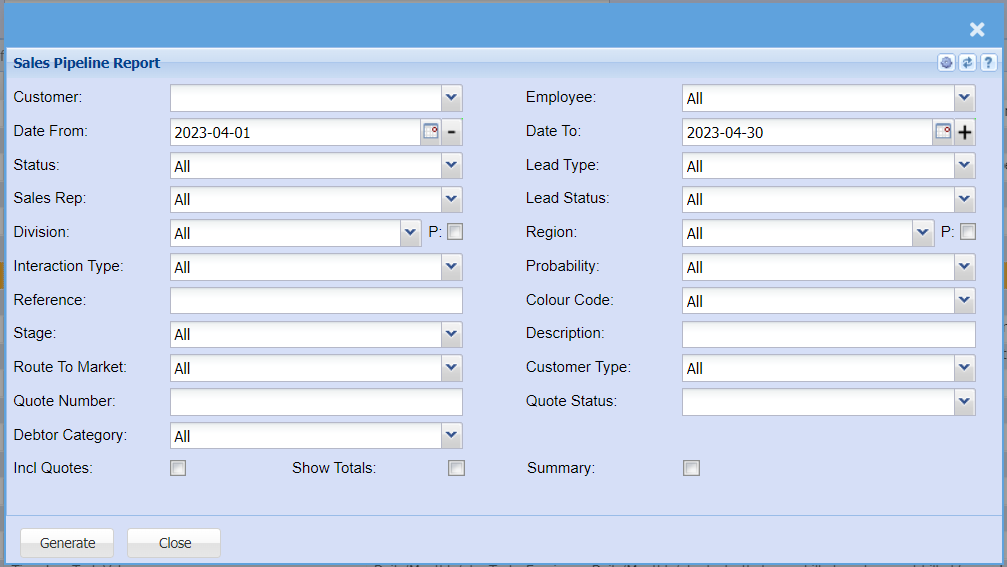
| Customer | |
| Date From | |
| Status | |
| Sales Rep | |
| Division | |
| Interaction Type | |
| Reference | |
| Stage | |
| Route To Market | |
| Quote Number | |
| Debtor Category | |
| Incl Quotes | |
| Show Totals | |
| Summary | |
| Employee | |
| Date To | |
| Lead Type | |
| Lead Status | |
| Region | |
| P: Tick | |
| Probability | |
| Colour Code | |
| Description | |
| Customer Type | |
| Quote Status |
Support Log Points
CRM> Reports> Report List
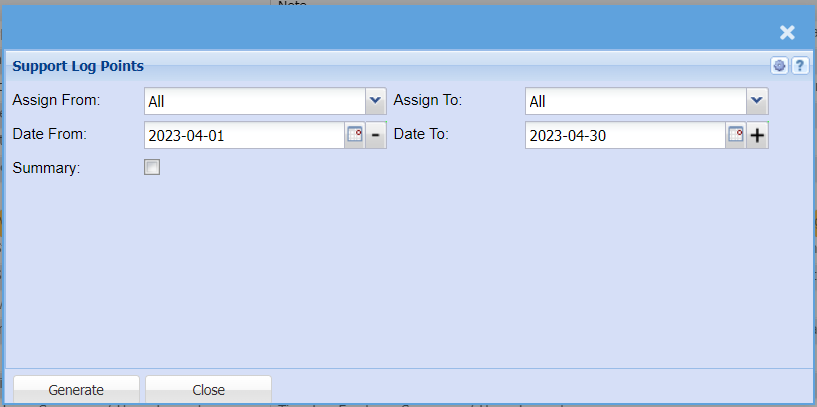
| Assign From | |
|
Assign To |
|
|
Date From |
|
|
Date To |
|
|
Summary Tick |
Support Log Statistic Report
CRM> Reports> Report List
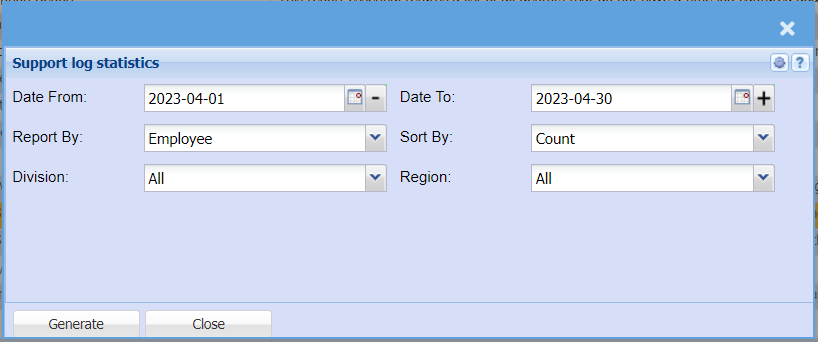
This report provides a count of the support logs captured within the Date range specified.
Ideally, if all jobs/Call outs are Logged, then this will represent the quantity of Job received within the given date range.
The report can be sorted by Employee or Task
To Generate, double click on the report and enter the required criteria.
Click Generate
Provides statistics on support logs.
Report By: Choose between Employee, Task, Root cause, Status, customer or percentage complete
Support Log Summary
CRM> Reports> Report List
This report will provide a summary of all Support logs captured within the specified date range and show a percentage progress or completion of the Job. It also shows any Accounted budget time versus actual time spent on the job.
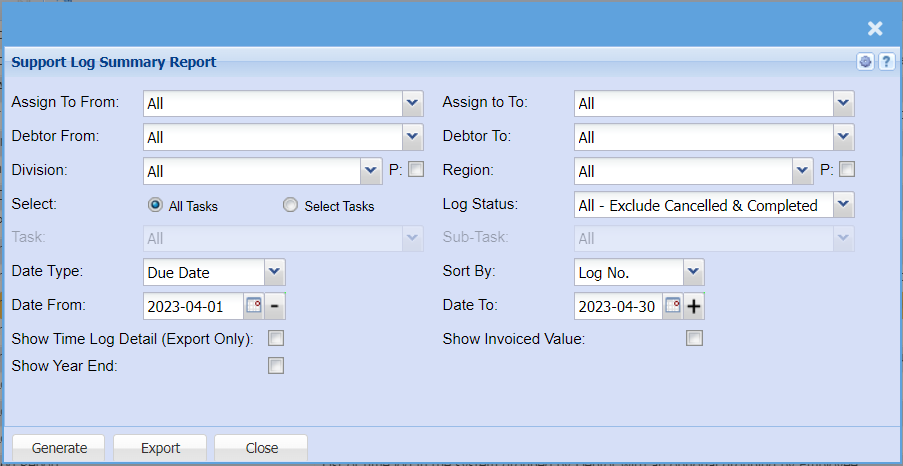
| Assign To From | |
| Debtor From | |
| Division | |
| Select | |
| Task | |
| Date Type | |
| Date From | |
| Show Time Log Detail (Export Only) Tick | |
| Show Year End Tick | |
| Assign to To | |
| Debtor To | |
| Region | |
| Log Status | |
| Sub-Task | |
| Sort By | |
| Date To | |
| Show Invoiced Value Tick |
Support Logs / Time Logs not Invoiced
CRM> Reports> Report List
This report shows the time logs not invoiced or flagged for invoicing
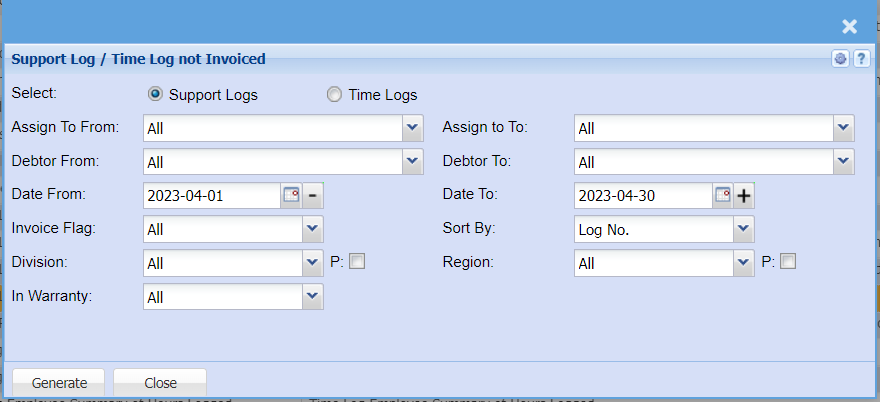
| Select - Support Logs or Time Logs | |
| Assign To From | |
| Debtor From | |
| Date From | |
| Invoice From | |
| Invoice Flag | |
| Division | |
| In Warranty | |
| Assign to To | |
| Debtor To | |
| Date To | |
| Sort By | |
| Region |
Support Report
CRM> Reports> Report List
This report shows the detail of all support logs captured within the date range specified. In a list format, one can see all support logs captured and all related information on each support log, without having to open each log individually to ascertain respective problems/solutions. The report can be generated per employee or per debtor or accumulatively.
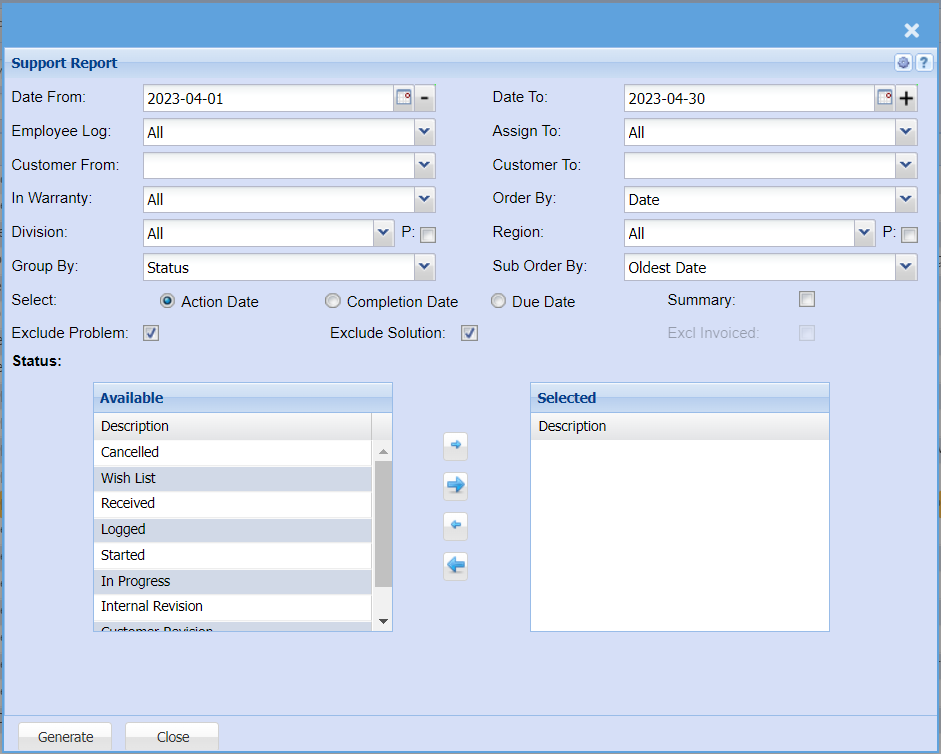
| Date From | |
| Employee Log | |
| Customer From | |
| In Warranty | |
| Division | |
| Group By | |
| Date To | |
| Assign To | |
| Customer To | |
| Order By | |
| Region | |
| Sub Order By | |
| Select - Action Date, Completion Date, Due Date | |
| Summary Tick | |
| Exclude Problem Tick | |
| Exclude Solution Tick | |
| Excl Invoiced Tick | |
| Status: | From the available column, select the ones that will appear on the report by moving them to the right-hand side column. |
Time And Attendance Report

| User From | |
| User To | |
| Date From | |
| Date To |
Time Log Age Analysis
CRM> Reports> Report List
Shows an age analysis of all time logs not archived as per the users criteria.
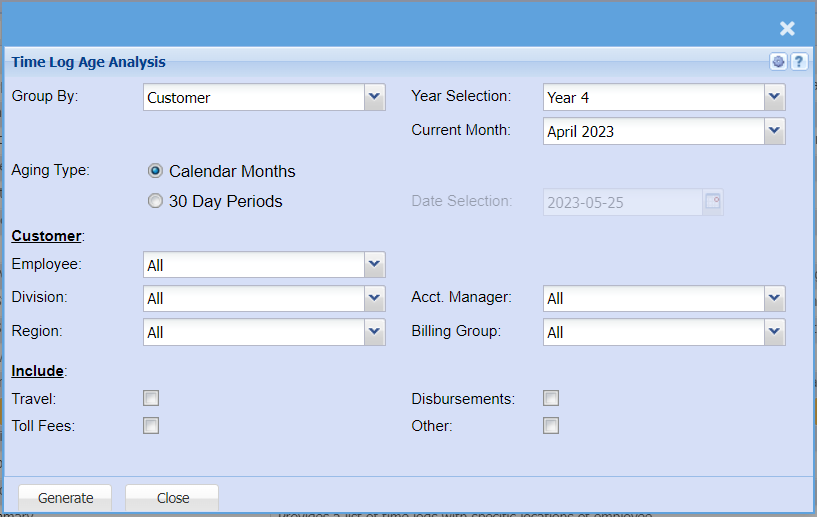
| Group By | |
| Aging Type | |
| Year Selection | |
| Current Month | |
| Date Selection | |
| Employee | |
| Division | |
| Region | |
| Acct. Manager | |
| Billing Group | |
| Travel | |
| Toll Fees | |
| Disbursements | |
| Other |
Time Log Audit as Per Employee
CRM> Reports> Report List
This report provides a summary per employee of all time logs for the given date range. A summary of the individual Time logs is listed. Along with an accumulative summary of Normal Hours Labour, Overtime, Travel and disbursements
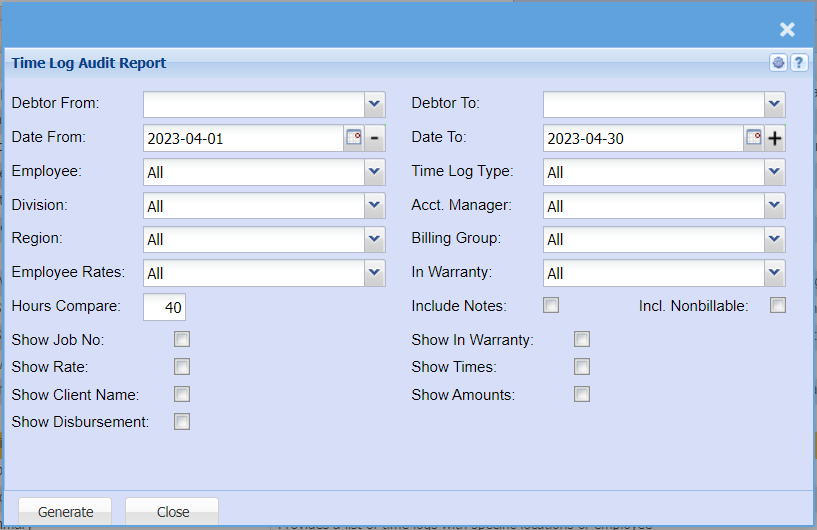
| Debtor From | |
| Date From | |
| Employee | |
| Division | |
| Region | |
| Employee Rates | |
| Hours Compare | |
| Show Job No Tick | |
| Show Rate Tick | |
| Show Client Name Tick | |
| Show Disbursement Tick | |
| Debtor To | |
| Date To | |
| Time Log Type | |
| Acct. Manager | |
| Billing Group | |
| In Warranty | |
| Include Notes Tick | |
| Incl. Nonbillable Tick | |
| Show In Warranty Tick | |
| Show Times Tick | |
| Show Amounts Tick |
Time Log Employee Summary of Hours Logged
CRM> Reports> Report List
This report shows a summary of total hours logged versus Hours Billed, versus required hours.
The hours compare field on the criteria is the total hours the employee is required to work.
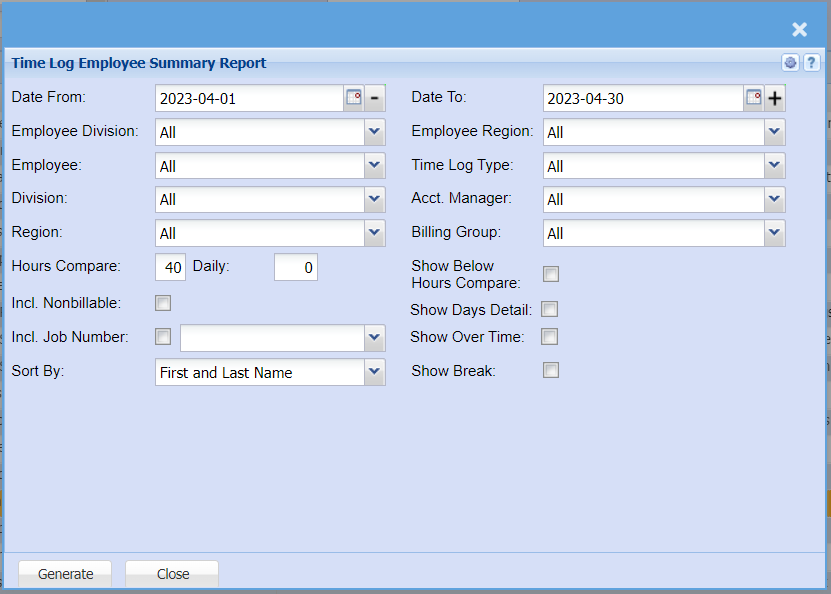
| Date From | |
| Employee Division | |
| Employee | |
| Division | |
| Region | |
| Hours Compare | |
| Daily | |
| Incl. Nonbillable Tick | |
| Incl. Job Number Tick | |
| Sort By | |
| Date To | |
| Employee Region | |
| Time Log Type | |
| Acct. Manager | |
| Billing Group | |
| Show Below Hours Compare Tick | |
| Show Days Detail Tick | |
| Show Over Time Tick | |
| Show Break Tick |
Time Log Report
CRM> Reports> Report List
The report provides a list of Time Logs either by Debtor or by Employee wherein one can view in summary the detail of all time logs created within the Date range specified.
You have the option for the report to include any notes that were captured on the respective Time logs the report also extracts accumulative totals of hours and value of all time logs per employee or per debtor (depending on the sort order)
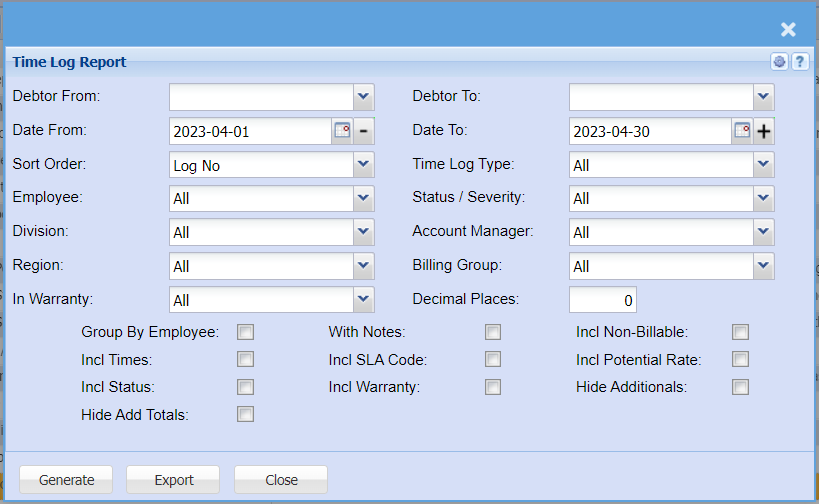
| Debtor From | |
| Date From | |
| Sort Order | |
| Employee | |
| Division | |
| Region | |
| In Warranty | |
| Debtor To | |
| Date To | |
| Time Log Type | |
| Status / Severity | |
| Account Manager | |
| Billing Group | |
| Decimal Places | |
| Group By Employee Tick | |
| Incl. Times Tick | |
| Incl. Status Tick | |
| Hide Add Totals Tick | |
| With Notes Tick | |
| Incl. SLA Code Tick | |
| Incl. Warranty Tick | |
| Incl. Non-Billable Tick | |
| Incl. Potential Rate Tick | |
| Hide Additionals Tick |
Time Log Summary
CRM> Reports> Report List
Provides a list of time logs with specific locations of employee
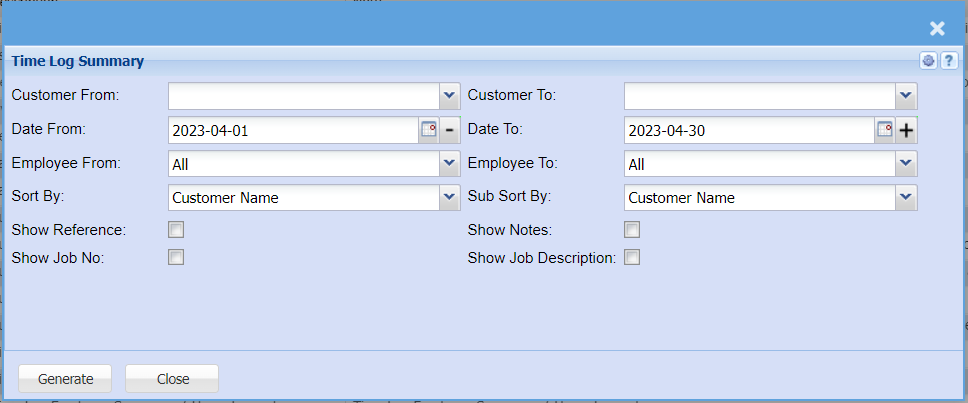
| Customer From | |
| Date From | |
| Employee From | |
| Sort By | |
| Show Reference Tick | |
| Show Job No Tick | |
| Customer To | |
| Date To | |
| Employee To | |
| Sub Sort By | |
| Show Notes Tick | |
| Show Job Description Tick |
Time Log Task Values
CRM> Reports> Report List
Daily/Monthly/etc. Tasks Earnings - Daily/Monthly/etc. tasks that were billed, and amount billed for each of these tasks (so we can see what each task earned for the period)
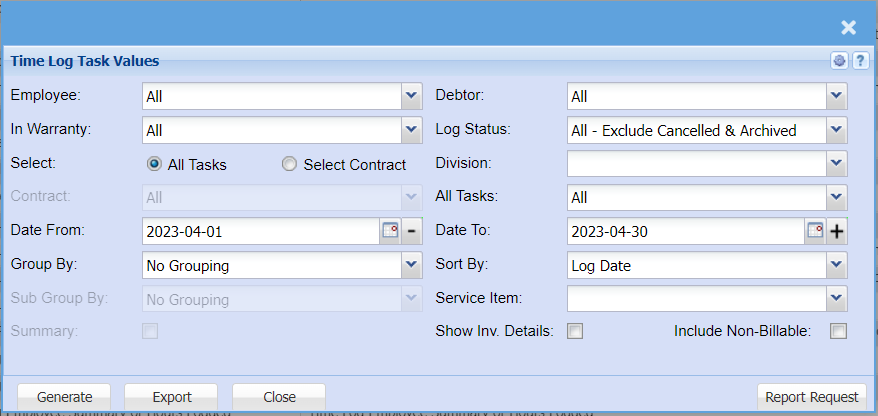
| Employee | |
| In Warranty | |
| Select - All Tasks or Select Contract | |
| Contract | This will appear if you have selected Contract in the above selection. |
| Date From | |
| Group By | |
| Sub Group By | |
| Summary Tick | |
| Debtor | |
| Log Status | |
| Division | |
| All Tasks | This will appear if you have selected All Tasks in the Select section. |
| Date To | |
| Sort By | |
| Service Item | |
| Show Inv. Details Tick | |
| Include Non-Billable |
Time Log Transaction
CRM> Reports> Report List
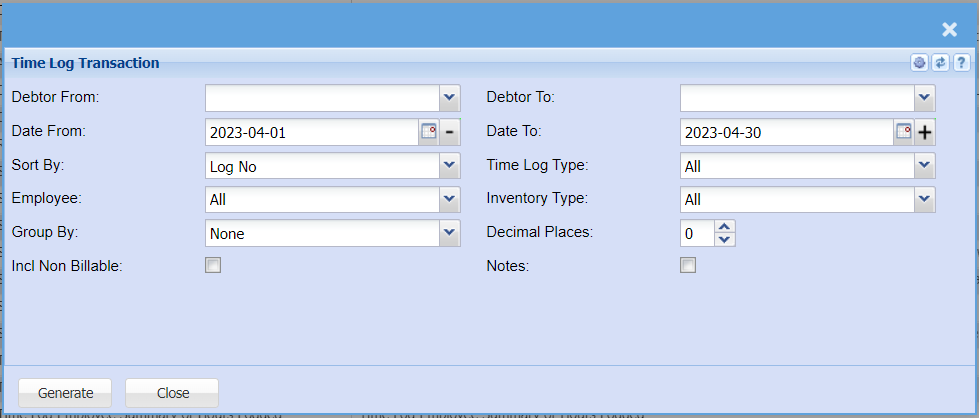
| Debtor From | |
| Date From | |
| Sort By | |
| Employee | |
| Group By | |
| Incl. Non-Billable Tick | |
| Debtor To | |
| Date To | |
| Time Log Type | |
| Inventory Type | |
| Decimal Places | |
| Notes Tick |
To Do Report
CRM> Reports> Report List
Gives a report on the To Do lists logged by each User within the system.
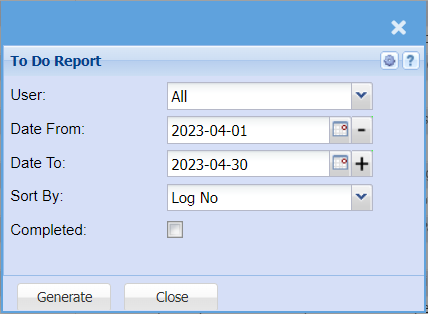
This is the report on To Do lists logged by each user within the system.
The user will select the date from which he/she wants the report to run from and also
Arrange it by log number, date or reference.
Completed option allows the user to either run the only the completed or uncompleted list
Dashboard Displays
.png)