DCM Reports
- Creditors Age Analysis Menu
- Creditors Statements Menu
- Creditors Report List Menu
- Age Analysis
- Approved Purchase Order Detail
- Creditor Interactions
- Creditors Account Analysis Report
- Creditors Allocation Report
- Creditors Decimals Report
- Creditors Graph
- Creditors Inventory Filter
- Creditors Journal Report
- Delivery Note Age Analysis
- Detailed Age Analysis
- Document History
- Purchase Order to GRV Unit Price Variance
- Purchase Orders
- SES Report
- Supplier Delivery Performance Report
- Supplier Listing
- Supplier Summary Report
- Top Suppliers
- Transactions Report
- Dashboard Display
- Report Request
Creditors Age Analysis Menu
Creditors Age Analysis
Creditors > Reports > Age Analysis
Age analysis a listing of creditors accounts, usually produced monthly, which analyses the age of the debts by splitting them into categories
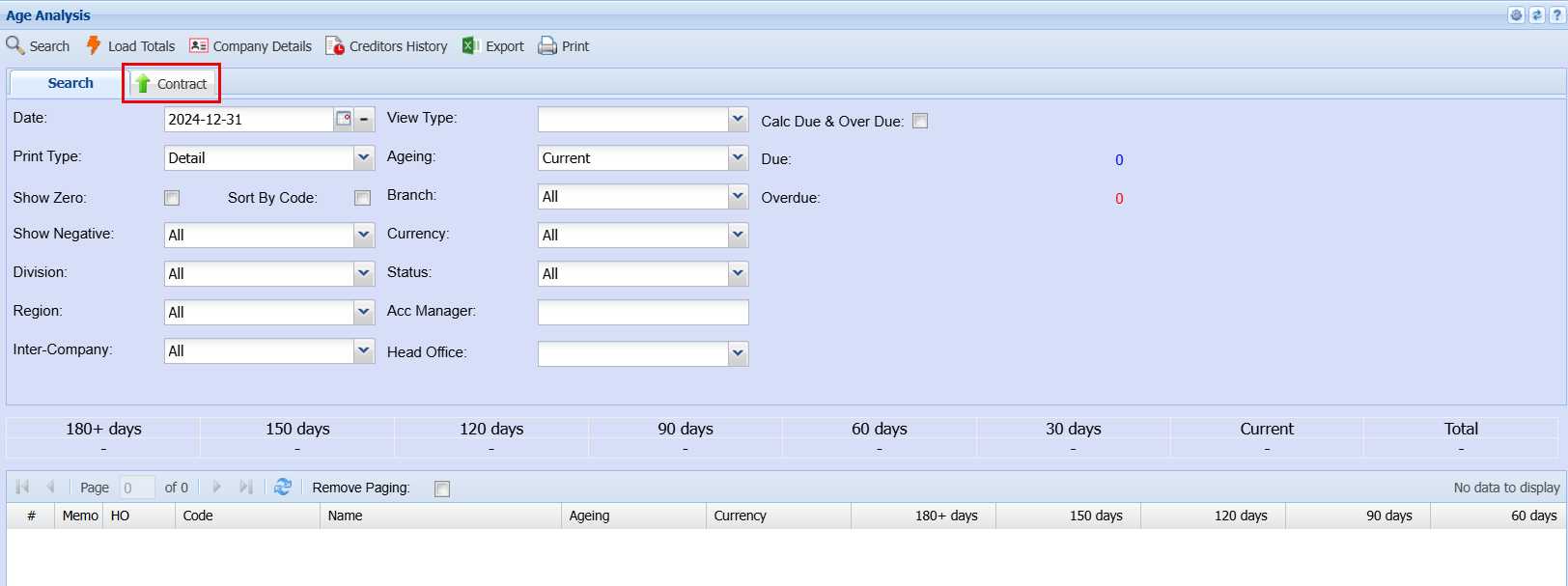
| Date | Select the date for generating age analysis report for. |
| Print Type | Select the print type from the drop-down menu, your options would be Detailed, Basic or Summary. |
| Show Zero | If the box is ticked, the age analysis run will include debtors with zero balances |
| Show Negative | Select from the drop-down menu if you would like to add or exclude negative balances in your report or pull a report for creditors with only negative balances. |
| Division | If you have set up divisions for your debtors, you can pull the report for all your debtors or you can select a specific Division from the drop-down menu. |
| Region | You can pull the report for all your debtors, or you can select a specific Region from the drop-down menu if you have set up Regions for your debtors. |
| Inter-Company | |
| View Type | To select print columns from the drop-down menu. There are three types of view types in the age analysis, the default is the standard view. |
| Aging | The process of investigating a company's accounts receivable according to how long individual invoices have been outstanding |
| Branch | When working with multiple branches this drop-down allows the user to select a specific branch to pull a report for. |
| Currency | Select the currency from the drop-down menu that you would like to run the report for |
| Status | If you select all the report will pull all statuses. If you want to view report by status, select the status on the drop-down menu |
| Account Mgr | You can pull the report for all your debtors, or you can select a specific Account manager from the drop-down menu if you have set up Account Managers for your debtors. |
| Head Office | To select the head office from the question mark Button |
| Include (Exclude Debtors) | Allows a user to tick or untick the box according to preference |
| Standard Tab | |
| Contact Details button | To view debtors contact details |
| Debtor History | Shows debtors financial record history |
|
To print debtor’s age analysis report according to the selected date |
View Types
There are three types of view types in the age analysis, the default is the standard view.
The standard view takes into account whether the customer is set as date of invoice or date of statement.
It also looks at the terms of the supplier and then works out the ageing based on that.
The other two view types are Invoice date and due date.
If you select the invoice date the following will happen.
The ageing periods will look at the months that the invoice was processed.
The date of the ageing will still retain invoices in those dates and not age 30 or 60 days from invoice but put the figures in those months.
Payments and allocations are taken into account for those of you type ageing.
The due date view type takes into account the due date of the invoice and slotted into that month.
So, if an invoice of 500 was processed in January on the 15th of the month and the due date of the invoice is on the 20th of February.
And the payment was made in March the 15th for a value of 100.
If you run the ageing for invoice date on the 14th of March, then an amount of 500 will show in the January column.
If you run the ageing for invoice date on the 15th of March and have not allocated the payment, then an amount of 500 will show in the January column.
The payment of 100 will show in March as a negative figure, the total due amount will then be 400
If you run the ageing for invoice date on the 16th of March and have allocated the payment, then an amount of 400 will show in the January column.
The above process works in a similar manner for the Due date.
It just means that the ageing will look at the date the invoice is due, in which case the amount will show up in February.
Report
This Report shows the status of your transactions in terms of how much you owe your suppliers and for how long these transactions will be reflected by aging periods e.g. Current, 30 Days, 60 Days Etc
.png)
Generate the Age Analysis using various search criteria’s in the system
Search using Currency Type – this will generate transactions in the selected
Aging
Group your transactions by Account manager
.png)
There’s an option to view creditor History from the age analysis
When you click View creditor history button > a window opens a list of transactions against that creditor will be listed and you can view by source documents entry.
.png)
Branch Age Analysis
Viewing and printing Branch Age Analysis
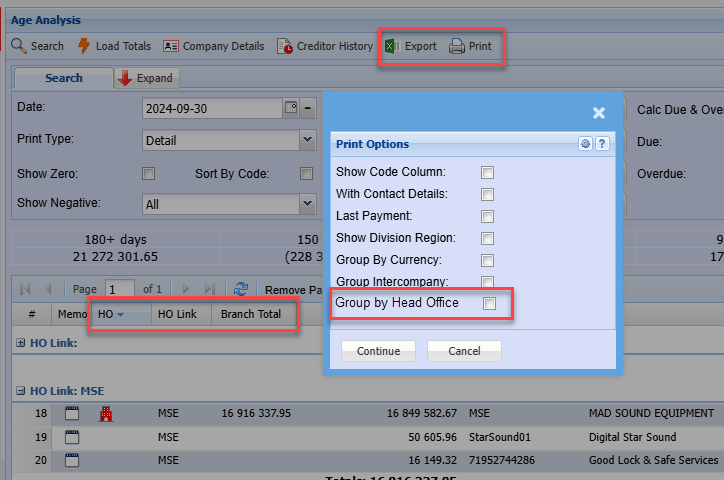
There are three new columns in Age Analysis
| HO | Icon to indicate that this supplier is marked as a Head Office |
| HO Link |
Shows the Head Office account number on Head office and branch accounts. This will be used to group all accounts to Head office accounts |
| Branch Total | This gives the total due for all branches and Head Office |
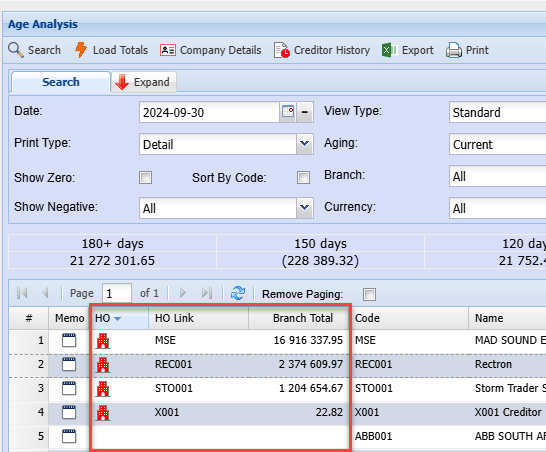
Group by Head office
Click on small drop-down arrow on HO Link, then Group by this field
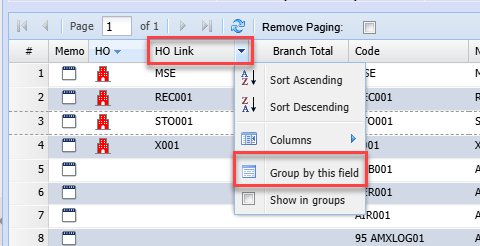
This will group all the accounts together and give totals for each Head Office and Branches
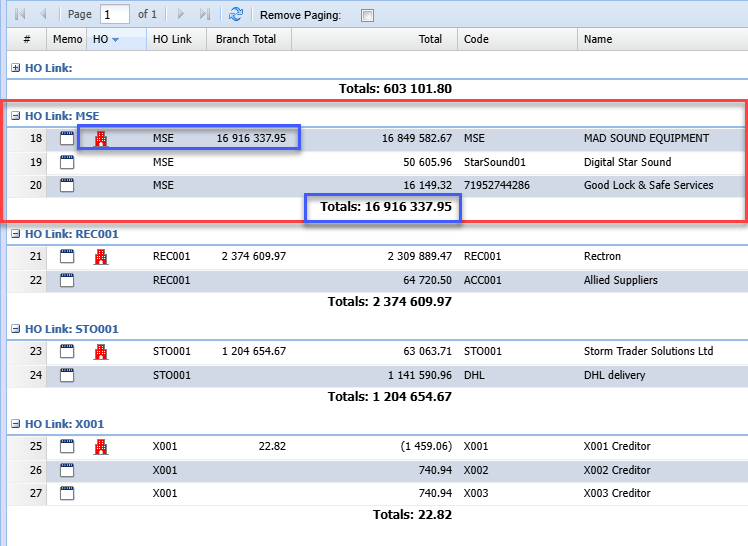
Print and Export
| Export |
Export will contain the HO flag, HO Links and Branch Totals. This means that one is able to group in Excel Head Office accounts. |
| Print and Group by Head Office with sub totals |
Creditors Statements Menu
Creditors Statements
Creditors> Reports>Statements
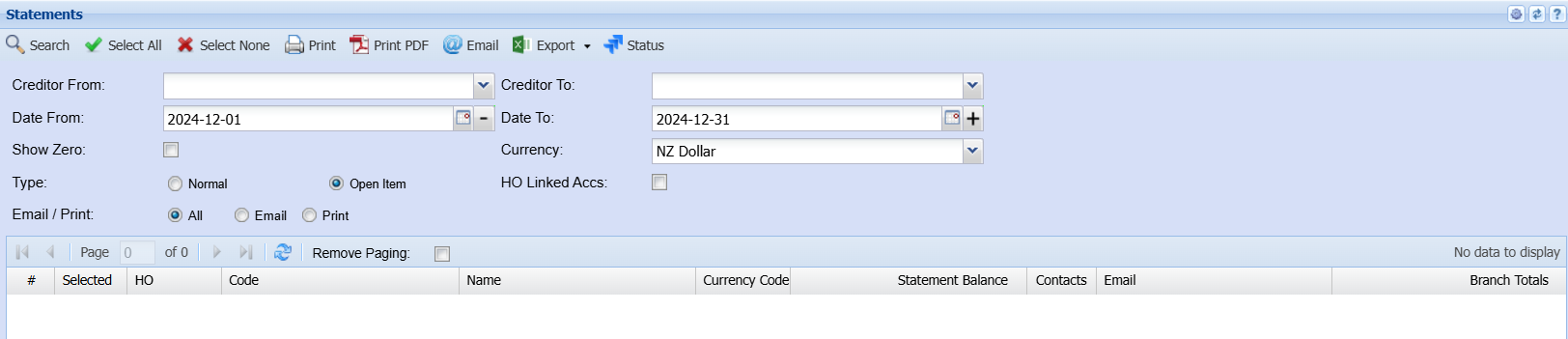
Creditor From and Creditor To enter a specific creditor to run the statement or alternatively leave blank to see all Creditors.
| Select all | By selecting the select all button the report will flag all debtors in the list |
| Select None | By selecting the select none button the report will deselect all debtors in the list |
| Prints to screen the statement details | |
| Pre-Print | send the statement to your email address |
| Print Pdf | prints and emails a pdf version to self |
| this will email the statement to the person selected to receive statement shown on the email column | |
| SMS | this will sms the statement to the person selected to receive sms statement (cell number provided) |
| Export | XML or CSV - export the statement in either a CSV or XML format |
| Status | opens up the printing status window so you can see the whether the statement was sent successfully. |
| Show Zero | tick this if you want to see statement with zero balance in the grid |
Normal
Open statement
Billing Group
Creditors Report List Menu
Age Analysis
Creditors >Reports > Report List
Gives a report of all Creditors monies due and aged by period from the date specified. This criterion allows a selection of a single Creditor.
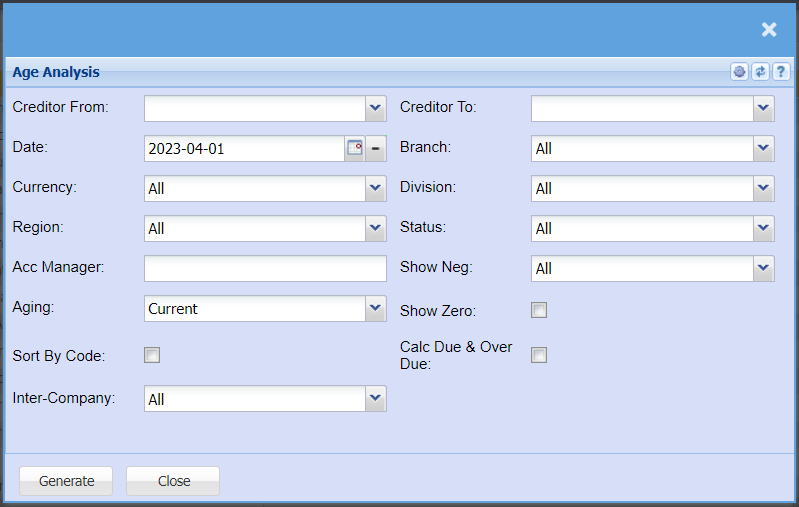
| Creditor From / To | Select a Customer/Debtor you wish to view the report from. Select the Customer/Debtor you wish to see up to in the report. |
| Date | Choose the date range for which you want to view the report for |
| Currency | If you use multi-currency, you can select to pull the report for a specific currency. |
| Region | You can pull the report for all your debtors, or you can select a specific Region from the drop-down menu if you have set up Regions for your debtors. |
| Acc Manager | You can pull the report for all your debtors, or you can select a specific Account manager from the drop-down menu if you have set up Account Managers for your debtors. |
| Aging | Select the period you want to pull the age analysis for. |
| Sort By Code | Tick the box if you would like to add a column to your report for Creditor code which you can sort by. |
| Inter-Company | This will allow you to include or exclude internal invoices between branches that would not be considered a GST Sale but to correct the cost centre. |
| Branch | When working with multiple branches this drop-down allows the user to select a specific branch to pull a report for. |
| Division | If you have set up divisions for your debtors, you can pull the report for all your debtors or you can select a specific Division from the drop-down menu. |
| Status | If you select all the report will pull all statuses. If you want to view report by status, select the status on the drop-down menu |
| Show Neg | Select from the drop-down menu if you want negative balances to be included or excluded from your report. |
| Show Zero | Tick this box if you would like creditors with Zero balances to be included in your report |
| Calc Due and Overdue | Tick this box if you would like to add two columns for the due and overdue amounts |
Approved Purchase Order Detail
Creditors >Reports > Report List
Shows a report on approved Purchase Orders.
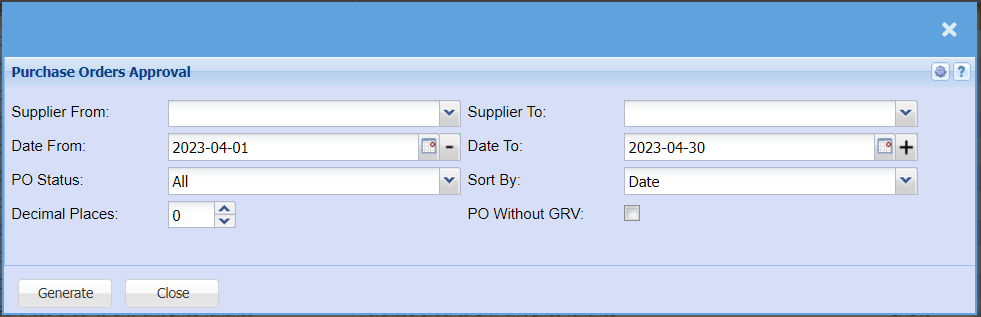
It’s a report on approved purchase orders
| Supplier From / Supplier To | Select a Suppliers/Creditors you wish to view the report from. Select the Suppliers/Creditors you wish to see up to in the report. |
| Date From / Date To | Choose the date range for which you want to view the report from / Select a date range of when you want to see up to on the report. |
| PO Status | Select from the drop-down menu if you want a report for all Approved Purchase orders or you can filter for Completed, Cancelled, Closed, partially completed orders etc. |
| Sort BY | Select from the drop-down menu if you would like your report sorted by Date or Purchase Order Number. |
| Decimal Places | It is advisable to set decimals to two places. You can View the report with any number of decimal places. |
| PO Without GRV | Tick this box if you would like to include purchase orders that do not have GRVs |
| Generate button | Click the "Generate" button to open the report. You will have options to copy, email, or print the report. To view the report in an Excel document, copy the report and paste it into an Excel file. |
Creditor Interactions
Creditors >Reports > Report List
This report shows all notes captured against creditors. A single Creditor can be selected to view all notes captured.
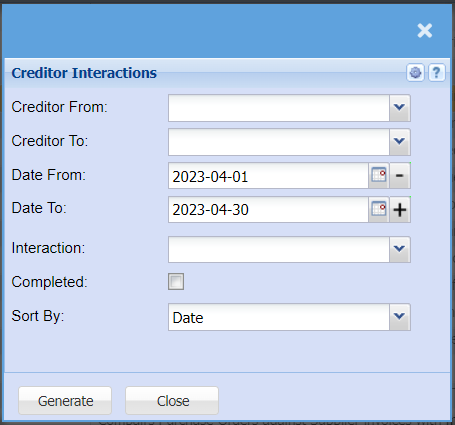
| Creditor From / Creditors To | Select a Suppliers/Creditors you wish to view the report from. Select the Suppliers/Creditors you wish to see up to in the report. |
| Date From / Date To | Choose the date range for which you want to view the report from / Select a date range of when you want to see up to on the report. |
| Interaction Type | Select the interaction type from the drop-down arrow |
| Show complete | Allow the user to tick the box in order to see completed interactions on the report |
| Sort By | Choose from the drop-down menu how you would like your report sorted, your options are by date, Captured By or Subject |
| Generate button | Click the "Generate" button to open the report. You will have options to copy, email, or print the report. To view the report in an Excel document, copy the report and paste it into an Excel file. |
Creditors Account Analysis Report
Creditors >Reports > Report List
Analysis of GRVs per creditor per selected period with their various payments against them.
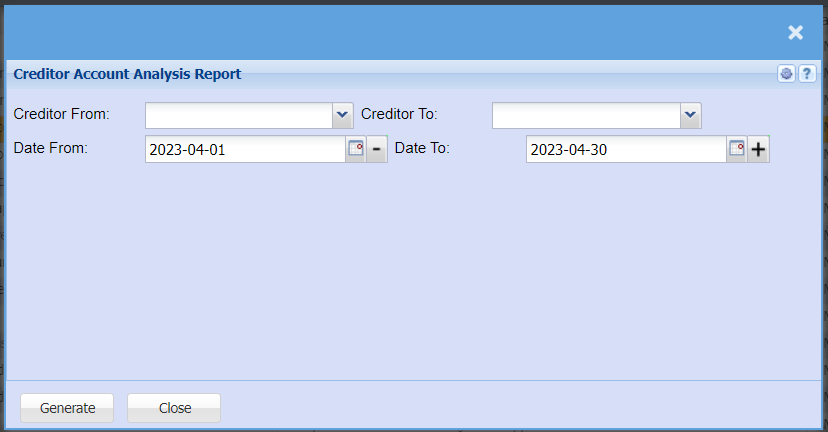
| Creditor From / Creditor To | Select a Suppliers/Creditors you wish to view the report from. Select the Suppliers/Creditors you wish to see up to in the report. |
| Date From / Date To | Choose the date range for which you want to view the report from / Select a date range of when you want to see up to on the report. |
Creditors Allocation Report
Creditors >Reports > Report List
Shows detailed allocations of payments of invoices per Creditor.
Allows a user to generate debtor’s allocation report

| Creditor | Select a creditor/supplier from the drop-down menu that you would like to pull a report for. |
| Primary | Select the primary source from the drop-down menu |
| Date From / Date To | Choose the date range for which you want to view the report from / Select a date range of when you want to see up to on the report. |
| Sort By | Allows a user to select from the drop-down arrow how to sort the debtor’s allocation |
| Excl Zero Values | By ticking this box, the allocation will exclude zero values. If not ticked, it will include zero values |
| All Creditors | By ticking All Creditors you will include all suppliers in your report. |
| Generate button | Click the "Generate" button to open the report. You will have options to copy, email, or print the report. To view the report in an Excel document, copy the report and paste it into an Excel file. |
Creditors Decimals Report
Creditors >Reports > Report List
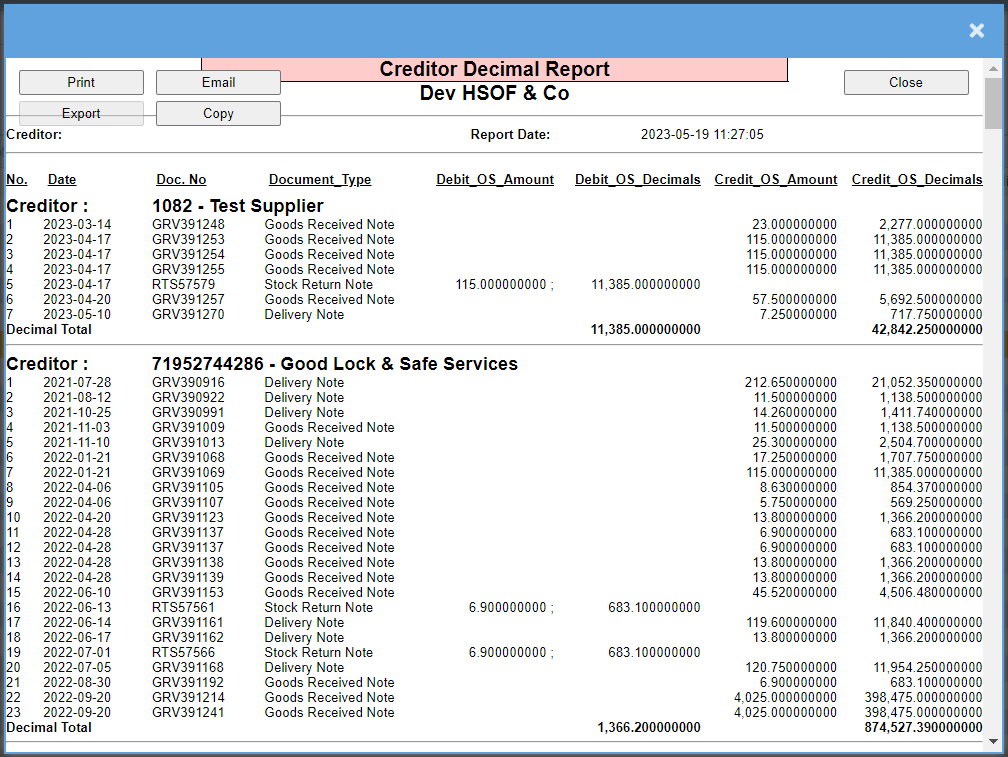
This report works out any Creditors that have decimal values outstanding on debit and credit values
Creditors Graph
Creditors >Reports > Report List
Shows a line or bar graph of all GRVs less Stock Returns for a specific Creditor. Daily intervals can be specified.
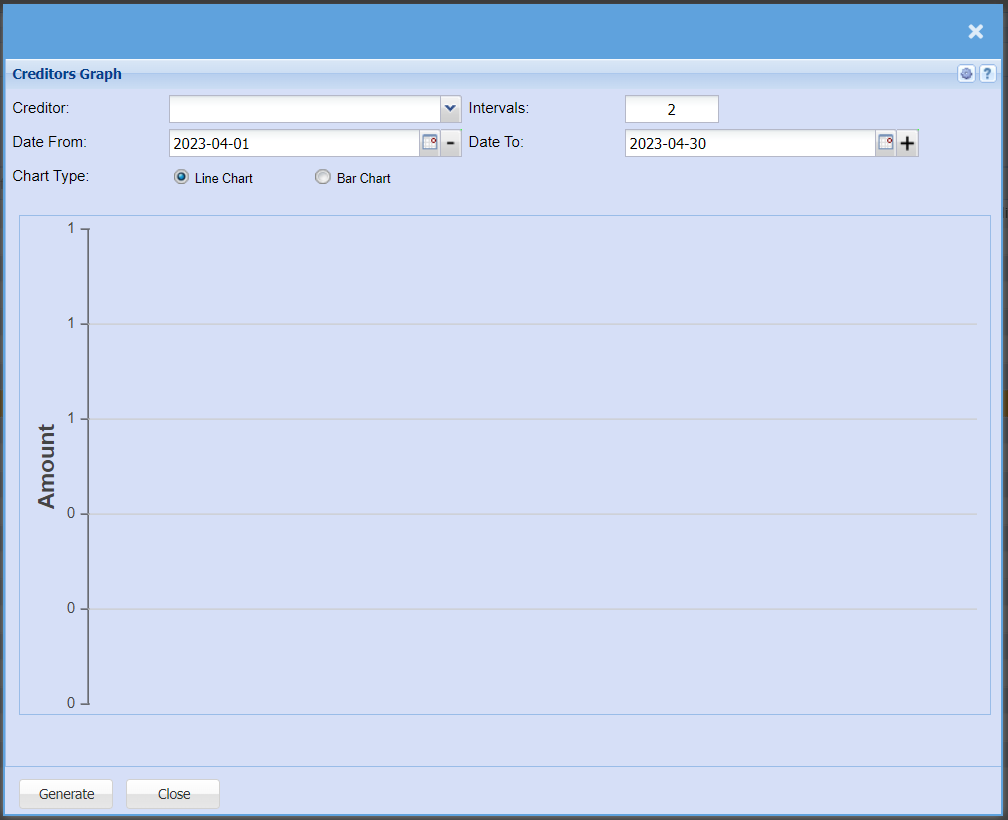
| Creditor | Select a creditor/supplier from the drop-down menu that you would like to pull a report for. |
| Intervals | Intervals refers to the days between each figure |
| Date From / Date To | Choose the date range for which you want to view the report from / Select a date range of when you want to see up to on the report. |
| Chart Type | Select if you would like your graph in a line graph or bar graph |
| Generate button | Click the "Generate" button to open the report. You will have options to copy, email, or print the report. To view the report in an Excel document, copy the report and paste it into an Excel file. |
Creditors Inventory Filter
Creditors >Reports > Report List
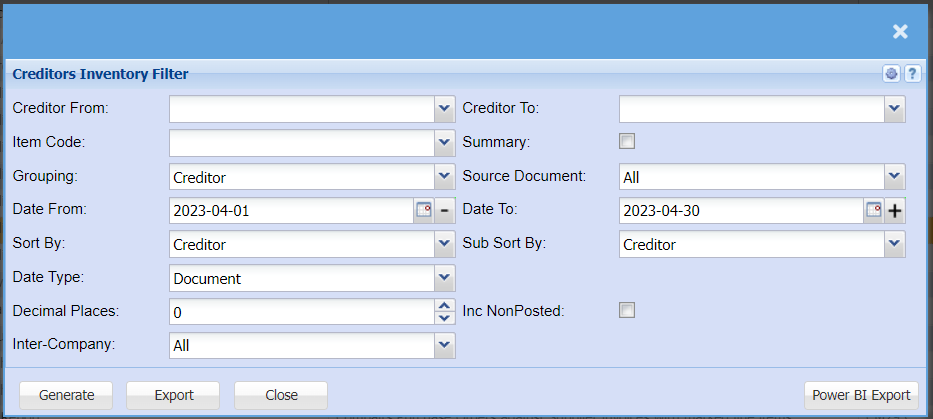
| Creditor From / Creditor To | Select a Suppliers/Creditors you wish to view the report from. Select the Suppliers/Creditors you wish to see up to in the report. |
| Item Code | Select an item from your inventory list that you would like to pull the report for |
| Grouping | Select from the drop-down menu how you would like your report grouped, you can choose from Creditor, Source Document or Stock Type. |
| Date From / Date To | Choose the date range for which you want to view the report from / Select a date range of when you want to see up to on the report. |
| Sort By | Choose from the drop-down menu how you would like your report sorted, your options are by Creditor, Date, Job Number, Reference or Source Document |
| Date Type | Select if you would like the report to be pulled by Document Date or Inventory Movement Date. |
| Decimal Places | It is advisable to set decimals to two places. You can View the report with any number of decimal places. |
| Inter-Company | This will allow you to include or exclude internal invoices between branches that would not be considered a GST Sale but to correct the cost centre. |
| Summary | If you put the tick on the report will only pull limited information |
| Source Document | Select if you would like the report for Goods Received Notes or Stock Returned Notes. |
| Sub Sort By | Sub Sort the report by selecting one option from the drop-down menu allows the user to pull a report with a secondary criteria that will be sorted by either, Creditor, Date, Job Number, Reference or Source Document |
| Inc Non Posted | By ticking this box, the report will include transactions that have not yet been posted |
| Generate | Click the "Generate" button to open the report. You will have options to copy, email, or print the report. To view the report in an Excel document, copy the report and paste it into an Excel file. |
| Export | This allows you to export the report to an Excel file |
| Power BI Export | This allows you to export the report into a Power BI Format |
Creditors Journal Report
Creditors >Reports > Report List
Shows posted creditor journals, who created them and who posted them
This is a report on creditor’s posted journal
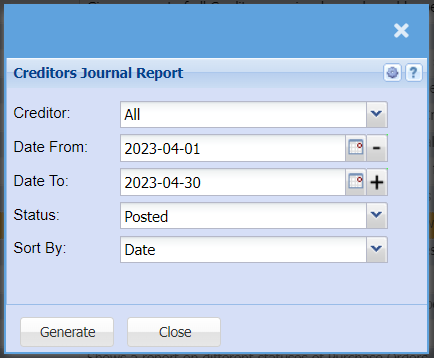
| Creditor | Select a creditor/supplier from the drop-down menu that you would like to pull a report for. |
| Date From / Date To | Choose the date range for which you want to view the report from / Select a date range of when you want to see up to on the report. |
| Status | If you select all the report will pull all statuses. If you want to view report by status, select the status on the drop-down menu |
| Sort By | Choose from the drop-down menu how you would like your report sorted, your options are by Date, Document Number, Reference, Action or Debtor. |
| Generate | Click the "Generate" button to open the report. You will have options to copy, email, or print the report. To view the report in an Excel document, copy the report and paste it into an Excel file. |
Delivery Note Age Analysis
Creditors >Reports > Report List
Report displaying the aging of outstanding Delivery Notes for a selected client.
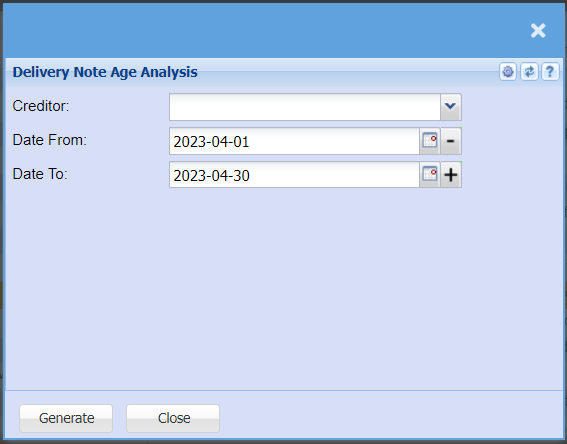
| Creditor | Select a creditor/supplier from the drop-down menu that you would like to pull a report for. |
| Date From / Date To | Choose the date range for which you want to view the report from / Select a date range of when you want to see up to on the report. |
| Generate | Click the "Generate" button to open the report. You will have options to copy, email, or print the report. To view the report in an Excel document, copy the report and paste it into an Excel file. |
| Close | Click Close to close the report |
Detailed Age Analysis
Creditors >Reports > Report List
Shows the detail of unallocated transactions of Creditors in a list in detail per document
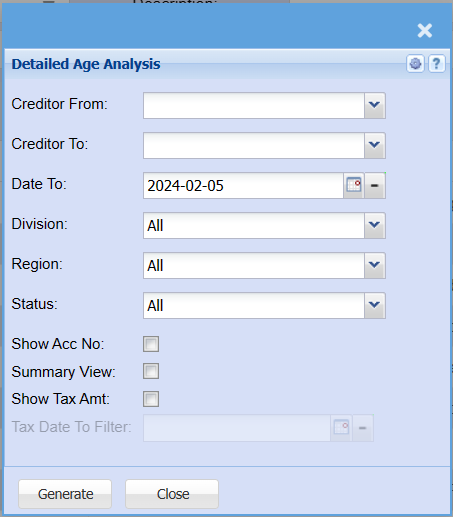
| Creditor From / Creditor To | Select a Suppliers/Creditors you wish to view the report from. Select the Suppliers/Creditors you wish to see up to in the report. |
| Date To | Limit the report by selecting the date to |
| Division | If you have set up divisions for your debtors, you can pull the report for all your debtors or you can select a specific Division from the drop-down menu. |
| Region | You can pull the report for all your debtors, or you can select a specific Region from the drop-down menu if you have set up Regions for your debtors. |
| Status | If you select all the report will pull all statuses. If you want to view report by status, select the status on the drop-down menu |
| Show Acc No. | By ticking Show Acc No. the report will add a column that will have the Creditors account number. |
| Summary View | If you put the tick on the report will only pull limited information |
| Show Tax Amt | If you put the tick on the report will show the tax amount in a separate column. |
| Tax Date To Filter | If you have ticked show Tax Amt you will be able to select a date to filter up to. |
| Generate | Click the "Generate" button to open the report. You will have options to copy, email, or print the report. To view the report in an Excel document, copy the report and paste it into an Excel file. |
Document History
Creditors >Reports > Report List
Shows a full report of Creditors Documents which have been posted. Report is filtered by Document type and date.
This is a full report of posted documents of a selected creditor
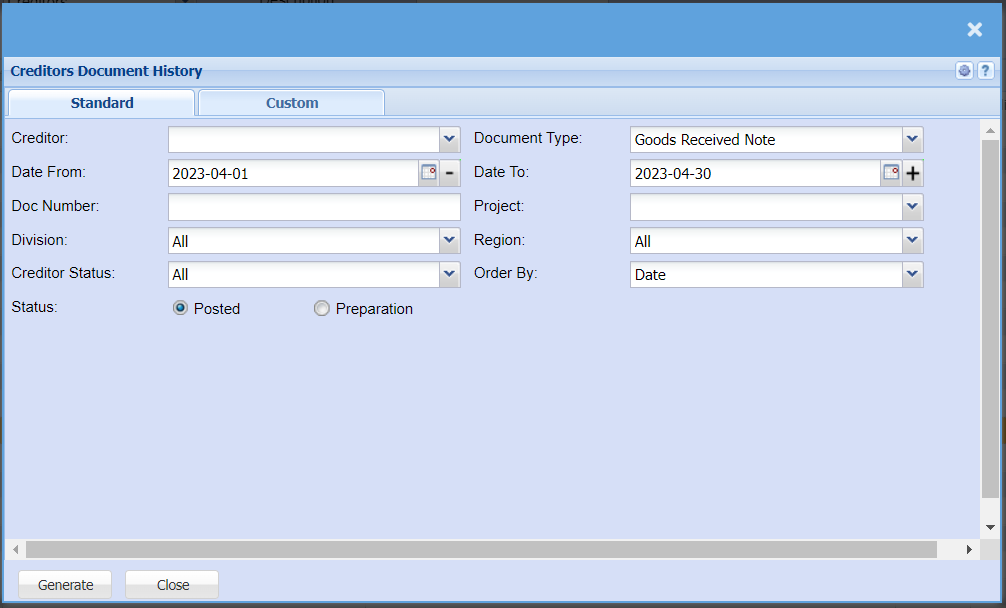
| Creditor | Select a creditor/supplier from the drop-down menu that you would like to pull a report for. |
| Date From / Date To | Choose the date range for which you want to view the report from / Select a date range of when you want to see up to on the report. |
| Doc number | Enter document number if you know it |
| Division | If you have set up divisions for your debtors, you can pull the report for all your debtors or you can select a specific Division from the drop-down menu. |
| Creditor Status | Select the status from the drop-down arrow |
| Status | If you select all the report will pull all statuses. If you want to view report by status, select the status on the drop-down menu |
| Document Type | Select the Document Type from the drop-down menu that you would like to pull document history for. you can select from Goods Received Notes, Stock Return, Purchase Order, Delivery Note or GRV and Stock Return. |
| Project | If this report is for a specific project, select this project from the drop-down menu. |
| Region | You can pull the report for all your debtors, or you can select a specific Region from the drop-down menu if you have set up Regions for your Creditor. |
| Order By | Select how you would like your report to be order by from the drop-down menu, you can choose from Date, Creditors Name, Reference, Doc Number, Description, Currency, Project, tax Total or tax include or exclude. |
| Generate button | Click the "Generate" button to open the report. You will have options to copy, email, or print the report. To view the report in an Excel document, copy the report and paste it into an Excel file. |
Purchase Order to GRV Unit Price Variance
Creditors >Reports > Report List
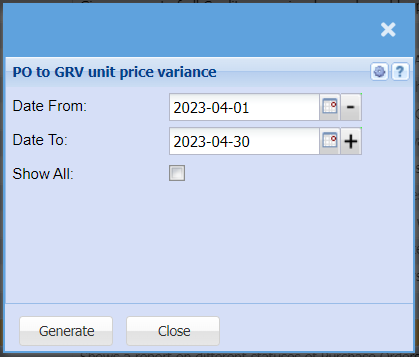
Purchase Order to GRV unit price variance
PO to GRV Unit Price Variance Help
The report on purchase order to GRV unit price variance
The user has to select the date from and the date to, to run the report. The system allows the back date
Purchase Orders
Creditors >Reports > Report List
Shows a report on different statuses of Purchase Orders. This includes what has been ordered, received, processed and balances. The criteria for this can be chosen by Creditors or date and stock.
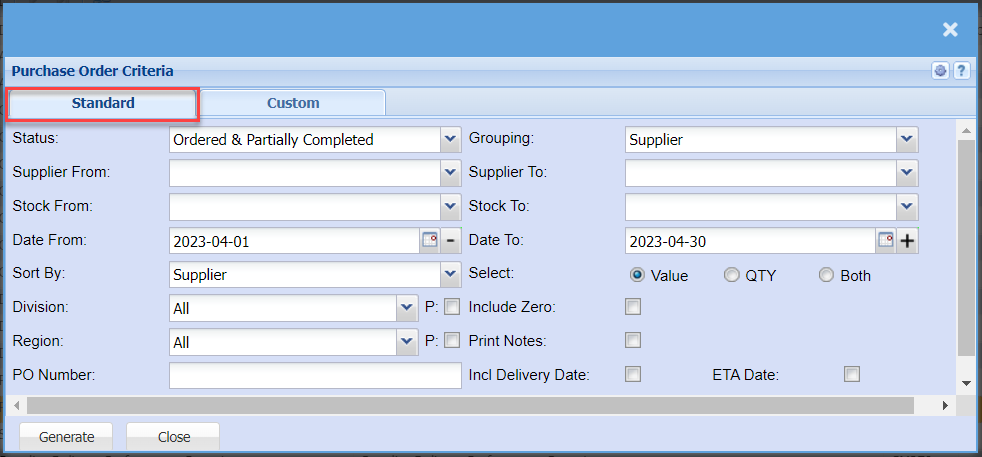
| Status | If you select all the report will pull all statuses. If you want to view report by status, select the status on the drop-down menu, some choices are Closed, Created, Authorised, Ordered, Completed etc. |
| Supplier From / Supplier To | Select a Suppliers/Creditors you wish to view the report from. Select the Suppliers/Creditors you wish to see up to in the report. |
| Stock From / Stock To | Select Stock from and Stock to fields from the drop-down menus to limit what will be displayed on the report. |
| Date From / Date To | Choose the date range for which you want to view the report from / Select a date range of when you want to see up to on the report. |
| Sort By | Choose from the drop-down menu how you would like your report sorted, your options are by Supplier, Purchase Order Number, Date |
| Division | If you have set up divisions for your debtors, you can pull the report for all your debtors or you can select a specific Division from the drop-down menu. |
| Region | You can pull the report for all your debtors, or you can select a specific Region from the drop-down menu if you have set up Regions for your debtors. |
| PO Number | Add the Purchase Order number if you know it |
| Grouping | Select a group you want to have your report reflect, you can have Suppliers, Stock Items, Transaction Dates on None. |
| Select | Select whether you want your report to reflect the Value, Quantity or both |
| Include Zero | By ticking this box, your report will include Zero balance purchase orders. |
| Print Notes | By ticking this box, the report will have an extra column with the Notes against the purchase orders if they have not. |
| Incl Delivery Date | By ticking this box, the report will have an extra column with the Delivery Dates |
| ETA Date | By ticking this box, the report will have an extra column with the ETA |
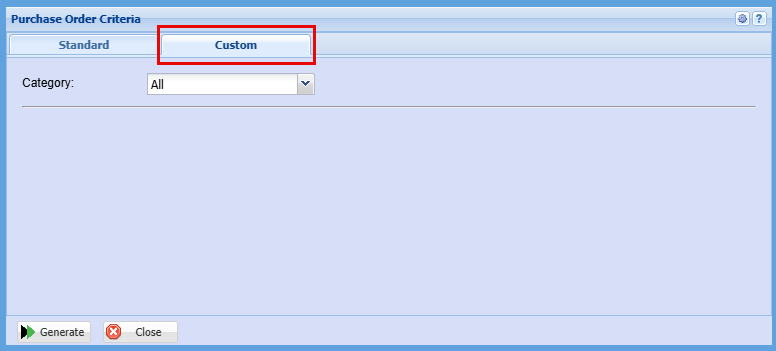
| Category | To generate the report, the user has to select the category from the drop-down menu. These custom fields can be created in the Configuration module to filter the report. |
SES Report
Creditors >Reports > Report List
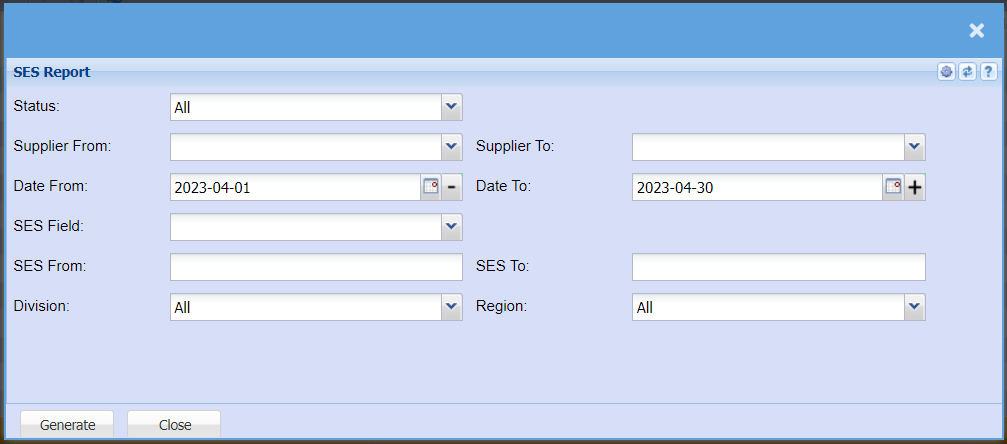
| Status | If you select all the report will pull all statuses. If you want to view report by status, select the status on the drop-down menu, some choices are Closed, Created, Authorised, Ordered, Completed etc. |
| Supplier From / Supplier To | Select a Suppliers/Creditors you wish to view the report from. Select the Suppliers/Creditors you wish to see up to in the report. |
| Date From / Date To | Choose the date range for which you want to view the report from / Select a date range of when you want to see up to on the report. |
| SES Field | |
| SES From / SES To | |
| Division | If you have set up divisions for your debtors, you can pull the report for all your debtors or you can select a specific Division from the drop-down menu. |
| Region | You can pull the report for all your debtors, or you can select a specific Region from the drop-down menu if you have set up Regions for your debtors. |
| Generate | Click the "Generate" button to open the report. You will have options to copy, email, or print the report. To view the report in an Excel document, copy the report and paste it into an Excel file. |
Supplier Delivery Performance Report
Creditors >Reports > Report List
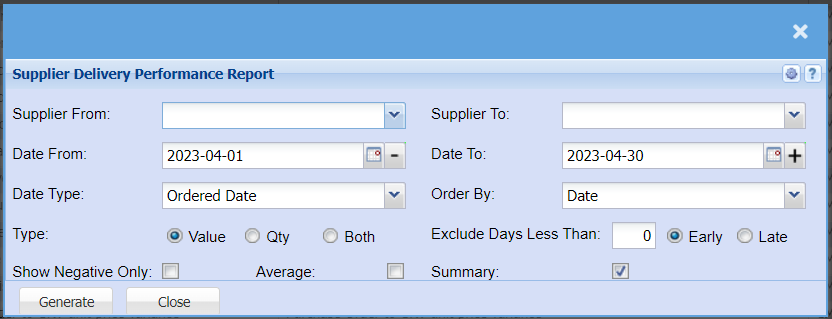
| Supplier From / Supplier Tp | Select a Suppliers/Creditors you wish to view the report from. Select the Suppliers/Creditors you wish to see up to in the report. |
| Date From / Date To | Choose the date range for which you want to view the report from / Select a date range of when you want to see up to on the report. |
| Date Type | Select the date you would like your report to reflect, your options are Ordered Date, PO Date, Delivery date or GRV Date. |
| Type | Select if you would like a report for Value, Quantity or both. |
| Order By | Select from the drop-down menu how you would like your report ordered by Date or Document Number |
| Exclude Days Less Than | Select the number of days less than the Delivery date from a supplier |
| Early / Late | Select if you are wanting a report for Early or Late deliveries |
| Show Negative Only Tick | Tick the box if you would like to have a report with Negative Values only. |
| Average Tick | If you put the tick on the report will add a column that will show the supplier average |
| Summary | If you put the tick on the report will only pull limited information |
| Generate | Click the "Generate" button to open the report. You will have options to copy, email, or print the report. To view the report in an Excel document, copy the report and paste it into an Excel file. |
Supplier Listing
Creditors >Reports > Report List
Report on all Creditors which have being added to the Creditors Setup. Custom Fields can also be us... Report that compiles a list of creditors added onto the system
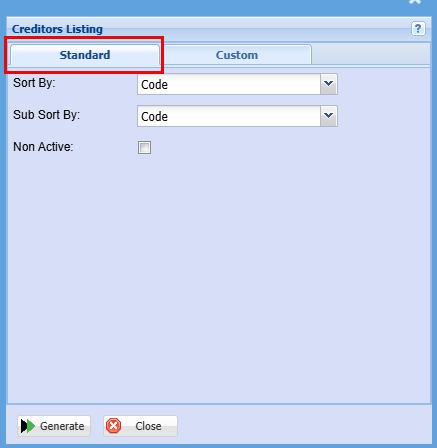
| Sort By | Choose from the drop-down menu how you would like your report sorted, your options are by Code, Name or Contact person |
| Sub Sort By | Sub Sort the report by selecting one option from the drop-down menu allows the user to pull a report with a secondary criteria that will be sorted by either, Code, Name or Contact person |
| Non-Active Tick | Tick the box in order to include non-active suppliers on the report |
| Generate | Click the "Generate" button to open the report. You will have options to copy, email, or print the report. To view the report in an Excel document, copy the report and paste it into an Excel file. |
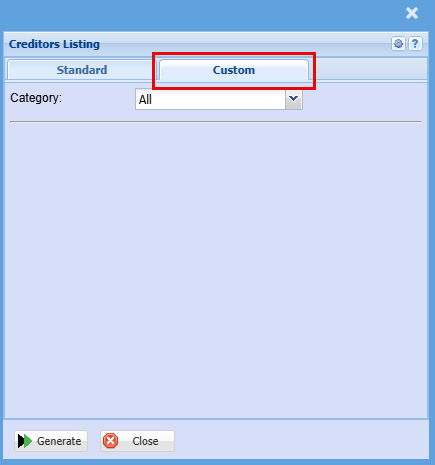
| Category | To generate the report, the user has to select the category from the drop-down menu. These custom fields can be created in the Configuration module to filter the report. |
Supplier Summary Report
Creditors >Reports > Report List
This report shows GRVs, less Stock return notes per Creditor. The information is spread over the number of financial months indicated within the criteria given in a table form.
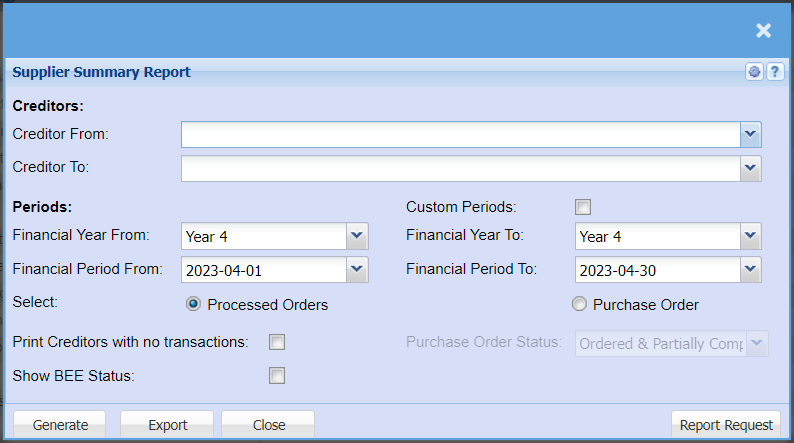
| Creditors | Select a creditor/supplier from the drop-down menu that you would like to pull a report for. |
| Financial Year From / Financial Year To | Select the financial year from and year and to year, to run the report for |
| Financial Period From / Financial Period To | Select the Financial Period from Dates to and from, to run the report for |
| Select |
Select the report type from the radio buttons Processed Orders – GRVs less Stock Return Note and Creditor Transactions marked as Purchases. Purchase Orders |
| Print Creditors with no Transactions | Allows the report to print creditors with no transactions |
| Show BEE Status | Activated two columns for BEE Level and BEE Expiry Date |
| Custom Periods | Here you can select a random date to pull this report for that does not have to be a financial year. |
| Purchase Order Status | Select the status from the drop down as specified except for, Purchase Order Book |
| Generate |
Click the "Generate" button to open the report. You will have options to copy, email, or print the report. To view the report in an Excel document, copy the report and paste it into an Excel file. |
| Export | This allows you to export the report to an Excel file |
| Report Request |
Purchase Order Book Includes the following;
| 1 | Ordered |
| 2 | Partially Completed |
| 3 | Completed |
| 4 | Closed |
Purchase Order Book plus Authorized status
Includes the following;
| 1 | Ordered |
| 2 | Partially Completed |
| 3 | Completed |
| 4 | Closed |
| 5 | Authorized |
Top Suppliers
Creditors >Reports > Report List

| Date From / Date To | Choose the date range for which you want to view the report from / Select a date range of when you want to see up to on the report. |
| Supplier From / Supplier To | Add in your Supplier from |
| Sort By | Choose from the drop-down menu how you would like your report sorted, your options are by Code, Supplier Name, Highest Purchase and Lowest Purchase. |
| Generate | Click the "Generate" button to open the report. You will have options to copy, email, or print the report. To view the report in an Excel document, copy the report and paste it into an Excel file. |
Transactions Report
Creditors >Reports > Report List
Full transactional history of all postings done within Creditors. With the opening and closing balance per creditor and movement between dates specified.
The "Print Creditors" tick is a filter to include creditors that have a closing balance but do not have any transactions within the selected date range that the report is generated for.
Removing this tick will return only creditors that have transactions within the report date range.
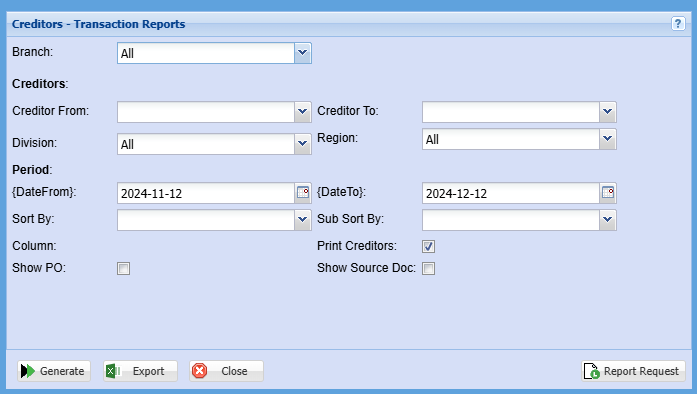
| Branch | When working with multiple branches this drop-down allows the user to select a specific branch to pull a report for. |
| Creditor From / Creditor To | Select a Suppliers/Creditors you wish to view the report from. Select the Suppliers/Creditors you wish to see up to in the report. |
| Division | If you have set up divisions for your debtors, you can pull the report for all your debtors or you can select a specific Division from the drop-down menu. |
| Region | You can pull the report for all your debtors, or you can select a specific Region from the drop-down menu if you have set up Regions for your debtors. |
| Date From /Date To | Choose the date range for which you want to view the report from / Select a date range of when you want to see up to on the report. |
| Sort By | Sub Sort the report by selecting one option from the drop-down menu allows the user to pull a report with a secondary criteria that will be sorted by either, Date, Reference, Description, Debit or Credit. |
| Sub Sort By | Sub Sort the report by selecting one option from the drop-down menu allows the user to pull a report with a secondary criteria that will be sorted by either, Date, Reference, Description, Debit or Credit. |
| Show PO Tick | By ticking this box there will be a column added to this report for Purchase Order Numbers |
| Print Creditors Tick | |
| Show Source Doc Tick |