Client Visit
Visit
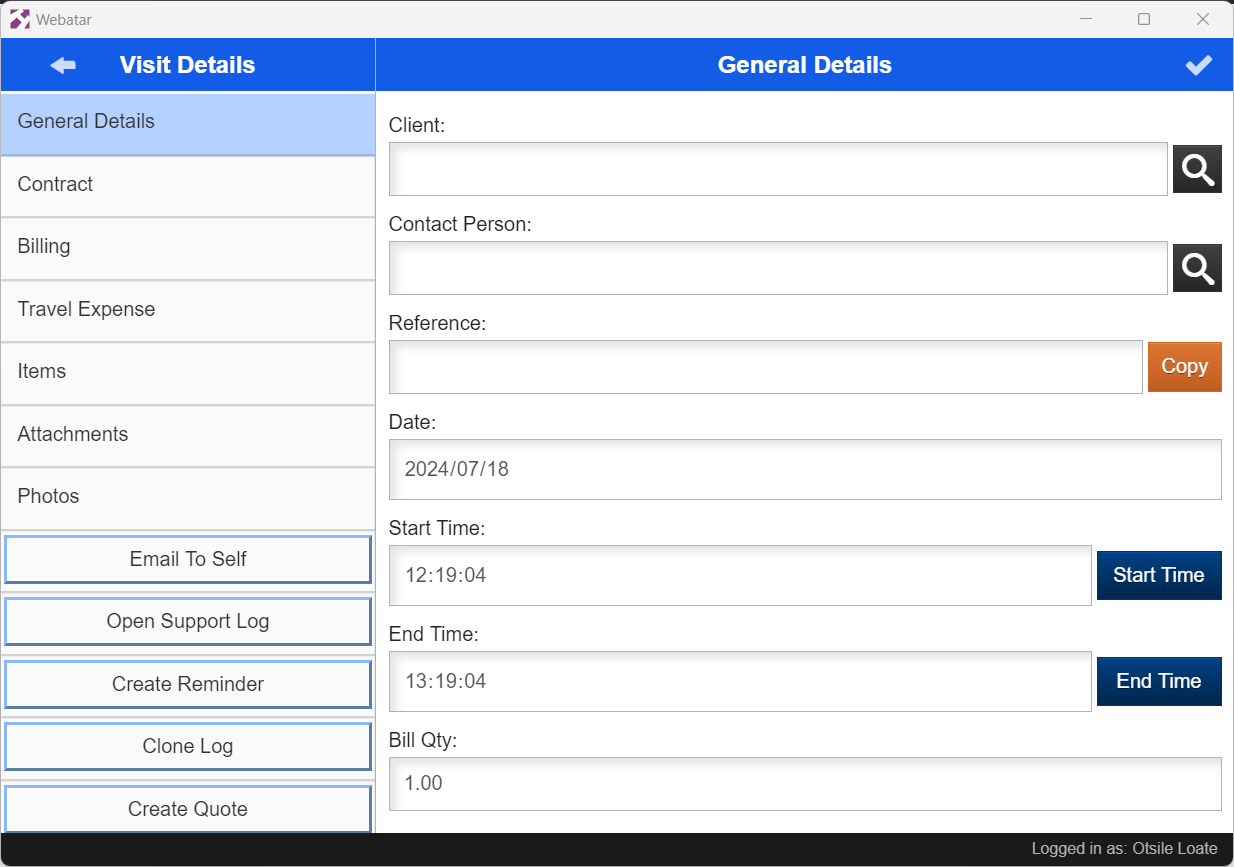
Client visit allows you to capture the following for a client/ customer you are visiting:
- Capture Timesheet
- Email Timesheet/ client visit to self
- Open support Log
- Create reminder
- Clone Log
- Clone Log
- Create Quote
- Create Sales Lead
- Add notes to the customer
- Create Quick Stock Count
Video Training Manual 2017 - Click Here
Old Video Training Manual 2016 - Click here
Client Visit Setup
Security setup
You can setup security access for client visit on the Huge ERP system.
This will allow you to control who sees what on their Webatar mobile
To be able to add security to users Webatar go to:
System Configuration Module > General > User Setup > Edit/Add User > Module Access tab
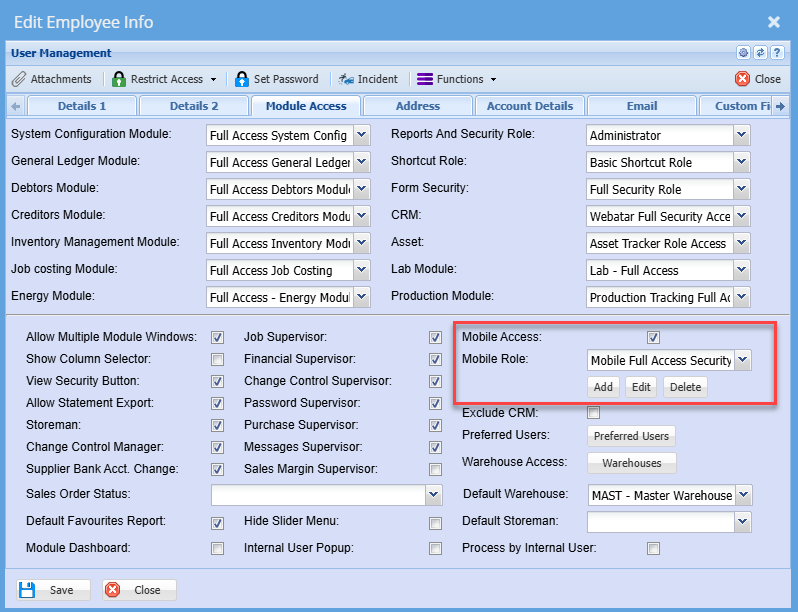
Click on Edit to edit the existing Webatar role or click Add to create a new Webatar mobile app role
This will lead you to the Items tab, add all put a tick on any items that a user will need access to
Once complete click on the Menu Tab
In this case, select Client Visit
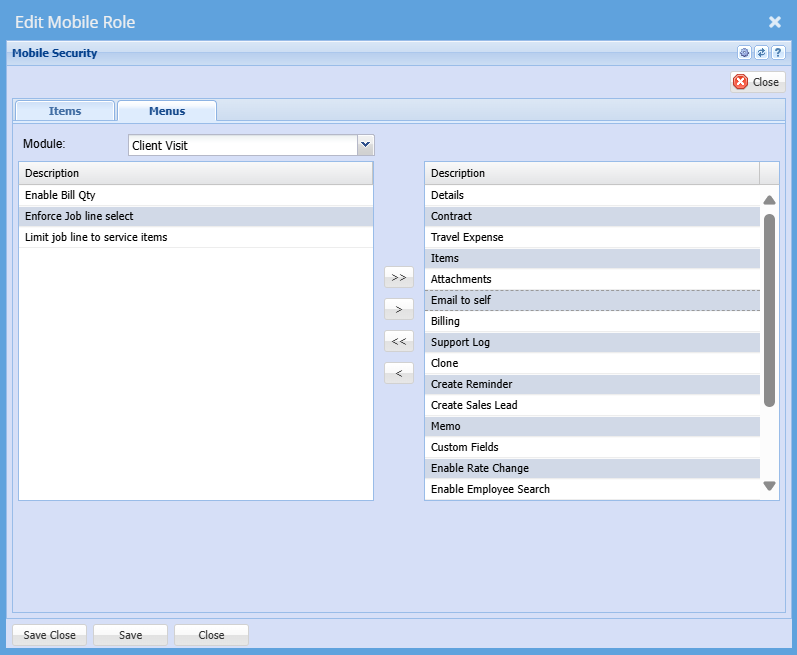
The user will only have access to the menus on the right and not the left
Click Save and Close
Make sure you put a tick on by Mobile Access
Then click save and close again
Webatar Security View
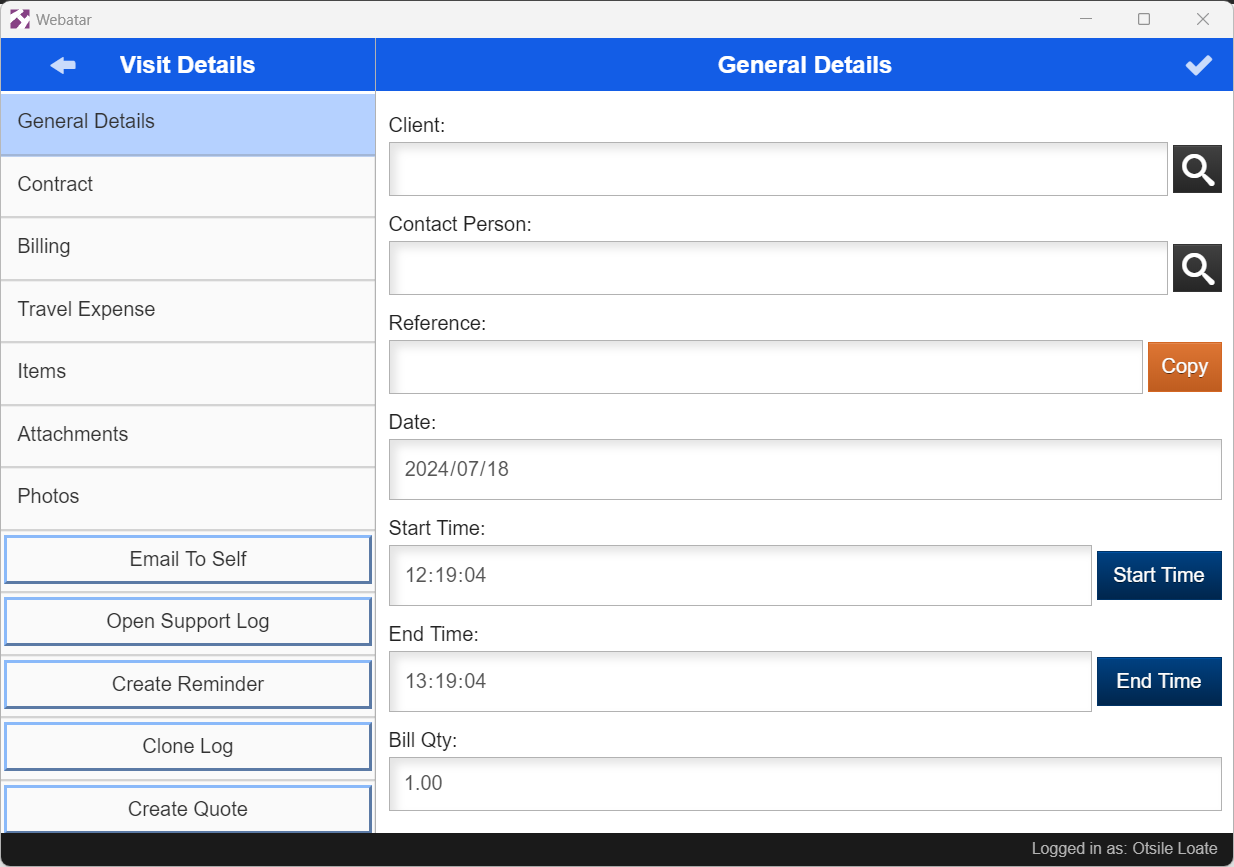
To view security changes, you need to open your Webatar to sync, so all changes can take effect.
Below is how security menus will be displayed on the Webatar App
Search Window
The search window has three main sections
| Search | Search for specific time logs |
| Refresh | Click on this button to see existing time logs |
| Add Button | Add a new time log |
.png)