CCM Analysis
- Stock Order History
- Creditors Analysis Menu
- Document History Menu
- Creditors Transaction History Menu
- Creditors Cashbook History Menu
- Purchase Order History Menu
Stock Order History
Stock Order History
Stock Order History Search
Creditors> Analysis> Stock Order History
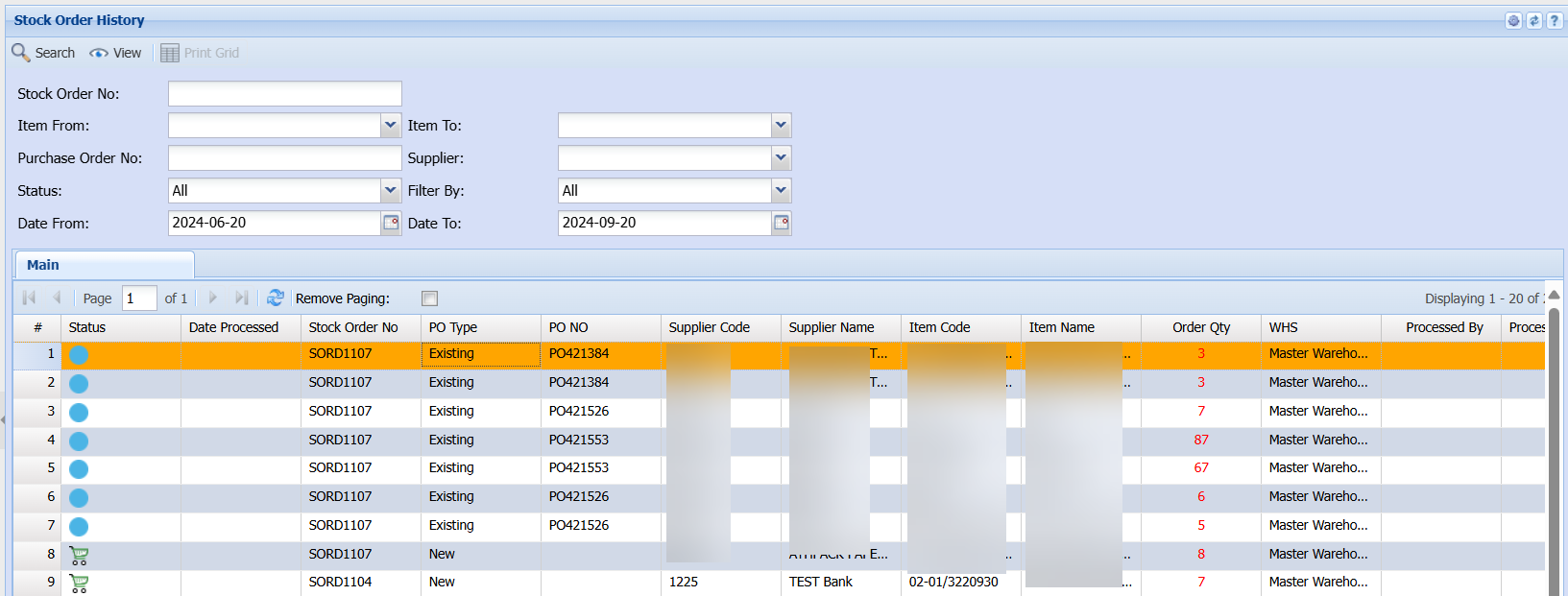
| Search | |
| View | |
| Print Grid | |
| Stock Order No. | |
| Item From | |
| Item To | |
| Purchase Order No. | |
| Supplier | |
| Status | |
| Filter By | |
| Date From | |
| Date To |
Creditors Analysis Menu
Creditors Analysis Menu
Creditors Analysis
Creditors >Analysis > Creditors Analysis
.png)
This form shows a financial record of a selected creditor. One can search by selecting from the following
| Standard Top Tab | |
| Creditor’s Name | to search by selecting the creditor |
| Outstanding Balance | creditor’s outstanding balance and comes up automatically as soon as the creditor is selected |
| Date From | allows a user to back date in order to find creditor financial records |
| Date To | to limit creditor’s analysis search run |
| Order By | to search by selecting order by from the drop down arrow |
| Currency | currency used by the creditor |
| Notes Tab | allows a user to search the notes made against the debtor |
| Contact | search by selecting from the contact from the drop down arrow |
| Show Complete | search completed notes by selecting from the drop down arrow |
| Sort By | search customer’s notes by selecting sort by from the drop down arrow |
| Notes Tab | |
| Search | from selecting the Contact from the drop down arrow |
| Insert button | to insert a note |
| Amend button | allows changes to be made on the notes |
| Delete button | to delete the note |
| View button | to view the notes |
| Email Reminder button | to email the reminder |
| Below Tabs | will show the list of selected creditor’s record according to the date selected |
| Transaction Tab | shows a list of creditor’s entries according to the date |
| Purchase Order Tab | shows creditor’s purchase orders records |
| Del Note Tab | shows a list of delivery notes transactions |
| Goods Received Note Tab | shows a list of GRV transactions |
| Stock Return Tab | shows a list of stock returns transactions |
| Debit Allocation Tab | shows a list of debit allocation transactions and allows a user to search by selecting the Status from the drop down arrow |
| Credit Allocation Tab | shows a list of credit allocations transactions |
| Cashbook | shows a list of cashbooks |
| Journals Tab | shows a list of journals transactions |
| Standard Bottom Tabs | |
| Export | Exports the selected creditors Analysis into an excel spread sheet. |
| Prints the selected creditor’s analysis | |
| View | allows the user to view selected creditors analysis items or edit the information. |
| Related Transactions | Shows the related transactions for the selected creditors analysis |
| Print Statements | to print selected creditor’s statement |
| Print Allocation Report | to print selected creditor’s allocations report |
| Print Decimals | to print selected creditors decimal reports |
Document History Menu
Document History Menu
Creditors Document History
Creditors >Analysis >Document History
.png)
It’s a record list of creditors completed/processed documents
| Advance Search Tab | |
| Supplier | search by selecting the supplier by hitting enter or long search by clicking from the three dots |
| Date From | enter the date from which the history will run from |
| Document No | to search by entering the document |
| Division | to search by selecting the division from the drop down arrow |
| Document Type | allows a user to search by selecting the document from the drop down arrow |
| Date To | to limit the document search by entering the date to |
| Project | to search by selecting the project |
| Region | to search by selecting the region from the drop down arrow |
| Custom Search Tab | |
| Doc Type | to select the document type from the drop down arrow and search |
| Categories | to select the category from the drop down arrow |
| Print Tab | |
| Print button | to print the selected document |
| View button | to view the selected document |
| Related button | shows accounts involved in a transaction |
| Print Grid | to print creditor’s document search |
| Print Del Note button | to print delivery note |
| Manage Detail button | shows job document details |
| Grid Tab | |
| Print Grid button | to print debtor’s document search |
| Export button | to export documents to excel spread sheet |
| Clone Tab | |
| Clone | Invoice to make a copy of a completed document |
Creditors Transaction History Menu
Creditors Transaction History Menu
Creditors Transaction History
Creditors >Analysis >Transaction History
.png)
Creditors Cashbook History Menu
Creditors Cashbook History Menu
Creditors Cashbook History
Creditors >Analysis>Creditors Cashbook History Search
.png)
This is a journal in which all cash receipts and payments including bank deposits and
withdrawals were recorded first, in chronological order, for posting to general ledger
| Basic Search Tab | |
| Cashbook Number | search by entering the cashbook number |
| Date From | search by entering the date from which the cashbook history will run from |
| Order By | search by selecting the order from the drop down arrow |
| Date To | enter the date to, in order to limit cashbook history run |
| Advanced Search Tab | |
| Cashbook Name | search by entering the cashbook name |
| Date | search by entering the date |
| Order By | search by selecting the order from the drop down arrow |
| Bank Account | search by selecting bank account from the drop down arrow |
| Custom Search Tab | |
| Search | by selecting the category from the drop down arrow |
| Standard Tab | |
| View Cashbook button | to view the cashbook details |
| Print button | to print the cashbook |
| Related Transactions button | to view accounts of selected transaction |
Purchase Order History Menu
Purchase Order History Menu
Purchase Order History
Creditors >Analysis>Purchase Order History
.png)
| Search Button | This allows you to search for all created purchase orders. |
| View Button | View the document. |
| Edit Button | Allows you to amend your Purchase Order. |
| Reminder Button | When you want to create against your supplier use the reminder button. And add the relevant details. |
| Print /Export | Clicking on the print button it will open up your connected printers |
| Export button | When you click on Print there’s a copy to Clipboard option which will then be used to export data to an excel spreadsheet. |
| Basic Search Tab | This allows you to search specifically as per menu items below the search tab. |
| Expand /Contract Tab | Shows more search filter criteria that you can use to allocate a purchase order or show less. |
| Custom Search | Custom search searches according to the category selection on the drop down arrow and the system will bring back all that is selected on the category. |