Recurring Transactions
Recurring Transactions
- Recurring Transactions Search
- Recurring invoices Setup
- Recurring Invoices Security
- Debtors Recurring invoices on hold status to change to cancelled
- Recurring Invoice update future invoices
- Invoice Status
Recurring Transactions Search
Video training manual 2016 - Click Here
Go to system configuration > general menu group > recurring transactions.
.png)
Enter a Recurring Transaction Coder, Description, Status, In Use Criteria or Active status to initiate the search.
As in the case with all WebAccounting searches the code and description can left empty.
| In Use Status | When a Recurring Transaction Setup is used to generate a range of invoices then the In Use indicator flag is set to true. Therefor by selecting In Use for the search will result in all Recurring Transaction Setups that are in use being returned. |
| Active | Searching for Active or Inactive Recurring Transaction Setups |
| Add | Insert a new Recurring Transaction Setup |
| Edit | View/Edit the currently selected Recurring Transaction Setup |
| Delete | Only Recurring Transaction Setups that are not In Use can be deleted. Deletes the currently selected Recurring Transaction Setup |
| Cancel | In the event of cancelling a Recurring Transaction Setup firstly a Reason has to be entered to continue and secondly All Transactions that have been generated that have not been processed/posted will be deleted. Cancel the currently selected Recurring Transaction Setup. |
| Print Grid | A report of all records resulting from a search will be printed in a grid format. i.e. the same search criteria applies to the Print Grid. |
| Change Status | Clicking on this button open a window that will allow you to change the Invoice status from Recurring Transaction to Preparation for a specifically selected date. |
Only invoices with the status Preparation can be processed.
Recurring invoices Setup
Go to system configuration > general menu group > recurring transactions
In this area you are going to be setting up the contract terms, which means you'll define which period the recurring is going to be running, example for a 12-month cycle and at which day you're going to be running the recurring
Enter code and put a description and a define when you want the recurring to run.
I suggest setting up a yearly recurring contracts for 12 months. so that would be one for 2019 and another one for 2020. The reason behind this is that you cannot use the same contract for the same customer.
.png)
Transaction Period setup
On the First or Last Day of each period entity e.g. Week, Month, Year etc.
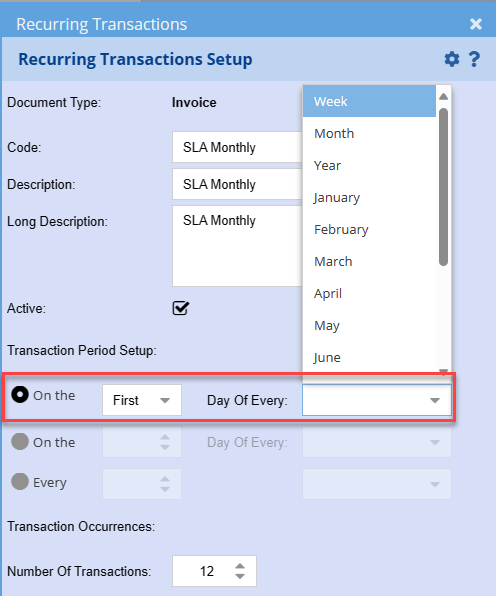
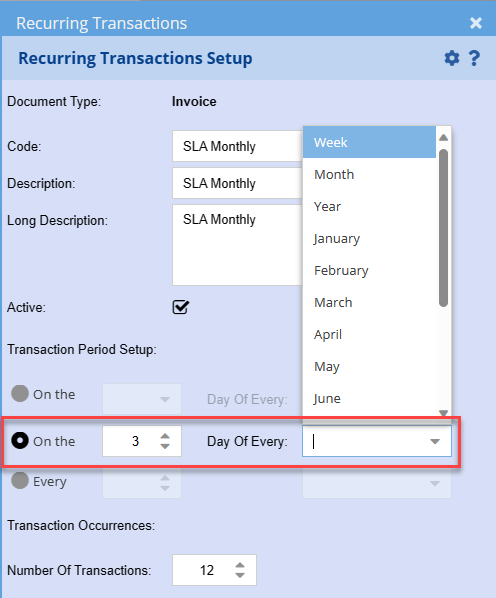
On the 3rd Day of every period entity e.g. Week, Month, Year etc.
Monday is day 1.
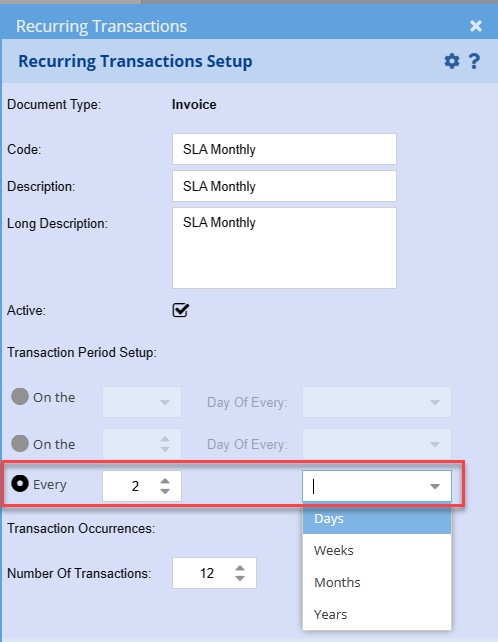
Every 2nd Day, Every 2nd Week (Monday), Every 2nd Month – 1st day of the Month
and Every 2nd Year – 1st day of the Year
Memo Button

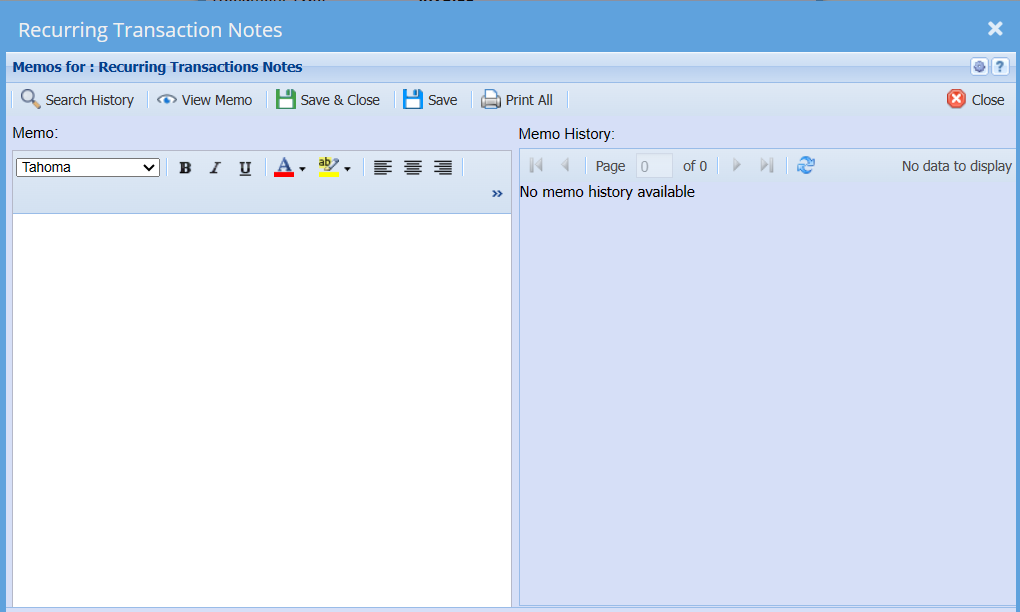
| Search History | |
| View Memo | |
| Print All |
Recurring Invoices Security
Video training manual 2016 - Click Here
Debtors Recurring invoices on hold status to change to cancelled
Rules in on Recurring invoices regarding on hold status.
If a client is on hold when the recurring is changing the status of the debtors invoice from recurring to preparation.
The recurring invoice needs to be changed to cancelled and an email is sent to the user that these accounts were changed to cancelled because they were put on hold.
If the user needs to reinstate that recurring, there is new functionality to reinstate the invoice.
Email to User
Customer Code - Customer Name - Date - Invoice Description - Amount - On Hold and status changed to cancelled
.png)
Recurring Invoice update future invoices
Customer / Debtors Module> Activity> Invoices
There are a number of places to update the changes, here is one place to change
One will still have to change each recurring invoice, however you can then update all future invoices with ease
Go to Customers invoice
Select the Invoice status to be recurring transactions
Change your date to the end of the month
To make your search have better results, you can put in a key word in the description or reference
Click on search to find all recurring invoices that will be processed on the 25th April
.png)
Open up the invoice
| 1 | Make the relevant changes to the line descriptions |
| 2 | Click on Update Recurring |
| 3 | Click on Lines – this will update all future recurring invoices |
| 4 | Close invoice and then open next one |
If you have changed any description on the header, you can use Header button or Both to change Header and Lines of the future invoices.
This change looks at the current recurring invoice and then allows you to change future ones
Item codes can be changed at inventory setup and will update all documents active.
However descriptions will not, as each one is saved on the document and can be different
.png)
Invoice Status
Recurring Documents
Customer invoices creating contracts against customers and then automatically generate future invoices.
These invoices can either be automatically invoiced, processed and then emailed off to the customer, a report will then be sent to you showing you what was sent off.
This will also show you where contracts are coming to an end.
.png)