Projects
Projects
Project Setup
Video training manual 2016 - Click Here
System Configuration> General> Projects Setup
.png)
Projects are different from job costing.
Where job costing relates to costs per job, a project can have multiple job costings allocated to it.
Projects are situated throughout the system and produce a Project Profit and Loss similar to an income statement.
In this section, you will first setup the Project Lines.
A Project Line is defined as the actual project name. Then you will setup a Project Group.
For each Project Line that is setup, you should setup a Project Group.
.png)
NOTE: Only Project Groups are shown in all the document assignments and not the Project Lines.
Project Lines Tab
| Code | Allows the user to search by the project’s code. |
| Description | Allows the user to search by the project’s description. |
| Active | Search for Active or Inactive Projects |
| Search | Searches for Project Lines that matches the criteria entered in the Code, Description and Active fields. |
| Edit | Opens the edit screen where the user will be allowed to edit the selected project line. |
| Print Grid | Print the Current Grid |
| View Details | Not Available for Project Lines |
Project Groups Tab
Note: If a project line is being used in a Project Group, it will be marked as inactive and not be deleted.
| Code | Allows the user to search by the project’s code. |
| Description | Allows the user to search by the project’s description. |
| Active | Search for Active or Inactive Projects |
| Search | Searches for Project Groups that matches the criteria entered in the Code, Description and Active or inactive fields. |
| Edit | Opens the edit screen where the user will be allowed to edit the selected project Group. |
| Print Grid | Print the Current Grid as well as the project lines associated with the groups |
| View Details | View the project’s related documents such a Quote, Invoice, etc. |
Project reports
There are multiple ways to get information on the detail of projects
There are two ways to get your information
|
Report on project profit and loss |
Transactions report |
|
1. Detailed |
|
|
2. Summary |
Run the Report for Project profit and loss
Leave the tick off for summary, tick on for detail

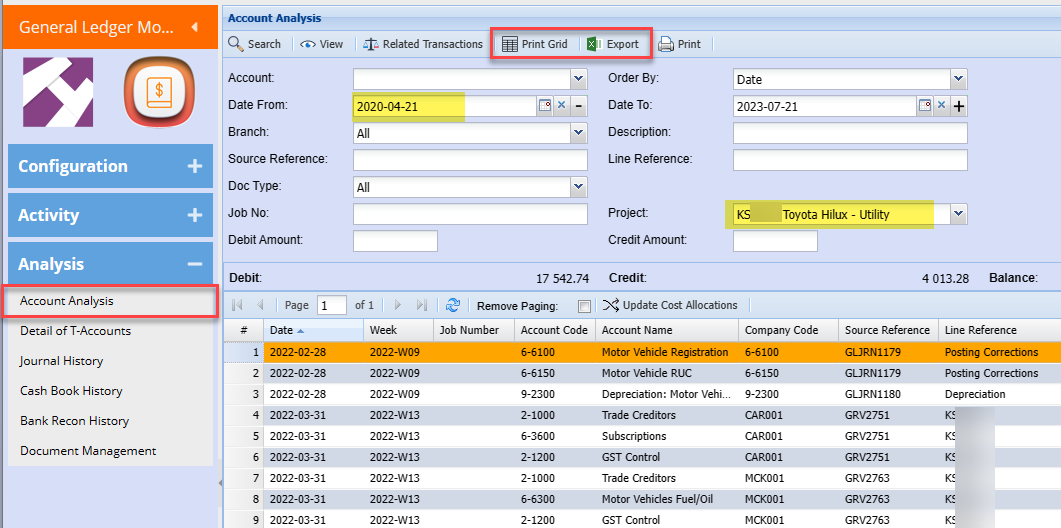
Project details in GL account analysis
Go to GL account analysis, take your date back
Select the project you want to run