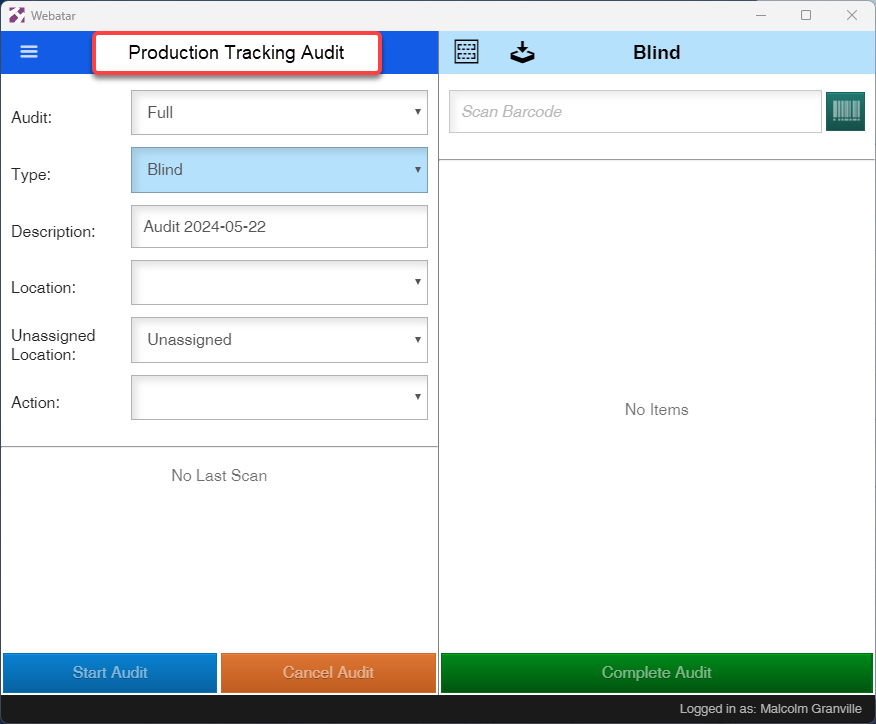
Webatar Production Tracking
Role Permissions on User
Setup Role permissions for Production Tracking
Role permissions are managed per user.
System Configuration > General > User Setup
- Search for the user, then double‑click the user to open the user settings.
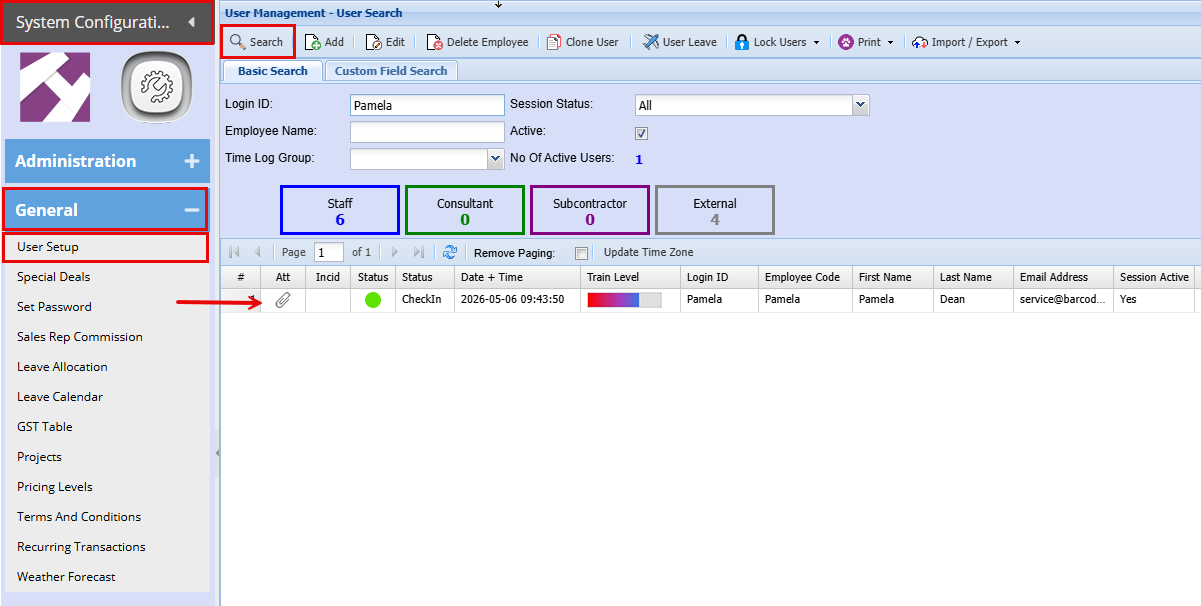
- Go to the "Module Access" tab
- Tick the "Mobile Access" box to activate the mobile access
- At the mobile Role Settings, click "Edit"
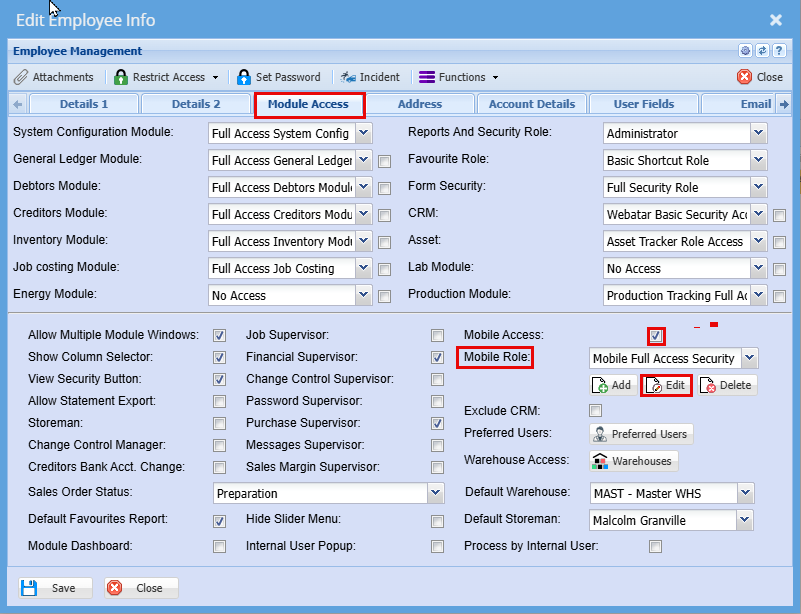
Here under the "Items" Tab you will be able to define the access each user will have
- Click "Save & Close"
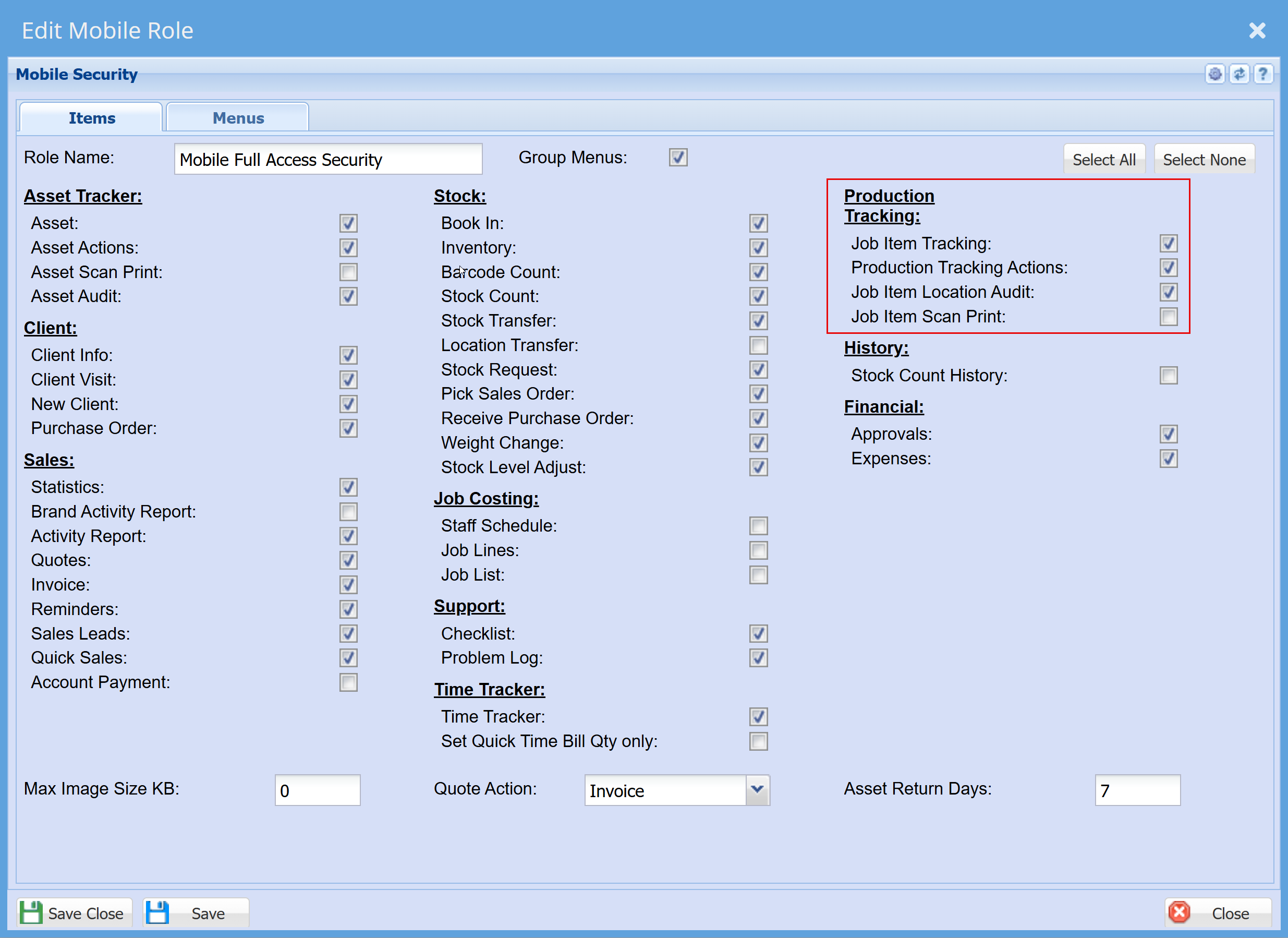
Additional Role Permissions
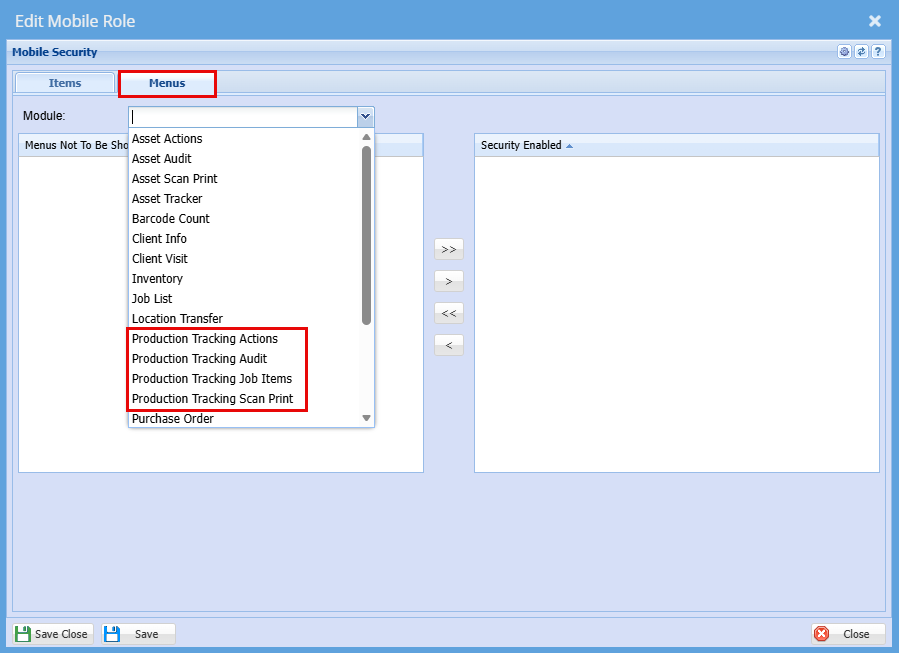
Under the "Menus" tab you will find additional security settings for each action.
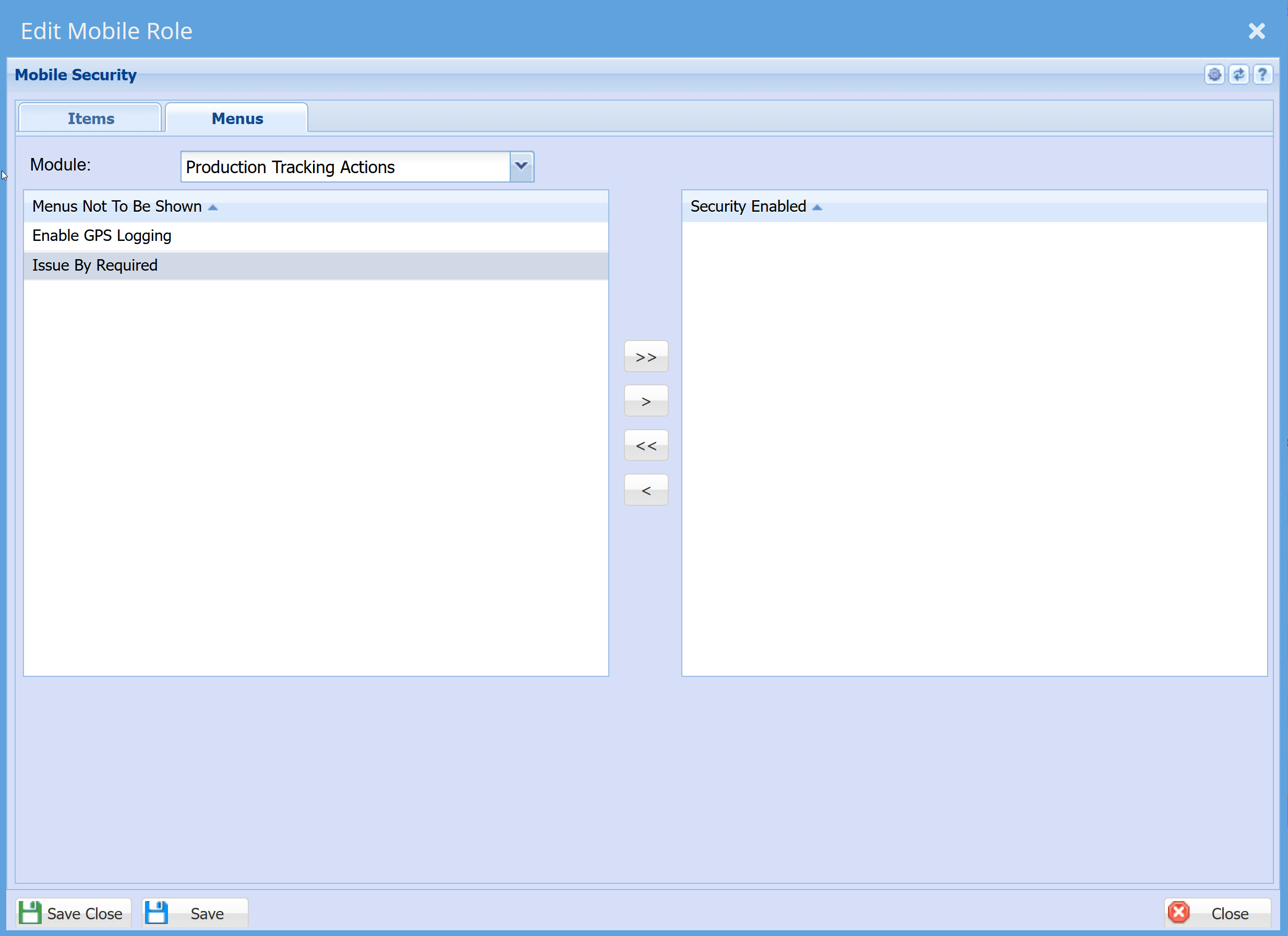
Production Tracking Actions
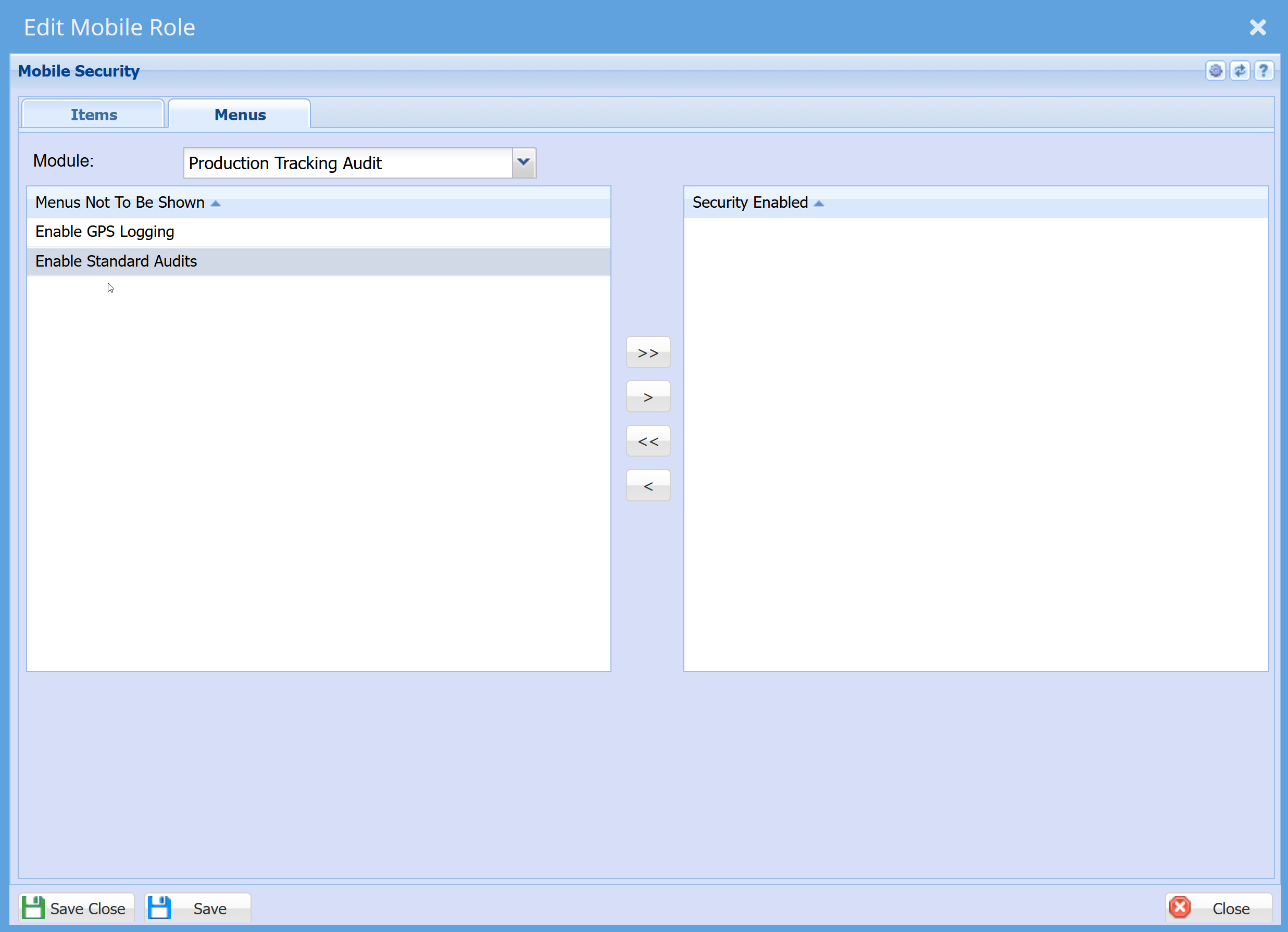
Production Tracking Audit
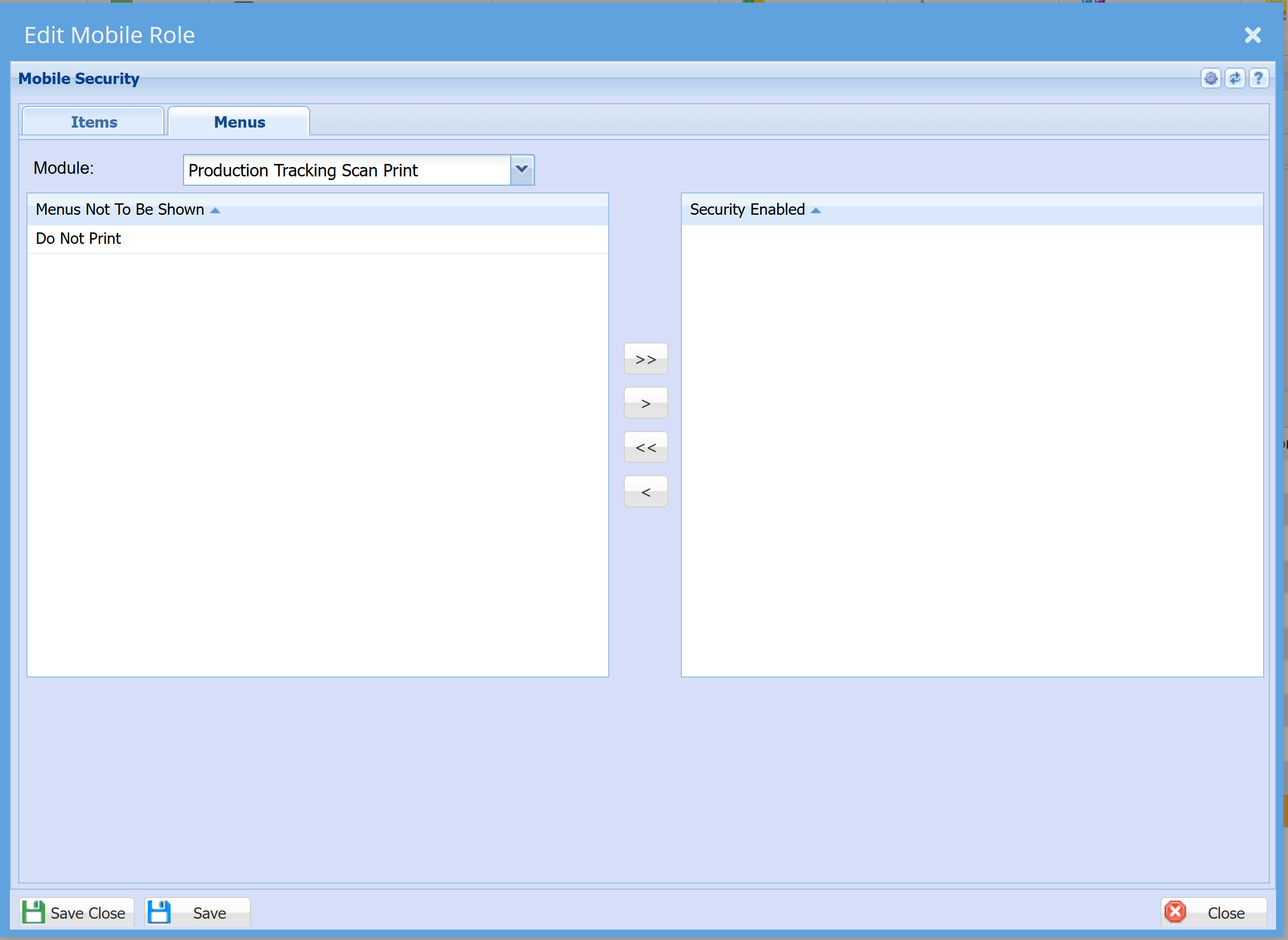
Production Tracking Scan Print
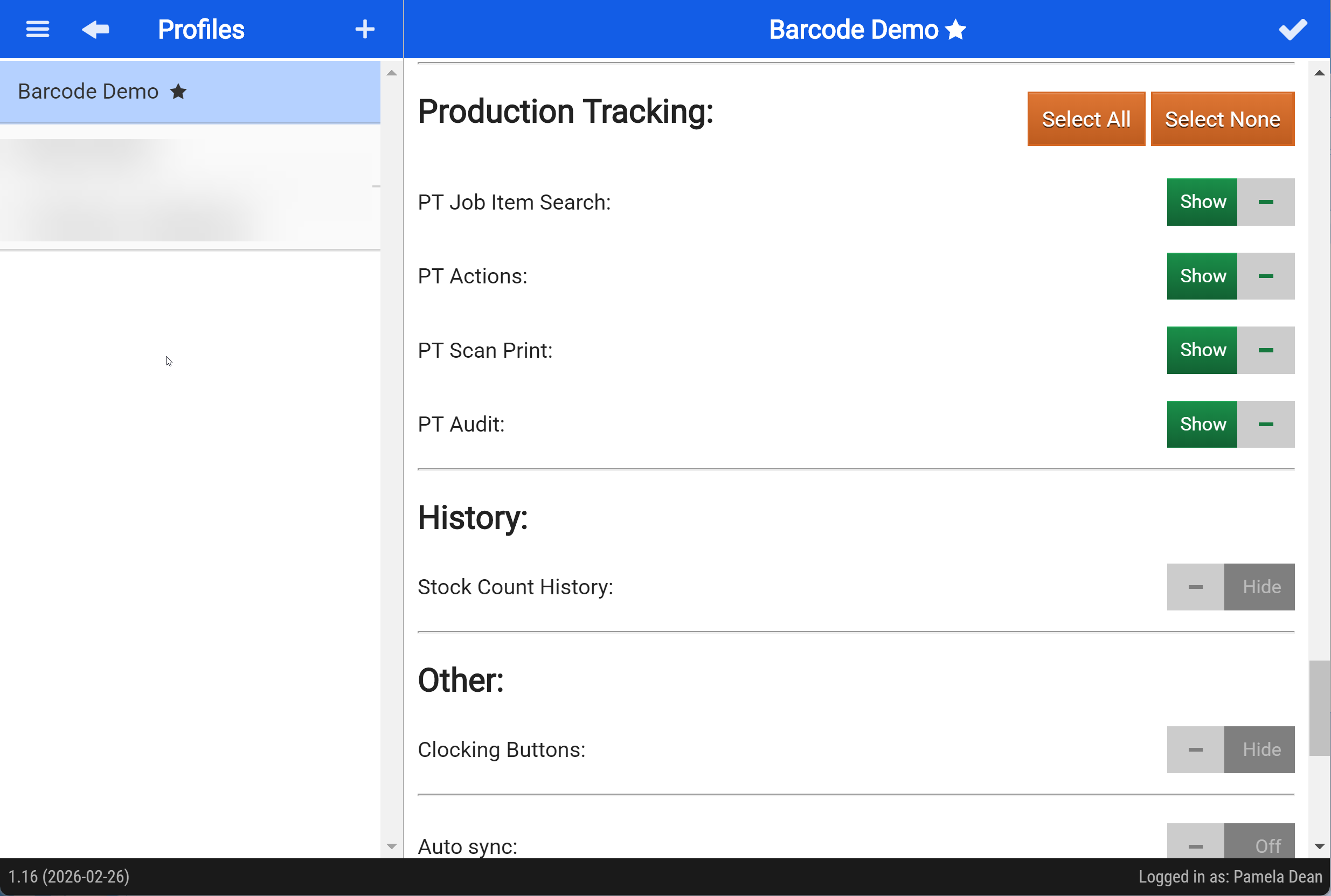
Webatar Profiles setup
- Open the Webatar App

- Click on the Profile Icon
 at the top right of the app.
 - Scroll down to Production Tracking
- Toggle the access as needed.


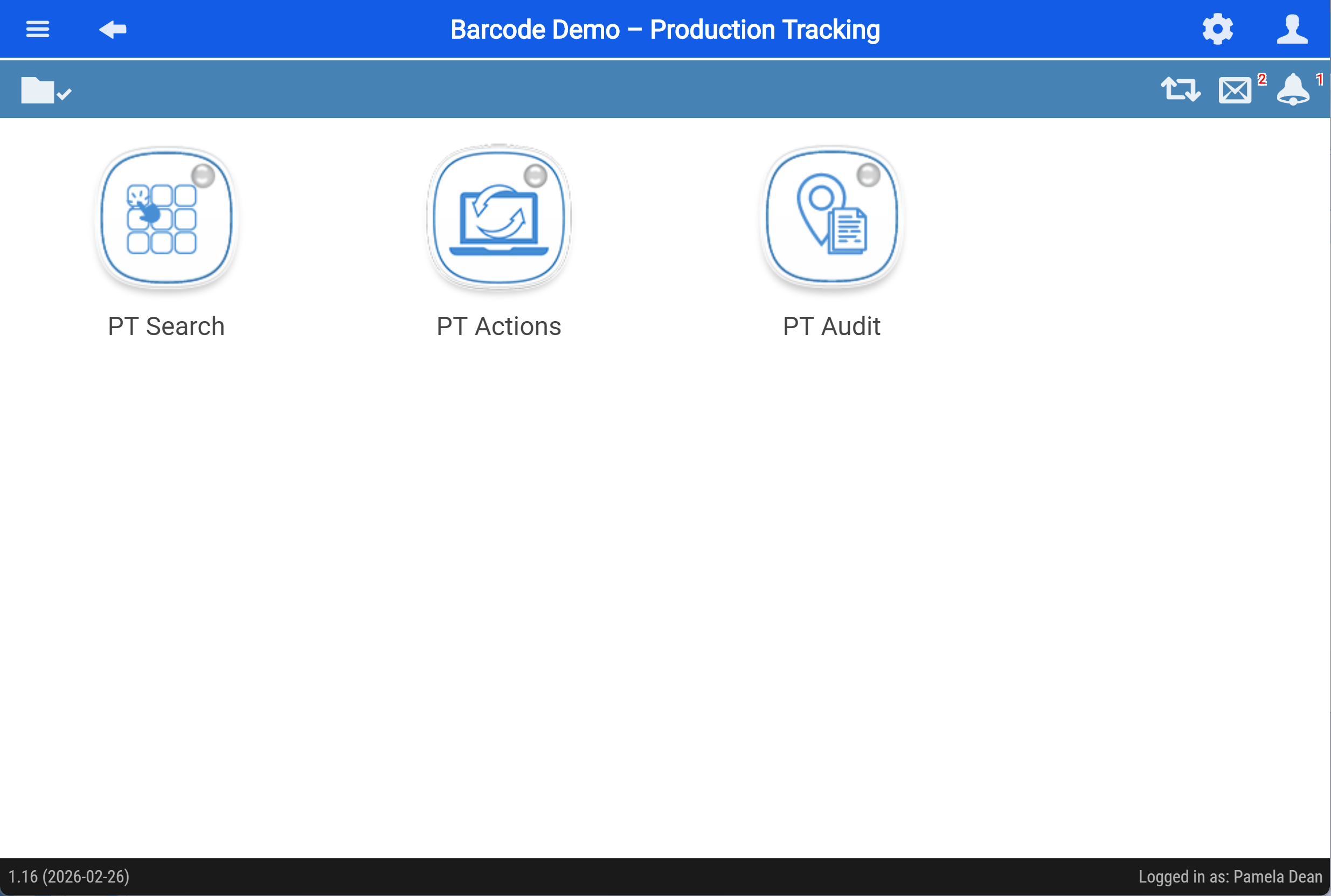
Modules
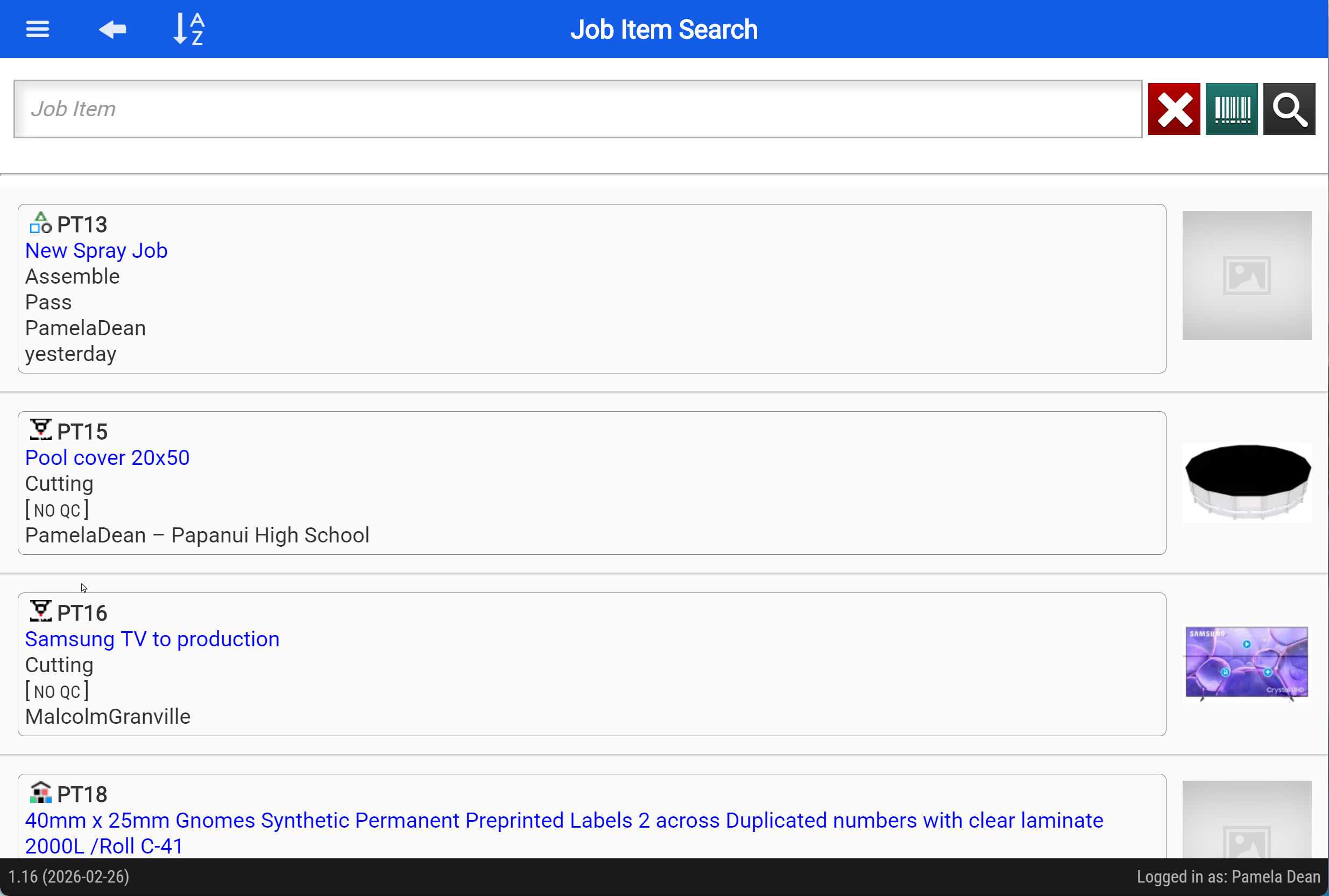
Job Item Search
Searching Job items
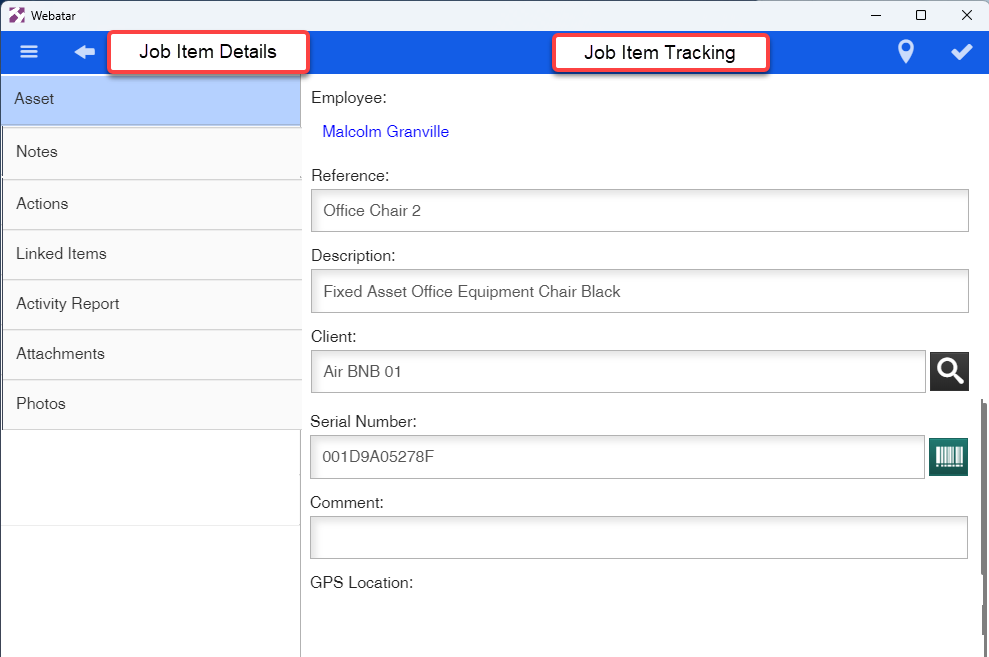
Details
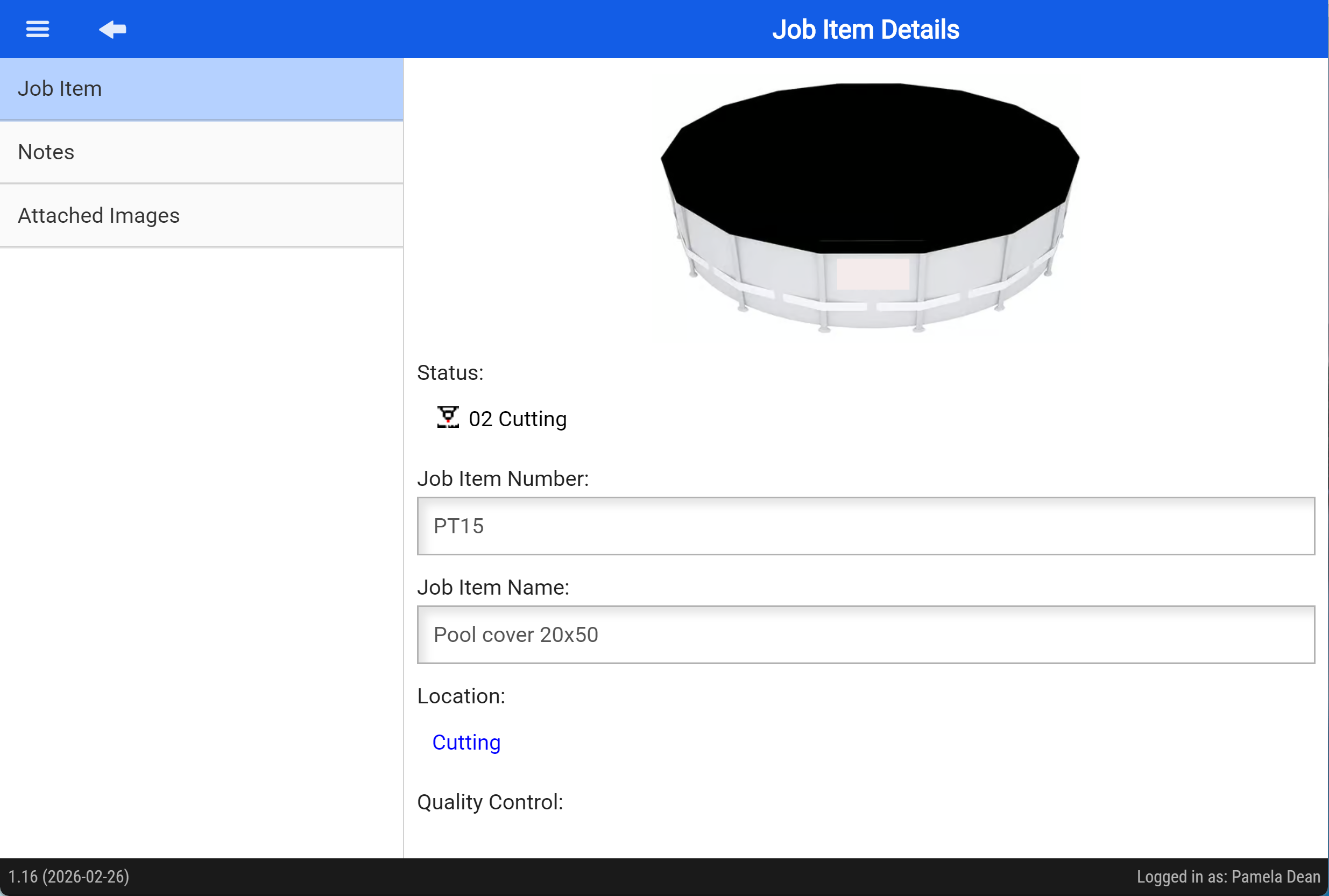
Asset details continued
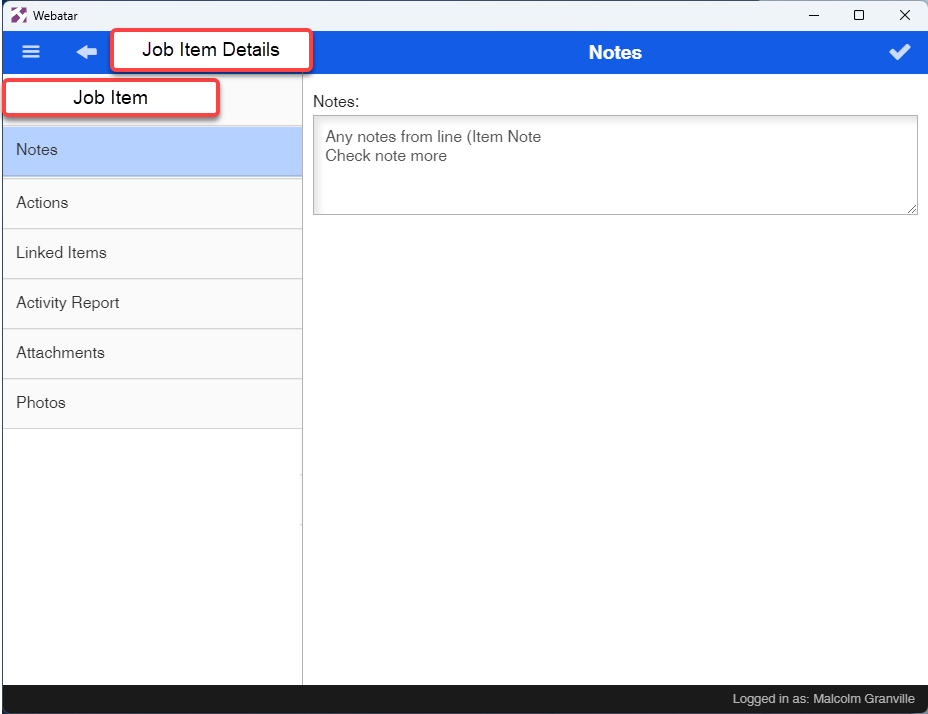
Notes
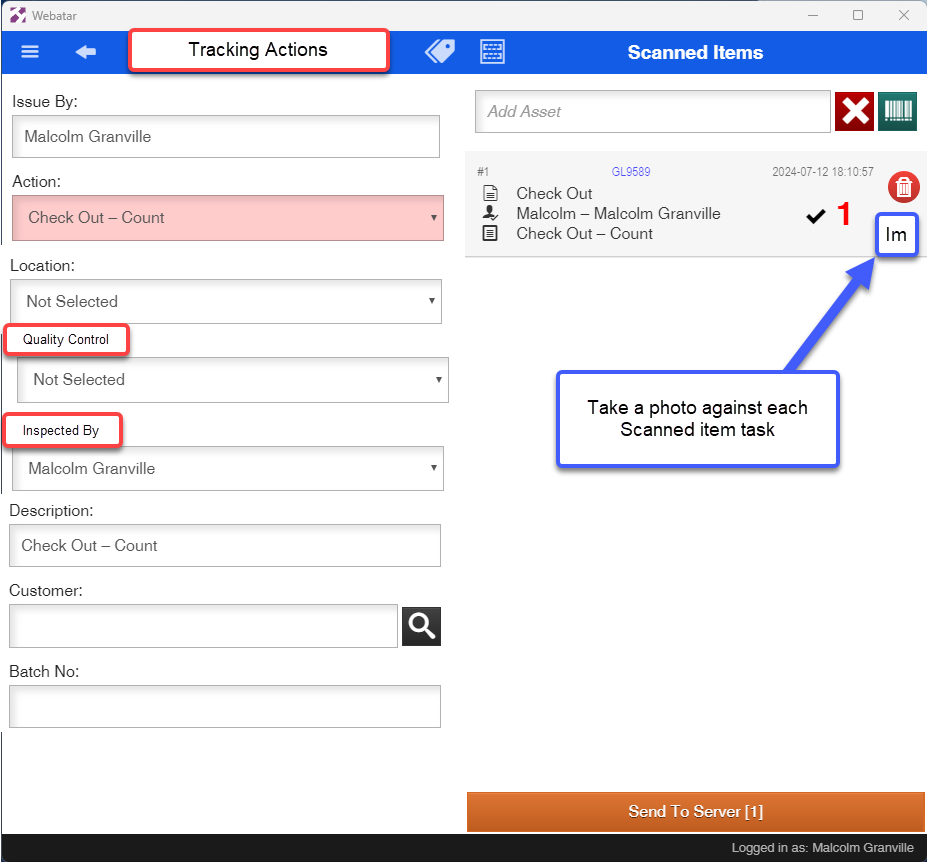
Job Item Actions
Actions scanned
Production Tracking Audit