# Manage Job Functions Tab Explained  - Detailed

#### Functions Tab

[![image.png](https://hugeerp10.co.za/hsofmanual/uploads/images/gallery/2024-07/scaled-1680-/bTrimage.png)](https://hugeerp10.co.za/hsofmanual/uploads/images/gallery/2024-07/bTrimage.png)
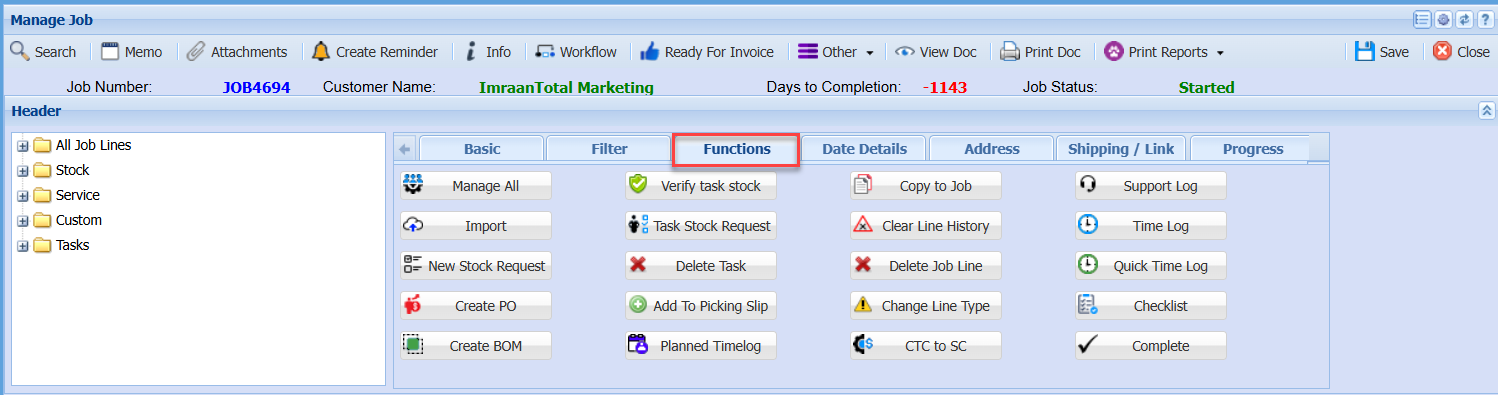
<table border="1" id="bkmrk-manage-all-%C2%A0-import-" style="border-collapse: collapse; width: 100%;"><colgroup><col style="width: 21.2964%;"></col><col style="width: 78.8272%;"></col></colgroup><tbody><tr><td>**Manage All**</td><td>The **Manage All** button is used to manage **all lines on the job at once**.

</td></tr><tr><td>**Import**</td><td>The **Import** button is used to **upload job lines from a file into the job**.

</td></tr><tr><td>**New Stock Request**</td><td>The **New Stock Request** button is used to create a **request for stock items required for a job**.

</td></tr><tr><td>**Create PO**</td><td>The **Create PO** screen is used to generate **purchase orders for items required on a job**.</td></tr><tr><td>**Create BOM**</td><td>The **Create BOM** screen is used to add a **Bill of Materials to a job**, bringing in a predefined set of items.

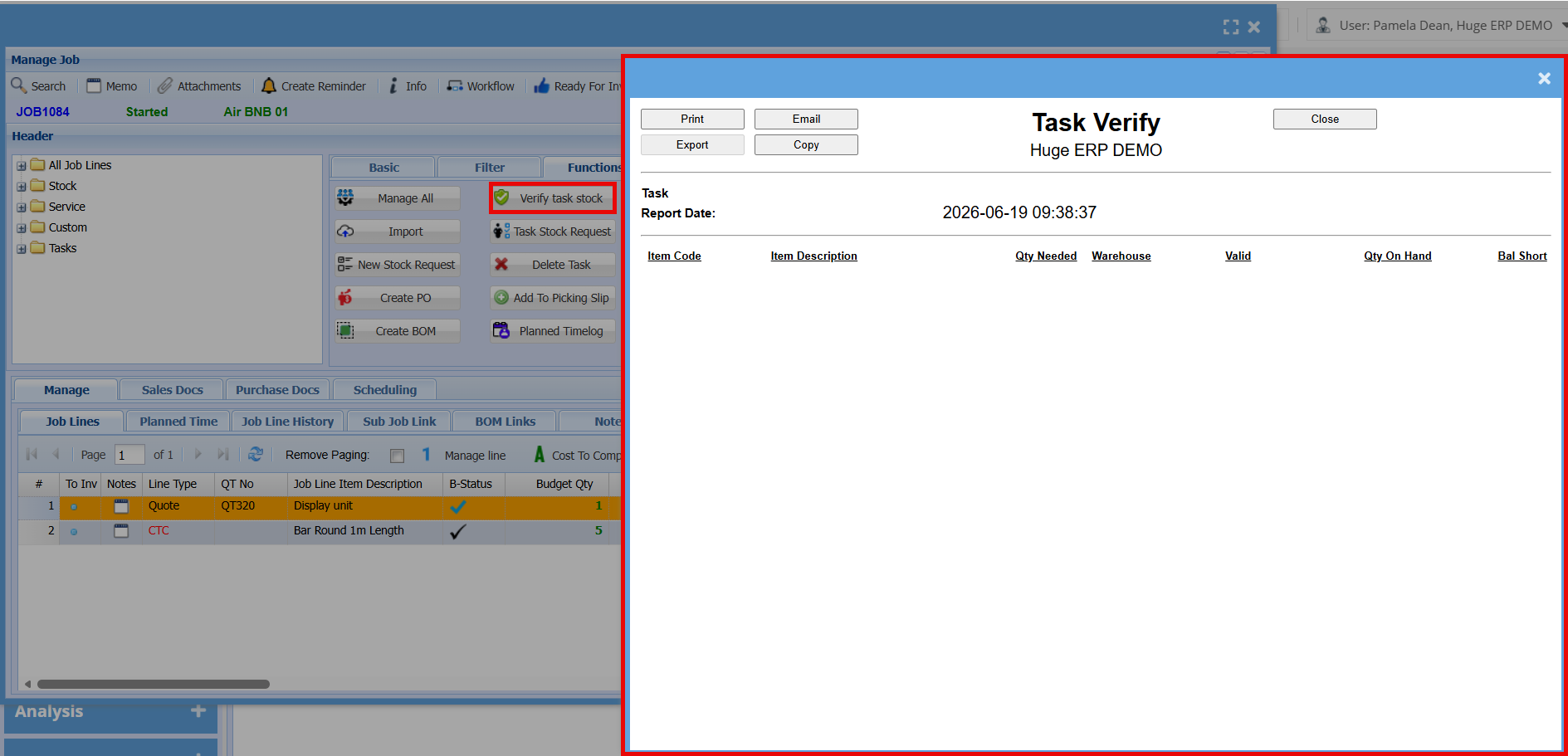
</td></tr><tr><td>**Verify task stock**</td><td>  
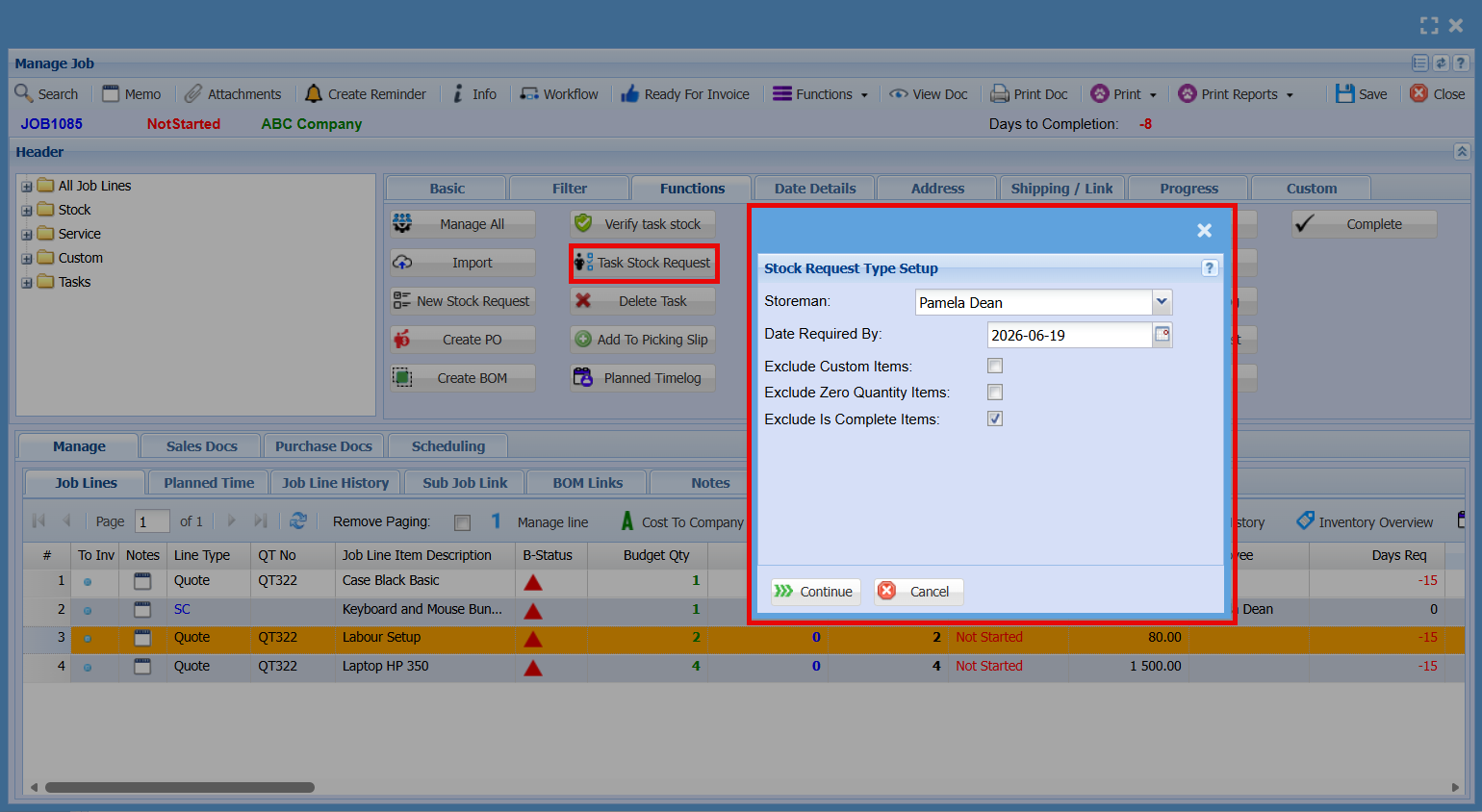
</td></tr><tr><td>**Task Stock Request**</td><td>  
</td></tr><tr><td>**Delete Task**</td><td>The **Delete Task** button is used to remove a **task from the job**.

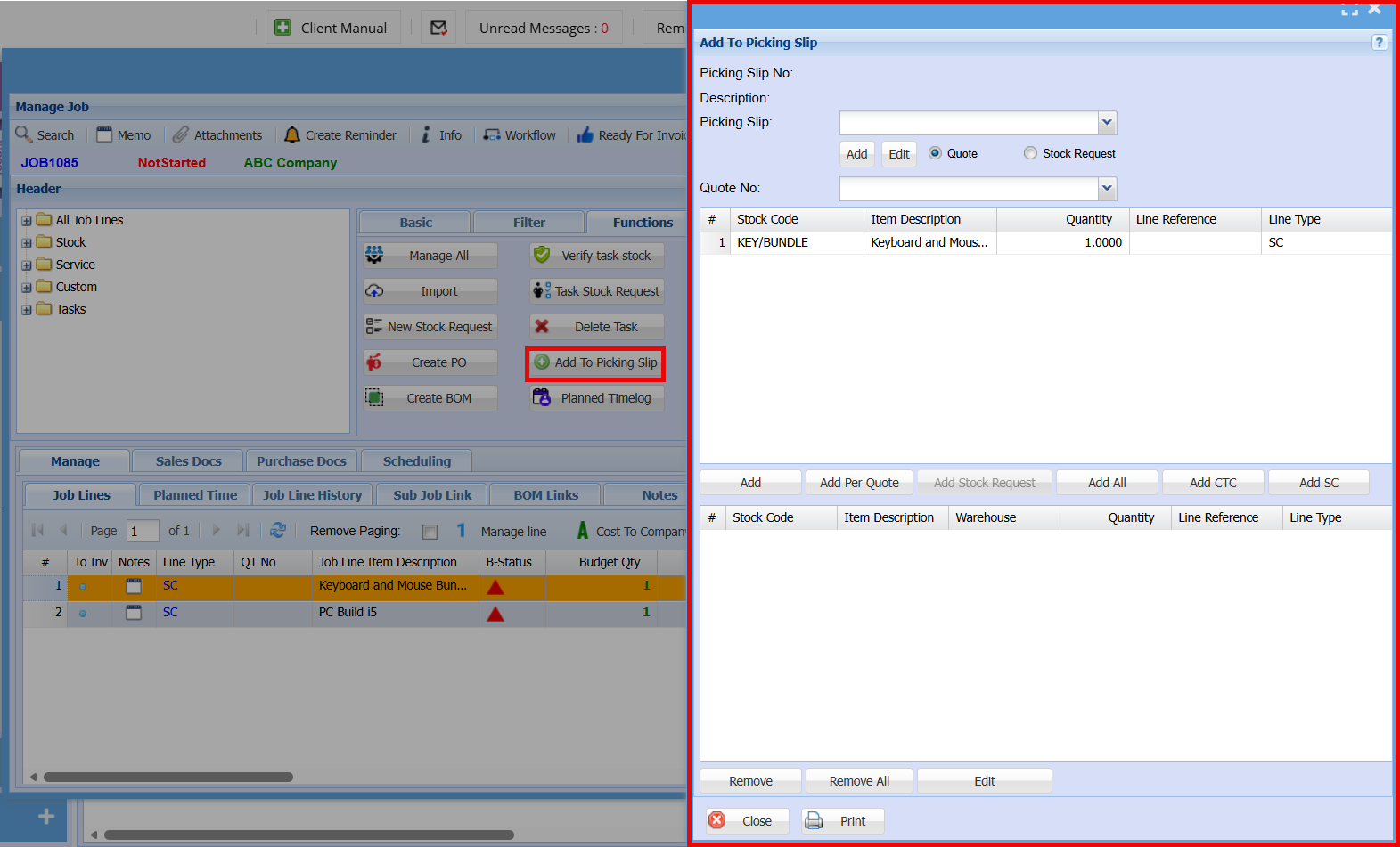
</td></tr><tr><td>**Add to Picking Slip**</td><td>The **Add to Picking Slip** button is used to assign **selected job lines to a picking slip** for warehouse processing.

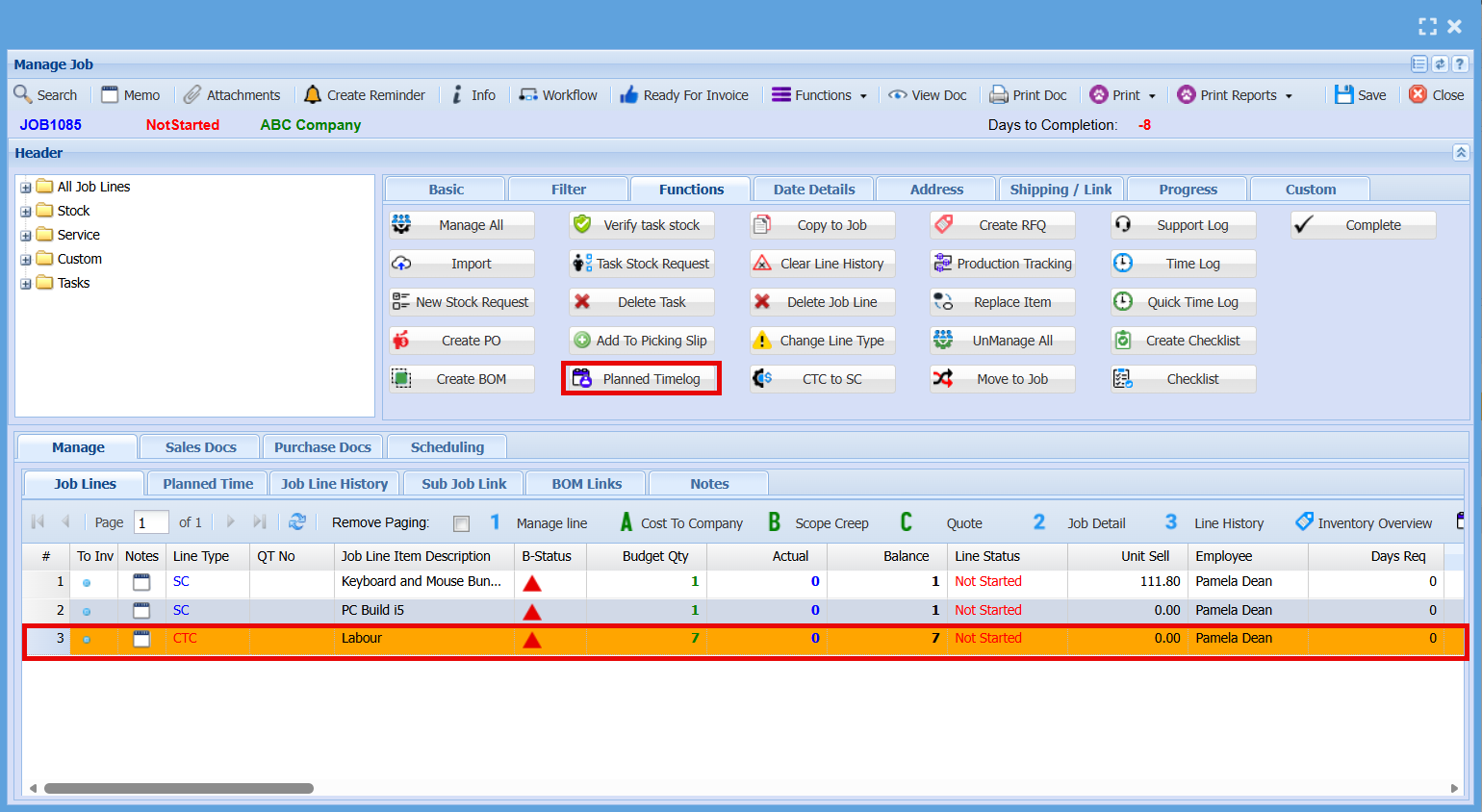
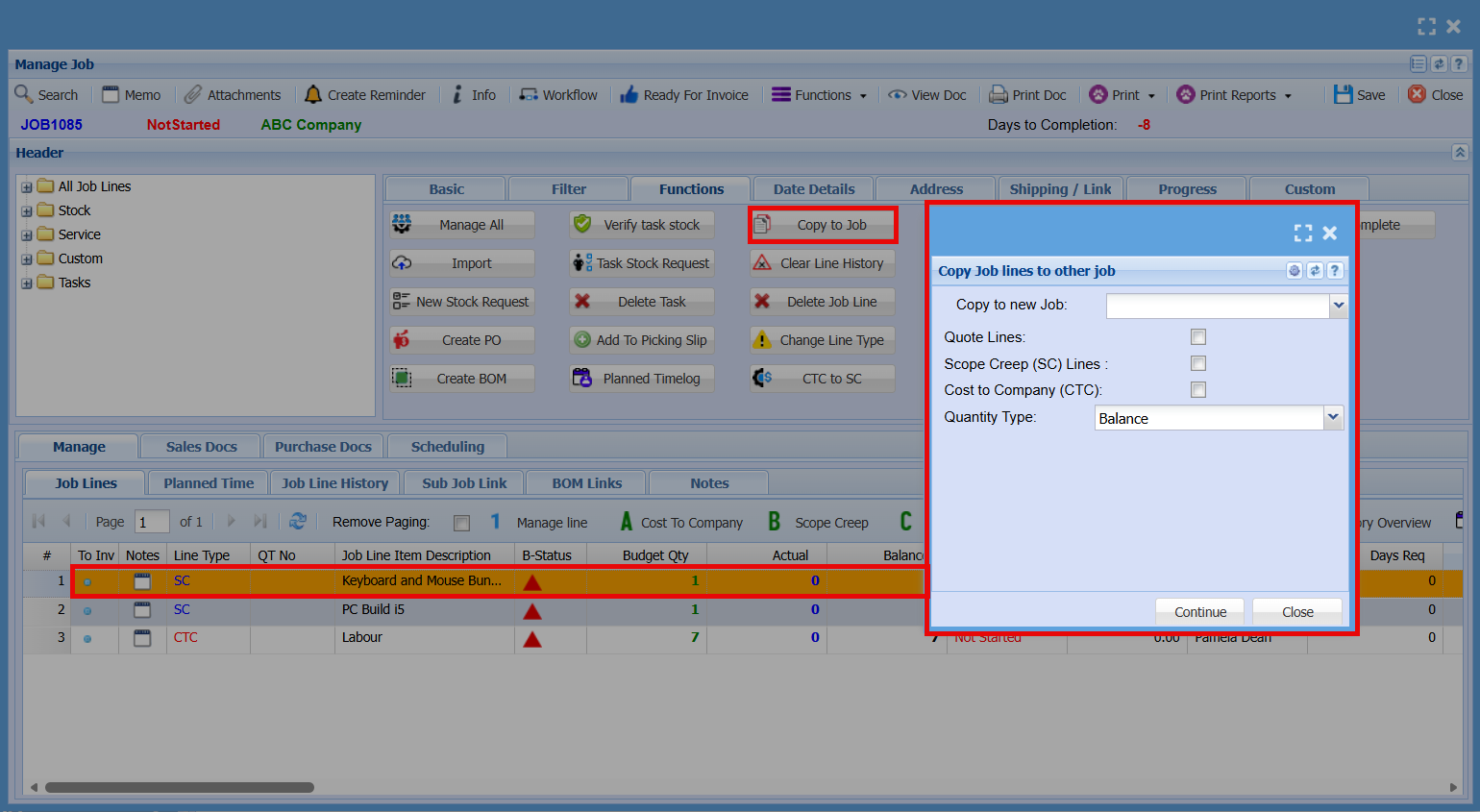
</td></tr><tr><td>**Planned Timelog**</td><td><div>Allows you to Generate a planned time logs for each **employee based** on the entries in the **Job Line tab**, allowing future work to be scheduled and tracked effectively.</div></td></tr><tr><td>**Copy to Job**</td><td>The **Copy to Job** button allows you to **copy selected job line(s) to another job**.

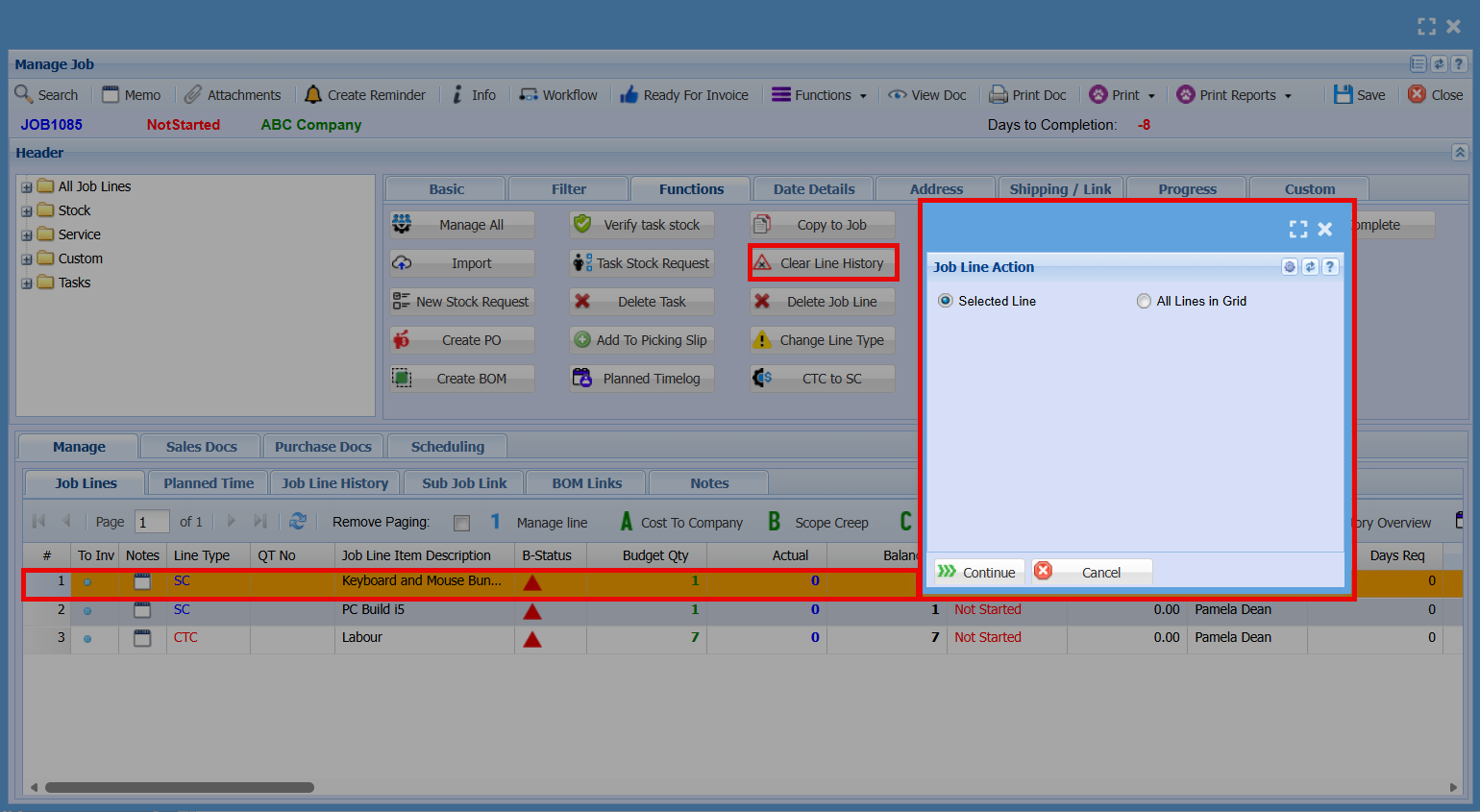
</td></tr><tr><td>**Clear Line History**</td><td>  
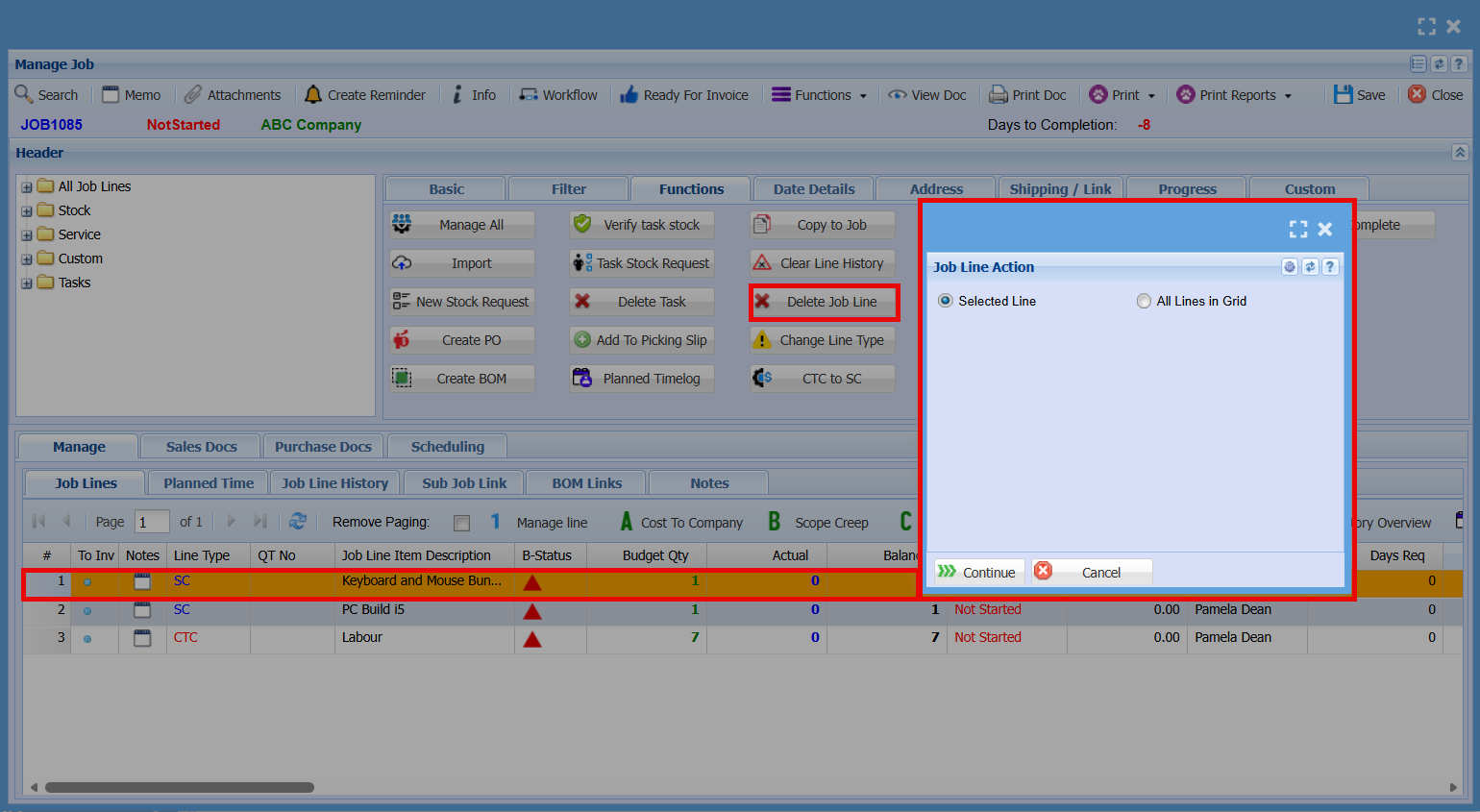
</td></tr><tr><td>**Delete Job Line**</td><td>  
</td></tr><tr><td>**Change Line Type**</td><td>  
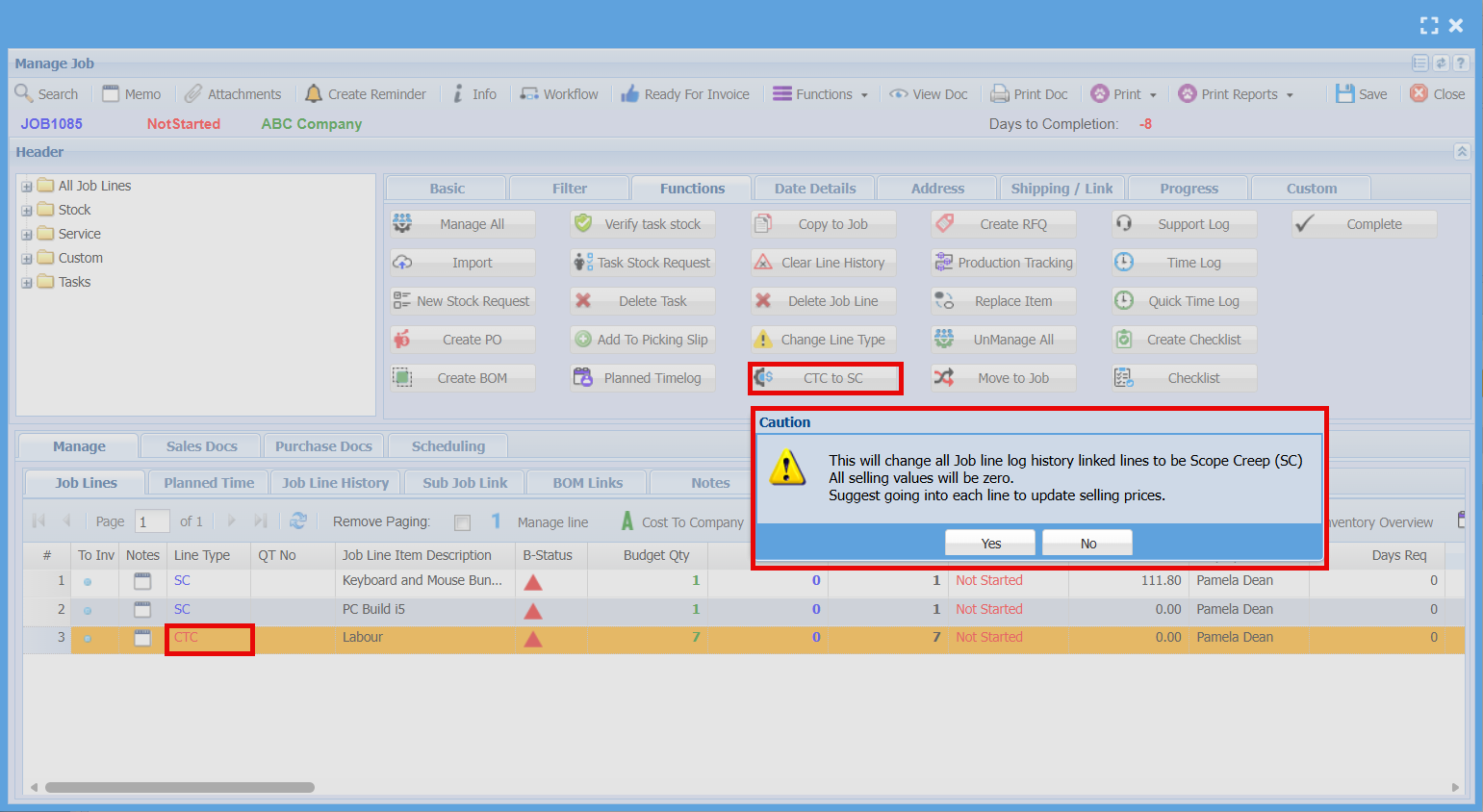
</td></tr><tr><td>**CTC to SC**</td><td>  
</td></tr><tr><td>**Support Log**</td><td>  
</td></tr><tr><td>**Time Log**</td><td>  
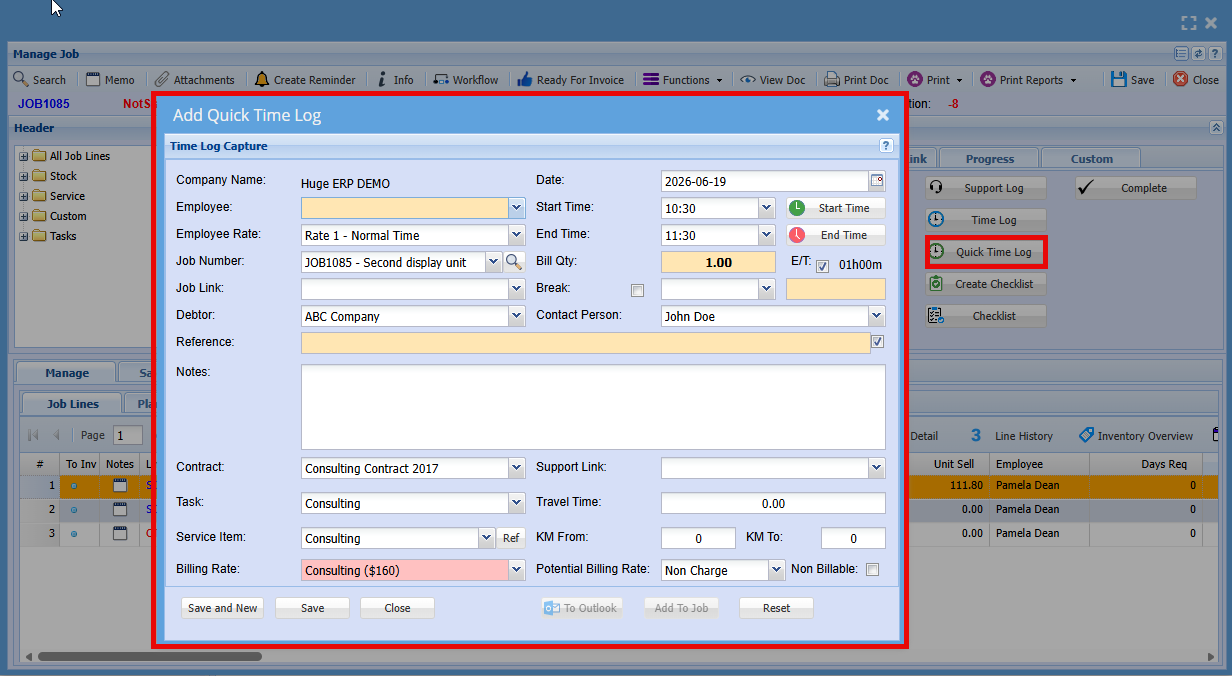
</td></tr><tr><td>**Quick Time Log**</td><td>  
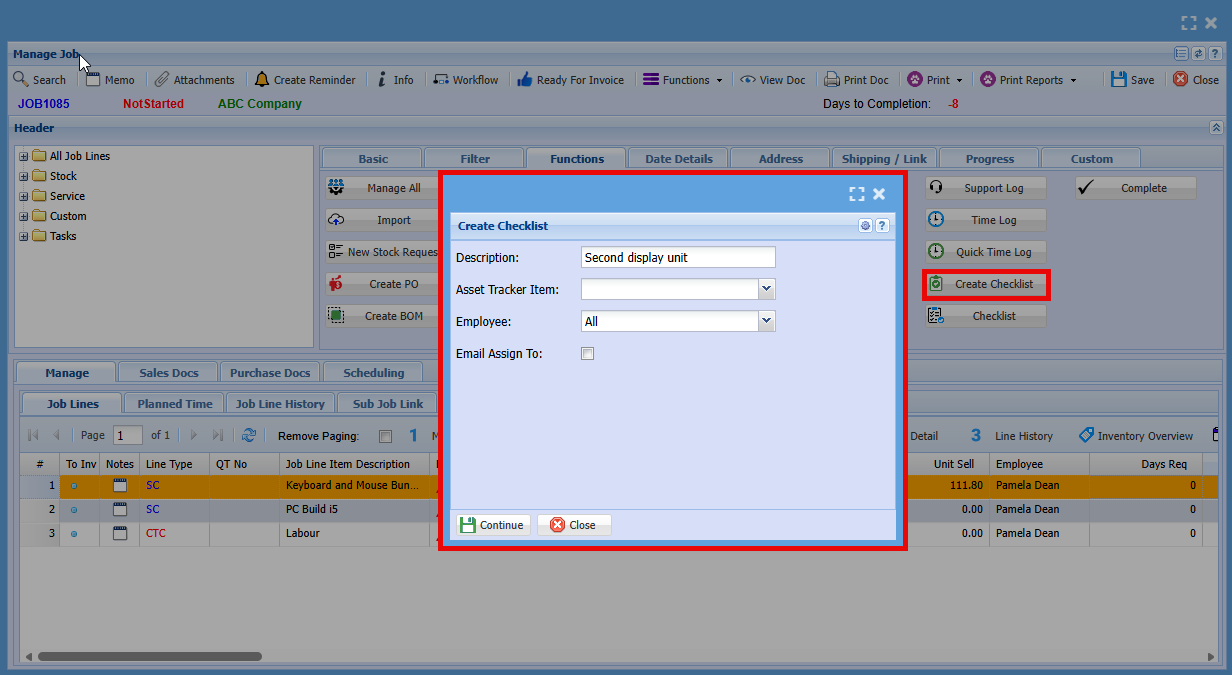
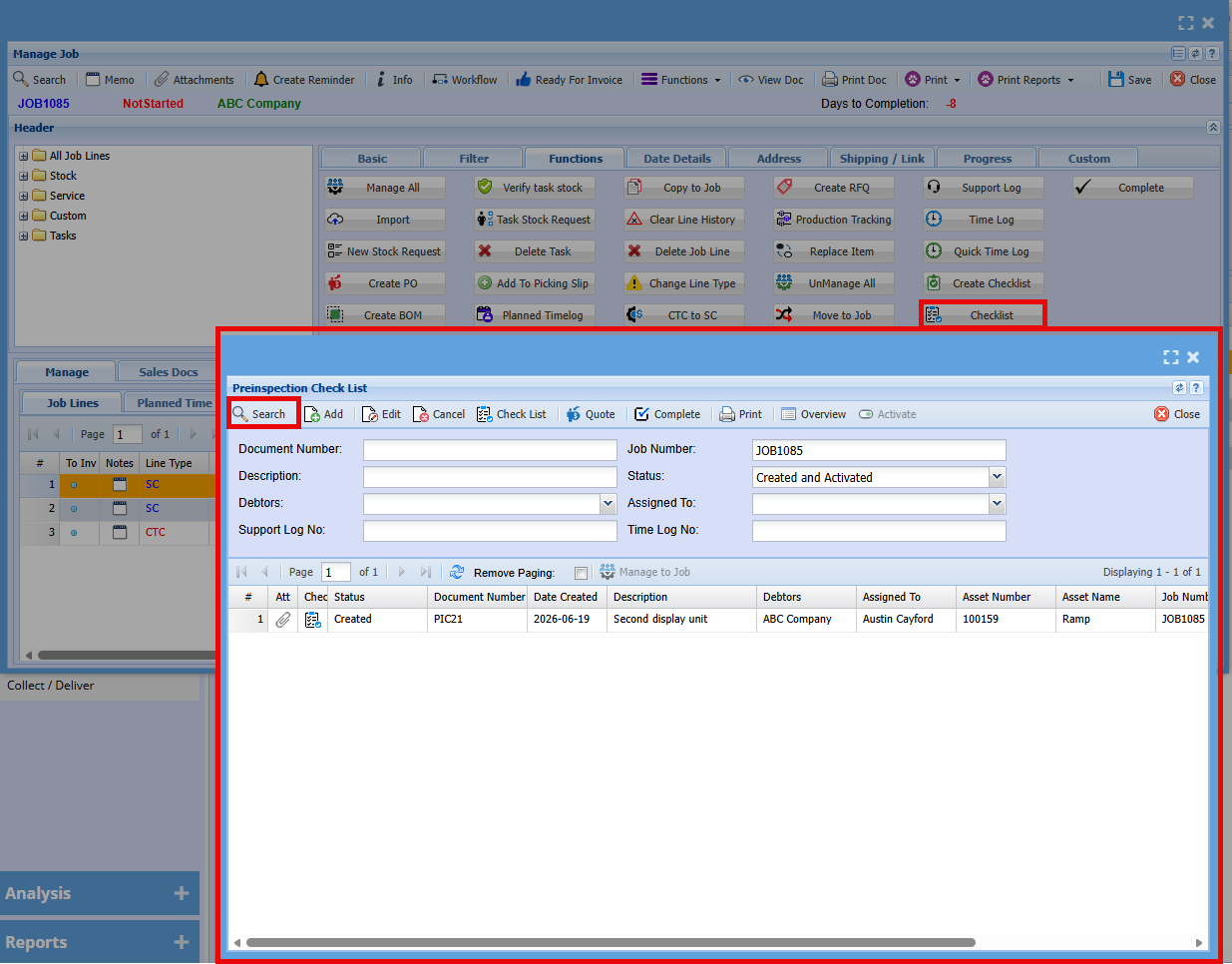
</td></tr><tr><td>**Checklist**</td><td>  
</td></tr><tr><td>**Complete**</td><td>  
</td></tr></tbody></table>


---

##### Manage All

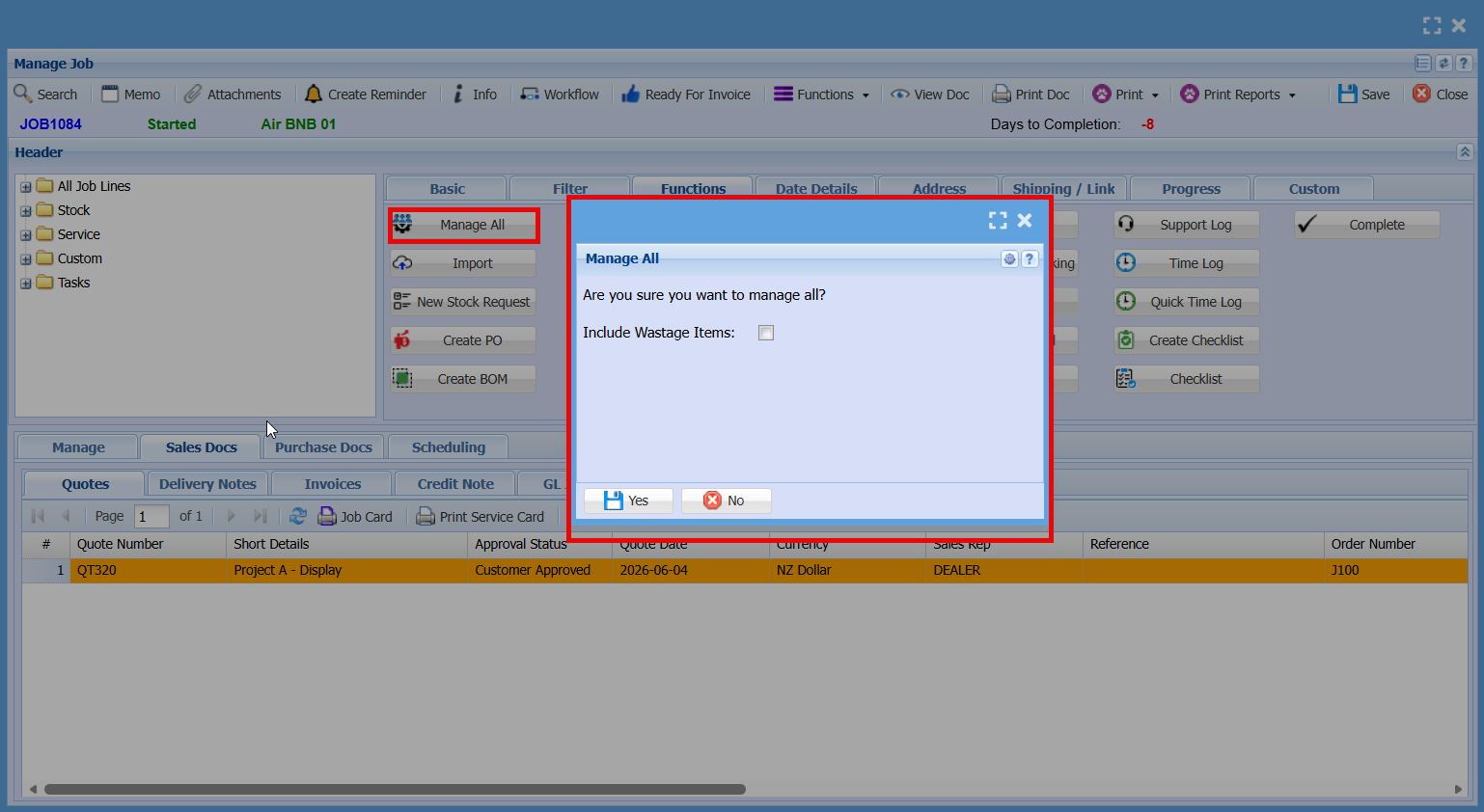
The **Manage All** button is used to manage **all lines on the job at once**.

When selected, a confirmation window will appear asking if you want to proceed. You can also choose to **include wastage items**.

Click **Yes** to continue and apply actions to all job lines, or **No** to cancel.

[![image.png](https://hugeerp10.co.za/hsofmanual/uploads/images/gallery/2026-06/scaled-1680-/gsrimage.png)](https://hugeerp10.co.za/hsofmanual/uploads/images/gallery/2026-06/gsrimage.png)
---

##### <span style="color: rgb(34, 34, 34); font-family: -apple-system, BlinkMacSystemFont, 'Segoe UI', Oxygen, Ubuntu, Roboto, Cantarell, 'Fira Sans', 'Droid Sans', 'Helvetica Neue', sans-serif; font-size: 1.4em; font-weight: 400;">Import Button - Line Import</span>


The **Import** button is used to **upload job lines from a file into the job**.

This feature is ideal when importing a **recipe or BOM set up for a single unit**. The multiplier allows you to scale the quantities automatically during import, saving time and ensuring accuracy.

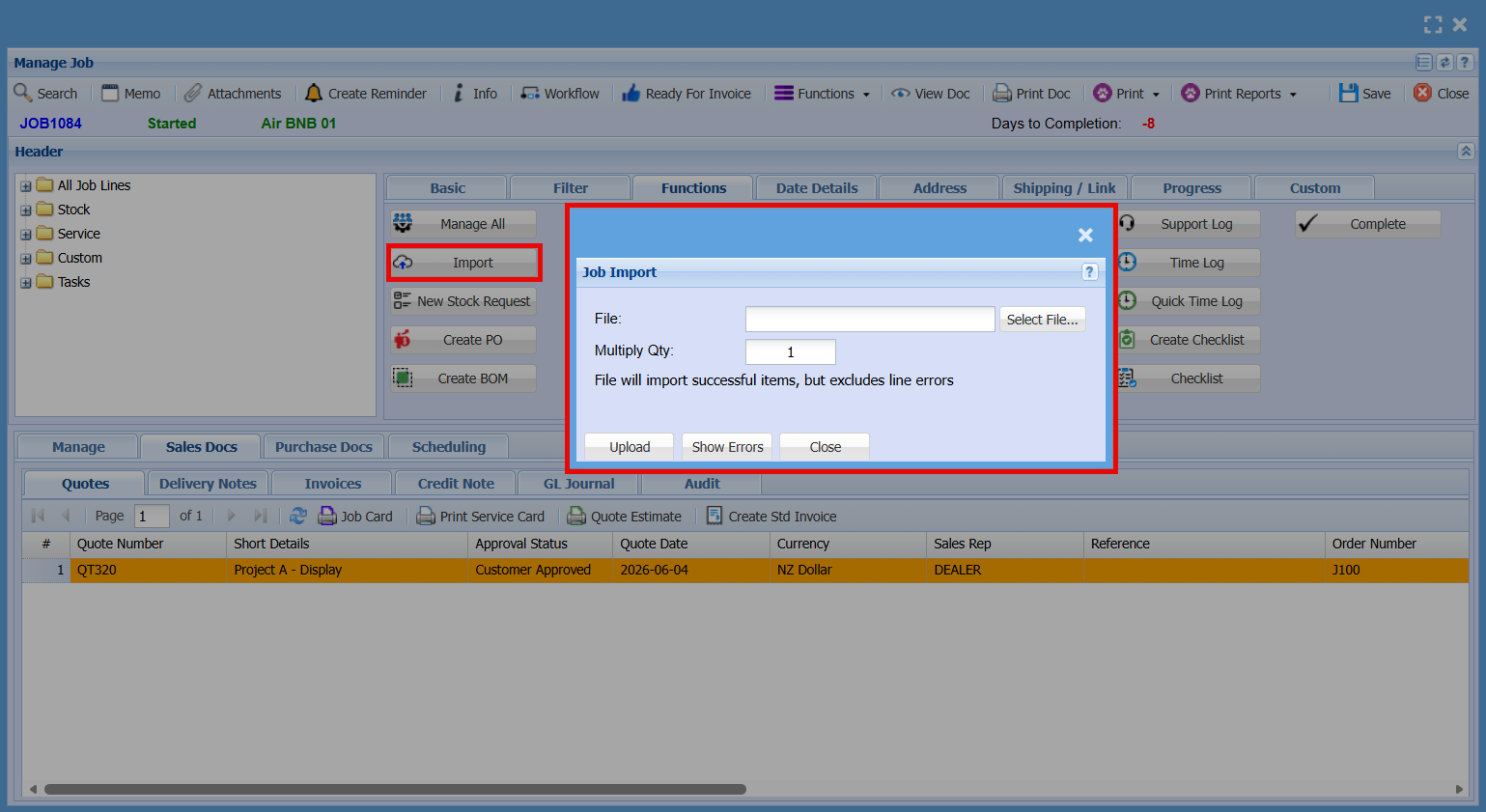
When selected, the Job Import screen will open where you can:

<div id="bkmrk-choose-a-file-to-imp">- Choose a file to import
- Set a **quantity multiplier** (if required)
- Click **Upload** to import the lines

</div>Only valid items will be imported, and any errors can be reviewed using **Show Errors**.

[![image.png](https://hugeerp10.co.za/hsofmanual/uploads/images/gallery/2026-06/scaled-1680-/sCCimage.png)](https://hugeerp10.co.za/hsofmanual/uploads/images/gallery/2026-06/sCCimage.png)
**File Upload &amp; Import Process**

<div id="bkmrk-click-the-select-fil">- Click the **Select File** button to open the file browser and locate the file you want to import.
- Click **Upload** to send the file to the server and start the import process.

</div>
**Quantity Multiplier Option**

<div id="bkmrk-you-have-the-option-">- You have the option to **multiply quantities during import**. This will adjust both the **budget quantity** and the **managed quantity**.
- The default value is **1**, but this can be changed **before uploading the file**.

</div>**Please Note**

<div id="bkmrk-the-file-must-be-in-">- The file must be in **.CSV format** using **semi-colon (;) separation**
- The file must include **headers**, however these will be ignored during import
- If any errors occur, they will be recorded in the **log**
    - Please correct the errors and restart the import process

</div><span class="ts0"> </span>**Import Rules**

<div id="bkmrk-the-csv-file-must-us">1. The **CSV file must use semi-colon (;) separation**
2. **Stock items** take cost from the item setup, regardless of any cost entered in the file
3. **Stock items** take the selling price from the Excel file
4. If the stock item selling price is blank, it defaults to the **item setup value**
5. **Custom and Service items** take both cost and selling price from Excel
6. If cost and selling are blank for Custom or Service items, values default to **item setup**
7. If a **Service item** uses time allocation and an employee rate is set, cost is taken from **user setup rates (1, 2, or 3)**
8. If cost is set to **zero (0)**, it will be imported as zero
9. If **Managed Qty** is blank, the line is added as **Not Started**
10. If **Managed Qty** has a value, the line is added as **Active**
11. If there is **no stock on hand**, the line will be added but **not managed**
12. If the **Required Date** is blank, the system uses the **current date**
13. Dates must be in the format: **YYYY-MM-DD** (e.g. 2020-04-05)
14. If the **Employee field** is blank, it will remain blank
15. The **Employee field** uses the **login ID**
16. If the **Rate field** is blank (with an employee), it remains blank
17. Set **Rate to 1, 2, or 3** to use the corresponding user setup rate
18. If both **Employee and Rate** are set for a Service item, cost is taken from the **user setup rate**
19. **Description** is imported from Excel
20. If Description is blank, it defaults from **item setup**
21. Set **Is Complete = 1** to mark the line as complete
22. For stock items, the correct **Warehouse Code** must be provided
23. **Drawing** is a free text field
24. **Comment** is a free text field

</div><span class="ts0"> </span>

<span class="ts0"> </span>**CSV File Template**

<div id="bkmrk-field-header-example"><table class="align-c tbl0"><tbody><tr class="row0"><td class="cell26">**<span class="ts11">Field Header</span>**

</td><td class="cell27">**<span class="ts11">Example</span>**

</td><td class="cell28">**<span class="ts11">Required or Not</span>**

</td></tr><tr class="row0"><td class="cell26"><span class="ts0">Type</span>

</td><td class="cell27"><span class="ts0">CTC or SC</span>

</td><td class="cell28"><span class="ts48">Required</span>

</td></tr><tr class="row0"><td class="cell26"><span class="ts0">ItemCode</span>

</td><td class="cell27"><span class="ts0">MGPEN001</span>

</td><td class="cell28"><span class="ts48">Required</span>

</td></tr><tr class="row0"><td class="cell29"><span class="ts0">Description</span>

</td><td class="cell30"><span class="ts0">Pen with Red and Yellow dots</span>

</td><td class="cell31"></td></tr><tr class="row0"><td class="cell29"><span class="ts0">Budgetqty</span>

</td><td class="cell30"><span class="ts0">5</span>

</td><td class="cell31"><span class="ts48">Required</span>

</td></tr><tr class="row0"><td class="cell29"><span class="ts0">Cost</span>

</td><td class="cell30"><span class="ts0">10</span>

</td><td class="cell31"></td></tr><tr class="row0"><td class="cell29"><span class="ts0">Selling</span>

</td><td class="cell30"><span class="ts0">20</span>

</td><td class="cell31"></td></tr><tr class="row0"><td class="cell26"><span class="ts0">WarehouseCode</span>

</td><td class="cell27"><span class="ts0">MAST</span>

</td><td class="cell28"><span class="ts48">Required </span><span class="ts0">if a stock item</span>

</td></tr><tr class="row0"><td class="cell32"><span class="ts0">LineRef</span>

</td><td class="cell33"><span class="ts0">Line Reference</span>

</td><td class="cell34"><span class="ts0"> </span>

</td></tr><tr class="row0"><td class="cell29"><span class="ts0">Required Date</span>

</td><td class="cell30"><span class="ts0">2020-04-06</span>

</td><td class="cell31"></td></tr><tr class="row0"><td class="cell29"><span class="ts0">Employee Login</span>

</td><td class="cell30"><span class="ts0">Malcolm</span>

</td><td class="cell31"></td></tr><tr class="row0"><td class="cell26"><span class="ts0">Rate</span>

</td><td class="cell27"><span class="ts0">1 or 2 or 3</span>

</td><td class="cell28"><span class="ts0"> </span>

</td></tr><tr class="row0"><td class="cell29"><span class="ts0">Is Complete</span>

</td><td class="cell30"><span class="ts0">1</span>

</td><td class="cell31"></td></tr><tr class="row0"><td class="cell29"><span class="ts0">Drawing</span>

</td><td class="cell30"><span class="ts0">1170-780-112-456</span>

</td><td class="cell31"></td></tr><tr class="row0"><td class="cell29"><span class="ts0">Comment</span>

</td><td class="cell30"><span class="ts0">Check the pen colours</span>

</td><td class="cell31"></td></tr></tbody></table>

</div>---

##### <span style="color: rgb(34, 34, 34); font-family: -apple-system, BlinkMacSystemFont, 'Segoe UI', Oxygen, Ubuntu, Roboto, Cantarell, 'Fira Sans', 'Droid Sans', 'Helvetica Neue', sans-serif; font-size: 1.4em; font-weight: 400;">New Stock Request</span>


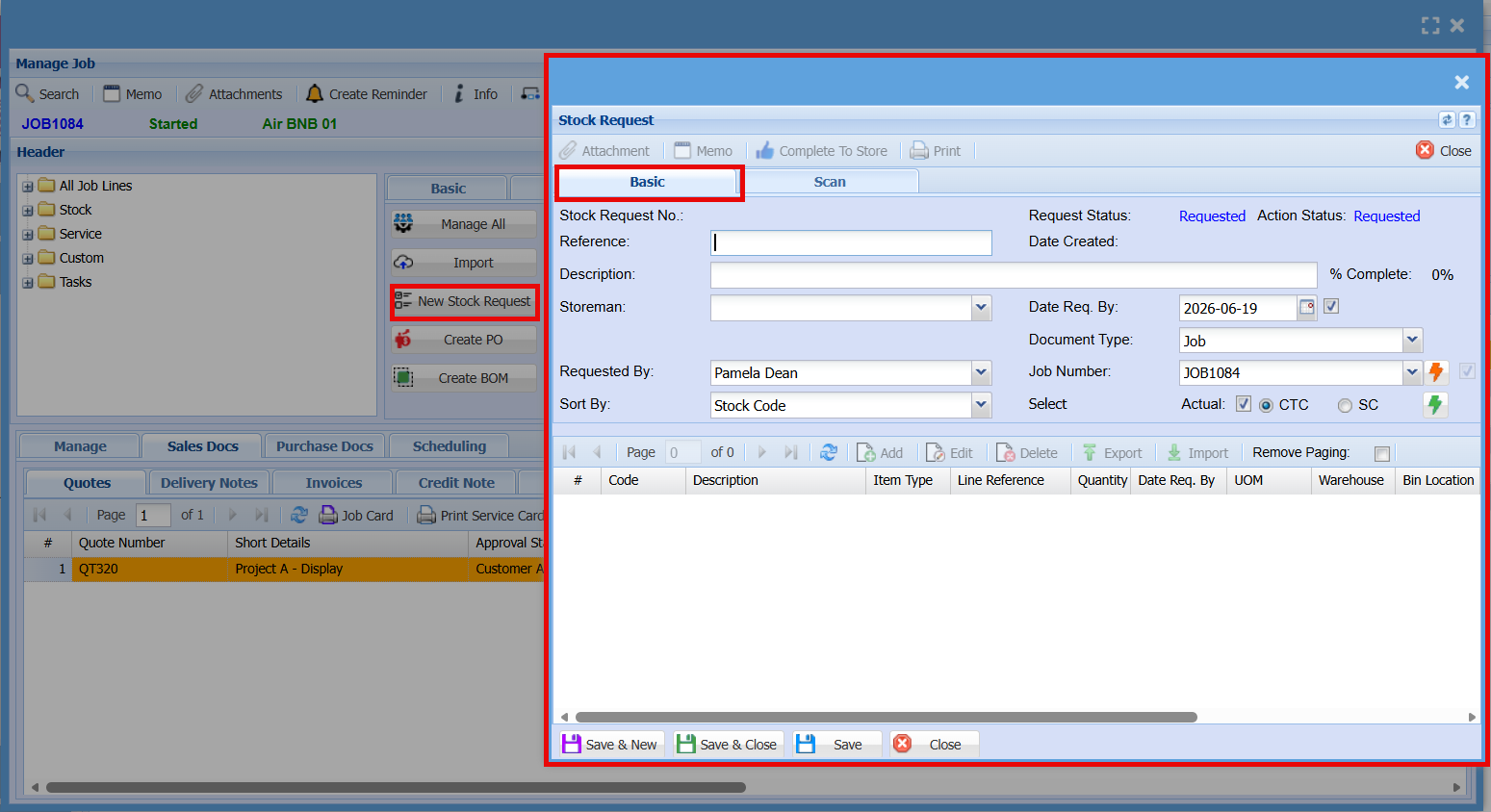
The **New Stock Request** button is used to create a **request for stock items required for a job**.

This screen allows you to:

<div id="bkmrk-enter-a-reference-an">- Enter a **reference and description** for the request
- Select the **requested by** user and required date
- Add the **stock items and quantities needed**
- Link the request to the **job number**

</div>Once completed, the request can be saved and sent for processing, allowing the store team to supply the required items for the job.

[![image.png](https://hugeerp10.co.za/hsofmanual/uploads/images/gallery/2026-06/scaled-1680-/1XTimage.png)](https://hugeerp10.co.za/hsofmanual/uploads/images/gallery/2026-06/1XTimage.png)
- Basic Tab

<table border="1" id="bkmrk-complete-to-store-%C2%A0-" style="border-collapse: collapse; width: 100%;"><colgroup><col style="width: 18.8272%;"></col><col style="width: 81.2964%;"></col></colgroup><tbody><tr><td>**Stock Request No**</td><td><div>System-generated number for the request</div></td></tr><tr><td>**Reference**</td><td><div>Optional reference for internal tracking</div></td></tr><tr><td>**Description**</td><td><div>Brief details about the stock request</div></td></tr><tr><td>**Storeman**</td><td><div>Select the staff member responsible for the request</div></td></tr><tr><td>**Requested By**</td><td><div>Shows the current status of the request (e.g. Requested)</div></td></tr><tr><td>**Sort By**</td><td><div>How items are arranged (e.g. Stock Code)</div></td></tr><tr><td><div>**Date Created**</div></td><td><div>When the request was created</div></td></tr><tr><td><div><div>**% Complete**</div></div></td><td><div><div>Progress of the request</div></div></td></tr><tr><td>**Date Req. By**</td><td><div>Required date for the items</div></td></tr><tr><td>**Document Type**</td><td><div>Type of record (e.g. Job)</div></td></tr><tr><td>**Job Number**</td><td><div>Links the request to a specific job</div></td></tr><tr><td>**Select**</td><td><div>**(Actual / CTC / SC):** Determines costing/selection method</div></td></tr></tbody></table>

- Item Grid (Botton Section)

This screen ensures all required stock for a job is formally requested, tracked, and supplied by the store team.

<table border="1" id="bkmrk-code-item-code-descr" style="border-collapse: collapse; width: 100%; height: 238.375px;"><colgroup><col style="width: 22.0834%;"></col><col style="width: 78.0358%;"></col></colgroup><tbody><tr style="height: 29.7969px;"><td style="height: 29.7969px;"><div>**Code**</div></td><td style="height: 29.7969px;">Item Code</td></tr><tr style="height: 29.7969px;"><td style="height: 29.7969px;">**Description**</td><td style="height: 29.7969px;"><div>Item details</div></td></tr><tr style="height: 29.7969px;"><td style="height: 29.7969px;"><div>**Item Type**</div></td><td style="height: 29.7969px;"><div>Type of item (e.g. stock, service)</div></td></tr><tr style="height: 29.7969px;"><td style="height: 29.7969px;"><div>**Line Reference**</div></td><td style="height: 29.7969px;"><div>Reference per line</div></td></tr><tr style="height: 29.7969px;"><td style="height: 29.7969px;"><div>**Quantity**</div></td><td style="height: 29.7969px;"><div>Number of items requested</div></td></tr><tr style="height: 29.7969px;"><td style="height: 29.7969px;"><div>**Date Req. By**</div></td><td style="height: 29.7969px;"><div>Required date per item</div></td></tr><tr style="height: 29.7969px;"><td style="height: 29.7969px;"><div>**UOM**</div></td><td style="height: 29.7969px;">Unit of measure</td></tr><tr style="height: 29.7969px;"><td style="height: 29.7969px;"><div><div>**Warehouse / Bin Location**</div></div></td><td style="height: 29.7969px;"><div>Where the item is stored</div></td></tr></tbody></table>

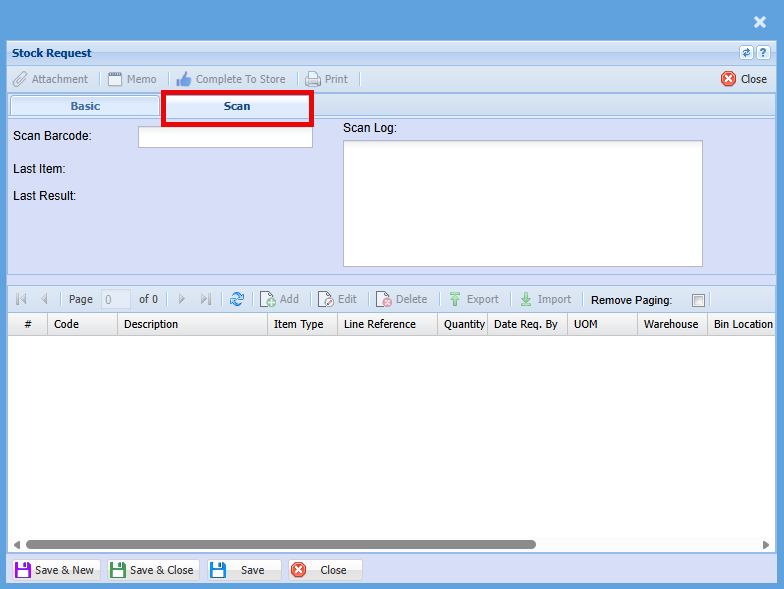
- Scan Tab

The **Scan** tab works the same as the Basic tab but is designed for **barcode scanning**.

<div id="bkmrk-scan-barcode%3A-scan-o">- **Scan Barcode:** Scan or enter the item barcode to quickly add it to the request
- **Last Item / Last Result:** Displays the most recently scanned item and result
- **Scan Log:** Shows a history of scanned items

</div>Items scanned are automatically added to the **item grid below**, removing the need to manually search and enter stock codes.

**Purpose:** Speeds up stock requests by allowing items to be added using a barcode scanner.

[![image.png](https://hugeerp10.co.za/hsofmanual/uploads/images/gallery/2026-06/scaled-1680-/1ALimage.png)](https://hugeerp10.co.za/hsofmanual/uploads/images/gallery/2026-06/1ALimage.png)
---

##### <span style="color: rgb(34, 34, 34); font-family: -apple-system, BlinkMacSystemFont, 'Segoe UI', Oxygen, Ubuntu, Roboto, Cantarell, 'Fira Sans', 'Droid Sans', 'Helvetica Neue', sans-serif; font-size: 1.4em; font-weight: 400;">Create PO</span>


The **Create PO** screen is used to generate **purchase orders for items required on a job**.

[![image.png](https://hugeerp10.co.za/hsofmanual/uploads/images/gallery/2026-06/scaled-1680-/Pmyimage.png)](https://hugeerp10.co.za/hsofmanual/uploads/images/gallery/2026-06/Pmyimage.png)
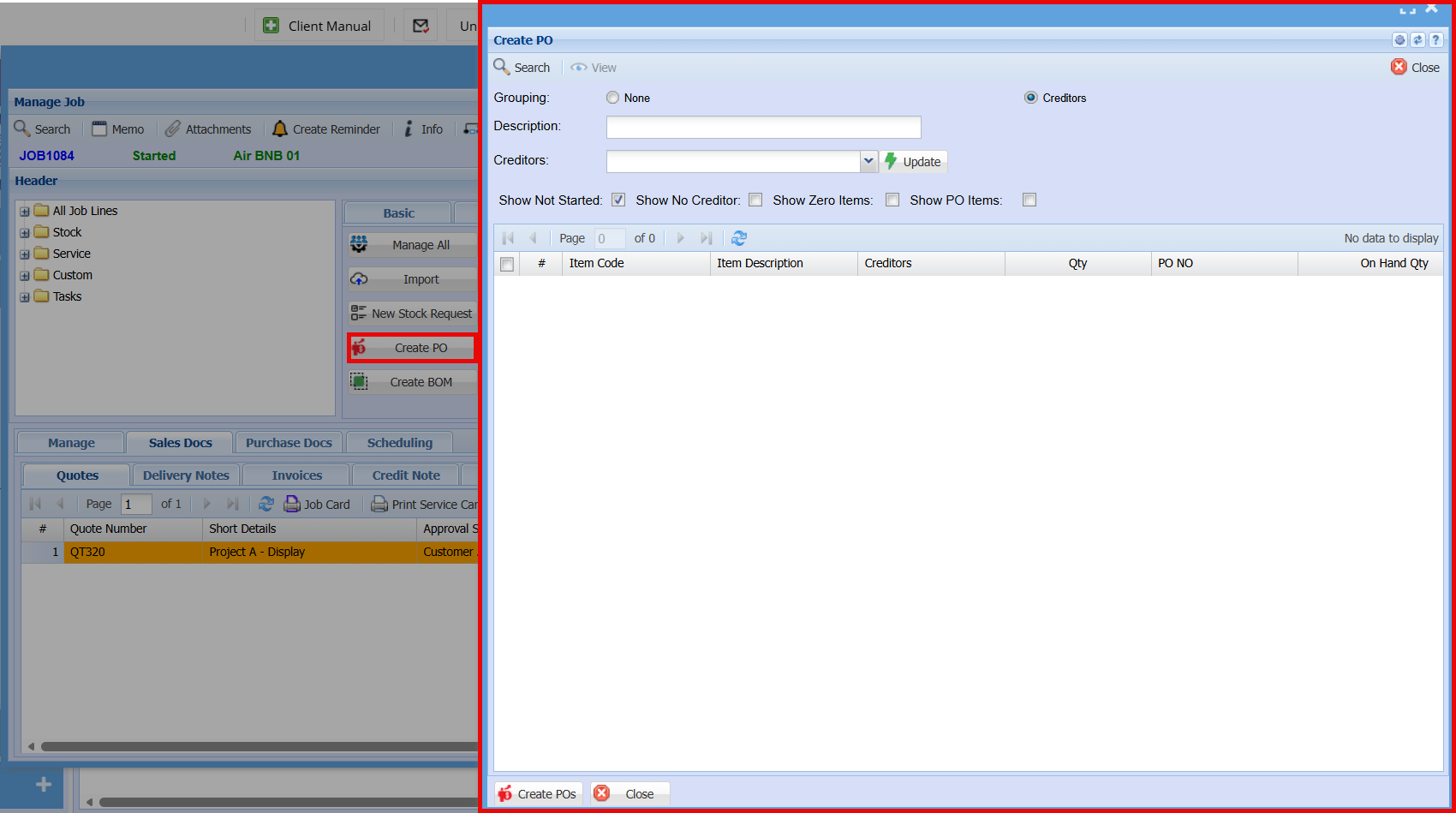
<table border="1" id="bkmrk-grouping-select-none" style="border-collapse: collapse; width: 100%; height: 329px;"><colgroup><col style="width: 19.568%;"></col><col style="width: 80.5556%;"></col></colgroup><tbody><tr style="height: 86.8281px;"><td style="height: 86.8281px;">**Grouping**</td><td style="height: 86.8281px;">Choose how items are grouped when creating POs:

<div>- **None** (no grouping)
- **Creditors** (group by supplier)

</div></td></tr><tr style="height: 29.7969px;"><td style="height: 29.7969px;">**Description**</td><td style="height: 29.7969px;"><div>Enter a description for the purchase order(s) </div></td></tr><tr style="height: 29.7969px;"><td style="height: 29.7969px;">**Creditor**</td><td style="height: 29.7969px;">Select or update the **supplier** for the items

</td></tr><tr style="height: 29.7969px;"><td style="height: 29.7969px;">**Show Not Started**</td><td style="height: 29.7969px;"><div>Displays items not yet processed</div></td></tr><tr style="height: 29.7969px;"><td style="height: 29.7969px;">**Show No Creditor**</td><td style="height: 29.7969px;">Shows items without a supplier assigned</td></tr><tr style="height: 29.7969px;"><td style="height: 29.7969px;">**Show Zero Items**</td><td style="height: 29.7969px;">Includes items with zero quantity</td></tr><tr style="height: 29.7969px;"><td style="height: 29.7969px;">**Show PO Items**</td><td style="height: 29.7969px;">Shows items already linked to a PO</td></tr><tr style="height: 63.3906px;"><td style="height: 63.3906px;">**Create POs/**

**Close**

</td><td style="height: 63.3906px;"><div>Select the required items from the grid</div><div>Click **Create POs** to generate purchase order(s)</div><div>**Close** to exit the screen</div></td></tr></tbody></table>

---

##### <span style="color: rgb(34, 34, 34); font-family: -apple-system, BlinkMacSystemFont, 'Segoe UI', Oxygen, Ubuntu, Roboto, Cantarell, 'Fira Sans', 'Droid Sans', 'Helvetica Neue', sans-serif; font-size: 1.4em; font-weight: 400;">Create BOM</span>

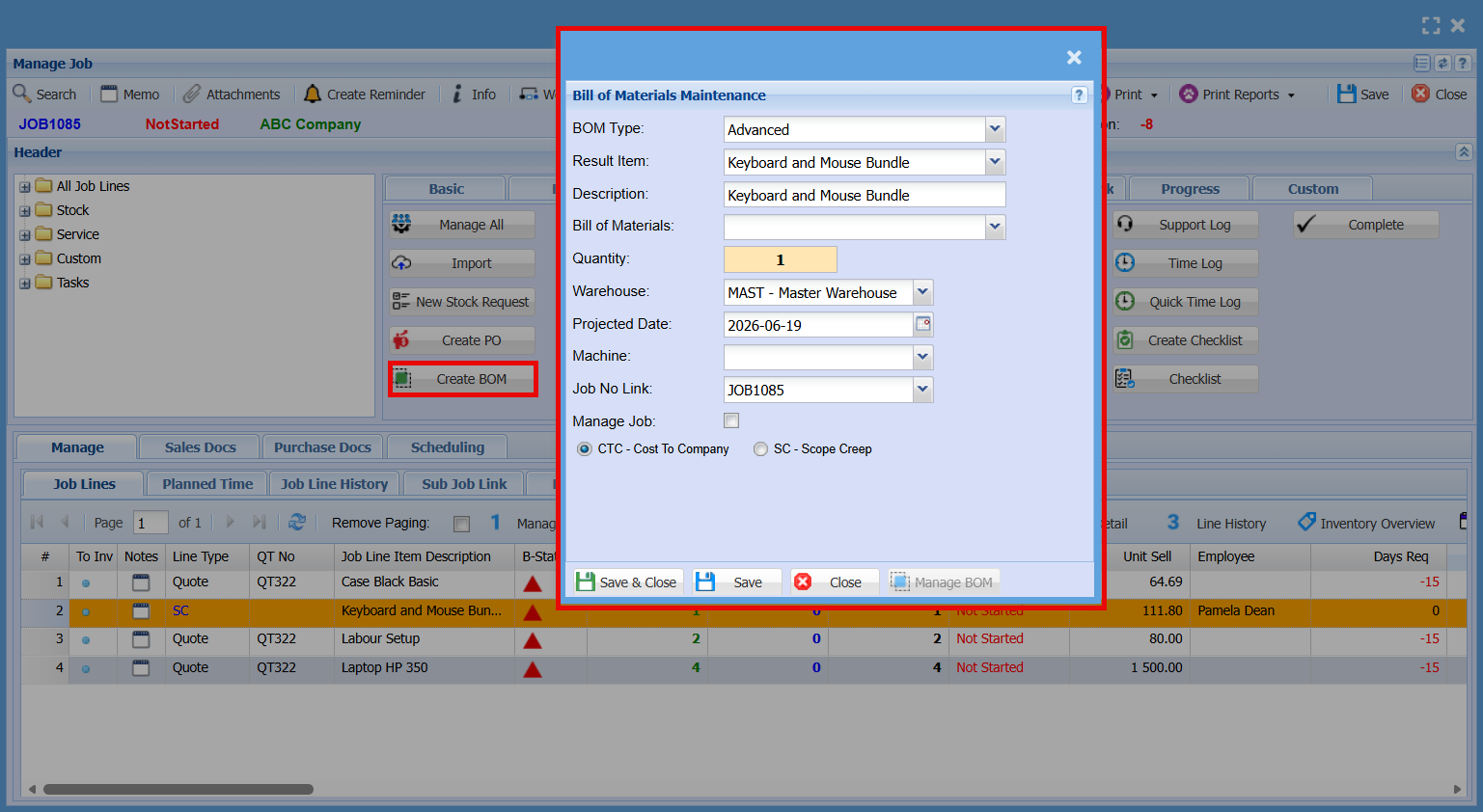
This screen allows you to quickly **add multiple predefined items to a job** using a selected BOM, saving time and ensuring consistency.

[![image.png](https://hugeerp10.co.za/hsofmanual/uploads/images/gallery/2026-06/scaled-1680-/YKOimage.png)](https://hugeerp10.co.za/hsofmanual/uploads/images/gallery/2026-06/YKOimage.png)
<table border="1" id="bkmrk-bom-type-choose-basi" style="border-collapse: collapse; width: 100%;"><colgroup><col style="width: 16.7263%;"></col><col style="width: 83.3929%;"></col></colgroup><tbody><tr><td><div>**BOM Type**  
</div></td><td><div>Choose **Basic** or **Advanced**, which determines which BOM list is available</div></td></tr><tr><td><div>**Result Item**  
</div></td><td><div>Select the BOM item you want to apply (based on the chosen BOM type)</div></td></tr><tr><td><div>**Description**</div></td><td><div>Displays or allows entry of the BOM description</div></td></tr><tr><td><div>**Bill of Materials**  
</div></td><td>Select the specific BOM record if multiple exist

</td></tr><tr><td><div>**Quantity**</div></td><td><div>Number of times the BOM will be applied</div></td></tr><tr><td><div>**Warehouse**</div></td><td><div>Select the warehouse the items will be drawn from</div></td></tr><tr><td><div>**Projected Date**  
</div></td><td><div>Expected date for the BOM items</div></td></tr><tr><td><div>**Machine**</div></td><td><div>Optional field for linking to a machine</div></td></tr><tr><td><div>**Job No Link**  
</div></td><td>Confirms the job the BOM will be added to

</td></tr><tr><td><div>**Manage Job**  
</div></td><td><div>Apply the BOM and manage the lines immediately</div></td></tr><tr><td><div><div>**CTC / SC**  
</div></div></td><td>Choose how the BOM is costed (Cost to Company or Scope Creep)

</td></tr><tr><td><div><div>**Actions**</div></div></td><td><div><div>**Save &amp; Close:** Apply the BOM and exit</div><div>**Save:** Save without closing</div><div>**Close:** Exit without saving</div><div>**Manage BOM:** Open BOM management (if available)</div></div></td></tr></tbody></table>

---

##### <span style="color: rgb(34, 34, 34); font-family: -apple-system, BlinkMacSystemFont, 'Segoe UI', Oxygen, Ubuntu, Roboto, Cantarell, 'Fira Sans', 'Droid Sans', 'Helvetica Neue', sans-serif; font-size: 1.4em; font-weight: 400;">Verify Task Stock </span>

[![image.png](https://hugeerp10.co.za/hsofmanual/uploads/images/gallery/2026-06/scaled-1680-/LhNimage.png)](https://hugeerp10.co.za/hsofmanual/uploads/images/gallery/2026-06/LhNimage.png)

---

##### <span style="color: rgb(34, 34, 34); font-family: -apple-system, BlinkMacSystemFont, 'Segoe UI', Oxygen, Ubuntu, Roboto, Cantarell, 'Fira Sans', 'Droid Sans', 'Helvetica Neue', sans-serif; font-size: 1.4em; font-weight: 400;">Task Stock Request</span>

[![image.png](https://hugeerp10.co.za/hsofmanual/uploads/images/gallery/2026-06/scaled-1680-/GXKimage.png)](https://hugeerp10.co.za/hsofmanual/uploads/images/gallery/2026-06/GXKimage.png)

---

##### <span style="color: rgb(34, 34, 34); font-family: -apple-system, BlinkMacSystemFont, 'Segoe UI', Oxygen, Ubuntu, Roboto, Cantarell, 'Fira Sans', 'Droid Sans', 'Helvetica Neue', sans-serif; font-size: 1.4em; font-weight: 400;">Delete Task</span>

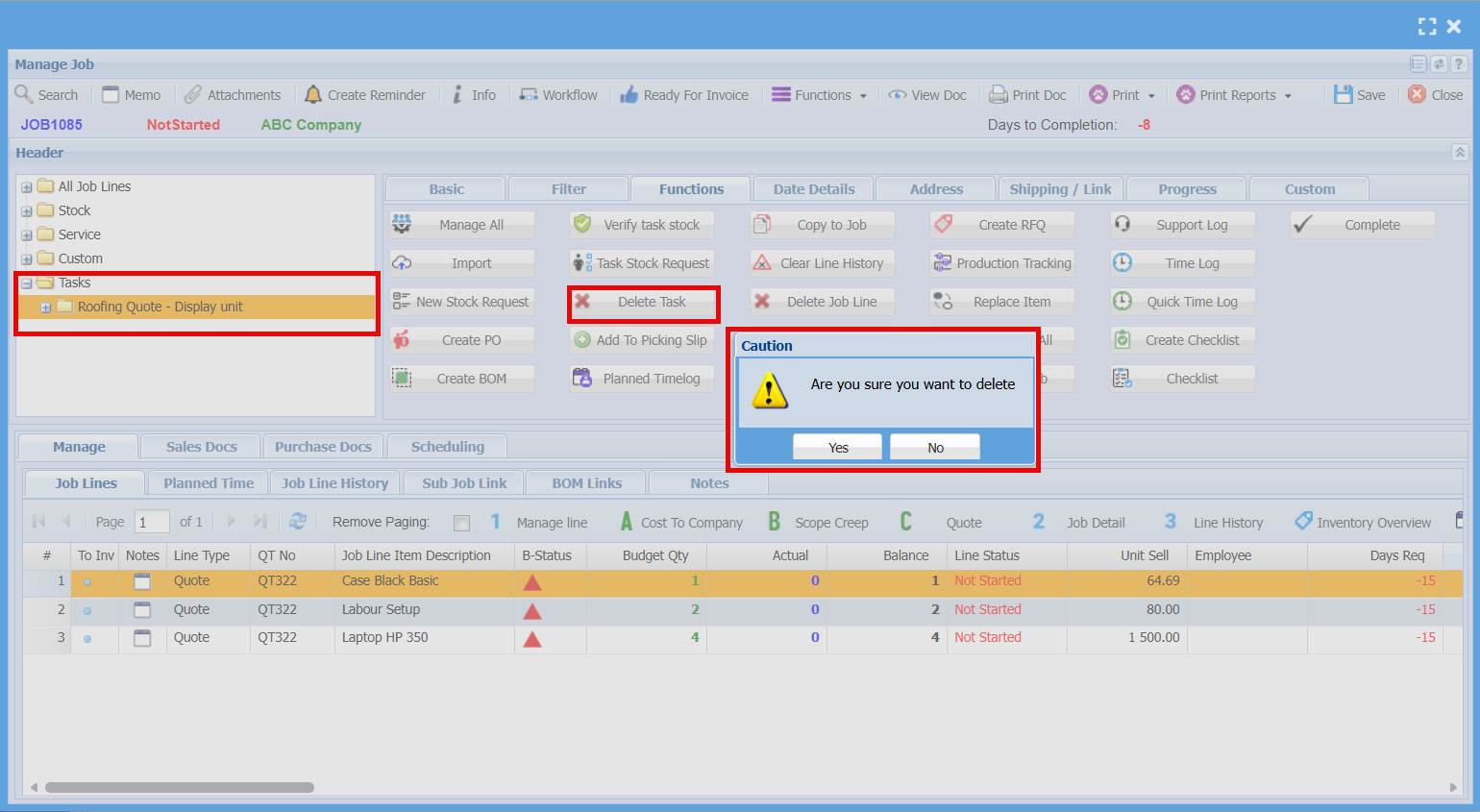
The **Delete Task** button is used to remove a **task from the job**.

<div id="bkmrk-you-must-first-selec">- You must first select a **task from the Tasks section** (left panel)
- The button will only work when a **task is highlighted/selected**

</div>When clicked, a confirmation message will appear:

<div id="bkmrk-click-yes-to-delete-">- Click **Yes** to delete the task
- Click **No** to cancel

</div>**Note:** Only tasks (not standard job lines) can be deleted using this button.

[![image.png](https://hugeerp10.co.za/hsofmanual/uploads/images/gallery/2026-06/scaled-1680-/LWlimage.png)](https://hugeerp10.co.za/hsofmanual/uploads/images/gallery/2026-06/LWlimage.png)
---

##### <span style="color: rgb(34, 34, 34); font-family: -apple-system, BlinkMacSystemFont, 'Segoe UI', Oxygen, Ubuntu, Roboto, Cantarell, 'Fira Sans', 'Droid Sans', 'Helvetica Neue', sans-serif; font-size: 1.4em; font-weight: 400;">Add a Picking Slip</span>

This function allows you to **send selected job items to the warehouse** so they can be picked and prepared for the job.

<div id="bkmrk-you-must-first-highl">- You must first **highlight the job line(s)** you want to add
- Clicking the button opens the **Add To Picking Slip** screen

</div>**On this screen you can:**

<div id="bkmrk-select-an-existing-p">- Select an existing **Picking Slip** or create a new one
- Choose whether to add items from a **Quote** or **Stock Request**
- View the selected items in the top grid
- Add items to the picking slip using **Add / Add All / Add Per Quote**

</div>The bottom grid shows the items that have been added to the picking slip.

**Actions:**

<div id="bkmrk-remove-%2F-remove-all%3A">- **Remove / Remove All:** Remove items from the picking slip
- **Edit:** Modify selected lines
- **Print:** Print the picking slip
- **Close:** Exit the screen

</div>[![image.png](https://hugeerp10.co.za/hsofmanual/uploads/images/gallery/2026-06/scaled-1680-/ZMjimage.png)](https://hugeerp10.co.za/hsofmanual/uploads/images/gallery/2026-06/ZMjimage.png)

---

##### <span style="color: rgb(34, 34, 34); font-family: -apple-system, BlinkMacSystemFont, 'Segoe UI', Oxygen, Ubuntu, Roboto, Cantarell, 'Fira Sans', 'Droid Sans', 'Helvetica Neue', sans-serif; font-size: 1.4em; font-weight: 400;">Planned Time Log</span>

[![image.png](https://hugeerp10.co.za/hsofmanual/uploads/images/gallery/2026-06/scaled-1680-/OhKimage.png)](https://hugeerp10.co.za/hsofmanual/uploads/images/gallery/2026-06/OhKimage.png)

---

##### <span style="color: rgb(34, 34, 34); font-family: -apple-system, BlinkMacSystemFont, 'Segoe UI', Oxygen, Ubuntu, Roboto, Cantarell, 'Fira Sans', 'Droid Sans', 'Helvetica Neue', sans-serif; font-size: 1.4em; font-weight: 400;">Copy to Job</span>

This function lets you **reuse job lines across different jobs**, saving time and ensuring consistency.

<div id="bkmrk-you-must-first-highl-1">- You must first **highlight the line item(s)** you want to copy
- Clicking the button opens the **Copy Job lines to other job** screen

</div>[![image.png](https://hugeerp10.co.za/hsofmanual/uploads/images/gallery/2026-06/scaled-1680-/5VDimage.png)](https://hugeerp10.co.za/hsofmanual/uploads/images/gallery/2026-06/5VDimage.png)

<table border="1" id="bkmrk-copy-to-new-job%3A-sel" style="border-collapse: collapse; width: 100%;"><colgroup><col style="width: 50.0596%;"></col><col style="width: 50.0596%;"></col></colgroup><tbody><tr><td>**Copy to new Job:**</td><td>Select the job you want to copy the line(s) to</td></tr><tr><td>**Quote Lines:**</td><td>Tick to copy as **quote lines**</td></tr><tr><td>**Scope Creep (SC) Lines:**</td><td>Tick to copy as **scope creep lines**</td></tr><tr><td>**Cost to Company (CTC):**</td><td>Tick to copy as **cost to company lines**</td></tr><tr><td>**Quantity Type:**</td><td>Choose how the quantity is copied:

\- For example, **Balance** will copy only the remaining quantity

</td></tr><tr><td>**Actions**</td><td>- **Continue:** Copies the selected line(s) to the chosen job
- **Close:** Exits without copying

</td></tr></tbody></table>

---

##### <span style="color: rgb(34, 34, 34); font-family: -apple-system, BlinkMacSystemFont, 'Segoe UI', Oxygen, Ubuntu, Roboto, Cantarell, 'Fira Sans', 'Droid Sans', 'Helvetica Neue', sans-serif; font-size: 1.4em; font-weight: 400;">Clear Line History</span>

[![image.png](https://hugeerp10.co.za/hsofmanual/uploads/images/gallery/2026-06/scaled-1680-/eBdimage.png)](https://hugeerp10.co.za/hsofmanual/uploads/images/gallery/2026-06/eBdimage.png)

---

##### <span style="color: rgb(34, 34, 34); font-family: -apple-system, BlinkMacSystemFont, 'Segoe UI', Oxygen, Ubuntu, Roboto, Cantarell, 'Fira Sans', 'Droid Sans', 'Helvetica Neue', sans-serif; font-size: 1.4em; font-weight: 400;">Delete Job Line</span>

[![image.png](https://hugeerp10.co.za/hsofmanual/uploads/images/gallery/2026-06/scaled-1680-/nMBimage.png)](https://hugeerp10.co.za/hsofmanual/uploads/images/gallery/2026-06/nMBimage.png)

---

##### <span style="color: rgb(34, 34, 34); font-family: -apple-system, BlinkMacSystemFont, 'Segoe UI', Oxygen, Ubuntu, Roboto, Cantarell, 'Fira Sans', 'Droid Sans', 'Helvetica Neue', sans-serif; font-size: 1.4em; font-weight: 400;">Change Line Type</span>

?????

---

##### <span style="color: rgb(34, 34, 34); font-family: -apple-system, BlinkMacSystemFont, 'Segoe UI', Oxygen, Ubuntu, Roboto, Cantarell, 'Fira Sans', 'Droid Sans', 'Helvetica Neue', sans-serif; font-size: 1.4em; font-weight: 400;">CTC to SC</span>

[![image.png](https://hugeerp10.co.za/hsofmanual/uploads/images/gallery/2026-06/scaled-1680-/nuOimage.png)](https://hugeerp10.co.za/hsofmanual/uploads/images/gallery/2026-06/nuOimage.png)

---

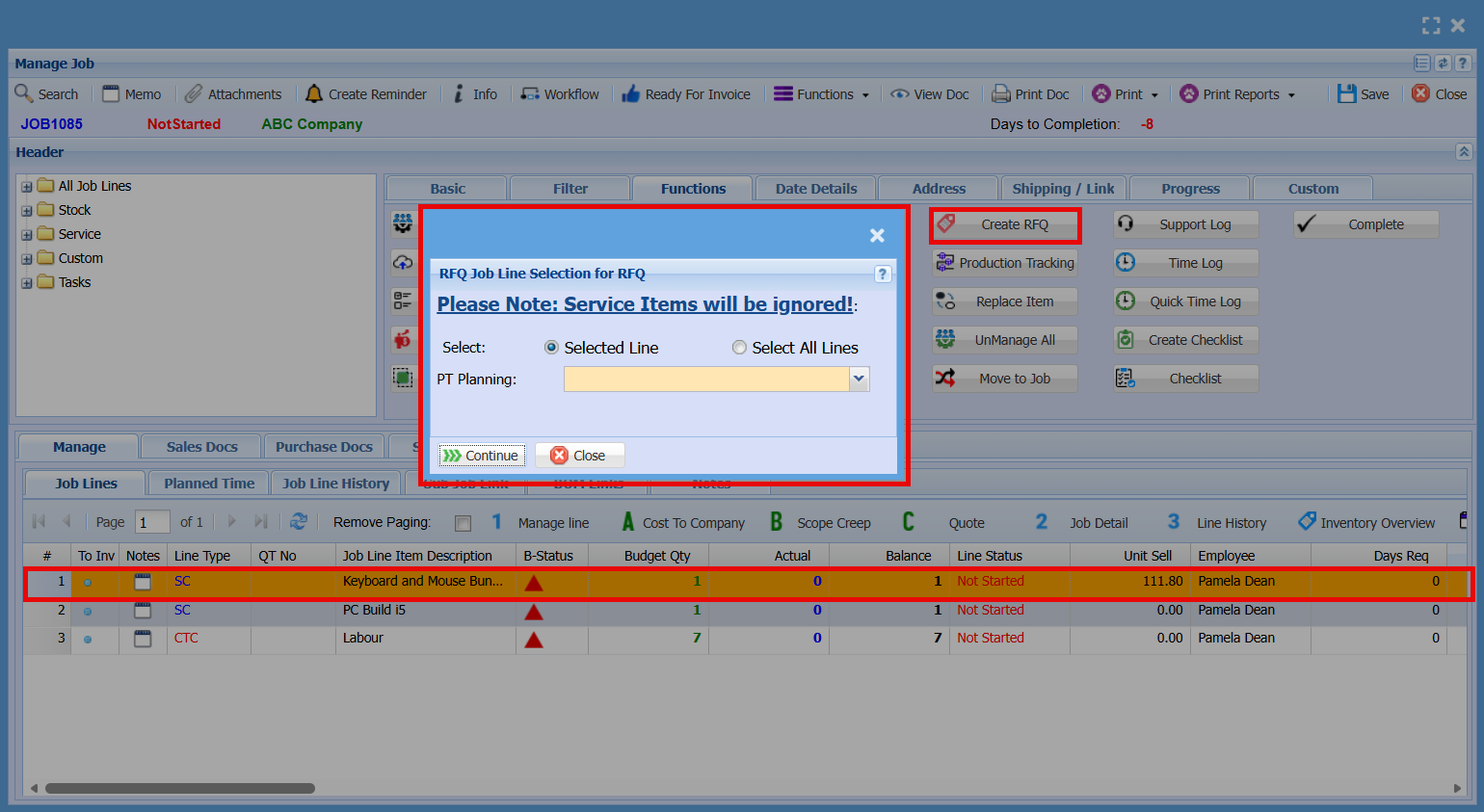
##### <span style="color: rgb(34, 34, 34); font-family: -apple-system, BlinkMacSystemFont, 'Segoe UI', Oxygen, Ubuntu, Roboto, Cantarell, 'Fira Sans', 'Droid Sans', 'Helvetica Neue', sans-serif; font-size: 1.4em; font-weight: 400;">Create RFQ</span>

[![image.png](https://hugeerp10.co.za/hsofmanual/uploads/images/gallery/2026-06/scaled-1680-/Ml8image.png)](https://hugeerp10.co.za/hsofmanual/uploads/images/gallery/2026-06/Ml8image.png)

---

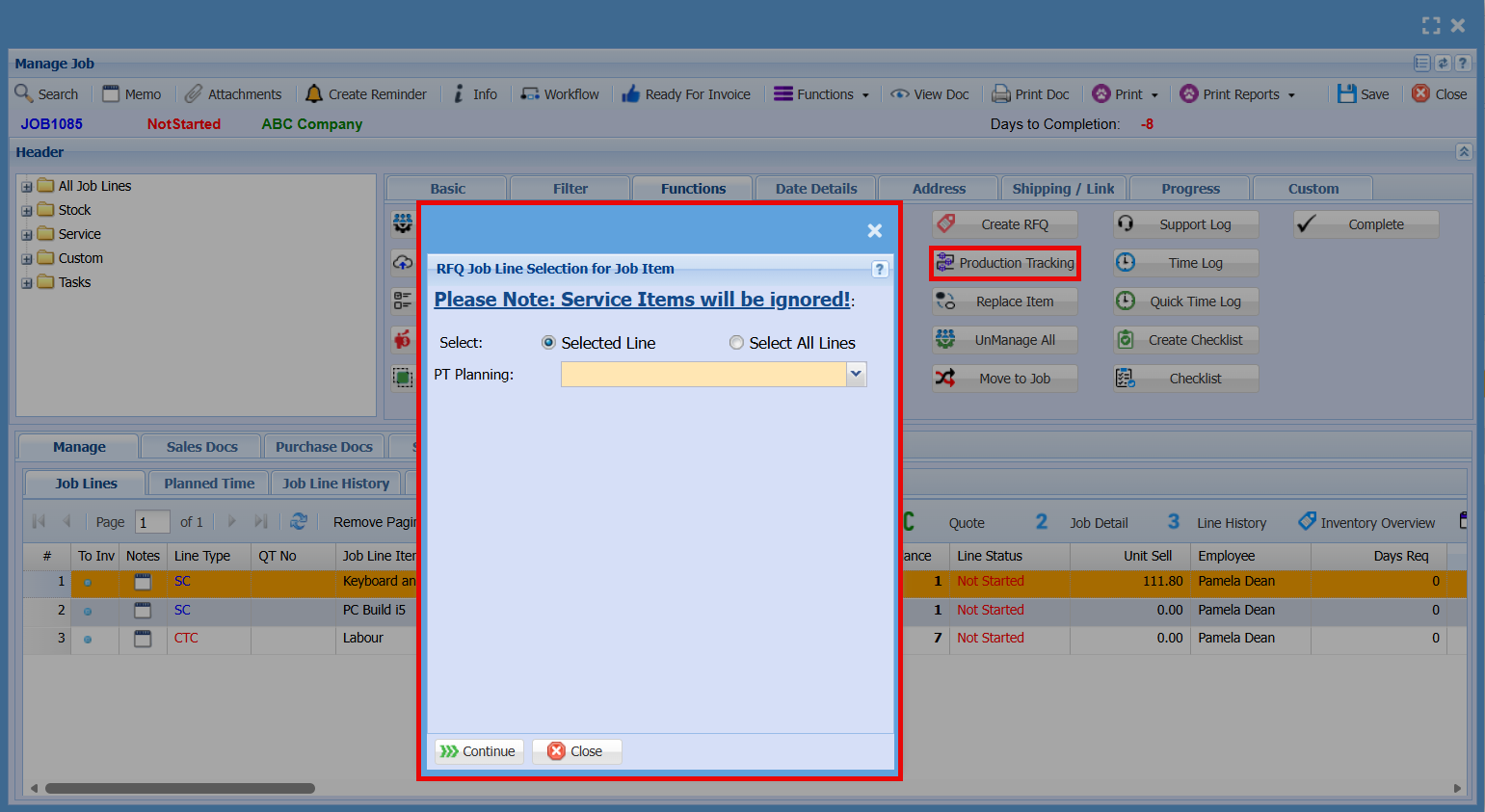
##### <span style="color: rgb(34, 34, 34); font-family: -apple-system, BlinkMacSystemFont, 'Segoe UI', Oxygen, Ubuntu, Roboto, Cantarell, 'Fira Sans', 'Droid Sans', 'Helvetica Neue', sans-serif; font-size: 1.4em; font-weight: 400;">Production Tracking</span>

[![image.png](https://hugeerp10.co.za/hsofmanual/uploads/images/gallery/2026-06/scaled-1680-/bAtimage.png)](https://hugeerp10.co.za/hsofmanual/uploads/images/gallery/2026-06/bAtimage.png)

---

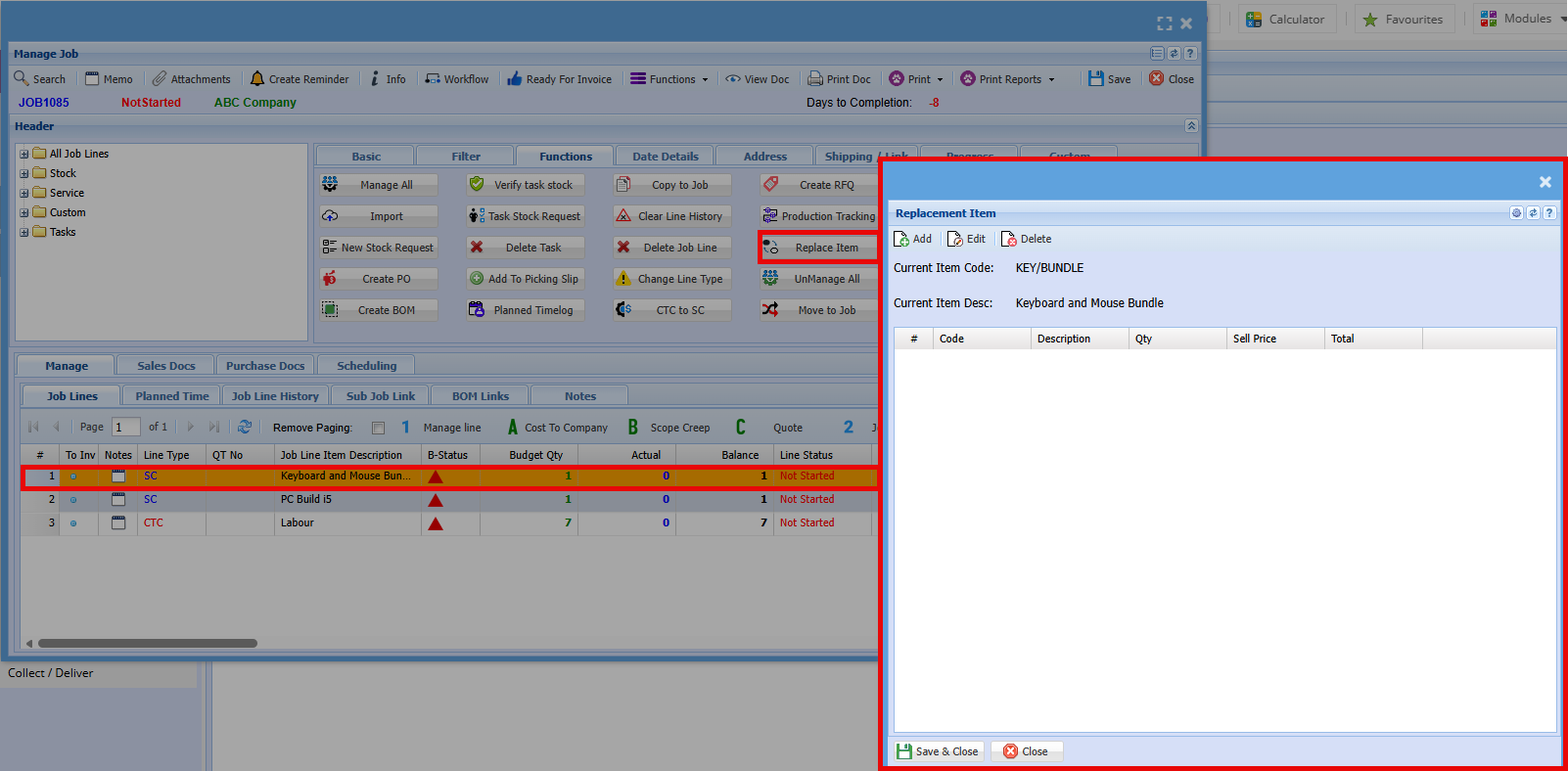
##### Replace Item

[![image.png](https://hugeerp10.co.za/hsofmanual/uploads/images/gallery/2026-06/scaled-1680-/XJMimage.png)](https://hugeerp10.co.za/hsofmanual/uploads/images/gallery/2026-06/XJMimage.png)
---

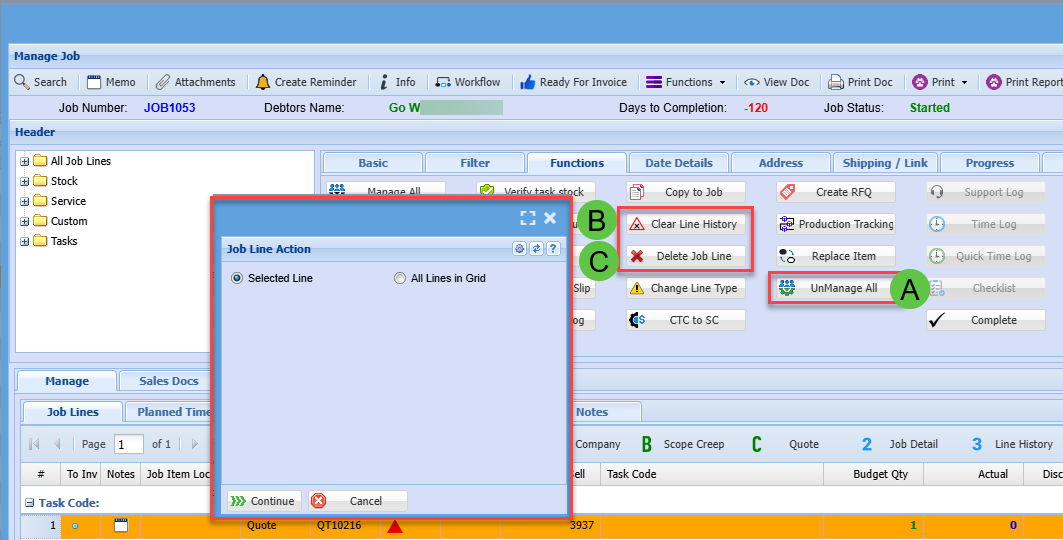
##### Manage All

The **“Unmanage All”** function will reverse any managed quantities on job lines, reducing them back to an unmanaged state based on what has not yet been invoiced.

<table border="1" id="bkmrk-a-unmanage-all-items" style="font-family: -apple-system, BlinkMacSystemFont, 'Segoe UI', Oxygen, Ubuntu, Roboto, Cantarell, 'Fira Sans', 'Droid Sans', 'Helvetica Neue', sans-serif; font-size: 14px;"><tbody><tr><td class="align-center">**A**</td><td>UnManage All items on a job</td></tr><tr><td class="align-center">**B**</td><td>Clear Line History

Only works if the Managed Actual quantity equals zero

</td></tr><tr><td class="align-center">**C**</td><td>Delete Job Line

Only works if there are no Line History entries

</td></tr></tbody></table>

<div id="bkmrk-any-quantities-alrea"></div>[![image.png](https://hugeerp10.co.za/hsofmanual/uploads/images/gallery/2026-06/scaled-1680-/tf8image.png)](https://hugeerp10.co.za/hsofmanual/uploads/images/gallery/2026-06/tf8image.png)

---

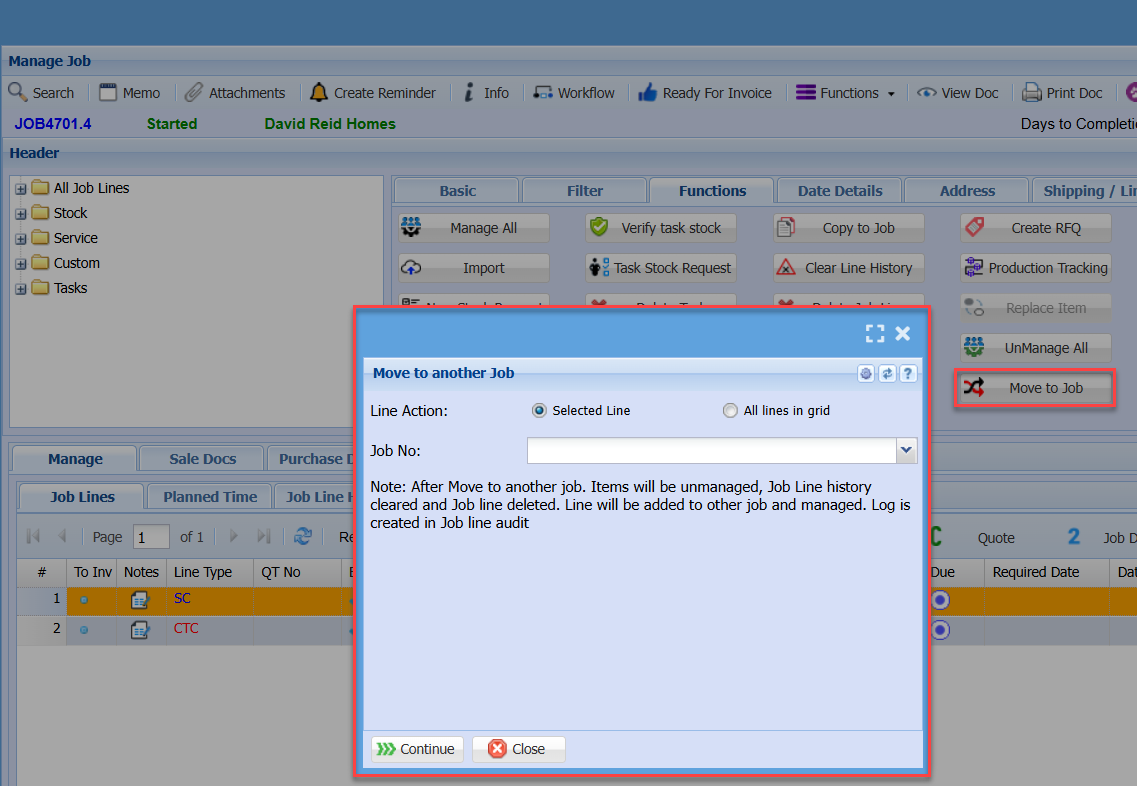
##### Move to Job

[![image.png](https://hugeerp10.co.za/hsofmanual/uploads/images/gallery/2026-06/scaled-1680-/Aoeimage.png)](https://hugeerp10.co.za/hsofmanual/uploads/images/gallery/2026-06/Aoeimage.png)
---

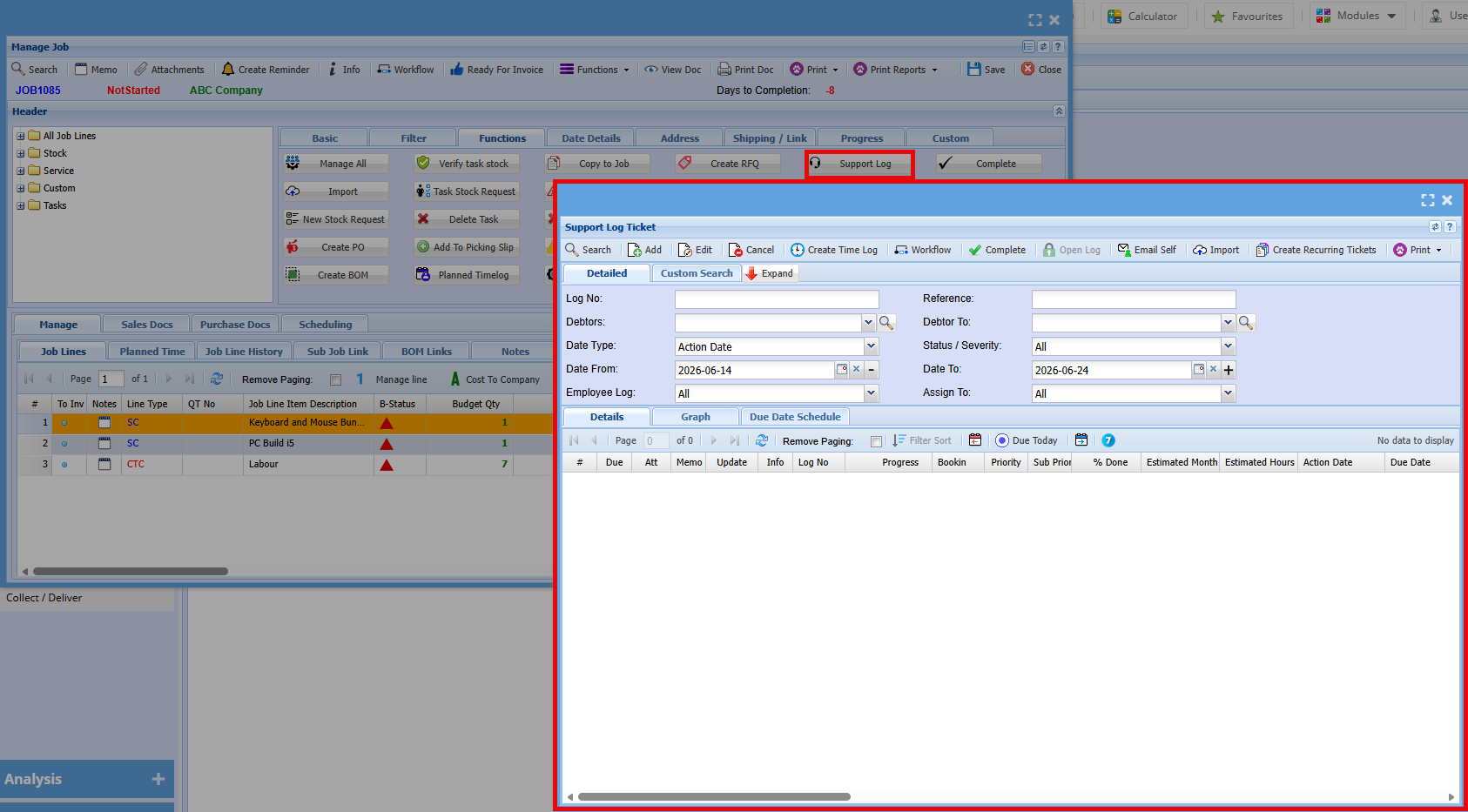
##### Support Log

[![image.png](https://hugeerp10.co.za/hsofmanual/uploads/images/gallery/2026-06/scaled-1680-/lGCimage.png)](https://hugeerp10.co.za/hsofmanual/uploads/images/gallery/2026-06/lGCimage.png)
---

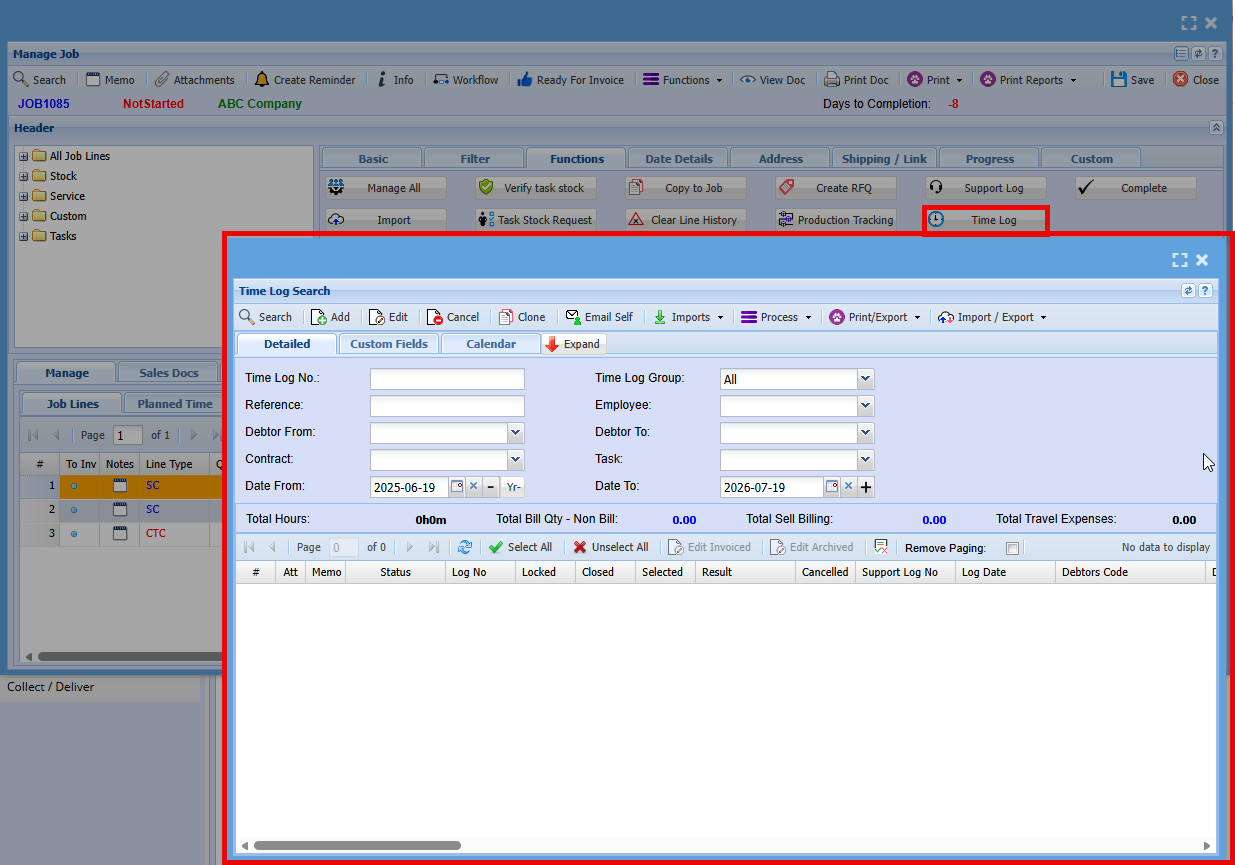
##### Time Log

[![image.png](https://hugeerp10.co.za/hsofmanual/uploads/images/gallery/2026-06/scaled-1680-/s1uimage.png)](https://hugeerp10.co.za/hsofmanual/uploads/images/gallery/2026-06/s1uimage.png)
---

##### Quick Time Log

[![image.png](https://hugeerp10.co.za/hsofmanual/uploads/images/gallery/2026-06/scaled-1680-/7fuimage.png)](https://hugeerp10.co.za/hsofmanual/uploads/images/gallery/2026-06/7fuimage.png)
---

##### Create Checklist

[![image.png](https://hugeerp10.co.za/hsofmanual/uploads/images/gallery/2026-06/scaled-1680-/Y3Dimage.png)](https://hugeerp10.co.za/hsofmanual/uploads/images/gallery/2026-06/Y3Dimage.png)
---

##### Checklist

[![image.png](https://hugeerp10.co.za/hsofmanual/uploads/images/gallery/2026-06/scaled-1680-/QiBimage.png)](https://hugeerp10.co.za/hsofmanual/uploads/images/gallery/2026-06/QiBimage.png)
---

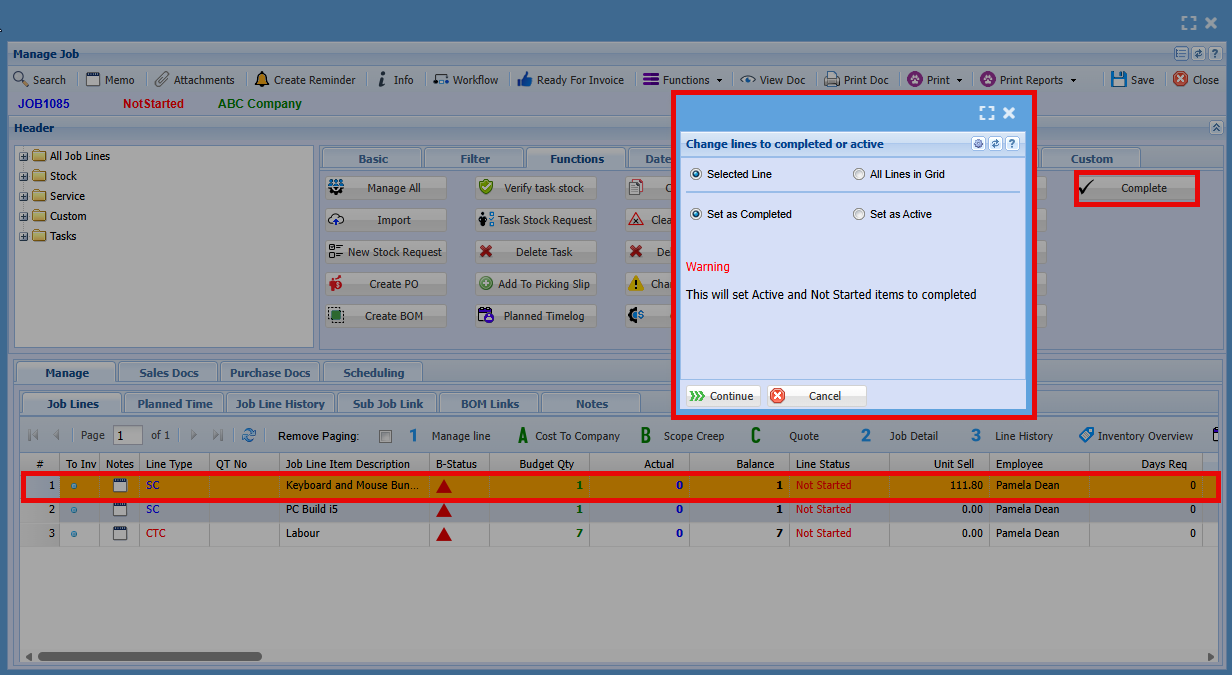
##### Complete

[![image.png](https://hugeerp10.co.za/hsofmanual/uploads/images/gallery/2026-06/scaled-1680-/AMCimage.png)](https://hugeerp10.co.za/hsofmanual/uploads/images/gallery/2026-06/AMCimage.png)