# Job Costing Percentage Invoice
#### Go to Job Costing Module > Activity> Quotation
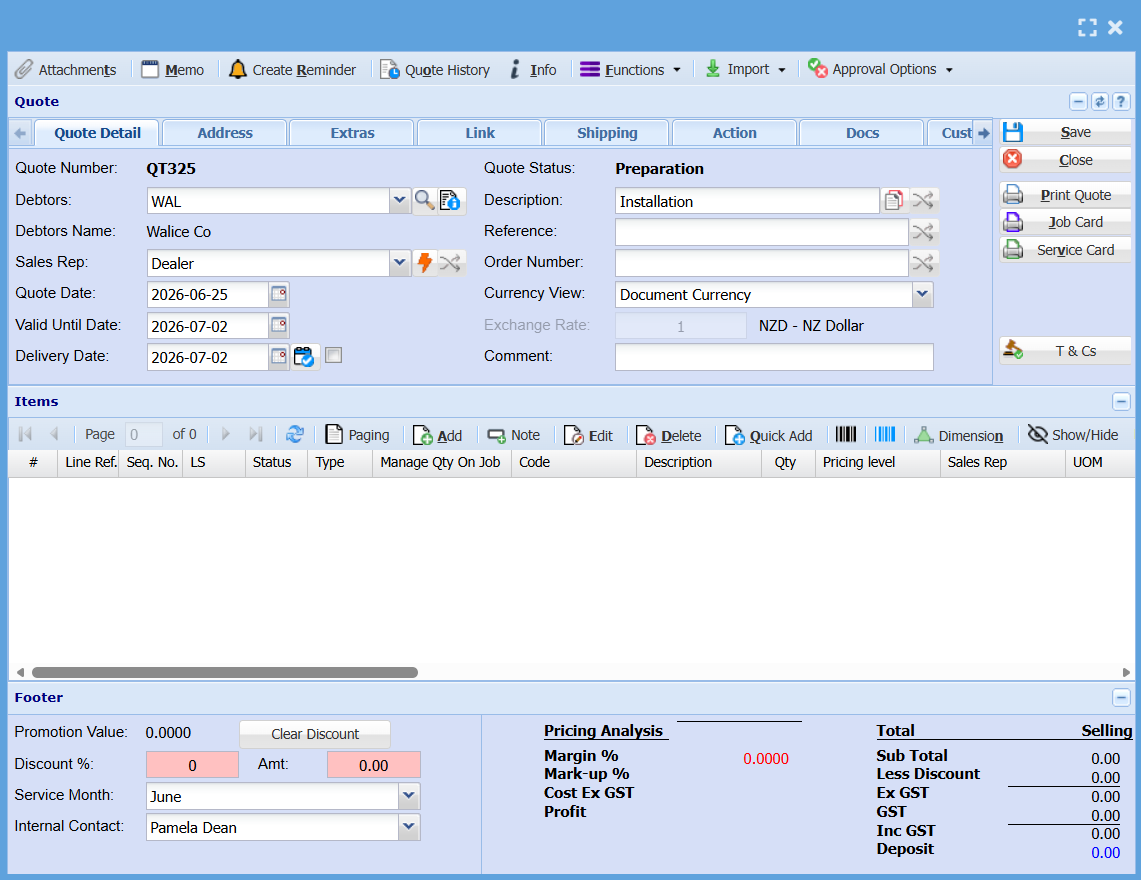
Click Add to create a new Quote
Select the customer
Enter a Reference
Enter the Order Number
Click Save
[](https://hugeerp10.co.za/hsofmanual/uploads/images/gallery/2026-06/IjZimage.png)
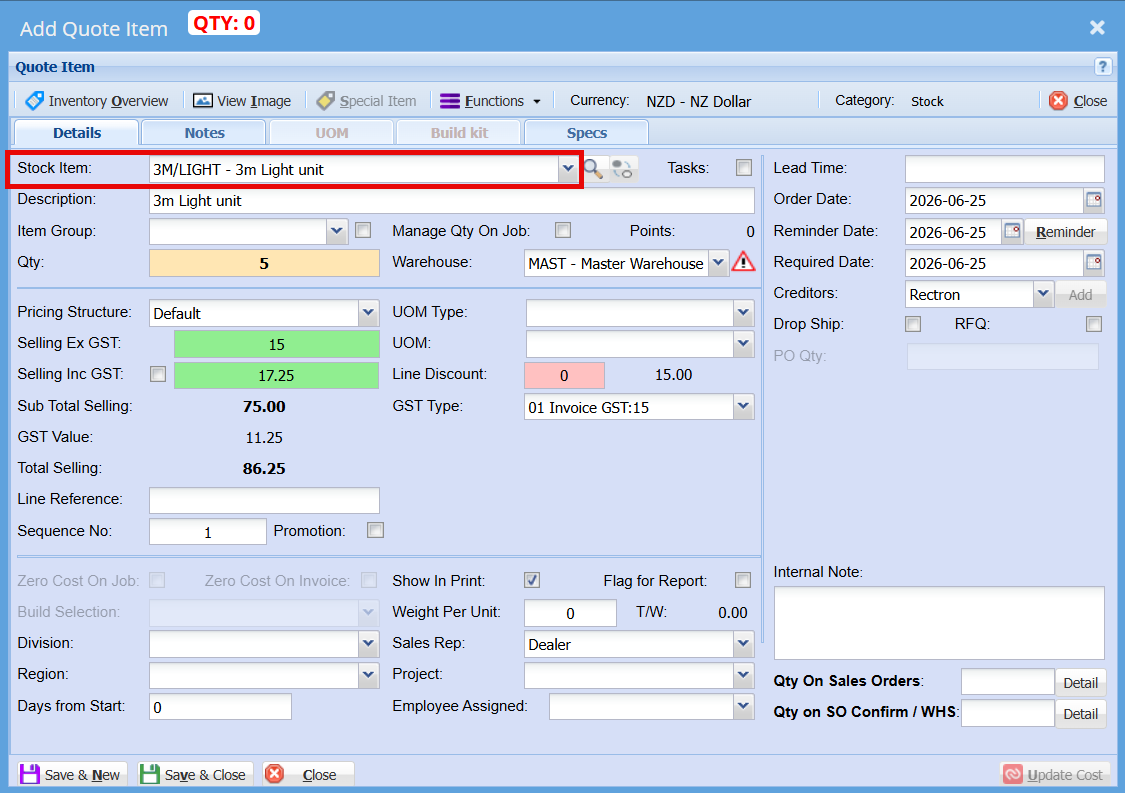
Click Add
Enter the required Item code
Enter the quantity
Check the selling price and amend if required
Click Save and close
[](https://hugeerp10.co.za/hsofmanual/uploads/images/gallery/2026-06/feOimage.png)
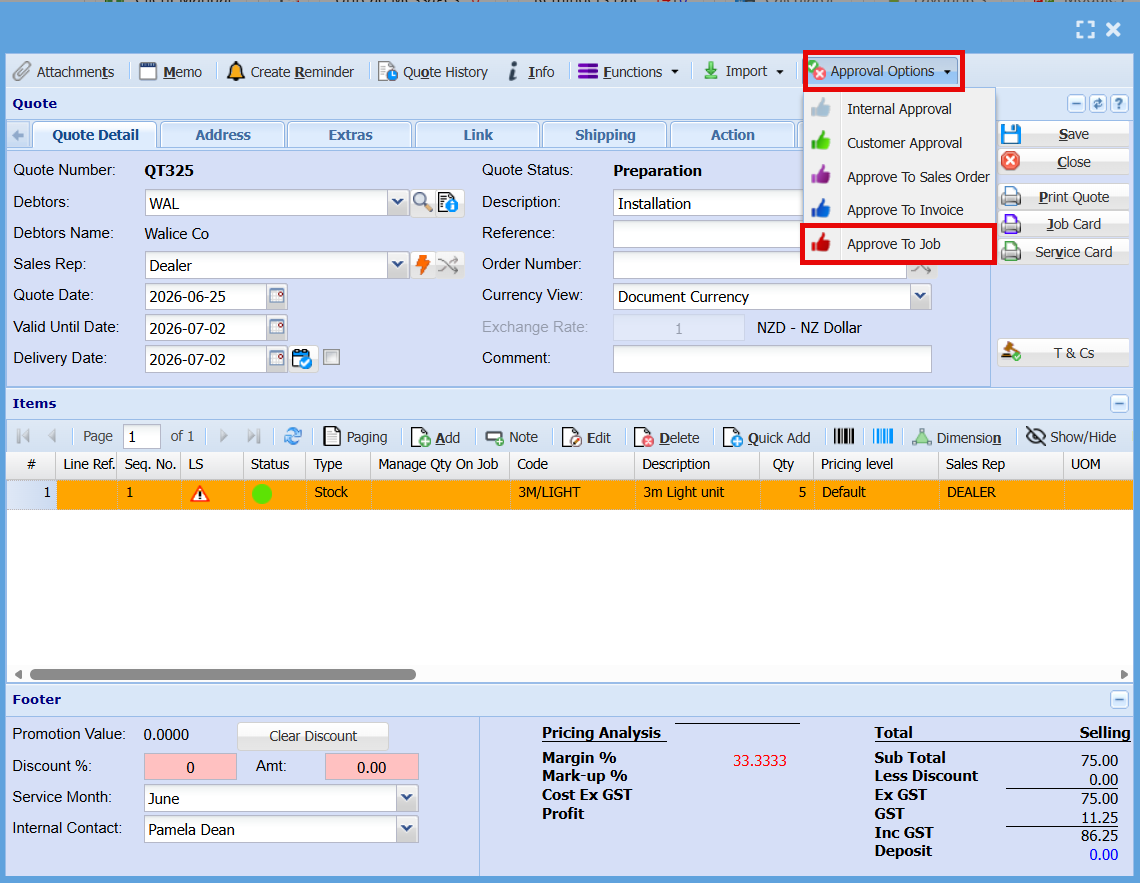
Click Approval Options tab
[](https://hugeerp10.co.za/hsofmanual/uploads/images/gallery/2026-06/2Jrimage.png)
Select Approve to Job
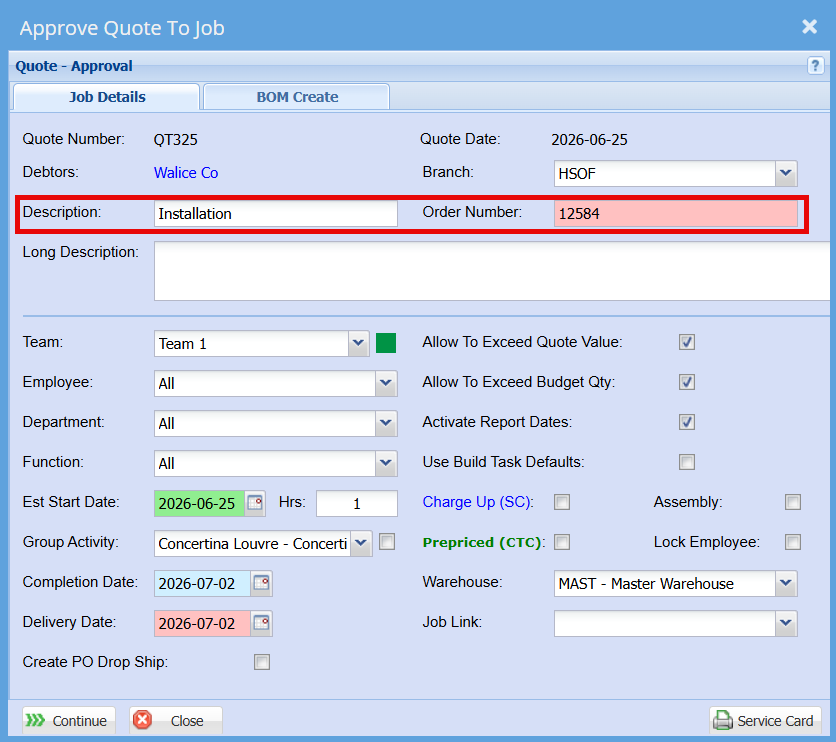
Enter a Description
Check the Order number
[](https://hugeerp10.co.za/hsofmanual/uploads/images/gallery/2026-06/Pb1image.png)
Click Continue
Make a note of the Job number (if necessary)
[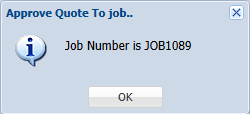](https://hugeerp10.co.za/hsofmanual/uploads/images/gallery/2026-06/UXDimage.png)
Click OK
The Job has now been opened and can be found under the Managed Job Menu
Go to activity> Manage Job> Enter the job Number> Click Search
[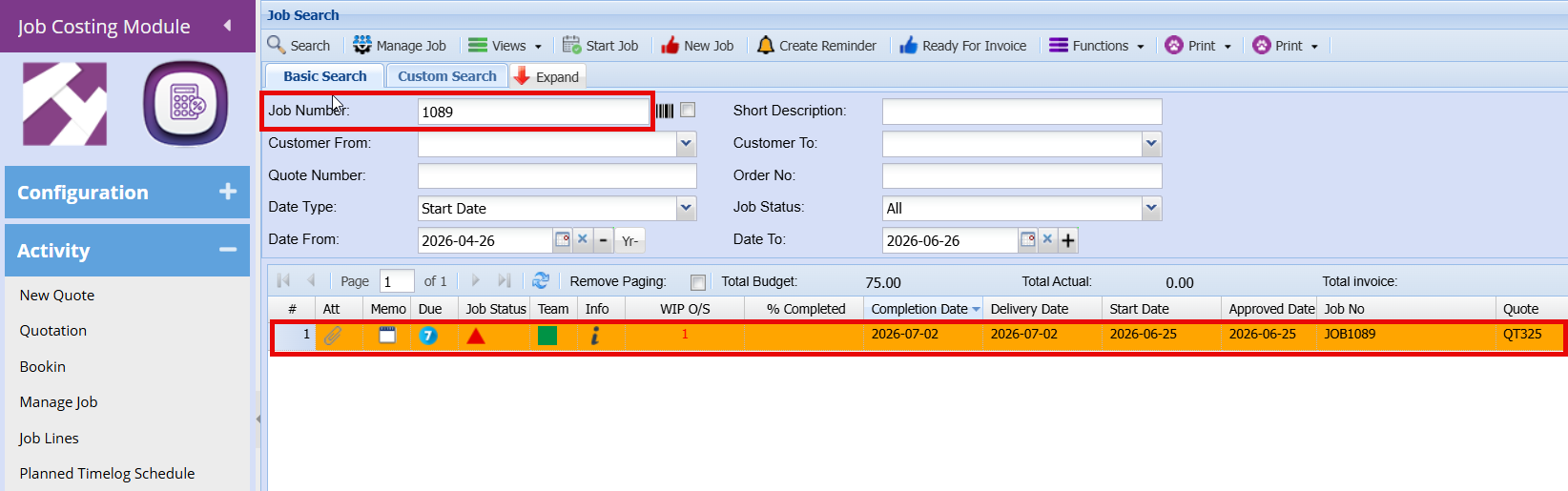](https://hugeerp10.co.za/hsofmanual/uploads/images/gallery/2026-06/g4Rimage.png)
The client/ Job Manager/ Installer can then sign the picking slip as acknowledgment of receipt of the item(s)
Prior to installation, you may need the client to pay a deposit of the total order value.
This is done by way of a Percentage Invoice:
Go to Activity> Job Invoice>
Click Insert
Enter the Job Number and Press Enter
.png)
Select Percentage Invoice from the “Type of Invoice” Drop down
NOTE: DO NOT CLICK FINAL INVOICE BOX AT THIS STAGE
Click Create
.png)
Enter the Deposit amount to be invoiced
Enter the estimated Cost of this invoice.
Note: assuming you require a 50% deposit to be paid upfront, then the cost amount to be entered here will also be 50% of the total order cost
In our example: Selling price per unit equals R 150
Cost Price per unit equals R 100
Total Selling Price = R 7500 (50x R150)
Total Cost Price = R 5000 (50x R100)
This 50% Deposit equals R 3750
And 50% Cost equals R 2500
Enter a description to be printed as a invoice line on the invoice.
Click Save and Close
Click Close
.png)
Check that the correct invoice is highlighted
Click the Process Tab
Click Process button
The invoice will print to screen. You can now print a hard copy and/or email the invoice as required.
.png)
The ledger account entries for this invoice will be as follows:
.png)
Upon completion of the job, you will then need to create an invoice for the balance of the amount due.
Go to Activity> Job Invoice> Click Insert
Enter the Job Number and press Enter
Click Final Invoice Box
Click Create
Enter the remaining balance to be invoiced
Enter the remaining estimated Cost
Enter the Description to be printed on the invoice Line
Click Save and Close
Click Close
Click The Process Tab and then click the Process Button
.png)
Ensure that the drop down is selected as “Stock Write Off”
(This is to remove the stock from the system)
Click Continue
The final Invoice will then print to screen and you can print a hard copy or email as required
.png)
Click Close to close the Job
.png)
The Ledger entries for this invoice will be as follows
.png)
Accumulatively the ledger accounts will look as follows:
.png)
NOTE:
Since the cost of the items are estimated initially, upon closure of the job, the Actual system average cost will be posted to the Work in Progress Account.
This will result in the Work in progress account not being cleared out.
You will then need to process a journal in order to clear the Work in progress account. The contra account being most likely the Cost of Sales Account. (in order to realise the actual cost on your financials)