# Change customer on Job
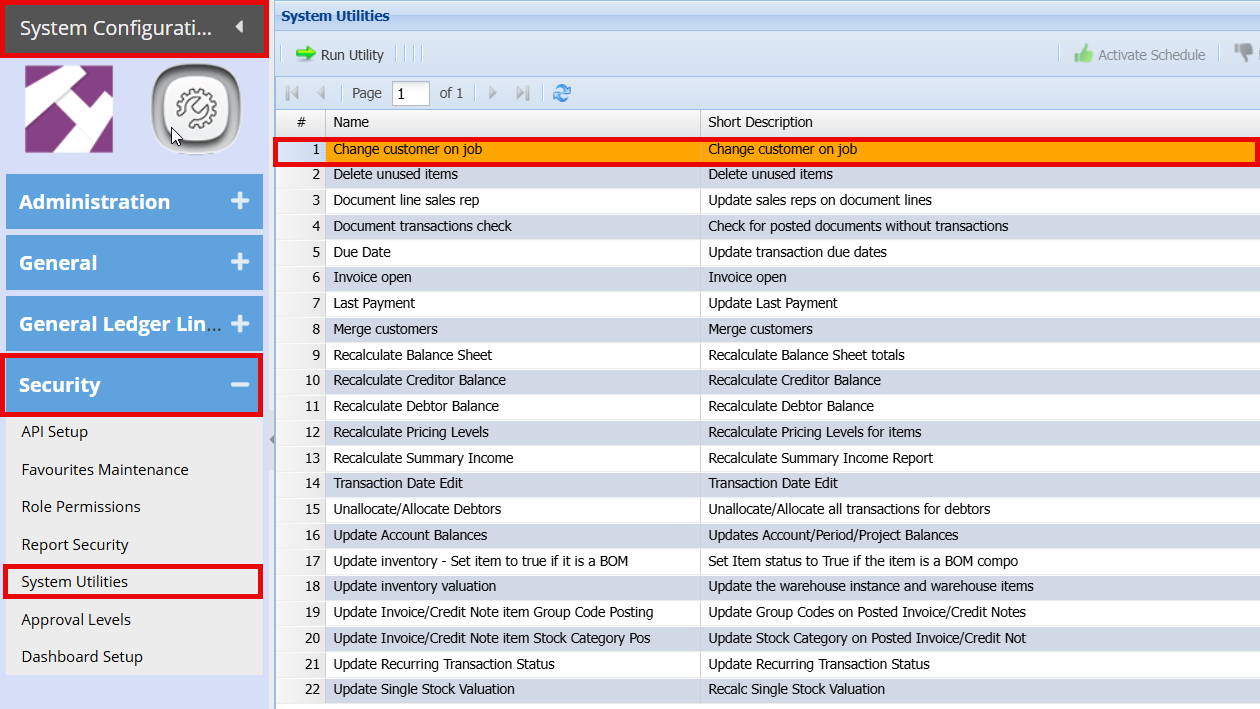
**System Configuration > Security > System Utilities**
The system provides a utility that allows you to **change the customer on an existing job**, provided certain conditions are met.
-
The customer can **only be changed if NO invoices have been created or processed** against the job.
- If invoices exist, this utility will not be applicable.
How to:
- Double click on the "**Change Customer on Job**" utility
[](https://hugeerp10.co.za/hsofmanual/uploads/images/gallery/2026-06/NMmimage.png)
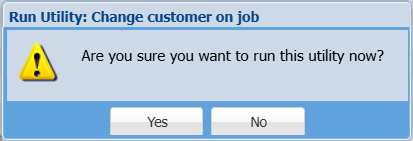
You will get a prompt that to confirm you want to change the customer.
- Click "**Yes**"
[](https://hugeerp10.co.za/hsofmanual/uploads/images/gallery/2026-06/XDtimage.png)
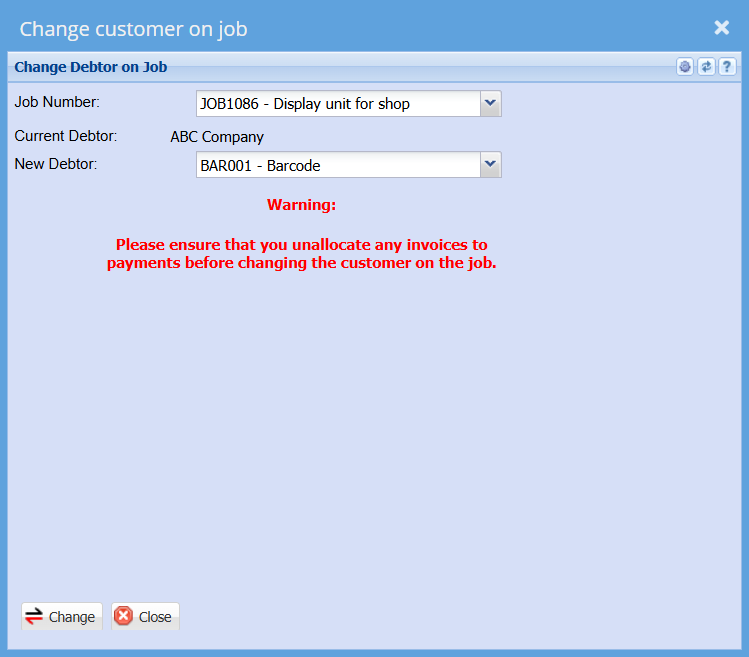
- Select the **job number** you want to change
- Select the **New Customer**
- Click "**Change"**
["](https://hugeerp10.co.za/hsofmanual/uploads/images/gallery/2026-06/mTDimage.png)
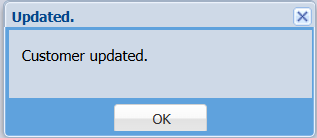
you will then get a pop up to say that the customer has been updated
[](https://hugeerp10.co.za/hsofmanual/uploads/images/gallery/2026-06/8rGimage.png)