# Job Schedule Activity
# Job Schedule Activity
##### Job Schedule Activity Screen Overview
Video training manual 2021 - [Click Here](https://vimeo.com/657219400)
The **Job Schedule Activity** screen provides a comprehensive, multi-view overview of all jobs, allowing you to monitor progress, manage schedules, and optimise resources from a single location.
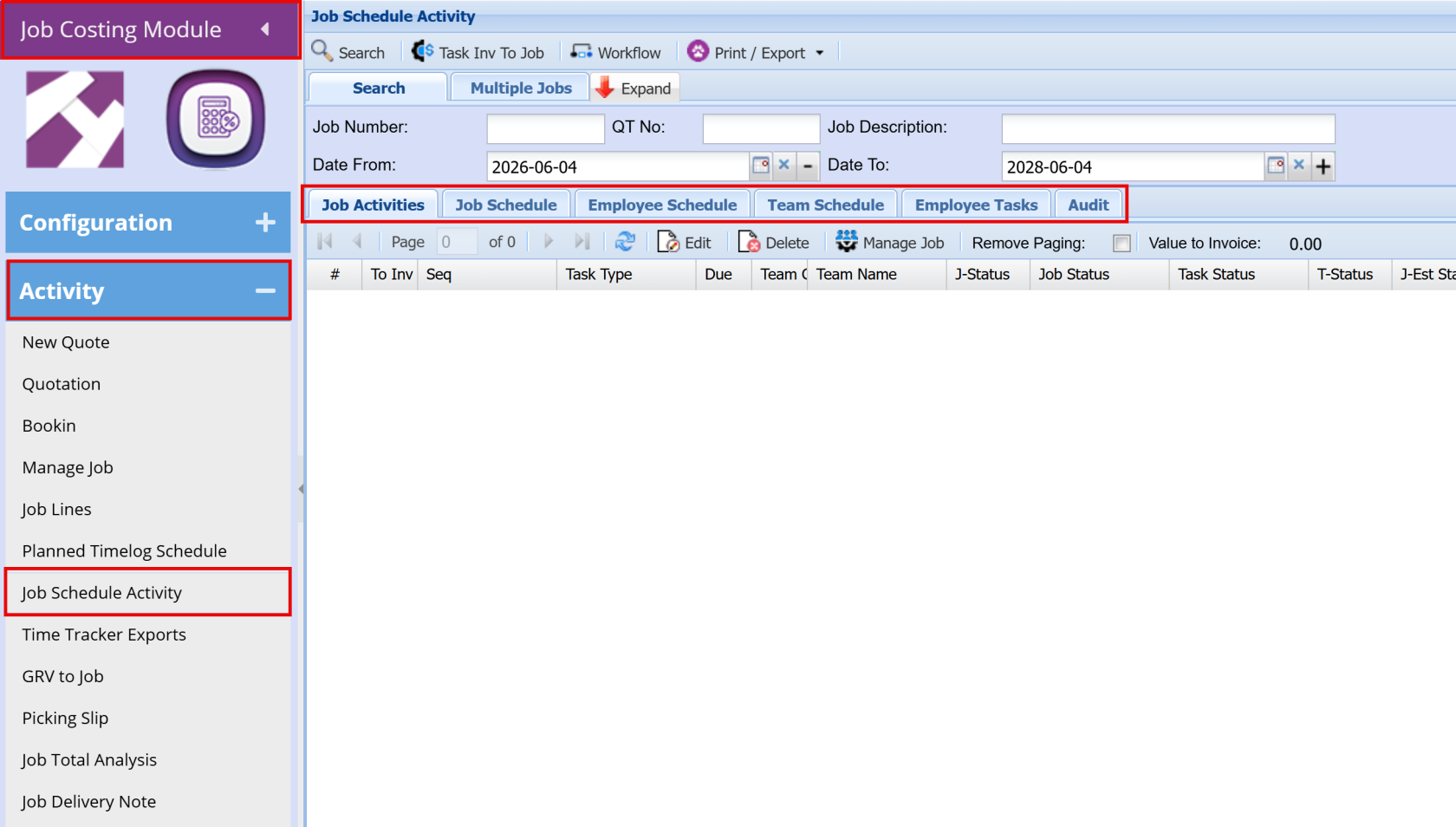
Using the tabs available, you can view and manage jobs from different perspectives:
- **Job Activities** – Displays detailed task breakdowns per job, giving full visibility of the work required.
- **Job Schedule** – Provides a high-level timeline view of all jobs, helping you see when work is planned, identify overlaps or gaps, and adjust schedules to keep jobs on track for completion.
- **Employee Schedule** – Shows how work is allocated across individual employees, allowing you to identify who is busy, who may be overloaded, and who has capacity to assist.
- **Team Schedule** – Displays how teams are assigned to jobs and tasks, supporting team-based planning and workload balancing.
- **Employee Tasks** – Provides a task-level view for each employee, giving a more detailed breakdown of individual responsibilities
[](https://hugeerp10.co.za/hsofmanual/uploads/images/gallery/2026-06/KYtimage.png)
---
##### **Job Schedule Activity – Overview Screen**
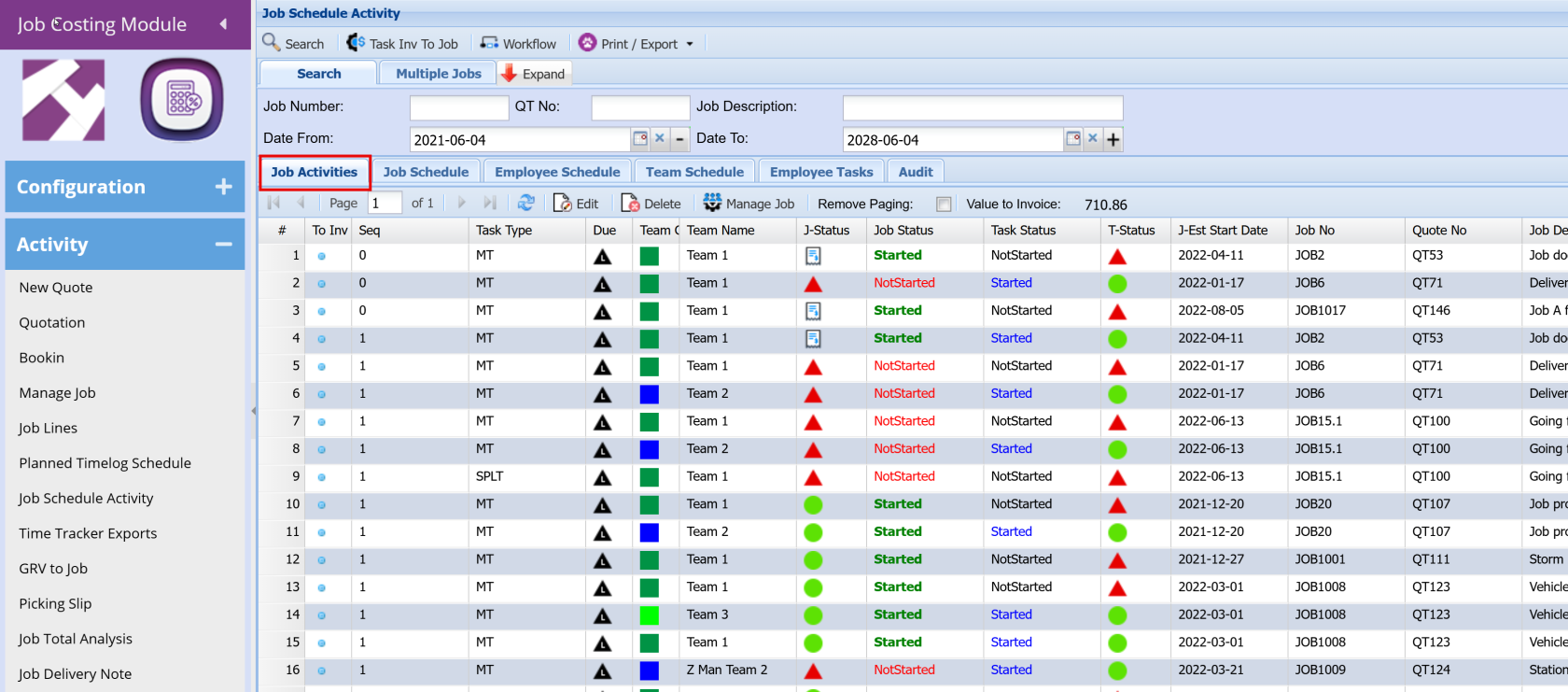
This screen provides a **comprehensive overview of all current and future jobs**, allowing you to monitor progress, track statuses, and manage workload across teams.
**Summary**
- Provides an overview of all job activities and task statuses
- Shows job progress, timing, and team allocation
- Highlights tasks that require attention
- Supports monitoring of current and upcoming work
[](https://hugeerp10.co.za/hsofmanual/uploads/images/gallery/2026-06/HBFimage.png)
**- Job List Overview**
- Each row represents a **job task or activity** linked to a job.
- It includes key details such as:
- **Job Number**
- **Quote Number**
- **Team assigned**
- **Estimated start date**
- **Job description**
**- Status Tracking (Key Feature)**
The screen gives a clear snapshot of where each job sits using multiple status columns:
- **Job Status**
- *Started* (green)
- *Not Started* (red)
- **Task Status**
- Indicates whether the specific task has begun
- **T-Status (Traffic Light Indicator)**
- 🟢 Green = On track
- 🔴 Red = Requires attention / delay
- Provides a quick visual health check of the job
**- Team Allocation**
- The **Team Code and Team Name** fields show which team is assigned to each job.
- This helps identify:
- Who is responsible
- Workload per team
**- Time Visibility**
- The **Estimated Start Date** shows when jobs are planned to begin.
- This allows you to:
- View **upcoming work**
- Identify **current active jobs**
- Spot overlaps or scheduling conflicts
**- Filtering & Search**
At the top of the screen, you can filter by:
- Job Number
- Quote Number
- Job Description
- Date range
This helps you focus on **specific jobs, time periods, or teams**.
**- How It’s Used**
This screen is typically used to:
- Monitor **all jobs in one place** (current and future)
- Track **progress and status at a glance**
- Identify **delays or issues quickly**
- Review **team allocations and workload**
- Support planning decisions before using detailed scheduling screens
---
##### **Job Schedule Screen Overview**
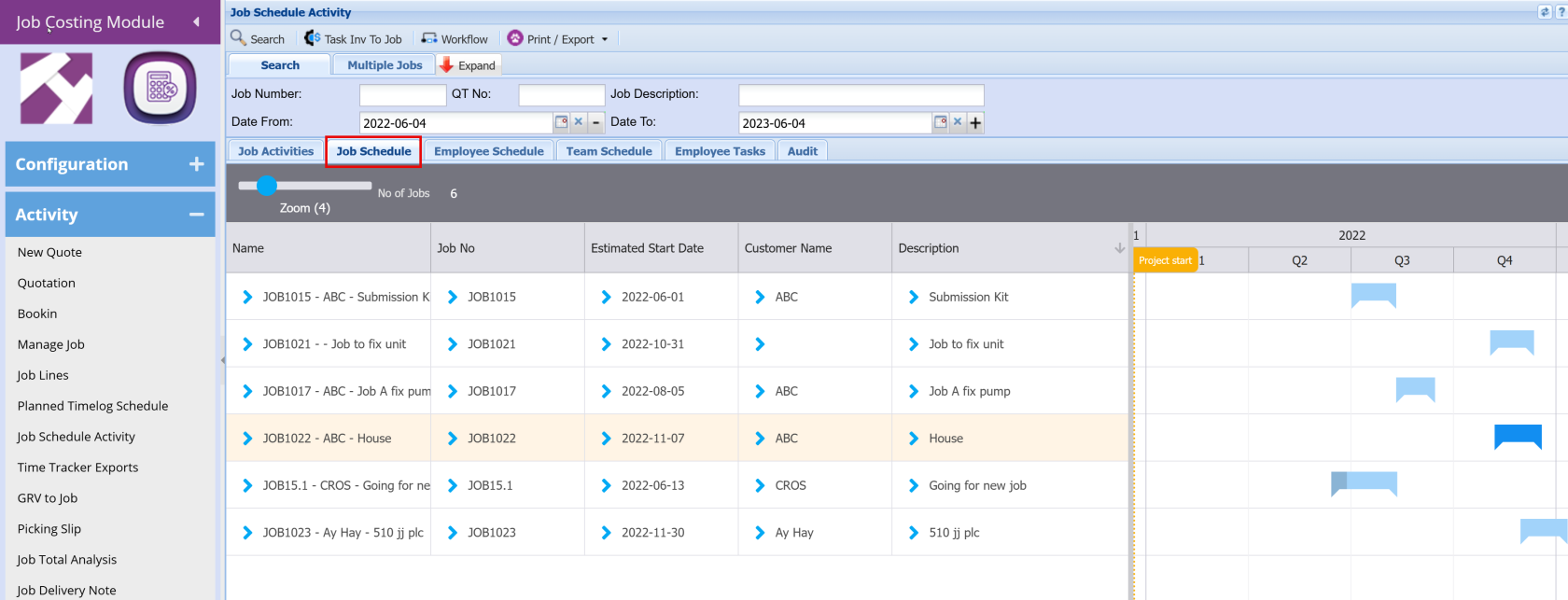
This screen provides a **timeline view of current and future jobs**, helping you track when jobs are planned to start and how they are spread over time.
**Summary**
- Provides a high-level timeline view of all jobs
- Highlights workload distribution, gaps, and overlaps
- Helps identify overbooking and capacity issues
- Supports planning and rescheduling to keep jobs on track
[](https://hugeerp10.co.za/hsofmanual/uploads/images/gallery/2026-06/l70image.png)
**What the Screen Shows**
**- Left Panel – Job Details**
Each row represents a **job**, with key information including:
- **Name** – Job number and short description
- **Job No** – Unique job reference
- **Estimated Start Date** – When the job is scheduled to begin
- **Customer Name** – Who the job is for
- **Description** – Summary of the work
**- Right Panel – Timeline (Gantt View)**
- Displays jobs visually across a **calendar timeline (by month/quarter)**
- Each job is shown as a **blue bar**
- The position of the bar shows:
- When the job is scheduled
- How long the job is expected to run
- The **“Project Start” marker** highlights the beginning of the selected timeline period
**- Key Features**
**Visual Planning**
- Quickly see **current jobs vs upcoming jobs**
- Identify gaps, overlaps, or busy periods
**Timeline Scaling**
- The **Zoom slider** allows you to adjust how much detail is shown (more detail or broader view)
**- Job Tracking**
- Easily monitor:
- Jobs starting soon
- Jobs scheduled later in the year
- Workload distribution over time
**- Quick Navigation**
- Clicking a job (via the arrow icon) allows you to **drill into job details**
**- How It’s Used**
This screen is ideal for:
- **High-level planning**
- Reviewing **future workload**
- Checking **job timing and sequencing**
- Supporting scheduling decisions before assigning teams/resources
---
##### **Employee Schedule Screen Overview**
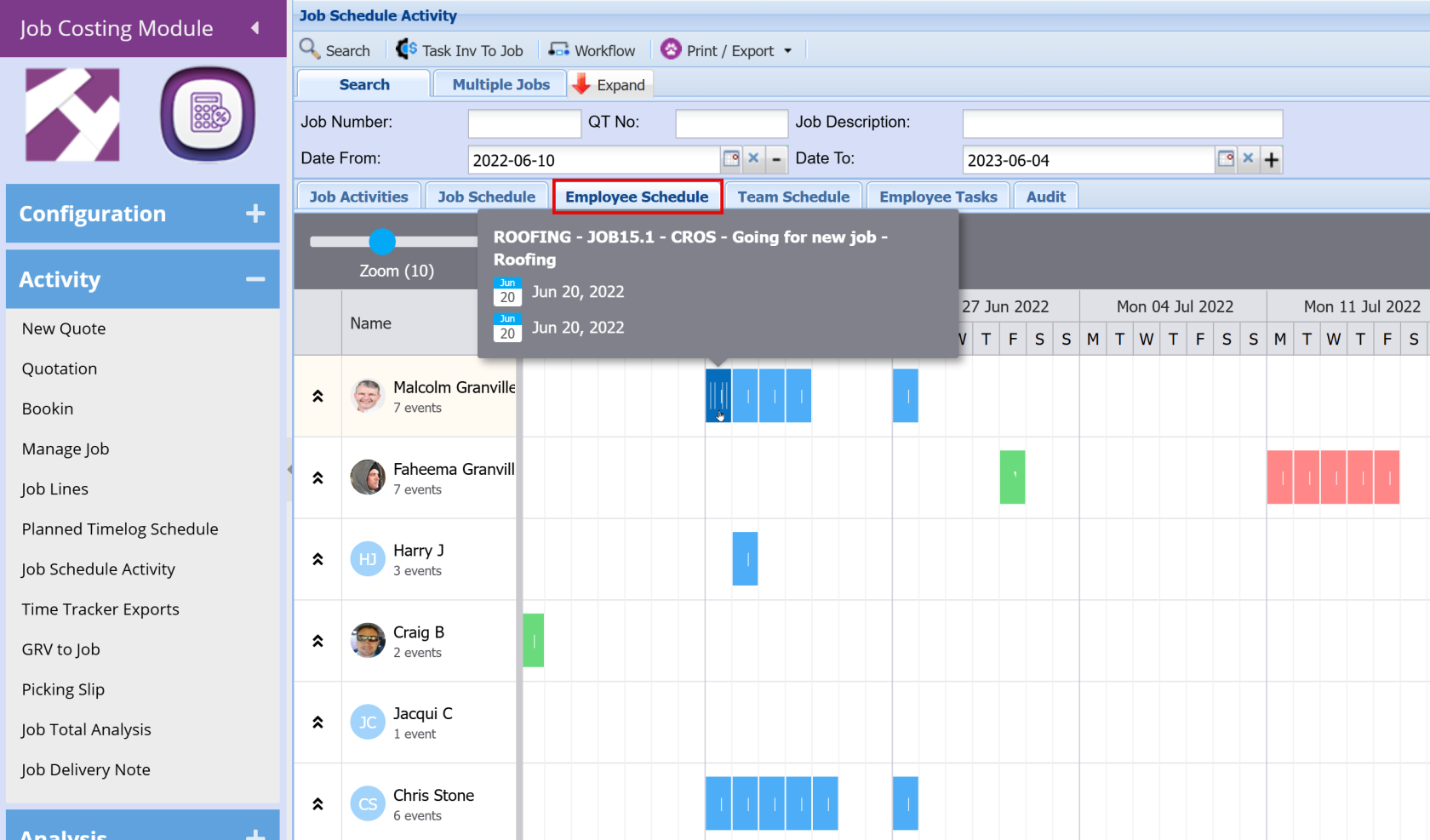
This screen provides a **resource-focused view of all employees and their allocated work**, helping you understand who is working on what, when, and how busy each person is.
**Summary**
- Displays employee work allocation across a timeline
- Helps identify who is busy and who has capacity
- Supports workload balancing and resource planning
- Hover over tasks to view job details
[](https://hugeerp10.co.za/hsofmanual/uploads/images/gallery/2026-06/L3jimage.png)
**What the Screen Shows**
**- Left Panel – Employees**
- Each row represents an **individual employee/resource**
- Displays:
- Employee name
- Profile icon
- Number of scheduled **events/tasks**
This allows you to quickly see **who is active and how much work is assigned**.
**- Right Panel – Timeline Schedule**
- Jobs are displayed as **coloured blocks across a calendar (by day/week)**
- Each block represents a **task assigned to that employee**
- The position and length of the block shows:
- When the work is scheduled
- How long the task will take
- Hovering over a block shows **job details** (e.g. job number, description, dates)
**- Key Features**
**Resource Visibility**
- See exactly **where each employee is allocated**
- Understand what jobs each person is working on across the timeline
**- Workload Management**
- Identify employees who:
- Have **too many tasks scheduled (overloaded)**
- Have **gaps or light workloads (underutilised)**
This makes it easy to balance work across the team.
**- Support & Reallocation**
- Quickly determine:
- Who may **need assistance**
- Who is available to **help on other jobs**
This improves team efficiency and reduces delays.
**- Visual Indicators**
- Multiple coloured blocks indicate **multiple tasks or longer workloads**
- Large clusters of blocks = **busy periods**
- Minimal or no blocks = **availability**
**- Zoom Control**
- Adjust the **Zoom slider** to view:
- Detailed daily schedules
- Or a broader weekly overview
**- How It’s Used**
This screen is ideal for:
- **Daily and weekly planning**
- Monitoring **individual workloads**
- Balancing work across staff
- Ensuring no one is **overbooked or underutilised**
- Improving overall **resource efficiency**
---
#### **Team Schedule Screen Overview**
This screen is used to **plan and manage team workloads across jobs and dates**. It provides a visual schedule that helps you track where each job sits and how teams are allocated over time.
[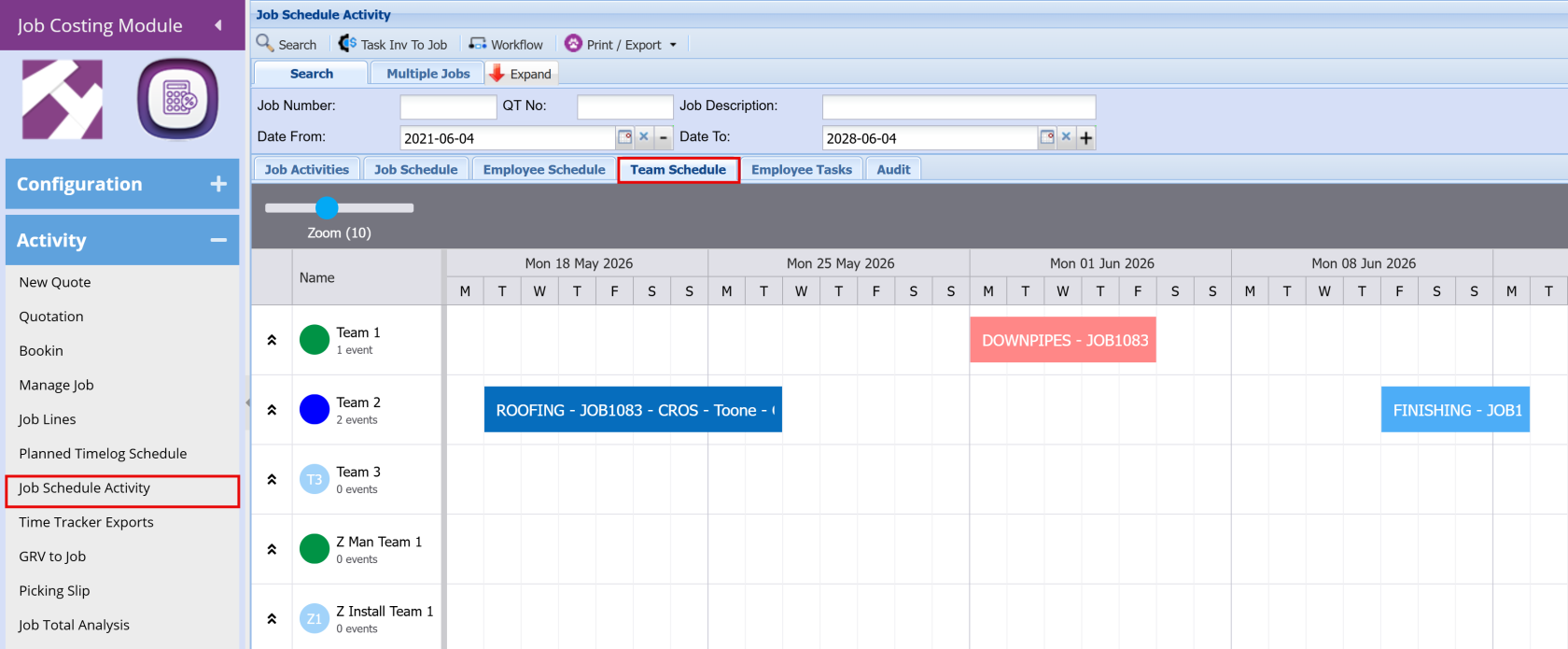](https://hugeerp10.co.za/hsofmanual/uploads/images/gallery/2026-06/xWJimage.png)
**Key Features**
**- Team-Based Scheduling**
- Each row represents a **team** (e.g. Team 1, Team 2, etc.).
- Jobs are assigned to teams and displayed as **coloured bars** across the calendar.
**- Timeline View**
- The grid is organised by **days and weeks**, allowing you to see:
- When jobs are scheduled
- How long each job will take
- Any overlaps or gaps in scheduling
**- Drag-and-Drop Functionality**
- Jobs can be easily **moved between teams or dates** by dragging and dropping.
- This allows you to:
- Adjust schedules if a job is **running behind or ahead**
- Reallocate work between teams to balance capacity
- Quickly respond to changes in production or priorities
**- Visual Job Tracking**
- Each job is shown as a labelled block (e.g. *ROOFING – JOB1083*).
- The length of the block represents the **duration of the task**.
- Colours help visually distinguish between jobs or job types.
**- How It’s Used**
This screen is typically used by planners or managers to:
- Allocate jobs to specific teams
- Monitor daily and weekly workloads
- Adjust schedules in real time
- Keep production aligned with deadlines
---
#### **Employee Tasks Screen Overview**
The **Employee Tasks** screen provides a **detailed, task-level view of work assigned to each employee**, allowing you to track individual responsibilities, progress, and timing in a structured list format.
[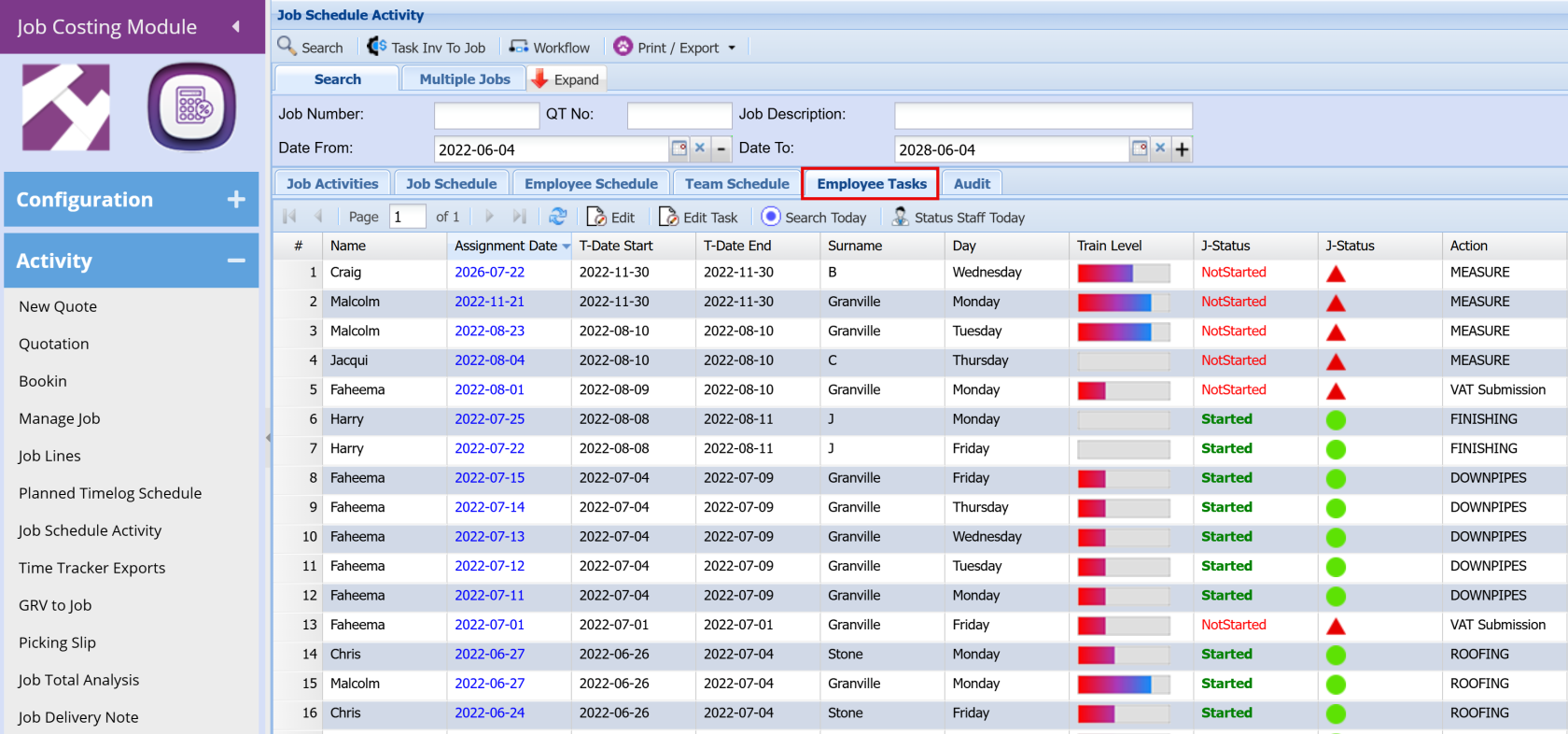](https://hugeerp10.co.za/hsofmanual/uploads/images/gallery/2026-06/ULfimage.png)
**What the Screen Shows**
Each row represents a **task assigned to an employee**, with key information including:
- **Name** – The employee assigned to the task
- **Assignment Date** – When the task is scheduled
- **Task Start & End Dates** – Planned duration of the task
- **Day** – The day of the week the task falls on
- **Train Level** – Indicates skill level or proficiency of the employee
- **Job Status (J-Status)** – Shows whether the job is:
- **Started** (green)
- **Not Started** (red)
- **T-Status (Traffic Indicator)**
- 🟢 Green = On track
- 🔴 Red = Requires attention
- **Action** – The specific activity being performed (e.g. Roofing, Downpipes, Finishing)
**- Key Features**
**Detailed Task Visibility**
- Provides a **clear breakdown of tasks per employee**
- Allows you to see exactly **what each person is doing on specific days**
**- Progress Tracking**
- Monitor whether tasks have been **started or not started**
- Use visual indicators to quickly identify **issues or delays**
**- Resource Allocation Insight**
- Helps you understand:
- Who is working on which tasks
- How work is distributed across employees
- Whether tasks align with employee skill levels
**- Daily Planning Tool**
- The structured format makes it ideal for:
- Reviewing **daily workloads**
- Confirming task assignments
- Ensuring all required work has been allocated
**- How It’s Used**
This screen is typically used for:
- **Supervisors or managers** to review and assign tasks
- Tracking **day-to-day execution of jobs**
- Ensuring all employees are correctly allocated to tasks
- Monitoring **task progress and completion readiness**
# Task activity import
Allow for all tasks to be updated via an import
Template can be found in SCM> Imports > Templates
.png)
# Task Activity Managing
Managing a task activity allows one to do the following
1.Change the activity description
2.Assign a team to this activity
3.They are three status's: not started ,started and completed
4.They are multiple task types namely: main task, split task, sub task and milestone
5.A task it's specified with a start date and an end date
6.You can exclude Saturdays and Sundays when creating a resource linked to this task
7.The task duration days workout they end date from the start date
8.Lag days workout the number of days between the tasks
9.Notes can be added to a task
10.Comments can be added to the task
11.A task can have a sell budget which is linked to the two percentages
12.Job progress percentage is defined as the percentage of the task activity completed
13.Invoiced percentage to date is defined as the percentage invoiced to date
14.The value to invoiced is worked out between the difference of the percentage production and percentage invoice to the total sell budget
15.Linked split tasks show all tasks that are linked to a main task
.png)
Enforce start date on task activity
Update Task activities in Manage job includes enforce start date
1. Recalculate dates will start with estimated job start date and work out task activities from sequence one
2. As soon as a task has the enforce tick on, this will not change this date and leave date as is
3. Following tasks after a task activity with an enforce tick on, will recalculate lag days etc from new enforced date
4. With each new enforce date, the system will recalculate subsequent tasks
.png)
Deleting a Task
To delete a task one would need to go into the manage job window in the scheduling tab.
You can only delete a task if both percentages equal zero %
A split task can be deleted from the main tab of job scheduling , if both percentage is equal to zero .
A main task can only be deleted from the manage job screen.
.png)
Deleting a task from Manage Job
.png)
### Create default settings for splitting a task
Go to System Configuration > General > Defaults > Job Costing Tab
[Click here to view settings](https://hugeerp0.co.za/csp/webhelp/topics/idh-topic12190.htm)
.png)
# Team Schedule
Team scheduling allows for planning task activities on teams
Colours can be assigned to task activites as well as Teams
Team Colours can be assigned
Recommend changing Team names from Team Kevin to T- Kevin
Task colours updated based on default task activity group
Recommend changing Task activity codes from ME-01 to as short name up to 5 to 6 characters MEAS for Measure
This because the schedule is reflects the code instead of the name, there is limited space to display information
Information is display – Task code – Job number – Customer short name – Job description
Teams sequence number updated to force preview of teams in a specific order
Team schedule allows for zooming in to any period you want
Zoom 10 is good to view for 2 to 3 week period
Zoom 9 is good for 2 month view showing per day
Tasks can be moved to another team
Click and drag to another team
Tasks can be dragged to extend time of task
Move to another day
Click end of block to extend or reduce period
Tasks can now be split
Edit the Task to split with new dates
There will always be a Main task and then split tasks linked to the main task
Week start dates when looking at the calendar is Monday to Sunday
.png)
Update customers with Short Name recommended
This short name is used in the Gantt chart and scheduling
.png)