# Stock Value Adjustment
#### Stock Value Adjustment capture
The stock Value Adjustment function is used to amend the current cost price of an item.
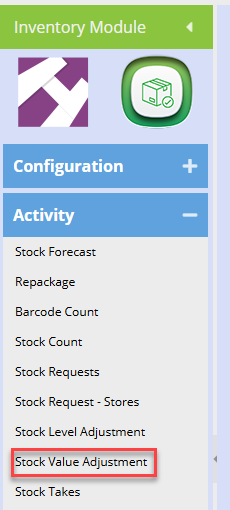
**Inventory Module> Activity> Stock Value Adjustment**
[](https://hugeerp10.co.za/hsofmanual/uploads/images/gallery/2024-06/xt1image.png)
.png)
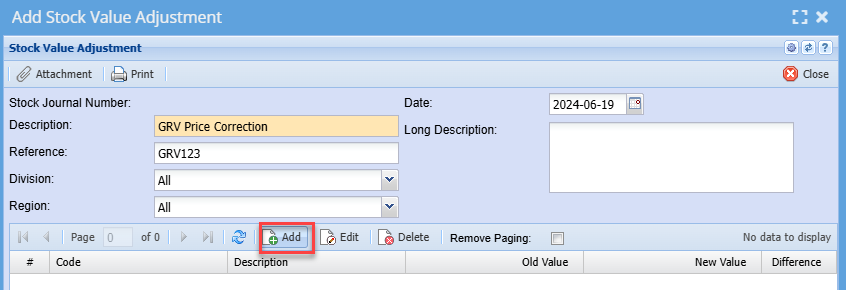
Click Add to create a new value adjustment
Date – The date will pre-populate to current date. Since stock entries are live, one cannot back date or forward date adjustments
Description – to enter brief description for stock value adjustment
Reference – to enter the reference for stock value adjustment
Division – to select the division from the drop down if applicable
Long Description – to enter detailed description for stock value adjustment
Religion – to select – to select religion from the drop down arrow if applicable
Save button – saves the details added
[](https://hugeerp10.co.za/hsofmanual/uploads/images/gallery/2024-06/lB4image.png)
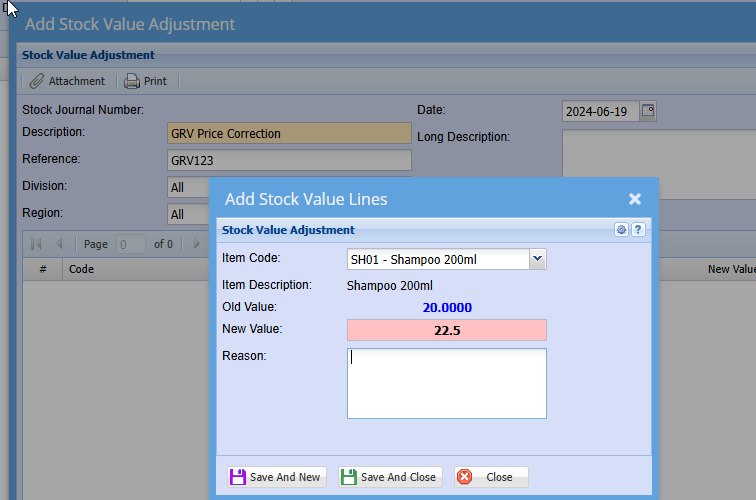
Click Add in the centre of the window to begin adding items
Item Code – select an item code you wish to adjust the price of.
Description - Will auto populate once code is selected
New Value – Enter the new or correct unit cost price
Reason – Enter reason for changing the price
Save And New button – to select another item you wish to change the price off
Save And Close button – Saves and closes the form
[](https://hugeerp10.co.za/hsofmanual/uploads/images/gallery/2024-06/FhOimage.png)
Select the stock Value you created and Click on Process
.png)
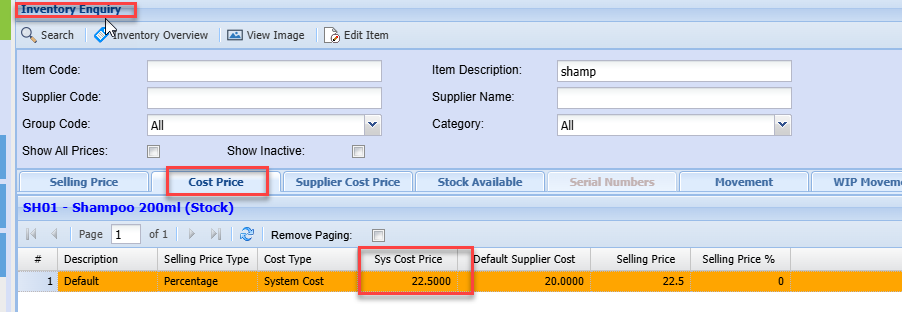
Once the adjustment has been successfully processed, you will note the unit cost price of the item has changed to the new price you entered.
This new cost price will now be used on all new documents created going forward.
[](https://hugeerp10.co.za/hsofmanual/uploads/images/gallery/2024-06/9adimage.png)