If the person overrides the same stock code with a new value, this means the quantity entered by the last person who made the change on that stock code will be kept.
1. Go to the Quick Capture tab, enter the matching stock code (must be the exact number not part) and enter the amount. 2. Export the stock take batch to Excel using the export button, capture in Excel and Import the variance changes. (important note to take into account is that the export file is only relevant to the stock take batch you exported from) Should you cancel the stock take and create a new one you will have to export a new Excel file. [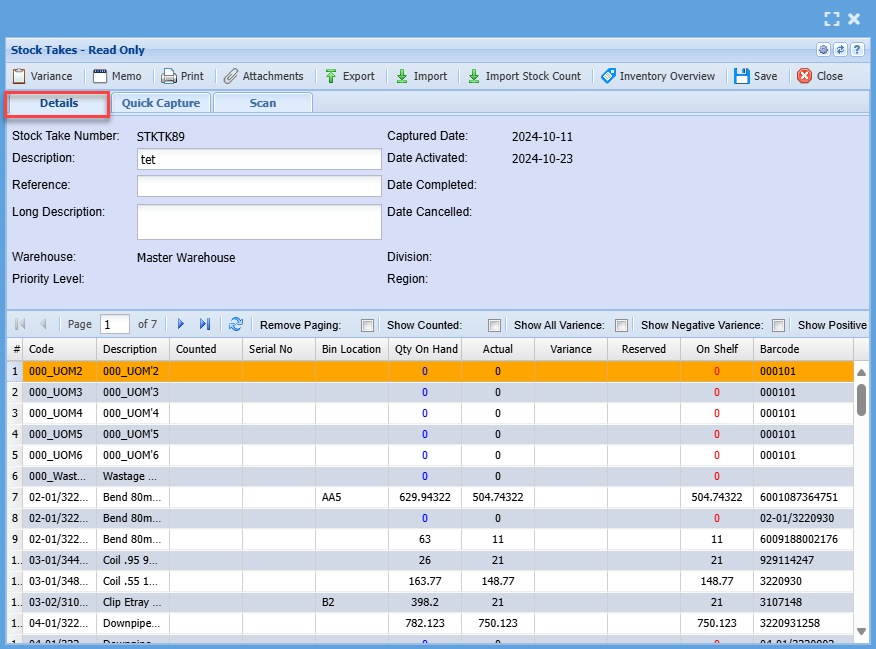](https://hugeerp10.co.za/hsofmanual/uploads/images/gallery/2024-10/tZGimage.png) --- #### Quick Capture Tab Enter the stock code and click on Search and Edit button to find the item and edit. Otherwise click on the search button to find the item and double click to open the item to edit the stock line. [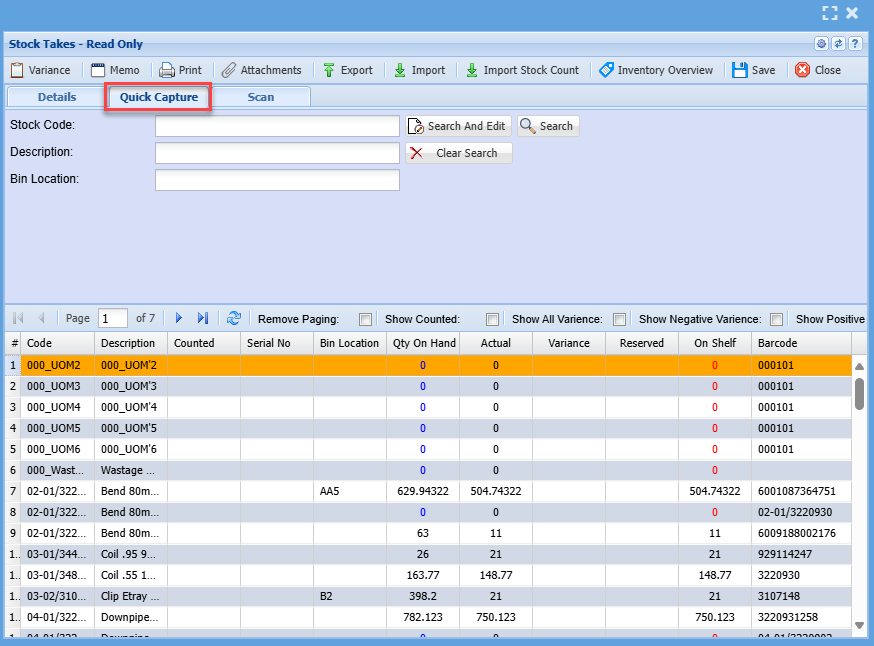](https://hugeerp10.co.za/hsofmanual/uploads/images/gallery/2024-10/kW4image.png) --- #### Scan Tab Scanning the barcode of the item will find the item and count. The more you scan the item, the quantity will increase [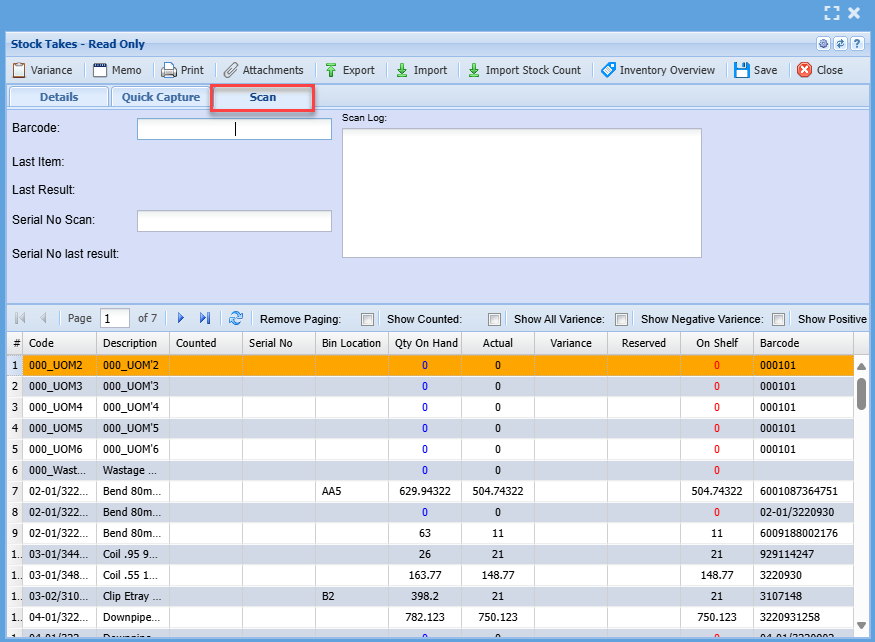](https://hugeerp10.co.za/hsofmanual/uploads/images/gallery/2024-10/56Rimage.png) --- #### Variance Button Highlighting the line and then clicking on variance will do the same as double clicking on the item. This is where one changes the count. [](https://hugeerp10.co.za/hsofmanual/uploads/images/gallery/2024-10/BA3image.png) Once the item is found, change the quantity in the actual field Click save and close to update [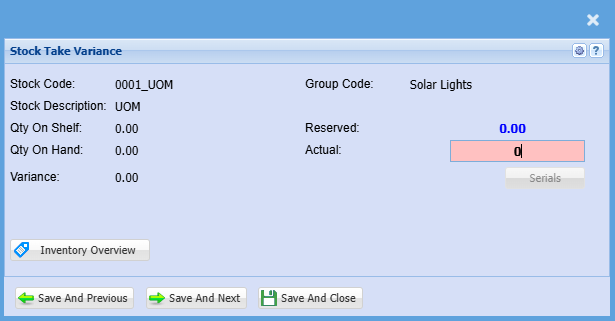](https://hugeerp10.co.za/hsofmanual/uploads/images/gallery/2024-10/Xhzimage.png) --- #### Print Button Printing the variance report to check count [](https://hugeerp10.co.za/hsofmanual/uploads/images/gallery/2024-10/Mn9image.png) Select options before printing [](https://hugeerp10.co.za/hsofmanual/uploads/images/gallery/2024-10/3cgimage.png) --- #### Import Stock Count Importing a stock count from Webatar stock count [](https://hugeerp10.co.za/hsofmanual/uploads/images/gallery/2024-10/eAhimage.png) When the format is correct, import the count [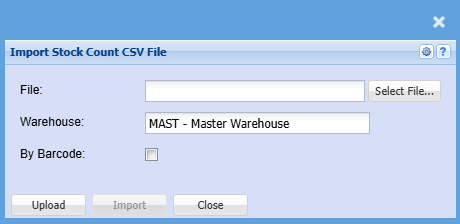](https://hugeerp10.co.za/hsofmanual/uploads/images/gallery/2024-10/OEyimage.png)