Warehouse Transfer Menu
Warehouse Transfers
Warehouse transfer is used to transfer items from one warehouse to another.
You have to have taken multi- warehouse add on module in Huge ERP and working in more than one warehouse.
To access warehouse transfers
Inventory Module>Activity>Warehouse Transfers
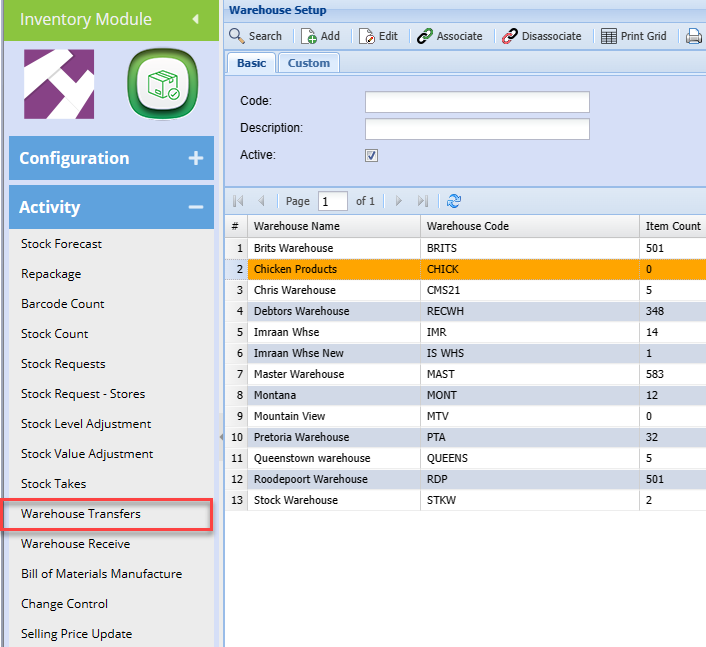
Warehouse Transfer
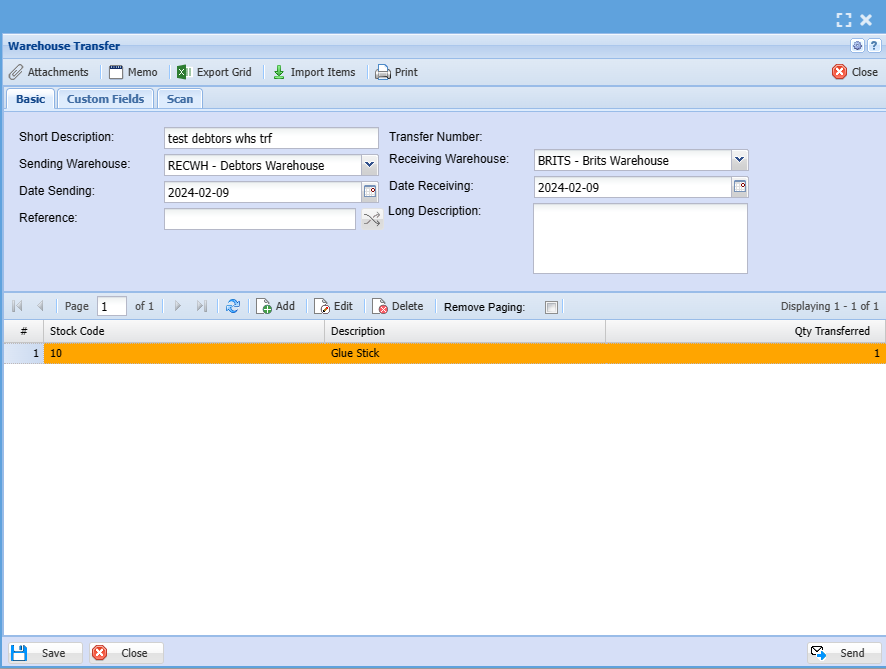
| Short Description | The Short description regarding stock |
| Sending Warehouse | Is the company warehouse that you are transferring stock from |
| Date Sending | is the date the stock is sent out |
| Reference | |
| Receiving Warehouse | is the warehouse receiving the stock. |
| Date Receiving | is the date stock was received |
| Long Description |
Import Items
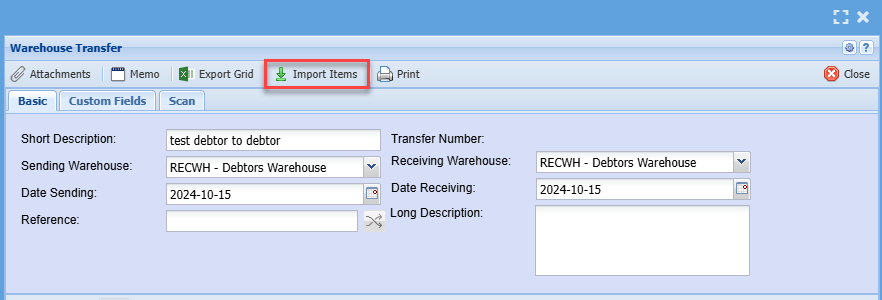
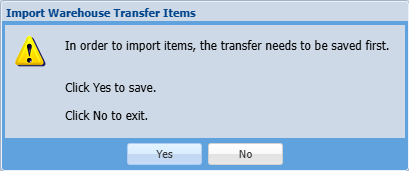
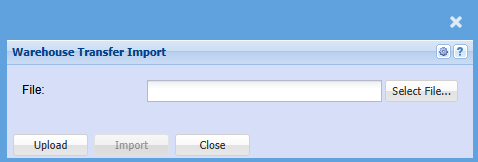
Add Stock Item
Once completed filling the information above click save so you can be able to add items
After clicking safe add click on Add
When selecting the inventory item make sure that there is stock available to avoid processing errors.
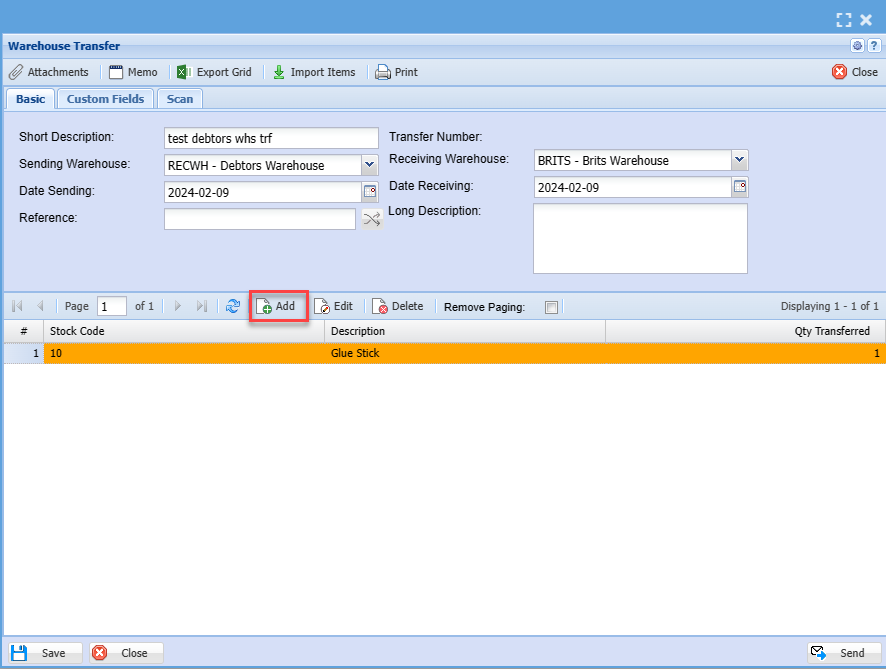
The screen below will appear.
Complete all the information related to an item that you are transferring from one warehouse to another.
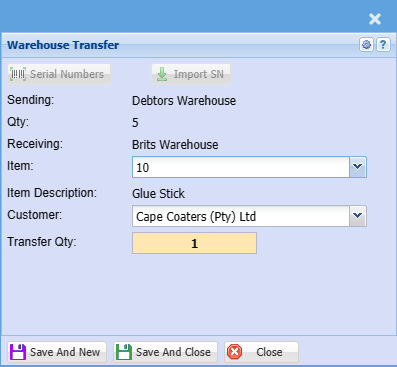
| Sending | |
| Qty | |
| Receiving | |
| Item | |
| Item Description | |
| Customer | |
| Transfer Qty |
Transfer
Search for the created list of inventory to be transferred and select it.
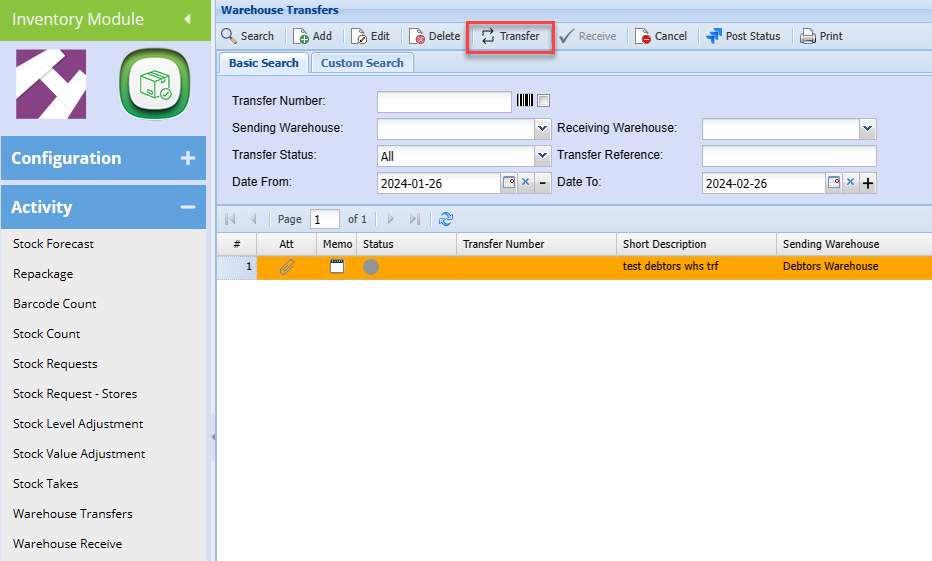
This is useful because you need to have items available on hand to effect the warehouse transfer.
NB Adding items onto a transfer does not allocate it or prevent it from being sold to a client
.png)
Click Process tab at the bottom of the window and Select Transfer button to start the process of transferring the stock.
When you click transfer the items are allocated to the in transit status and removed from on hand inventory, this means that they are no longer available for selling.
The Following window will pop up.
.png)
From here on the stock can now be received into the warehouse. A printout report of the stock being transferred can be generated and emailed to the receiving clerk of the other warehouse.
Once done proceed as shown on page 4- 7
Common errors that may prevent the transfer not to be processed is “the availability of stock from the sending warehouse.”
And the warehouse not being linked to stock items being transferred.
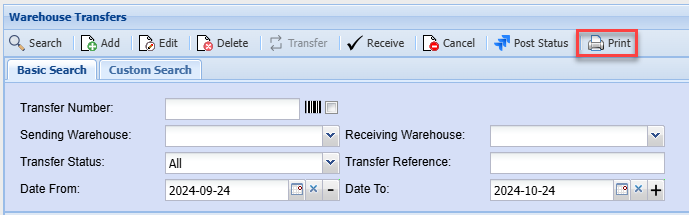
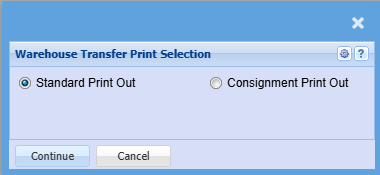
Print Button
Warehouse Import and Export
Inventory Module>Activity>Warehouse Transfers
Warehouse transfer data can be exported to Excel.
Warehouse transfer data can be imported into the document
.png)
Warehouse Removal from Items
Inventory Module> Configuration > Inventory setup
Search for your stock items
.png)
Highlight the item you want to fix on the warehouses and double click or amend the item
.png)
Click on the warehouse button
Highlight the warehouse which you want to remove and click on Delete button, this will remove the warehouse from the item.
.png)
Click on Yes to remove warehouse
.png)
Successfully removed
.png)
Once you are complete, the warehouses will be removed
.png)