# Stock Take Menu

# Stock Take Excel Import

#### <span class="ts2">Stock </span><span class="ts2">take count</span><span class="ts2"> </span><span class="ts2">i</span><span class="ts2">mport </span><span class="ts2">file</span>

<span class="ts81"> </span><span class="ts81"> </span><span class="ts0">The file must be a semi-colon ; separated file.</span>

<span class="ts0">The heading can be left in the import file.</span>

<span class="ts0">The fields are as follows,</span>

<div id="bkmrk-stockcode-descriptio"><table class="tbl10"><tbody><tr class="row0"><td class="cell0"><span class="ts0">StockCode</span>

</td><td class="cell1"><span class="ts0">Description</span>

</td><td class="cell2"><span class="ts0">Quantity</span>

</td></tr><tr class="row0"><td class="cell0"><span class="ts0">Code1</span>

</td><td class="cell1"><span class="ts0">Stock Item 1</span>

</td><td class="cell2"><span class="ts0">20</span>

</td></tr><tr class="row0"><td class="cell0"><span class="ts0">Code2</span>

</td><td class="cell1"><span class="ts0">Stock Item 2</span>

</td><td class="cell2"><span class="ts0">3</span>

</td></tr></tbody></table>

</div><span class="ts0"> </span><span class="ts33">Please Note : The import file must be for the applicable wareho</span><span class="ts3">use.</span>

# Barcode Count Import

#### <span class="ts2">Stock </span><span class="ts2">take count</span><span class="ts2"> </span><span class="ts2">i</span><span class="ts2">mport </span><span class="ts2">file</span>

<span class="ts81"> </span><span class="ts81"> </span><span class="ts0">The file must be a semi-colon ; separated file.</span>

<span class="ts0">The heading can be left in the import file.</span>

<span class="ts0">The fields are as follows,</span>

<span class="ts0">Description column must exist but does not need to have a value</span>

<div id="bkmrk-bar-code-description"><table class="tbl9"><tbody><tr class="row1"><td class="cell1"><span class="ts0">Bar Code</span>

</td><td class="cell2"><span class="ts0">Description (Not required)</span>

</td><td class="cell3"><span class="ts0">Quantity</span>

</td></tr><tr class="row1"><td class="cell1"><span class="ts0">6009802069776</span>

</td><td class="cell2"><span class="ts0">Stock Item 1 description</span>

</td><td class="cell3"><span class="ts0">20</span>

</td></tr><tr class="row1"><td class="cell1"><span class="ts0">6009802069813</span>

</td><td class="cell2"><span class="ts0">Stock Item 2 description</span>

</td><td class="cell3"><span class="ts0">3</span>

</td></tr></tbody></table>

</div><span class="ts0"> </span>

<span class="ts0">Please Note : The import file must be for the applicable warehouse.</span>

<span class="ts0"> </span>

<span class="ts0">Once you have scanned your products using a scanner, and have the export file.</span>

<span class="ts0"> </span>

![](https://hugeerp0.co.za/csp/webhelp/topics/images/image(2720).png)

<span class="ts0">You will need to take the file to Excel and configure it in columns</span>

<span class="ts0">Then add in a header and a column between the Barcode and quantity</span>

<span class="ts0">Check that the file in Excel is correct, correct any problems</span>

<span class="ts0">It may be easier to delete the line that is giving a problem as Excel looks at this as a large number</span>

<span class="ts0"> </span>

![](https://hugeerp0.co.za/csp/webhelp/topics/images/image(2721).png)

<span class="ts0"> </span>

<span class="ts0">Format the Excel sheet so that it looks like this</span>

1.<span class="ts0">Using text to columns to separate fields</span>

2.<span class="ts0">Format Barcode field to be a number field without decimals and comma separator</span>

3.<span class="ts0">Insert column for Description</span>

4.<span class="ts0">Insert Header</span>

5.<span class="ts0">Save your file as a Excel sheet</span>

<span class="ts0"> </span>

![](https://hugeerp0.co.za/csp/webhelp/topics/images/image(2722).png)

<span class="ts0"> </span>

<span class="ts0">Now to create the CSV file</span>

1.<span class="ts0">Rename your file with a \_1 to show first attempt</span>

2.<span class="ts0">Click on save as to save as CSV file</span>

3.<span class="ts0">Close the Excel sheet</span>

<span class="ts0"> </span>

![](https://hugeerp0.co.za/csp/webhelp/topics/images/image(2723).png)

<span class="ts0"> </span>

<span class="ts0">There will be three files now</span>

<span class="ts0">Open the csv file in notepad to check that the seperator is semi colon ( ; )</span>

<span class="ts0"> </span>

![](https://hugeerp0.co.za/csp/webhelp/topics/images/image(2724).png)

<span class="ts0"> </span>

<span class="ts0">If the file is separated with a comma then replace all with semi colon</span>

<span class="ts0">Once the file is with semi colon separated then it is ready for import</span>

<span class="ts0">Save and close file</span>

<span class="ts0"> </span>

![](https://hugeerp0.co.za/csp/webhelp/topics/images/image(2725).png)

<span class="ts0"> </span>

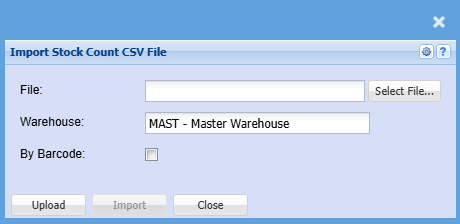
<span class="ts0">Go back to your stock take and open up</span>

1.<span class="ts0">Click on Import stock count</span>

2.<span class="ts0">Make sure you tick By Barcode</span>

3.<span class="ts0">Select the csv file</span>

4.<span class="ts0">Click on Upload</span>

5.<span class="ts0">Click on import</span>

<span class="ts0"> </span>

![](https://hugeerp0.co.za/csp/webhelp/topics/images/image(2726).png)

<span class="ts0"> </span>

<span class="ts0">After import the file will show any errors</span>

<span class="ts0"> </span>

![](https://hugeerp0.co.za/csp/webhelp/topics/images/image(2727).png)

<span class="ts0"> </span>

<span class="ts0">You can do some random checks</span>

<span class="ts0">Save your stock take and then continue to complete</span>

<span class="ts0"> </span>

![](https://hugeerp0.co.za/csp/webhelp/topics/images/image(2728).png)

<span class="ts0"></span>

# Stock Take Process

<span class="ts0">When doing stock takes the user must always remember that you cannot process stock in or out of the system while doing a stock take.</span>

<span class="ts0">Some checks to consider when doing a stock take.</span>

<span class="ts0">To do</span>

<span class="ts0">Inform all staff that a stock take will take place on a set date</span>

<span class="ts0">create a backup of your company before starting a stock take9see manual under backups on how this is done)</span>

<span class="ts0">run the inventory valuation recalculation report</span>

<span class="ts0">create a stock take</span>

<span class="ts0">print out a stock count sheet</span>

<span class="ts0">count the stock</span>

<span class="ts0">input the stock count or import the count</span>

<span class="ts0">print variance report and verify variances</span>

<span class="ts0">complete the stock take</span>

 <span class="ts0">Post transactions as of the creation date of stock take</span>

 <span class="ts0">Post transactions as of today's date</span>

<span class="ts0">Print out the stock variance report and export to excel</span>

<span class="ts0">Print out the new Inventory evaluation report</span>

<span class="ts0">Create another backup after stock take is complete</span>

<span class="ts0"> </span>

<div id="bkmrk-things-to-remember-c"><table class="tbl11"><tbody><tr class="row0"><td class="cell0">**<span class="ts0">Things to remember</span>**

</td></tr><tr class="row0"><td class="cell1"><span class="ts0">Create the stock take procedure prior to the month end or year end</span>

</td></tr><tr class="row0"><td class="cell2"><span class="ts0">Ensure no stock is invoiced or GRVed while doing the stock take</span>

</td></tr><tr class="row0"><td class="cell2"><span class="ts0">If the stock takes overlaps the month end or year-end make sure no transactions are posted for the new month until you have completed the stock take prior month end or financial year end.</span>

</td></tr><tr class="row0"><td class="cell2"><span class="ts0">Make sure you Activate the stock take prior to the month end to freeze stock</span>

</td></tr><tr class="row0"><td class="cell2"><span class="ts0">The Inventory count sheet which is printed out is given to staff to manually write on while stock counting</span>

</td></tr><tr class="row0"><td class="cell2"><span class="ts0">It is easier to export a file to Excel from the activated stock take and capture the stock values in this file and then import back into the stock take batch then capturing manually on the stock take batch</span>

</td></tr><tr class="row0"><td class="cell2"><span class="ts0">Remember that the exported file is NOT sorting by stock code or description, it is easier to sort by stock code and then once capturing has completed to sort BACK by ID code, as this is what the import file will look at</span>

</td></tr></tbody></table>

</div>---

<span class="ts0"> </span>

<span class="ts0"></span>

# Create Stock Take Batch

#### <span class="ts2">Create the stock take</span>

<span style="color: rgb(45, 194, 107);">**<span class="ts45">Inventory Module &gt; Activity &gt; Stock Take</span>**</span>

<span class="ts6">Click on the Insert button and then fill in the information needed. In this case we are doing all items in warehouse. Then click on the save button.</span>

<span class="ts9"> </span>![](https://hugeerp0.co.za/csp/webhelp/topics/images/image(3285).png)

<p class="callout info"><span class="ts6">Note: </span><span class="ts6">Stock Takes are done per Warehouse, you will have create stock take batches per warehouse. </span><span class="ts6">Make sure that the stock take is activated before month end.</span></p>

# Activate Stock Take

**<span class="ts9"> </span><span class="ts45">Inventory Module &gt; Activity &gt; Stock Take</span>**

<span class="ts9"> </span><span class="ts6">High light the stock take line and then click on the Functions tab and click on Activate. This ensures that the system now locks down the quantities of the stock take.</span>

<span class="ts6">Note:</span>

<span class="ts6">Stock Takes are done per warehouse, you will have create stock take batches per warehouse.</span>

<span class="ts6">Make sure that the stock take is activated before month end.</span>

![](https://hugeerp0.co.za/csp/webhelp/topics/images/image(3286).png)

# Print out stock count sheet

<span style="color: rgb(45, 194, 107);">**<span class="ts6">Go to </span><span class="ts45">Inventory Module &gt; Reports &gt; Report List &gt; Inventory Count.</span>**</span>

<span class="ts6">Print out the report for Stock Take quantities.</span>

<span class="ts6">The Inventory count sheet that is printed out is given to staff to manually write on while stock counting.</span>

![](https://hugeerp0.co.za/csp/webhelp/topics/images/image(3287).png)

<span class="ts9"> </span>

# Count the Stock

#### <span class="ts2">Count the Stock (Manual Stock Count )</span>

![](https://hugeerp0.co.za/csp/webhelp/topics/images/image(238).png)

# Capturing the quantities of the stock take

<span class="ts6">High light the stock take line and click on the Variance button.</span>

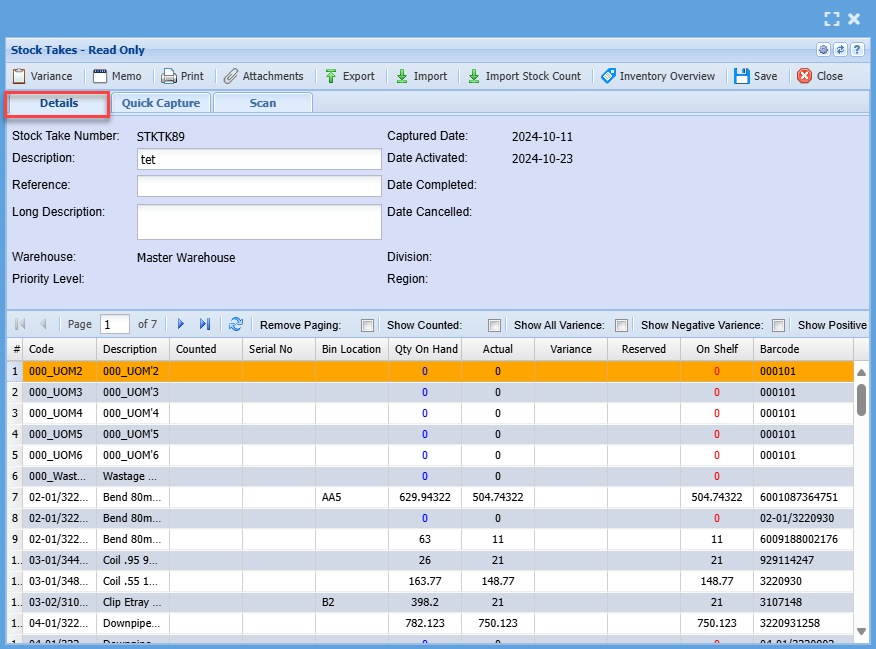
#### <span class="ts6">Details Tab</span>

<span class="ts6">There are various ways of inputting the stock variance</span>

1. <span class="ts6">Find the item and click on the variance button and enter the amount.</span>
    1. <span class="ts6">Multiple people can capture in one stock take batch</span>

<p class="callout warning"><span class="ts6">If the person overrides the same stock code with a new value, this means the quantity entered by the last person who made the change on that stock code will be kept.</span></p>

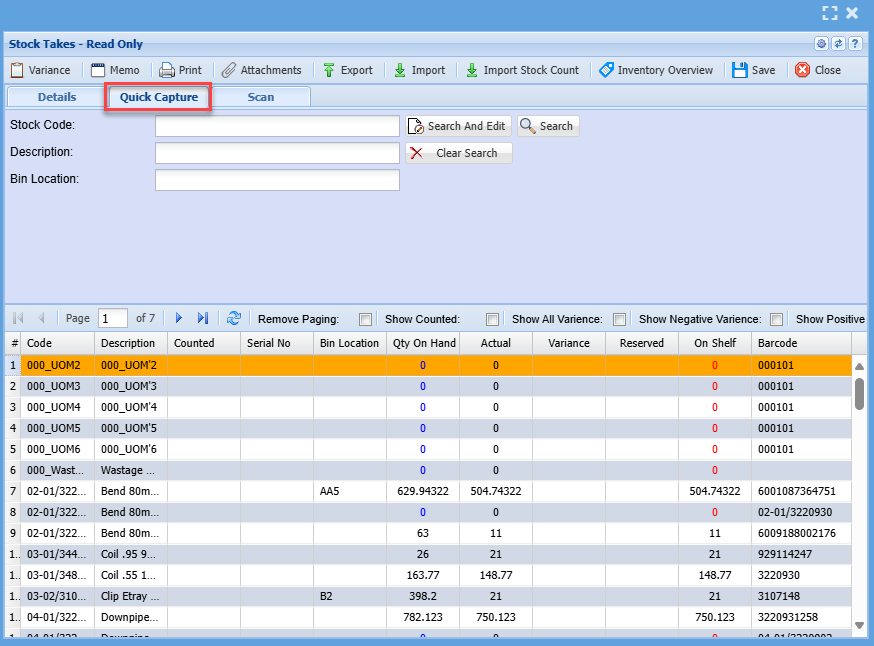
1. <span class="ts6">Go to the Quick Capture tab, enter the matching stock code (must be the exact number not part) and enter the amount.</span>
2. <span class="ts6">Export the stock take batch to Excel using the export button, capture in Excel and Import the variance changes. (important note to take into account is that the export file is only relevant to the stock take batch you exported from) Should you cancel the stock take and create a new one you will have to export a new Excel file.</span>

[![image.png](https://hugeerp10.co.za/hsofmanual/uploads/images/gallery/2024-10/scaled-1680-/tZGimage.png)](https://hugeerp10.co.za/hsofmanual/uploads/images/gallery/2024-10/tZGimage.png)

---

#### <span class="ts6">Quick Capture Tab</span>

<span class="ts6">Enter the stock code and click on Search and Edit button to find the item and edit.</span>

<span class="ts6">Otherwise click on the search button to find the item and double click to open the item to edit the stock line.</span>

[![image.png](https://hugeerp10.co.za/hsofmanual/uploads/images/gallery/2024-10/scaled-1680-/kW4image.png)](https://hugeerp10.co.za/hsofmanual/uploads/images/gallery/2024-10/kW4image.png)

---

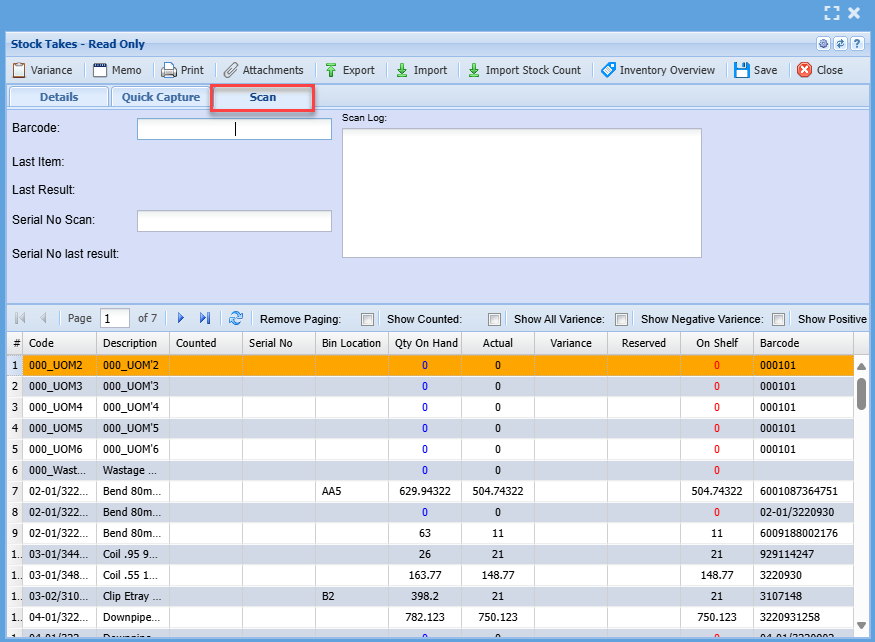
#### <span style="color: rgb(0, 0, 0);">Scan Tab</span>

<span style="color: rgb(0, 0, 0);">Scanning the barcode of the item will find the item and count.</span>

<span style="color: rgb(0, 0, 0);">The more you scan the item, the quantity will increase</span>

[![image.png](https://hugeerp10.co.za/hsofmanual/uploads/images/gallery/2024-10/scaled-1680-/56Rimage.png)](https://hugeerp10.co.za/hsofmanual/uploads/images/gallery/2024-10/56Rimage.png)

---

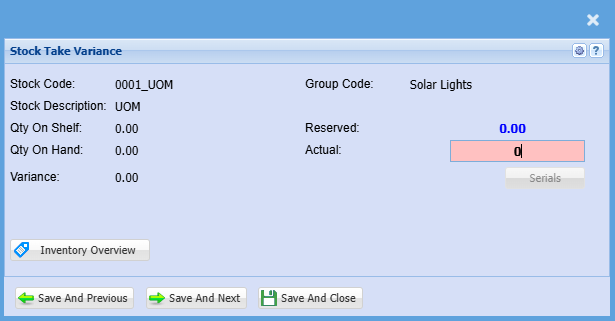
#### <span class="ts6">Variance Button</span>

<span class="ts6">Highlighting the line and then clicking on variance will do the same as double clicking on the item.</span>

<span class="ts6">This is where one changes the count.</span>

[![image.png](https://hugeerp10.co.za/hsofmanual/uploads/images/gallery/2024-10/scaled-1680-/BA3image.png)](https://hugeerp10.co.za/hsofmanual/uploads/images/gallery/2024-10/BA3image.png)

Once the item is found, change the quantity in the actual field

Click save and close to update

[![image.png](https://hugeerp10.co.za/hsofmanual/uploads/images/gallery/2024-10/scaled-1680-/Xhzimage.png)](https://hugeerp10.co.za/hsofmanual/uploads/images/gallery/2024-10/Xhzimage.png)
---

#### Print Button

Printing the variance report to check count

[![image.png](https://hugeerp10.co.za/hsofmanual/uploads/images/gallery/2024-10/scaled-1680-/Mn9image.png)](https://hugeerp10.co.za/hsofmanual/uploads/images/gallery/2024-10/Mn9image.png)

Select options before printing

[![image.png](https://hugeerp10.co.za/hsofmanual/uploads/images/gallery/2024-10/scaled-1680-/3cgimage.png)](https://hugeerp10.co.za/hsofmanual/uploads/images/gallery/2024-10/3cgimage.png)

---

#### Import Stock Count

Importing a stock count from Webatar stock count

[![image.png](https://hugeerp10.co.za/hsofmanual/uploads/images/gallery/2024-10/scaled-1680-/eAhimage.png)](https://hugeerp10.co.za/hsofmanual/uploads/images/gallery/2024-10/eAhimage.png)

When the format is correct, import the count

[![image.png](https://hugeerp10.co.za/hsofmanual/uploads/images/gallery/2024-10/scaled-1680-/OEyimage.png)](https://hugeerp10.co.za/hsofmanual/uploads/images/gallery/2024-10/OEyimage.png)
# Export file

<span class="ts23"> </span><span class="ts10">Video manual 2020 - </span>[Click Here](https://vimeo.com/493960815)

<span class="ts0"> </span><span class="ts0">When exporting, keep file format the same but save as a CSV format with comma seperator.</span>

<span class="ts0">Only make changes on the Stock Take Quantity.</span>

<span class="ts0">Then import the file and do a spot check on the quantities changed.</span>

<span class="ts0"> </span>![](https://hugeerp0.co.za/csp/webhelp/topics/images/image(3289).png)

<span class="ts0"> </span><span class="ts0">Note:</span>

<span class="ts0">Remember that the exported file is NOT sorting by stock code or description, it is easier to sort by stock code and then once capturing has completed to sort BACK by ID code, as this is what the import file will look at</span><span class="ts31">.</span>

![](https://hugeerp0.co.za/csp/webhelp/topics/images/image(240).png)