# Stock Level Adjustment Menu

# Stock Level Adjustment

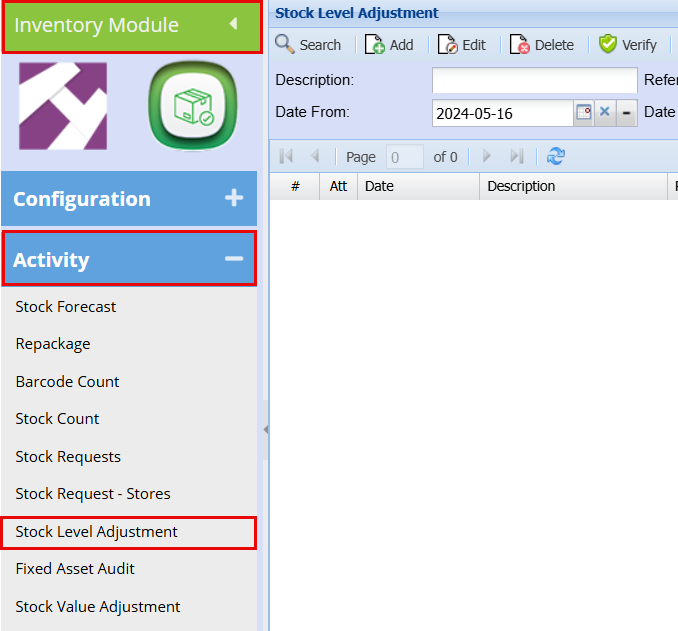
<span class="ts15">I</span><span class="ts15">nventory &gt;Activity&gt;Stock Level Adjustment</span>

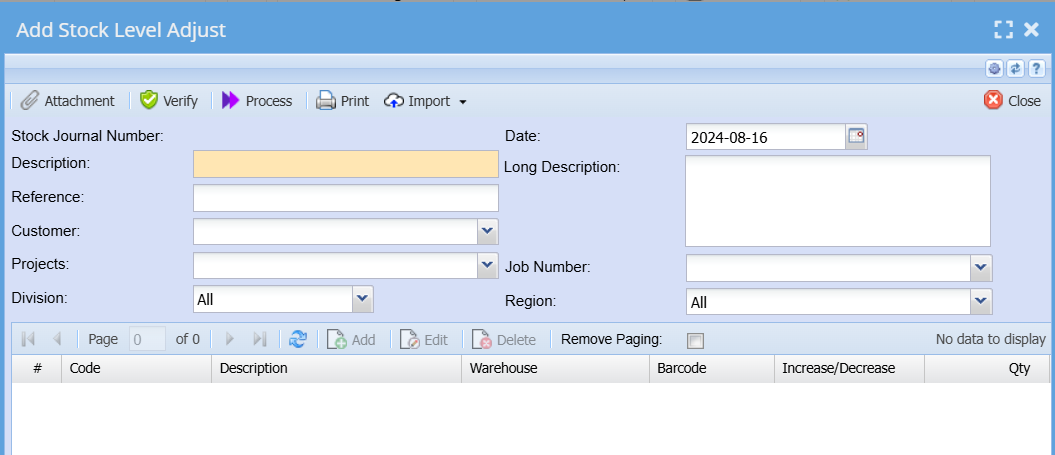
<span class="ts25">To create a stock level item click on the </span><span class="ts25">Add</span><span class="ts25"> button</span>

<span class="ts25">f</span><span class="ts25">ill in the header information of the stock level adjustment and then click on Save.</span>

![](https://hugeerp0.co.za/csp/webhelp/topics/images/image(3276).png)

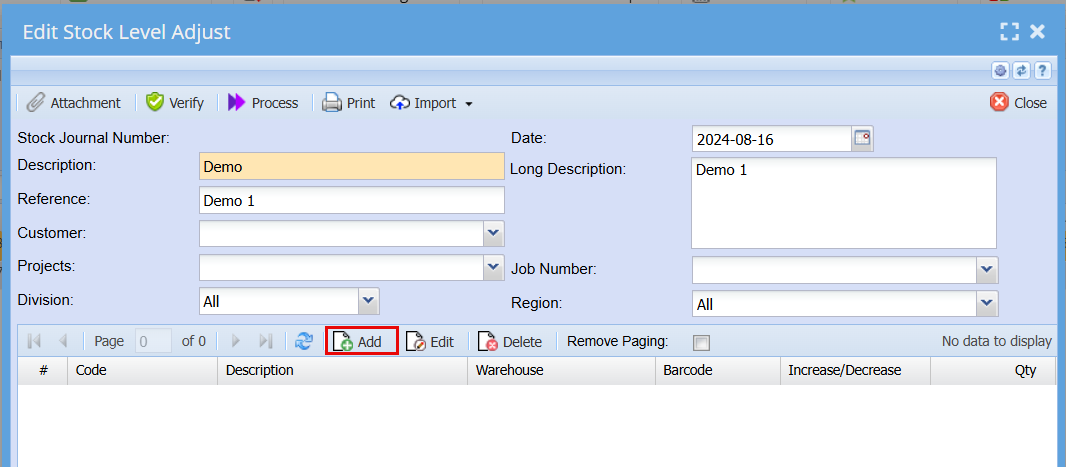
<span class="ts25">Click on Add to insert lines.</span>

![](https://hugeerp0.co.za/csp/webhelp/topics/images/image(3277).png)

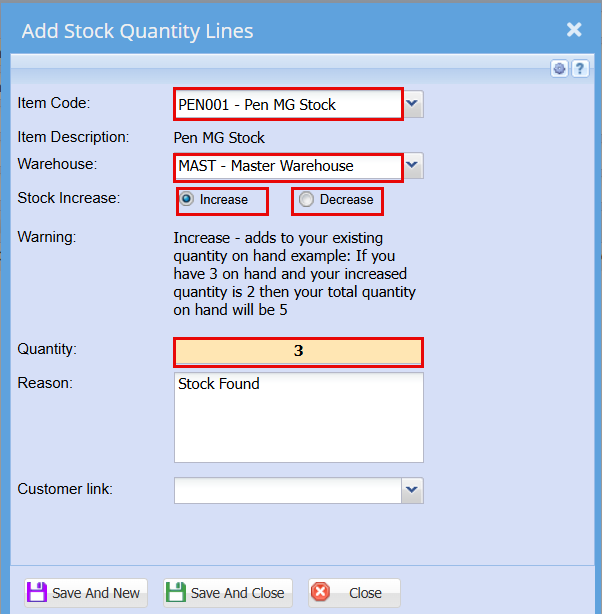
<span class="ts25">In this window search for the stock item and select it, select your warehouse that you want to increase / decrease the stock in. Put in the quantity that you want the increase to go to and put in a reason. Click on Save and close to save changes.</span>

<span class="ts25">Insert all the items that need a stock adjustment. Click on save and then close to take you back to the stock level adjustment screen.</span>

<span class="ts25">Remember that we can also import stock level adjustments from an Excel Sheet.</span>

<span class="ts25">Once you are back to the window you will notice your stock level adjustment journal waiting to be processed.</span>

![](https://hugeerp0.co.za/csp/webhelp/topics/images/image(3278).png)

<div class="block1" id="bkmrk-%C2%A0-note-that-stock-le"><table class="tbl9"><tbody><tr class="row0"><td class="cell0"><span class="ts73"> </span><span class="ts74">Note that Stock Level Adjustments will only process on current dates, they will not be able to be back dated</span><span class="ts74"> or forward dated.</span>

</td></tr></tbody></table>

</div><span class="ts25">We allow only one time where you can back date the stock level adjustment and that is when one is doing the take on balances of stock.</span>

<span class="ts25">The rule is that it has to be the VERY first transaction to be processed.</span>

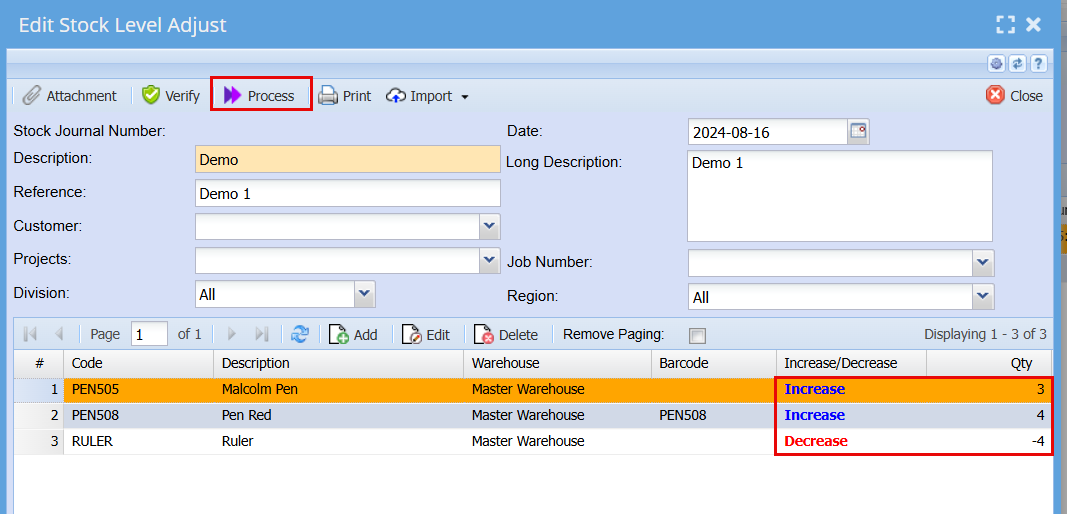
<span class="ts25">Now go to the tab below where it says process and click on the process button.</span>

<span class="ts25">The stock level adjustment will process the stock and update your stock quantities.</span>

# Stock level Adjustment Import

<span class="ts0">Please keep the following in mind:</span>

<table border="1" id="bkmrk-1-once-you-begin-wit" style="border-collapse: collapse; width: 100.864%;"><colgroup><col style="width: 4.57242%;"></col><col style="width: 95.4029%;"></col></colgroup><tbody><tr><td>1</td><td><span class="ts0">Once you begin with this procedure no source documents can be processed. Only a Stock Take freezes the inventory module.</span></td></tr><tr><td>2</td><td><span class="ts0">Do a backup.</span></td></tr></tbody></table>

![](https://hugeerp0.co.za/csp/webhelp/topics/images/image(1696).png)

<span class="ts25">Print an Inventory Valuation Report before starting a Stock Take</span>

<span class="ts25">IM – Report – Inventory Valuation</span>

![](https://hugeerp0.co.za/csp/webhelp/topics/images/image(1697).png)

<span class="ts25">If you don’t use any of the add on modules or Sales Orders then run a consolidated Valuation report per warehouse. However if you have the Bill of Materials add on module you will need to run a minimum of two reports.</span>

<span class="ts25">Example: A company is using Huge ERP and the Bill of Materials add on module.</span>

<span class="ts24"> </span>![](https://hugeerp0.co.za/csp/webhelp/topics/images/image(1698).png)

<span class="ts25">This will give you a complete overview of all stock on hand and value</span>

<span class="ts24"> </span>![](https://hugeerp0.co.za/csp/webhelp/topics/images/image(1699).png)

<span class="ts25">This report will give you all the stock that will appear in your BOM WIP account. </span><span class="ts76">Remember you can not affect this stock.</span>

<span class="ts77"> </span>![](https://hugeerp0.co.za/csp/webhelp/topics/images/image(1700).png)

<span class="ts25">This is the stock that is to be counted.</span>

<span class="ts24"> </span>![](https://hugeerp0.co.za/csp/webhelp/topics/images/image(1701).png)

<span class="ts25">GL – Reports - Trial Balance</span>

<span class="ts25">Print a Trial Balance</span>

<span class="ts24"> </span>![](https://hugeerp0.co.za/csp/webhelp/topics/images/image(1702).png)

<span class="ts25">Inventory – Reports – Inventory Count</span>

<span class="ts25">Print an Inventory Count Report</span>

<span class="ts24"> </span>![](https://hugeerp0.co.za/csp/webhelp/topics/images/image(1703).png)

<span class="ts25">Print and export to excel</span>

<span class="ts25">Proceed with a manual stock take – See attachment </span><span class="ts78">‘Counted Qty.csv’</span>

![](https://hugeerp0.co.za/csp/webhelp/topics/images/image(1704).png)

<span class="ts25">Sort by Column Variance</span>

<span class="ts24"> </span>![](https://hugeerp0.co.za/csp/webhelp/topics/images/image(1705).png)

<span class="ts25">Now copy and paste the negative values onto a new excel worksheet and do the same for the positive. See attachments ‘</span><span class="ts78">Positive Stock’ </span><span class="ts25">and </span><span class="ts78">‘Negative Stock’.</span>

<span class="ts25">Remember that if the System Qty and Counted Qty are identical there is no reason to do a Stock Journal for these items.</span>

<span class="ts24"> </span>![](https://hugeerp0.co.za/csp/webhelp/topics/images/image(1706).png)

<span class="ts25">On the both import files create a new column called ‘Increase / Decrease’. This will allow the system to know whether the amount being import should increase or decrease the quantity on hand. To ‘Increase’ use a </span><span class="ts79">1 </span><span class="ts25">and to ‘Decrease’ use a </span><span class="ts79">0</span><span class="ts25">.</span>

<span class="ts25">Things to remember:</span>

<table border="1" id="bkmrk-1-you-cannot-import-" style="border-collapse: collapse; width: 75.8025%;"><colgroup><col style="width: 5.68463%;"></col><col style="width: 94.2907%;"></col></colgroup><tbody><tr><td>1</td><td><span class="ts25">You cannot import a negative figure, so re-evaluate the equation that you were using.</span></td></tr><tr><td>2</td><td><span class="ts25">The Variance column cannot have a 1000 comma separator.</span></td></tr></tbody></table>

![](https://hugeerp0.co.za/csp/webhelp/topics/images/image(1707).png)

<span class="ts25">IM - Activity – Stock Level Adjustment</span>

<span class="ts25">Click on the Upload button</span>

<span class="ts24"> </span>![](https://hugeerp0.co.za/csp/webhelp/topics/images/image(1708).png)

<span class="ts25">Browse button</span>

<span class="ts24"> </span>![](https://hugeerp0.co.za/csp/webhelp/topics/images/image(1709).png)

<span class="ts25">Browse for the first import file and click on ‘Open’</span>

<span class="ts24"> </span>![](https://hugeerp0.co.za/csp/webhelp/topics/images/image(1710).png)

<span class="ts25">Upload’</span>

<span class="ts24"> </span>![](https://hugeerp0.co.za/csp/webhelp/topics/images/image(1711).png)

<span class="ts0"> </span>![](https://hugeerp0.co.za/csp/webhelp/topics/images/image(1712).png)

![](https://hugeerp0.co.za/csp/webhelp/topics/images/image(1713).png)

<span class="ts24"> </span>

<span class="ts0"> </span>

<span class="ts0"> </span>

<span class="ts0"> </span>

<span class="ts0"> </span>

<span class="ts24"> </span>

<span class="ts0"> </span>

<span class="ts0"> </span>

<span class="ts30"></span>

# Stock Level Adjustment Journal

<span class="ts0">Please keep the following in mind:</span>

<table border="1" id="bkmrk-1-once-you-begin-wit" style="border-collapse: collapse; width: 100%;"><colgroup><col style="width: 5.45065%;"></col><col style="width: 94.5246%;"></col></colgroup><tbody><tr><td>1</td><td><span class="ts0">Once you begin with this procedure no source documents can be processed. Only a Stock Take freezes the inventory module.</span></td></tr><tr><td>2</td><td><span class="ts0">Do a backup.</span></td></tr></tbody></table>

<span class="ts42"> </span>![](https://hugeerp0.co.za/csp/webhelp/topics/images/image(1696).png)

<span class="ts12">Print an Inventory Valuation Report before starting a Stock Take</span>

<span class="ts12">IM – Report – Inventory Valuation</span>

![](https://hugeerp0.co.za/csp/webhelp/topics/images/image(1697).png)

<span class="ts12">If you don’t use any of the add on modules or Sales Orders then run a consolidated Valuation report per warehouse. However if you have the Bill of Materials add on module you will need to run a minimum of two reports.</span>

<span class="ts12">Example: A company is using Huge ERP and the Bill of Materials add on module.</span>

<span class="ts13"> </span>![](https://hugeerp0.co.za/csp/webhelp/topics/images/image(1698).png)

# Stock level Adjustment In And Out

<span class="ts7">After working through this manual you should be able to do a stock level adjustment to convert paper reams into paper sheets.</span>

<span class="ts7">Open the Inventory module.</span>

<span class="ts7">Click on activity and then stock level adjustment.</span>

[![image.png](https://hugeerp10.co.za/hsofmanual/uploads/images/gallery/2024-08/scaled-1680-/f4gimage.png)](https://hugeerp10.co.za/hsofmanual/uploads/images/gallery/2024-08/f4gimage.png)

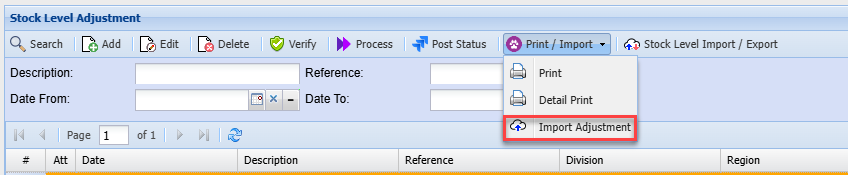
<span class="ts7">This will open up the stock level adjustment screen. From here you can search for all existing stock level adjustments or create a new one. To create a new stock level adjustment click on Add.</span>

[![image.png](https://hugeerp10.co.za/hsofmanual/uploads/images/gallery/2024-08/scaled-1680-/4Xbimage.png)](https://hugeerp10.co.za/hsofmanual/uploads/images/gallery/2024-08/4Xbimage.png)

<table border="1" id="bkmrk-description-a-descri" style="border-collapse: collapse; width: 100%;"><colgroup><col style="width: 15.696%;"></col><col style="width: 84.2793%;"></col></colgroup><tbody><tr><td><span class="ts50">Description</span></td><td><span class="ts7">A description for the specific stock level adjustment.</span></td></tr><tr><td><span class="ts50">Reference</span></td><td><span class="ts7">A reference for this specific stock level adjustment. An example could be “Convert paper reams to paper sheets”</span></td></tr><tr><td><span class="ts50">Date</span></td><td><span class="ts7">This should be the date on which the stock level adjustment is done.</span></td></tr><tr><td><span class="ts50">Long Description</span></td><td><span class="ts7">This is an optional field and does not have to be completed.</span></td></tr><tr><td><span class="ts50">Job No</span></td><td><span class="ts7">Search for the job number if this stock level adjustment is for a specific job.</span></td></tr></tbody></table>

<span class="ts7">Once all the fields have been completed click on save.</span>

<span class="ts7">Notice that the greyed-out buttons (Add, Edit, Delete) in the middle of the screen now opens up. To add an item</span>

[![image.png](https://hugeerp10.co.za/hsofmanual/uploads/images/gallery/2024-08/scaled-1680-/Wn6image.png)](https://hugeerp10.co.za/hsofmanual/uploads/images/gallery/2024-08/Wn6image.png)

<span class="ts7">This will take you to the stock level adjustment click on Add.</span>

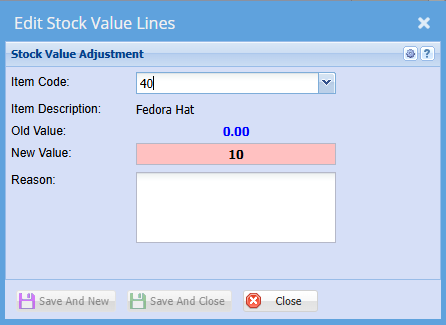
<span class="ts7">This will open the stock level adjustment.</span>

[![image.png](https://hugeerp10.co.za/hsofmanual/uploads/images/gallery/2024-08/scaled-1680-/LFgimage.png)](https://hugeerp10.co.za/hsofmanual/uploads/images/gallery/2024-08/LFgimage.png)

<table border="1" id="bkmrk-item-code-search-for" style="border-collapse: collapse; width: 100%;"><colgroup><col style="width: 16.8057%;"></col><col style="width: 83.1695%;"></col></colgroup><tbody><tr><td><span class="ts50">Item Code</span></td><td><span class="ts7">Search for the item by description or code. In this case we want to decrease the paper reams and increase the paper sheets so for the first one selects paper reams.</span></td></tr><tr><td><span class="ts50">Warehouse</span></td><td><span class="ts7">Select Master Warehouse.</span></td></tr><tr><td><span class="ts50">Increase/Decrease</span></td><td><span class="ts7">Select decrease for paper reams.</span></td></tr><tr><td><span class="ts50">Quantity</span></td><td><span class="ts7">Type the number of paper reams to be decreased.</span></td></tr><tr><td><span class="ts50">Reason</span></td><td><span class="ts7">Convert paper reams into paper sheets.</span></td></tr></tbody></table>

<span class="ts7">Here you can adjustment one or more items at the same time.</span>

<span class="ts7">Click save and close or close when you are done.</span>

<span class="ts7">This will take you back to the stock level adjustment screen will be able to see all your adjustments on individual itema.</span>

<span class="ts7">When you are happy with your list, click process at the top of your page.</span>

[![image.png](https://hugeerp10.co.za/hsofmanual/uploads/images/gallery/2024-08/scaled-1680-/3BDimage.png)](https://hugeerp10.co.za/hsofmanual/uploads/images/gallery/2024-08/3BDimage.png)

A processing screen will pop up, click Refresh status and then close.

[![image.png](https://hugeerp10.co.za/hsofmanual/uploads/images/gallery/2024-08/scaled-1680-/6FRClPimage.png)](https://hugeerp10.co.za/hsofmanual/uploads/images/gallery/2024-08/6FRClPimage.png)
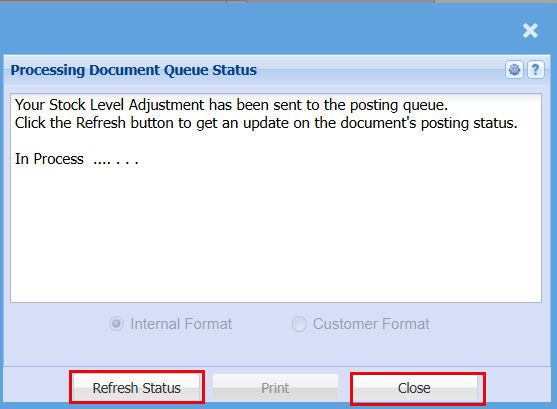
This completes your stock level adjustment

---

#### Import

[![image.png](https://hugeerp10.co.za/hsofmanual/uploads/images/gallery/2024-10/scaled-1680-/Rk1image.png)](https://hugeerp10.co.za/hsofmanual/uploads/images/gallery/2024-10/Rk1image.png)
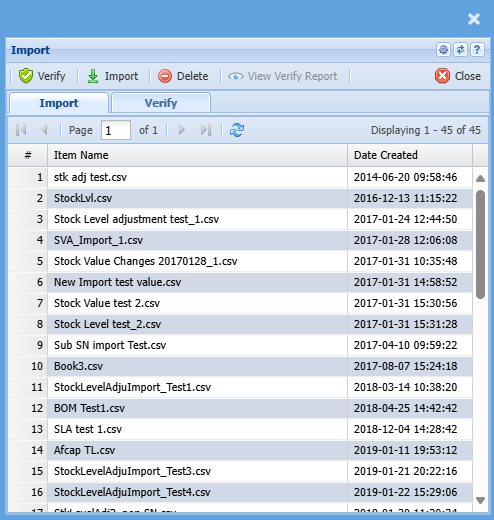
---

#### Import S/N

[![image.png](https://hugeerp10.co.za/hsofmanual/uploads/images/gallery/2024-10/scaled-1680-/4HGimage.png)](https://hugeerp10.co.za/hsofmanual/uploads/images/gallery/2024-10/4HGimage.png)
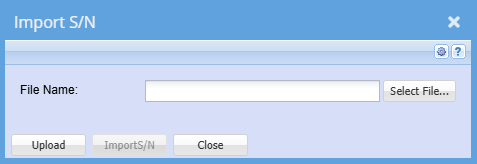
<u>Upload &amp; Import Serial Numbers Help</u>

Click on Browse to navigate to the CSV source document to import the serial numbers.

Click Upload to upload the CSV file into the system.

Once the Upload has been completed successfully click on Import S/N.

A report stating any errors encountered while importing will be automatically generated.

All errors encountered will need to be corrected before the import will be completed successfully.

<u>CSV File format</u>

<u>Stock Level Adjustment Line level (i.e. Stock Item)</u>

![](https://hugeerp0.co.za/csp/hugeerp/wab/Help/Inventory/frmSerialNoUpload_files/image001.jpg)

<span style="text-decoration: underline;">Bulk Serial Numbers</span>

<span style="text-decoration: underline;">Stock Level Adjustment Header Level</span>

![](https://hugeerp0.co.za/csp/hugeerp/wab/Help/Inventory/frmSerialNoUpload_files/image006.jpg)

<p class="callout info"><span class="GramE">NB :</span> Please remember to delete Line 1 from the file.</p>

# Import Adjustment

[![image.png](https://hugeerp10.co.za/hsofmanual/uploads/images/gallery/2024-10/scaled-1680-/8ZIimage.png)](https://hugeerp10.co.za/hsofmanual/uploads/images/gallery/2024-10/8ZIimage.png)

[![image.png](https://hugeerp10.co.za/hsofmanual/uploads/images/gallery/2024-10/scaled-1680-/Nz1image.png)](https://hugeerp10.co.za/hsofmanual/uploads/images/gallery/2024-10/Nz1image.png)
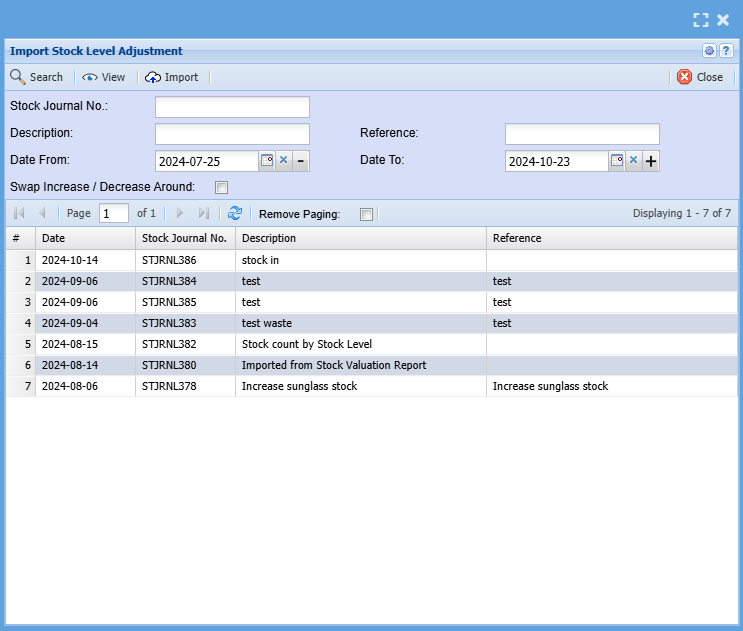
<table border="1" id="bkmrk-search-%C2%A0-view-import" style="border-collapse: collapse; width: 100%;"><colgroup><col style="width: 35.3581%;"></col><col style="width: 64.7408%;"></col></colgroup><tbody><tr><td>**Search**</td><td> </td></tr><tr><td>**View**</td><td>  
</td></tr><tr><td>**Import**</td><td>  
</td></tr><tr><td>**Stock Journal No.**</td><td>  
</td></tr><tr><td>**Description**</td><td>  
</td></tr><tr><td>**Reference**</td><td>  
</td></tr><tr><td>**Date From and To**</td><td>  
</td></tr><tr><td>**Swap Increase / Decrease Around Tick**</td><td>  
</td></tr></tbody></table>

#### View Button

Clicking on the View button will bring up this screen

[![image.png](https://hugeerp10.co.za/hsofmanual/uploads/images/gallery/2024-10/scaled-1680-/1ODimage.png)](https://hugeerp10.co.za/hsofmanual/uploads/images/gallery/2024-10/1ODimage.png)
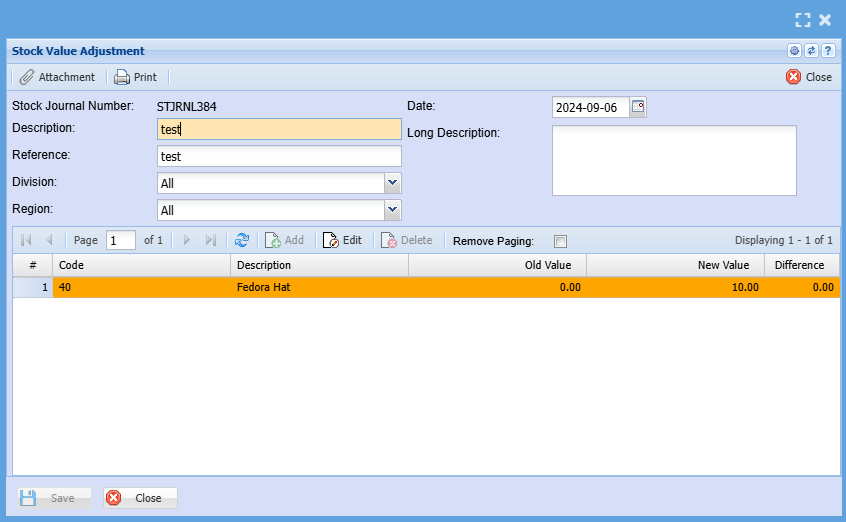
<table border="1" id="bkmrk-stock-journal-number" style="border-collapse: collapse; width: 100%;"><colgroup><col style="width: 50%;"></col><col style="width: 50%;"></col></colgroup><tbody><tr><td>**Stock Journal Number**</td><td> </td></tr><tr><td>**Description**</td><td>  
</td></tr><tr><td>**Reference**</td><td>  
</td></tr><tr><td>**Division**</td><td>  
</td></tr><tr><td>**Region**</td><td>  
</td></tr><tr><td>**Date**</td><td>  
</td></tr><tr><td>**Long Description**</td><td>  
</td></tr></tbody></table>

##### Adding Line

[![image.png](https://hugeerp10.co.za/hsofmanual/uploads/images/gallery/2024-10/scaled-1680-/ooRimage.png)](https://hugeerp10.co.za/hsofmanual/uploads/images/gallery/2024-10/ooRimage.png)