# Bill Of Materials Menu
# Bill Of Material 2010 Manual
#### bill of materials process
** Inventory Activity Bill of Materials**
To create a Bill of Materials stock for manufacturing, go to the activity menu group.
.png)
To insert a new Bill of Material manufacturing click on the insert button. Fill in the information for the BOM and then click on Save and Close.
.png)
Resulting Item – This is the end result or manufactured item. Also is the item which was flagged a BOM item.
Description – This comes from the BOM setup and gives the description of the end result item.
Sourced from BOM – One needs to select a recipe for manufacture, there could be multiple recipes to one end result item.
Quantity – The quantity one wants to manufacture of this item.
End Date – When do you expect this BOM to be completed
Resident Warehouse – when manufacturing is complete where do you want the quantities to update which warehouse.
Job No Link – Link this BOM to a Job costing job number. This means you will be able to see how many BOMs are been manufactured on a Job Costing.
The line of the BOM window will be updated but no BOM number has been allocated, this will only allocate when one clicks on the Activate Button.
.png)
Activating the BOM
Highlight the BOM which needs to be activated and click on the button called activate.
.png)
Click on OK to Active the BOM
.png)
To active the BOM you will have to click on the Insert button.
One will have also noticed that the BOM has been allocated a BOM number.
At this stage no raw materials stock items have been moved to Work In Progress (WIP).
.png)
Click on insert to start the BOM manufacture
.png)
The reason there are two screens to go into is that you can part manufacture a BOM run. This means if you are manufacturing 50 items and 10 are complete you can complete the sub BOM of 10 and put it into stock for resale.
If you want to change the manufacturing quantity make the change and click on Refresh. But for this example we will manufacture all stock items.
Click on Verify button to check that there is enough stock to complete this BOM.
If you are working with serial number the buttons with the 3 dots … will allow you to allocate serial numbers to be used.
After the verify button click on Save OR Save and Close to save your changes.
.png)
Under the Print Tab and Edit BOM Lines there are other buttons
.png)
Print Tab
Print – Print the BOM information of stock required
.png)
Print Detail – A Detail print out of the BOM including Custom type items and service type items
.png)
Edit BOM Lines
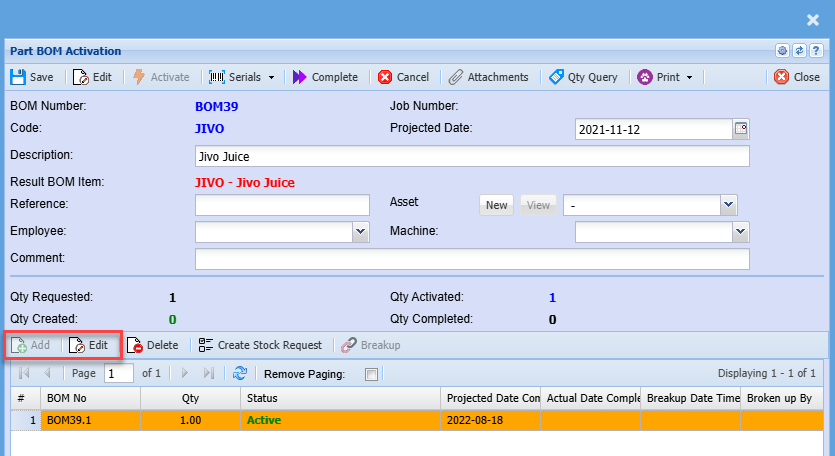
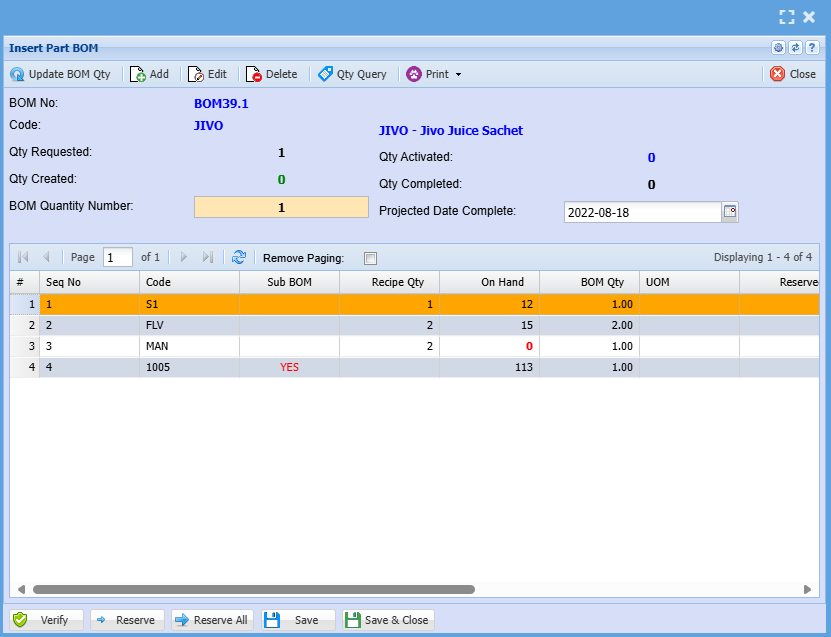
This allows one to on the fly edit BOM items where the recipe has changed slightly from the original. The original recipe stays the same but you might have used more items, different items etc to manufacture this batch.
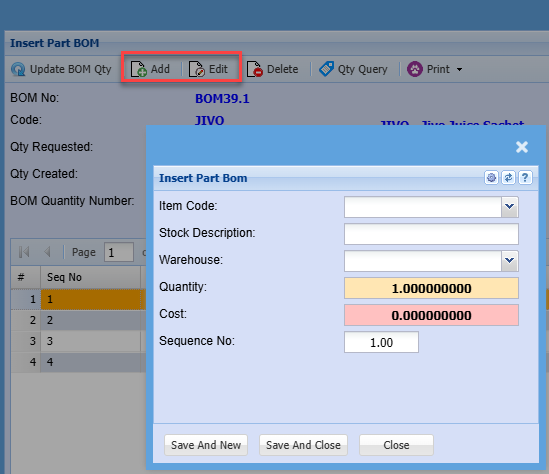
Insert – Inserts new inventory items to a BOM
Amend – Allows one to change current inventory items in the BOM
Delete - Allows one to delete current inventory items in the BOM
Saving changes to BOM
After clicking on Save and Close lines are updated
.png)
This updates the BOM recipe and allocates a number to the BOM to be manufactured. Ie BOM1.1
This means it is for BOM1 batch
Dot 1 means it is the first manufacture process of this batch.
Still at this stage no stock has moved off to Work in Progress.
.png)
To activate the BOM and move raw materials into Work in Progress click on the Activate button on the Process tab.
.png)
.png)
At this stage stock is now moved to Work in Progress and the BOM is waiting completion.
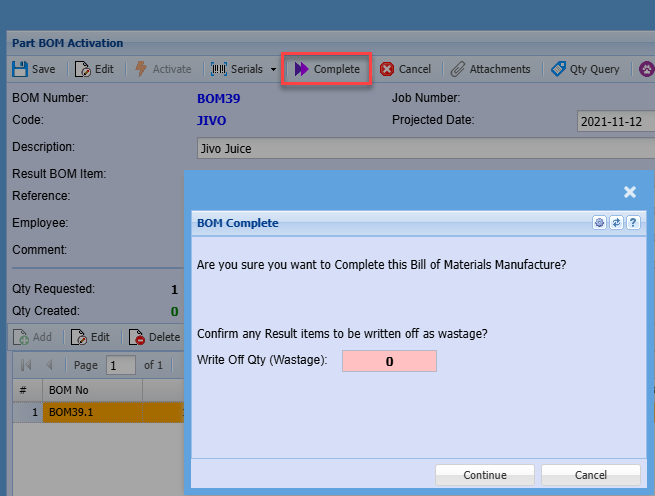
When BOM is complete click on the Complete button.
.png)
.png)
.png)
Now the Bill of Materials for the Cake is complete. Raw materials have been taken out of the Work in Progress and taken out of the system. The finished goods have been replaced with the total raw material value in stock.
Check up on the BOM.
Go to Inventory Analysis BOM History
After clicking on search you will see your BOM complete
.png)
At the bottom of this page you will see some buttons.
.png)
View – allows one to view the original BOM without making any changes.
Print – Prints out the Bill of Materials that was manufactured.
Picking Slip – Allows one to print out the picking slip from the manufactured BOM
Related Transactions – This shows the accounting entries completed in the transaction
.png)
Reports
There are a number of BOM reports one can print, see these under
Inventory Reports Report List – Select inventory category.
.png)
BOM - Distribution of inventory items in BOMS - Distribution of inventory items in BOMS Report
BOM Forecast - Shows the BOM created on all status on the quantity requested versus what was created, activated, posted and the balances left.
BOM Report - A detailed report showing each BOM created with recipe of the quantity and cost price created.
BOM Usage - A summary report showing each BOM created with it's recipe of the quantity and cost price created.
BOM Value Report - Summary report showing the stock, service and custom type items values for each BOM and total value of the BOM.
# Bill Of Material 2014 Manual
##### bill of materials process
Inventory Activity Bill of Materials
To create a Bill of Materials stock for manufacturing, go to the activity menu group.
.png)
To insert a new Bill of Material manufacturing click on the insert button. Fill in the information for the BOM and then click on Save and Close.
.png)
Resulting Item – This is the end result or manufactured item. Also is the item which was flagged a BOM item.
Description – This comes from the BOM setup and gives the description of the end result item.
Sourced from BOM – One needs to select a recipe for manufacture, there could be multiple recipes to one end result item.
Quantity – The quantity one wants to manufacture of this item.
End Date – When do you expect this BOM to be completed
Resident Warehouse – when manufacturing is complete where do you want the quantities to update which warehouse.
Job No Link – Link this BOM to a Job costing job number. This means you will be able to see how many BOMs are been manufactured on a Job Costing.
The line of the BOM window will be updated but no BOM number has been allocated, this will only allocate when one clicks on the Activate Button.
.png)
Activating the BOM
Highlight the BOM which needs to be activated and click on the button called activate.
.png)
Click on OK to Active the BOM
.png)
To active the BOM you will have to click on the Insert button.
One will have also noticed that the BOM has been allocated a BOM number.
At this stage no raw materials stock items have been moved to Work In Progress (WIP).
.png)
Click on insert to start the BOM manufacture
.png)
The reason there are two screens to go into is that you can part manufacture a BOM run. This means if you are manufacturing 50 items and 10 are complete you can complete the sub BOM of 10 and put it into stock for resale.
If you want to change the manufacturing quantity make the change and click on Refresh. But for this example we will manufacture all stock items.
Click on Verify button to check that there is enough stock to complete this BOM.
If you are working with serial number the buttons with the 3 dots … will allow you to allocate serial numbers to be used.
After the verify button click on Save OR Save and Close to save your changes.
.png)
Under the Print Tab and Edit BOM Lines there are other buttons
.png)
Print Tab
Print – Print the BOM information of stock required
.png)
Print Detail – A Detail print out of the BOM including Custom type items and service type items
.png)
Edit BOM Lines
This allows one to on the fly edit BOM items where the recipe has changed slightly from the original. The original recipe stays the same but you might have used more items, different items etc to manufacture this batch.
Insert – Inserts new inventory items to a BOM
Amend – Allows one to change current inventory items in the BOM
Delete - Allows one to delete current inventory items in the BOM
Saving changes to BOM
After clicking on Save and Close lines are updated
.png)
This updates the BOM recipe and allocates a number to the BOM to be manufactured. Ie BOM1.1
This means it is for BOM1 batch
Dot 1 means it is the first manufacture process of this batch.
Still at this stage no stock has moved off to Work in Progress.
.png)
To activate the BOM and move raw materials into Work in Progress click on the Activate button on the Process tab.
.png)
.png)
At this stage stock is now moved to Work in Progress and the BOM is waiting completion.
When BOM is complete click on the Complete button.
.png)
.png)
.png)
Now the Bill of Materials for the Cake is complete. Raw materials have been taken out of the Work in Progress and taken out of the system. The finished goods have been replaced with the total raw material value in stock.
Check up on the BOM.
Go to Inventory Analysis BOM History
After clicking on search you will see your BOM complete
.png)
At the bottom of this page you will see some buttons.
.png)
View – allows one to view the original BOM without making any changes.
Print – Prints out the Bill of Materials that was manufactured.
Picking Slip – Allows one to print out the picking slip from the manufactured BOM
Related Transactions – This shows the accounting entries completed in the transaction
.png)
Reports
There are a number of BOM reports one can print, see these under
Inventory Reports Report List – Select inventory category.
.png)
BOM - Distribution of inventory items in BOMS - Distribution of inventory items in BOMS Report
BOM Forecast - Shows the BOM created on all status on the quantity requested versus what was created, activated, posted and the balances left.
BOM Report - A detailed report showing each BOM created with recipe of the quantity and cost price created.
BOM Usage - A summary report showing each BOM created with it's recipe of the quantity and cost price created.
BOM Value Report - Summary report showing the stock, service and custom type items values for each BOM and total value of the BOM.
# Creating Resultant Item
#### CREATE THE RESULTANT(End-Product) ITEM
**Go to Inventory Module > Configuration> Inventory Set up**
2.Click Add
.png)
3: Enter an Item Code
4: Enter the required item descriptions
Enter the cost price
Click Save
Click the Bill of material Tab
.png)
Tick “Activate Bill of Material” Box
Click Save and Close
Enter any other details required by clicking on the Tabs and completing the information
Click Save
# CREATING THE BILL OF MATERIAL (BOM) RECIPE
** Go to inventory module> Configuration> Bill of Material Setup**
1 Click Add, a window will open.
.png)
2: Enter a BOM Code
3: Enter the BOM Description
4: Select the resultant item (This is the item code you created above)
Click Save
5: Click Add
.png)
This Is where you Select the list item(s) required to make up the resultant item(End-Product)
Enter the quantity required
Select Warehouse this BOM will be available on.
Click Save and New to continue adding more items on your list
Click Save and Close when the last item has been selected
# CREATING THE BOM ITEM
**Go to inventory module> Activity>Bill of Materials**
.png)
1.Select the resultant Item
2.Select the BOM source (This is the Recipe you created above)
3.Select form Drop Down
4.Enter the required quantity of the resultant item
5.Select the Warehouse you wish this item to be stored in
Click Save and close/new
Click Search
Highlight the required BOM
.png)
Click Manage BOM
.png)
Click OK
Click Insert
.png)
---
#### Complete Button
[](https://hugeerp10.co.za/hsofmanual/uploads/images/gallery/2024-10/56Ximage.png)
---
#### Add or Edit Line
[](https://hugeerp10.co.za/hsofmanual/uploads/images/gallery/2024-10/Co6image.png)
[](https://hugeerp10.co.za/hsofmanual/uploads/images/gallery/2024-10/Lu4image.png)
[](https://hugeerp10.co.za/hsofmanual/uploads/images/gallery/2024-10/Axyimage.png)
---
#### Create Stock Request
[](https://hugeerp10.co.za/hsofmanual/uploads/images/gallery/2024-10/5ldimage.png)