# Batch Serial Number
Batch Serial numbers
# Batch Serial numbers
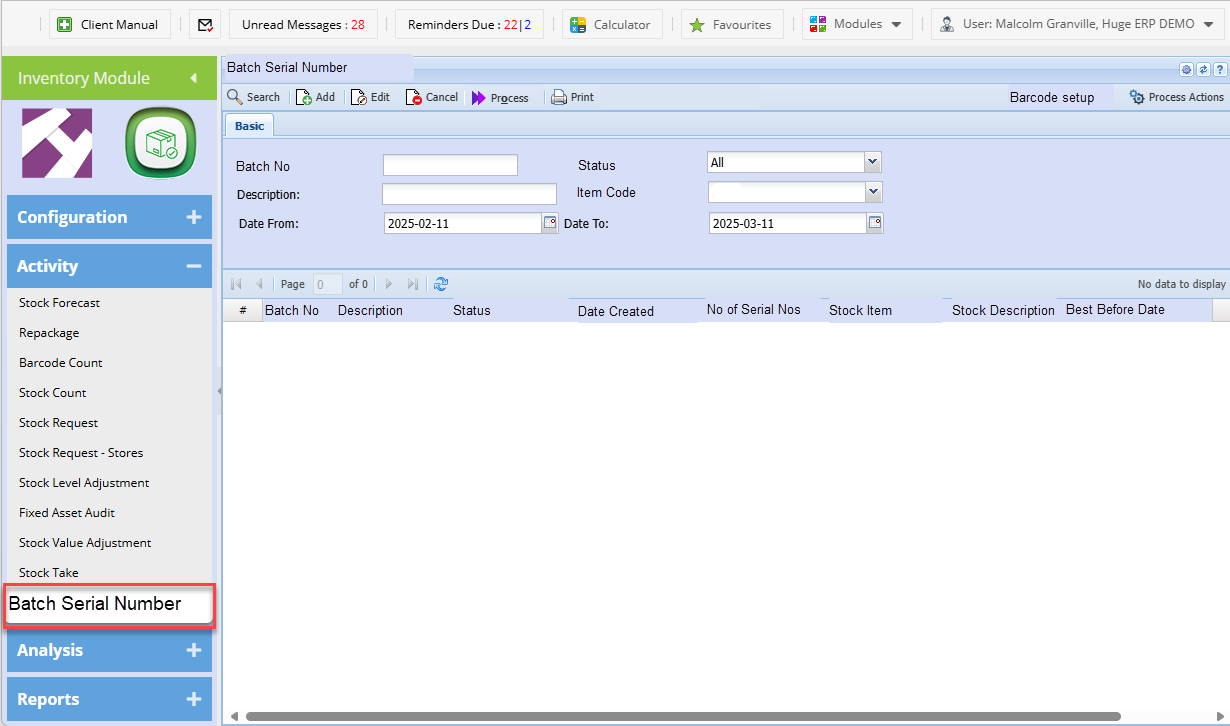
Batch serial numbers allows one to create multiple serial numbers on the fly for stock items.
[](https://hugeerp10.co.za/hsofmanual/uploads/images/gallery/2025-03/lOZimage.png)
| **Search** | Search for Batch Serial number batches |
| **Add** | Add a new batch with created serial numbers |
| **Edit** | Edit batch |
| **Cancel** | Cancel a batch |
| **Process** | Process a batch to stock level adjustment
Process action will determine whether it just creates the stock level or
Creates and processes
|
| **Print** | Print a batch to show the serial numbers created for a items |
| **Barcode setup** | Setup the default parameters for the barcode criteria |
| **Process setup** | Sets whether process will create stock level adjustment or creates and processes |
| Status | Preparation, Completed and Cancelled |
| Created | Batch serial number keeps the date and time and user who created the batch |
| Processed | Batch serial number keeps the date and time and user who processed the batch |
---
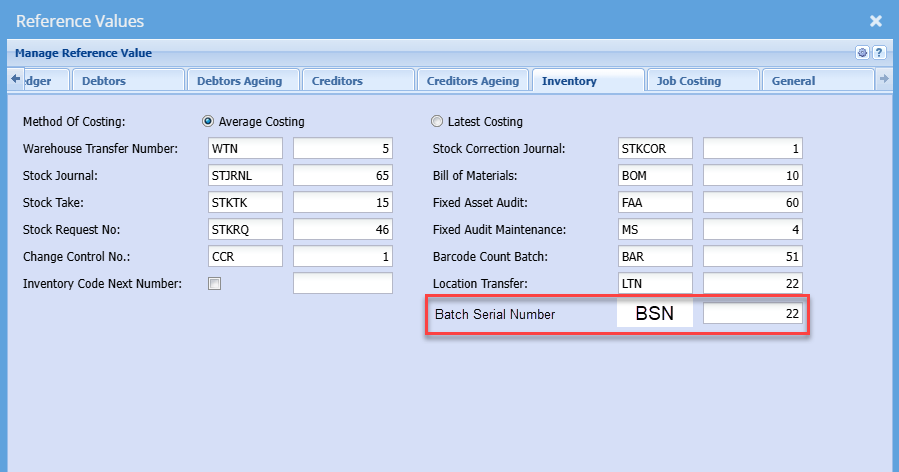
##### Reference value setup for Batch Serial number
Hotfix will be created to setup the Default values for Batch serial number
[](https://hugeerp10.co.za/hsofmanual/uploads/images/gallery/2025-03/IcYimage.png)
---
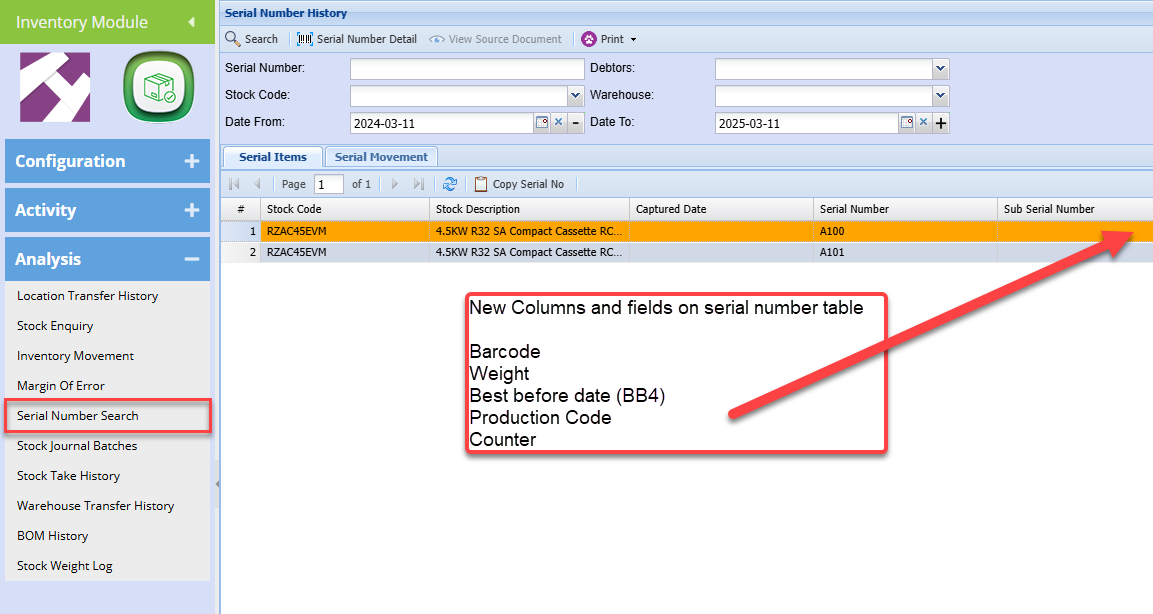
##### Serial number search
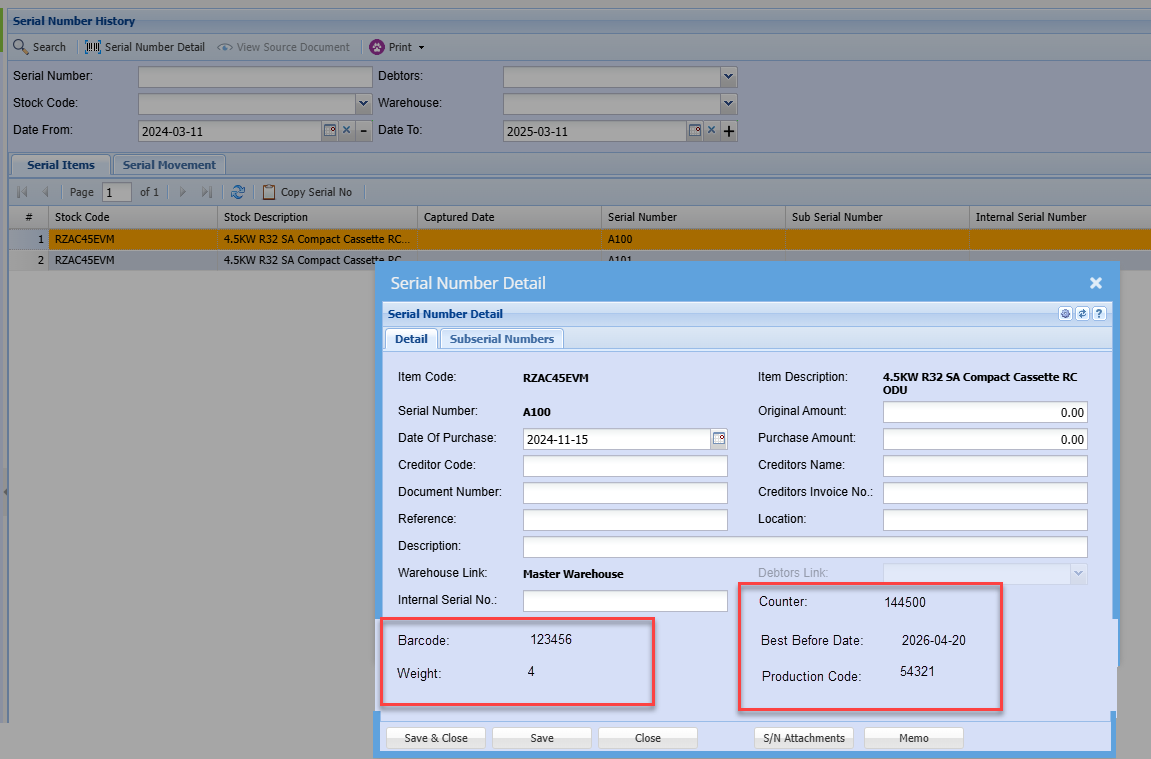
Serial numbers contain new columns and information from created barcodes (serial numbers)
[](https://hugeerp10.co.za/hsofmanual/uploads/images/gallery/2025-03/97Simage.png)
Information is shown on the serial number detail
[](https://hugeerp10.co.za/hsofmanual/uploads/images/gallery/2025-03/zEaimage.png)
---
##### Process setup
Process Option is set to Create by default
Counter Start gives the first number that will start the counter number
Once the first Serial number is created, then the counter start will be disabled
[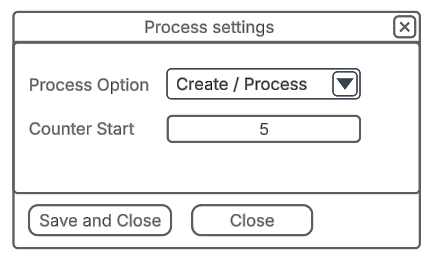](https://hugeerp10.co.za/hsofmanual/uploads/images/gallery/2025-03/O61image.png)
---
##### Barcode setup
Barcode setup, sets the parameter and sequence the barcode is setup
[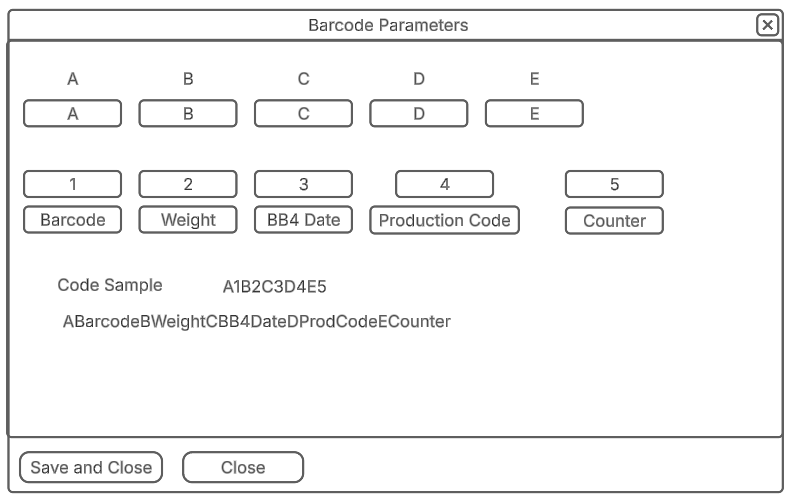](https://hugeerp10.co.za/hsofmanual/uploads/images/gallery/2025-03/8Kvimage.png)
| **A to E fields** | Sets parameters to set for Barcode serial number |
| **1 to 5** | Sets the sequence of values to enter |
| **Barcode** | Picks up from Item barcode |
| **Weight** | Picks up from Item weight |
| **BB4 Date** | Best Before Date picks up from item number of days of Shelf life from production date |
| **Production Code** | Open text field |
| **Counter** | Field that automatically increments |
---
##### Adding Serial numbers from Batch
[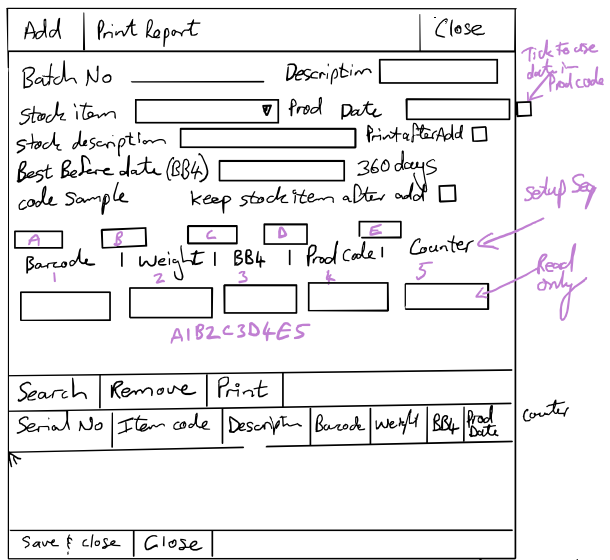](https://hugeerp10.co.za/hsofmanual/uploads/images/gallery/2025-03/MYUimage.png)
# Printing Batch Numbers from a Stock Level Adjustment
Printing a label for an item that is tracked using batch numbers is different from printing a label for a standard inventory item.
In order to print a label where the barcode will have the batch number you will need to print this label from the Stock Journal History.
**Inventory Module > Analysis > Stock Journal Batches**
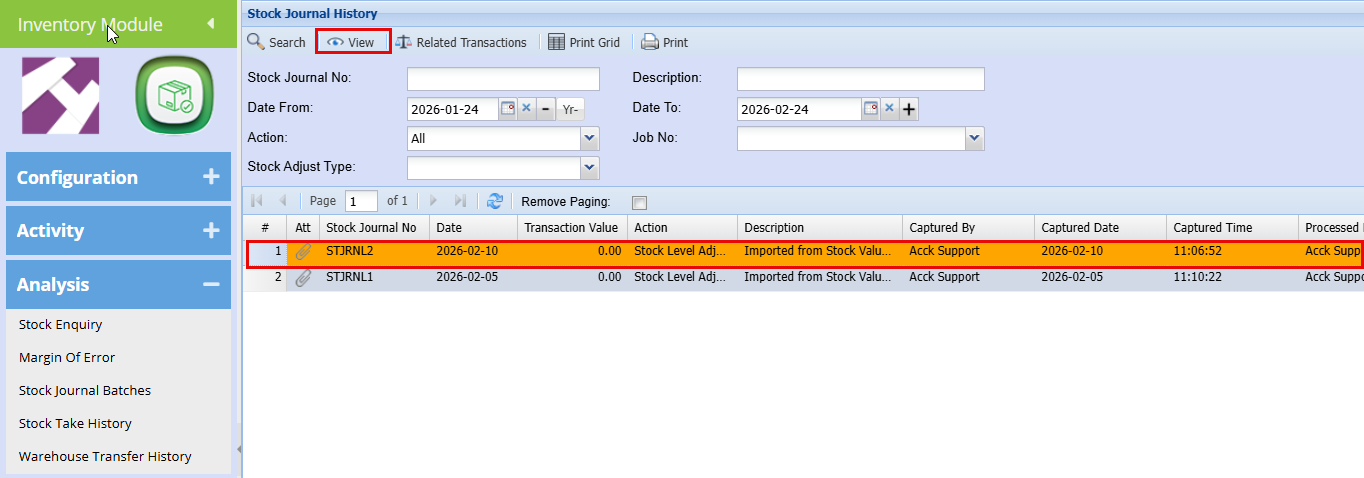
As shown below these were 2 separate bulk stock level adjustments that brought in stock with batch numbers.
[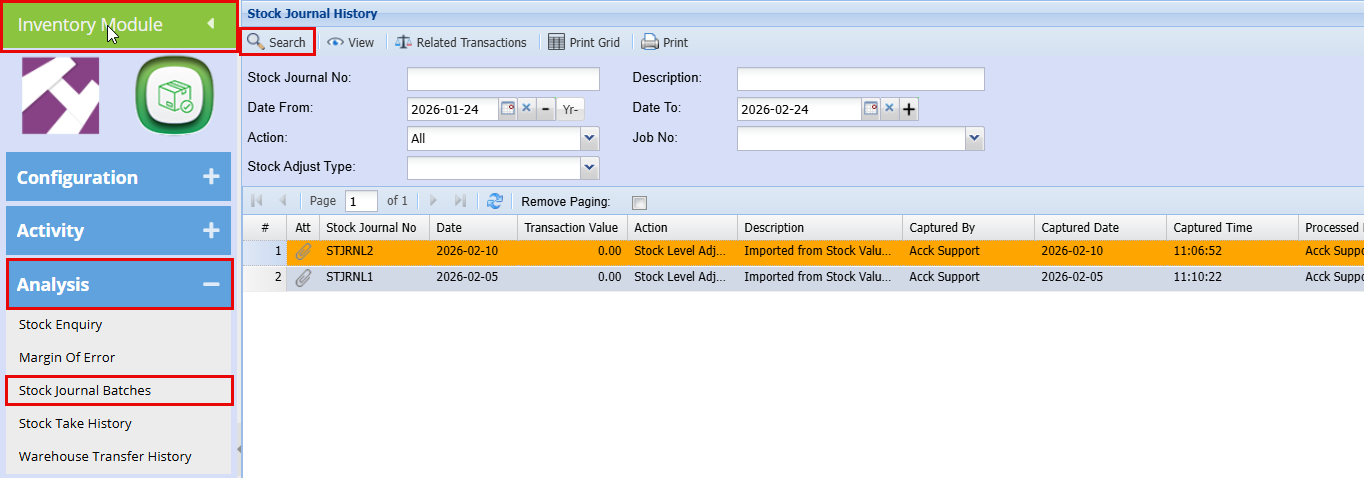](https://hugeerp10.co.za/hsofmanual/uploads/images/gallery/2026-02/jRkimage.png)
- Click to highlight the line you want to print labels for.
- Then click **View**.
[](https://hugeerp10.co.za/hsofmanual/uploads/images/gallery/2026-02/5vpimage.png)
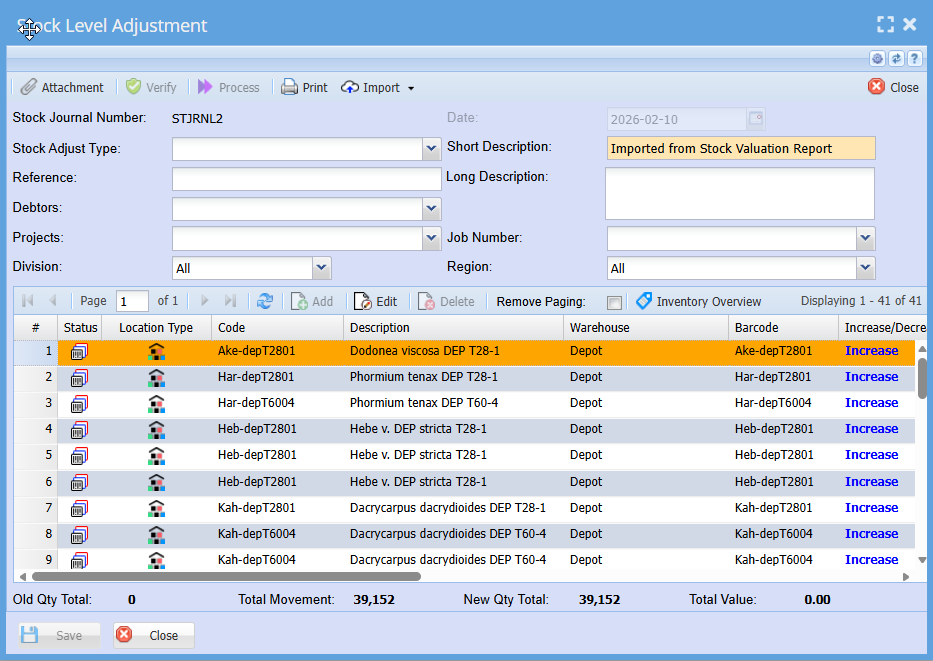
- Double‑click the inventory item you want to print a label for.
[](https://hugeerp10.co.za/hsofmanual/uploads/images/gallery/2026-02/Z87image.png)
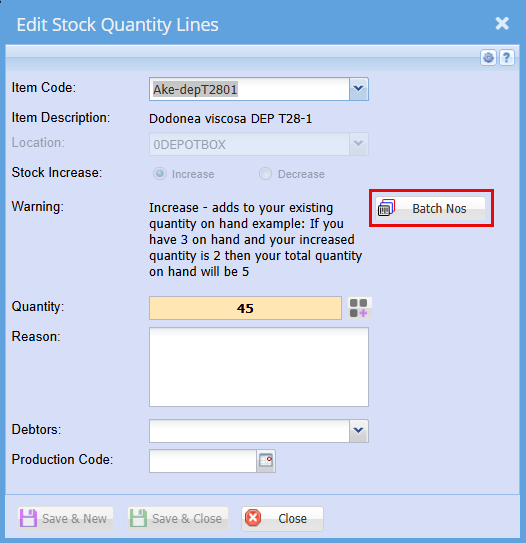
- Click on the **Batch Nos** Button
[](https://hugeerp10.co.za/hsofmanual/uploads/images/gallery/2026-02/4FPimage.png)
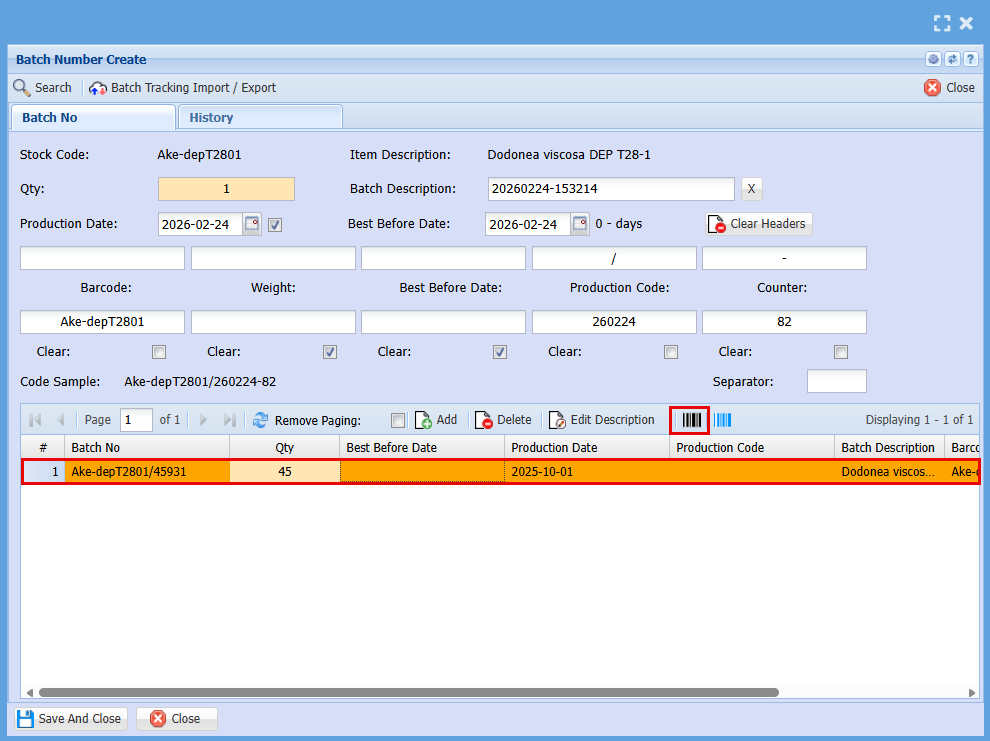
- **Click** to highlight the line you want to print labels for.
- Then click the **Black Barcode** as shown below.
[](https://hugeerp10.co.za/hsofmanual/uploads/images/gallery/2026-02/AOzimage.png)
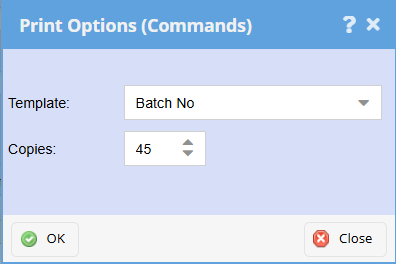
- Enter the number of label copies you want to print
- Click **Ok**
[](https://hugeerp10.co.za/hsofmanual/uploads/images/gallery/2026-02/BpWimage.png)