# GL Cashbook Menu

# Cashbook Search

<span class="ts15">Process bank transactions</span>

<span style="color: rgb(45, 194, 107);">**<span class="ts15">General Ledger&gt;Activity&gt;</span><span class="ts15">Cash Book</span>**</span>

<span class="ts15"> </span>![](https://hugeerp0.co.za/csp/webhelp/topics/images/image(2783).png)

#### <span class="ts15">Buttons</span>

<table border="1" id="bkmrk-search-this-button-w" style="border-collapse: collapse; width: 100%; height: 118.4px;"><colgroup><col style="width: 17.6693%;"></col><col style="width: 82.3059%;"></col></colgroup><tbody><tr style="height: 29.6px;"><td style="height: 29.6px;">**<span class="ts0">Search</span>**</td><td style="height: 29.6px;"><span class="ts0">This Button will allow the user to find information relating to the cashbook</span></td></tr><tr style="height: 29.6px;"><td style="height: 29.6px;">**<span class="ts0">Add</span>**</td><td style="height: 29.6px;"><span class="ts0">Is used to add a new Cash book</span></td></tr><tr style="height: 29.6px;"><td style="height: 29.6px;">**<span class="ts0">Edit</span>**</td><td style="height: 29.6px;"><span class="ts0">Allows The user to edit the Cashbook lines.</span></td></tr><tr style="height: 29.6px;"><td style="height: 29.6px;">**<span class="ts0">Cancel</span>**</td><td style="height: 29.6px;"><span class="ts0">This button will allow the user to cancel a cashbook</span></td></tr><tr><td>**<span class="ts0">Verify Cash Book</span>**</td><td><span class="ts0">when a user needs to eliminate errors, she or he can first verify the cashbook by using this button, and the report generated will show if there are any existing errors that requires rectifying before processing.</span></td></tr><tr><td>**<span class="ts0">Authorise</span>**</td><td><span class="ts0">Cashbook needs to be Authorised before processing.</span></td></tr><tr><td>**<span class="ts0">Process Cash Book</span>**</td><td><span class="ts0">when this button is selected the cashbook will be Processed and a GL number will be generated.</span></td></tr><tr><td>**<span class="ts0">Post Status</span>**</td><td><span class="ts0">The Post status will let the user know if the Cashbook was successfully processed</span></td></tr><tr><td>**<span class="ts0">Print/Import</span>**</td><td><span class="ts0">The Drop down has three functions</span></td></tr></tbody></table>

<span class="ts37">The User Can Print the general ledger cash book report or upload a cashbook saved in A CSV format and then import the uploaded file into the system.</span>

##### <span class="ts0">Basic Search tab:</span>

<table border="1" id="bkmrk-cash-book-name-searc" style="border-collapse: collapse; width: 100%;"><colgroup><col style="width: 18.4445%;"></col><col style="width: 81.6544%;"></col></colgroup><tbody><tr><td>**<span class="ts0">Cash Book Name</span>**</td><td><span class="ts0">Search using Cash Book name</span></td></tr><tr><td>**<span class="ts0">Date</span>**</td><td><span class="ts0">Search using date Criteria</span></td></tr><tr><td>**<span class="ts0">GL Bank Accounts</span>**</td><td><span class="ts0">Search using GL Bank Account</span></td></tr><tr><td>**<span class="ts0">Cash Book Status</span>**</td><td><span class="ts0">Search Using Cash Book status</span></td></tr><tr><td>**<span class="ts0">Cash Book Type</span>**</td><td><span class="ts0">Search using Cash Book type</span></td></tr><tr><td>**<span class="ts0">Custom Search</span>**</td><td><span class="ts0">This will be a customised search according to how the company has set up their custom fields.</span></td></tr><tr><td>**<span class="ts0">Expand</span>**</td><td><span class="ts0">Allows the user to see more available search criteria’s.</span></td></tr></tbody></table>

---

#### <span class="ts0">Cashbook status</span>

<span class="ts0">There are a couple of statuses a General Ledger Cashbook goes through.</span>

<table border="1" id="bkmrk-1-preparation-2-auth" style="border-collapse: collapse; width: 47.1605%;"><colgroup><col style="width: 11.5452%;"></col><col style="width: 88.4023%;"></col></colgroup><tbody><tr><td>**1**</td><td><span class="ts0">Preparation</span></td></tr><tr><td>**2**</td><td><span class="ts0">Authorized</span></td></tr><tr><td>**3**</td><td><span class="ts0">Post Status – Processing section</span></td></tr><tr><td>**4**</td><td><span class="ts0">Posted or completed</span></td></tr></tbody></table>

##### <span class="ts0">Preparation</span>

<span class="ts0">Cashbooks that are in Preparation and Authorized exist under the <span style="color: rgb(45, 194, 107);">**General Ledger Module&gt; Activity&gt; Cashbooks**</span></span>

<span class="ts0">A cashbook that is in Preparation Status is in this state when you have created a new cashbook and saved it.</span>

<span class="ts0">To change a cashbook to Authorized Status click on the Process Tab and then click on the Authorize button. This will change the status to Authorized.</span>

<span class="ts0"> </span>![](https://hugeerp0.co.za/csp/webhelp/topics/images/image(1888).png)

##### <span class="ts0">Authorized</span>

<span class="ts0">Cashbooks that are Authorized exist under the <span style="color: rgb(45, 194, 107);">**General Ledger Module&gt; Activity&gt; Cashbooks**</span></span>

<span class="ts0">A cashbook that is in Authorized Status is in this state just before processing into the books.</span>

<span class="ts0">To change a cashbook to Processing Status click on the Process Tab and then click on the Process button. This will change the status to Processing Status.</span>

##### <span class="ts0">Processing Status</span>

<span class="ts0">To check whether a Cashbook has been successful posted to the books one will click on the Post Status button under the </span>

<span style="color: rgb(45, 194, 107);">**<span class="ts0">General Ledger Module&gt; Activity&gt; Cashbooks&gt; Process Tab.</span>**</span>

<span class="ts0">This will open a new window to check whether the Cashbook has been successfully posted. Check the column that says “Posted”, if there is a Yes then the Cashbook was successfully posted into the books. However, if there is a No, check the button with the three dots “…” as to why it was not posted.</span>

<span class="ts0">You can then “Reset the Item” under the tab called Queued and a button called Reset Item. This will remove the Cashbook book from this status and put it back into authorized status. You can then correct the problem and try and repost.</span>

![](https://hugeerp0.co.za/csp/webhelp/topics/images/image(1889).png)

##### <span class="ts0">Posted or Completed Status</span>

<span class="ts0">To check whether a Cashbook has been successful posted to the books one will click on the Post Status button under the </span>

<span class="ts0"><span style="color: rgb(45, 194, 107);">**General Ledger Module&gt; Analysis&gt; Cashbooks History.**</span></span>

![](https://hugeerp0.co.za/csp/webhelp/topics/images/image(1890).png)

---

##### Post Status

[![image.png](https://hugeerp10.co.za/hsofmanual/uploads/images/gallery/2024-05/scaled-1680-/T3fimage.png)](https://hugeerp10.co.za/hsofmanual/uploads/images/gallery/2024-05/T3fimage.png)

<span class="ts0"> </span>

<span class="ts0"></span>

# Add GL Cashbook

<span class="ts15">Go to <span style="color: rgb(45, 194, 107);">**General Ledger Module &gt; Activity &gt; Cashbooks**</span></span>

<span class="ts0">Click on the Search button to check for any open cashbooks</span>

[![image.png](https://hugeerp10.co.za/hsofmanual/uploads/images/gallery/2024-05/scaled-1680-/mFcimage.png)](https://hugeerp10.co.za/hsofmanual/uploads/images/gallery/2024-05/mFcimage.png)

<span class="ts0">Creating a new cashbook, click on the Add button.</span>

<span class="ts0">Select the bank account which is going to affect this batch.</span>

<table border="1" id="bkmrk-enter-a-cashbook-nam" style="border-collapse: collapse; width: 100%;"><colgroup><col style="width: 22.7655%;"></col><col style="width: 77.3334%;"></col></colgroup><tbody><tr><td>**<span class="ts0">Enter a Cashbook Name</span>**</td><td><span class="ts0">As per your company preference</span></td></tr><tr><td>**<span class="ts0">Enter Reference field</span>**</td><td><span class="ts0">As per your company preference</span></td></tr></tbody></table>

<span class="ts0">Click on Save-to-save changes to your header batch details. These details filled in are only relevant to search and find the actual cashbook.</span>

[![image.png](https://hugeerp10.co.za/hsofmanual/uploads/images/gallery/2024-05/scaled-1680-/uGBimage.png)](https://hugeerp10.co.za/hsofmanual/uploads/images/gallery/2024-05/uGBimage.png)

<span class="ts0">Your cashbook lines contain the actual data see</span><span class="ts0">n</span><span class="ts0"> on documents.</span>

<span class="ts0">After saving one will notice the Insert, Amend and Delete buttons become available.</span>

<span class="ts0">Click on the </span><span class="ts11">Add</span><span class="ts0"> button to, Add cashbook transaction line.</span>

<span class="ts0">There are three ways to enter a line – General Ledger is the default.</span>

<table border="1" id="bkmrk-general-ledger-this-" style="border-collapse: collapse; width: 100%;"><colgroup><col style="width: 19.4321%;"></col><col style="width: 80.6667%;"></col></colgroup><tbody><tr><td>**<span class="ts0">General Ledger</span>**</td><td><span class="ts0">This searches ledger accounts and affects the bank and ledger account selected.</span></td></tr><tr><td>**<span class="ts0">Debtors</span>**</td><td><span class="ts0">This searches customer accounts and affects the bank and the customer account selected.</span></td></tr><tr><td>**<span class="ts0">Creditors</span>**</td><td><span class="ts0">This searches supplier accounts and affects the bank and the supplier account selected.</span></td></tr></tbody></table>

<span class="ts0">Cashbook Type: General Ledger type selected</span>

<span class="ts0">Select the date of the transaction that is per the bank statement date.</span>

<span class="ts0">One will notice the reference is copied from your batch header, you can change it if you want.</span>

<span class="ts0">(to increment reference put a tick on Increment Reference on the Batch header).</span>

<span class="ts0">Select the account.</span>

<span class="ts0">There are three ways to search for an account:</span>

<table border="1" id="bkmrk-a.-short-search-just" style="border-collapse: collapse; width: 100%; height: 29.6px;"><colgroup><col style="width: 5.19409%;"></col><col style="width: 12.8484%;"></col><col style="width: 81.9328%;"></col></colgroup><tbody><tr style="height: 29.6px;"><td>**<span class="ts0">a.</span>**</td><td style="height: 29.6px;"><span class="ts0">Short Search</span></td><td style="height: 29.6px;"><span class="ts0">just type in part of the code or name and hit enter on the keyboard and select the account.</span></td></tr><tr><td>**b.**</td><td><span class="ts0">Tree Search</span></td><td><span class="ts0">Clicking on the square with three dots allows you to find the account via the Tree view.</span></td></tr><tr><td>**<span class="ts0">c.</span>**</td><td><span class="ts0">Long Search</span></td><td><span class="ts0">Clicking on the Arrow button opens a new window where you can search on the code or name.</span></td></tr></tbody></table>

<span class="ts0">Select the entry type:</span>

**<span class="ts0">a. Payment / Credit</span>**

[![image.png](https://hugeerp10.co.za/hsofmanual/uploads/images/gallery/2024-05/scaled-1680-/2coimage.png)](https://hugeerp10.co.za/hsofmanual/uploads/images/gallery/2024-05/2coimage.png)

<span class="ts0">This is when one is paying money out of the bank account</span>

<span class="ts0">Debit – Bank and Credit – Ledger account</span>

**<span class="ts0">b. Deposit / Debit</span>**

<span class="ts0">This is when one is depositing money into the bank account</span>

<span class="ts0">Credit – Bank and Debit – Ledger account</span>

<table border="1" id="bkmrk-entry-amount-enter-t" style="border-collapse: collapse; width: 100%;"><colgroup><col style="width: 22.2717%;"></col><col style="width: 77.8272%;"></col></colgroup><tbody><tr><td>**<span class="ts0">Entry Amount</span>**</td><td><span class="ts0">enter the amount including VAT that affects the bank.</span></td></tr><tr><td>**<span class="ts0">Tax Account</span>**</td><td><span class="ts0">you will notice that if one selects the Payment entry type the VAT control ledger account comes up with the Tax Type being 4 Cashbook VAT. If one selects the Deposit entry type the VAT control ledger comes up with No Tax, therefore not allocating to the VAT control account.</span></td></tr><tr><td>**<span class="ts0">Description</span>**</td><td><span class="ts0">Enter the name of the company you are paying or deposited from.</span></td></tr><tr><td>**<span class="ts0">Additional Comments</span>**</td><td><span class="ts0">Enter comments for later information needed.</span></td></tr><tr><td>**<span class="ts0">Job</span>**</td><td><span class="ts0">assign this cost to a Job</span></td></tr><tr><td>**<span class="ts0">Projects</span>**</td><td><span class="ts0">assign this cost to a Project</span></td></tr></tbody></table>

<span class="ts0">Click on Save and Close</span>

<span class="ts0">OR Click on Save and New to enter another entry.</span>

---

#### <span class="ts0">Allocate</span>

[![image.png](https://hugeerp10.co.za/hsofmanual/uploads/images/gallery/2024-05/scaled-1680-/ycRimage.png)](https://hugeerp10.co.za/hsofmanual/uploads/images/gallery/2024-05/ycRimage.png)

<table border="1" id="bkmrk-debtor-allocations-%C2%A0" style="border-collapse: collapse; width: 100%;"><colgroup><col style="width: 19.3211%;"></col><col style="width: 80.8025%;"></col></colgroup><tbody><tr><td>**Debtor Allocations**</td><td> </td></tr><tr><td>**Creditor Allocations**</td><td>  
</td></tr><tr><td>**Match Payments**</td><td>  
</td></tr><tr><td>**Allocate Oldest**</td><td>  
</td></tr></tbody></table>

---

####  

#### <span class="ts0">Template tab</span>

<span class="ts0">Templates are good to use when one has the same transactions every month eg. Monthly debit orders or monthly salary payments.</span>

<span class="ts0">There are two options</span>

<table border="1" id="bkmrk-a.-insert-template-b" style="border-collapse: collapse; width: 24.0741%;"><colgroup><col style="width: 21.0489%;"></col><col style="width: 78.8481%;"></col></colgroup><tbody><tr><td>**a.**</td><td><span class="ts0">Insert Template</span></td></tr><tr><td>**b.**</td><td><span class="ts0">Save as Template</span></td></tr></tbody></table>

<span class="ts0">Insert Template</span>

<span class="ts0">Once you have saved a template from a previously captured cashbook, you can insert this into the cashbook.</span>

<span class="ts0">Save as Template</span>

<span class="ts0">Allows you to save this cashbook lines as a template for further use.</span>

---

##### <span class="ts0">Insert Template</span>

[![image.png](https://hugeerp10.co.za/hsofmanual/uploads/images/gallery/2024-05/scaled-1680-/ylPimage.png)](https://hugeerp10.co.za/hsofmanual/uploads/images/gallery/2024-05/ylPimage.png)

<table border="1" id="bkmrk-search-%C2%A0-import-dele" style="border-collapse: collapse; width: 100%;"><colgroup><col style="width: 27.5927%;"></col><col style="width: 72.5309%;"></col></colgroup><tbody><tr><td>**Search**</td><td> </td></tr><tr><td>**Import**</td><td>  
</td></tr><tr><td>**Delete Template**</td><td>  
</td></tr><tr><td>**Name**</td><td>  
</td></tr><tr><td>**New Date and Reference Tick**</td><td>  
</td></tr><tr><td>**New Date**</td><td>  
</td></tr><tr><td>**New Reference**</td><td>  
</td></tr><tr><td>**Swap Debit / Credit Tick**</td><td>  
</td></tr><tr><td>**Keep Template Date Tick**</td><td>  
</td></tr></tbody></table>

---

##### Save As Template

[![image.png](https://hugeerp10.co.za/hsofmanual/uploads/images/gallery/2024-05/scaled-1680-/VwLimage.png)](https://hugeerp10.co.za/hsofmanual/uploads/images/gallery/2024-05/VwLimage.png)

<table border="1" id="bkmrk-template-name-%C2%A0" style="border-collapse: collapse; width: 100%;"><colgroup><col style="width: 17.065%;"></col><col style="width: 82.935%;"></col></colgroup><tbody><tr><td>**Template Name**</td><td> </td></tr></tbody></table>

# Cashbook Branch Lines

<span class="ts0">The cashbooks have been enhanced to include the branch per line.</span>

<span class="ts0">The line will automatically takes the branch at the header, but the user can change this branch.</span>

<span class="ts0">If you have an old cashbook that has not logged the branch, then one needs to update the lines.</span>

![](https://hugeerp0.co.za/csp/webhelp/topics/images/image(3332).png)

<span class="ts0">Error occurs when trying to process an old cashbook</span>

![](https://hugeerp0.co.za/csp/webhelp/topics/images/image(3329).png)

<span class="ts0">Reset the cashbook out of the post status screen</span>

![](https://hugeerp0.co.za/csp/webhelp/topics/images/image(3330).png)

<span class="ts0">Update all lines with the new branch.</span>

![](https://hugeerp0.co.za/csp/webhelp/topics/images/image(3331).png)

# Cashbook Split Line

<span class="ts2">Inserting a split line</span>

<span class="ts0">Split Transactions are used to show a series of costs as one entry in the cashbook </span>

<span class="ts0">Click on the Add Split button as shown below</span>

![](https://hugeerp0.co.za/csp/webhelp/topics/images/image(2844).png)

<span class="ts0">Enter a description for your split transaction and save</span>

[![image.png](https://hugeerp10.co.za/hsofmanual/uploads/images/gallery/2024-10/scaled-1680-/fU7image.png)](https://hugeerp10.co.za/hsofmanual/uploads/images/gallery/2024-10/fU7image.png)

<span class="ts0">You will now have access to add the split transaction lines</span>

<span class="ts0">Enter all the transactions relating to this payment or deposit (see explanation of each type below)</span>

<span class="ts0">when you close and save, the totals will be shown on the cashbook line.</span>

![](https://hugeerp0.co.za/csp/webhelp/topics/images/image(2847).png)

<span class="ts0">Select the entry type:</span>

**<span class="ts0">a. Payment / Credit</span>**

<span class="ts0">This is when one is paying money out of the bank account</span>

<span class="ts0">Debit – Bank and Credit – Ledger Account</span>

**<span class="ts0">b. Deposit / Debit</span>**

<span class="ts0">This is when one is depositing money into the bank account</span>

<span class="ts0">Credit – Bank and Debit – Ledger account</span>

<table border="1" id="bkmrk-description-enter-th" style="border-collapse: collapse; width: 100%;"><colgroup><col style="width: 14.7408%;"></col><col style="width: 85.3581%;"></col></colgroup><tbody><tr><td>**<span class="ts0">Description</span>**</td><td><span class="ts0">Enter the name of the company you are paying or deposited from.</span></td></tr></tbody></table>

<span class="ts0">Click on save</span>

<span class="ts0">After saving one will notice the Add, Amend and Delete buttons become available.</span>

<span class="ts36">In the split line the Date, Entry Type is disabled as they need to match the full entry.</span>

<span class="ts0">Select the Account</span>

<span class="ts0">There are three ways to search for an account:</span>

<table border="1" id="bkmrk-a.-short-search-just" style="border-collapse: collapse; width: 100%;"><colgroup><col style="width: 5.31389%;"></col><col style="width: 13.5009%;"></col><col style="width: 81.1605%;"></col></colgroup><tbody><tr><td>**a.**</td><td><span class="ts0">Short Search</span></td><td><span class="ts0">just type in part of the code or name and hit enter on the keyboard and select the account.</span></td></tr><tr><td>**b.**</td><td><span class="ts0">Tree Search</span></td><td><span class="ts0">Clicking on the square with three dots allows you to find the account via the Tree view.</span></td></tr><tr><td>**c.**</td><td><span class="ts0">Long Search</span></td><td><span class="ts0">Clicking on the Arrow button opens a new window where you can search on the code or name.</span></td></tr></tbody></table>

<table border="1" id="bkmrk-entry-amount-enter-t" style="border-collapse: collapse; width: 100%; height: 122.4px;"><colgroup><col style="width: 15.2024%;"></col><col style="width: 84.7729%;"></col></colgroup><tbody><tr style="height: 29.6px;"><td style="height: 29.6px;">**<span class="ts0">Entry Amount</span>**</td><td style="height: 29.6px;"><span class="ts0">enter the amount including VAT that affects the bank.</span></td></tr><tr style="height: 63.2px;"><td style="height: 63.2px;">**<span class="ts0">Tax Account</span>**</td><td style="height: 63.2px;"><span class="ts0">you will notice that if one selects the Payment entry type the VAT control ledger account comes up with the Tax Type being 4 Cashbook VAT. If one selects the Deposit entry type the VAT control ledger comes up with No Tax, therefore not allocating to Vat control account.</span></td></tr><tr style="height: 29.6px;"><td style="height: 29.6px;">**<span class="ts0">Description</span>**</td><td style="height: 29.6px;"><span class="ts0">Enter the name of the company you are paying or deposited from.</span></td></tr><tr><td>**<span class="ts0">Additional Comments</span>**</td><td><span class="ts0">Enter comments for later information needed.</span></td></tr><tr><td>**<span class="ts0">Job</span>**</td><td><span class="ts0">assign this cost to a Job</span></td></tr><tr><td>**<span class="ts0">Projects</span>**</td><td><span class="ts0">assign this cost to a Project</span></td></tr></tbody></table>

<span class="ts0">Click on Save and Close</span>

<span class="ts0">OR Click on Save and New to enter another entry.</span>

<span class="ts0">Click on Close and you will be brought back to the main batch</span>

---

#### <span class="ts0"> Branch Payments</span>

[![image.png](https://hugeerp10.co.za/hsofmanual/uploads/images/gallery/2024-10/scaled-1680-/q6Nimage.png)](https://hugeerp10.co.za/hsofmanual/uploads/images/gallery/2024-10/q6Nimage.png)

[![image.png](https://hugeerp10.co.za/hsofmanual/uploads/images/gallery/2024-10/scaled-1680-/8PPimage.png)](https://hugeerp10.co.za/hsofmanual/uploads/images/gallery/2024-10/8PPimage.png)

---

#### Import Split Lines

[![image.png](https://hugeerp10.co.za/hsofmanual/uploads/images/gallery/2024-10/scaled-1680-/U1Dimage.png)](https://hugeerp10.co.za/hsofmanual/uploads/images/gallery/2024-10/U1Dimage.png)

# Cashbook Line Allocations

<span class="ts0">A payment can be allocated as and when it's been capture</span><span class="ts0">d</span><span class="ts0"> on the cashbook</span>

<span class="ts0">for example</span>

<span class="ts0">A deposit from debtor Account has been captured as per below screen</span>

![](https://hugeerp0.co.za/csp/webhelp/topics/images/image(2848).png)

<span class="ts0">click save and click next until you reach the allocations screen</span>

<span class="ts0">you will see in the allocations screen transaction list that has not been allocated against this debtor</span>

![](https://hugeerp0.co.za/csp/webhelp/topics/images/image(2849).png)

<span class="ts0">Allocate the amount by double</span><span class="ts0"> </span><span class="ts0">clicking anywhere on the selected line except the allocate amount field</span>

<span class="ts0">this only allows a user to enter the amount to be allocated manually </span><span class="ts0">.</span>

<span class="ts0">the line allocated will have the allocated status line showing in green and the total amount allocated will be shown on the grid</span>

![](https://hugeerp0.co.za/csp/webhelp/topics/images/image(2850).png)

<span class="ts0">the user still needs to save the allocations</span>

![](https://hugeerp0.co.za/csp/webhelp/topics/images/image(2851).png)

<span class="ts0"> </span>![](https://hugeerp0.co.za/csp/webhelp/topics/images/image(2852).png)

<span class="ts0">The allocated status will show on the cashbook line</span>

![](https://hugeerp0.co.za/csp/webhelp/topics/images/image(2853).png)

<span class="ts0">Attachments can be added against each line or overall cashbook</span>

<span class="ts0">on the cashbook you can click on the attachment icon it will open an option to add it could be an invoice that was paid</span>

![](https://hugeerp0.co.za/csp/webhelp/topics/images/image(2854).png)

<span class="ts0">When there is an attachment added the icon will display in Red</span>

<p class="callout info"><span class="ts0">this is helpful in keeping all documents you might need later for audit purposes.</span></p>

![](https://hugeerp0.co.za/csp/webhelp/topics/images/image(2856).png)

<span class="ts0"></span>

# Print/Import Drop Down

[![image.png](https://hugeerp10.co.za/hsofmanual/uploads/images/gallery/2024-06/scaled-1680-/5ABimage.png)](https://hugeerp10.co.za/hsofmanual/uploads/images/gallery/2024-06/5ABimage.png)

##### Print Button

[![image.png](https://hugeerp10.co.za/hsofmanual/uploads/images/gallery/2024-06/scaled-1680-/1flimage.png)](https://hugeerp10.co.za/hsofmanual/uploads/images/gallery/2024-06/1flimage.png)
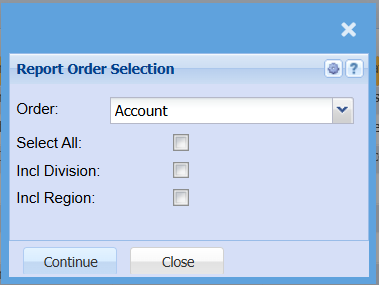
<table border="1" id="bkmrk-order-%C2%A0-select-all-i" style="border-collapse: collapse; width: 100%;"><colgroup><col style="width: 14.2593%;"></col><col style="width: 85.8643%;"></col></colgroup><tbody><tr><td>**Order**</td><td> </td></tr><tr><td>**Select All**</td><td>  
</td></tr><tr><td>**Incl Division**</td><td>  
</td></tr><tr><td>**Incl Region**</td><td>  
</td></tr></tbody></table>

---

##### Upload Cash Book

Select File you wish to upload then click upload

[![image.png](https://hugeerp10.co.za/hsofmanual/uploads/images/gallery/2024-06/scaled-1680-/B6Fimage.png)](https://hugeerp10.co.za/hsofmanual/uploads/images/gallery/2024-06/B6Fimage.png)

---

##### Import Cash Book

[![image.png](https://hugeerp10.co.za/hsofmanual/uploads/images/gallery/2024-06/scaled-1680-/akcimage.png)](https://hugeerp10.co.za/hsofmanual/uploads/images/gallery/2024-06/akcimage.png)

<table border="1" id="bkmrk-verify-%C2%A0-import-dele" style="border-collapse: collapse; width: 100%;"><colgroup><col style="width: 18.9507%;"></col><col style="width: 81.1729%;"></col></colgroup><tbody><tr><td>**Verify**</td><td> </td></tr><tr><td>**Import**</td><td>  
</td></tr><tr><td>**Delete**</td><td>  
</td></tr><tr><td>**View Verify Report**</td><td>  
</td></tr></tbody></table>

# Cashbook Receipt - Foreign Debtor

If you trade in multicurrency and have foreign debtors, these debtors will likely pay in the respective foreign currency.

Using multicurrency will typically imply that you may have debtors that are invoiced in the USD as an example

As such the debtor, when making payment will pay their account in USD. This receipt can be entered into a Foreign currency bank account or a ZAR bank account.

**Receipts into a ZAR bank account:**

Create a cashbook as normal for the local (ZAR) bank account the money was paid into

When entering the receipt, select the respective debtor

you will note the currency indicated will display USD

Enter the USD amount paid

[![image.png](https://hugeerp10.co.za/hsofmanual/uploads/images/gallery/2025-01/scaled-1680-/Q8Eimage.png)](https://hugeerp10.co.za/hsofmanual/uploads/images/gallery/2025-01/Q8Eimage.png)

Click Next

Enter the applicable exchange rate

note: The Rand equivalent value is populated

[![image.png](https://hugeerp10.co.za/hsofmanual/uploads/images/gallery/2025-01/scaled-1680-/pmcimage.png)](https://hugeerp10.co.za/hsofmanual/uploads/images/gallery/2025-01/pmcimage.png)

Proceed with the cashbook as normal

Save and Close

Process the cashbook

**Allocation of the receipt**

<span style="color: rgb(35, 111, 161);">**Allocation of receipts from foreign debtors must be done in both the foreign currency as well as Rand**</span>

go to: Activity&gt;Allocation

search the debtor as normal

Change the currency

Click search

[![image.png](https://hugeerp10.co.za/hsofmanual/uploads/images/gallery/2025-01/scaled-1680-/j3dimage.png)](https://hugeerp10.co.za/hsofmanual/uploads/images/gallery/2025-01/j3dimage.png)

note the values will be displayed in the foreign currency

The Invoice and receipt values will typically match. and you can allocate as normal

Change the currency to Rand and search

Note: the values may differ because the invoice would have been done at a different exchange rate to the receipt

[![image.png](https://hugeerp10.co.za/hsofmanual/uploads/images/gallery/2025-01/scaled-1680-/yWSimage.png)](https://hugeerp10.co.za/hsofmanual/uploads/images/gallery/2025-01/yWSimage.png)

You can allocate these entries and you will note an exchange gain / loss difference remaining on the allocations

[![image.png](https://hugeerp10.co.za/hsofmanual/uploads/images/gallery/2025-01/scaled-1680-/pe3image.png)](https://hugeerp10.co.za/hsofmanual/uploads/images/gallery/2025-01/pe3image.png)

This amount will need to be cleared with a Rand debtors journal on the debtor account

refer to Debtors gain / loss journal manual to create the journal

[Debtors Gain / Loss journal](https://hugeerp10.co.za/hsofmanual/books/bdm-activity/page/debtors-gains-loss-journal "Debtors Gains/ Loss Journal")
