# Sales Order Confirm Qty

<span class="ts0">Confirming your quantity on the sales order can be done in multiple ways.</span>

1. <span class="ts0">Receive quantity single check items</span>
2. <span class="ts0">Receive all quantity</span>
3. <span class="ts0">Barcode scan products to check the correct stock picked and quantity</span>
4. <span class="ts0">Import ScanSKU barcode scan order</span>

<span class="ts0">Once a sales order is under confirmed status</span>

<span class="ts0">Go to Debtors<span style="color: rgb(45, 194, 107);"> **Module&gt; Activity&gt; Sales Order Confirm**</span></span>

<span class="ts0"> To confirm quantity click start</span>

[![image.png](https://hugeerp10.co.za/hsofmanual/uploads/images/gallery/2024-08/scaled-1680-/K1timage.png)](https://hugeerp10.co.za/hsofmanual/uploads/images/gallery/2024-08/K1timage.png)

---

#### <span style="color: rgb(34, 34, 34);">Confirm Qty</span>  


<span class="ts0">Confirm qty allows you to confirm each stock item based on how much stock needs to be invoiced out or is available to be picked</span>

<span class="ts0">Click confirm qty</span>

<span class="ts0">The screen below will pop up</span>

<span class="ts0">Then confirm all quantities, click next if you do not wish to confirm qty </span>

<p class="callout info"><span class="ts0">If you add a number you wish to confirm and click next, the confirmed qty won't save</span></p>

<span class="ts0">Click qty add the quantity you want to confirm then save and new to confirm a new stock item </span>

[![image.png](https://hugeerp10.co.za/hsofmanual/uploads/images/gallery/2024-08/scaled-1680-/WAZimage.png)](https://hugeerp10.co.za/hsofmanual/uploads/images/gallery/2024-08/WAZimage.png)

##### Serial number confirm and import

File is a .csv file layout

First column is SerialNumber

[![image.png](https://hugeerp10.co.za/hsofmanual/uploads/images/gallery/2026-01/scaled-1680-/N6Rimage.png)](https://hugeerp10.co.za/hsofmanual/uploads/images/gallery/2026-01/N6Rimage.png)

---

#### <span style="color: rgb(34, 34, 34);">Confirm All</span>  


<span class="ts0">This is a quick button to confirm that all quantities on the sales order are fully received.</span>

<span class="ts0">Click[ here](https://hugeerp10.co.za/hsofmanual/books/bdm-activity/page/sales-order-unconfirm-quantity "Un-Confirm All") for a step-by-step manual on un-confirm All</span>

[![image.png](https://hugeerp10.co.za/hsofmanual/uploads/images/gallery/2024-08/scaled-1680-/I3Wimage.png)](https://hugeerp10.co.za/hsofmanual/uploads/images/gallery/2024-08/I3Wimage.png)

---

#### Un-Confirm All

Un-Confirm All allows you to clear all confirmed quantities on a sales order

[![image.png](https://hugeerp10.co.za/hsofmanual/uploads/images/gallery/2024-08/scaled-1680-/jREimage.png)](https://hugeerp10.co.za/hsofmanual/uploads/images/gallery/2024-08/jREimage.png)

---

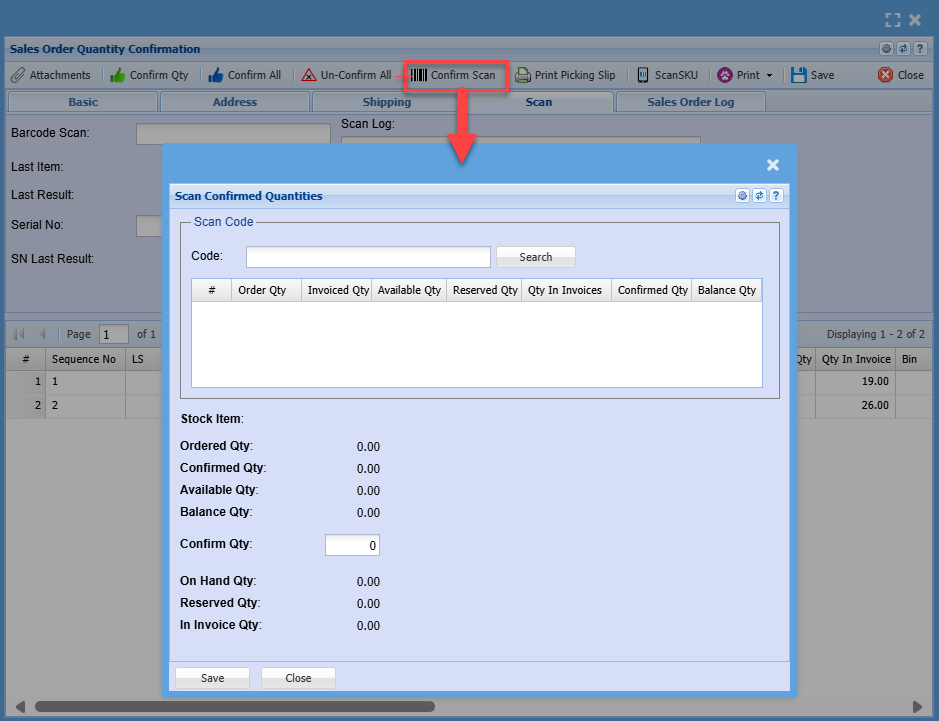
<span style="color: rgb(34, 34, 34); font-family: var(--font-heading, var(--font-body)); font-size: 1.4em; font-weight: 400;">Barcode Confirm Scan</span>

<span class="ts0">Using a barcode scanner, scan each item to confirm that it is the correct item with the correct picked stock item</span>

[![image.png](https://hugeerp10.co.za/hsofmanual/uploads/images/gallery/2024-08/scaled-1680-/bzoimage.png)](https://hugeerp10.co.za/hsofmanual/uploads/images/gallery/2024-08/bzoimage.png)

---