This option will only process the sales leg of the transaction ie debtors control, Sales account, and VAT entries. It will not process the cost of sales leg, since no stock is allocated and moved with this option.
This option processes no GL entries. All postings only occur when you finalize the proforma invoice. However, when you click proforma invoice process after capturing, the system will allocate an invoice number to the document. When you later process and finalize the Proforma invoice, all the postings will occur on that date. The stock movement will also take place on the finalized date. When you search the invoice on the grid, you will notice the status is preparation but it will indicate this is Proforma in redThe usual process button will be greyed out and the Proforma invoice process button will be active
[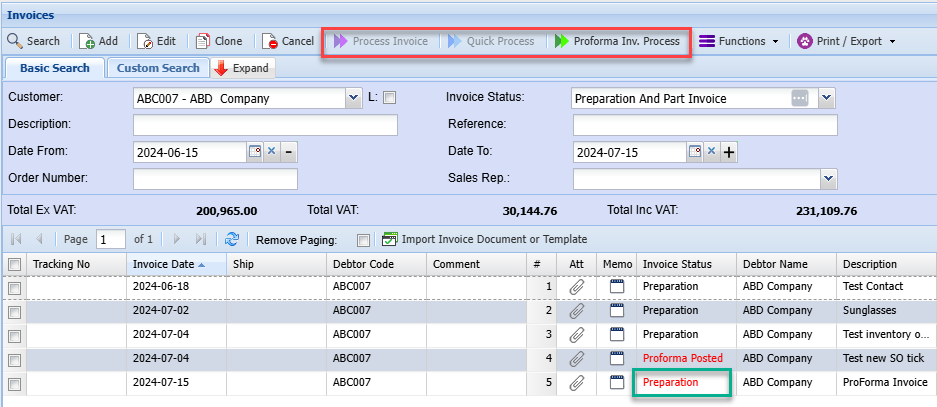](https://hugeerp10.co.za/hsofmanual/uploads/images/gallery/2024-07/iYOimage.png) .png) Once the Proforma invoice has been processed it will remain under Activity> Invoice status > Part Invoice. It will remain here until all stock is in, process the proforma invoice again to complete all stock movements and finalise proforma invoice. .png) You can run a stock verification report to check if you have enough stock to complete the proforma .png) Once the stock is available you can then process the rest of the proforma --- #### Cancel a Proforma Invoice Proforma invoices are official invoices. They cannot be cancelled but have to be fully completed by clicking on Proforma Invoice Process. If you cannot complete the proforma invoice process, it is because you don’t have enough stock on hand. You will have to put stock into the system by doing a stock level adjustment, then process the proforma invoice which will take out the stock. Then you will be able to do a credit note, then take stock out of the system by stock level adjustment again. Steps defined: 1. Add stock into the system via Stock Level Adjustment 2. Process the invoice via Proforma Invoice Process 3. Credit the invoice via a Credit note 4. Remove the stock out of the system via the Stock Level Adjustment .png)