# Basic: Add Quotation

#### <span class="ts15">Detail Tab</span>

<span style="color: rgb(45, 194, 107);">**<span class="ts15">Debtors Module&gt; Activity&gt; Quotation</span>**</span>

<span class="ts0">The quotes screen will open</span>

<span class="ts0">To search for existing quotations, select your search criteria and click search </span>

<span class="ts0">Search criteria can be quote description, order number, customer name, etc</span>

<span class="ts0">Select a date range</span>

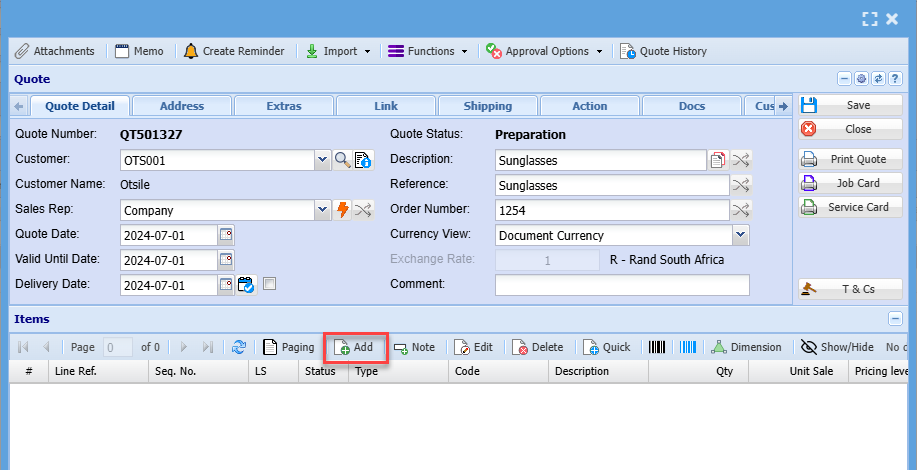
<span class="ts0">To create a new quotation, Click the </span>Add Button as shown below

[![image.png](https://hugeerp10.co.za/hsofmanual/uploads/images/gallery/2024-07/scaled-1680-/cc6image.png)](https://hugeerp10.co.za/hsofmanual/uploads/images/gallery/2024-07/cc6image.png)

<span class="ts0">This will display the New Quote screen</span>

[![image.png](https://hugeerp10.co.za/hsofmanual/uploads/images/gallery/2024-07/scaled-1680-/8hhimage.png)](https://hugeerp10.co.za/hsofmanual/uploads/images/gallery/2024-07/8hhimage.png)

<span class="ts0">Add information below so that the greyed-out buttons can be activated:</span>

- Select the customer/ debtor you are creating a quotation for, from the drop-down menu.
- Select the sales rep on the drop-down selection, if applicable
- Update dates if necessary
- Add description and reference
- Add order number, if applicable

Then, once you are done adding all relevant information click Save and all the greyed-out buttons will be active as shown below:

[![image.png](https://hugeerp10.co.za/hsofmanual/uploads/images/gallery/2024-11/scaled-1680-/4gCimage.png)](https://hugeerp10.co.za/hsofmanual/uploads/images/gallery/2024-11/4gCimage.png)

##### Address Tab

Click the Address Tab to check if address details are correct

You can edit the address if necessary

Note: if details are edited on the quote, this will only apply to the specific quote and not update the debtor setup unless the debtor setup is access and updated as well.

[![image.png](https://hugeerp10.co.za/hsofmanual/uploads/images/gallery/2024-11/scaled-1680-/1zyimage.png)](https://hugeerp10.co.za/hsofmanual/uploads/images/gallery/2024-11/1zyimage.png)

On the address tab you can also select the respective contact person and check if their details, such as contact number and email address are correct

[![image.png](https://hugeerp10.co.za/hsofmanual/uploads/images/gallery/2024-11/scaled-1680-/P2oimage.png)](https://hugeerp10.co.za/hsofmanual/uploads/images/gallery/2024-11/P2oimage.png)

Once all the necessary quote header details have been loaded click the Save button.

This will activate the Add button in the centre of the page

This Add button allows the user to add line items to be added to the quote

#### Line Items

<p class="callout info">You can only add a line item after adding all the necessary information needed on the quote detail tab and all greyed buttons have been greyed out</p>

[![image.png](https://hugeerp10.co.za/hsofmanual/uploads/images/gallery/2024-07/scaled-1680-/2WTimage.png)](https://hugeerp10.co.za/hsofmanual/uploads/images/gallery/2024-07/2WTimage.png)

Then the screen below will appear

[![image.png](https://hugeerp10.co.za/hsofmanual/uploads/images/gallery/2024-12/scaled-1680-/T2Mimage.png)](https://hugeerp10.co.za/hsofmanual/uploads/images/gallery/2024-12/T2Mimage.png)

Select the item you want to quote on the drop-down selection by typing part of the item code or description.

Once the options appear, click on the relevant item option

Enter the quantity you are quoting the customer/ debtor on

Make sure pricing is correct

Select a relevant warehouse if you have multiple warehouses

Select the correct VAT Type

Click Save &amp; New if capturing numerous line items

Click Save &amp; Close if capturing a single line item

Once done

All line items will appear on the grid below:

[![image.png](https://hugeerp10.co.za/hsofmanual/uploads/images/gallery/2024-07/scaled-1680-/tE7image.png)](https://hugeerp10.co.za/hsofmanual/uploads/images/gallery/2024-07/tE7image.png)
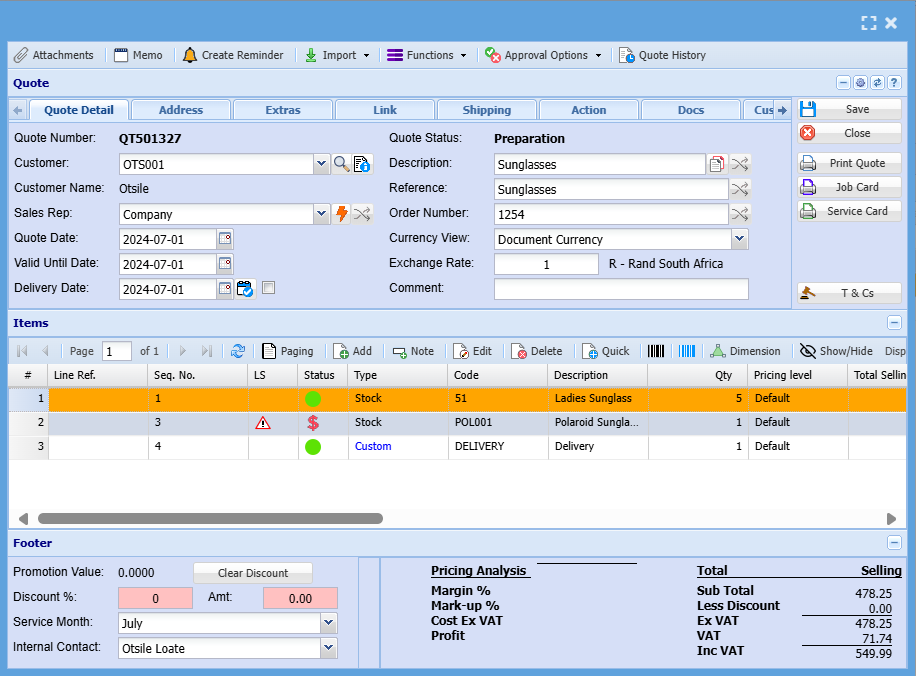
<table border="1" id="bkmrk-paging-if-you-have-m" style="border-collapse: collapse; width: 100%; height: 153.984px;"><colgroup><col style="width: 16.9285%;"></col><col style="width: 83.0715%;"></col></colgroup><tbody><tr style="height: 34.7969px;"><td style="height: 34.7969px;">Paging</td><td style="height: 34.7969px;">If you have more than the default 100 lines on the quote, paging removes multiple pages and displays all items in a single page on the grid.</td></tr><tr style="height: 29.7969px;"><td style="height: 29.7969px;">Add</td><td style="height: 29.7969px;">Enables user to add another item line to the quote</td></tr><tr style="height: 29.7969px;"><td style="height: 29.7969px;">Note</td><td style="height: 29.7969px;">Allows the user to add a note as an item line on the quote. this will, be printed on the quote.</td></tr><tr style="height: 29.7969px;"><td style="height: 29.7969px;">Edit</td><td style="height: 29.7969px;">Enables the user to edit an item line added to the quote</td></tr><tr style="height: 29.7969px;"><td style="height: 29.7969px;">Delete</td><td style="height: 29.7969px;">Deletes and removes a selected item line from the quote</td></tr><tr><td>Quick</td><td>Enables the user to select items to be added to the quote quickly without entering item code or descriptions, but by using the Brand make model search options</td></tr></tbody></table>

---

#### Note Button

[![image.png](https://hugeerp10.co.za/hsofmanual/uploads/images/gallery/2024-10/scaled-1680-/8fQimage.png)](https://hugeerp10.co.za/hsofmanual/uploads/images/gallery/2024-10/8fQimage.png)

[![image.png](https://hugeerp10.co.za/hsofmanual/uploads/images/gallery/2024-10/scaled-1680-/88Gimage.png)](https://hugeerp10.co.za/hsofmanual/uploads/images/gallery/2024-10/88Gimage.png)

Type a note that you wish to display on the quote

Once all items have been captured, you can then click Save

Close

Send the quote for Internal approval if necessary. Alternatively, click print

The quote will print to screen. check all r=details and if satisfied, you can then email the client or print a hard copy of the quote

---

#### Attachments

Should you wish to attach any additional information such as drawings, specifications, workings, you can attach the document to the quote

Click the Attachment Button

Either drag and drop from a folder on your computer

or search the file and upload

[![image.png](https://hugeerp10.co.za/hsofmanual/uploads/images/gallery/2024-11/scaled-1680-/4vuimage.png)](https://hugeerp10.co.za/hsofmanual/uploads/images/gallery/2024-11/4vuimage.png)

[![image.png](https://hugeerp10.co.za/hsofmanual/uploads/images/gallery/2024-11/scaled-1680-/7FAimage.png)](https://hugeerp10.co.za/hsofmanual/uploads/images/gallery/2024-11/7FAimage.png)

[![image.png](https://hugeerp10.co.za/hsofmanual/uploads/images/gallery/2024-11/scaled-1680-/7lGimage.png)](https://hugeerp10.co.za/hsofmanual/uploads/images/gallery/2024-11/7lGimage.png)

---

#### Keyboard quick keys for Quote Detail

Quick keys help access functions using the keyboard

Used with Alt + Letter

[![image.png](https://hugeerp10.co.za/hsofmanual/uploads/images/gallery/2024-12/scaled-1680-/pBLimage.png)](https://hugeerp10.co.za/hsofmanual/uploads/images/gallery/2024-12/pBLimage.png)

<table border="1" id="bkmrk-search-alt-%2B-s-searc"><colgroup><col></col><col></col><col></col></colgroup><tbody><tr><td>Attachmen**t**</td><td>Alt + t</td><td>Opens the Attachment window</td></tr><tr><td>**M**emo</td><td>Alt + m</td><td>Opens the Memo window</td></tr><tr><td>Create **R**eminder</td><td>Alt + r</td><td>Opens the Reminder window</td></tr><tr><td>Qu**o**te History</td><td>Alt + o</td><td>Opens the Quote History window</td></tr><tr><td>**I**nfo</td><td>Alt + i</td><td>Opens the Quote Info window</td></tr><tr><td>**F**unctions</td><td>Alt + f</td><td>Focus on the Function split button</td></tr><tr><td>**S**ave</td><td>Alt + s</td><td>Saves the quote</td></tr><tr><td>**C**lose</td><td>Alt + c</td><td>Closes the quote window</td></tr><tr><td>**P**rint Quote</td><td>Alt + p</td><td>Print the quote

</td></tr><tr><td>**J**ob Card</td><td>Alt + j</td><td>Pring the Job Card for the quote

</td></tr><tr><td>Ser**v**ice Card</td><td>Alt + v</td><td>Print the Service Card for the quote

</td></tr><tr><td>**A**dd  
</td><td>Alt + a</td><td>Opens a New Quote Line Detail window

</td></tr><tr><td>**E**dit</td><td>Alt + e</td><td>Opens the Quote Line Detail window for the selected quote line

</td></tr><tr><td>**D**elete</td><td>Alt + d</td><td>Deletes the selected line from the quote

</td></tr><tr><td>**Q**uick Add</td><td>Alt + q</td><td>Opens the quick add window to add a quote line to the quote

</td></tr><tr><td>Dimensio**n**</td><td>Alt + n</td><td>Opens the Dimensions wind for the selected quote line

</td></tr><tr><td>Tab Quote Detail</td><td>Alt + 1</td><td>Sets the tab notebook to the Quote Detail tab</td></tr><tr><td>  
</td><td>Alt + 2</td><td>Pressing Alt + 2 repeatedly will step through the various tabs in the tabnotebook</td></tr></tbody></table>

#### Keyboard quick keys for Quote Line Item Detail

Quick keys help access functions using the keyboard

Used with Alt + Letter

[![image.png](https://hugeerp10.co.za/hsofmanual/uploads/images/gallery/2024-12/scaled-1680-/bOZimage.png)](https://hugeerp10.co.za/hsofmanual/uploads/images/gallery/2024-12/bOZimage.png)

[![image.png](https://hugeerp10.co.za/hsofmanual/uploads/images/gallery/2024-12/scaled-1680-/cZjimage.png)](https://hugeerp10.co.za/hsofmanual/uploads/images/gallery/2024-12/cZjimage.png)

<table border="1" id="bkmrk-inventory%C2%A0overview-a" style="width: 102.143%;"><colgroup><col style="width: 19.0658%;"></col><col style="width: 10.4862%;"></col><col style="width: 70.4242%;"></col></colgroup><tbody><tr><td>Inventory **O**verview</td><td>Alt + t</td><td>Opens the Inventory Overview window</td></tr><tr><td>View **I**mage</td><td>Alt + i</td><td>Opens the View Image window</td></tr><tr><td>**S**pecial Item</td><td>Alt + s</td><td>Opens the Special Item window</td></tr><tr><td>**C**lose</td><td>Alt + c</td><td>Closes the quote window</td></tr><tr><td>**R**eminder</td><td>Alt + r</td><td>Opens the Reminder window</td></tr><tr><td>**F**unctions</td><td>Alt + f</td><td>Focus on the Function split button</td></tr><tr><td>Save &amp; **N**ew</td><td>Alt + n</td><td>Saves the Quote Item Detail window and opens a new Quote Item window

</td></tr><tr><td>Sa**v**e &amp; Close</td><td>Alt + v</td><td>Saves the Quote Item Detail window and then closes the window

</td></tr><tr><td>**U**pdate Cost  
</td><td>Alt + u</td><td>Updates the cost of the selected item to the latest cost price

</td></tr><tr><td>Tab Quote Item Detail</td><td>Alt + 1</td><td>Sets the tab notebook to the Quote Item Detail tab</td></tr><tr><td>  
</td><td>Alt + 2</td><td>Pressing Alt + 2 repeatedly will step through the various tabs in the tab notebook</td></tr></tbody></table>