# Advanced Add Sales Order

Adding a new Sales order

Click on Add button to add a new sales order

![](https://hugeerp0.co.za/csp/webhelp/topics/images/image(3838).png)

Sales order window

![](https://hugeerp0.co.za/csp/webhelp/topics/images/image(403).png)

### Sales Order

<span class="ts0">Choose The Debtor by entering a customer Code</span>

<span class="ts0">Detail Tab</span>

![](https://hugeerp0.co.za/csp/webhelp/topics/images/image(3839).png)

<table border="1" id="bkmrk-short-details-short-"><colgroup><col></col><col></col></colgroup><tbody><tr><td>**<span class="ts0">Short Details</span>**</td><td><span class="ts0">Short Details Of the sales Order Item</span></td></tr><tr><td>**<span class="ts0">Reference</span>**</td><td><span class="ts0">Give it A Reference</span></td></tr><tr><td>**<span class="ts0">Order Number</span>**</td><td><span class="ts0">Enter an Order Number</span></td></tr><tr><td>**<span class="ts0">Sales Rep</span>**</td><td><span class="ts0">Select a Sales Rep</span></td></tr></tbody></table>

---

Address Tab

![](https://hugeerp0.co.za/csp/webhelp/topics/images/image(3840).png)

---

<span class="ts11">Extras</span><span class="ts11"> Tab</span>

<span class="ts0"> </span>![](https://hugeerp0.co.za/csp/webhelp/topics/images/image(405).png)

<table border="1" id="bkmrk-details-add-extra-de"><colgroup><col></col><col></col></colgroup><tbody><tr><td>**<span class="ts0">Details</span>**</td><td><span class="ts0">Add Extra Details Regarding this Sales Order</span></td></tr><tr><td>**<span class="ts0">TrackIt Item</span>**</td><td><span class="ts0">Link </span><span class="ts0">a trackit item to this sales Order</span></td></tr><tr><td>**<span class="ts0">Job </span><span class="ts0">Number</span>**</td><td><span class="ts0">Add t</span><span class="ts0">his sales Order to A job</span></td></tr><tr><td>**<span class="ts0">Print Custom fields</span>**</td><td><span class="ts0">Add a Tick If you want the Custom Field to reflect when printing The Sales Order</span></td></tr></tbody></table>

---

### <span class="ts11">Sales Order Lines</span>

<span class="ts0">Details tab</span>

![](https://hugeerp0.co.za/csp/webhelp/topics/images/image(2125).png)

<span class="ts0">Category select the category from the drop down arrow</span>

<span class="ts0">Item Code to select an item code by hitting enter or using the”? “Long search button</span>

<table border="1" id="bkmrk-item-description-com"><colgroup><col></col><col></col></colgroup><tbody><tr><td><span class="ts0">Item Description</span></td><td><span class="ts0">comes up when the code is selected but can be edited</span></td></tr><tr><td><span class="ts0">Order quantity</span></td><td><span class="ts0">quantity of Items Needed</span></td></tr></tbody></table>

<span class="ts0">Reserve Quantity this is the allocated quantity Company:</span>

<span class="ts0">Selling Including Vat</span>

<span class="ts0">If the Selling price including vat is not ticked</span>

<span class="ts0">The Selling Including Vat will Be Greyed Out Company:</span>

---

#### <span class="ts0">Authorise</span><span class="ts2"> Sales Order</span>

<span class="ts0">Changes The sales order Status to Authorized</span>

<span class="ts0"> </span>![](https://hugeerp0.co.za/csp/webhelp/topics/images/image(557).png)

#### <span class="ts2">Unauthorize Sales Order</span>

<span class="ts0">Reverts the Authorized Sales order back to preparation Stage</span>

<span class="ts0"> </span>![](https://hugeerp0.co.za/csp/webhelp/topics/images/image(559).png)

---

#### <span class="ts0">Change Warehouse</span>

<span class="ts0">The change warehouse allows the user to change the warehouse selected on the items </span><span class="ts0">lines to another warehouse that has the stock available</span><span class="ts0">.</span><span class="ts2"> </span>

<span class="ts0"> </span>![](https://hugeerp0.co.za/csp/webhelp/topics/images/image(556).png)

---

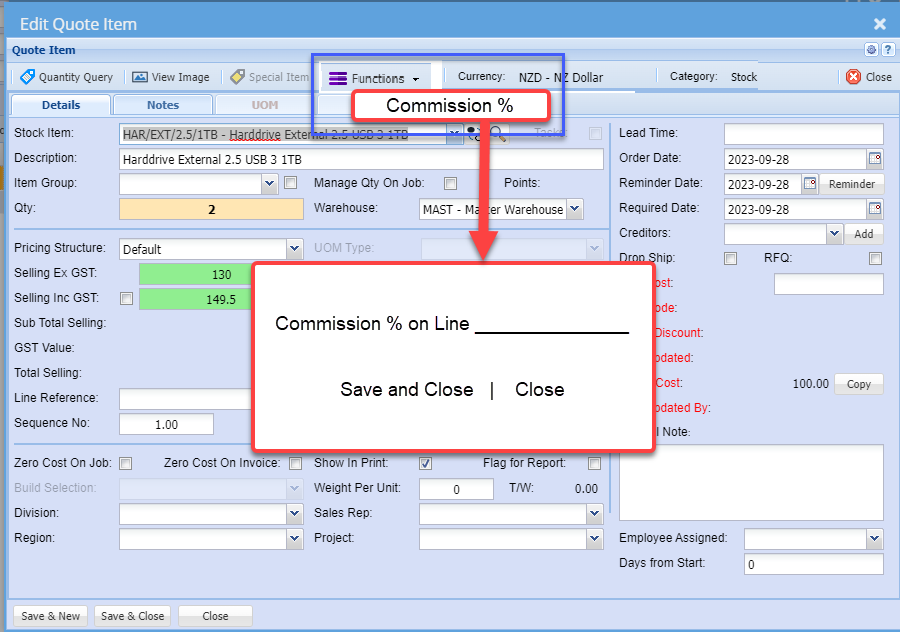
#### Commission line item percentage update

Commission line item percentage will be updated to documents at the time it adds the line.

There is a new field on each document line to handle the line percentage.

All documents to contain this line percentage

1. Quote
2. Sales Order
3. Invoice
4. Credit Note

When promoting the document, the original percentage will be copied between the documents.

When the Sales order is promoted from Sales order to commercial invoice, the percentage will be worked out on the percentage saved on the line.

<p class="callout info">If the commission line is blank, then the commission % will be gotten from the item line</p>

[![image.png](https://hugeerp10.co.za/hsofmanual/uploads/images/gallery/2023-10/scaled-1680-/t48image.png)](https://hugeerp10.co.za/hsofmanual/uploads/images/gallery/2023-10/t48image.png)

---

#### <span class="ts0">Import sales order items</span>

<span class="ts15">Debtors&gt;Activity&gt; </span><span class="ts15">S</span><span class="ts15">ales Order&gt; Import Items</span>

<span class="ts0">I</span><span class="ts0">mporting items in the system is the quickest way to bring in large data at once </span><span class="ts0">and this can be done for a sales order items</span>

1. <span class="ts0">Click on Import items</span>
2. Select your file to upload
3. Import
4. and close.

### <span class="ts15"> </span><span class="ts15"> </span>![](https://hugeerp0.co.za/csp/webhelp/topics/images/image(573).png)

<span class="ts0">The file to be imported must be in a CSV format.</span>

<span class="ts0">Click on the Select Files… button to open the navigate window allowing the user to navigate to the file to be imported.</span>

<span class="ts0">Once the desired file has been located either double click on the file or click the Open button.</span>

<span class="ts0">Now click on the Upload button. If the upload was successful a window will appear confirming that the upload was successful. Click Ok.</span>

<span class="ts0">The Import button now becomes enabled allowing the user to click on the Import button to import the file.</span>

<span class="ts0">An Import Report will open displaying any errors in the import or displaying the successful sales order items import.</span>

<p class="callout info"><span class="ts11">Please </span>Note: <span class="ts0">All successful records will be imported, and errors will be skipped. </span><span class="ts0">The column headings can be left in the import file providing that the heading is as per the sample below.</span></p>

<span class="ts0">Confirmation Type</span>

<span class="ts0">The 3 types to be used are:</span>

<table border="1" id="bkmrk-confirmation-invoice"><colgroup><col></col></colgroup><tbody><tr><td><span class="ts0">Confirmation</span></td></tr><tr><td><span class="ts0">Invoice</span></td></tr><tr><td><span class="ts0">Invoice &amp; Process</span></td></tr></tbody></table>

<span class="ts0">Import File Layout</span>

<div class="block0" id="bkmrk-no.-heading-value-1-"><table class="tbl4"><tbody><tr class="row1"><td class="cell22"><span class="ts0">No.</span>

</td><td class="cell15"><span class="ts0">Heading</span>

</td><td class="cell23"><span class="ts48">Value</span>

</td></tr><tr class="row1"><td class="cell22"><span class="ts0">1</span>

</td><td class="cell15"><span class="ts0">ItemCode</span>

</td><td class="cell23"><span class="ts48">PEN001</span>

</td></tr><tr class="row1"><td class="cell22"><span class="ts0">2</span>

</td><td class="cell15"><span class="ts0">Description</span>

</td><td class="cell23"><span class="ts48">Red Pen</span>

</td></tr><tr class="row1"><td class="cell22"><span class="ts0">3</span>

</td><td class="cell15"><span class="ts0">OrderQTY</span>

</td><td class="cell23"><span class="ts48">2</span>

</td></tr><tr class="row1"><td class="cell24"><span class="ts0">4</span>

</td><td class="cell25"><span class="ts0">ReserveQty</span>

</td><td class="cell26"><span class="ts48">0</span>

</td></tr><tr class="row1"><td class="cell22"><span class="ts0">5</span>

</td><td class="cell15"><span class="ts0">ConfirmationType</span>

</td><td class="cell23"><span class="ts48">Confirmation</span>

</td></tr><tr class="row1"><td class="cell22"><span class="ts0">6</span>

</td><td class="cell15"><span class="ts0">SellingExVAT</span>

</td><td class="cell23"><span class="ts48">100</span>

</td></tr><tr class="row1"><td class="cell22"><span class="ts0">7</span>

</td><td class="cell15"><span class="ts0">CostExVAT</span>

</td><td class="cell23"><span class="ts0">75</span>

</td></tr><tr class="row1"><td class="cell24"><span class="ts0">8</span>

</td><td class="cell25"><span class="ts0">Warehouse</span>

</td><td class="cell26"><span class="ts48">Master</span>

</td></tr><tr class="row1"><td class="cell22"><span class="ts0">9</span>

</td><td class="cell15"><span class="ts0">LineDiscount</span>

</td><td class="cell23"><span class="ts0"> </span>

</td></tr><tr class="row1"><td class="cell22"><span class="ts0">10</span>

</td><td class="cell15"><span class="ts0">LineRef</span>

</td><td class="cell23"><span class="ts0"> </span>

</td></tr><tr class="row1"><td class="cell22"><span class="ts0">11</span>

</td><td class="cell15"><span class="ts0">Notes</span>

</td><td class="cell23"><span class="ts0"> </span>

</td></tr><tr class="row1"><td class="cell22"><span class="ts0">12</span>

</td><td class="cell15"><span class="ts0">ItemGroup</span>

</td><td class="cell23"><span class="ts0"> </span>

</td></tr><tr class="row1"><td class="cell22"><span class="ts0">13</span>

</td><td class="cell15"><span class="ts0">Points</span>

</td><td class="cell23"><span class="ts0">15</span>

</td></tr></tbody></table>

</div><span class="ts0"> </span>

---

### <span class="ts0">Buttons Defined</span>


#### <span class="ts0">Create Stock Request</span>

**<span class="ts15">Debtors&gt;Activity&gt;</span><span class="ts15"> Edit </span>**<span class="ts15">**Sales Orde**r</span><span class="ts0"> </span>

![](https://hugeerp0.co.za/csp/webhelp/topics/images/image(555).png)

<span class="ts0"> </span><span class="ts0">Storeman &gt; Select your name from the Drop down List</span>

<span class="ts0">Add date required by</span>

<span class="ts0">And Click Continue</span>

<span class="ts0">The three options in the dropdown,</span>

<span class="ts0">Request for Purchase Order</span>

<span class="ts0">Request for Quote</span>

<span class="ts0">Request Create Job Picking Slip</span>

<span class="ts0">are simply a suggestion from the Stock Request originator to the recipient of what action must be taken when processing the Stock Request.</span>

<div aria-label="Page Section Options" class="pointer-container" id="bkmrk-%C2%A0-13" refs="pointer@pointer" tabindex="-1"><div class="pointer flex-container-row items-center justify-space-between p-s anim is-page-editable"><div class="flex-container-row items-center gap-s" refs="pointer@mode-section"><button class="text-button icon px-xs" title="Permalink mode, Press to show include tag"><svg class="svg-icon" data-icon="link" role="presentation" viewbox="0 0 24 24" xmlns="http://www.w3.org/2000/svg"></svg></button><div class="input-group"> <button class="button outline icon" title="Copy Link" type="button"><svg class="svg-icon" data-icon="copy" role="presentation" viewbox="0 0 24 24" xmlns="http://www.w3.org/2000/svg"></svg></button></div></div><svg class="svg-icon" data-icon="edit" role="presentation" viewbox="0 0 24 24" xmlns="http://www.w3.org/2000/svg"></svg></div></div>