# Add Credit Note

<span class="ts15">To create a new credit note or search for an existing one go to</span>

<span style="color: rgb(45, 194, 107);">**<span class="ts15">Debtors Module&gt; Activity&gt; Credit Note</span>**</span>

<span class="ts0">The credit note screen will open</span>

<span class="ts0">To search for existing credit notes, select your search criteria and click search </span>

<span class="ts0">Search criteria can be customer/ debtor name credit note description or reference, etc</span>

<span class="ts0">Select a date range</span>

<span class="ts0">Then click search</span>

<span class="ts0">To create a new Credit Note, Click the </span>Add Button as shown below

[![image.png](https://hugeerp10.co.za/hsofmanual/uploads/images/gallery/2024-07/scaled-1680-/kECimage.png)](https://hugeerp10.co.za/hsofmanual/uploads/images/gallery/2024-07/kECimage.png)

<span class="ts0">After clicking Add, </span>

<span class="ts0">This new credit note screen will display</span>

[![image.png](https://hugeerp10.co.za/hsofmanual/uploads/images/gallery/2024-07/scaled-1680-/9PRimage.png)](https://hugeerp10.co.za/hsofmanual/uploads/images/gallery/2024-07/9PRimage.png)

<span class="ts0">Add information below so that the greyed-out buttons can appear:</span>

- Select the customer/ debtor from the drop-down menu to create a credit note
- Select the sales rep on the drop-down selection, if applicable
- Update dates if necessary
- Add description and reference
- Add order number, if applicable
- Select the credit note reason from the drop down

Then, once you are done adding all relevant information click Save and all the greyed-out buttons will be opened as shown below:

[![image.png](https://hugeerp10.co.za/hsofmanual/uploads/images/gallery/2024-07/scaled-1680-/srsimage.png)](https://hugeerp10.co.za/hsofmanual/uploads/images/gallery/2024-07/srsimage.png)

---

#### Line Items

<p class="callout info">You can only add line items after adding all the necessary information needed on the credit note details tab and all greyed buttons have been greyed out</p>

To add line items click on the middle Add Button shown below

[![image.png](https://hugeerp10.co.za/hsofmanual/uploads/images/gallery/2024-07/scaled-1680-/Fkximage.png)](https://hugeerp10.co.za/hsofmanual/uploads/images/gallery/2024-07/Fkximage.png)
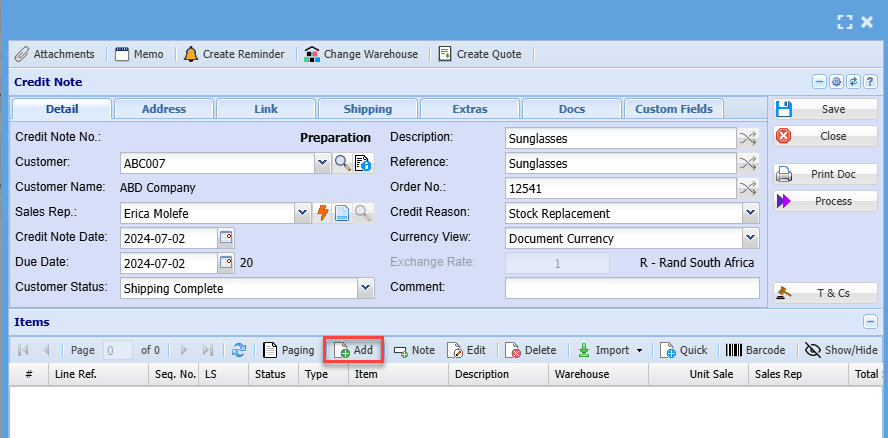
After clicking the middle add button the screen below will appear

[![image.png](https://hugeerp10.co.za/hsofmanual/uploads/images/gallery/2024-07/scaled-1680-/eSjimage.png)](https://hugeerp10.co.za/hsofmanual/uploads/images/gallery/2024-07/eSjimage.png)

Select the item you wish to credit on the drop-down selection

You can also search for the item by using part of the code or the name of the item you wish to credit the customer on

You can change the description to match what you want to see on the credit note or leave it as it is

Enter the quantity you are crediting the customer/ debtor on

Make sure pricing is correct

Select a relevant warehouse if you have multiple warehouses

Select the correct VAT Type

Click Save &amp; Close if capturing numerous line items

Click Save &amp; Close if capturing a single line item

Once done

All line items will appear on the grid below:

[![image.png](https://hugeerp10.co.za/hsofmanual/uploads/images/gallery/2024-07/scaled-1680-/ineimage.png)](https://hugeerp10.co.za/hsofmanual/uploads/images/gallery/2024-07/ineimage.png)
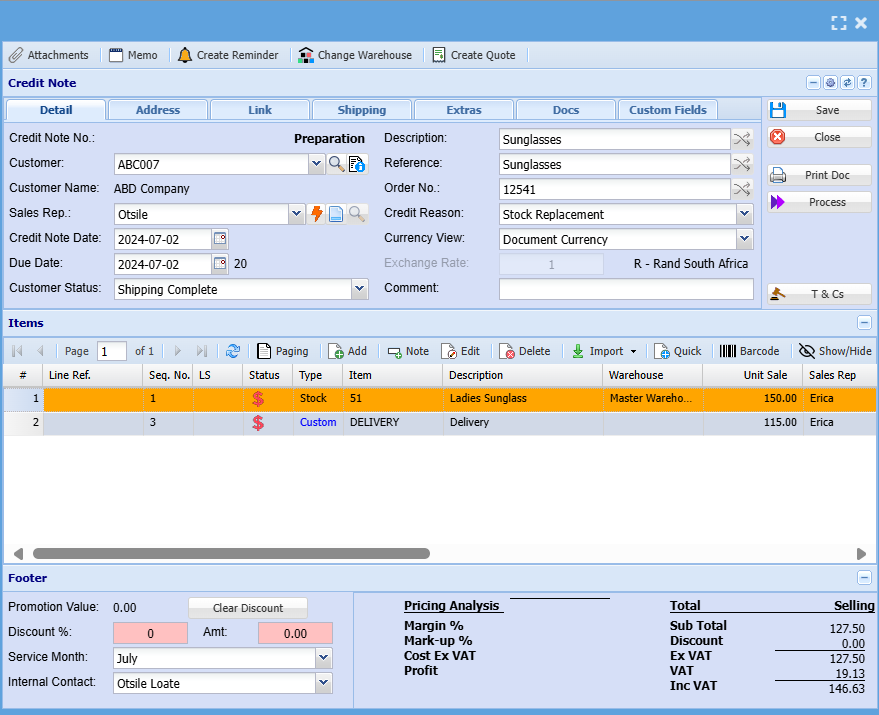
You can then process the credit note and send it to a customer/ debtor

---

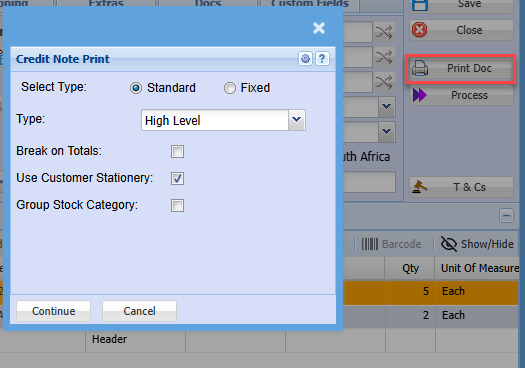
#### Print Doc

[![image.png](https://hugeerp10.co.za/hsofmanual/uploads/images/gallery/2024-10/scaled-1680-/wk1image.png)](https://hugeerp10.co.za/hsofmanual/uploads/images/gallery/2024-10/wk1image.png)
---

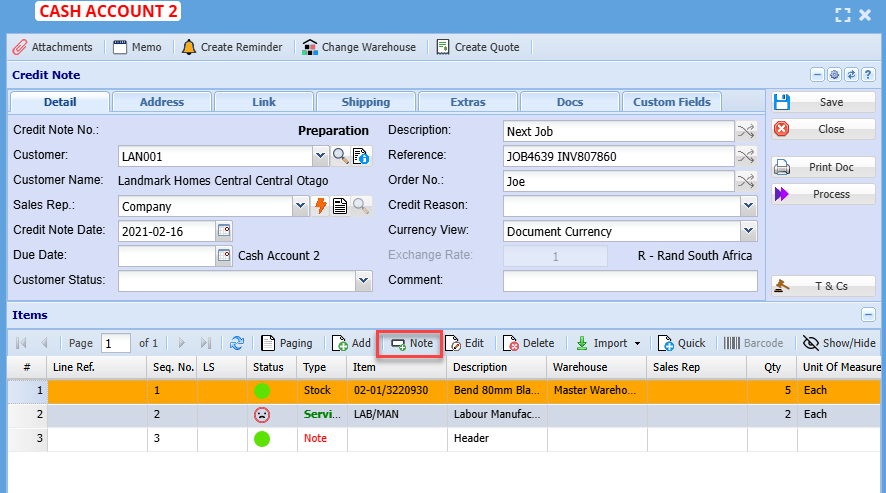
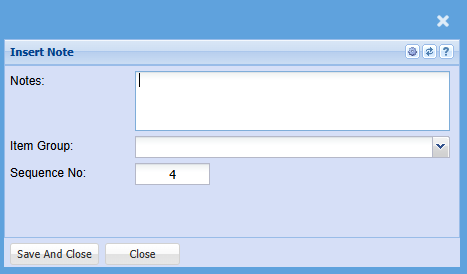
#### Note

[![image.png](https://hugeerp10.co.za/hsofmanual/uploads/images/gallery/2024-10/scaled-1680-/6Izimage.png)](https://hugeerp10.co.za/hsofmanual/uploads/images/gallery/2024-10/6Izimage.png)
[![image.png](https://hugeerp10.co.za/hsofmanual/uploads/images/gallery/2024-10/scaled-1680-/zGuimage.png)](https://hugeerp10.co.za/hsofmanual/uploads/images/gallery/2024-10/zGuimage.png)
---

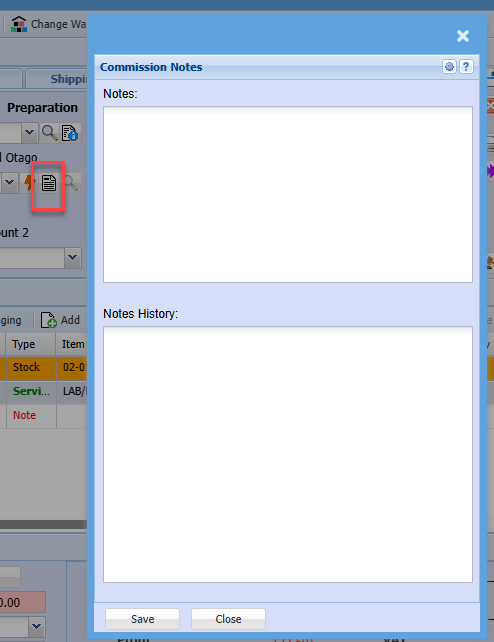
#### Commission Notes

[![image.png](https://hugeerp10.co.za/hsofmanual/uploads/images/gallery/2024-10/scaled-1680-/d0himage.png)](https://hugeerp10.co.za/hsofmanual/uploads/images/gallery/2024-10/d0himage.png)