# Sales Order Confirm

Sales order confirm (Warehouse Dispatch)

# Sales Order functions

Multiple functions for Sales Order Confirm

#### Picking started

When picking is started on a sales order, the Add, Edit and Delete buttons are disabled.

One can only add or edit items when not picking

[![image.png](https://hugeerp10.co.za/hsofmanual/uploads/images/gallery/2024-04/scaled-1680-/Ovwimage.png)](https://hugeerp10.co.za/hsofmanual/uploads/images/gallery/2024-04/Ovwimage.png)

---

#### Sales Order code disabled

Sales order editing a line will disable changing the item if

1. The line item has confirmed the quantity
2. The line item has invoiced quantity

[![image.png](https://hugeerp10.co.za/hsofmanual/uploads/images/gallery/2024-04/scaled-1680-/AQwimage.png)](https://hugeerp10.co.za/hsofmanual/uploads/images/gallery/2024-04/AQwimage.png)

Lines items disabled on confirmed and invoiced quantities

[![image.png](https://hugeerp10.co.za/hsofmanual/uploads/images/gallery/2024-04/scaled-1680-/LIlimage.png)](https://hugeerp10.co.za/hsofmanual/uploads/images/gallery/2024-04/LIlimage.png)

---

#### Unlocking a Sales Order in Started picking state

When a sales order is has a blue lock, it means that it is in the process of been picked and is locked by the user picking.

To unlock the sales order, unlock

[![image.png](https://hugeerp10.co.za/hsofmanual/uploads/images/gallery/2024-04/scaled-1680-/8fJimage.png)](https://hugeerp10.co.za/hsofmanual/uploads/images/gallery/2024-04/8fJimage.png)

---

##### Debtor Info

[![image.png](https://hugeerp10.co.za/hsofmanual/uploads/images/gallery/2024-10/scaled-1680-/2lTimage.png)](https://hugeerp10.co.za/hsofmanual/uploads/images/gallery/2024-10/2lTimage.png)

[![image.png](https://hugeerp10.co.za/hsofmanual/uploads/images/gallery/2024-10/scaled-1680-/GDYimage.png)](https://hugeerp10.co.za/hsofmanual/uploads/images/gallery/2024-10/GDYimage.png)

---

#### Actions

[![image.png](https://hugeerp10.co.za/hsofmanual/uploads/images/gallery/2024-10/scaled-1680-/x6dimage.png)](https://hugeerp10.co.za/hsofmanual/uploads/images/gallery/2024-10/x6dimage.png)

##### Unlock Picking Order

[![image.png](https://hugeerp10.co.za/hsofmanual/uploads/images/gallery/2024-10/scaled-1680-/NjRimage.png)](https://hugeerp10.co.za/hsofmanual/uploads/images/gallery/2024-10/NjRimage.png)

---

#### Print Picking Slip

[![image.png](https://hugeerp10.co.za/hsofmanual/uploads/images/gallery/2024-10/scaled-1680-/O9Zimage.png)](https://hugeerp10.co.za/hsofmanual/uploads/images/gallery/2024-10/O9Zimage.png)

# Sales Order Confirm Qty

<span class="ts0">Confirming your quantity on the sales order can be done in multiple ways.</span>

1. <span class="ts0">Receive quantity single check items</span>
2. <span class="ts0">Receive all quantity</span>
3. <span class="ts0">Barcode scan products to check the correct stock picked and quantity</span>
4. <span class="ts0">Import ScanSKU barcode scan order</span>

<span class="ts0">Once a sales order is under confirmed status</span>

<span class="ts0">Go to Debtors<span style="color: rgb(45, 194, 107);"> **Module&gt; Activity&gt; Sales Order Confirm**</span></span>

<span class="ts0"> To confirm quantity click start</span>

[![image.png](https://hugeerp10.co.za/hsofmanual/uploads/images/gallery/2024-08/scaled-1680-/K1timage.png)](https://hugeerp10.co.za/hsofmanual/uploads/images/gallery/2024-08/K1timage.png)

---

#### <span style="color: rgb(34, 34, 34);">Confirm Qty</span>  


<span class="ts0">Confirm qty allows you to confirm each stock item based on how much stock needs to be invoiced out or is available to be picked</span>

<span class="ts0">Click confirm qty</span>

<span class="ts0">The screen below will pop up</span>

<span class="ts0">Then confirm all quantities, click next if you do not wish to confirm qty </span>

<p class="callout info"><span class="ts0">If you add a number you wish to confirm and click next, the confirmed qty won't save</span></p>

<span class="ts0">Click qty add the quantity you want to confirm then save and new to confirm a new stock item </span>

[![image.png](https://hugeerp10.co.za/hsofmanual/uploads/images/gallery/2024-08/scaled-1680-/WAZimage.png)](https://hugeerp10.co.za/hsofmanual/uploads/images/gallery/2024-08/WAZimage.png)

##### Serial number confirm and import

File is a .csv file layout

First column is SerialNumber

[![image.png](https://hugeerp10.co.za/hsofmanual/uploads/images/gallery/2026-01/scaled-1680-/N6Rimage.png)](https://hugeerp10.co.za/hsofmanual/uploads/images/gallery/2026-01/N6Rimage.png)

---

#### <span style="color: rgb(34, 34, 34);">Confirm All</span>  


<span class="ts0">This is a quick button to confirm that all quantities on the sales order are fully received.</span>

<span class="ts0">Click[ here](https://hugeerp10.co.za/hsofmanual/books/bdm-activity/page/sales-order-unconfirm-quantity "Un-Confirm All") for a step-by-step manual on un-confirm All</span>

[![image.png](https://hugeerp10.co.za/hsofmanual/uploads/images/gallery/2024-08/scaled-1680-/I3Wimage.png)](https://hugeerp10.co.za/hsofmanual/uploads/images/gallery/2024-08/I3Wimage.png)

---

#### Un-Confirm All

Un-Confirm All allows you to clear all confirmed quantities on a sales order

[![image.png](https://hugeerp10.co.za/hsofmanual/uploads/images/gallery/2024-08/scaled-1680-/jREimage.png)](https://hugeerp10.co.za/hsofmanual/uploads/images/gallery/2024-08/jREimage.png)

---

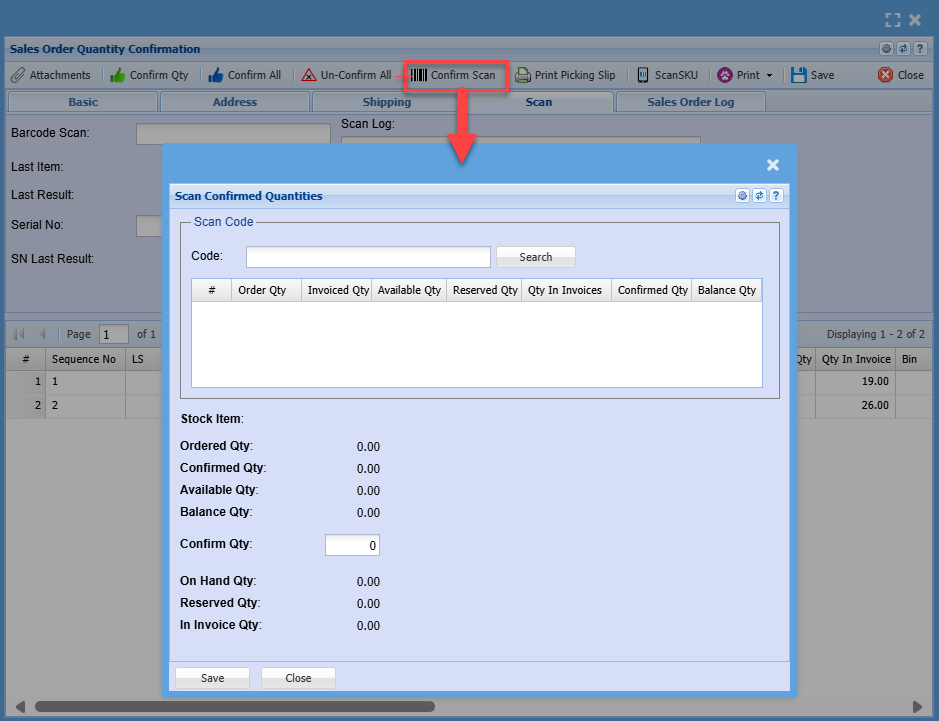
<span style="color: rgb(34, 34, 34); font-family: var(--font-heading, var(--font-body)); font-size: 1.4em; font-weight: 400;">Barcode Confirm Scan</span>

<span class="ts0">Using a barcode scanner, scan each item to confirm that it is the correct item with the correct picked stock item</span>

[![image.png](https://hugeerp10.co.za/hsofmanual/uploads/images/gallery/2024-08/scaled-1680-/bzoimage.png)](https://hugeerp10.co.za/hsofmanual/uploads/images/gallery/2024-08/bzoimage.png)

---

# Sales Order Unconfirm Quantity

<span style="color: rgb(45, 194, 107);">**<span lang="EN-GB" style="font-size: 11pt; font-family: Calibri, sans-serif;">Go to Debtors Module&gt; Activity&gt; Sales Orders</span>**</span>

<span lang="EN-GB" style="font-size: 11.0pt; font-family: 'Calibri',sans-serif; mso-ascii-theme-font: minor-latin; mso-hansi-theme-font: minor-latin; mso-bidi-theme-font: minor-latin; color: black; mso-themecolor: text1;"> </span><span lang="EN-GB" style="font-size: 11.0pt; font-family: 'Calibri',sans-serif; mso-ascii-theme-font: minor-latin; mso-hansi-theme-font: minor-latin; mso-bidi-theme-font: minor-latin;">Search the required Sales order</span>

<p class="callout info"><span lang="EN-GB" style="font-size: 11.0pt; font-family: 'Calibri',sans-serif; mso-ascii-theme-font: minor-latin; mso-hansi-theme-font: minor-latin; mso-bidi-theme-font: minor-latin;">You need to change the search screen status to find Sales orders that have already been confirmed and migrated from preparation status</span></p>

[![image.png](https://hugeerp10.co.za/hsofmanual/uploads/images/gallery/2024-08/scaled-1680-/MR5image.png)](https://hugeerp10.co.za/hsofmanual/uploads/images/gallery/2024-08/MR5image.png)

<span lang="EN-GB" style="font-size: 11.0pt; font-family: 'Calibri',sans-serif; mso-ascii-theme-font: minor-latin; mso-hansi-theme-font: minor-latin; mso-bidi-theme-font: minor-latin; mso-no-proof: yes;"> </span><span lang="EN-GB" style="font-size: 11.0pt; font-family: 'Calibri',sans-serif; mso-ascii-theme-font: minor-latin; mso-hansi-theme-font: minor-latin; mso-bidi-theme-font: minor-latin; mso-no-proof: yes;">Once you have found the required sales order, Double-click the line</span>

<span lang="EN-GB" style="font-size: 11.0pt; font-family: 'Calibri',sans-serif; mso-ascii-theme-font: minor-latin; mso-hansi-theme-font: minor-latin; mso-bidi-theme-font: minor-latin; mso-no-proof: yes;">The sales order will open and you can verify the details of the order</span>

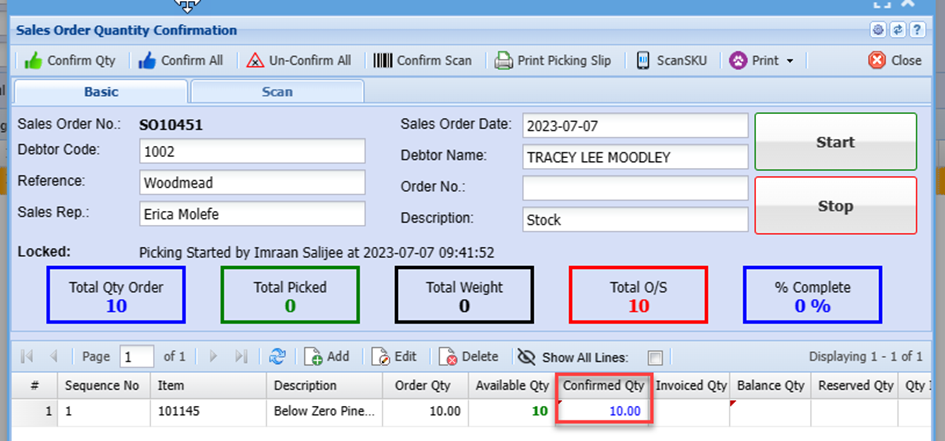
<span lang="EN-GB" style="font-size: 11.0pt; font-family: 'Calibri',sans-serif; mso-ascii-theme-font: minor-latin; mso-hansi-theme-font: minor-latin; mso-bidi-theme-font: minor-latin; mso-no-proof: yes;">You will be able to see the respective quantities confirmed on each item line</span>

<span lang="EN-GB" style="font-size: 11.0pt; font-family: 'Calibri',sans-serif; mso-ascii-theme-font: minor-latin; mso-hansi-theme-font: minor-latin; mso-bidi-theme-font: minor-latin; mso-no-proof: yes;"> </span><span lang="EN-GB" style="mso-no-proof: yes;"></span>![](https://hugeerp10.co.za/hsofmanual/uploads/images/gallery/2023-12/embedded-image-bhwyh817.png)

<p class="callout info"><span lang="EN-GB" style="font-size: 11.0pt; font-family: 'Calibri',sans-serif; mso-ascii-theme-font: minor-latin; mso-hansi-theme-font: minor-latin; mso-bidi-theme-font: minor-latin;">Note: Once item quantities have been confirmed, the line will be hidden from the grid. </span><span lang="EN-GB" style="font-size: 11.0pt; font-family: 'Calibri',sans-serif; mso-ascii-theme-font: minor-latin; mso-hansi-theme-font: minor-latin; mso-bidi-theme-font: minor-latin;">This is so the user can easily see which items are still outstanding in cases where you have large </span><span style="font-family: Calibri, sans-serif; font-size: 11pt;">orders with many item lines.</span></p>

<span lang="EN-GB" style="font-size: 11.0pt; font-family: 'Calibri',sans-serif; mso-ascii-theme-font: minor-latin; mso-hansi-theme-font: minor-latin; mso-bidi-theme-font: minor-latin;">To unhide these confirmed lines, click on Show All Lines button</span>

<span lang="EN-GB" style="font-size: 11.0pt; font-family: 'Calibri',sans-serif; mso-ascii-theme-font: minor-latin; mso-hansi-theme-font: minor-latin; mso-bidi-theme-font: minor-latin;">This displays all the sales order item lines</span>

[![image.png](https://hugeerp10.co.za/hsofmanual/uploads/images/gallery/2024-08/scaled-1680-/96himage.png)](https://hugeerp10.co.za/hsofmanual/uploads/images/gallery/2024-08/96himage.png)

<span lang="EN-GB" style="font-size: 11.0pt; font-family: 'Calibri',sans-serif; mso-ascii-theme-font: minor-latin; mso-hansi-theme-font: minor-latin; mso-bidi-theme-font: minor-latin;">You can then search for the item you wish to un-confirm quantities on</span>

<span lang="EN-GB" style="font-size: 11.0pt; font-family: 'Calibri',sans-serif; mso-ascii-theme-font: minor-latin; mso-hansi-theme-font: minor-latin; mso-bidi-theme-font: minor-latin;">Double-click the line</span>

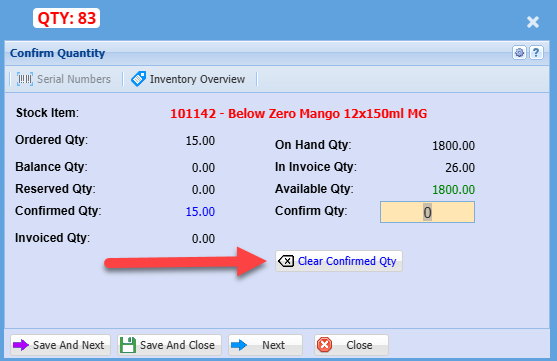
<span lang="EN-GB" style="font-size: 11.0pt; font-family: 'Calibri',sans-serif; mso-ascii-theme-font: minor-latin; mso-hansi-theme-font: minor-latin; mso-bidi-theme-font: minor-latin;">Click the Clear Confirmed Qty Button</span>

[![image.png](https://hugeerp10.co.za/hsofmanual/uploads/images/gallery/2024-08/scaled-1680-/tRdimage.png)](https://hugeerp10.co.za/hsofmanual/uploads/images/gallery/2024-08/tRdimage.png)

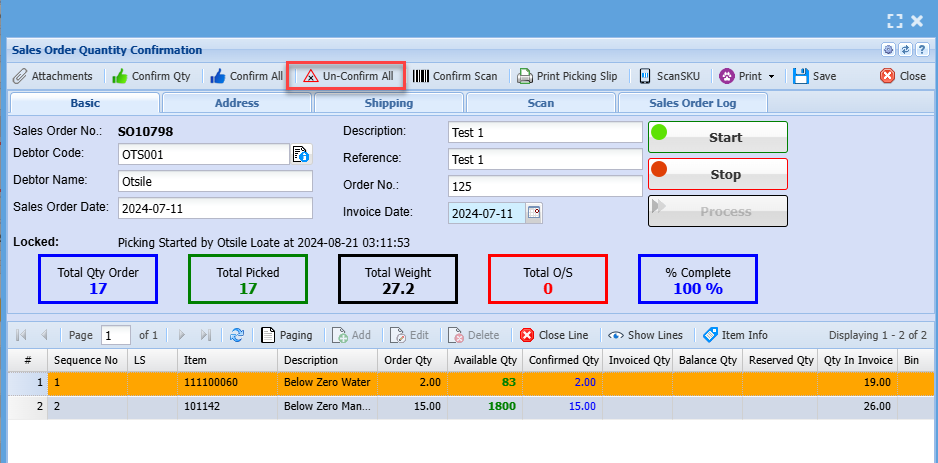
<span lang="EN-GB" style="font-size: 11.0pt; font-family: 'Calibri',sans-serif; mso-ascii-theme-font: minor-latin; mso-hansi-theme-font: minor-latin; mso-bidi-theme-font: minor-latin;">If you have multiple item lines on the sales order that have confirmed quantities and you wish to un-confirm all the lines, then click the Un-Confirm All Button</span>

[![image.png](https://hugeerp10.co.za/hsofmanual/uploads/images/gallery/2024-08/scaled-1680-/Suyimage.png)](https://hugeerp10.co.za/hsofmanual/uploads/images/gallery/2024-08/Suyimage.png)

<span lang="EN-GB" style="font-size: 11.0pt; font-family: 'Calibri',sans-serif; mso-ascii-theme-font: minor-latin; mso-hansi-theme-font: minor-latin; mso-bidi-theme-font: minor-latin; mso-no-proof: yes;">You can then reconfirm the items with amended quantities, or</span>

<span lang="EN-GB" style="font-size: 11.0pt; font-family: 'Calibri',sans-serif; mso-ascii-theme-font: minor-latin; mso-hansi-theme-font: minor-latin; mso-bidi-theme-font: minor-latin; mso-no-proof: yes;">You can Unauthorise the sales order and this will allow you to edit the line items and add addition items if need be.</span>

# Sales Order Picking Slip logs

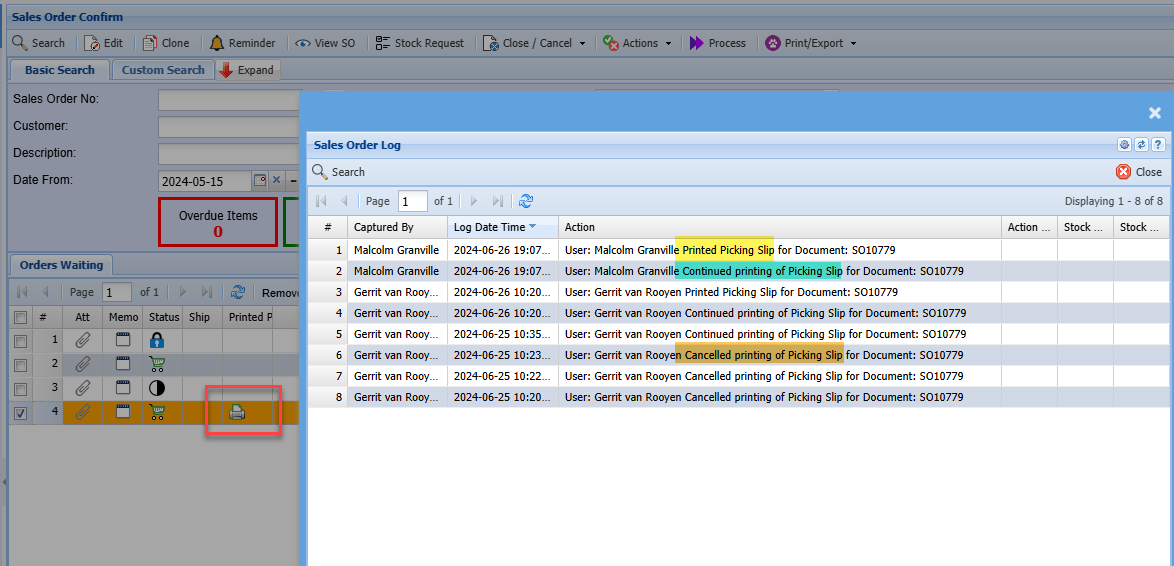
When confirming a Sales Order and printing a picking slip.

Logs will be created to on picking slip screen and print picking slip.

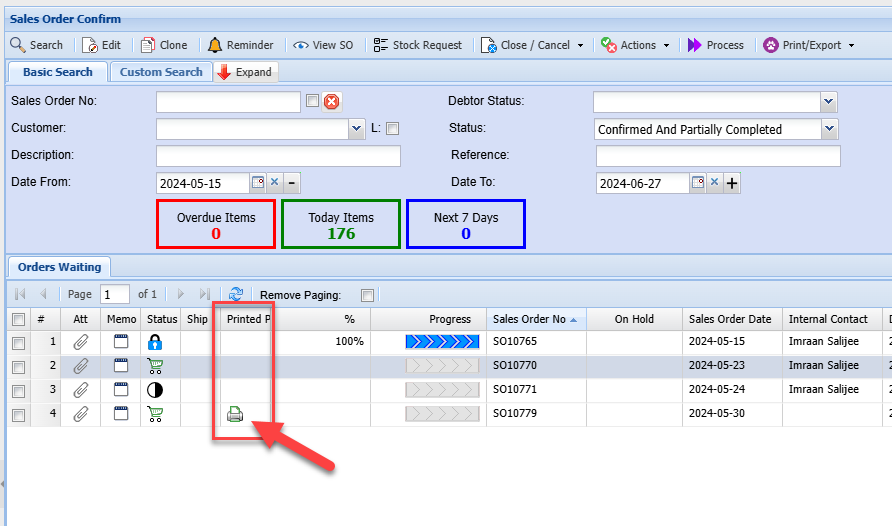
Sales Order confirm screen will show a small Print icon to indicate that a picking slip was printed.

[![image.png](https://hugeerp10.co.za/hsofmanual/uploads/images/gallery/2024-06/scaled-1680-/z9Rimage.png)](https://hugeerp10.co.za/hsofmanual/uploads/images/gallery/2024-06/z9Rimage.png)
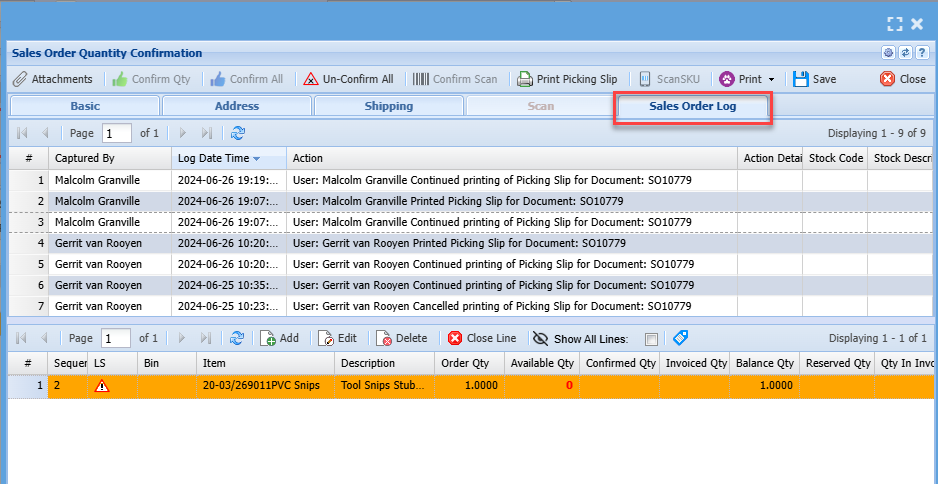
Clicking on the icon will open up the sales order log file

<p class="callout info">Best to sort Log Date Time with latest date at the top</p>

[![image.png](https://hugeerp10.co.za/hsofmanual/uploads/images/gallery/2024-06/scaled-1680-/kiYimage.png)](https://hugeerp10.co.za/hsofmanual/uploads/images/gallery/2024-06/kiYimage.png)

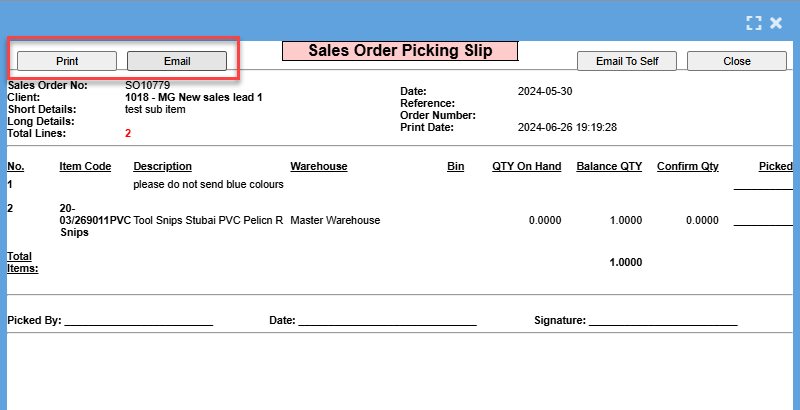
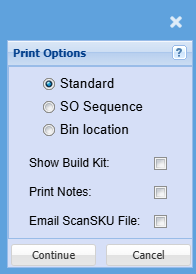
The log will log on print options for both Continue and Cancel buttons

[![image.png](https://hugeerp10.co.za/hsofmanual/uploads/images/gallery/2024-06/scaled-1680-/vUyimage.png)](https://hugeerp10.co.za/hsofmanual/uploads/images/gallery/2024-06/vUyimage.png)
The log will log for Print and Email buttons

<p class="callout warning">Print button logs that the user clicked on the print button, however this does not mean that they physically printed the document. As they could have cancelled the print button in windows.</p>

[![image.png](https://hugeerp10.co.za/hsofmanual/uploads/images/gallery/2024-06/scaled-1680-/hqMimage.png)](https://hugeerp10.co.za/hsofmanual/uploads/images/gallery/2024-06/hqMimage.png)

---

##### Sales order print indicated

The sales order confirm screen shows the icon on the window to show that a print picking slip was done.

[![image.png](https://hugeerp10.co.za/hsofmanual/uploads/images/gallery/2024-06/scaled-1680-/wBiimage.png)](https://hugeerp10.co.za/hsofmanual/uploads/images/gallery/2024-06/wBiimage.png)
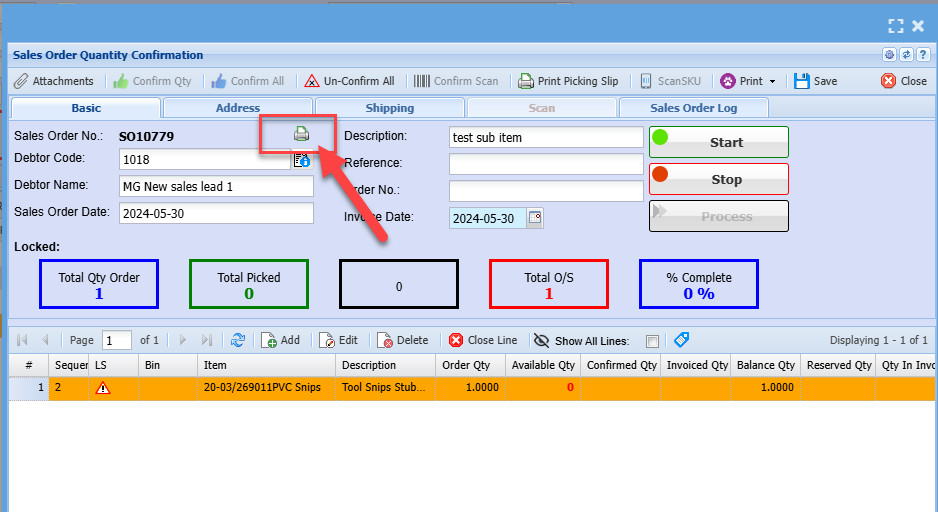
The sales order log tab will indicate the logs on the sales order

[![image.png](https://hugeerp10.co.za/hsofmanual/uploads/images/gallery/2024-06/scaled-1680-/6B2image.png)](https://hugeerp10.co.za/hsofmanual/uploads/images/gallery/2024-06/6B2image.png)
---

##### User Access log

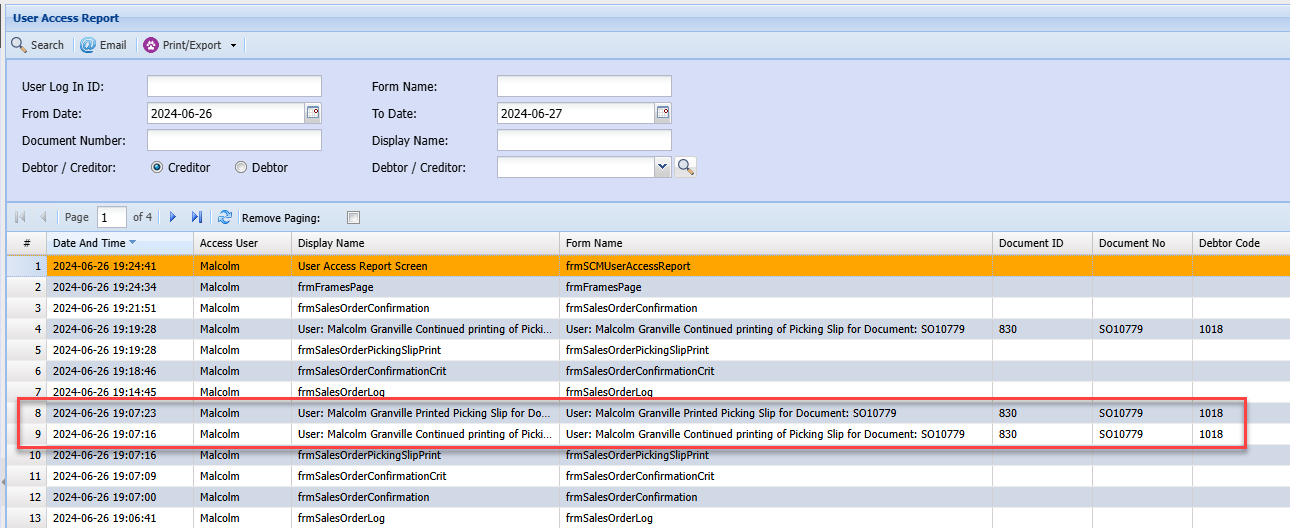
Logs are recorded in the user access log

[![image.png](https://hugeerp10.co.za/hsofmanual/uploads/images/gallery/2024-06/scaled-1680-/Nl8image.png)](https://hugeerp10.co.za/hsofmanual/uploads/images/gallery/2024-06/Nl8image.png)
# ScanSKU Confirm

<span class="ts0">Using a ScanSKU scanner</span>

<span class="ts0">Watch video manual on how to </span>[scan from ScanSKU device](https://hugeerp0.co.za/csp/webhelp/topics/idh-topic10750.htm)

#### Picking via a ScanSKU device

Email the file for picking

<span class="ts0">When promoting the Sales order as confirmed, an option will appear to email the sales order file to the ScanSKU device</span>

<span class="ts0"> </span>![](https://hugeerp0.co.za/csp/webhelp/topics/images/image(3528).png)

---

#### <span class="ts22">Import ScanSKU file</span>

<span class="ts0">Once the scan has been completed, click on the ScanSKU to import scanned picked quantities.</span>

<span class="ts0">Drag directly from your email into this section</span>

<span class="ts0">The file will do the following:</span>

<table border="1" id="bkmrk-1-upload-the-file-2-" style="border-collapse: collapse; width: 48.3951%;"><colgroup><col style="width: 9.82318%;"></col><col style="width: 90.3733%;"></col></colgroup><tbody><tr><td>1</td><td><span class="ts0">Upload the file</span></td></tr><tr><td>2</td><td><span class="ts0">Attach the file to the sales order</span></td></tr><tr><td>3</td><td><span class="ts0">Import the items</span></td></tr><tr><td>4</td><td><span class="ts0">Update the received quantity on the lines</span></td></tr><tr><td>5</td><td><span class="ts0">Produce an error report should there be a problem</span></td></tr></tbody></table>

<span class="ts0"> </span>![](https://hugeerp0.co.za/csp/webhelp/topics/images/image(3531).png)

---

#### Email ScanSKU file if not emailed

<span class="ts0">Email ScanSKU file from Confirm Screen</span>

<span class="ts0"> </span>![](https://hugeerp0.co.za/csp/webhelp/topics/images/image(3535).png)

---

#### ScanSKU email setup per user

<span class="ts0">Go to System Configuration&gt; General&gt; User Setup</span>

<span class="ts0">Each user can have a unique email address to send to for their specific scanner.</span>

<span class="ts0">Each Barcode scanner should have their own Gmail account for Android.</span>

<span class="ts0"> </span>![](https://hugeerp0.co.za/csp/webhelp/topics/images/image(3536).png)

# Sales Order Confirm Search

Confirmation search screen is where confirming of picking of stock is done. Generally in the warehouse.

[![image.png](https://hugeerp10.co.za/hsofmanual/uploads/images/gallery/2024-06/scaled-1680-/rihimage.png)](https://hugeerp10.co.za/hsofmanual/uploads/images/gallery/2024-06/rihimage.png)

# Sales Order Confirmation Functions

<div class="x_elementToProof" id="bkmrk-sales-order-confirma">Sales order confirmation the following function was recently added</div><div class="x_elementToProof" id="bkmrk-"></div><div class="x_elementToProof" id="bkmrk-close-button-functio">1. Close button function
2. Item information button
3. Sorting on columns - This allows you to sort by column when clicking on the column

</div>[![image.png](https://hugeerp10.co.za/hsofmanual/uploads/images/gallery/2024-08/scaled-1680-/CB8image.png)](https://hugeerp10.co.za/hsofmanual/uploads/images/gallery/2024-08/CB8image.png)

---

#### Close Line Button

<div class="x_elementToProof" id="bkmrk--3"></div><div class="x_elementToProof" id="bkmrk-allows-you-to-close-">Allows you to close a line item from sales order confirmation without having to close the whole order</div><div class="x_elementToProof" id="bkmrk--4"></div><div class="x_elementToProof" id="bkmrk-when-clicking-on-the">When clicking on the close line button the screen below will pop up to alert you that you are about to close a line and ask you to confirm</div><div class="x_elementToProof" id="bkmrk--5">  
</div><div class="x_elementToProof" id="bkmrk-click-yes-to-close-a">Click **Yes** to Close a line</div>[![image.png](https://hugeerp10.co.za/hsofmanual/uploads/images/gallery/2024-08/scaled-1680-/sRyTmIimage.png)](https://hugeerp10.co.za/hsofmanual/uploads/images/gallery/2024-08/sRyTmIimage.png)

---

#### Item Info

The item information button will take you to the inventory overview window

The inventory overview window allows quick access to view information on an item.

[![image.png](https://hugeerp10.co.za/hsofmanual/uploads/images/gallery/2024-08/scaled-1680-/iBTimage.png)](https://hugeerp10.co.za/hsofmanual/uploads/images/gallery/2024-08/iBTimage.png)

<div class="x_elementToProof" id="bkmrk--9">  
</div><div class="x_elementToProof" id="bkmrk--10"></div>

# Sales Order Log

<div class="x_elementToProof" id="bkmrk-sales-order-confirma">The sales order log tracks and manages sales orders under the sales order quantity confirmation stage</div><div class="x_elementToProof" id="bkmrk-">  
</div><div class="x_elementToProof" id="bkmrk-the-sales-order-log-">The sales order log gives a trail of what happens to a sales log order under the sales order confirmation</div><div class="x_elementToProof" id="bkmrk--1">  
</div><div class="x_elementToProof" id="bkmrk-it-looks-at-who-capt">It Looks at who captured the sales order, Action Time when the action took place and Action details</div><div class="x_elementToProof" id="bkmrk--2">  
</div>[![image.png](https://hugeerp10.co.za/hsofmanual/uploads/images/gallery/2024-08/scaled-1680-/RfYimage.png)](https://hugeerp10.co.za/hsofmanual/uploads/images/gallery/2024-08/RfYimage.png)

# Sales Order Close

This function allows one to close the sales order OR close sales order and create a new sales order with the balance quantity.

<table border="1" id="bkmrk-close-so-close-sales" style="border-collapse: collapse; width: 100%;"><colgroup><col style="width: 31.4882%;"></col><col style="width: 68.631%;"></col></colgroup><tbody><tr><td>Close SO</td><td>Close Sales Order</td></tr><tr><td>Close current SO and create new SO with balance Qty</td><td>Closes the current sales order

Creates a new sales order with items that have a balance quantity

</td></tr></tbody></table>

[![image.png](https://hugeerp10.co.za/hsofmanual/uploads/images/gallery/2025-04/scaled-1680-/Iw6image.png)](https://hugeerp10.co.za/hsofmanual/uploads/images/gallery/2025-04/Iw6image.png)