# Quotation Menu

# Quotation Search

<span class="ts15"><span class="ts10">Video training manual 2016 - </span>[Click Here](https://vimeo.com/357005020)</span>

<span style="color: rgb(45, 194, 107);">**<span class="ts15">Debtors </span><span class="ts15">Module</span><span class="ts15">&gt; Activity&gt; </span><span class="ts15">Quotation</span>**</span>

#### <span style="color: rgb(0, 0, 0);"><span class="ts15">Basic Search</span></span>

[![image.png](https://hugeerp10.co.za/hsofmanual/uploads/images/gallery/2024-01/scaled-1680-/Bxhimage.png) ](https://hugeerp10.co.za/hsofmanual/uploads/images/gallery/2024-01/Bxhimage.png)

<span class="ts0">On the Basic Search Tab, the user can search the quotes by entering information on the following fields</span>

<table border="1" id="bkmrk-quote-number-search-" style="border-collapse: collapse; width: 100%; height: 295.969px;"><colgroup><col style="width: 28.1829%;"></col><col style="width: 71.8171%;"></col></colgroup><tbody><tr style="height: 29.7969px;"><td style="height: 29.7969px;">**Quote Number**</td><td style="height: 29.7969px;"><span class="ts0">Search by entering the quote number</span></td></tr><tr style="height: 29.7969px;"><td style="height: 29.7969px;">**Description**</td><td style="height: 29.7969px;"><span class="ts0">Search by entering the description of the quote</span></td></tr><tr style="height: 29.7969px;"><td style="height: 29.7969px;">**Date Type**</td><td style="height: 29.7969px;">Select the quotes based on date type being Quote date, Quote valid to date, Quote completing date or Quote Delivery date</td></tr><tr style="height: 29.7969px;"><td style="height: 29.7969px;">**Date From / Date To**</td><td style="height: 29.7969px;">Select the date range for which you want to view the report from  
Select a date range of when you want to see the report to</td></tr><tr style="height: 29.7969px;"><td style="height: 29.7969px;">**Order Number**</td><td style="height: 29.7969px;">Search for quote based on client order number</td></tr><tr style="height: 29.7969px;"><td style="height: 29.7969px;">**Customer**</td><td style="height: 29.7969px;"><span class="ts0">Search by selecting the customer</span></td></tr><tr style="height: 29.7969px;"><td style="height: 29.7969px;">**Reference**</td><td style="height: 29.7969px;">Search quote by reference entered</td></tr><tr style="height: 29.7969px;"><td style="height: 29.7969px;">**Quote Status**</td><td style="height: 29.7969px;">Select status quote you want to search by on the drop down</td></tr><tr style="height: 27.7969px;"><td style="height: 27.7969px;">**Sales Rep**</td><td style="height: 27.7969px;"><span class="ts0">Search the quotes by selecting the sales rep from the drop-down menu</span></td></tr></tbody></table>

#### Expand

Displays additional search criteria options

[![image.png](https://hugeerp10.co.za/hsofmanual/uploads/images/gallery/2024-11/scaled-1680-/iWPimage.png)](https://hugeerp10.co.za/hsofmanual/uploads/images/gallery/2024-11/iWPimage.png)

#### **Custom Search**

<span class="ts0">One can create your own custom fields on the system that are specific to your business and link these to various documents, such as quotation.</span>

<span class="ts0">The custom search, then allows you to search base off these fields. Example:</span>

[![image.png](https://hugeerp10.co.za/hsofmanual/uploads/images/gallery/2024-11/scaled-1680-/d8Uimage.png)](https://hugeerp10.co.za/hsofmanual/uploads/images/gallery/2024-11/d8Uimage.png)

### Import Quote from CSV

![](https://hugeerp0.co.za/csp/webhelp/topics/images/image(45).png)

<span class="ts0">The file to be imported must be in a CSV format.</span>

<span class="ts0">Click on the Select Files… button to open the navigate window allowing the user to navigate to the file to be imported.</span>

<span class="ts0">Once the desired file has been located either double click in the file or click the Open button.</span>

<span class="ts0">Now click on the Upload button. If the upload was successful a window will appear confirming that the upload was successful. Click Ok.</span>

<span class="ts0">The Import button now becomes enabled allowing the user to click on the Import button to import the file.</span>

<span class="ts0">An Import Report will open displaying any errors in the import or displaying the successful quotes that were imported.</span>

<span class="ts0">Note: Please request the Quote Import – Template file from Huge ERP Support.</span>

#### **<span style="color: rgb(34, 34, 34);">Approvals Options</span>**

[![image.png](https://hugeerp10.co.za/hsofmanual/uploads/images/gallery/2024-04/scaled-1680-/14zimage.png)](https://hugeerp10.co.za/hsofmanual/uploads/images/gallery/2024-04/14zimage.png)

<span class="ts0">Approve Tab has the following buttons</span>

<table border="1" id="bkmrk-internal-approval-bu" style="border-collapse: collapse; width: 91.1111%;"><colgroup><col style="width: 27.4047%;"></col><col style="width: 72.5974%;"></col></colgroup><tbody><tr><td>**<span class="ts0">Internal Approval</span>**</td><td><span class="ts0">For the supervisors / managers to approve the quote prior to sending to client.</span></td></tr><tr><td>**<span class="ts0">Customer Approval</span>**</td><td><span class="ts0">This indicates that the quote has been sent to the customer and awaiting approval</span></td></tr><tr><td>**<span class="ts0">Approve to Sales Order</span>**</td><td><span class="ts0">Promotes the quote to a sales order</span></td></tr><tr><td>**<span class="ts0">Approve To Invoice</span>**</td><td><span class="ts0">Promotes the quote to an invoice</span></td></tr><tr><td>**<span class="ts0">Approve To Job</span>**</td><td><span class="ts0">Approves the selected Quote to be a job.</span></td></tr><tr><td>**<span class="ts0">Return to Internal Approval</span>**</td><td><span class="ts0">Reverts the quote status from Customer approval to Internat approval</span></td></tr><tr><td>**Return to Preparation**</td><td><span class="ts0">Reverts the quote status from Internat approval to Preparation</span></td></tr></tbody></table>

---

#### **<span class="ts0">Print / Import</span>**

<span class="ts0">Print Tab has the following options</span>

[![image.png](https://hugeerp10.co.za/hsofmanual/uploads/images/gallery/2024-11/scaled-1680-/dfeimage.png)](https://hugeerp10.co.za/hsofmanual/uploads/images/gallery/2024-11/dfeimage.png)

<table border="1" id="bkmrk-print-button-prints-" style="border-collapse: collapse; width: 90.4938%; height: 296.969px;"><colgroup><col style="width: 24.5922%;"></col><col style="width: 75.3831%;"></col></colgroup><tbody><tr style="height: 29.7969px;"><td style="height: 29.7969px;"><span class="ts0">Print Quote</span></td><td style="height: 29.7969px;"><span class="ts0">Prints the currently selected Quote Item.</span></td></tr><tr style="height: 29.7969px;"><td style="height: 29.7969px;"><span class="ts0">Print Job Card</span></td><td style="height: 29.7969px;"><span class="ts0">Prints the job card for the currently selected Quote Item<span class="ts28">.</span></span></td></tr><tr style="height: 29.7969px;"><td style="height: 29.7969px;"><span class="ts0">Print Service Card</span></td><td style="height: 29.7969px;"><span class="ts0">Prints the service card for the currently selected Quote Item<span class="ts28">. Similar to a job card, but specific to Service industry or jobs. </span></span></td></tr><tr style="height: 28.7969px;"><td style="height: 28.7969px;"><span class="ts0">Print Grid</span></td><td style="height: 28.7969px;"><span class="ts0">Prints the list of quotes displayed on the grid based on the search criteria</span></td></tr><tr style="height: 29.7969px;"><td style="height: 29.7969px;"><span class="ts0">Print Job Header</span></td><td style="height: 29.7969px;"><span class="ts0">This prints a Header/ Label that can be used to label hard copy files related to the job</span></td></tr><tr style="height: 29.7969px;"><td style="height: 29.7969px;"><span class="ts0">Bulk Print</span></td><td style="height: 29.7969px;"><span class="ts0">Allows one to simultaneously print multiple quotes selected from the grid</span></td></tr><tr style="height: 29.7969px;"><td style="height: 29.7969px;"><span class="ts0">Bulk Email</span></td><td style="height: 29.7969px;"><span class="ts0">Allows one to email simultaneously multiple quotes selected from the grid</span></td></tr><tr style="height: 29.7969px;"><td style="height: 29.7969px;"><span class="ts0">Export Grid</span></td><td style="height: 29.7969px;"><span class="ts0">Exports the listed quotes on the grid to excel</span></td></tr><tr style="height: 29.7969px;"><td style="height: 29.7969px;"><span class="ts0">Export Gris with Notes</span></td><td style="height: 29.7969px;"><span class="ts0">Exports the listed quotes on the grid into excel and includes any memo notes linked to the respective quotes</span></td></tr><tr style="height: 29.7969px;"><td style="height: 29.7969px;">Export Quote Lines</td><td style="height: 29.7969px;">Exports into excel the line items on the specific quote selected</td></tr></tbody></table>

---

#### <span class="ts15">Print Quote</span>

<span class="ts15">Debtors&gt; Activity&gt; Quotation</span><span class="ts15">&gt; Print /Export</span>

<span class="ts15"> </span><span class="ts0">Print quote from here and email to your clients</span>

<table border="1" id="bkmrk-debtor-quote-debtor-" style="border-collapse: collapse; width: 100%; height: 148.984px;"><colgroup><col style="width: 28.841%;"></col><col style="width: 71.159%;"></col></colgroup><tbody><tr style="height: 29.7969px;"><td style="height: 29.7969px;">**Debtor Quote**</td><td style="height: 29.7969px;">  
</td></tr><tr style="height: 29.7969px;"><td style="height: 29.7969px;">**Debtor Items Grouped**</td><td style="height: 29.7969px;">  
</td></tr><tr style="height: 29.7969px;"><td style="height: 29.7969px;">**Job High Level**

</td><td style="height: 29.7969px;">  
</td></tr><tr style="height: 29.7969px;"><td style="height: 29.7969px;">**Job Inventory Detail**

</td><td style="height: 29.7969px;">  
</td></tr><tr style="height: 29.7969px;"><td style="height: 29.7969px;">**Group Stock Category**</td><td style="height: 29.7969px;">  
</td></tr><tr><td>**Packing Slip**</td><td>  
</td></tr><tr><td>**Show Zero Balance**</td><td>  
</td></tr><tr><td>**Suppress Line Note Printing**</td><td>  
</td></tr><tr><td>**Break On Totals**</td><td>  
</td></tr><tr><td>**Print Line Reference**</td><td>  
</td></tr><tr><td>**Print Quote Totals**</td><td>  
</td></tr><tr><td>**T &amp; C Position**</td><td>  
</td></tr><tr><td>**Hide Qty Column**</td><td>  
</td></tr><tr><td>**Quote Total Value Only**</td><td>  
</td></tr><tr><td>**Quote Proforma Invoice**</td><td>When printing the quote, there is an option to make the quote a Proforma Invoice. This will change the header of the quote and labels to read Proforma Invoice. The Proforma number will be the quote number</td></tr></tbody></table>

<span class="ts15"> </span>[![image.png](https://hugeerp10.co.za/hsofmanual/uploads/images/gallery/2025-08/scaled-1680-/zWkimage.png)](https://hugeerp10.co.za/hsofmanual/uploads/images/gallery/2025-08/zWkimage.png)

<span class="ts0"> </span>![](https://hugeerp0.co.za/csp/webhelp/topics/images/image(58).png)

---

#### Cancel Bulk Quotes

<div id="bkmrk-to-cancel-bulk-quote">To cancel bulk quotes, tick the checkboxes next to the quotes you want to cancel on the left-hand side, as shown below.</div><div id="bkmrk--9"></div><div id="bkmrk-then-click-%22cancel%22">- Then click "**Cancel**"

</div>[![image.png](https://hugeerp10.co.za/hsofmanual/uploads/images/gallery/2026-01/scaled-1680-/y9Aimage.png)](https://hugeerp10.co.za/hsofmanual/uploads/images/gallery/2026-01/y9Aimage.png)

---

#### Print Job Card

<span class="ts15">Debtors&gt; Activity&gt; Quotation</span><span class="ts15">&gt; Print /Export</span>

<span class="ts0">Select A quote that has a job number and select print job Card form the drop-down arrow.</span>

<span class="ts15"> </span>![](https://hugeerp0.co.za/csp/webhelp/topics/images/image(54).png)

<span class="ts0"> </span>![](https://hugeerp0.co.za/csp/webhelp/topics/images/image(55).png)

---

#### Print Service Card

<span class="ts15">Debtors&gt; Activity&gt; Quotation</span><span class="ts15">&gt; Print /Export</span>

<table border="1" id="bkmrk-print-a-service-card" style="border-collapse: collapse; width: 87.037%;"><colgroup><col style="width: 19.5255%;"></col><col style="width: 80.4498%;"></col></colgroup><tbody><tr><td><span class="ts0">Print a service card</span></td><td><span class="ts0">Select a quote with a job number and print a service card from the drop-down menu</span></td></tr></tbody></table>

<span class="ts0"> </span>![](https://hugeerp0.co.za/csp/webhelp/topics/images/image(56).png)

---

#### Print Grid

<span class="ts15">Debtors&gt; Activity&gt; Quotation</span><span class="ts15">&gt; Print /Export</span>

<span class="ts0"> </span>![](https://hugeerp0.co.za/csp/webhelp/topics/images/image(52).png)

<table border="1" id="bkmrk-email-opens-up-the-e" style="border-collapse: collapse; width: 58.5185%;"><colgroup><col style="width: 19.0678%;"></col><col style="width: 80.8937%;"></col></colgroup><tbody><tr><td>**<span class="ts0">Email</span>**</td><td><span class="ts0">Opens Up the email function.</span></td></tr><tr><td>**<span class="ts0">Copy</span>**</td><td><span class="ts0">Copies to clipboard to enable exporting to excel</span></td></tr><tr><td>**<span class="ts0">Print</span>**</td><td><span class="ts0">Print a hard copy for use.</span></td></tr></tbody></table>

---

#### Print Job Header

<span class="ts2">Select Job Header Print Help</span>

<span class="ts15">Debtors&gt; Activity&gt; Quotation</span><span class="ts15">&gt; Print /Export</span>

<table border="1" id="bkmrk-generate-generates-a" style="border-collapse: collapse; width: 90.7407%;"><colgroup><col style="width: 12.8066%;"></col><col style="width: 87.1661%;"></col></colgroup><tbody><tr><td><span class="ts7">Generate</span></td><td><span class="ts7">Generates a print layout according to the information contained in that specific Job History Item</span></td></tr></tbody></table>

![](https://hugeerp0.co.za/csp/webhelp/topics/images/image(50).png)

![](https://hugeerp0.co.za/csp/webhelp/topics/images/image(51).png)

---

#### Bulk Print

<span class="ts2">Quote Print Selection Popup Help</span>

<span class="ts15">Debtors&gt; Activity&gt; Quotation</span><span class="ts15">&gt; Print /Export</span>

<span class="ts15"> </span>![](https://hugeerp0.co.za/csp/webhelp/topics/images/image(48).png)

<span class="ts0">This popup window allows the user to select the layout of the quote to be printed.</span>

<span class="ts0">Debtor Quote is typically used for Debtor Quotes and Standard Job Quotes.</span>

<span class="ts0">Job High Level is typically used for Job Costing Quotes where Task items have been selected as a line item in the quote. This layout option will print all standard items e.g. Stock, Service and Custom as normal and only the Task Code and Description with the total value of the Task.</span>

<span class="ts0">Job Detail Contex is typically used to Job Costing Quotes where Task items have been selected as a line item in the quote. This layout option will print all standard items e.g. Stock, Service and Custom as normal and in the case of the Task items, the actual Stock, Service or Custom code will be printed, and the actual item’s description will be preceded by the Task’s description e.g. Task Description…Standard Item’s Description with the actual quantity and value of the Stock, Service or Custom item.</span>

<span class="ts0">Job Inventory Items is typically used for Job Costing Quotes where Task items have been selected as a line item in the quote. This layout option will print only the standard Stock, Service or Custom items on the quote.</span>

---

#### Bulk Email

<span class="ts2">Quote Print Selection Popup Help</span>

<span class="ts23"> </span><span class="ts15">Debtors&gt; Activity&gt; Quotation</span><span class="ts15">&gt; Print /Export</span>

<span class="ts23"> </span>![](https://hugeerp0.co.za/csp/webhelp/topics/images/image(48).png)

<span class="ts0"> </span>![](https://hugeerp0.co.za/csp/webhelp/topics/images/image(49).png)

<span class="ts0">This popup window allows the user to select the layout of the quote to be </span><span class="ts0">emailed.</span>

<span class="ts0">Debtor Quote is typically used for Debtor Quotes and Standard Job Quotes.</span>

<span class="ts0">Job High Level is typically used for Job Costing Quotes where Task items have been selected as a line item in the quote. This layout option will print all standard items e.g. Stock, Service and Custom as normal and only the Task Code and Description with the total value of the Task.</span>

<span class="ts0">Job Detail Contex is typically used to Job Costing Quotes where Task items have been selected as a line item in the quote. This layout option will print all standard items e.g. Stock, Service and Custom as normal and in the case of the Task items, the actual Stock, Service or Custom code will be printed, and the actual item’s description will be preceded by the Task’s description e.g. Task Description…Standard Item’s Description with the actual quantity and value of the Stock, Service or Custom item.</span>

<span class="ts0">Job Inventory Items is typically used for Job Costing Quotes where Task items have been selected as a line item in the quote. This layout option will print only the standard Stock, Service or Custom items on the quote.</span>

---

#### <span class="ts0">Export Grid</span>

<span class="ts15">Debtors&gt; Activity&gt; Quotation</span><span class="ts15">&gt; Print /Export</span>

<span class="ts15"> </span><span class="ts0">Exports the document search grid to excel</span>

<span class="ts0"> </span>![](https://hugeerp0.co.za/csp/webhelp/topics/images/image(47).png)

#### Keyboard quick keys

Quick keys help access functions using the keyboard

Used with Alt + Letter

[![image.png](https://hugeerp10.co.za/hsofmanual/uploads/images/gallery/2024-12/scaled-1680-/h3oimage.png)](https://hugeerp10.co.za/hsofmanual/uploads/images/gallery/2024-12/h3oimage.png)

<table border="1" id="bkmrk-search-alt-%2B-s-searc" style="width: 98.6905%; height: 432.8px;"><colgroup><col style="width: 27.9928%;"></col><col style="width: 14.3189%;"></col><col style="width: 57.6625%;"></col></colgroup><tbody><tr style="height: 29.6px;"><td style="height: 29.6px;">**S**earch</td><td style="height: 29.6px;">Alt + s</td><td style="height: 29.6px;">Search for Quotes</td></tr><tr style="height: 29.6px;"><td style="height: 29.6px;">**A**dd</td><td style="height: 29.6px;">Alt + a</td><td style="height: 29.6px;">Add a new Quote</td></tr><tr style="height: 29.6px;"><td style="height: 29.6px;">**E**dit</td><td style="height: 29.6px;">Alt + e</td><td style="height: 29.6px;">Edits the Quote that is highlighted</td></tr><tr style="height: 29.6px;"><td style="height: 29.6px;">**C**lone</td><td style="height: 29.6px;">Alt + c</td><td style="height: 29.6px;">Clone the highlighted Quote</td></tr><tr style="height: 29.6px;"><td style="height: 29.6px;">Cance**l**</td><td style="height: 29.6px;">Alt + l</td><td style="height: 29.6px;">Cancel the Quote that is highlighted</td></tr><tr style="height: 29.6px;"><td style="height: 29.6px;">Re**j**ect</td><td style="height: 29.6px;">Alt + j</td><td style="height: 29.6px;">Reject the selected Quote</td></tr><tr style="height: 26.4px;"><td style="height: 26.4px;">Expa**n**d / Co**n**tract</td><td style="height: 26.4px;">Alt + n</td><td style="height: 26.4px;">Expands / Contracts the header section of the window</td></tr><tr style="height: 29.6px;"><td style="height: 29.6px;">Create **R**eminder</td><td style="height: 29.6px;">Alt + r</td><td style="height: 29.6px;">Creates a reminder to highlighted Quote</td></tr><tr style="height: 29.6px;"><td style="height: 29.6px;">**I**mport</td><td style="height: 29.6px;">Alt + i</td><td style="height: 29.6px;">Focus on the Import split button</td></tr><tr style="height: 29.6px;"><td style="height: 29.6px;">**F**unctions</td><td style="height: 29.6px;">Alt + f</td><td style="height: 29.6px;">Focus on the Function split button</td></tr><tr style="height: 34.4px;"><td style="height: 34.4px;">Approval **O**ptions</td><td style="height: 34.4px;">Alt + o</td><td style="height: 34.4px;">Focus on the Approval Options split button</td></tr><tr style="height: 29.6px;"><td style="height: 29.6px;">Print / Expor**t**</td><td style="height: 29.6px;">Alt + t</td><td style="height: 29.6px;">Focus on the Print / Export split button</td></tr><tr style="height: 29.6px;"><td style="height: 29.6px;">Tab Basic Search</td><td style="height: 29.6px;">Alt + 1</td><td style="height: 29.6px;">Basic Search</td></tr><tr style="height: 46.4px;"><td style="height: 46.4px;">Tab Custom Search</td><td style="height: 46.4px;">Alt + 2</td><td style="height: 46.4px;">Custom Search</td></tr></tbody></table>

# Basic: Add Quotation

#### <span class="ts15">Detail Tab</span>

<span style="color: rgb(45, 194, 107);">**<span class="ts15">Debtors Module&gt; Activity&gt; Quotation</span>**</span>

<span class="ts0">The quotes screen will open</span>

<span class="ts0">To search for existing quotations, select your search criteria and click search </span>

<span class="ts0">Search criteria can be quote description, order number, customer name, etc</span>

<span class="ts0">Select a date range</span>

<span class="ts0">To create a new quotation, Click the </span>Add Button as shown below

[![image.png](https://hugeerp10.co.za/hsofmanual/uploads/images/gallery/2024-07/scaled-1680-/cc6image.png)](https://hugeerp10.co.za/hsofmanual/uploads/images/gallery/2024-07/cc6image.png)

<span class="ts0">This will display the New Quote screen</span>

[![image.png](https://hugeerp10.co.za/hsofmanual/uploads/images/gallery/2024-07/scaled-1680-/8hhimage.png)](https://hugeerp10.co.za/hsofmanual/uploads/images/gallery/2024-07/8hhimage.png)

<span class="ts0">Add information below so that the greyed-out buttons can be activated:</span>

- Select the customer/ debtor you are creating a quotation for, from the drop-down menu.
- Select the sales rep on the drop-down selection, if applicable
- Update dates if necessary
- Add description and reference
- Add order number, if applicable

Then, once you are done adding all relevant information click Save and all the greyed-out buttons will be active as shown below:

[![image.png](https://hugeerp10.co.za/hsofmanual/uploads/images/gallery/2024-11/scaled-1680-/4gCimage.png)](https://hugeerp10.co.za/hsofmanual/uploads/images/gallery/2024-11/4gCimage.png)

##### Address Tab

Click the Address Tab to check if address details are correct

You can edit the address if necessary

Note: if details are edited on the quote, this will only apply to the specific quote and not update the debtor setup unless the debtor setup is access and updated as well.

[![image.png](https://hugeerp10.co.za/hsofmanual/uploads/images/gallery/2024-11/scaled-1680-/1zyimage.png)](https://hugeerp10.co.za/hsofmanual/uploads/images/gallery/2024-11/1zyimage.png)

On the address tab you can also select the respective contact person and check if their details, such as contact number and email address are correct

[![image.png](https://hugeerp10.co.za/hsofmanual/uploads/images/gallery/2024-11/scaled-1680-/P2oimage.png)](https://hugeerp10.co.za/hsofmanual/uploads/images/gallery/2024-11/P2oimage.png)

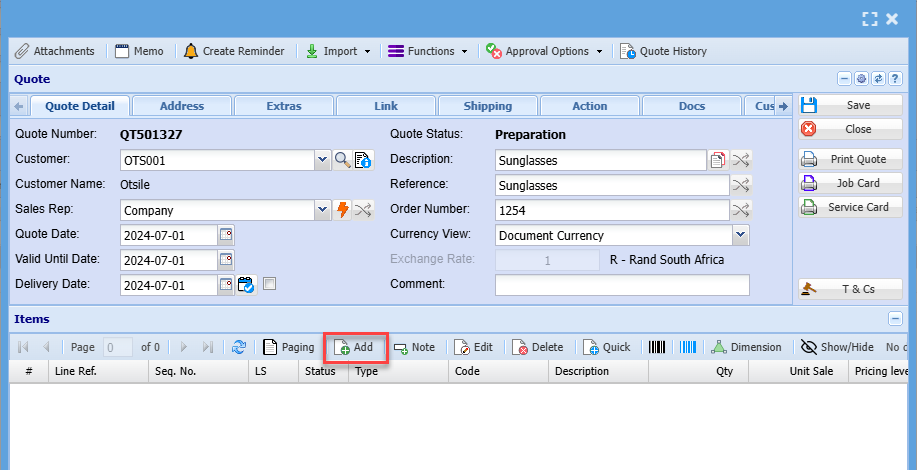
Once all the necessary quote header details have been loaded click the Save button.

This will activate the Add button in the centre of the page

This Add button allows the user to add line items to be added to the quote

#### Line Items

<p class="callout info">You can only add a line item after adding all the necessary information needed on the quote detail tab and all greyed buttons have been greyed out</p>

[![image.png](https://hugeerp10.co.za/hsofmanual/uploads/images/gallery/2024-07/scaled-1680-/2WTimage.png)](https://hugeerp10.co.za/hsofmanual/uploads/images/gallery/2024-07/2WTimage.png)

Then the screen below will appear

[![image.png](https://hugeerp10.co.za/hsofmanual/uploads/images/gallery/2024-12/scaled-1680-/T2Mimage.png)](https://hugeerp10.co.za/hsofmanual/uploads/images/gallery/2024-12/T2Mimage.png)

Select the item you want to quote on the drop-down selection by typing part of the item code or description.

Once the options appear, click on the relevant item option

Enter the quantity you are quoting the customer/ debtor on

Make sure pricing is correct

Select a relevant warehouse if you have multiple warehouses

Select the correct VAT Type

Click Save &amp; New if capturing numerous line items

Click Save &amp; Close if capturing a single line item

Once done

All line items will appear on the grid below:

[![image.png](https://hugeerp10.co.za/hsofmanual/uploads/images/gallery/2024-07/scaled-1680-/tE7image.png)](https://hugeerp10.co.za/hsofmanual/uploads/images/gallery/2024-07/tE7image.png)
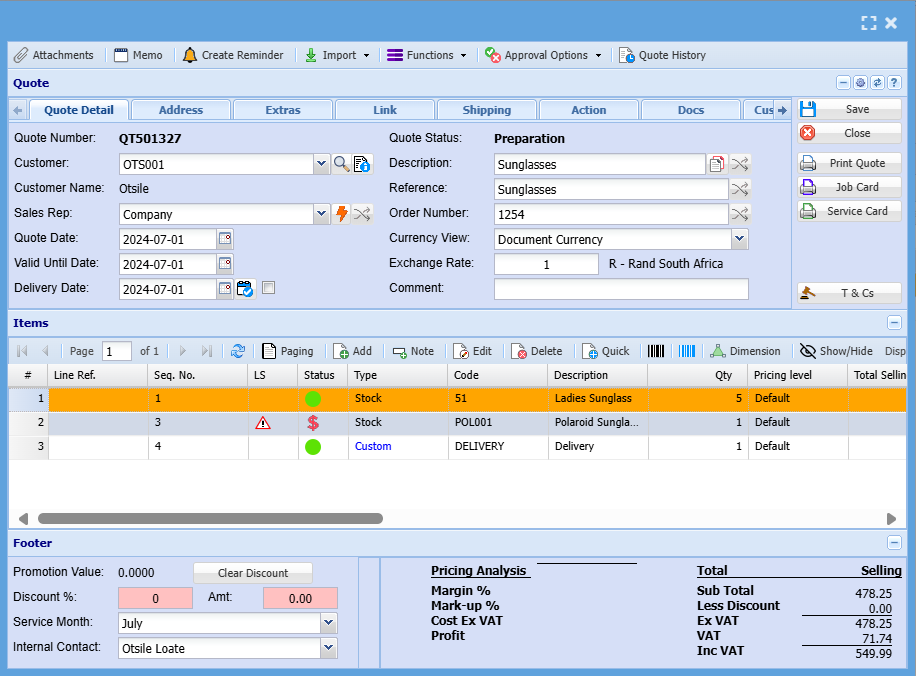
<table border="1" id="bkmrk-paging-if-you-have-m" style="border-collapse: collapse; width: 100%; height: 153.984px;"><colgroup><col style="width: 16.9285%;"></col><col style="width: 83.0715%;"></col></colgroup><tbody><tr style="height: 34.7969px;"><td style="height: 34.7969px;">Paging</td><td style="height: 34.7969px;">If you have more than the default 100 lines on the quote, paging removes multiple pages and displays all items in a single page on the grid.</td></tr><tr style="height: 29.7969px;"><td style="height: 29.7969px;">Add</td><td style="height: 29.7969px;">Enables user to add another item line to the quote</td></tr><tr style="height: 29.7969px;"><td style="height: 29.7969px;">Note</td><td style="height: 29.7969px;">Allows the user to add a note as an item line on the quote. this will, be printed on the quote.</td></tr><tr style="height: 29.7969px;"><td style="height: 29.7969px;">Edit</td><td style="height: 29.7969px;">Enables the user to edit an item line added to the quote</td></tr><tr style="height: 29.7969px;"><td style="height: 29.7969px;">Delete</td><td style="height: 29.7969px;">Deletes and removes a selected item line from the quote</td></tr><tr><td>Quick</td><td>Enables the user to select items to be added to the quote quickly without entering item code or descriptions, but by using the Brand make model search options</td></tr></tbody></table>

---

#### Note Button

[![image.png](https://hugeerp10.co.za/hsofmanual/uploads/images/gallery/2024-10/scaled-1680-/8fQimage.png)](https://hugeerp10.co.za/hsofmanual/uploads/images/gallery/2024-10/8fQimage.png)

[![image.png](https://hugeerp10.co.za/hsofmanual/uploads/images/gallery/2024-10/scaled-1680-/88Gimage.png)](https://hugeerp10.co.za/hsofmanual/uploads/images/gallery/2024-10/88Gimage.png)

Type a note that you wish to display on the quote

Once all items have been captured, you can then click Save

Close

Send the quote for Internal approval if necessary. Alternatively, click print

The quote will print to screen. check all r=details and if satisfied, you can then email the client or print a hard copy of the quote

---

#### Attachments

Should you wish to attach any additional information such as drawings, specifications, workings, you can attach the document to the quote

Click the Attachment Button

Either drag and drop from a folder on your computer

or search the file and upload

[![image.png](https://hugeerp10.co.za/hsofmanual/uploads/images/gallery/2024-11/scaled-1680-/4vuimage.png)](https://hugeerp10.co.za/hsofmanual/uploads/images/gallery/2024-11/4vuimage.png)

[![image.png](https://hugeerp10.co.za/hsofmanual/uploads/images/gallery/2024-11/scaled-1680-/7FAimage.png)](https://hugeerp10.co.za/hsofmanual/uploads/images/gallery/2024-11/7FAimage.png)

[![image.png](https://hugeerp10.co.za/hsofmanual/uploads/images/gallery/2024-11/scaled-1680-/7lGimage.png)](https://hugeerp10.co.za/hsofmanual/uploads/images/gallery/2024-11/7lGimage.png)

---

#### Keyboard quick keys for Quote Detail

Quick keys help access functions using the keyboard

Used with Alt + Letter

[![image.png](https://hugeerp10.co.za/hsofmanual/uploads/images/gallery/2024-12/scaled-1680-/pBLimage.png)](https://hugeerp10.co.za/hsofmanual/uploads/images/gallery/2024-12/pBLimage.png)

<table border="1" id="bkmrk-search-alt-%2B-s-searc"><colgroup><col></col><col></col><col></col></colgroup><tbody><tr><td>Attachmen**t**</td><td>Alt + t</td><td>Opens the Attachment window</td></tr><tr><td>**M**emo</td><td>Alt + m</td><td>Opens the Memo window</td></tr><tr><td>Create **R**eminder</td><td>Alt + r</td><td>Opens the Reminder window</td></tr><tr><td>Qu**o**te History</td><td>Alt + o</td><td>Opens the Quote History window</td></tr><tr><td>**I**nfo</td><td>Alt + i</td><td>Opens the Quote Info window</td></tr><tr><td>**F**unctions</td><td>Alt + f</td><td>Focus on the Function split button</td></tr><tr><td>**S**ave</td><td>Alt + s</td><td>Saves the quote</td></tr><tr><td>**C**lose</td><td>Alt + c</td><td>Closes the quote window</td></tr><tr><td>**P**rint Quote</td><td>Alt + p</td><td>Print the quote

</td></tr><tr><td>**J**ob Card</td><td>Alt + j</td><td>Pring the Job Card for the quote

</td></tr><tr><td>Ser**v**ice Card</td><td>Alt + v</td><td>Print the Service Card for the quote

</td></tr><tr><td>**A**dd  
</td><td>Alt + a</td><td>Opens a New Quote Line Detail window

</td></tr><tr><td>**E**dit</td><td>Alt + e</td><td>Opens the Quote Line Detail window for the selected quote line

</td></tr><tr><td>**D**elete</td><td>Alt + d</td><td>Deletes the selected line from the quote

</td></tr><tr><td>**Q**uick Add</td><td>Alt + q</td><td>Opens the quick add window to add a quote line to the quote

</td></tr><tr><td>Dimensio**n**</td><td>Alt + n</td><td>Opens the Dimensions wind for the selected quote line

</td></tr><tr><td>Tab Quote Detail</td><td>Alt + 1</td><td>Sets the tab notebook to the Quote Detail tab</td></tr><tr><td>  
</td><td>Alt + 2</td><td>Pressing Alt + 2 repeatedly will step through the various tabs in the tabnotebook</td></tr></tbody></table>

#### Keyboard quick keys for Quote Line Item Detail

Quick keys help access functions using the keyboard

Used with Alt + Letter

[![image.png](https://hugeerp10.co.za/hsofmanual/uploads/images/gallery/2024-12/scaled-1680-/bOZimage.png)](https://hugeerp10.co.za/hsofmanual/uploads/images/gallery/2024-12/bOZimage.png)

[![image.png](https://hugeerp10.co.za/hsofmanual/uploads/images/gallery/2024-12/scaled-1680-/cZjimage.png)](https://hugeerp10.co.za/hsofmanual/uploads/images/gallery/2024-12/cZjimage.png)

<table border="1" id="bkmrk-inventory%C2%A0overview-a" style="width: 102.143%;"><colgroup><col style="width: 19.0658%;"></col><col style="width: 10.4862%;"></col><col style="width: 70.4242%;"></col></colgroup><tbody><tr><td>Inventory **O**verview</td><td>Alt + t</td><td>Opens the Inventory Overview window</td></tr><tr><td>View **I**mage</td><td>Alt + i</td><td>Opens the View Image window</td></tr><tr><td>**S**pecial Item</td><td>Alt + s</td><td>Opens the Special Item window</td></tr><tr><td>**C**lose</td><td>Alt + c</td><td>Closes the quote window</td></tr><tr><td>**R**eminder</td><td>Alt + r</td><td>Opens the Reminder window</td></tr><tr><td>**F**unctions</td><td>Alt + f</td><td>Focus on the Function split button</td></tr><tr><td>Save &amp; **N**ew</td><td>Alt + n</td><td>Saves the Quote Item Detail window and opens a new Quote Item window

</td></tr><tr><td>Sa**v**e &amp; Close</td><td>Alt + v</td><td>Saves the Quote Item Detail window and then closes the window

</td></tr><tr><td>**U**pdate Cost  
</td><td>Alt + u</td><td>Updates the cost of the selected item to the latest cost price

</td></tr><tr><td>Tab Quote Item Detail</td><td>Alt + 1</td><td>Sets the tab notebook to the Quote Item Detail tab</td></tr><tr><td>  
</td><td>Alt + 2</td><td>Pressing Alt + 2 repeatedly will step through the various tabs in the tab notebook</td></tr></tbody></table>

# Advanced Add Quote Process

#### Functions Drop Down

[![image.png](https://hugeerp10.co.za/hsofmanual/uploads/images/gallery/2024-10/scaled-1680-/PXZimage.png)](https://hugeerp10.co.za/hsofmanual/uploads/images/gallery/2024-10/PXZimage.png)

##### Create Stock Request

[![image.png](https://hugeerp10.co.za/hsofmanual/uploads/images/gallery/2024-10/scaled-1680-/mo5image.png)](https://hugeerp10.co.za/hsofmanual/uploads/images/gallery/2024-10/mo5image.png)

[![image.png](https://hugeerp10.co.za/hsofmanual/uploads/images/gallery/2024-10/scaled-1680-/lleimage.png)](https://hugeerp10.co.za/hsofmanual/uploads/images/gallery/2024-10/lleimage.png)

---

##### Change Warehouse

[![image.png](https://hugeerp10.co.za/hsofmanual/uploads/images/gallery/2024-10/scaled-1680-/PVTimage.png)](https://hugeerp10.co.za/hsofmanual/uploads/images/gallery/2024-10/PVTimage.png)

[![image.png](https://hugeerp10.co.za/hsofmanual/uploads/images/gallery/2024-10/scaled-1680-/qbTimage.png)](https://hugeerp10.co.za/hsofmanual/uploads/images/gallery/2024-10/qbTimage.png)

---

##### Manage Standard Notes

[![image.png](https://hugeerp10.co.za/hsofmanual/uploads/images/gallery/2024-10/scaled-1680-/PCgimage.png)](https://hugeerp10.co.za/hsofmanual/uploads/images/gallery/2024-10/PCgimage.png)

This window allows the user to add a specific Note to each line on a Quote.

The **Stock Type** drop down will allow the user to specify <span class="GramE">**All**</span> lines or lines of a selected inventory type e.g. Stock, Service etc.

The **Note Action** radio buttons allows the user to modify the note to a limited extent by <span class="GramE">either replacing</span> the whole note, inserting a new note in front of the existing note and keeping the existing note or adding a new note to the end of an existing note.

Click the **Add <span class="GramE">To</span> Note** button to add the Note to the lines subject to the previous two selections.

Once the note has been added and also based on the selection of the **Stock Type** drop down the user can view the resulting note by clicking on the **View Note** button.

By clicking on the **Delete Notes** button and subject to the selection of the **Stock Type** drop down the notes can be removed from the quote lines.

[![image.png](https://hugeerp10.co.za/hsofmanual/uploads/images/gallery/2024-10/scaled-1680-/royimage.png)](https://hugeerp10.co.za/hsofmanual/uploads/images/gallery/2024-10/royimage.png)

---

##### Save As Template

[![image.png](https://hugeerp10.co.za/hsofmanual/uploads/images/gallery/2024-10/scaled-1680-/XVAimage.png)](https://hugeerp10.co.za/hsofmanual/uploads/images/gallery/2024-10/XVAimage.png)

It allows a user to create a quote template by filling in the Code and Description.

[![image.png](https://hugeerp10.co.za/hsofmanual/uploads/images/gallery/2024-10/scaled-1680-/cvYimage.png)](https://hugeerp10.co.za/hsofmanual/uploads/images/gallery/2024-10/cvYimage.png)

---

##### Import Quote Template

[![image.png](https://hugeerp10.co.za/hsofmanual/uploads/images/gallery/2024-10/scaled-1680-/DCSimage.png)](https://hugeerp10.co.za/hsofmanual/uploads/images/gallery/2024-10/DCSimage.png)

This allows a user to import a copy of a quote that was previously saved as a Quote Template.

Code – enter the code of the quote template and then click on the **Search** button.

Description – enter the description of the quote template and then click on the **Search** button.

If Code and Description are left blank, the system search will retrieve all quote templates.

Once the desired template has been located select that template and either click on the **Import** button or double click on the grid line.

**Import** button – allows a user to import a quote template into the currently opened quote.

[![image.png](https://hugeerp10.co.za/hsofmanual/uploads/images/gallery/2024-10/scaled-1680-/jL5image.png)](https://hugeerp10.co.za/hsofmanual/uploads/images/gallery/2024-10/jL5image.png)

---

##### Export Spec

[![image.png](https://hugeerp10.co.za/hsofmanual/uploads/images/gallery/2024-10/scaled-1680-/LqHimage.png)](https://hugeerp10.co.za/hsofmanual/uploads/images/gallery/2024-10/LqHimage.png)

If there were any specification captured, these will be exported

---

##### Create RFQ

[![image.png](https://hugeerp10.co.za/hsofmanual/uploads/images/gallery/2024-10/scaled-1680-/4pwimage.png)](https://hugeerp10.co.za/hsofmanual/uploads/images/gallery/2024-10/4pwimage.png)

Allows one to create Requests for quotes (RFQ) from your suppliers for the items on the selected quote

##### Create Purchase Order

[![image.png](https://hugeerp10.co.za/hsofmanual/uploads/images/gallery/2024-10/scaled-1680-/Bbximage.png)](https://hugeerp10.co.za/hsofmanual/uploads/images/gallery/2024-10/Bbximage.png)

Creates a purchase order automatically to be sent to your supplier(s) for items on the quote.

The default supplier as per the item setup will be used, unless edited/ updated on the PO create.

---

##### View Special Deals

[![image.png](https://hugeerp10.co.za/hsofmanual/uploads/images/gallery/2024-10/scaled-1680-/gKpimage.png)](https://hugeerp10.co.za/hsofmanual/uploads/images/gallery/2024-10/gKpimage.png)

Displays a list of Specials or Deals that have been setup on the system.

[![image.png](https://hugeerp10.co.za/hsofmanual/uploads/images/gallery/2024-10/scaled-1680-/YSEimage.png)](https://hugeerp10.co.za/hsofmanual/uploads/images/gallery/2024-10/YSEimage.png)

---

##### Print Link Quote

[![image.png](https://hugeerp10.co.za/hsofmanual/uploads/images/gallery/2024-10/scaled-1680-/SMmimage.png)](https://hugeerp10.co.za/hsofmanual/uploads/images/gallery/2024-10/SMmimage.png)

[![image.png](https://hugeerp10.co.za/hsofmanual/uploads/images/gallery/2024-10/scaled-1680-/6ZIimage.png)](https://hugeerp10.co.za/hsofmanual/uploads/images/gallery/2024-10/6ZIimage.png)

---

##### Barcode

[![image.png](https://hugeerp10.co.za/hsofmanual/uploads/images/gallery/2024-10/scaled-1680-/vSaimage.png)](https://hugeerp10.co.za/hsofmanual/uploads/images/gallery/2024-10/vSaimage.png)

[![image.png](https://hugeerp10.co.za/hsofmanual/uploads/images/gallery/2024-10/scaled-1680-/KZximage.png)](https://hugeerp10.co.za/hsofmanual/uploads/images/gallery/2024-10/KZximage.png)

---

##### Update Doc Lines

[![image.png](https://hugeerp10.co.za/hsofmanual/uploads/images/gallery/2024-10/scaled-1680-/m4Eimage.png)](https://hugeerp10.co.za/hsofmanual/uploads/images/gallery/2024-10/m4Eimage.png)

Allows the user to update certain fields on quote lines. in the event that there are multiple item lines on the quote, this option saves the user from having to edit each line individually.

[![image.png](https://hugeerp10.co.za/hsofmanual/uploads/images/gallery/2024-10/scaled-1680-/SZwimage.png)](https://hugeerp10.co.za/hsofmanual/uploads/images/gallery/2024-10/SZwimage.png)

---

##### Import Creditor Doc

[![image.png](https://hugeerp10.co.za/hsofmanual/uploads/images/gallery/2024-10/scaled-1680-/yu2image.png)](https://hugeerp10.co.za/hsofmanual/uploads/images/gallery/2024-10/yu2image.png)

This option allows the user to import a creditors document such as Purchase order or Goods received Note (GRV) into a quote

[![image.png](https://hugeerp10.co.za/hsofmanual/uploads/images/gallery/2024-10/scaled-1680-/vHzimage.png)](https://hugeerp10.co.za/hsofmanual/uploads/images/gallery/2024-10/vHzimage.png)

---

#### Info Button

[![image.png](https://hugeerp10.co.za/hsofmanual/uploads/images/gallery/2024-10/scaled-1680-/mxnimage.png)](https://hugeerp10.co.za/hsofmanual/uploads/images/gallery/2024-10/mxnimage.png)

The screen allows for any additional info to be captured against the quote

<table border="1" id="bkmrk-valid-until-date-thi" style="font-family: var(--font-body); font-size: 14px; width: 100%; height: 297.875px;"><colgroup><col style="width: 20.6428%;"></col><col style="width: 79.3572%;"></col></colgroup><tbody><tr style="height: 29.7875px;"><td style="height: 29.7875px;">**<span class="ts46">Customer </span>**</td><td style="height: 29.7875px;"><span class="ts43">Select the customer you are creating a quotation for on the drop-down</span></td></tr><tr style="height: 29.7875px;"><td style="height: 29.7875px;">**<span class="ts46">Sales Rep</span>**</td><td style="height: 29.7875px;"><span class="ts43">This is where you select the specific sales rep if you have sales reps set up.</span></td></tr><tr style="height: 29.7875px;"><td style="height: 29.7875px;">**<span class="ts46">Quote Date</span>**</td><td style="height: 29.7875px;"><span class="ts43">This is the date captured on the quote </span></td></tr><tr style="height: 29.7875px;"><td style="height: 29.7875px;">**<span class="ts46">Valid Until Date</span>**</td><td style="height: 29.7875px;"><span class="ts43">This will be the date on which the quote will expire.</span></td></tr><tr style="height: 29.7875px;"><td style="height: 29.7875px;">**<span class="ts46">Delivery Date</span>**</td><td style="height: 29.7875px;"><span class="ts43">This is the date on which the goods or service will be delivered.</span></td></tr><tr style="height: 29.7875px;"><td style="height: 29.7875px;">**<span class="ts46">Description</span>**</td><td style="height: 29.7875px;"><span class="ts43"><span class="ts0">This is a general description of the items on the quote.</span></span></td></tr><tr style="height: 29.7875px;"><td style="height: 29.7875px;">**<span class="ts46">Reference</span>**</td><td style="height: 29.7875px;"><span class="ts43">Reference captured on the quote</span></td></tr><tr style="height: 29.7875px;"><td style="height: 29.7875px;">**<span class="ts46">Order Number</span>**</td><td style="height: 29.7875px;"><span class="ts43">If a client requests for a specific purchase order number to be put on the quote.</span></td></tr><tr style="height: 29.7875px;"><td style="height: 29.7875px;">**Currency View**</td><td style="height: 29.7875px;">This allows one to toggle between </td></tr><tr style="height: 29.7875px;"><td style="height: 29.7875px;">**Comment**</td><td style="height: 29.7875px;">  
</td></tr></tbody></table>

<span class="ts0">Go to Address Tab and insert the additional properties such as Division, Region, invoice Group if applicable) and Click Save</span>

<span class="ts0">Next the items that you want to put on the quote have to be inserted. To do this click </span><span class="ts0">Add</span><span class="ts0">.</span>

<span class="ts0"> </span>![](https://hugeerp0.co.za/csp/webhelp/topics/images/image(2111).png)

---

<span class="ts43">Next the items that you want to put on the quote have to be inserted. To do this click </span><span class="ts43">Add.</span><span class="ts43"> </span>

<span class="ts43">The following screen will appear.</span>

![](https://hugeerp0.co.za/csp/webhelp/topics/images/image(14).png)

<table border="1" id="bkmrk-category-select-the-" style="border-collapse: collapse; width: 100%; height: 148px;"><colgroup><col style="width: 18.2881%;"></col><col style="width: 81.6872%;"></col></colgroup><tbody><tr style="height: 29.6px;"><td style="height: 29.6px;"><span class="ts46">Category</span></td><td style="height: 29.6px;"><span class="ts43">Select the type of inventory item i.e. Stock, Service or Custom.</span></td></tr><tr style="height: 29.6px;"><td style="height: 29.6px;"><span class="ts46">Item Code</span></td><td style="height: 29.6px;"><span class="ts43">This is where you search for the item that you want on the quote.</span></td></tr><tr style="height: 29.6px;"><td style="height: 29.6px;"><span class="ts46">Item Description</span></td><td style="height: 29.6px;"><span class="ts43">This will be filled in automatically once the item is selected.</span></td></tr><tr style="height: 29.6px;"><td style="height: 29.6px;"><span class="ts46">Quantity</span></td><td style="height: 29.6px;"><span class="ts43">The quantity of the specific item that you want on the quote.</span></td></tr><tr style="height: 29.6px;"><td style="height: 29.6px;"><span class="ts46">System &amp; Total Cost</span></td><td style="height: 29.6px;"><span class="ts43">Leave this as it is.</span></td></tr><tr><td><span class="ts46">Warehouse</span></td><td><span class="ts43">Select the warehouse that you want to take the stock out of from this drop-down menu.</span></td></tr><tr><td><span class="ts46">Selling Inc. VAT</span></td><td><span class="ts43">If you want to enter the selling price per item including vat then tick this box. This will open up the “Selling Including VAT” field so that you can enter the inclusive selling price.</span></td></tr><tr><td><span class="ts46">Selling Exc. VAT</span></td><td><span class="ts43">If you prefer to enter the exclusive selling price then you should not tick the “Selling Including VAT” box and just enter the exclusive amount.</span></td></tr></tbody></table>

<span class="ts43">Once you have entered either the inclusive or exclusive amounts per item then the system will work out the rest of the amounts for you.</span>

<span class="ts43">![](https://hugeerp0.co.za/csp/webhelp/topics/images/image(2114).png)</span>

<table border="1" id="bkmrk-line-discount-if-you" style="border-collapse: collapse; width: 100%; height: 333.6px;"><colgroup><col style="width: 22.0247%;"></col><col style="width: 78.0741%;"></col></colgroup><tbody><tr style="height: 46.4px;"><td style="height: 46.4px;"><span class="ts46">Line Discount</span></td><td style="height: 46.4px;"><span class="ts43">If you want to give a discount on the specific line then a percentage can be entered here. If you choose not to give a discount, then just leave this field blank.</span></td></tr><tr style="height: 29.6px;"><td style="height: 29.6px;"><span class="ts46">Vat</span></td><td style="height: 29.6px;"><span class="ts43">This is where you select the Vat type for this transaction.</span></td></tr><tr style="height: 46.4px;"><td style="height: 46.4px;"><span class="ts46">Mark Up</span></td><td style="height: 46.4px;"><span class="ts43">This will default to your system mark-up that was selected when the company was first configured however it can be changed for each transaction.</span></td></tr><tr style="height: 29.6px;"><td style="height: 29.6px;"><span class="ts46">Unit Of Measure </span></td><td style="height: 29.6px;"><span class="ts43">Select the unit of measure for the specific item from this drop down.</span></td></tr><tr style="height: 46.4px;"><td style="height: 46.4px;"><span class="ts46">Lead Time</span></td><td style="height: 46.4px;"><span class="ts43">This is the time the supplier takes to deliver ordered items from the order date to the date that the items are physically delivered to the client.</span></td></tr><tr style="height: 29.6px;"><td style="height: 29.6px;"><span class="ts46">Order Date</span></td><td style="height: 29.6px;"><span class="ts43">This is the date on which the order for the items should be placed from the supplier.</span></td></tr><tr style="height: 46.4px;"><td style="height: 46.4px;"><span class="ts46">Reminder Date</span></td><td style="height: 46.4px;"><span class="ts43">This date is a final reminder to order items. Own discretion should be used when adding this date. This date should be about a week after your order date.</span></td></tr><tr style="height: 29.6px;"><td style="height: 29.6px;"><span class="ts46">Required Date</span></td><td style="height: 29.6px;"><span class="ts43">This is the date on which the specific item is needed. This means that the item should be ordered, delivered and ready to be used on the intended job.</span></td></tr><tr style="height: 29.6px;"><td style="height: 29.6px;"><span class="ts46">Payment Method</span></td><td style="height: 29.6px;"><span class="ts43">This is the account terms that you have with the supplier of the specific item. These include COD, 30 days, 60 days, 90 days, 120 days, 150 days or 180 days.</span></td></tr><tr><td><span class="ts46">Supplier</span></td><td><span class="ts43">This will default on the default supplier of the specific item, but other suppliers can be chosen or added.</span></td></tr><tr><td><span class="ts46">Internal Note</span></td><td><span class="ts43">This is any note about the item or supplier that you want to add. This will not appear on any printed documents.</span></td></tr></tbody></table>

<span class="ts43">After all the info has been entered click either the Save &amp; Close button or the Save &amp; New button. Save &amp; New is to add another line item and Save &amp; Close if you only want the one-line item.</span>

<span class="ts43">After clicking on the Save &amp; Close button you will be back on the New Quote screen. Notice that your line items also appear on the screen with the amounts at the bottom. </span>

<span class="ts43">Once you are happy with all the details you can click Save and then Close. Now you will be back on the main quote screen</span>

<span class="ts43">Click on Search and your quote should appear on this screen.</span>

<span class="ts43">![](https://hugeerp0.co.za/csp/webhelp/topics/images/image(2116).png)</span>

<span class="ts43">If you are happy with the quote, it can be approved.</span>

<span class="ts43">Click the approve tab at the </span><span class="ts43">top</span><span class="ts43"> of the screen.</span>

<span class="ts43"> </span>![](https://hugeerp0.co.za/csp/webhelp/topics/images/image(3832).png)

<span class="ts0">Here you will see 5 different approval buttons.</span>

<table border="1" id="bkmrk-internal-approval-th" style="border-collapse: collapse; width: 100%;"><colgroup><col style="width: 20.7902%;"></col><col style="width: 79.3087%;"></col></colgroup><tbody><tr><td><span class="ts11">Internal Approval</span></td><td><span class="ts0">This is when all involved parties that work for the company are happy with the quote then it can be approved internally.</span></td></tr><tr><td><span class="ts0">Customer Approval</span></td><td><span class="ts0">After the quote has been approved internally it can be sent for customer approval.</span></td></tr><tr><td><span class="ts0">Approve To Invoice</span></td><td><span class="ts0">If the client is happy with the quote, it can be approved to invoice.</span></td></tr><tr><td><span class="ts0">Approve To Sales Order</span></td><td><span class="ts0">If you want to approve the quote to a Sales Order.</span></td></tr><tr><td><span class="ts0">Approve to Job</span></td><td><span class="ts0">if you want to approve the quote to a Job</span></td></tr></tbody></table>

<span class="ts0">You will notice that all four options mentioned above are sub menus under activity on the left.</span>

<span class="ts0">Depending on the approval stage this is where the quote will appear. So, for example, if you approved a quote internally it will move out of New Quote Search and into Internal Quote Approval.</span>

<span class="ts0">Any of the approval stages can be skipped. This means that if you would like to create a quote and immediately approve it to an Invoice or Sales Order instead of Internal Quote Approval or Customer Quote Approval then you can do this.</span>

<span class="ts0">Once the quote has been approved to Sales Order or Invoice then it can be treated as a normal Sales Order or Invoice from there on out</span>

---

### <span class="ts0">Button Functions Explained</span>

#### <span class="ts0">Change Warehouse</span>

<span class="ts40">Debtors / Customer Module&gt; Activity&gt; Quotes</span>

<span class="ts10">Video training manual 2016 - </span>[Click Here](https://vimeo.com/357004213)

<span class="ts0"> </span>[![image.png](https://hugeerp10.co.za/hsofmanual/uploads/images/gallery/2023-07/scaled-1680-/Ginimage.png)](https://hugeerp10.co.za/hsofmanual/uploads/images/gallery/2023-07/Ginimage.png)

---

#### Import Dropdown

[![image.png](https://hugeerp10.co.za/hsofmanual/uploads/images/gallery/2024-10/scaled-1680-/qstimage.png)](https://hugeerp10.co.za/hsofmanual/uploads/images/gallery/2024-10/qstimage.png)

##### Import

[![image.png](https://hugeerp10.co.za/hsofmanual/uploads/images/gallery/2024-10/scaled-1680-/T6fimage.png)](https://hugeerp10.co.za/hsofmanual/uploads/images/gallery/2024-10/T6fimage.png)

##### Import AutoCAD

[![image.png](https://hugeerp10.co.za/hsofmanual/uploads/images/gallery/2024-10/scaled-1680-/mKUimage.png)](https://hugeerp10.co.za/hsofmanual/uploads/images/gallery/2024-10/mKUimage.png)

##### Import Checklist

[![image.png](https://hugeerp10.co.za/hsofmanual/uploads/images/gallery/2024-10/scaled-1680-/eZ6image.png)](https://hugeerp10.co.za/hsofmanual/uploads/images/gallery/2024-10/eZ6image.png)

<span class="ts0"> </span>

# Approval Options Drop Down

<span style="color: rgb(45, 194, 107);">**<span class="ts15">Debtors&gt; Activity&gt; Quotation&gt; Approval Options</span>**</span>

[![image.png](https://hugeerp10.co.za/hsofmanual/uploads/images/gallery/2024-01/scaled-1680-/Pf3image.png)](https://hugeerp10.co.za/hsofmanual/uploads/images/gallery/2024-01/Pf3image.png)

<table border="1" id="bkmrk-internal-approval-th" style="border-collapse: collapse; width: 100%;"><colgroup><col style="width: 24.8348%;"></col><col style="width: 75.1405%;"></col></colgroup><tbody><tr><td>**<span class="ts0">Internal Approval</span>**</td><td><span class="ts0">This is when all involved parties that work for the company are happy with the quote then it can be approved internally.</span></td></tr><tr><td>**<span class="ts0">Customer Approval</span>**</td><td><span class="ts0">After the quote has been approved internally it can be sent </span><span class="ts0">for customer approval.</span></td></tr><tr><td>**<span class="ts0">Approve to Sales Order</span>**</td><td><span class="ts0">If you want to approve the quote to a Sales Order.</span></td></tr><tr><td>**<span class="ts0">Approve to Invoice</span>**</td><td><span class="ts0">If you want to approve the quote to an Invoice</span></td></tr><tr><td>**<span class="ts0">Approve to Job</span>**</td><td><span class="ts0">If you want to approve the quote to a Job</span></td></tr><tr><td>**<span class="ts0">Return to Internal Approval</span>**</td><td><span class="ts0">This button allow you to return the quote for internal approval</span></td></tr><tr><td>**<span class="ts0">Return to Preparation</span>**</td><td><span class="ts0">Return the quote to preparation status</span></td></tr></tbody></table>

# Email attachments alert

<span class="ts0">I would like to put an alert on the emailing of documents where the flag to email an attachment is on</span>

<span class="ts0">If a user has uploaded an attachment and wants to email it.</span>

<span class="ts0">When we get to email and the user forgets to select the attachment he wants to send with the email.</span>

<span class="ts0">An alert to come up to say</span>

<span class="ts0">You have uploaded attachments to be sent with this email, but you have not selected the ones you want to send with this email</span>

<span class="ts0">Continue without sending any attachments</span>

<span class="ts0">Cancel to go and select attachments</span>

<span class="ts0">Continue </span>

<span class="ts0">Cancel</span>

<span class="ts0">If the user has selected the attachments, then you don’t need to pop up this message</span>

<span class="ts0">This is to help the user remember that he attached documents to send with the email, but most times people forget to select them to email</span>

<span class="ts0"> </span>![](https://hugeerp0.co.za/csp/webhelp/topics/images/image(2716).png)

# Build Kit

**<span class="ts4">Build Kit Update Quantity tick box</span>**

<span class="ts0">There is an alert for the user who wants to remove the tick box</span>

<span class="ts0">Relevant for the following documents</span>

<table border="1" id="bkmrk-1-quote-2-sales-orde" style="border-collapse: collapse; width: 21.6049%;"><colgroup><col style="width: 19.2319%;"></col><col style="width: 80.6802%;"></col></colgroup><tbody><tr><td>1</td><td><span class="ts0">Quote</span></td></tr><tr><td>2</td><td><span class="ts0">Sales Order</span></td></tr><tr><td>3</td><td><span class="ts0">Invoice</span></td></tr><tr><td>4</td><td><span class="ts0">Credit Note</span></td></tr></tbody></table>

<span class="ts0" style="color: rgb(224, 62, 45);">WARNING</span>

<span class="ts0">If you remove this tick for Update Quantity for Build Kit quantity, one runs the risk of not matching the build to the line quantity.</span>

<span class="ts0">Click on Continue to accept risk</span>

<span class="ts0"> </span>![](https://hugeerp0.co.za/csp/webhelp/topics/images/image(2546).png)

# Quote Proforma Invoice

Create a quote to be a Proforma Invoice

When printing the quote, there is an option to make the quote a Proforma Invoice

[![image.png](https://hugeerp10.co.za/hsofmanual/uploads/images/gallery/2025-08/scaled-1680-/gjtimage.png)](https://hugeerp10.co.za/hsofmanual/uploads/images/gallery/2025-08/gjtimage.png)

This will change the header of the quote and labels to read Proforma Invoice.

The Proforma number will be the quote number

[![image.png](https://hugeerp10.co.za/hsofmanual/uploads/images/gallery/2025-08/scaled-1680-/zwcimage.png)](https://hugeerp10.co.za/hsofmanual/uploads/images/gallery/2025-08/zwcimage.png)