Debtors Transactions Menu
- Debtors Journal Transactions Import
- Add Debtors Journal Transaction
- Transaction Procedure - Gains/Losses
- Debtors Gains/ Loss Journal
- Move a payment to another customer
Debtors Journal Transactions Import
Print / Import function
This function allows you to print existing debtor/customer journal transactions and import new journals to the system.
Import clone refers to loading an existing debtor from the system. All you need to do is make changes as per current journal.
Debtors Module >Activity > Debtors Transactions > Print /Import
.png)
Print option will take you to print the selected debtor's transaction.
.png)
Import takes you to the option of bringing in data from a saved csv file
.png)
See the process of importing a debtor/ customer journal transaction into the system:
- Click Select
- Upload
- After, uploading the CSV file the import button will open allowing you to import the file into the system
- Once, complete click close
Important CSV File notes and format tips:
- The file must be saved as a CSV
- Don't put commas in your file
- Fields for values mostly require codes of those fields
- The date format must be 2020/01/01 YYYY/MM/DD
- The column headings can be left in the import file.
See the file Layout for CSV file:
|
1 |
AccountCode |
Required |
|
2 |
Date |
Required |
|
3 |
Reference |
Required |
|
4 |
Description |
Required |
|
5 |
Amount Inc Vat |
Required |
|
6 |
ExchangeRate |
Required (Default 1) |
|
7 |
Action |
Required |
|
8 |
TaxType |
Enter the applicable VAT type |
|
9 |
AutoAllocate |
1/0 |
|
10 |
CheckZero |
1/0 |
|
11 |
Division |
Enter the Division code (if applciable) |
|
12 |
Region |
enetyr the Region code (if applciable) |
|
13 |
GL Account |
Required |
Import Clone
To import a cloned journal, one will need to create the clone form an existing journal transaction.
To create a journal clone go to:
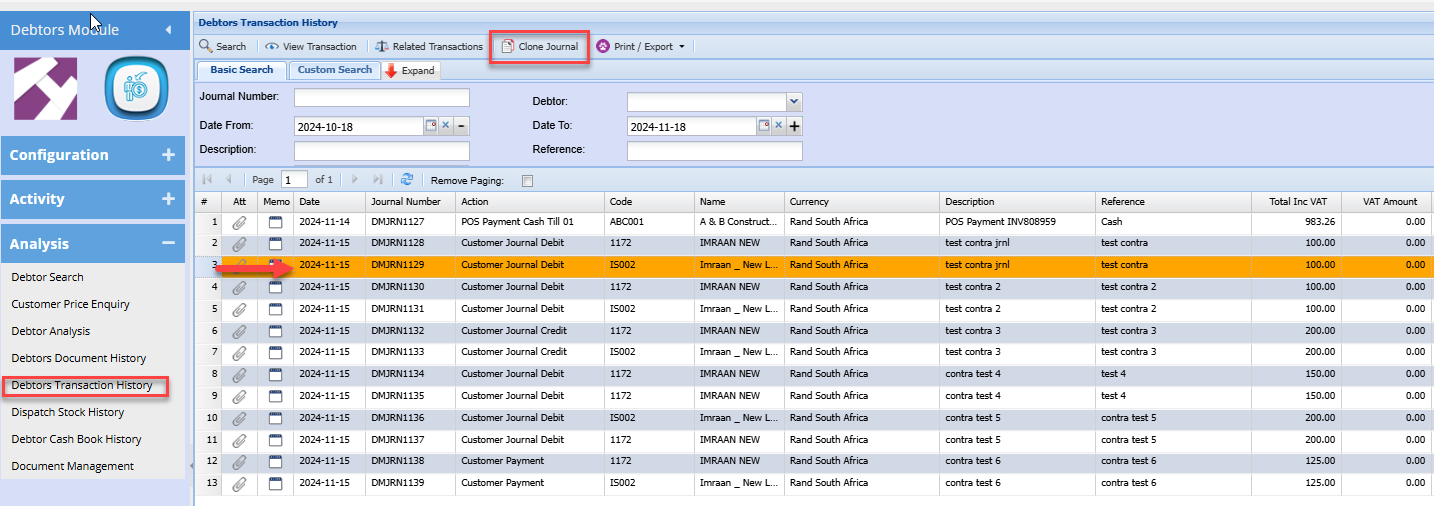
Debtor module> Analysis> Debtors Transaction history
Search the required Journal
Click the Clone Journal button
Continue
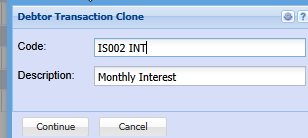
This will create a clone that can be used anytime in the future
to import the cloned journal go to:
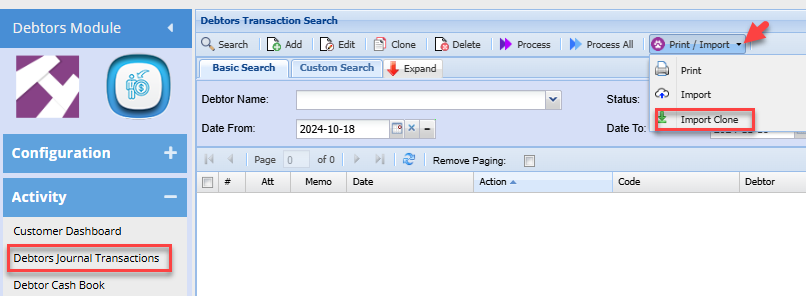
Debtors > Activity > Debtors Journal transactions
Click the Print / import Drop down
Select Import clone
Search the required clone
Click Import
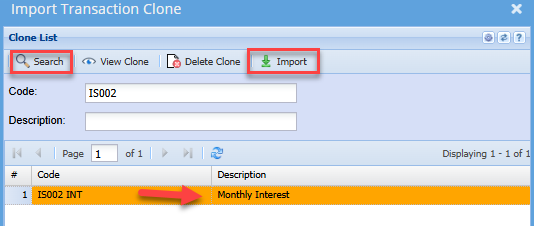
This creates a clone of the initial journal.
You can then make any necessary edits and process the journal as normal
Add Debtors Journal Transaction
Video Training Manual 2016 - Click Here
This is where we capture debtors/customer's journal entries in Huge ERP
These are direct adjustments to the balance of debtors/customer's account
A few examples of journal entries are:
- Discounts allowed/received
- Gain/ Loss
- Write-Offs
- Take on Balance
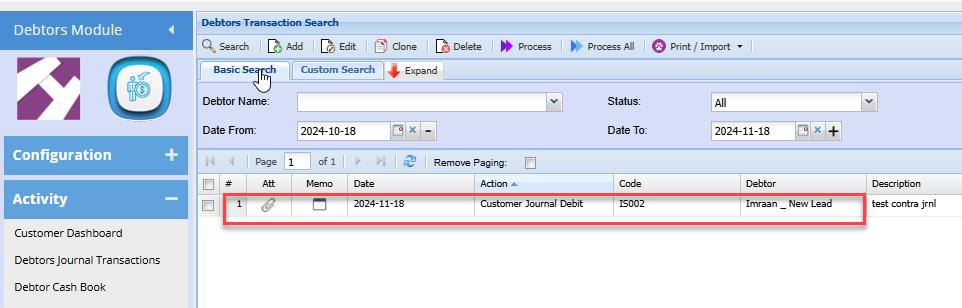
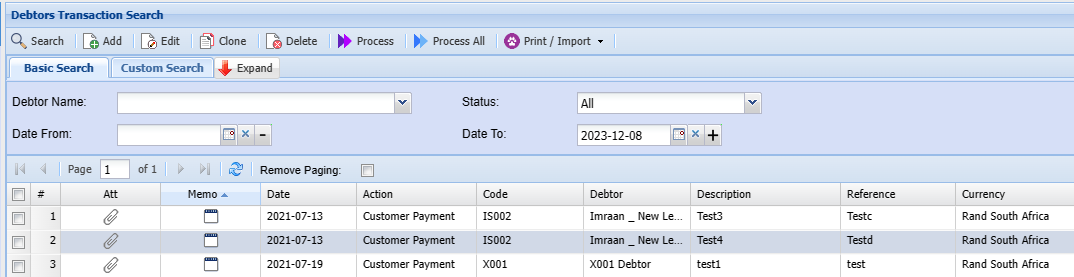
Debtors Module> Activity> Debtors Journal Transactions
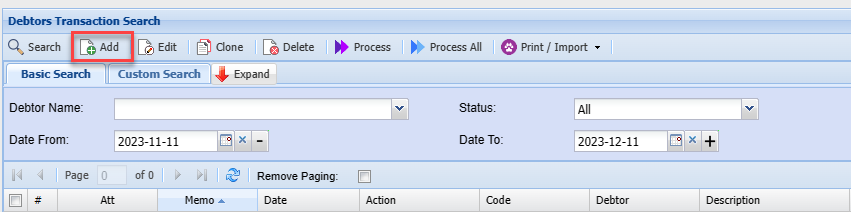
Click Add to add a new journal
Add Transaction Line
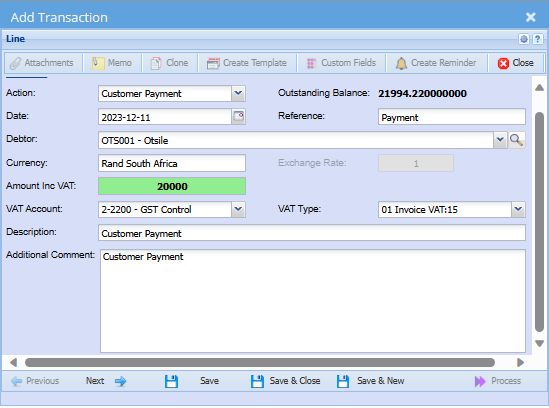
| Action |
Select journal Action from the drop down list e.g debtor journal debit Enter the action of the journal transaction This governs how the transaction will update general ledger accounts |
| Date | Enter the correct date of the journal |
| Debtor/ Customer | Select the customer who is affected by the journal transaction |
| Currency |
Currency becomes available if the customer is a multi-currency then select currency |
| Amount Inc VAT/GST | The amount entered will include VAT/GST |
| VAT/ GST Account | Select the tax general ledger account |
| Description |
Enter the amount and description |
| Additional Comment | Aff more information regarding the journal |
| Outstanding Balance | Displays the total amount outstanding |
| Reference | Enter a reference for the journal transaction |
| Exchange Rate | When currency is selected, enter the exchange rate |
| VAT/GST Type | If the Tax account is selected enter the Tax type |
.png)
Click save and click on Next
Next takes you to another window where extra information can be added
.png)
Select a region, division, project or TrackIt item related to this journal entry
This field does not apply to every client
You can click Next again to go to the posting window
.png)
| Region | If you have Regions, this will add Regions to the report. |
| Division | If you have multiple Divisions, by selecting this will add this column to your report. |
| Project | Select the Project |
| TrackIt | Select the TrackIt asset affected |
Contra Journal
Contra journal is used to ensure accurate reconciliation of debtor/customer-related transactions

| Contra Journal tick | Put a tick on if you want an additional journal to be posted |
| Debtor | Used when you want to move values from one customer to another |
| Creditor | Used when you want to move values from one supplier to another |
Credit Card Surcharge
A credit card surcharge is an additional fee imposed by a merchant when a customer uses a credit card for a transaction
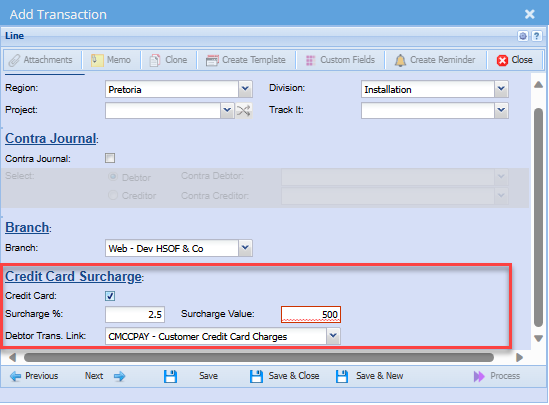
| Credit Card | Select if charging a credit card surcharge with the payment |
| Surcharge % | Populates from a setup with the percentage charged for credit card |
| Debtor Transaction Link | Shows the default debtor transaction |
| Surcharge Value | Displays the surcharge value |
GL Links
The default GL Accounts will populate this window, but you have a choice to change the other leg of the posting to go to any other desired GL account
.png)
Once satisfied with the posting entries click save and next
Or alternatively, save and close to process at a later stage.
Process in the search window
To post transactions in the system
select it either by highlighting it or adding a tick in the tick box
.png)
Custom Fields

Transaction Procedure - Gains/Losses
Debtors/ Customer Module> Activity> Debtors/ Customer Transactions
Things to note about the Journal entries for foreign debtors
- The journal entry in the foreign currency – creates a dual entry in that currency and in Rand
- Ensure you are using the correct exchange rate
- Ideally, capture gains and losses immediately after capturing the payment
Scenario 1
We sold goods to an American US-dollar company
When the initial sale was made the amount of the invoice was R2800 at an exchange rate of 14 = 200 dollars
When the invoice is paid
The exchange rate was 14.5 which is still 200 dollars but at R2900
The difference will need to be journalized in the debtor’s transactions
.png)
From these entries, we can note that the dollar amount will clear
However, there will be a gain in the rand account whereby an extra hundred rand is gained due to the differing exchange rate at the time of the transaction
Since this is a credit balance, we will add a debit journal to clear it out into the Gains GL Account
Click here to add a new journal
Debtors Gains/ Loss Journal
This journal is typically used in foreign currency transactions when there is a difference between the foreign currency balance and the Rand balance.
Following from the Procedure Gains/ loss manual, a journal is necessary to clear the R 100 balance (gain)
Transaction Procedure Gains/loss
to Create the journal the steps are the same as adding a debtors' journal transaction. with the only exception being that you will change the currency on the journal to Rand
When a journal for a foreign debtor is created in Rands, then no corresponding foreign amount is created. Thus, the journal only processes in the Rand currency.
Add a debtor journal as normal,
You will note by default, once the foreign debtor is selected, the currency populates in the respective foreign currency
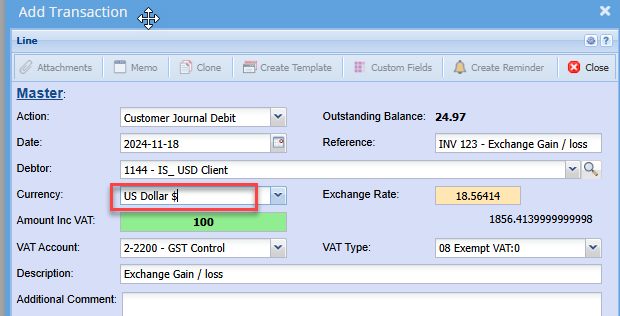
click the drop down and select Rands as the currency.
note the exchange rate field is now disabled
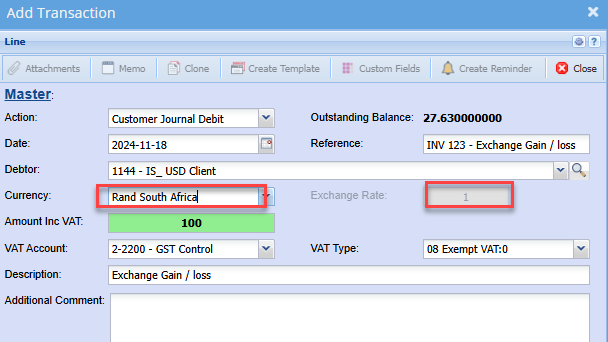
Ensure all remaining details, are entered
Click next as normal to process the journal
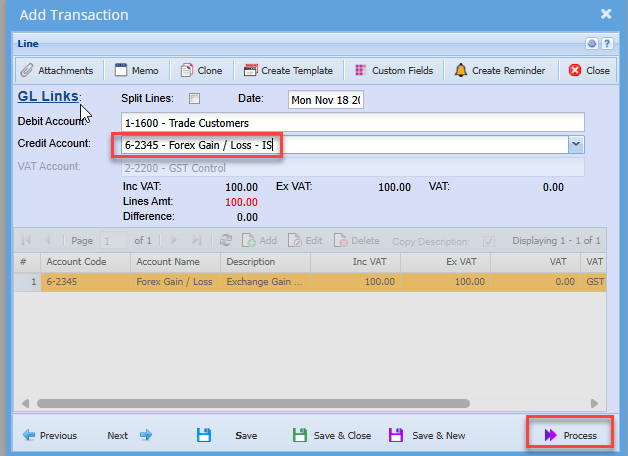
Edit and select the necessary contra GL account
Then click process
Move a payment to another customer
Debtors Module> Analysis> Debtor Analysis
Move a payment to another customer when payment was incorrectly processed to the wrong customer account.
They currently show an outstanding balance of $115 but have confirmed payment.
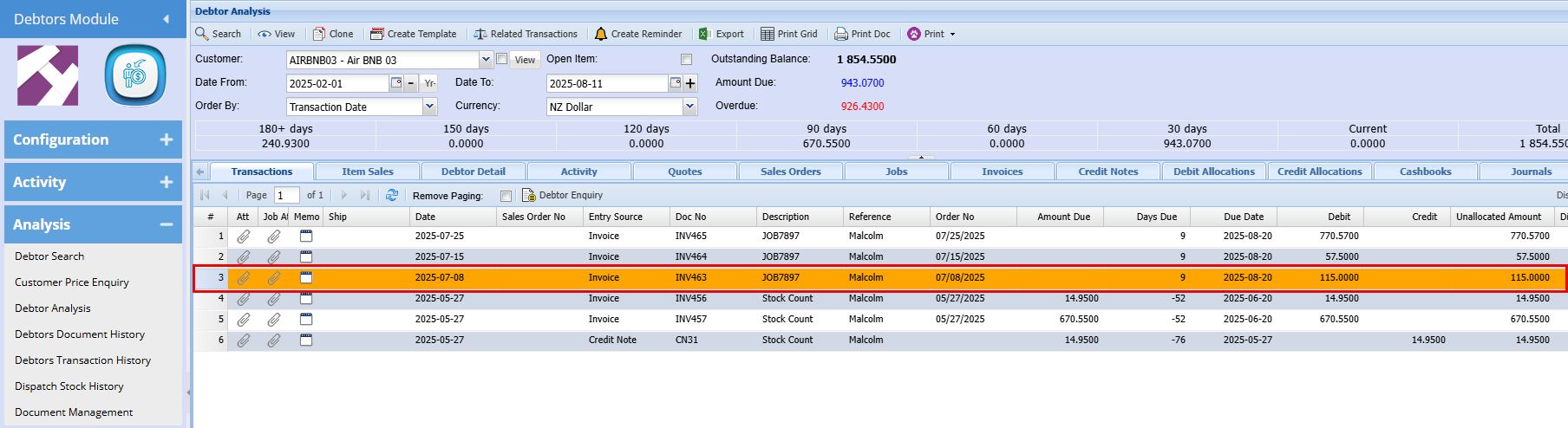
A payment was mistakenly applied to the wrong customer account. Upon review of the cashbook, you find the funds were incorrectly allocated to AIR BMB 01 instead of AIR BMB 03.
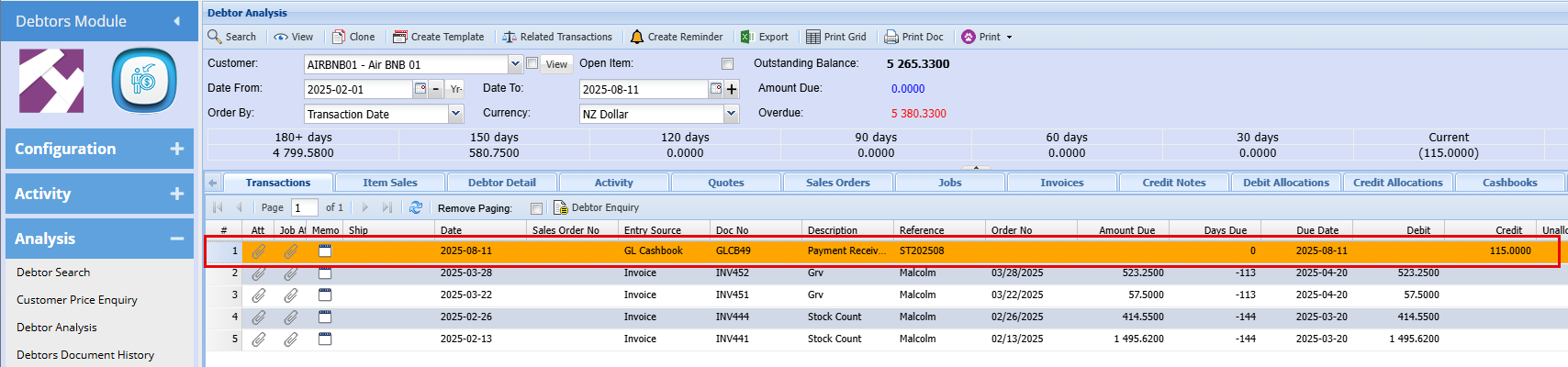
To resolve this, we need to adjust the incorrect account which in this case is AIR BMB 01. When determining whether to apply a debit or credit, simply perform the opposite of what currently appears in the account.
In this case, as shown below the $115 is in the Credit column and you’ll therefore need to process a Debit to AIR BMB 01 to reverse the misallocation.
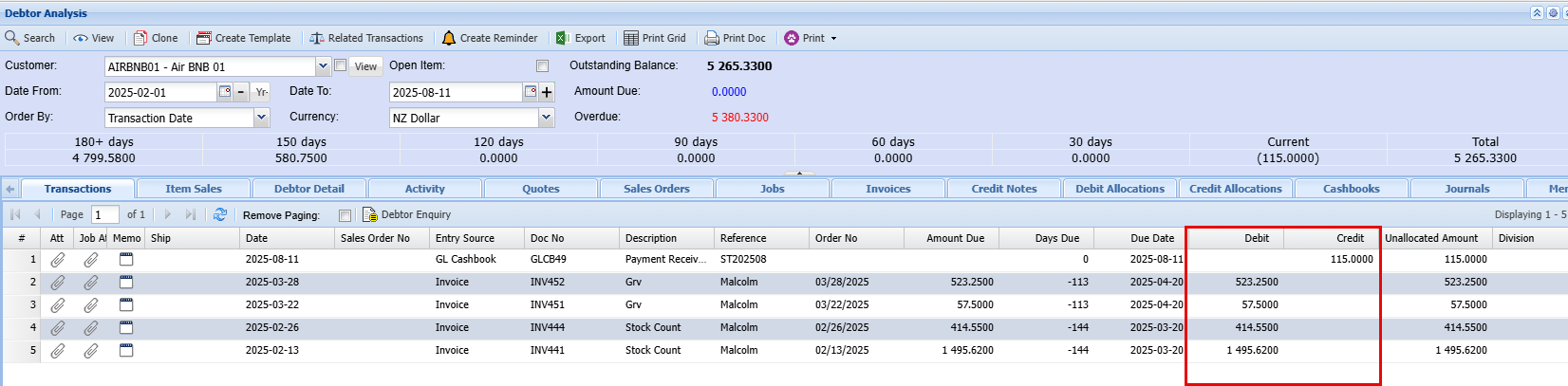
If you're working within the Allocations screen, the same principle applies:
When the amount appears in the Credit lines, you’ll need to process a Debit to correct it
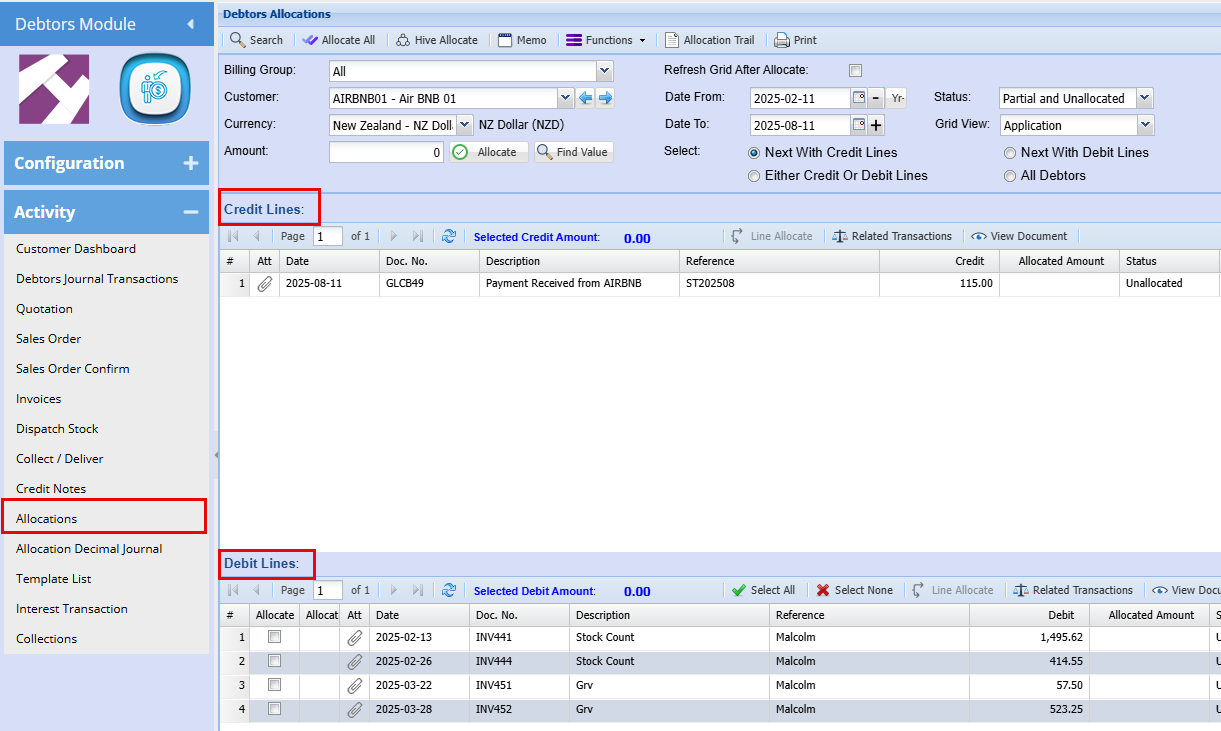
We now need to process a Debtors Journal Transaction to counter this error
Creating a Debtors Journal Debit
Debtors Module> Activity> Debtors Journal Transaction
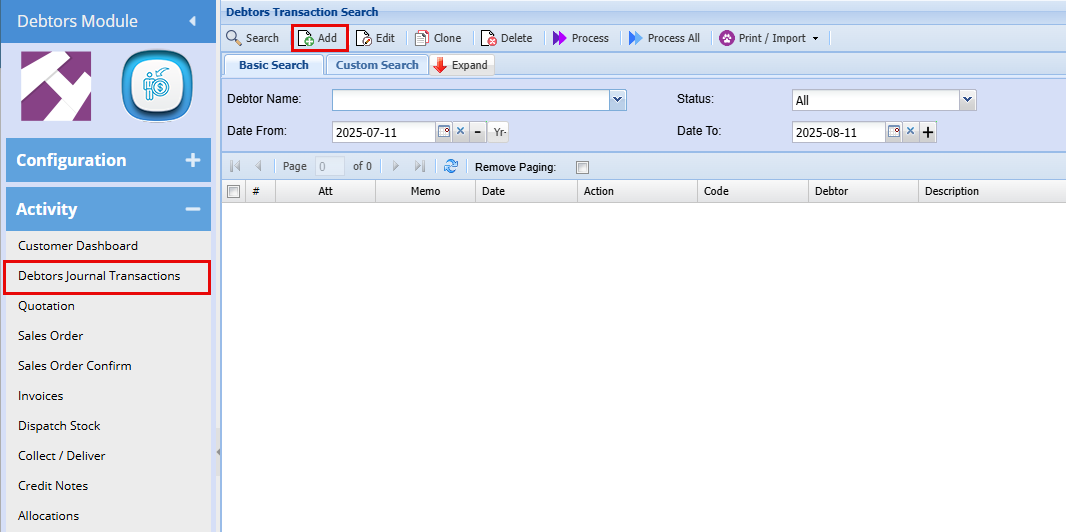
Click “Add” to begin a new transaction.
Complete the required fields, then click “Next.
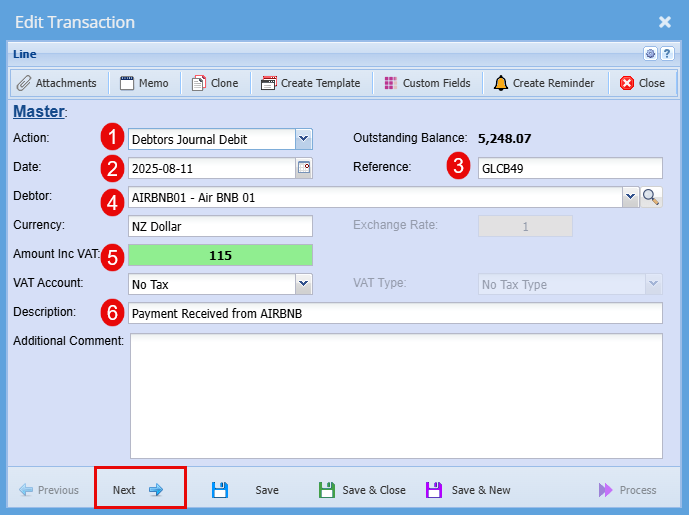
| Action | Select Debtors Journal Debit |
| Date |
Ideally, use the same date the payment was received to ensure accurate reconciliation |
| Reference |
Use a reference that links directly to the transaction you're correcting—such as the original document number. |
| Debtor | Select the name of the debtor associated with the correction. |
| Amount | Enter the exact amount being corrected, inclusive of GST if applicable. |
| Description | For consistency, use the same description that appeared on the original payment (e.g., “Payment Received from AIRBNB”). |
Applying a Payment via Contra Journal
- Tick the “Contra Journal” checkbox to indicate this is a contra entry.
- Select the appropriate debtor from the “Contra Debtor” dropdown, this is the account the payment will be applied to.
- Once all relevant fields are completed, click “Next" this will open the Process button.
- Click “Process” to apply the journal entry and update the debtor’s account accordingly.
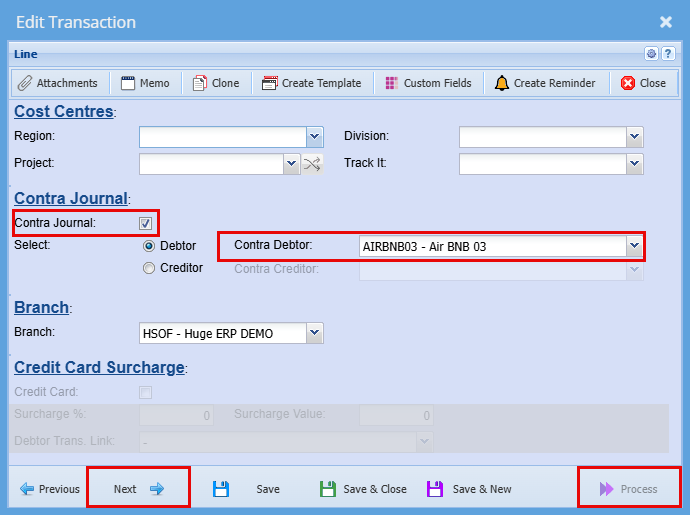
If you have a look at each of the customers now you will see the correction.
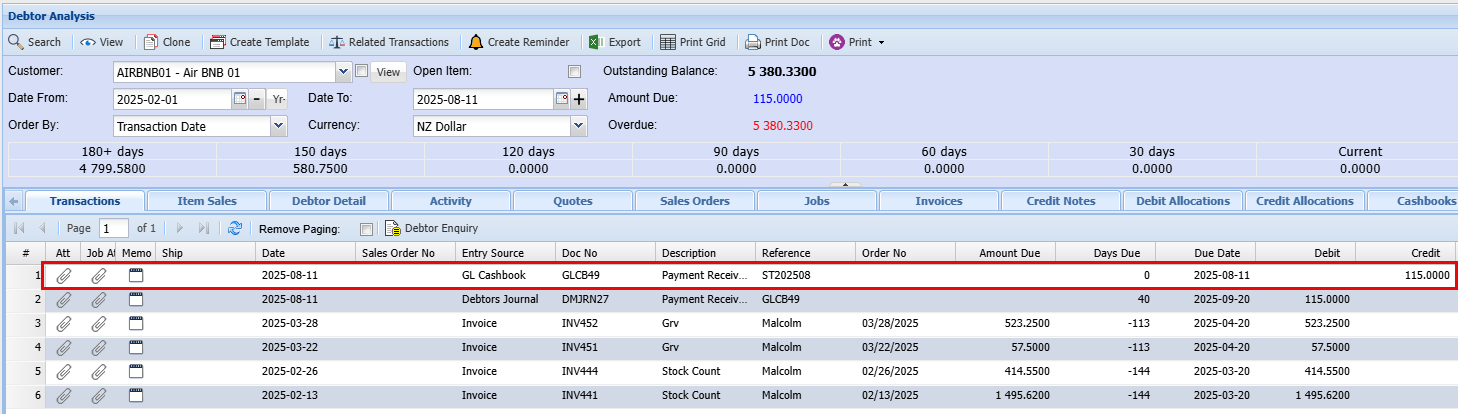
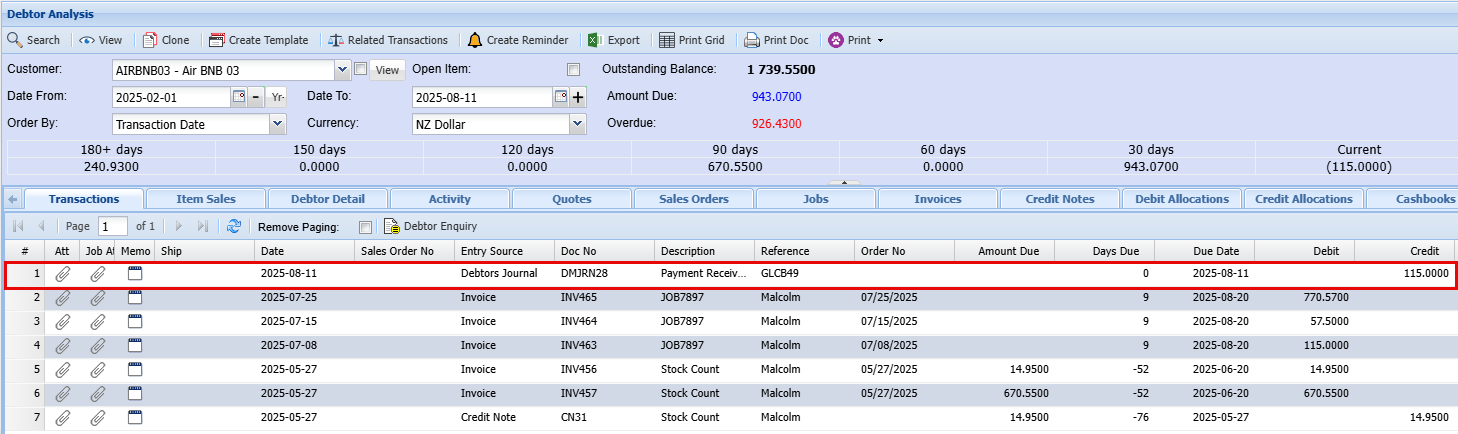
To finalize the process correctly, you’ll need to complete allocations on both debtor accounts. This ensures that all transactions are accurately reconciled, and the accounts reflect the intended balances
Allocations
Debtors Module> Activity> Allocations
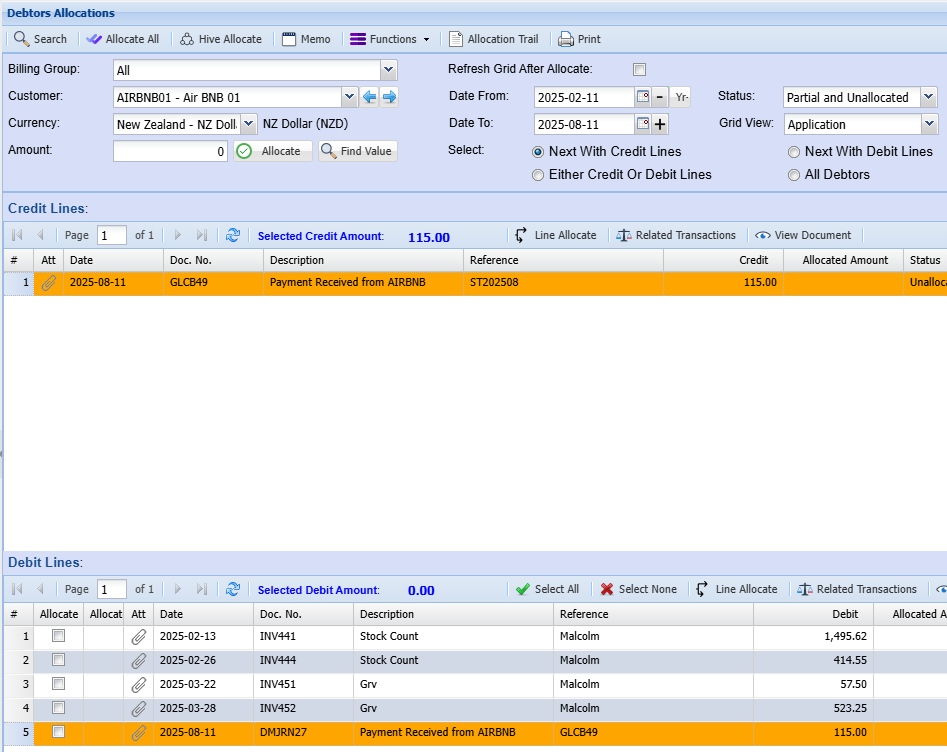
-
Locate matching entries in both the Credit and Debit sections.
Focus on transactions with the same amount, date, and reference—such as a payment received and its corresponding invoice or debit note.- Select the matching lines by highlighting the relevant transaction in the Credit section and ticking the checkbox beside the corresponding entry in the Debit section.
- Once both lines are selected, click Allocate to process the transaction.
This action reconciles the payment against the appropriate debit entry, ensuring accurate account alignment.