# Sales Leads - Reminder Create
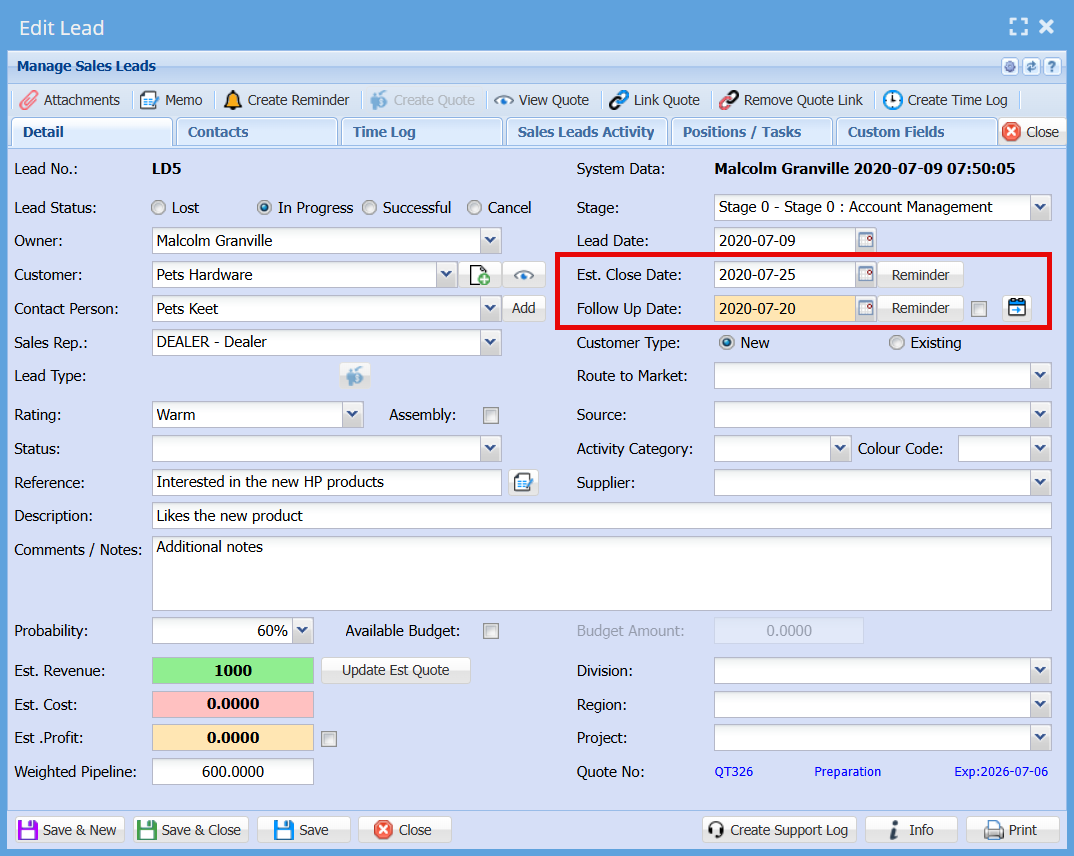
This section of the **Edit Lead** screen controls key date fields and reminder functionality for managing follow-ups and expected closure.
##### [](https://hugeerp10.co.za/hsofmanual/uploads/images/gallery/2026-06/L7Uimage.png)
##### Field Layout & Display
- The **date fields are reduced in size** to improve screen layout and usability.
- The **Follow Up Date** is positioned **below the Estimated Close Date** (swapped from the original layout).
- The **Follow Up Date field is highlighted with a cream background**, making it easily identifiable as a priority action item.
##### Reminder Buttons
- A **Reminder button** is available next to both:
- **Estimated Close Date**
- **Follow Up Date**
- These buttons allow users to manually create or view reminders linked to each date.
##### Follow Up Reminder Tick Box
A **tick box** is located next to the **Follow Up Date** field, controlling automatic reminder creation.
#### Behaviour:
- **When adding a new Sales Lead**
- The tick box is **selected (on) by default**.
- **When editing an existing Sales Lead**
- The tick box is **unselected (off) by default**.
- **When saving the lead (Save or Save & Close)**
- If the tick box is **selected**, a reminder is **automatically created** based on the Follow Up Date.
- **If the Follow Up Date is changed**
- The user must **re-select (tick) the box** to confirm a new reminder should be created.
- **When saving again with the tick box selected**
- A **new reminder is created** using the updated Follow Up Date.
.png)