# Sales lead Process
**CRM Module> Activity> Sales Leads**
A **Sales Lead** is a person or organisation that has shown interest in purchasing a product or service and has the authority to do so. This represents the first stage of the sales process.
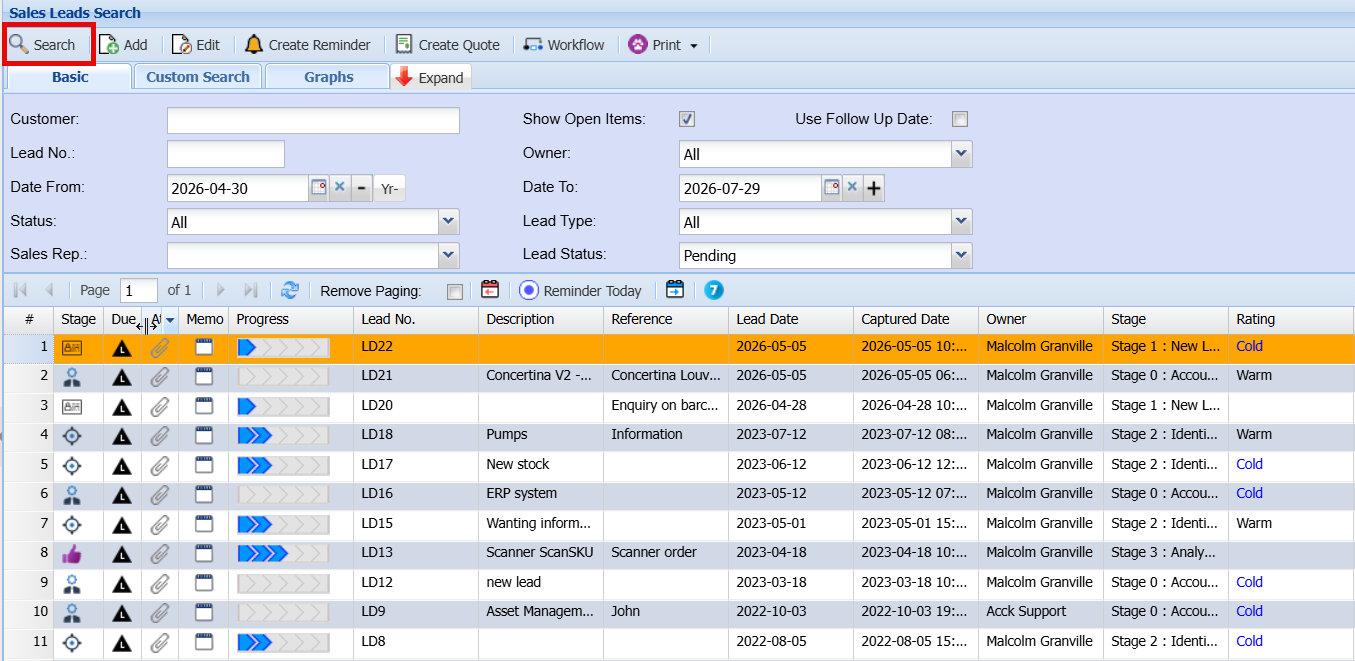
The **Search** button allows you to open and review the details of an existing prospect.
[](https://hugeerp10.co.za/hsofmanual/uploads/images/gallery/2026-06/qBsimage.png)
#### Creating a new prospect
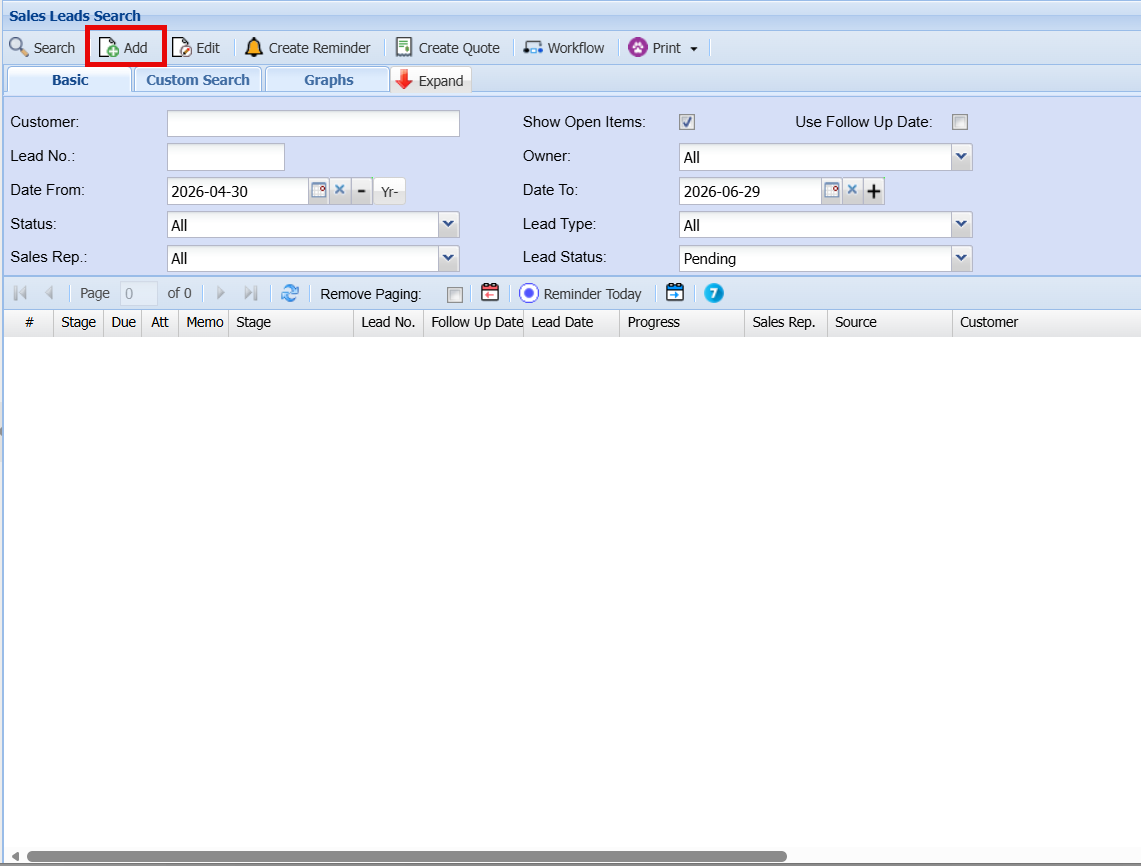
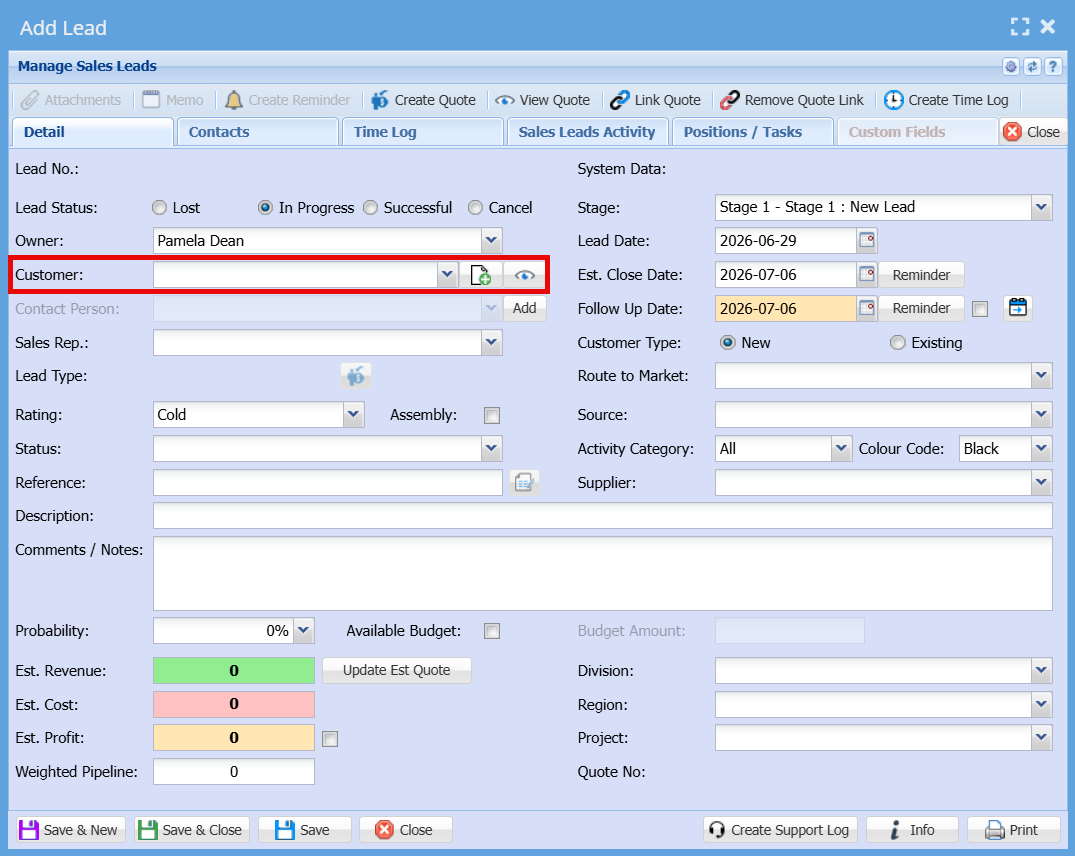
The **Add Lead** screen is used to capture and manage all relevant information for a new Sales Lead. Below is an explanation of each field and function.
**CRM Module> Activity> Sales Leads**
- Click Add
[](https://hugeerp10.co.za/hsofmanual/uploads/images/gallery/2026-06/1aXimage.png)
#### Add Sales Lead Screen
If the customer already exists and is interested in additional business, you can either enter their name or select it from the **Customer** dropdown list.
[](https://hugeerp10.co.za/hsofmanual/uploads/images/gallery/2026-06/Qufimage.png)
##### General Information
| **Owner** | The person responsible for managing and progressing the lead. |
| **Customer** | The individual or organisation interested in your product or service.
- If the customer already exists, select them from the dropdown list.
- To create a new customer, click **New**, which opens the Debtors Setup window. Enter the company details and select *Prospect* or *Opportunity* under the Debtor Type.
|
| **Contact Person** | Displays or allows selection of the contact linked to the chosen customer. |
| **Sales Rep** | The sales representative responsible for the lead and associated commission. |
##### Lead Details
| **Stage** | Defines the current stage of the lead (e.g. New Lead, Qualified, etc.). |
| **Lead Date** | The date the lead was first identified. |
| **Follow Up Date** | The date scheduled for the next action or follow-up. |
| **Est. Close Date** | The expected date the sale will be finalised. |
| **Customer Type** | Indicates whether the customer is **New** or **Existing**. |
| **Rating** | Classifies the lead as *Hot*, *Warm*, or *Cold* based on likelihood. |
| **Status** | Specifies the current status of the lead (e.g. In Progress, Lost, Successful). |
| **Reference** | Enter any relevant reference number or identifier. |
| **Description** | Provide a brief summary of the opportunity. |
| **Comments / Notes** | Add detailed notes or additional information about the lead. |
##### Classification Fields
| **Route to Market** | Select how the lead was brought in (e.g. direct, partner, online). |
| **Source** | Indicates where the lead originated from. |
| **Activity Category** | Categorises the type of sales activity. |
| **Colour Code** | Assign a colour to visually identify or prioritise the lead. |
| **Division / Region / Project** | Assign organisational structure details for reporting purposes. |
##### Financial Information
| **Probability (%)** | The estimated chance of closing the deal. |
| **Estimated Revenue** | Expected income from the lead. |
| **Estimated Cost** | Anticipated cost associated with fulfilling the sale. |
| **Estimated Profit** | Calculated or entered expected profit. |
| **Weighted Pipeline** | A calculated value based on revenue and probability. |
| **Available Budget** | Indicates if a budget is confirmed and allows entry of the budget amount. |
##### Tabs
##### Action Buttons
| **Save & New** | Save the current lead and open a new blank form. |
| **Save & Close** | Save the lead and exit the screen. |
| **Save** | Save changes without closing the screen. |
| **Close** | Exit the screen without saving changes. |
#### Contacts Tab
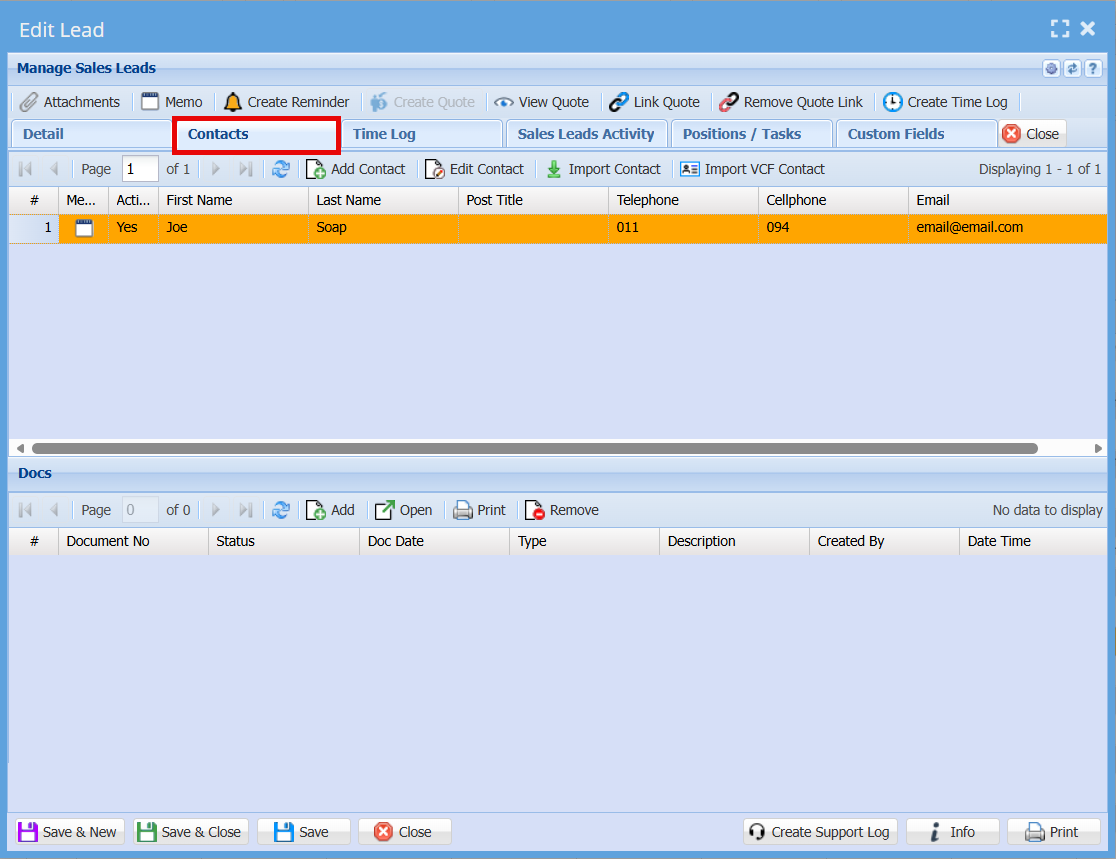
The **Contacts** tab within the **Edit Lead** screen displays and manages all contact persons linked to the selected Sales Lead.
- Time logs help monitor effort spent on each Sales Lead and support productivity tracking.
- This feature can also assist with billing where time-based charges apply.
- Keeping time logs updated ensures accurate reporting and accountability.
[](https://hugeerp10.co.za/hsofmanual/uploads/images/gallery/2026-06/7i4image.png)
The grid shows a list of all contacts associated with the lead, including key details such as:
- **First Name and Last Name**
- **Position/Title**
- **Telephone and Cellphone numbers**
- **Email Address**
- **Active status** (indicates whether the contact is currently active)
Each row represents an individual contact linked to the Sales Lead.
##### Action Buttons
Located above the contact grid:
- **Add Contact**
Allows you to create and link a new contact to the Sales Lead.
- **Edit Contact**
Enables you to update the details of a selected contact.
- **Import Contact**
Import contact information from an external source.
- **Import VCF Contact**
Upload and import contacts from a VCF (vCard) file.
##### Documents Section (Docs)
The lower section of the screen displays documents linked to the Sales Lead, such as files or attachments.
Available actions include:
- **Add** – Attach a new document
- **Open** – View a selected document
- **Print** – Print the document
- **Remove** – Delete the selected document
If no documents are linked, the grid will display “No data to display.”
##### Additional Notes
- Contacts linked here are directly associated with the selected Sales Lead and can be used for communication and tracking purposes.
- Keeping contact details up to date ensures accurate follow-ups and reporting.
#### Time Log
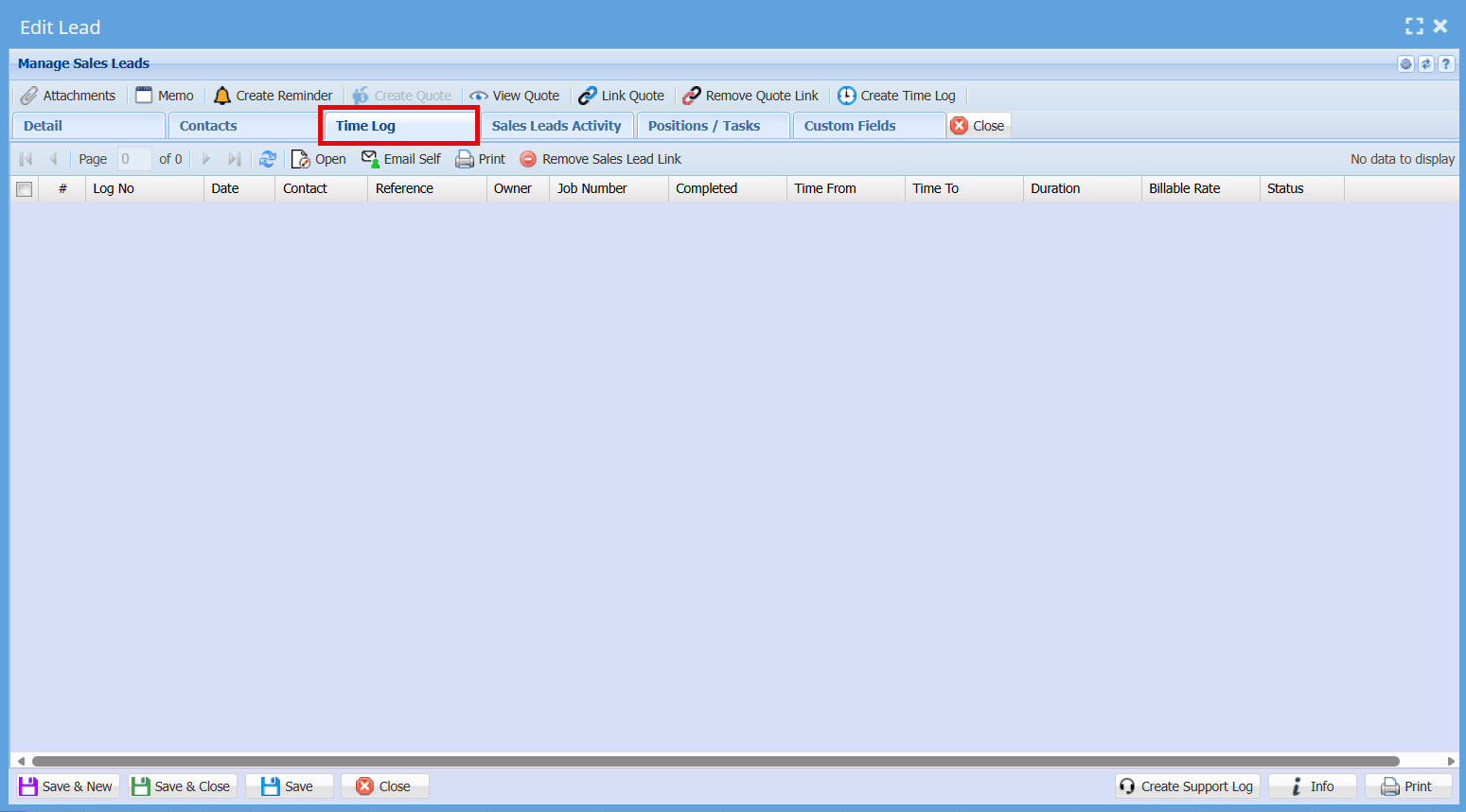
The **Time Log** tab allows users to view and manage time entries linked to the selected Sales Lead. This feature is useful for tracking time spent on activities related to the lead.
- Time logs help monitor effort spent on each Sales Lead and support productivity tracking.
- This feature can also assist with billing where time-based charges apply.
- Keeping time logs updated ensures accurate reporting and accountability.
[](https://hugeerp10.co.za/hsofmanual/uploads/images/gallery/2026-06/JnNimage.png)
##### Time Log Grid
The grid displays a list of all recorded time entries. Each entry includes the following information:
- **Log No** – Unique reference number for the time entry
- **Date** – The date the activity took place
- **Contact** – The contact person associated with the activity
- **Reference** – Additional reference or description for the entry
- **Owner** – The user who created or is responsible for the time log
- **Job Number** – Linked job or project reference (if applicable)
- **Completed** – Indicates whether the activity has been completed
- **Time From / Time To** – Start and end times of the activity
- **Duration** – Total time spent on the activity
- **Billable Rate** – Rate applied if the time is billable
- **Status** – Current status of the time entry
If no time entries have been recorded, the grid will display **“No data to display.”**
##### Action Buttons
Located above the grid, the following options are available:
- **Open**
View or open the selected time log entry.
- **Email Self**
Send the time log details to your own email for reference.
- **Print**
Print the selected time log entry or list.
- **Remove Sales Lead Link**
Unlink the selected time log entry from the Sales Lead.
- **Create Time Log** (available on the top ribbon)
Create a new time entry linked to the Sales Lead.