# Add Support Log Ticket
#### Detail Tab
Video training manual 2016 - [Click Here](https://vimeo.com/357006462)
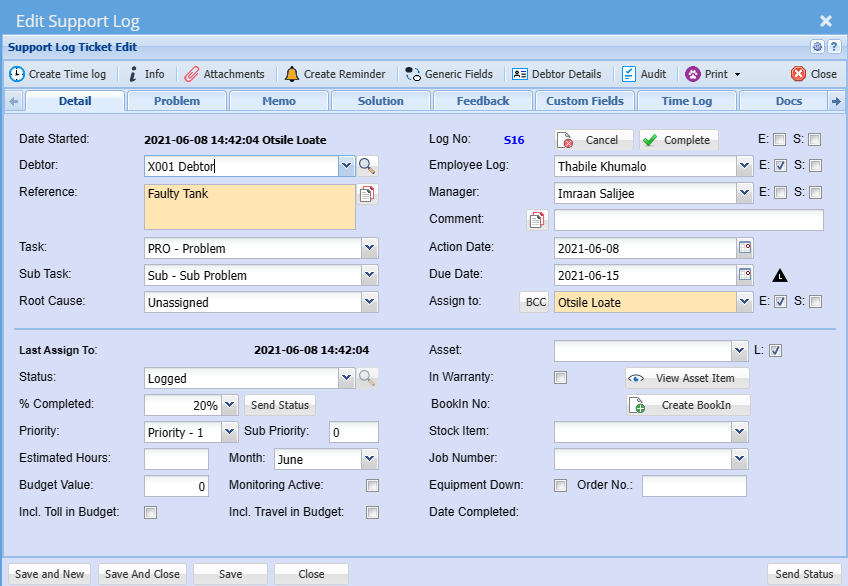
Support log tickets are used to capture work for internal and technical staff.
Customer problems or support issues.
** CRM Module > Activity > Support log ticket**
[](https://hugeerp10.co.za/hsofmanual/uploads/images/gallery/2024-01/dzyimage.png)
It shows a list of support log from customers
Search according to user’s preference
Search
Log No – search using a support log number
Reference – search by entering the reference of the support log
Employee Log – search by selecting the employee from the drop down arrow
Assign To – search by selecting the person the support log is assigned to a certain user
Debtor – search by the debtor
Date From – search by entering the from which the support log will run from
Date To – search by entering the date to, in order to limit to search run
Task – search by selecting the status from the drop down arrow
Show Completed – tick the box to search for completed support logs
Details Tab - to show the support log details
Support Tasks Tab – to show support log tasks
Status Tab - to show and allocate different colours to the status codes
Standard Tab has five buttons
Insert button – to insert the time log
Amend button - allows changes on an existing time log
Delete button – to delete the time log
Print button – to print the time log
Print Grid button – to print support log report
Extras Tab
Create Time Log button – to create a time log
New Features
Colour Code Status of Task
Colour code in the the Support Log Status makes it easier to view the different status of support tasks sitting in the Support Log Queue.
The user has the ability to change the status colours themselves.
Colour Codes On the due date - denotes at a glance wich support logs need urgent attention.
Closing or Cancelling of Service Logs
Service Logs cannot be deleted off the Webaccounting system and the only way in which they can be resolved is by either closing or cancelling the Service Log.
To search for completed and cancelled Service Logs tick the Added Show Completed tick box.
Status Task Percentage Complete
The Service Log progress can be monitored by assigning a % completed.