# Purchase Order Authorisation

<span lang="EN-GB" style="font-family: 'Arial',sans-serif;">The authorization of the PO is essentially a supervisor/ manager reviewing the purchase order and authorizing the purchase from the supplier.</span>

<span lang="EN-GB" style="font-family: 'Arial',sans-serif;">This authorization in most cases have historically been done manually, where the documents are printed, supporting documents attached and handed to the manager for authorization.</span>

<span lang="EN-GB" style="font-family: 'Arial',sans-serif;">This procedure caters for this manual process of printing hard copies of documents to be automated and electronic.</span>

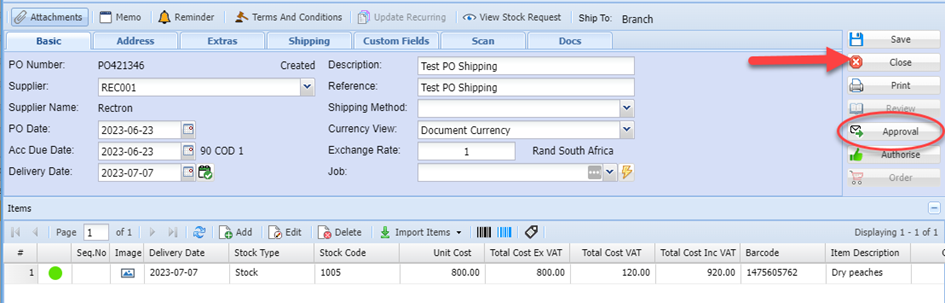
<span lang="EN-GB" style="font-family: 'Arial',sans-serif;">Once all items have been captured on the Purchase order and all details checked for correctness, click the Approve Button.</span>

<span lang="EN-GB" style="font-family: 'Arial',sans-serif;">Click Close.</span>

<span lang="EN-GB" style="mso-no-proof: yes;">![](https://hugeerp10.co.za/hsofmanual/uploads/images/gallery/2023-08/embedded-image-snjsbaqg.png)  
</span>

<span lang="EN-GB" style="font-family: 'Arial',sans-serif;">Should you not wish to send the PO for authorization at this point, you can close the screen.</span>

<span lang="EN-GB" style="font-family: 'Arial',sans-serif;">When ready to Approve, search for the captured PO as follows:</span>

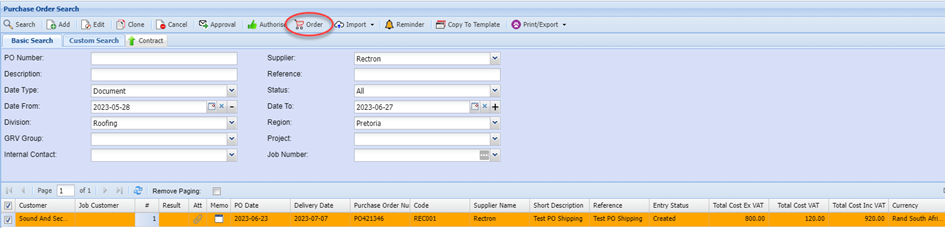
<span lang="EN-GB" style="font-family: 'Arial',sans-serif;">On the Purchase Order Menu, enter the Supplier name or Code, check the date range and click Search.</span>

<span lang="EN-GB" style="font-family: 'Arial',sans-serif;">Click on the required order once to highlight it, click the Approve Button.</span>

<span lang="EN-GB" style="mso-no-proof: yes;">![](https://hugeerp10.co.za/hsofmanual/uploads/images/gallery/2023-08/embedded-image-kocnveov.png)  
</span>

<span lang="EN-GB" style="font-family: 'Arial',sans-serif;">This then sends an email to the Manager informing him/ her that there is a PO awaiting authorization.</span>

<span lang="EN-GB" style="font-family: 'Arial',sans-serif;">The PO status will now change from Created to Approval indicating that the PO has been sent for Authorization.</span>

<span lang="EN-GB" style="font-family: 'Arial',sans-serif; mso-no-proof: yes;">![](https://hugeerp10.co.za/hsofmanual/uploads/images/gallery/2023-08/embedded-image-4imlod33.png)  
</span>

---

#### <span lang="EN-GB" style="font-family: 'Arial',sans-serif;">AUTHORISATION PROCESS</span>

<span lang="EN-GB" style="font-family: 'Arial',sans-serif;">The Manager will then log onto the system or via the Webatar APP search the required PO and perform the necessary checks.</span>

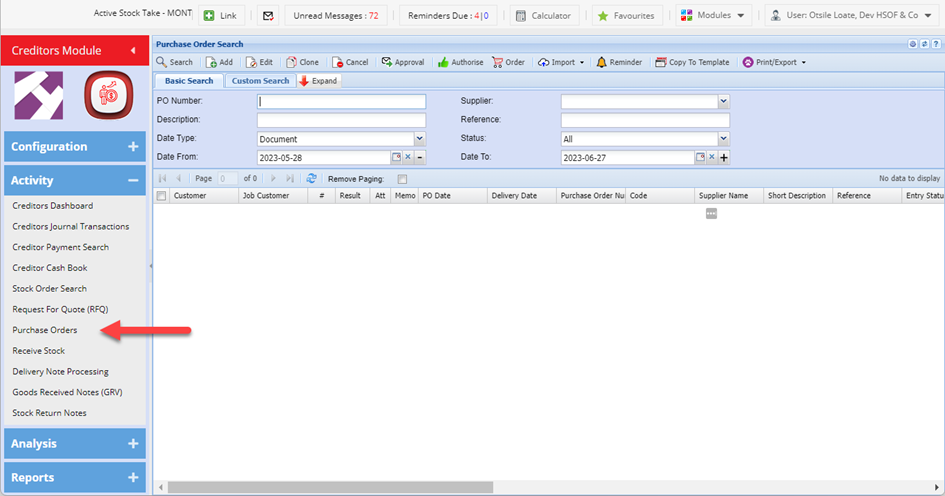
<span lang="EN-GB" style="font-family: 'Arial',sans-serif;">Go to <span style="color: rgb(45, 194, 107);">**Creditors Module &gt; Activity**</span></span>

<span lang="EN-GB" style="font-family: 'Arial',sans-serif;">Select Purchase Orders Menu Item</span>

<span lang="EN-GB" style="mso-no-proof: yes;">![](https://hugeerp10.co.za/hsofmanual/uploads/images/gallery/2023-08/embedded-image-hapx3xen.png)  
</span>

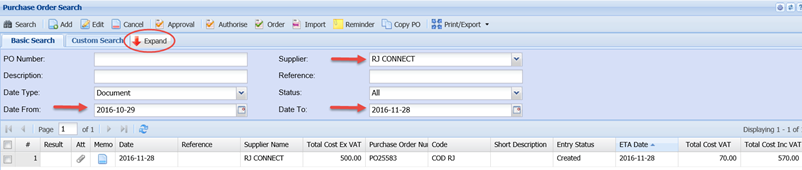
<span lang="EN-GB" style="font-family: 'Arial',sans-serif;">Enter the Supplier code or name.</span>

<span lang="EN-GB" style="font-family: 'Arial',sans-serif;">Enter the respective date range that the Purchase Order was captured.</span>

<span lang="EN-GB" style="font-family: 'Arial',sans-serif;">Click Search</span>

<span lang="EN-GB" style="font-family: 'Arial',sans-serif; mso-no-proof: yes;">![](https://hugeerp10.co.za/hsofmanual/uploads/images/gallery/2023-08/embedded-image-t48zl1jx.png)  
</span>

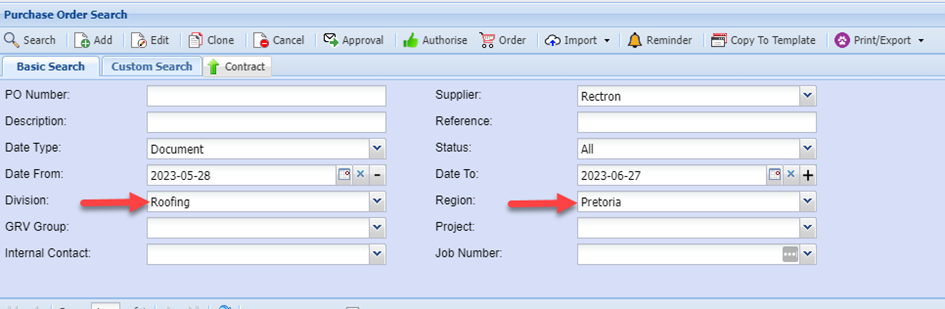
<span lang="EN-GB" style="font-family: 'Arial',sans-serif;">You can further filter your search by clicking on the Expand Button</span>

<span lang="EN-GB" style="font-family: 'Arial',sans-serif;">And entering any of the other criteria that you may have on hand, e.g. Division, Region</span>

<span lang="EN-GB" style="mso-no-proof: yes;">![](https://hugeerp10.co.za/hsofmanual/uploads/images/gallery/2023-08/embedded-image-fazdxh4x.png)  
</span>

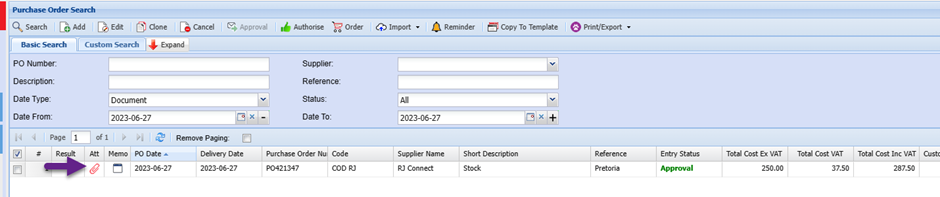
<span lang="EN-GB" style="font-family: 'Arial',sans-serif;">All Purchase orders within the selected criteria will be displayed in the grid.</span>

<span lang="EN-GB" style="font-family: 'Arial',sans-serif;">Click the Attachments shortcut to view ant attachments.</span>

<span lang="EN-GB" style="font-family: 'Arial',sans-serif;">The icon will be red if any attachment are uploaded</span>

<span lang="EN-GB" style="font-family: 'Arial',sans-serif;">If not, this icon will be grey.</span>

<span lang="EN-GB" style="font-family: 'Arial',sans-serif; mso-no-proof: yes;">![](https://hugeerp10.co.za/hsofmanual/uploads/images/gallery/2023-08/embedded-image-rkn8rdha.png)</span>

<span lang="EN-GB" style="font-family: 'Arial',sans-serif; mso-no-proof: yes;"></span><span lang="EN-GB" style="font-family: 'Arial',sans-serif;">Should you need to check and verify any details of the order, double click on the required PO to open the lines.</span>

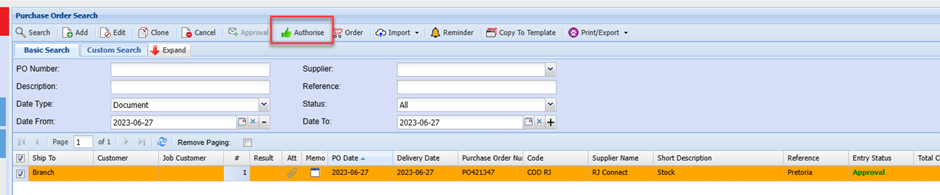
<span lang="EN-GB" style="font-family: 'Arial',sans-serif;">Once you have reviewed the PO and performed the necessary checks and ready to Authorize, </span>

<span lang="EN-GB" style="font-family: 'Arial',sans-serif;">Highlight the required purchase order and click the Authorize Button</span>

<span lang="EN-GB" style="font-family: 'Arial',sans-serif; mso-no-proof: yes;">![](https://hugeerp10.co.za/hsofmanual/uploads/images/gallery/2023-08/embedded-image-jjksccav.png)</span>

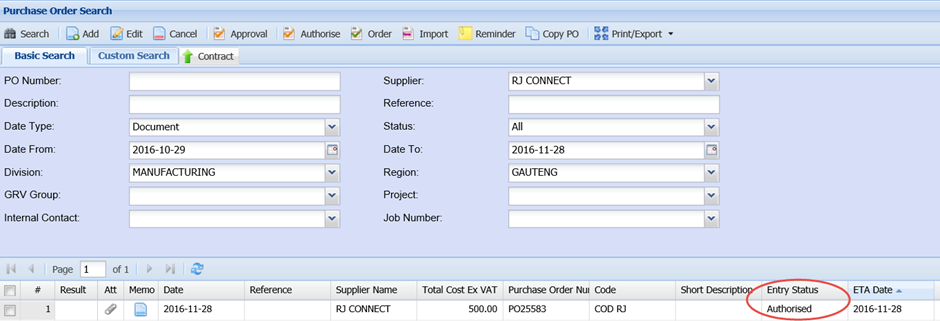
<span lang="EN-GB" style="font-family: 'Arial',sans-serif; mso-no-proof: yes;"></span><span lang="EN-GB" style="font-family: 'Arial',sans-serif;">You will notice the status has changed to “Authorized”.</span>

<span lang="EN-GB" style="font-family: 'Arial',sans-serif; mso-no-proof: yes;">![](https://hugeerp10.co.za/hsofmanual/uploads/images/gallery/2023-08/embedded-image-dpjomq7s.png)</span>

<span lang="EN-GB" style="font-family: 'Arial',sans-serif; mso-no-proof: yes;"></span><span lang="EN-GB" style="font-family: 'Arial',sans-serif;">An email is then sent to the capturer that the PO has been authorized and he/she may proceed to forward the PO to the Supplier.</span>

---

#### <span lang="EN-GB" style="font-family: 'Arial',sans-serif;">SUBMITTING PO</span>

*<span lang="EN-GB" style="font-family: 'Arial',sans-serif;">Search for the PO as per the standard steps:</span>*

<span style="color: rgb(45, 194, 107);">**<span lang="EN-GB" style="font-family: 'Arial',sans-serif;">Creditors Module&gt; Activity&gt; Purchase Orders</span>**</span>

<span lang="EN-GB" style="font-family: 'Arial',sans-serif;">Enter the Search criteria</span>

<span lang="EN-GB" style="font-family: 'Arial',sans-serif;">Click Search</span>

<span lang="EN-GB" style="font-family: 'Arial',sans-serif;"> </span><span lang="EN-GB" style="font-family: 'Arial',sans-serif; mso-no-proof: yes;">![](https://hugeerp10.co.za/hsofmanual/uploads/images/gallery/2023-08/embedded-image-1otdwr6o.png)</span>

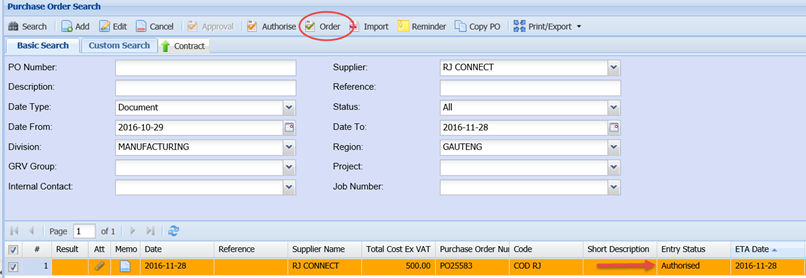
<span lang="EN-GB" style="font-family: 'Arial',sans-serif; mso-no-proof: yes;"></span><span lang="EN-GB" style="font-family: 'Arial',sans-serif;">Check that the status is set at Authorized.</span>

<span lang="EN-GB" style="font-family: 'Arial',sans-serif;">If Authorized, Click the Order Button</span>

<span lang="EN-GB" style="font-family: 'Arial',sans-serif;"> </span><span lang="EN-GB" style="font-family: 'Arial',sans-serif; mso-no-proof: yes;">![](https://hugeerp10.co.za/hsofmanual/uploads/images/gallery/2023-08/embedded-image-jvwfaifk.png)  
</span>

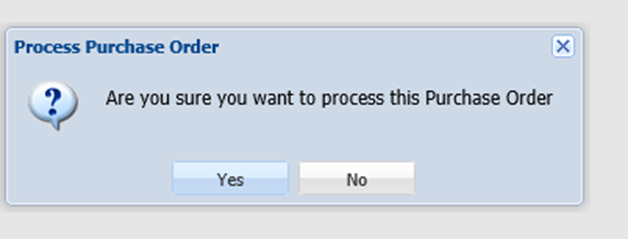
<span lang="EN-GB" style="font-family: 'Arial',sans-serif;">Click Yes</span>

<span lang="EN-GB" style="font-family: 'Arial',sans-serif; mso-no-proof: yes;">![](https://hugeerp10.co.za/hsofmanual/uploads/images/gallery/2023-08/embedded-image-brr2ceim.png)  
</span>

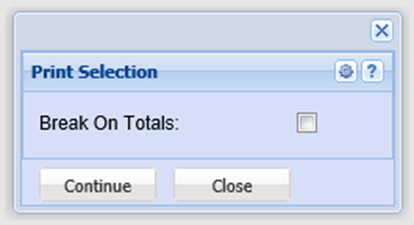
<span lang="EN-GB" style="font-family: 'Arial',sans-serif;">Click Continue</span>

<span lang="EN-GB" style="font-family: 'Arial',sans-serif;">The purchase order will Print to Screen.</span>

<span lang="EN-GB" style="font-family: 'Arial',sans-serif;">Select Email to send the PO to the Supplier</span>

<p class="callout info"><span lang="EN-GB" style="font-family: Arial, sans-serif; color: rgb(0, 0, 0);">Note: Should you not have segregation of duty, i.e.. A clerk capturer the Order and a manager then Authorizes Orders, the below steps can then all be done by the same person (if authorized to do so) capturers Authorize, and Order steps as outlined above can all be done at the time of capturing the PO by the Authorized person.</span></p>

<span lang="EN-GB" style="font-family: 'Arial',sans-serif;"><span style="mso-spacerun: yes;"> </span></span><span lang="EN-GB" style="font-family: 'Arial',sans-serif; mso-no-proof: yes;">![](https://hugeerp10.co.za/hsofmanual/uploads/images/gallery/2023-08/embedded-image-mbdm2alu.png)  
</span>

<span lang="EN-GB" style="font-family: 'Arial',sans-serif;">Click the Email Button</span>

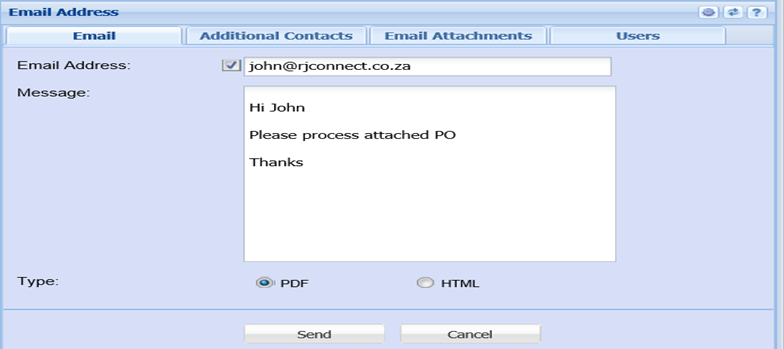
<span lang="EN-GB" style="font-family: 'Arial',sans-serif;">Verify the email address is correct.</span>

<span lang="EN-GB" style="font-family: 'Arial',sans-serif;">Enter your message.</span>

<span lang="EN-GB" style="font-family: 'Arial',sans-serif;"> </span><span lang="EN-GB" style="font-family: 'Arial',sans-serif; mso-no-proof: yes;">![](https://hugeerp10.co.za/hsofmanual/uploads/images/gallery/2023-08/embedded-image-fspmlpwf.png)  
</span>

<span lang="EN-GB" style="font-family: 'Arial',sans-serif;">Click Send</span>

<span lang="EN-GB" style="font-family: 'Arial',sans-serif;">This will send an Email with PDF attachment of the PO to your Supplier.</span>

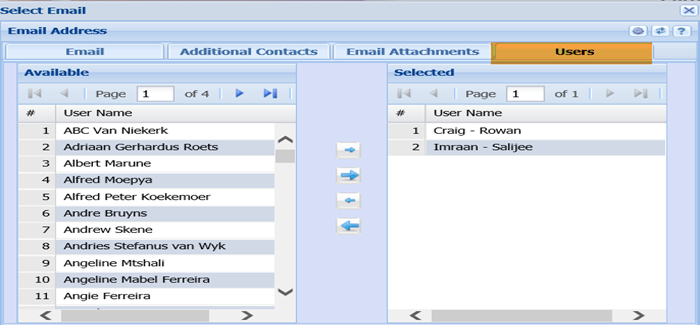
<span lang="EN-GB" style="font-family: 'Arial',sans-serif;">You can CC yourself and any other colleagues if necessary.</span>

<span lang="EN-GB" style="font-family: 'Arial',sans-serif;">Click the Users tab and double click on the required names in the Left Column to select.</span>

<span lang="EN-GB" style="font-family: 'Arial',sans-serif;"> </span><span lang="EN-GB" style="font-family: 'Arial',sans-serif; mso-no-proof: yes;">![](https://hugeerp10.co.za/hsofmanual/uploads/images/gallery/2023-08/embedded-image-smlw121b.png)  
</span>

<span lang="EN-GB" style="font-family: 'Arial',sans-serif;"> </span><span lang="EN-GB" style="font-family: 'Arial',sans-serif;">Click Send</span>

<span lang="EN-GB" style="font-family: 'Arial',sans-serif;"></span>