# Goods Received Note (GRV) Search
Video training manual 2016 - [Click Here](https://vimeo.com/357004853)
**Creditors > Activity> Goods Received Note**Record of goods received at the point of receipt. This record is used to confirm all goods that have been received.png)
---
#### Clone GRV
.png)
Clone FunctionSelect the GRV you want to clone and click on Clone Button
---
#### Import
[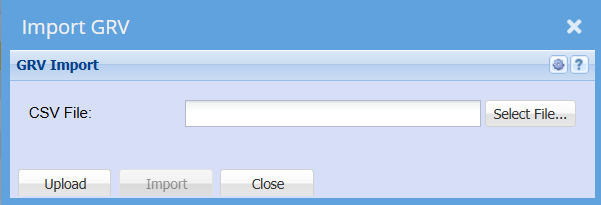](https://hugeerp10.co.za/hsofmanual/uploads/images/gallery/2024-09/7p0image.png)
---
#### Import XML into GRV
**Creditors > Activity > Goods Received Note**
.png)
Import into GRVs from XML HelpThe function of this window is to import data from a predefined XML file into GRV documents.The following action are carried out during the importation process
**1**
The XML file is read and GRVs are created and processed.
**2**
Create a reciprocating invoice converted it to a PDF file and attached it to the GRV.
**3**
Create a Creditors Cash Book for all the successfully processed GRVs.
At various stages during the above action an email will be sent to the selected recipient reporting on the errors or failures of the process.When initially opening the import window only the Select File button is active. Click on this button and navigate to the location of the XML file that is to be imported. Once the file has been located and select click on the Upload button. A confirmation message will be displayed if the file was successfully uploaded. Click OK to continue.The input items are required and cannot be skipped.Select a user from the drop down / quick search box to email the error / failure report to.Select the Bank Account that will be used when creating the Creditors Cash Book.Enter a name for the Creditors Cash Book.Cash Book Reference.Cash Book Date.Once all the above have been selected / entered then click on the Import button.
---
#### Farmland Invoices Import
[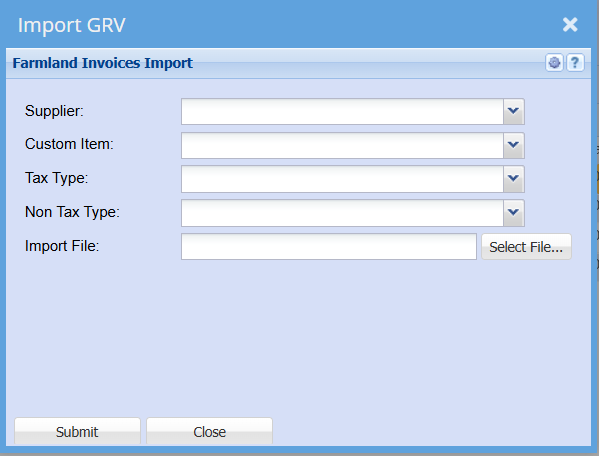](https://hugeerp10.co.za/hsofmanual/uploads/images/gallery/2024-09/m5dimage.png)