Receive Stock Menu
Receive Stock Search
Creditors Module > Activity> Receive Stock
The Receive Stock process is the procedure to properly inspect all incoming ordered goods in the system.
Once your Purchase Order has been Ordered, the next step is to receive the items and that process is done in the receive stock menu item
The system allows one to receive all ordered items at once or partially receive items
Receive All
.png)
Select the Receive Stock Menu Item
.png)
The search criteria allows to search by Entering the name of the Supplier or Supplier account code and Press enter (You need only enter the first few letters of the name)
Click on the required Supplier from the drop-down list
Check the date range that the purchase order was done
Click Search.
If you know the Purchase Order Number, you can enter the number and click search as well
Double Click on the required Purchase Order Line
The receive stock window will open up
.png)
If you are sure that you physically received all the correct items and quantities, you can click on the “Receive All” button.
This saves you time from having to receive each item individually. (in the case where you have ordered several items).
Alternatively, click the Receive Stock button
Enter the quantity of the respective item received
.png)
Enter the Actual quantity received of the item.
Click Save and close.
Or Save and Next (if there are more than one item)
The window below shows you at the bottom how much quantity of this Purchase order items was received you can then close the window
Click Close
.png)
.png)
Receive stock to GRV
Once the items have been received, they can now be moved to either a delivery note route or GRV route
Click the Process button and select complete function in the drop down
.png)
On the document type drop down select - GRV
.png)
Enter the Supplier Invoice Number
Click continue
The order now moves to Goods received (GRV).
Receive Stock to Delivery Note
Once the items have been received they can now be moved to either a delivery note route or GRV route
Click the Process button and select complete function in the drop down
On the document type drop down select - Delivery Note
.png)
Enter the Delivery Number
Click continue
The order now moves to Delivery
Receive Stock
Creditors Module > Activity> Receive Stock
The Receive Stock process is the procedure to properly inspect all incoming ordered goods in the system.
Once your Purchase Order has been Ordered, the next step is to receive the items and that process is done in the receive stock menu item.
Huge ERP allows to receive all ordered items at once or
Partially receive items.

Select the Receive Stock Menu Item

The search criteria allows to search by Entering the name of the Supplier or Supplier account code and Press enter (You need only enter the first few letters of the name)
Click on the required Supplier from the drop-down list
Check the date range that the purchase order was done
Click Search.
If you know the Purchase Order Number, you can enter the number and click search as well
Double Click on the required Purchase Order Line
The receive stock window will open up

If you are sure that you physically received all the correct items and quantities, you can click on the “Receive All” button.
This saves you time from having to receive each item individually. (in the case where you have ordered several items).
Alternatively, click the Receive Stock button
Enter the quantity of the respective item received

Enter the Actual quantity received of the item.
Click Save and close.
Or Save and Next (if there are more than one item)
The window below shows you at the bottom how much quantity of this Purchase order items was received you can then close the window.
Click Close

Complete Receive Stock process to GRV
Once the items have been received, the transaction can now be moved to either a delivery note route or GRV route
Select the required PO (Receive stock) from the grid and click the Complete Button
Click the Process button and select complete function in the drop down

On the document type drop down select - GRV

Enter the Supplier Invoice Number
Click continue
The entry now moves to Goods received (GRV).
Note: At this point even though the stock has been physically received, the system will not show the stock available until the GRV is Processed.
If you receive the stock via a Delivery note or wish the stock to be available immediately, even though the GRV is not processed, then you need to select the “Delivery Note” option from the document type drop down on the above screen.
To complete the procurement cycle, you need to process the Goods Received Voucher (GRV) process.
Refer to GRV processing Manual>>>>
Email send on receive stock
This will only work with Stock Receive lines that are linked to a Job.
Any item that is flagged for sending an email to a customer based on the job number
Setup of items flagged for Receive stock emailing
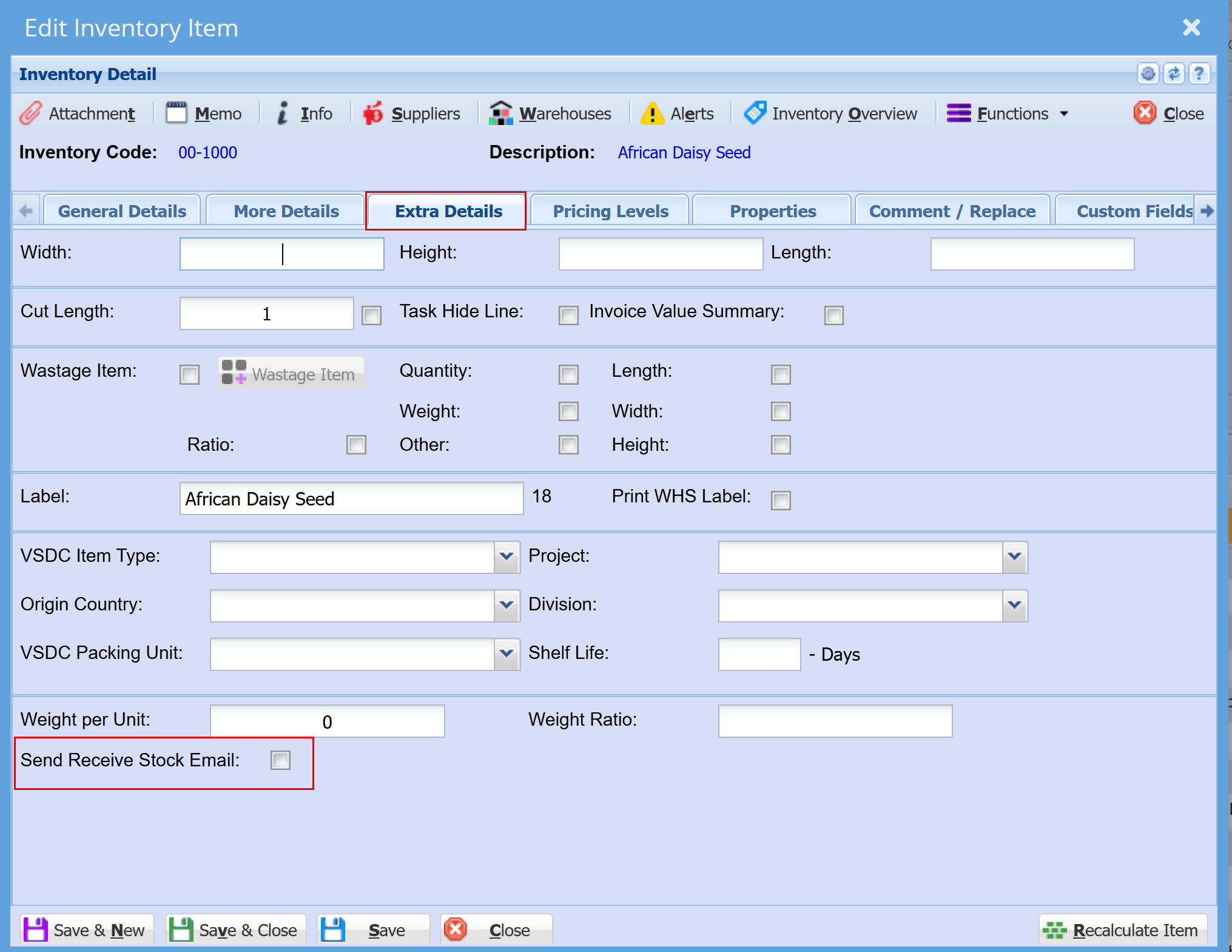
Inventory Module >Configuration > Extra Details
Enable the stock item to allow an email to be sent to the customer of the job line.
- Double click on the item to open and under the Extra Details tab, tick the "Send Receive Stock Email" box
- Click "Save"
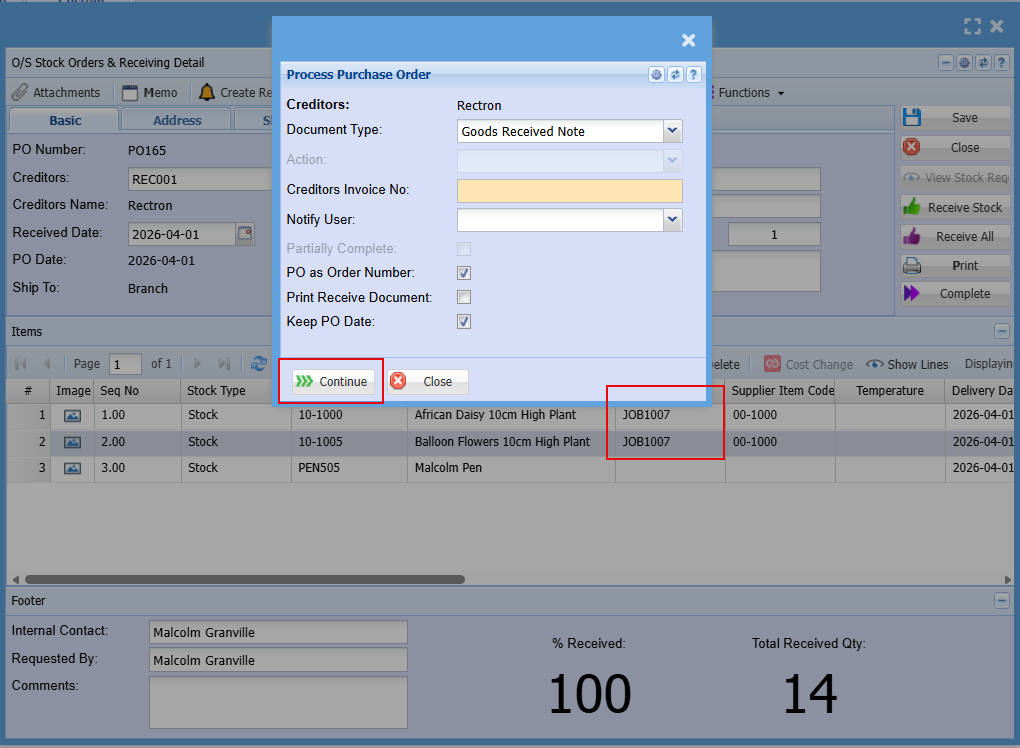
On complete of receive stock, an email will be sent to the customer notifying them that stock has been received.
Only the items with job numbers will be sent.
The customer will receive one email with information on the items received that were flagged for Receive stock email.
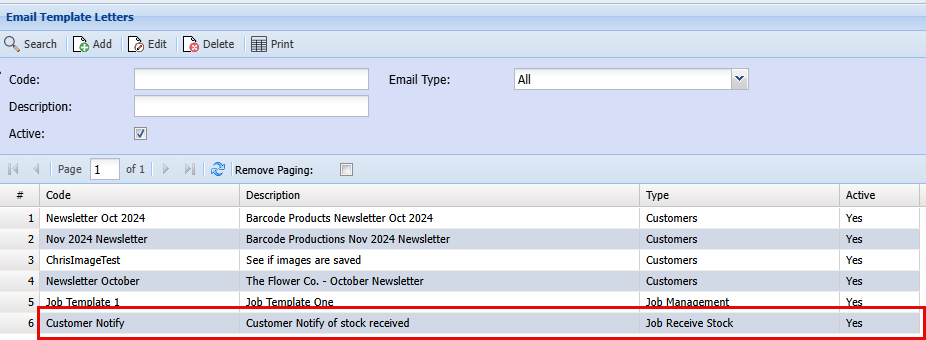
Email template
The email template is found in CRM, Configuration setup called Email templates
The type if Receive stock job email
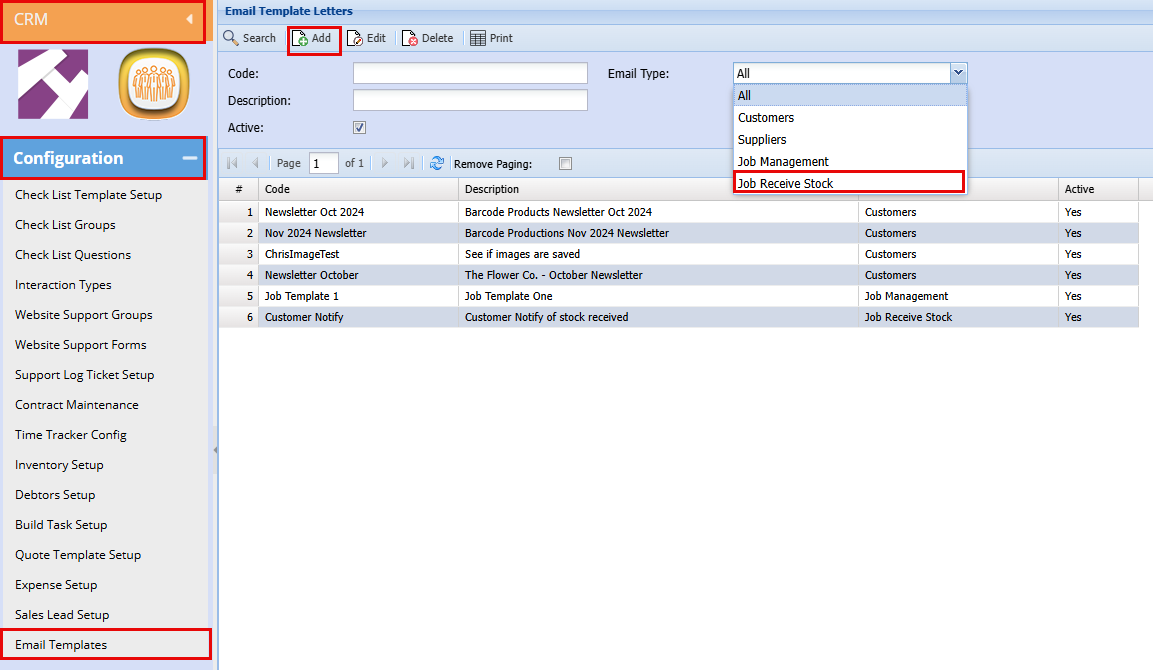
New type for Receive Stock Job line email
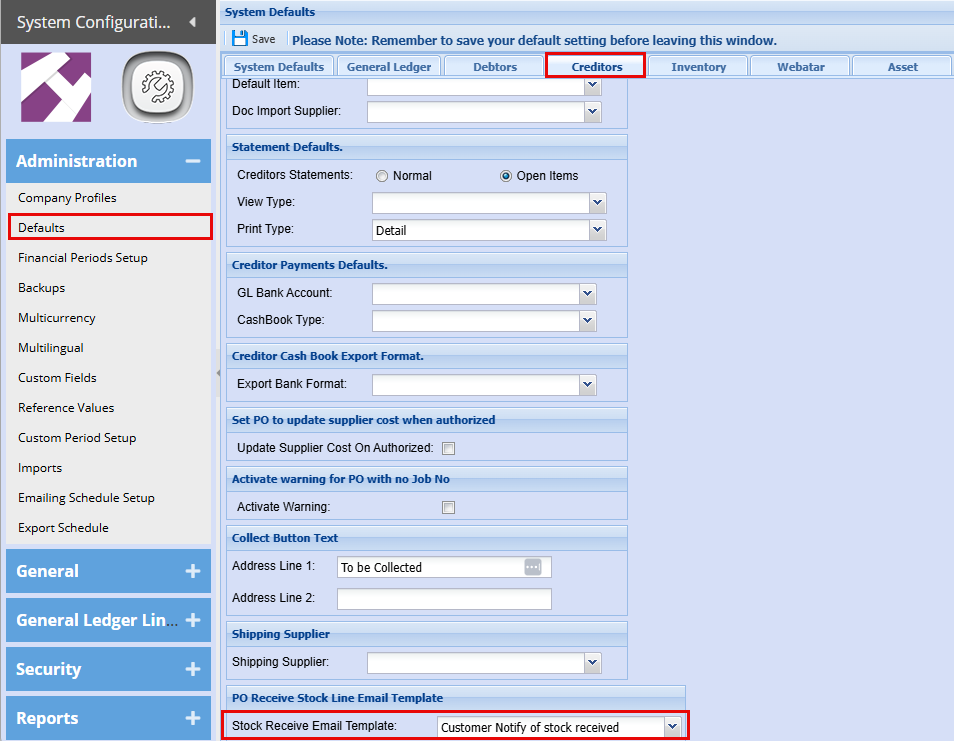
Setup default email template for system
This dropdown will only look at types: Receive Stock Job Line
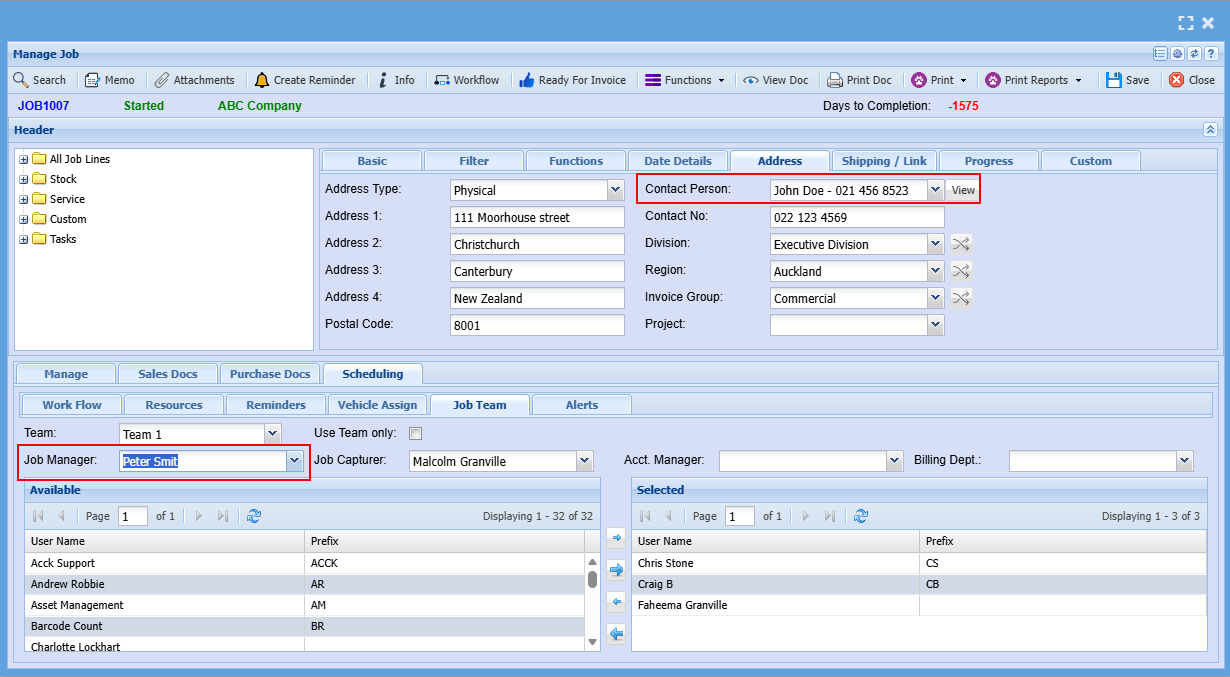
Email will go to two people
- Default contact person of Job
- Job Manager