# Creditors Journal Transactions Menu

# Creditors Journal Transaction Search

<span style="mso-bidi-font-family: Calibri; mso-bidi-theme-font: minor-latin;">Click on <span style="color: rgb(45, 194, 107);">**Creditors Module&gt; Activity&gt; Creditors Journal**</span></span>

<span style="mso-bidi-font-family: Calibri; mso-bidi-theme-font: minor-latin;">Always click on **search** to avoid duplication of transactions.</span>

<span style="mso-bidi-font-family: Calibri; mso-bidi-theme-font: minor-latin;">Click Add button to create a new Creditors Journal Transactions</span>

<span style="mso-bidi-font-family: Calibri; mso-bidi-theme-font: minor-latin; mso-no-proof: yes;">![](https://hugeerp10.co.za/hsofmanual/uploads/images/gallery/2023-08/embedded-image-j4zfpgmp.png)</span>

---

#### Print

[![image.png](https://hugeerp10.co.za/hsofmanual/uploads/images/gallery/2023-11/scaled-1680-/iK2image.png)](https://hugeerp10.co.za/hsofmanual/uploads/images/gallery/2023-11/iK2image.png)

[![image.png](https://hugeerp10.co.za/hsofmanual/uploads/images/gallery/2023-11/scaled-1680-/UHLimage.png)](https://hugeerp10.co.za/hsofmanual/uploads/images/gallery/2023-11/UHLimage.png)

---

#### Import

[![image.png](https://hugeerp10.co.za/hsofmanual/uploads/images/gallery/2023-11/scaled-1680-/4qmimage.png)](https://hugeerp10.co.za/hsofmanual/uploads/images/gallery/2023-11/4qmimage.png)

[![image.png](https://hugeerp10.co.za/hsofmanual/uploads/images/gallery/2023-11/scaled-1680-/Du6image.png)](https://hugeerp10.co.za/hsofmanual/uploads/images/gallery/2023-11/Du6image.png)

---

#### Print Clone

[![image.png](https://hugeerp10.co.za/hsofmanual/uploads/images/gallery/2023-11/scaled-1680-/F1Limage.png)](https://hugeerp10.co.za/hsofmanual/uploads/images/gallery/2023-11/F1Limage.png)

[![image.png](https://hugeerp10.co.za/hsofmanual/uploads/images/gallery/2023-11/scaled-1680-/K0eimage.png)](https://hugeerp10.co.za/hsofmanual/uploads/images/gallery/2023-11/K0eimage.png)

<table border="1" id="bkmrk-search-view-clone-de" style="border-collapse: collapse; width: 100%;"><colgroup><col style="width: 15.3581%;"></col><col style="width: 84.7408%;"></col></colgroup><tbody><tr><td>**Search**</td><td>  
</td></tr><tr><td>**View Clone**</td><td>  
</td></tr><tr><td>**Delete Clone**</td><td> </td></tr><tr><td>**Import**</td><td>  
</td></tr></tbody></table>

# Add Creditor Journal Transaction

[![image.png](https://hugeerp10.co.za/hsofmanual/uploads/images/gallery/2023-11/scaled-1680-/zE2image.png)](https://hugeerp10.co.za/hsofmanual/uploads/images/gallery/2023-11/zE2image.png)

<table border="1" id="bkmrk-attachments-%C2%A0-memo-c" style="border-collapse: collapse; width: 100%;"><colgroup><col style="width: 19.0618%;"></col><col style="width: 81.0371%;"></col></colgroup><tbody><tr><td>**Attachments**</td><td> </td></tr><tr><td>**Memo**</td><td>  
</td></tr><tr><td>**Clone**</td><td>  
</td></tr><tr><td>**Create Template**</td><td>  
</td></tr><tr><td>**Custom Fields**</td><td>  
</td></tr><tr><td>**Create Reminder**</td><td>  
</td></tr></tbody></table>

<p class="callout info"><span style="mso-bidi-font-family: Calibri; mso-bidi-theme-font: minor-latin;">Note: each action listed has a corresponding Contra GL Account set on the system as a default.</span></p>

<span style="mso-bidi-font-family: Calibri; mso-bidi-theme-font: minor-latin;">The system can be set to allow the user to change default contra account.</span>

[![image.png](https://hugeerp10.co.za/hsofmanual/uploads/images/gallery/2023-11/scaled-1680-/Qn5image.png)](https://hugeerp10.co.za/hsofmanual/uploads/images/gallery/2023-11/Qn5image.png)

<table border="1" id="bkmrk-action-select-the-ac" style="border-collapse: collapse; width: 100%;"><colgroup><col style="width: 20.9136%;"></col><col style="width: 79.1852%;"></col></colgroup><tbody><tr><td>**Action**</td><td>Select the action from the drop-down box. e.g. Creditors Journal Credit</td></tr><tr><td>**Date**</td><td><span style="mso-bidi-font-family: Calibri; mso-bidi-theme-font: minor-latin;">Enter the transaction date for the journal.</span></td></tr><tr><td>**Creditor**</td><td><span style="mso-bidi-font-family: Calibri; mso-bidi-theme-font: minor-latin;">Select a Creditor for the </span><span style="mso-fareast-font-family: 'Times New Roman'; mso-bidi-font-family: Calibri; mso-bidi-theme-font: minor-latin;">Short Search – just type in part of the code or name and hit enter on the keyboard and select the </span><span style="mso-bidi-font-family: Calibri; mso-bidi-theme-font: minor-latin;">Debtor</span><span style="mso-fareast-font-family: 'Times New Roman'; mso-bidi-font-family: Calibri; mso-bidi-theme-font: minor-latin;">. e.g. STO001</span></td></tr><tr><td>**Customer Link**</td><td>  
</td></tr><tr><td>**Currency**</td><td>  
</td></tr><tr><td>**Amount Inc VAT**</td><td>Enter the amount including VAT the system will automatically work out the Tax Amount and the Amount Excluding VAT.</td></tr><tr><td>**VAT Account**</td><td>  
</td></tr><tr><td>**Description**</td><td>Add the Description – e.g. GRV - Telkom</td></tr><tr><td>**Additional Comment**</td><td>Add in additional comments if required. </td></tr><tr><td>**Outstanding Balance**</td><td>  
</td></tr><tr><td>**Reference**</td><td>Enter a Reference e.g. Telkom</td></tr><tr><td>**Supplier Inv. No.**</td><td>Enter Supplier Invoice Number. e.g. INV1234 (if applicable)</td></tr><tr><td>**Exchange Rate**</td><td>  
</td></tr><tr><td>**Importation VAT**</td><td>  
</td></tr><tr><td>**VAT Type**</td><td>Select the VAT Type on the drop-down Box e.g. GRV VAT</td></tr></tbody></table>

<span style="mso-bidi-font-family: Calibri; mso-bidi-theme-font: minor-latin;">Click on Next Arrow</span>

<span style="mso-bidi-font-family: Calibri; mso-bidi-theme-font: minor-latin;">If you are categorizing and allocating entries to Regions and Division, select the respective option from the drop down</span>

<span style="mso-bidi-font-family: Calibri; mso-bidi-theme-font: minor-latin;">If not allocating transaction to Divisions/Regions then you can leave this Blank</span>

The Contra Transaction box allows for contra journals to be created and processed at the same time

Contra Journals are typically used in the case of intercompany accounts or where you have a supplier that happens to also be a Debtor on the system and you simply offset the accounts against one another.

<span style="mso-bidi-font-family: Calibri; mso-bidi-theme-font: minor-latin; mso-no-proof: yes;">![](https://hugeerp10.co.za/hsofmanual/uploads/images/gallery/2023-08/embedded-image-aynhirjq.png)  
</span>

#### **<span style="mso-bidi-font-family: Calibri; mso-bidi-theme-font: minor-latin; mso-no-proof: yes;">Cost Centres</span>**

<table border="1" id="bkmrk-region-project-%C2%A0-job" style="border-collapse: collapse; width: 100%;"><colgroup><col style="width: 16.8159%;"></col><col style="width: 83.1594%;"></col></colgroup><tbody><tr><td>**Region**</td><td>  
</td></tr><tr><td>**Project**</td><td> </td></tr><tr><td>**Job Allocation**</td><td>  
</td></tr><tr><td>**Division**</td><td>  
</td></tr><tr><td>**Track It**</td><td>  
</td></tr><tr><td>**Job Service Item**

</td><td>  
</td></tr></tbody></table>

#### **Contra Transaction**

<table border="1" id="bkmrk-contra-transaction-t" style="border-collapse: collapse; width: 100%;"><colgroup><col style="width: 22.7655%;"></col><col style="width: 77.3334%;"></col></colgroup><tbody><tr><td>**Contra Transaction Tick**</td><td>Once this tick is on it will allow you to see the greyed-out section</td></tr><tr><td>**Contra Debtor**</td><td> </td></tr><tr><td>**Contra Creditor**</td><td>  
</td></tr></tbody></table>

#### **Branch**

<table border="1" id="bkmrk-branch-%C2%A0" style="border-collapse: collapse; width: 100%;"><colgroup><col style="width: 12.8889%;"></col><col style="width: 87.2099%;"></col></colgroup><tbody><tr><td>**Branch**</td><td> </td></tr></tbody></table>

<span style="mso-bidi-font-family: Calibri; mso-bidi-theme-font: minor-latin;">Click Next</span>

<span style="mso-bidi-font-family: Calibri; mso-bidi-theme-font: minor-latin;">If the system is set to allow changing the contra GL account, you can enter the required GL account and select or click the drop-down arrow and search for the required account.</span>

<span style="mso-no-proof: yes;">![](https://hugeerp10.co.za/hsofmanual/uploads/images/gallery/2023-08/embedded-image-z8xj6vhh.png)  
</span>

---

#### **<span style="mso-bidi-font-family: Calibri; mso-bidi-theme-font: minor-latin;">Split Account</span>**

<span style="mso-bidi-font-family: Calibri; mso-bidi-theme-font: minor-latin;">If the transaction has to be split to various Contra accounts, you can click on the Split Lines Tick box. Ten click the Add in the centre of the screen and add the respective Contra GL Accounts with the respective amounts.</span>

Tick this box only if the entry is being split.

Alternatively, click Next.

<span style="mso-no-proof: yes;">![](https://hugeerp10.co.za/hsofmanual/uploads/images/gallery/2023-08/embedded-image-00s6yyvy.png)  
</span>

<span style="mso-bidi-font-family: Calibri; mso-bidi-theme-font: minor-latin;">This screen allows the user to Allocate the entry to a specific transaction(s)</span>

<span style="mso-no-proof: yes;">![](https://hugeerp10.co.za/hsofmanual/uploads/images/gallery/2023-08/embedded-image-2evjjm8p.png)  
</span>

<span style="mso-bidi-font-family: Calibri; mso-bidi-theme-font: minor-latin;">Tick the relevant transaction and then click the Save Allocation Button </span>

<span style="mso-bidi-font-family: Calibri; mso-bidi-theme-font: minor-latin;">This saves the User from having to do the Allocations separately once the journal is processed.</span>

Click Next

[![image.png](https://hugeerp10.co.za/hsofmanual/uploads/images/gallery/2023-11/scaled-1680-/e52image.png)](https://hugeerp10.co.za/hsofmanual/uploads/images/gallery/2023-11/e52image.png)

<table border="1" id="bkmrk-search-%C2%A0-allocate-al" style="border-collapse: collapse; width: 100%;"><colgroup><col style="width: 16.9315%;"></col><col style="width: 83.0438%;"></col></colgroup><tbody><tr><td>**Search**</td><td> </td></tr><tr><td>**Allocate All**</td><td>  
</td></tr><tr><td>**Unallocate All**</td><td>  
</td></tr><tr><td>**Save Allocation**</td><td>  
</td></tr></tbody></table>

[![image.png](https://hugeerp10.co.za/hsofmanual/uploads/images/gallery/2023-11/scaled-1680-/wgJimage.png)](https://hugeerp10.co.za/hsofmanual/uploads/images/gallery/2023-11/wgJimage.png)

<span style="mso-bidi-font-family: Calibri; mso-bidi-theme-font: minor-latin;">When ready, click the Process button. </span>

<span style="mso-bidi-font-family: Calibri; mso-bidi-theme-font: minor-latin;">This will then process the journal and post the relevant entries</span>

<span style="mso-bidi-font-family: Calibri; mso-bidi-theme-font: minor-latin; mso-no-proof: yes;">A Pop-up message will occur with the Journal number if successfully processed, alternatively the message will display any error found.</span>

<span style="mso-no-proof: yes;">![](https://hugeerp10.co.za/hsofmanual/uploads/images/gallery/2023-08/embedded-image-mhwffzrw.png)  
</span>

# Creditors Journal Xero Processing

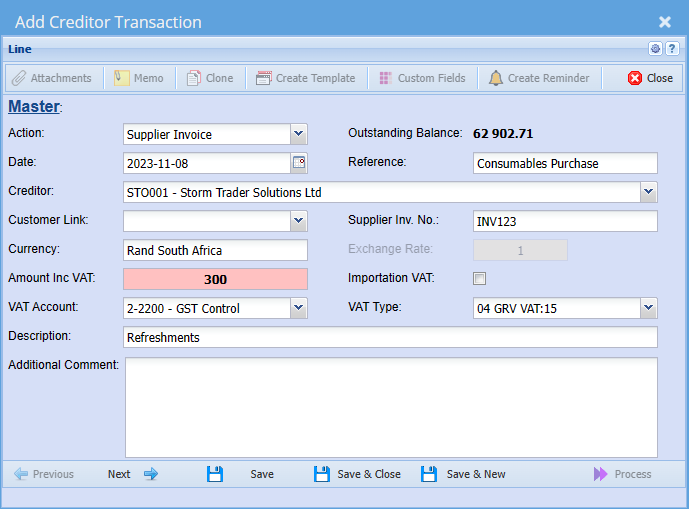
Creditors journal can be processed to Xero for Invoices and credit Notes.

This will create a Bill in Xero with a line item.

Setting up for Xero processing.

1. Setup a custom item for Xero item line for Bill
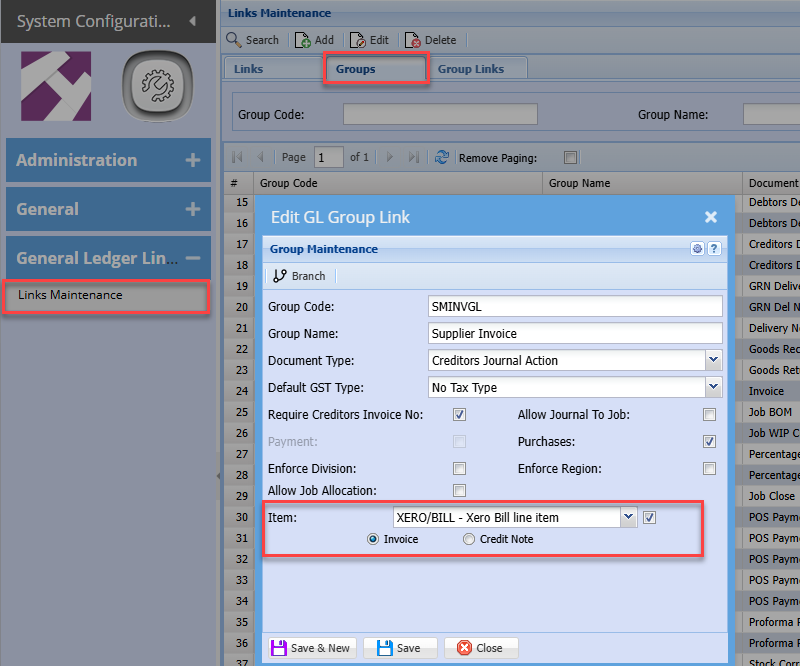
2. Setup GL Links for Creditors and Debtors journals

Setup a custom item for Xero

[![image.png](https://hugeerp10.co.za/hsofmanual/uploads/images/gallery/2025-07/scaled-1680-/Ey4image.png)](https://hugeerp10.co.za/hsofmanual/uploads/images/gallery/2025-07/Ey4image.png)

Set the custom item in System Defaults

This setting will be used in the GRV importation split lines.

[![image.png](https://hugeerp10.co.za/hsofmanual/uploads/images/gallery/2025-07/scaled-1680-/fZjimage.png)](https://hugeerp10.co.za/hsofmanual/uploads/images/gallery/2025-07/fZjimage.png)

---

##### GL Links setup

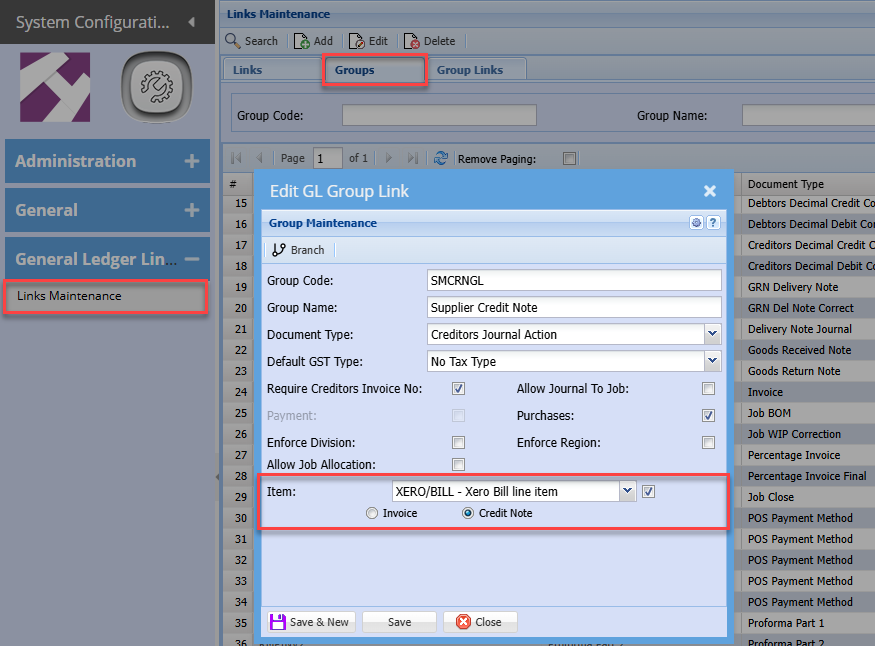
Setup the Supplier Invoice and credit note

<p class="callout info">The tick next to the Xero/Bill item is to set to active if you want the Journal to be posted to Xero. If the tick is OFF then the Journal will NOT be sent to Xero.</p>

[![image.png](https://hugeerp10.co.za/hsofmanual/uploads/images/gallery/2025-07/scaled-1680-/BNbimage.png)](https://hugeerp10.co.za/hsofmanual/uploads/images/gallery/2025-07/BNbimage.png)

Set the Credit note side

[![image.png](https://hugeerp10.co.za/hsofmanual/uploads/images/gallery/2025-07/scaled-1680-/Pbiimage.png)](https://hugeerp10.co.za/hsofmanual/uploads/images/gallery/2025-07/Pbiimage.png)