Creditors Cashbooks Menu
Creditors Cashbook Search
Video training manual 2016 - Click Here
Creditors cashbook is used to control payments to creditors.
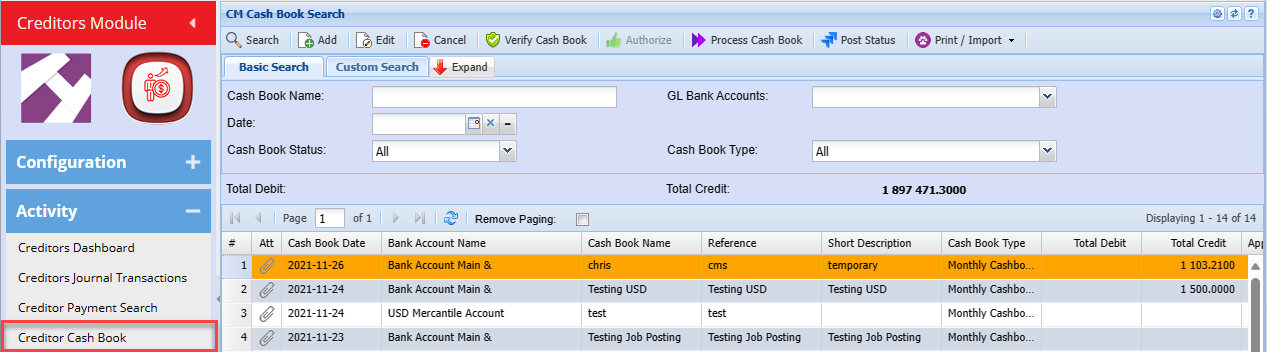
| Search | |
| Add | |
| Edit | |
| Cancel | |
| Verify Cash Book | |
| Authorize | |
| Process Cash Book | |
| Post Status |
Print/Import Drop Down

| Upload Cashbook | |
| Import Cash Book | |
| Export Cash Book |
Basic Search

| Cash Book Name | |
| Date | |
| Cash Book Status | |
| GL Bank Accounts | |
| Cash Book Type |
Custom Search

| Category |
Add Creditors Cashbook
Click Add to create a new cashbook

| Attachments | |
| Create Reminder | |
| Allocate | |
| Insert Template | |
| Save As Template | |
| Export Cash Book |
Cash Book Details

| Cash Book Number | |
| Cash Book Date | |
| Cash Book Name | |
| Reference | |
| Branch | |
| Copy Reference | |
| Copy Previous Line Description | |
| Increment Reference | |
| Bank Accounts | |
| Cash Book Type | |
| Short Description | |
| Long Description |
Cash Book Line
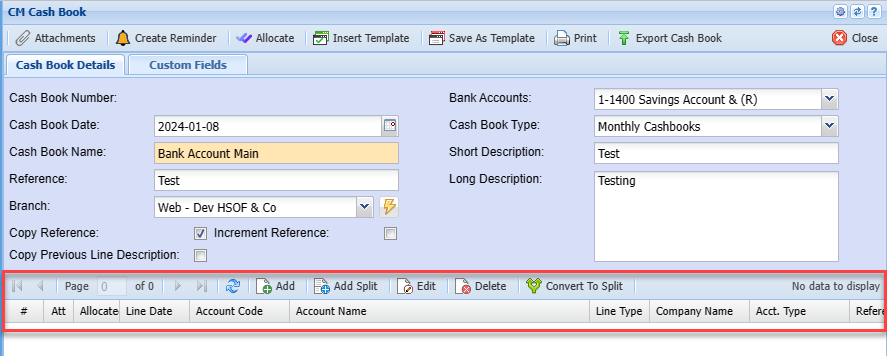
| Add | |
| Add Split | |
| Edit | |
| Delete | |
| Convert To Split |
Cash Book Adding Line
Creditors payments can be captured separately in the creditor's cashbook
this is ideal for Creditors Clerks who deal with creditors only

| Attachments | |
| Search | |
| Allocate All | |
| Unallocated Amnt | |
| Save Allocations |
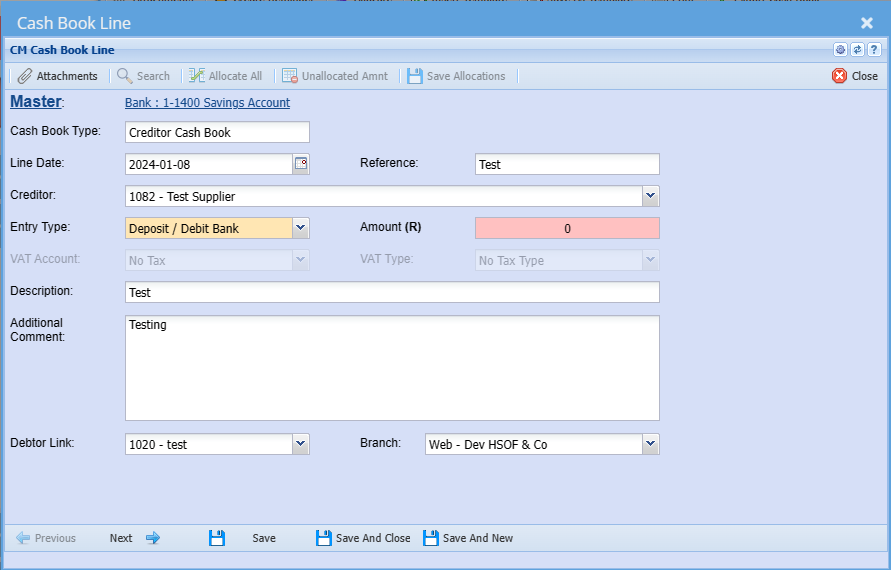
| Cash Book Type | |
| Line Date | Transaction date |
| Reference | Add reference |
| Creditor | Select Creditor being paid |
| Entry Type | Entry Type will be Payment (Money going out of the selected bank account) |
| Amount | The Amount being paid |
| VAT Account | |
| VAT Type | |
| Description | Enter Description for this transaction |
| Additional Comment | |
| Debtor Link | |
| Branch |
In the next window you can select the divisions , GL Group, Projects and Add the discount function if applicable
When you tick the discount box – you will be required to add the transaction action
You can select from the drop down list
Then click Next to go to the Allocations Window or Alternatively Save and close
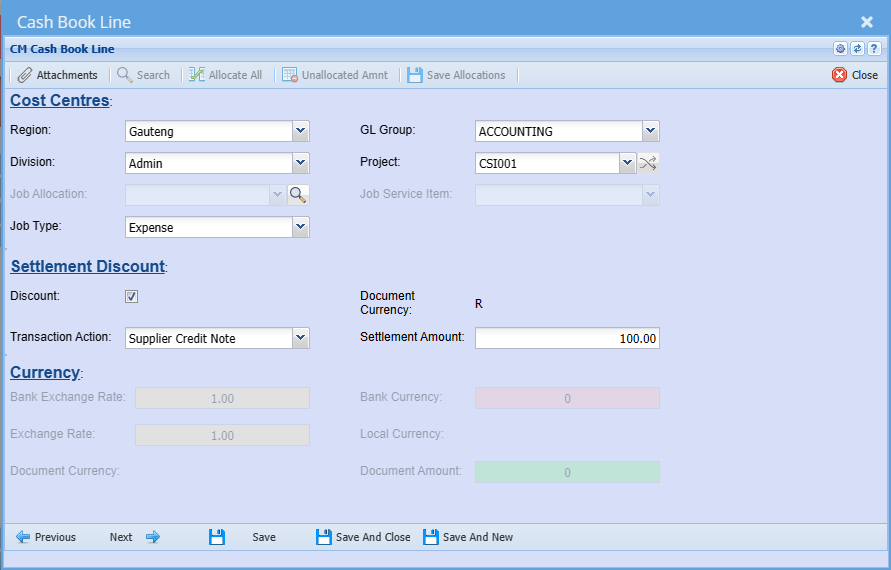
| Cost Centres: | |
| Region | |
| Division | |
| Job Allocation | |
| Job Type | |
| GL Group | |
| Project | |
| Job Service Item | |
| Settlement Discount: | |
| Discount | |
| Transaction Action | |
| Document Currency | |
| Settlement Amount | |
| Currency: | |
| Bank Exchange Rate | |
| Exchange Rate | |
| Document Currency | |
| Bank Currency | |
| Local Currency | |
| Document Amount |
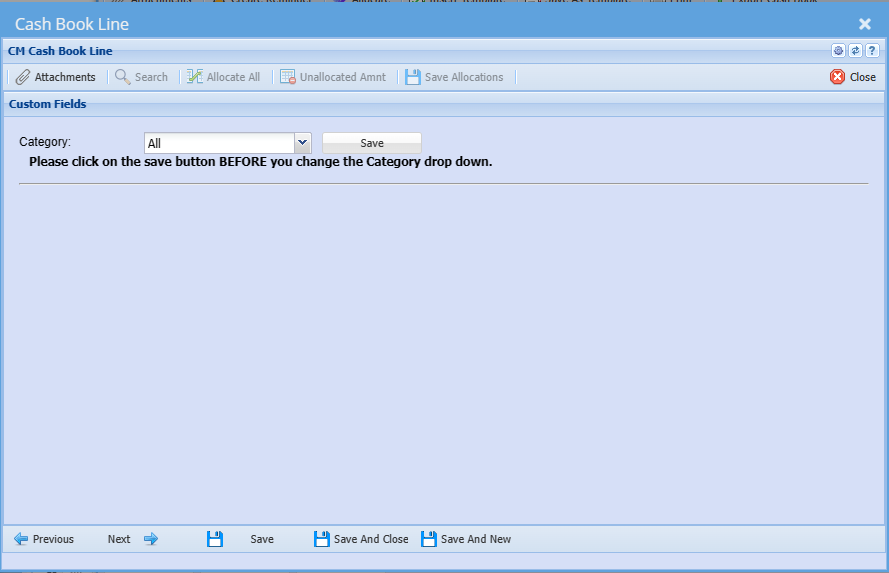
| Category |
Add Split
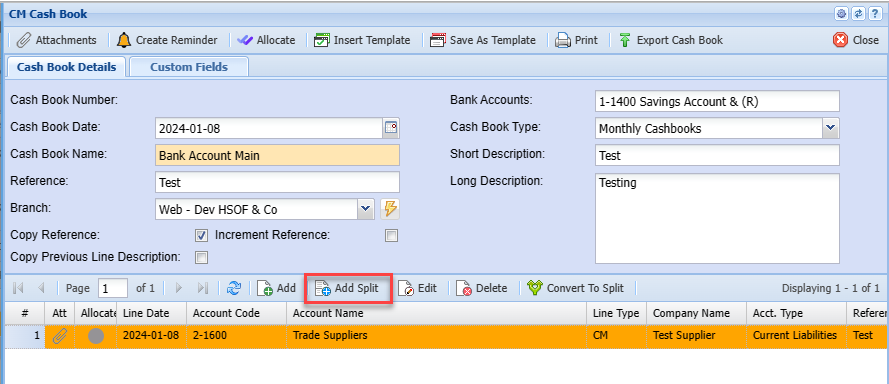

| Create Reminder | |
| Attachments | |
| Import Split Lines | |
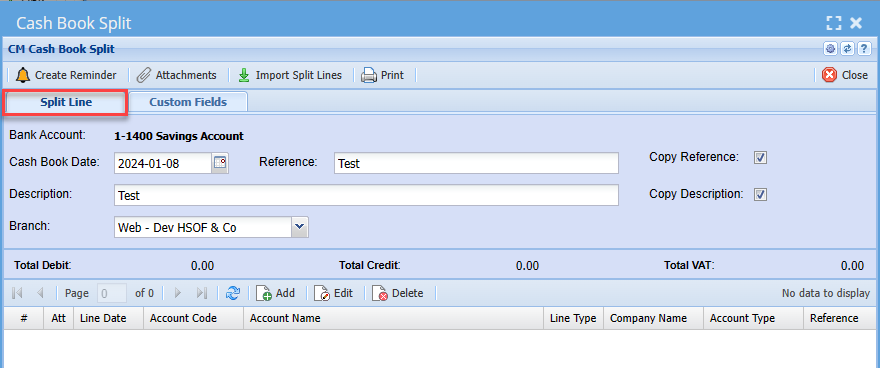
| Bank Account | |
| Cash Book Date | |
| Reference | |
| Description | |
| Branch | |
| Copy Reference Tick | |
| Copy Description Tick |
Adding New Line in Cash Book Split
After Clicking Add
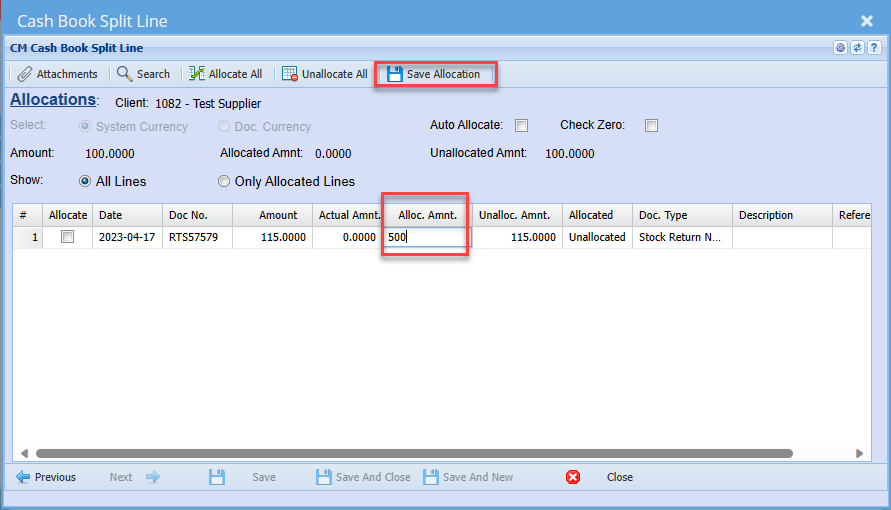
Fill in the information on the first 2 pages same as in Cash Book Adding Line on the 3rd page in Cash Book Split you can Seach and Allocate.
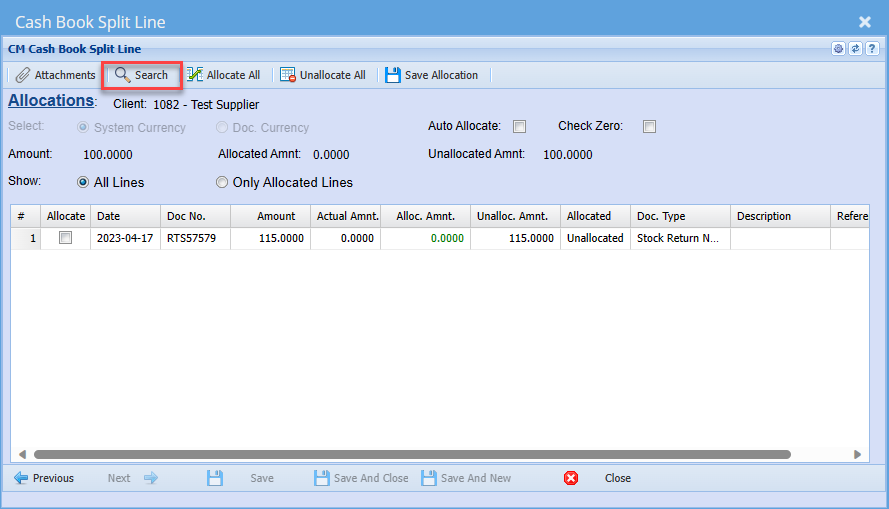
A list of available transactions against this client will be listed
Select one that you want to allocate this captured payment to and add the amount
You can manually type in the amount
When you have entered the amount remember to save Allocations before closing this window
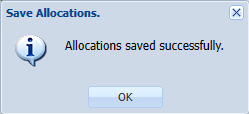
The Message below will come up after saving
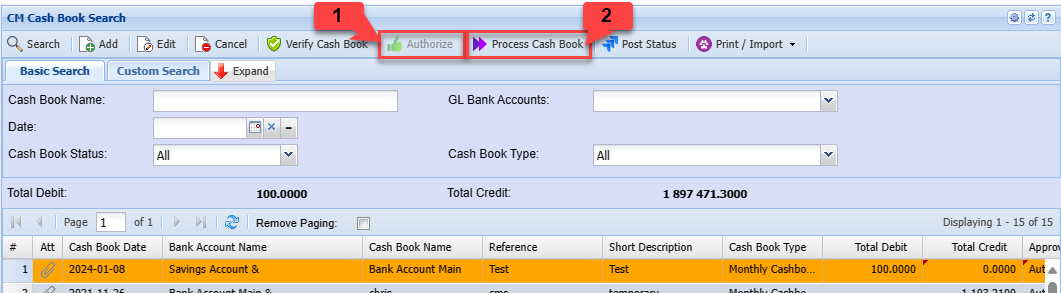
The cashbook can be authorized and processed
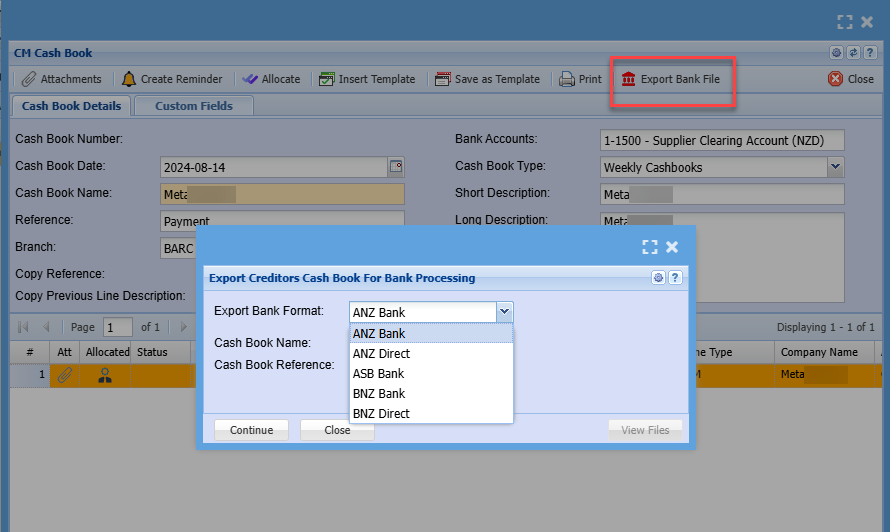
Export Bank File
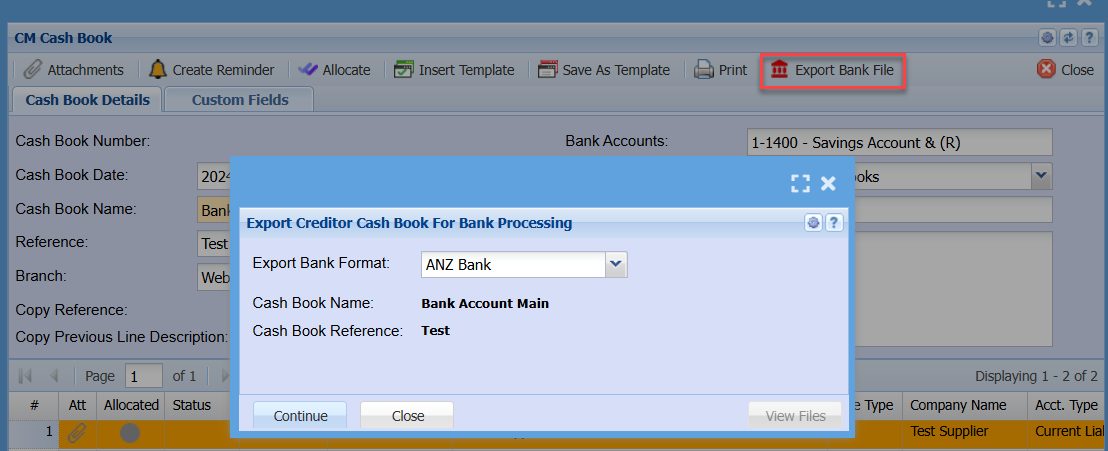
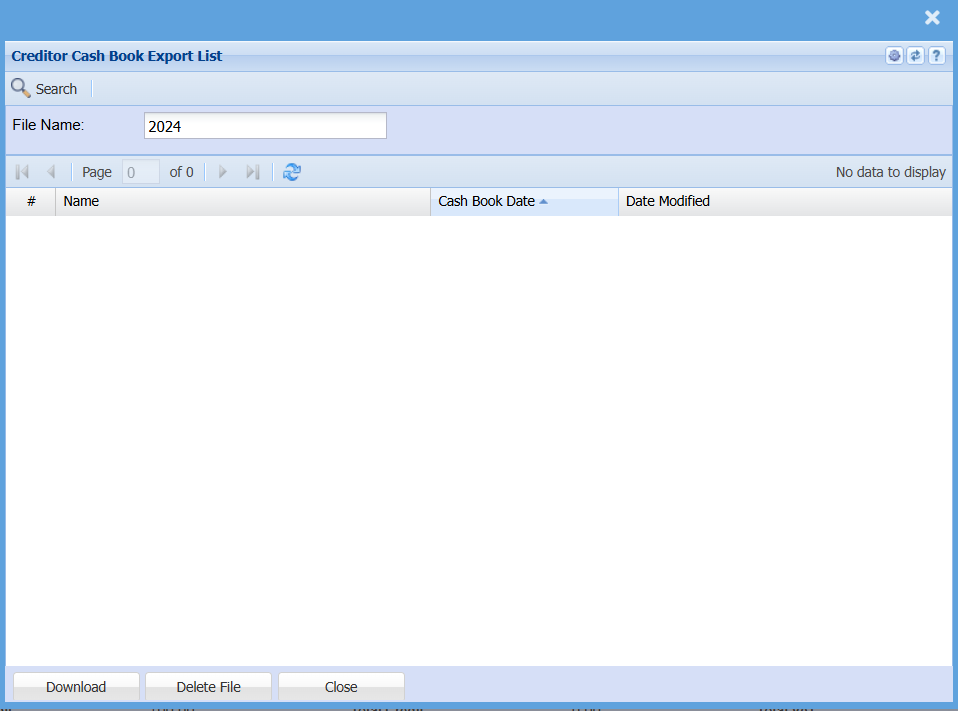
Clicking on the View Files button
Bank Payment Schedule Export
Bulk supplier payment Export bank file
Supported banks
- ANZ Bank
- ANZ Direct
- ASB Bank
- BNZ Bank
- BNZ Direct
Bank export files have specific algorithms which check for any changes to bank accounts and amounts. This is to ensure that files are not tampered with, so be careful on opening the file to make any changes. This will create the file invalid.
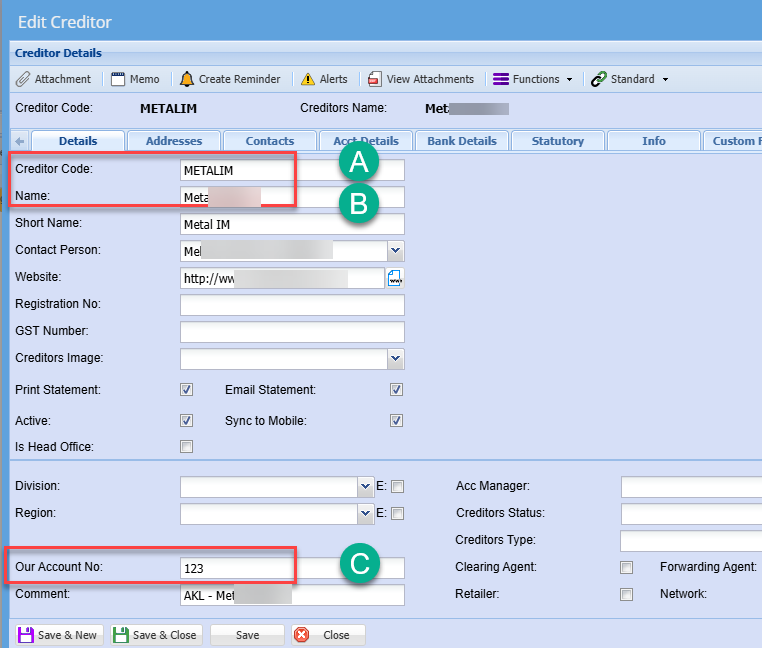
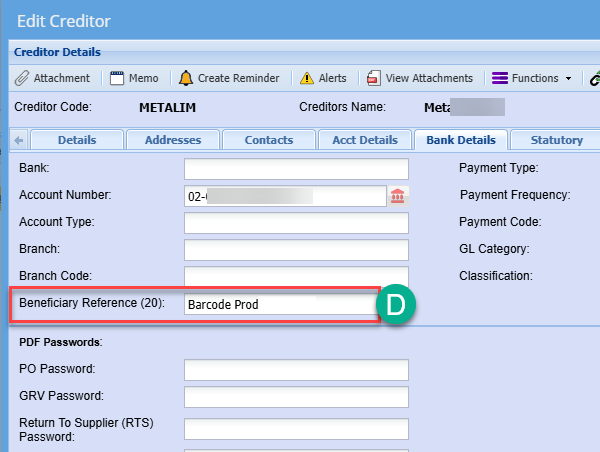
Reference fields
Setup reference fields for suppliers for bank references
| A | Supplier code used |
| B | Suppler name |
| C | Supplier account number |
| D | Beneficiary reference |
Some banks have limits on beneficiary reference, please check how many characters are allowed
ANZ Bank and ANZ Direct reference fields
After the bank file has been imported these are the fields that will show.
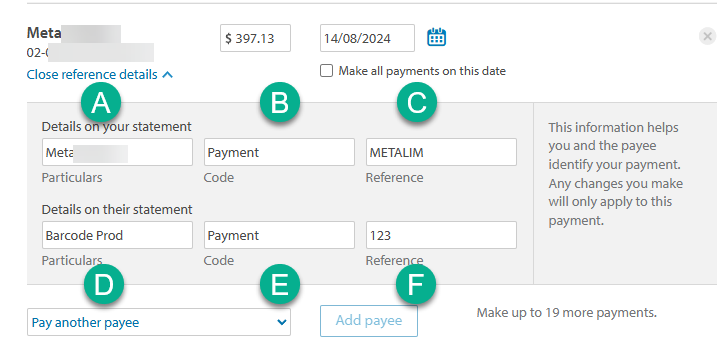
| A | Supplier Name ((Limited to 12 characters) |
| B | Hardcoded to say Payment |
| C | Supplier Code |
| D | Beneficiary reference (Limited to 12 characters) |
| E | Hardcoded to say Payment |
| F | Our Account Number (supplier account number) |
Bank export file is a txt file
1 to 9 are positions in the bank file
