# Asset Management Item Setup

#### Default Setting for Fixed Assets

Before creating a Fixed Asset for Asset Management it is necessary to populate the default values

<span style="color: rgb(45, 194, 107);">**System Configuration&gt; Administration&gt; Defaults&gt; Asset Tab**</span>

<span style="color: rgb(0, 0, 0);">Fixed Asset Minimum Balance For Transactions as determined by company policy should be 100</span>

[![image.png](https://hugeerp10.co.za/hsofmanual/uploads/images/gallery/2024-04/scaled-1680-/KPNimage.png)](https://hugeerp10.co.za/hsofmanual/uploads/images/gallery/2024-04/KPNimage.png)

---

#### Additional Default Setting for Fixed Asset

<span style="color: rgb(45, 194, 107);">**General Ledger Module&gt; Configuration&gt; General Ledger Accounts** </span>

<span style="color: rgb(0, 0, 0);">Search the GL Accounts detail relating to the specific fixed asset GL Item</span>

<span style="font-size: 10.0pt; mso-bidi-font-size: 11.0pt; line-height: 107%; font-family: 'Arial',sans-serif;">.</span>**![](https://hugeerp10.co.za/hsofmanual/uploads/images/gallery/2024-04/embedded-image-agjop7qn.png)**

---

#### Creating a Fixed Asset

Fixed Assets are created in two ways in the system. The first way would be via a GRV and the second way would be to create a new Fixed Asset directly in the Asset Management Module.

When creating a Fixed Asset via GRV the Fixed Asset should be part of the inventory system and the serial numbers can be tracked throughout the system.

##### GRV Method

<p class="callout info">When producing a GRV that will create a Fixed Asset the GRV line item must be a Fixed Asset inventory type and the inventory type must be ticked as a Serial Number Tracking.</p>

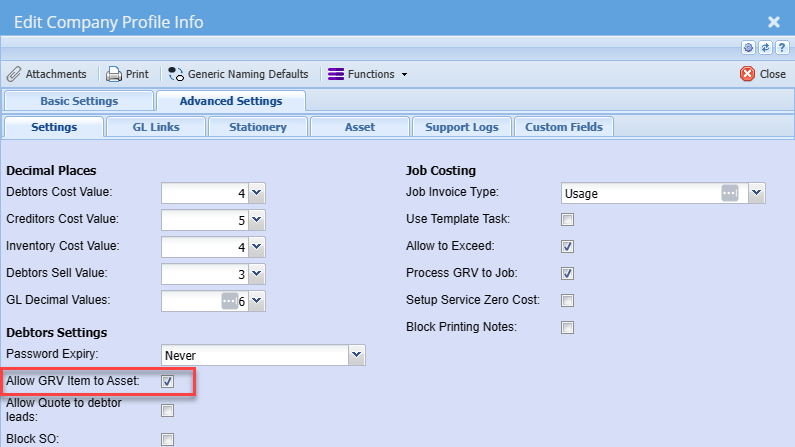
One other, requirement is Allow GRV item to Asset Tick box found on:

<span style="color: rgb(45, 194, 107);">**System Configuration Module&gt; Administration&gt; Company Profile&gt; Advanced Settings**</span>

[![image.png](https://hugeerp10.co.za/hsofmanual/uploads/images/gallery/2024-04/scaled-1680-/09Cimage.png)](https://hugeerp10.co.za/hsofmanual/uploads/images/gallery/2024-04/09Cimage.png)

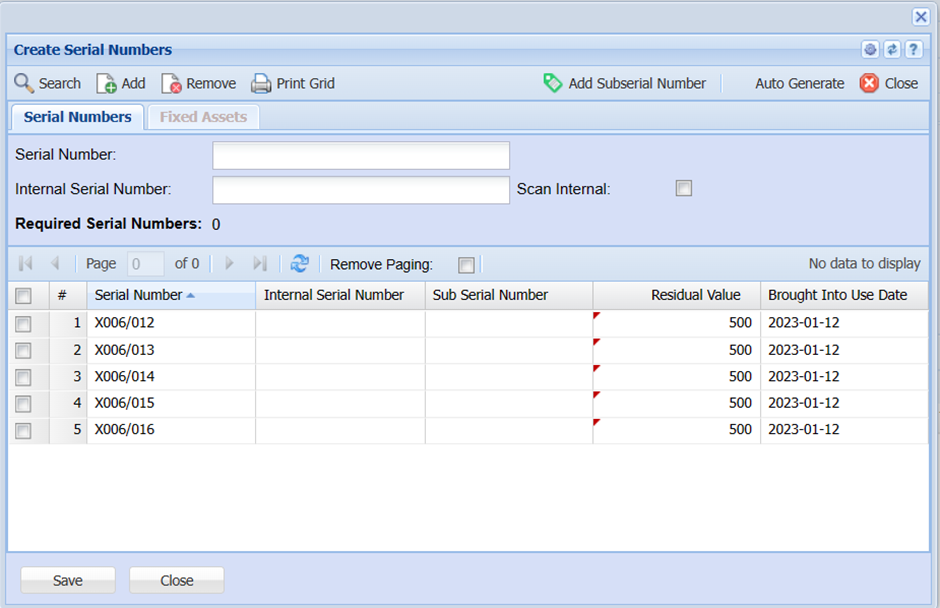
On the GRV line item once the inventory item has been selected and the quantity has been specified click on the create serials button and create the serial numbers as specified on the items being captured
<span style="font-size: 10.0pt; mso-bidi-font-size: 11.0pt; line-height: 107%; font-family: 'Arial',sans-serif;">![](https://hugeerp10.co.za/hsofmanual/uploads/images/gallery/2024-04/embedded-image-qtiry0m1.png)</span>

It is important to ensure that a Brought Into Use Date is created for each serial number created. These dates can be edited on the grid if required. Residual values for serial number can also be captured on the grid at this time.

When GRV has processed the Residual value and Brought Into Use Date will be captured into the Fixed Asset along with all other default data discussed above.

---

##### Create Asset Directly in Asset Management

<span style="color: rgb(45, 194, 107);">**Go to Asset Management Module&gt; Activity&gt; Asset Search**</span>

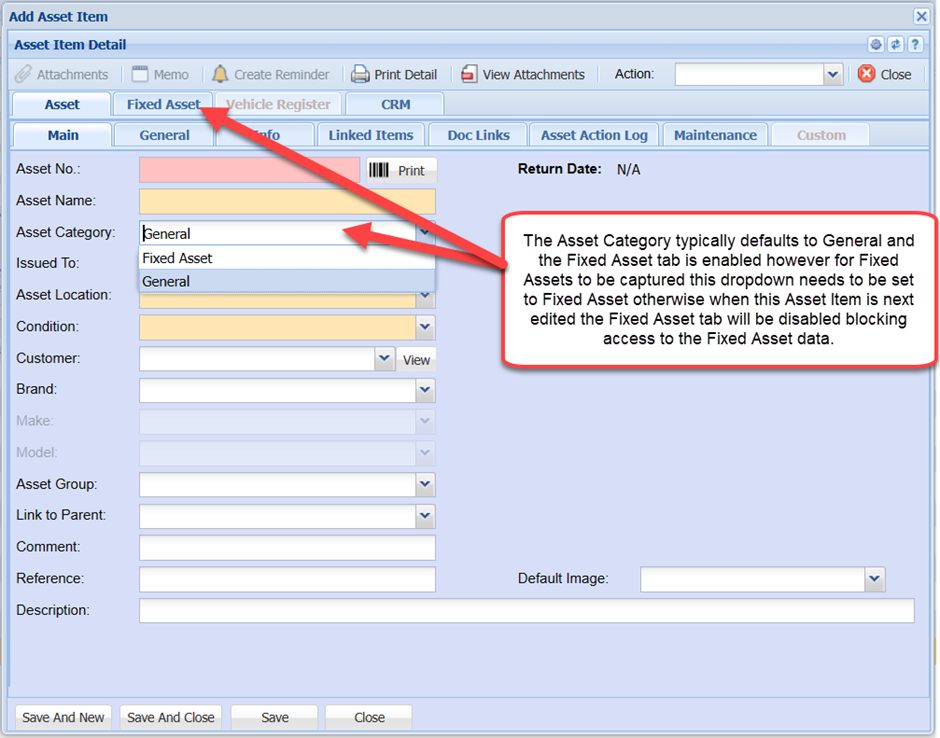
<span style="color: rgb(0, 0, 0);">Click on the Add button and capture the necessary details for an Asset.</span>

<p class="callout warning"><span style="color: rgb(0, 0, 0);">Please note the system will not allow the duplication of Asset Numbers</span></p>

<p class="callout info"><span style="color: rgb(0, 0, 0);">Assets created directly will not be linked to any inventory item as a serialised item</span></p>

<p class="callout success"><span style="color: rgb(0, 0, 0);">All fields with yellow or pink backgrounds are compulsory fields</span><span style="font-size: 10.0pt; mso-bidi-font-size: 11.0pt; line-height: 107%; font-family: 'Arial',sans-serif;">.</span></p>

<span style="mso-fareast-language: EN-ZA; mso-no-proof: yes;"> </span>

**![](https://hugeerp10.co.za/hsofmanual/uploads/images/gallery/2024-04/embedded-image-op4wuogb.png)**

---

#### Asset Management Module

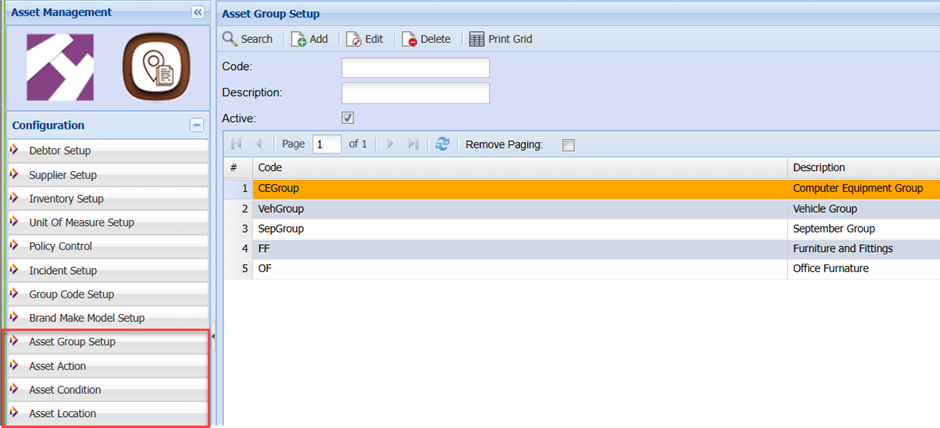
<span style="color: rgb(45, 194, 107);">**Access the Asset Management Module &gt; Configuration**</span>

<span style="color: rgb(0, 0, 0);">The items below may require additional entries to satisfy your company requirements.</span>

![](https://hugeerp10.co.za/hsofmanual/uploads/images/gallery/2024-04/embedded-image-feqwopg6.png)

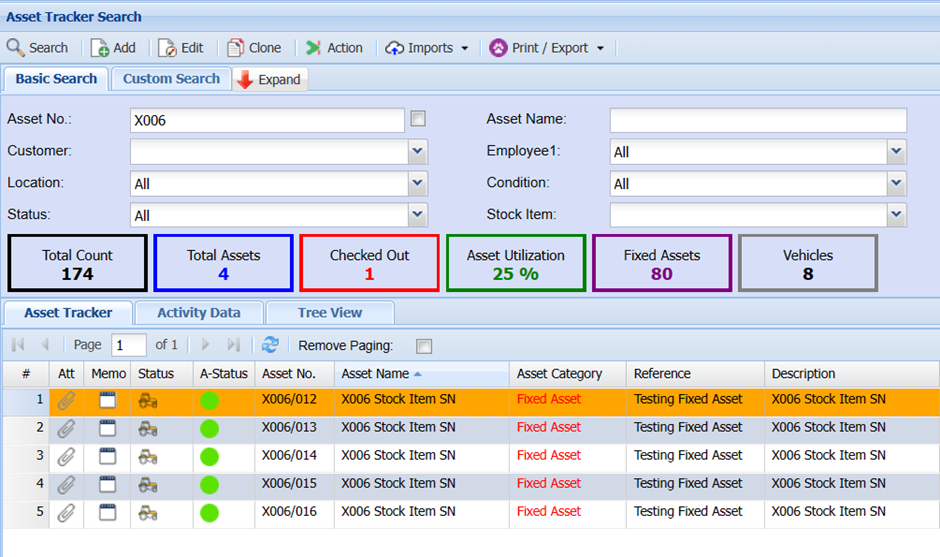
<span style="font-size: 10.0pt; mso-bidi-font-size: 11.0pt; line-height: 107%; font-family: 'Arial',sans-serif;">Access the **<span style="color: rgb(45, 194, 107);">Asset Management Module -&gt; Activity -&gt; Asset Search</span>**</span>

<span style="font-size: 10.0pt; mso-bidi-font-size: 11.0pt; line-height: 107%; font-family: 'Arial',sans-serif;">You will notice that the Serial Numbers captured earlier in the GRV now appear in the Asset Tracker Search as individual Fixed Asset Items.</span>

<span style="font-size: 10.0pt; mso-bidi-font-size: 11.0pt; line-height: 107%; font-family: 'Arial',sans-serif;">![](https://hugeerp10.co.za/hsofmanual/uploads/images/gallery/2024-04/embedded-image-abhznh9o.png)</span>

<span style="font-size: 10.0pt; mso-bidi-font-size: 11.0pt; line-height: 107%; font-family: 'Arial',sans-serif;">When viewing the Asset Details by selecting and then clicking on the Edit button you will notice that most of the important data has been populated from the various default setups through the GRV processing.</span>

---

##### Important Tabs to View When Editing the Asset

**![](https://hugeerp10.co.za/hsofmanual/uploads/images/gallery/2024-04/embedded-image-6wfvvjg4.png)**

The tabs above display the general information about the asset and some of the fields are editable.

<p class="callout info">The Asset Action Log is a grid displaying all actions that take place against the Asset</p>

<span style="font-size: 10.0pt; mso-bidi-font-size: 11.0pt; line-height: 107%; font-family: 'Arial',sans-serif;">![](https://hugeerp10.co.za/hsofmanual/uploads/images/gallery/2024-04/embedded-image-rtzxlov1.png)</span>

The tabs above display the information for dealing with depreciation, selling and disposing assets

<p class="callout info">The Fixed Asset Log is a grid displaying all the financial transactions that are created against the particular asset starting with GRV which was processed to created an Asset</p>

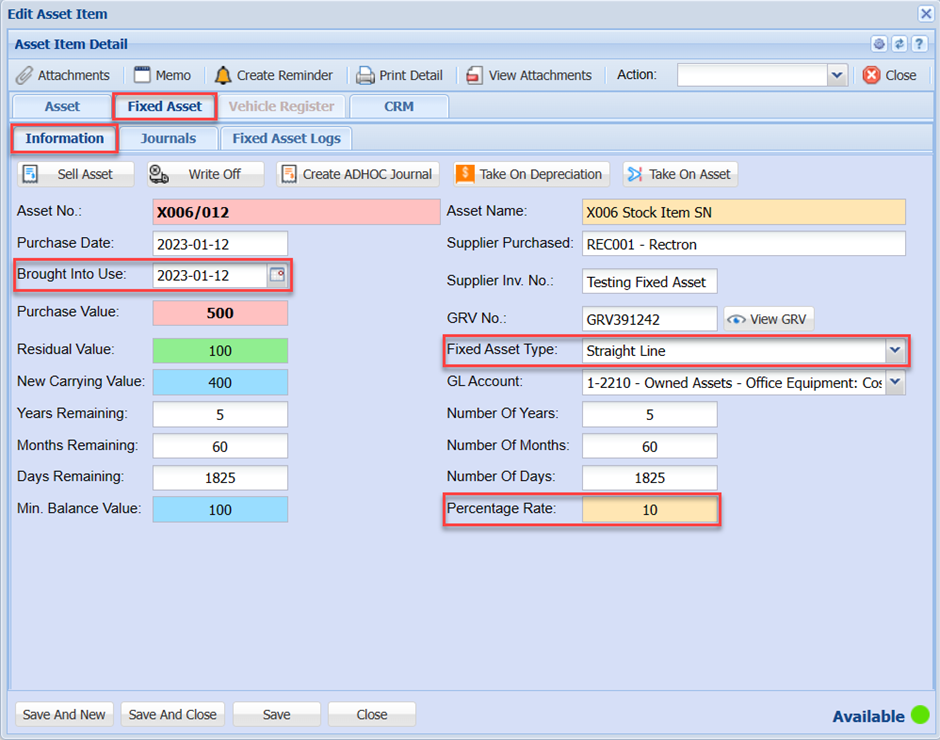
<span style="color: rgb(45, 194, 107);">**Fixed Asset Tab&gt; Information**</span>

<span style="color: rgb(45, 194, 107);">**<span style="font-size: 10.0pt; mso-bidi-font-size: 11.0pt; line-height: 107%; font-family: 'Arial',sans-serif;">![](https://hugeerp10.co.za/hsofmanual/uploads/images/gallery/2024-04/embedded-image-iz7azltr.png)</span>**</span>

<table border="1" id="bkmrk-brought-into-use-dat" style="border-collapse: collapse; width: 100%;"><colgroup><col style="width: 32.9879%;"></col><col style="width: 66.9874%;"></col></colgroup><tbody><tr><td>**Brought Into Use Date**</td><td>Is the day from which the first depreciation will be calculated</td></tr><tr><td>**Fixed Asset Type**</td><td>The type of depreciation to be applied to this asset (Straight line or Reducing line)</td></tr><tr><td>**Percentage Rate**</td><td>The percentage depreciation to be calculated at each period. This can be monthly or annually</td></tr></tbody></table>

<span style="color: rgb(45, 194, 107);">**Fixed Asset&gt; Journals**</span>

<span style="color: rgb(45, 194, 107);">**<span style="font-size: 10.0pt; mso-bidi-font-size: 11.0pt; line-height: 107%; font-family: 'Arial',sans-serif;">![](https://hugeerp10.co.za/hsofmanual/uploads/images/gallery/2024-04/embedded-image-s3o18htw.png)</span>**</span>

<p class="callout info">Transaction Type: Journal or GRV is still under development</p>

<table border="1" id="bkmrk-activated-journal-sc" style="border-collapse: collapse; width: 100%;"><colgroup><col style="width: 27.8272%;"></col><col style="width: 72.2717%;"></col></colgroup><tbody><tr><td>**Activated Journal Schedule**</td><td>Ticked - Will be selected in the Fixed Asset Depreciation Schedule which will run at a predetermined time as specified in the Fixed Asset Depreciation Setup.

Unticked- Will be ignored by the fixed Asset Depreciation Schedule.

</td></tr><tr><td>**Journal Process**</td><td>Automatic - The subsequently created depreciation journal will be automatically processed.

Manual - The subsequently created depreciation journal will remain in a preparation status to be in General Ledger Module&gt; Activity&gt; GL Journal and click on the search button

</td></tr><tr><td>**Asset Account ect**</td><td>These are all pre-defined accounts required for the various transactions that will take place against this asset item.

e.g Depreciation, Selling, Disposing and ADHOC Journal Transactions.

</td></tr></tbody></table>