| Products | Use this area to upload your inventory list. |
| New Count | Use this section to carry out your stock counting. |
| Results | Use this section to access the files available for export from the Barcode Count App. |
To add your own inventory, see Barcode Count App Import file - [Click Here](https://hugeerp10.co.za/hsofmanual/books/barcode-count-app/page/barcode-count-app-import-file)
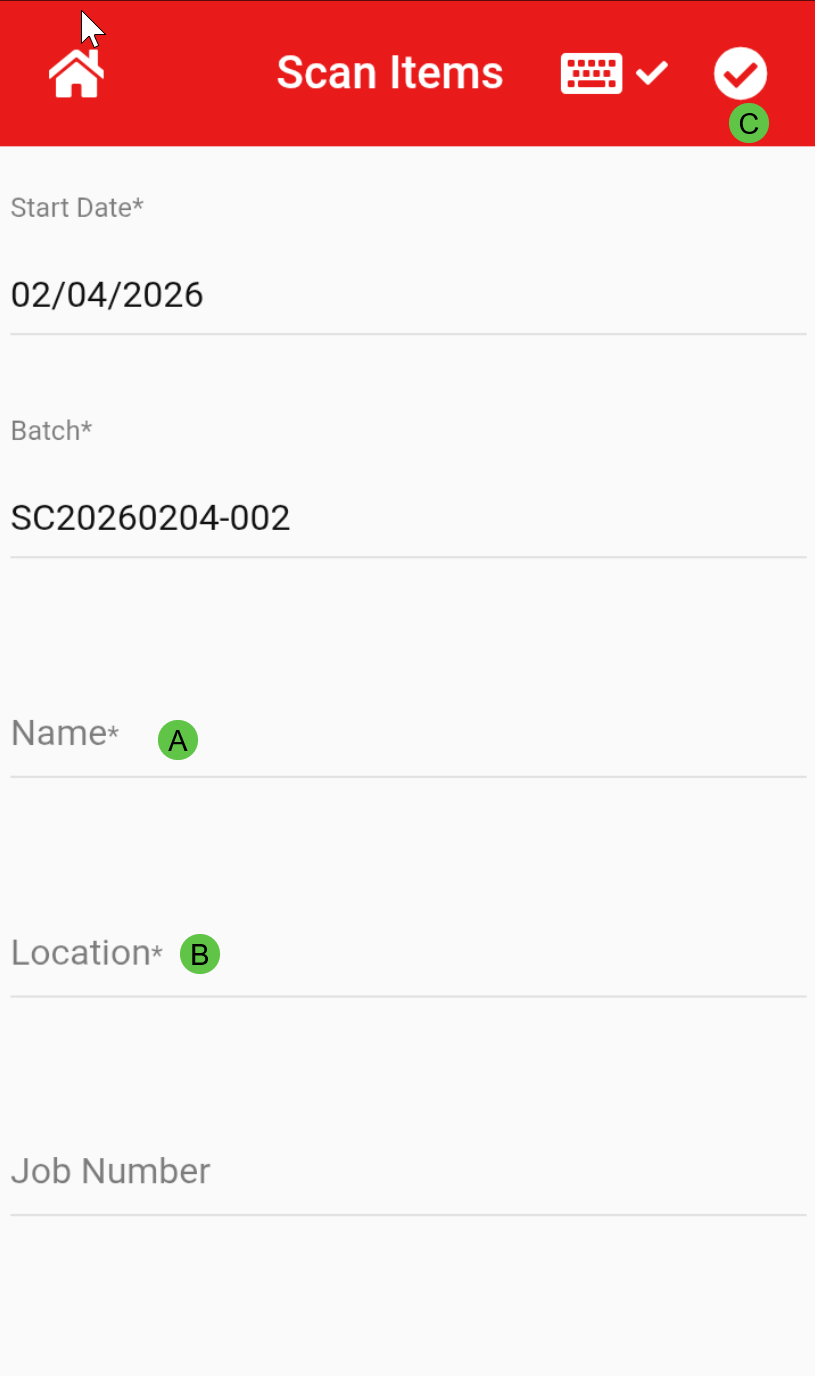
[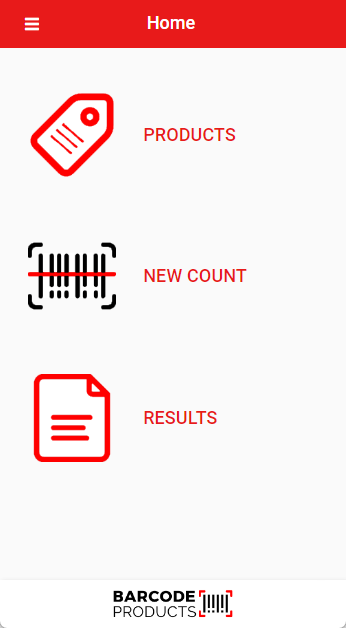](https://hugeerp10.co.za/hsofmanual/uploads/images/gallery/2024-03/9CSimage.png) To start to capture barcodes without setting up your products, click on New Count [](https://hugeerp10.co.za/hsofmanual/uploads/images/gallery/2026-02/h3Eimage.png) Main fields to complete: - Person Name - who is going to capture barcodes - Enter Location - Tap the tick at the top right of the screenTapping the keyboard icon at the top will toggle the on‑screen keyboard on (✓) or off (✕), allowing you to view the app in full screen
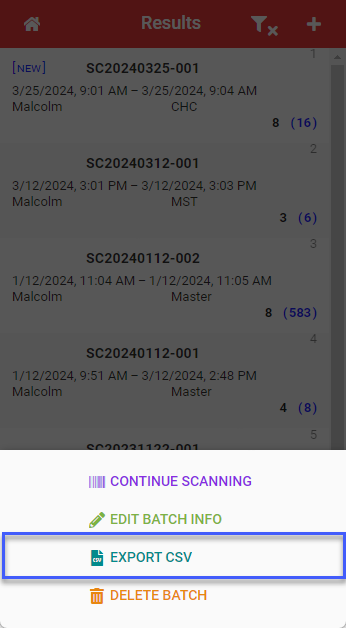
[](https://hugeerp10.co.za/hsofmanual/uploads/images/gallery/2026-02/ERdimage.png) Now you are ready to start Scanning your barcodes [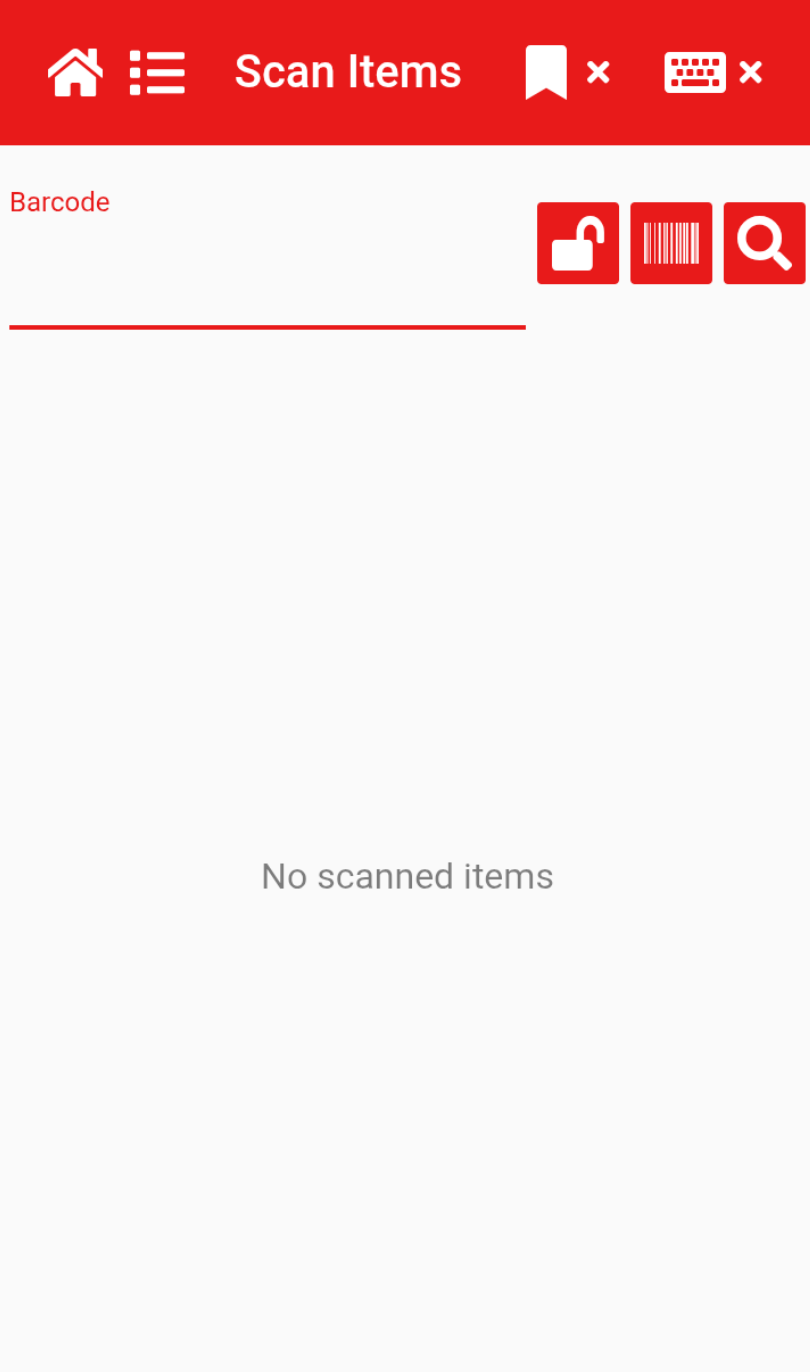](https://hugeerp10.co.za/hsofmanual/uploads/images/gallery/2026-02/iGqimage.png) If the scanned barcode **matches** an item in the database, the item description will be displayed (see blue highlight below). If the scanned barcode **does not match** anything in the database, only the barcode will be shown with no description (see green highlight below). To **edit the quantity** of a scanned item, **tap the item** to open the quantity editor. You can then **enter the new quantity** manually or use the **plus (+)** and **minus (–)** buttons to adjust the amount. Select **OK** to confirm and save your changes. [](https://hugeerp10.co.za/hsofmanual/uploads/images/gallery/2024-05/6APimage.png) When complete, click Home button to go to Results [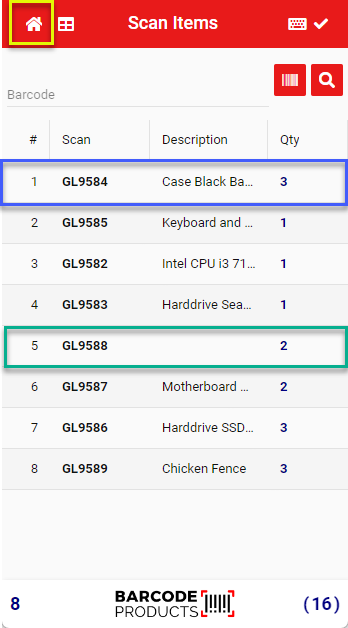](https://hugeerp10.co.za/hsofmanual/uploads/images/gallery/2024-03/0lBimage.png) - View your scanned results by selecting the *Results* tab [](https://hugeerp10.co.za/hsofmanual/uploads/images/gallery/2026-02/1tximage.png) - Tap on the file you want to Export, a menu will open at the bottom of the screen. - Save the file on the device by Clicking "**Export CSV**" [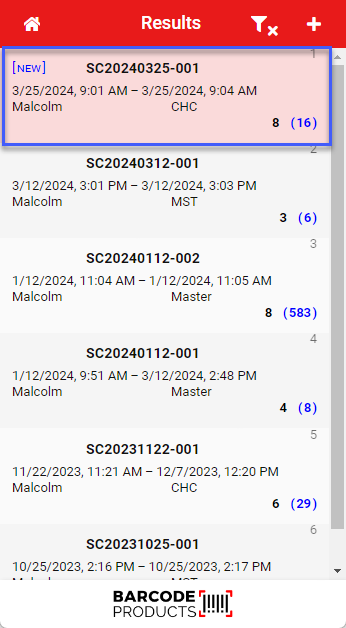](https://hugeerp10.co.za/hsofmanual/uploads/images/gallery/2024-03/eq6image.png) - Save the file on the device by Clicking "**Export CSV**"Take note of the location where you are saving your export file
[](https://hugeerp10.co.za/hsofmanual/uploads/images/gallery/2024-03/O3Nimage.png)