Barcode Count Capture
Starting and capturing barcodes
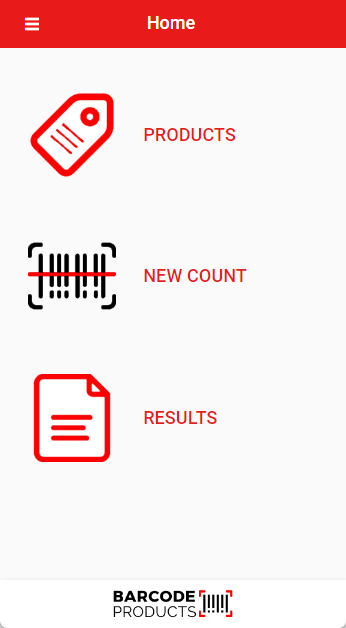
Open up the Barcode Count App
| Products |
Use this area to upload your inventory list.
|
| New Count |
Use this section to carry out your stock counting.
|
| Results |
Use this section to access the files available for export from the Barcode Count App.
|
To add your own inventory, see Barcode Count App Import file - Click Here
To start to capture barcodes without setting up your products, click on New Count
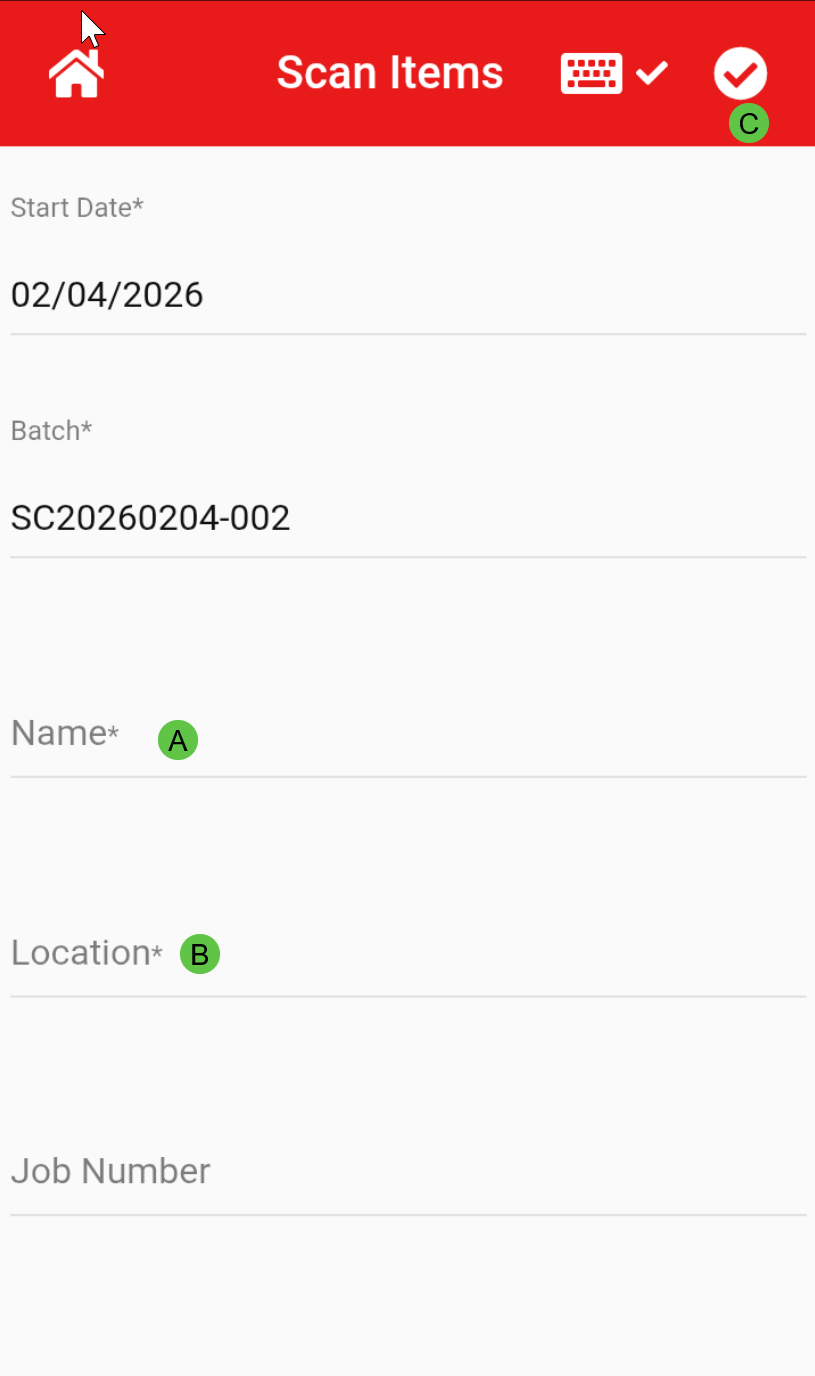
Main fields to complete:
- Person Name - who is going to capture barcodes
- Enter Location
- Tap the tick at the top right of the screen
Tapping the keyboard icon at the top will toggle the on‑screen keyboard on (✓) or off (✕), allowing you to view the app in full screen
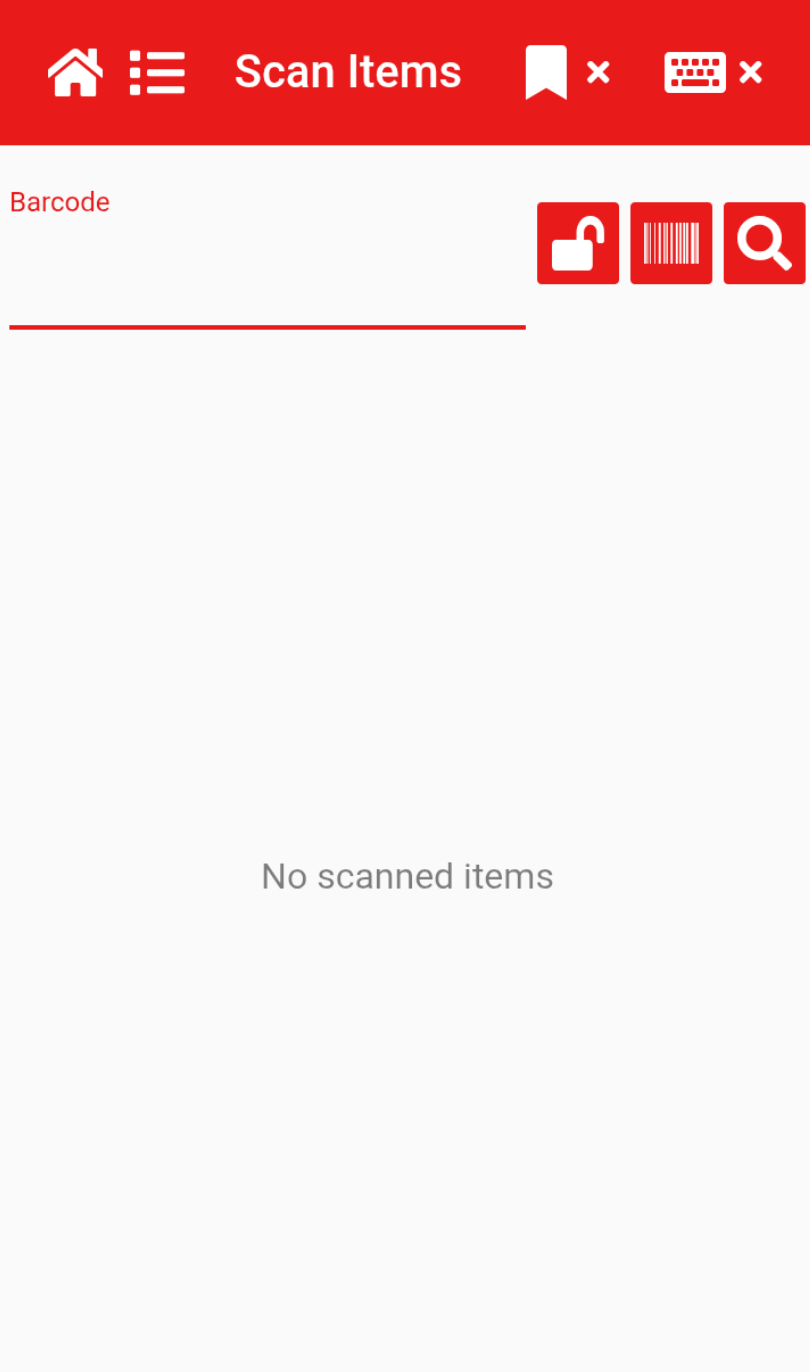
Now you are ready to start Scanning your barcodes
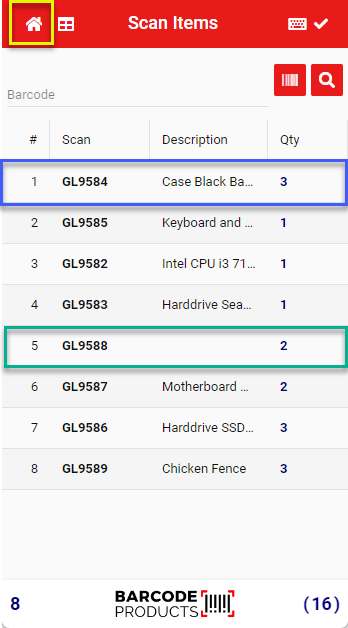
If the scanned barcode matches an item in the database, the item description will be displayed (see blue highlight below).
If the scanned barcode does not match anything in the database, only the barcode will be shown with no description (see green highlight below).
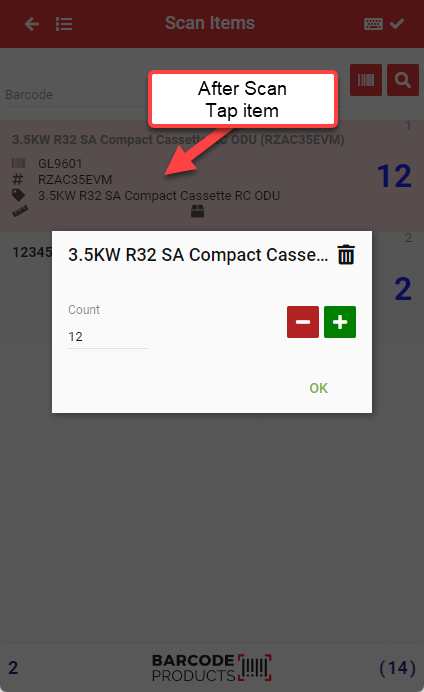
To edit the quantity of a scanned item, tap the item to open the quantity editor.
You can then enter the new quantity manually or use the plus (+) and minus (–) buttons to adjust the amount.
Select OK to confirm and save your changes.
When complete, click Home button to go to Results
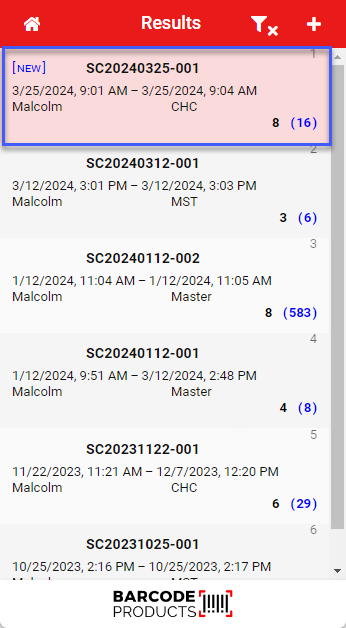
- View your scanned results by selecting the Results tab

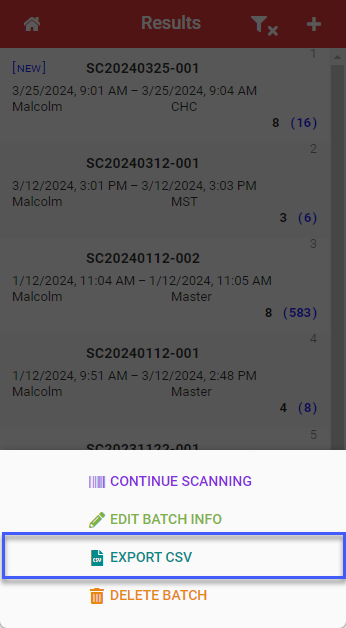
- Tap on the file you want to Export, a menu will open at the bottom of the screen.
- Save the file on the device by Clicking "Export CSV"
- Save the file on the device by Clicking "Export CSV"
Take note of the location where you are saving your export file