# Barcode Count App Export file
Click Here to download the video - [Video](https://hugeerp10.co.za/hsofmanual/attachments/53)
##### File Export Settings
The Barcode Count app allows data to be exported and emailed to a desktop computer for import into the stock control system. When exporting, users can select from several export formats. Choosing the correct export format ensures the file is compatible with the stock control system and can be imported directly without requiring any manual adjustments to the data.
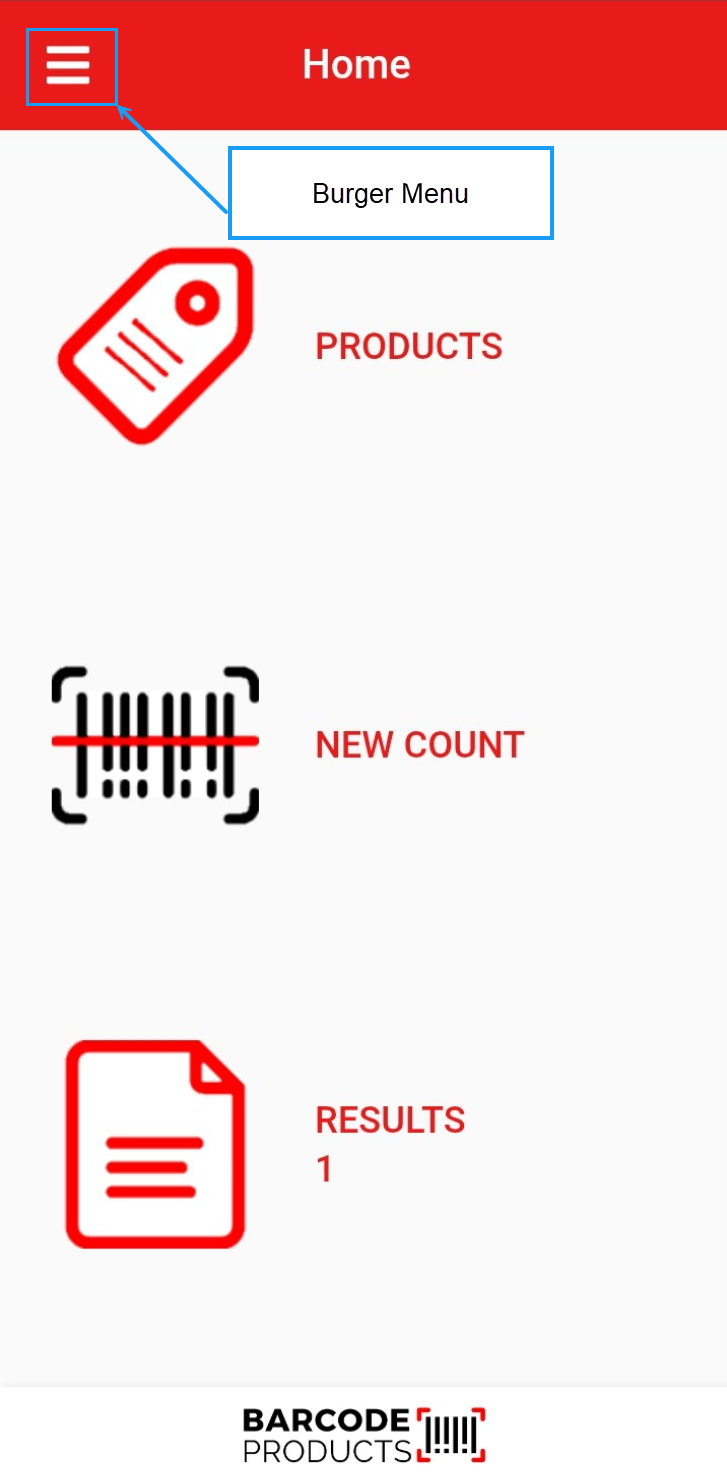
Navigate to the app settings by hitting the burger menu.
[](https://hugeerp10.co.za/hsofmanual/uploads/images/gallery/2026-01/G9Qimage.png)
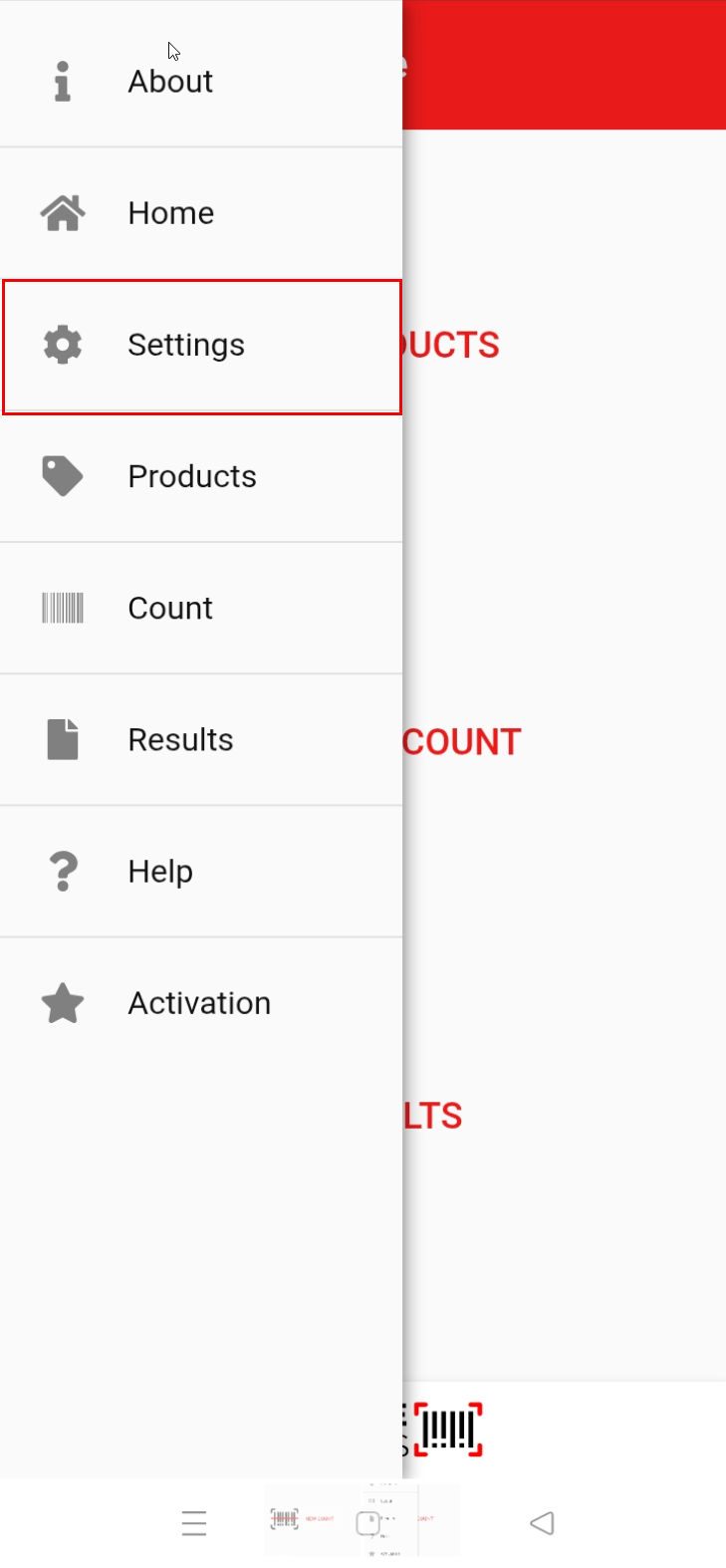
Click on "**Settings**"
[](https://hugeerp10.co.za/hsofmanual/uploads/images/gallery/2026-01/Zcgimage.png)
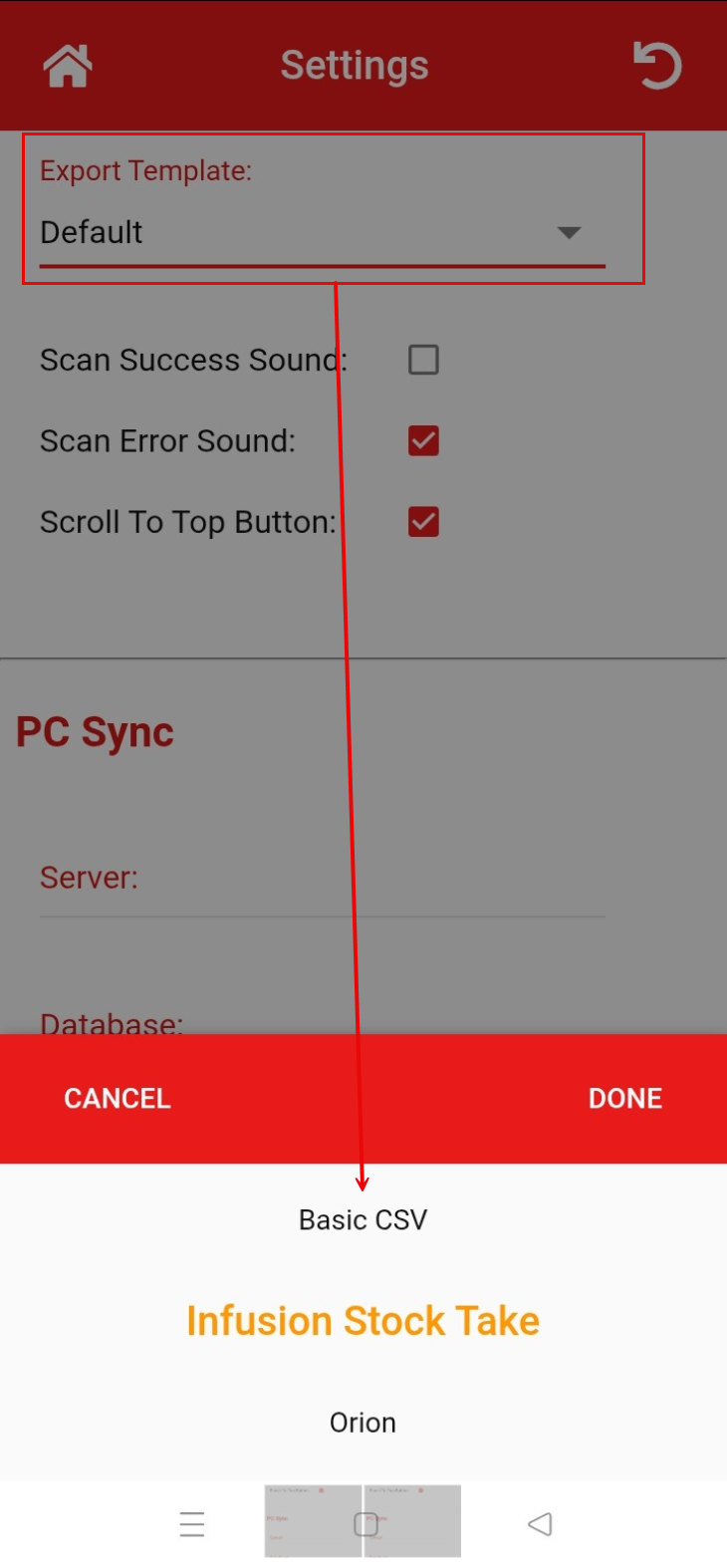
Scroll down to the **Export Template** section and select the required export from the dropdown menu.
[](https://hugeerp10.co.za/hsofmanual/uploads/images/gallery/2026-01/4zzimage.png)
---
##### Exporting the Data
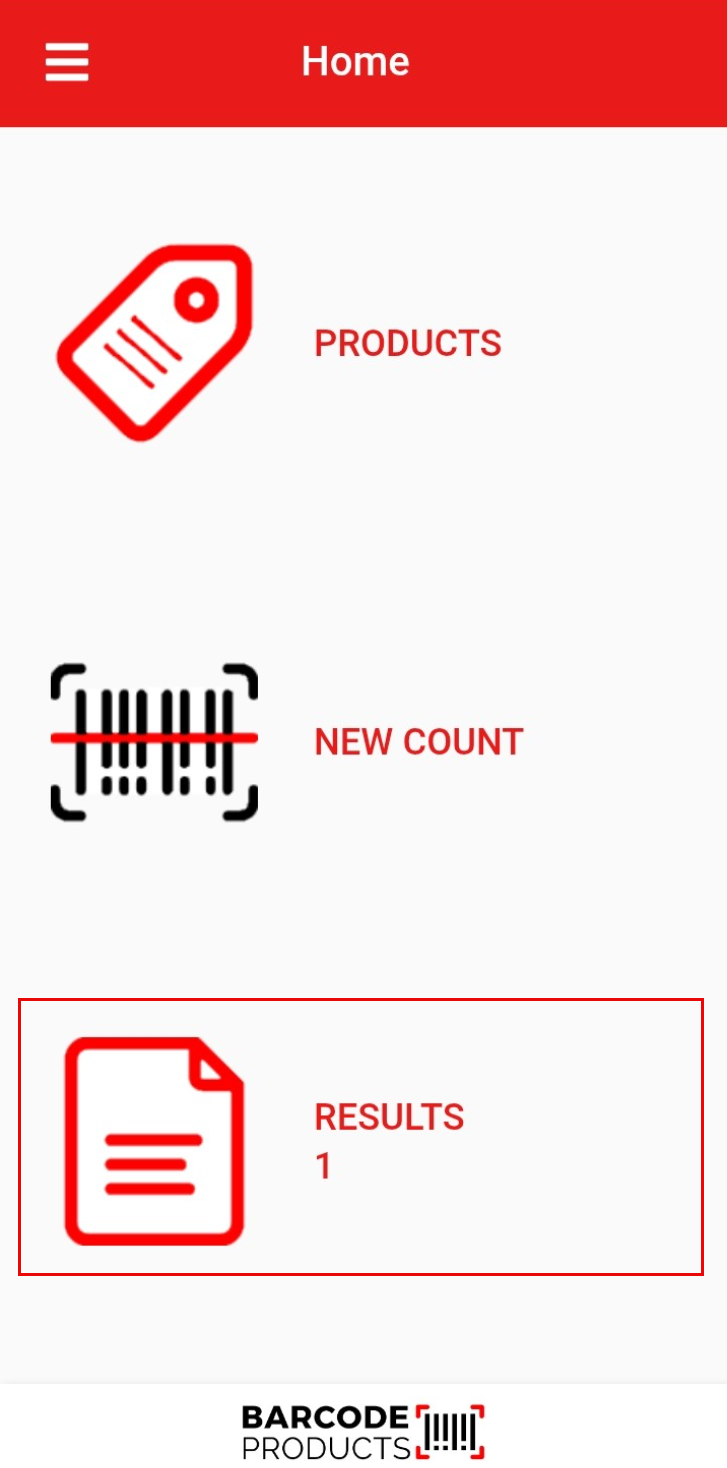
On the home screen
- Tap on the "**Results**" tab
[](https://hugeerp10.co.za/hsofmanual/uploads/images/gallery/2026-01/J4oimage.png)
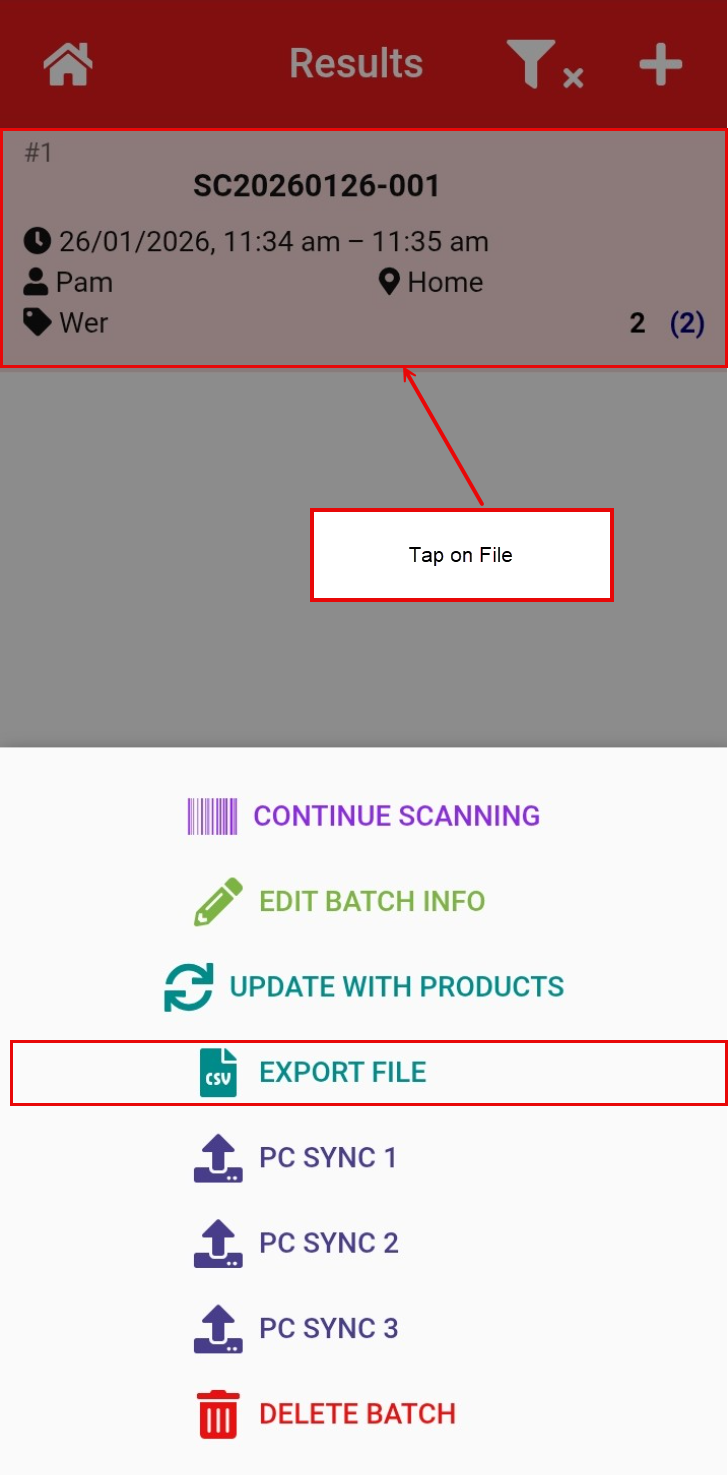
- Tap on the file you want to export
- Click on CSV Export File button
[](https://hugeerp10.co.za/hsofmanual/uploads/images/gallery/2026-01/t8Nimage.png)
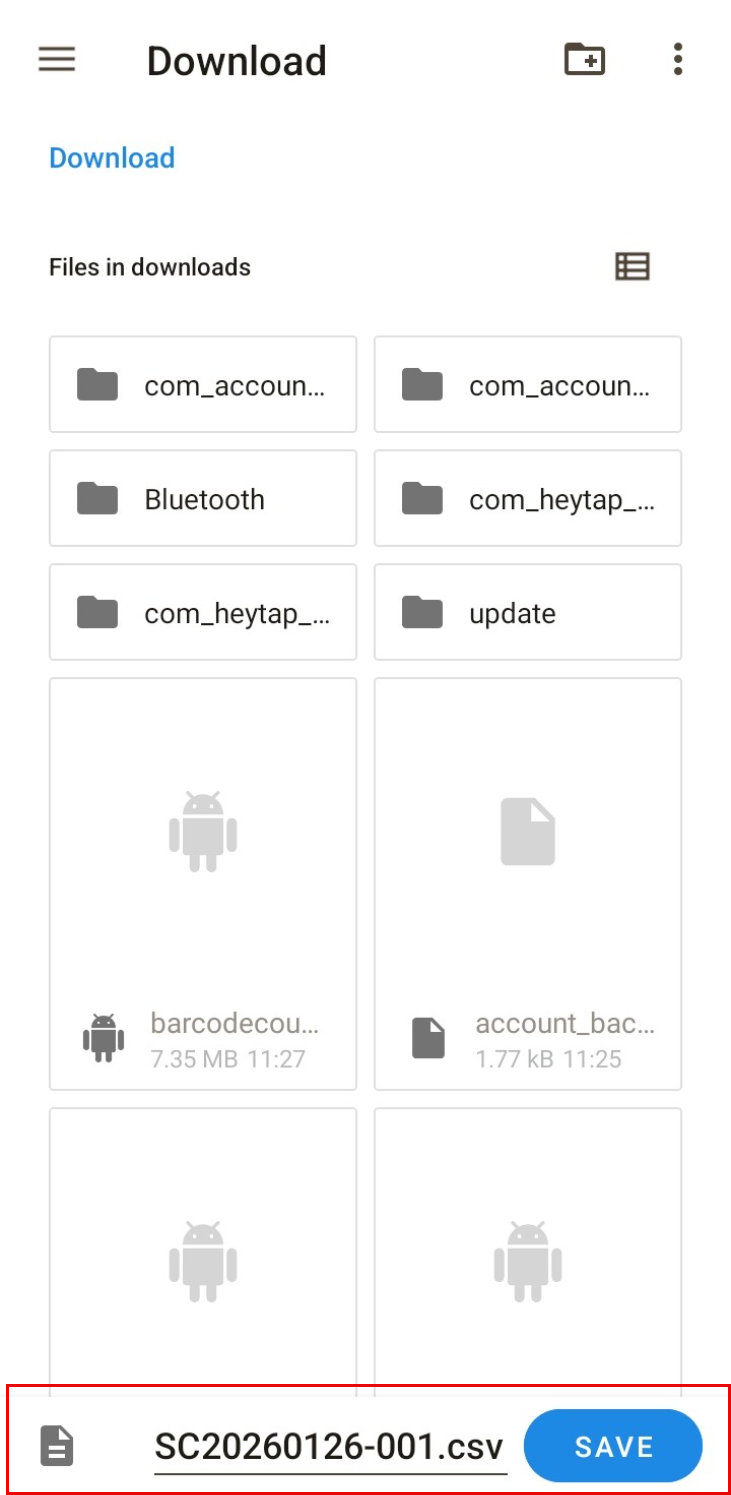
Save the exported file
[](https://hugeerp10.co.za/hsofmanual/uploads/images/gallery/2026-01/VlIimage.png)
- You can now attach the export file from your Android device to your emails.
[](https://hugeerp10.co.za/hsofmanual/uploads/images/gallery/2026-01/5HWimage.png)