# Barcode Count App
# Barcode Count Install
Video - [Barcode Count App Installation](https://hugeerp10.co.za/hsofmanual/attachments/54)
An installation link for the Barcode Count app can be found on the Barcode Products Website
[Barcode Count](https://www.barcodeproducts.co.nz/product/barcode-count) -Scroll down to the bottom where you will find the link to download the APK
After downloading the app, to go to the file explorer on the device.
Some are called My File, File etc
[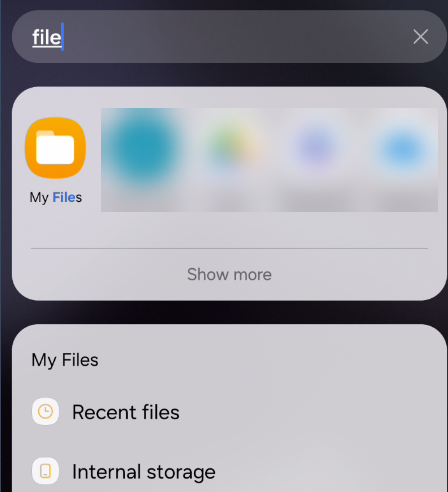](https://hugeerp10.co.za/hsofmanual/uploads/images/gallery/2024-05/rRYimage.png)
Find the file that was downloaded and click on to install
[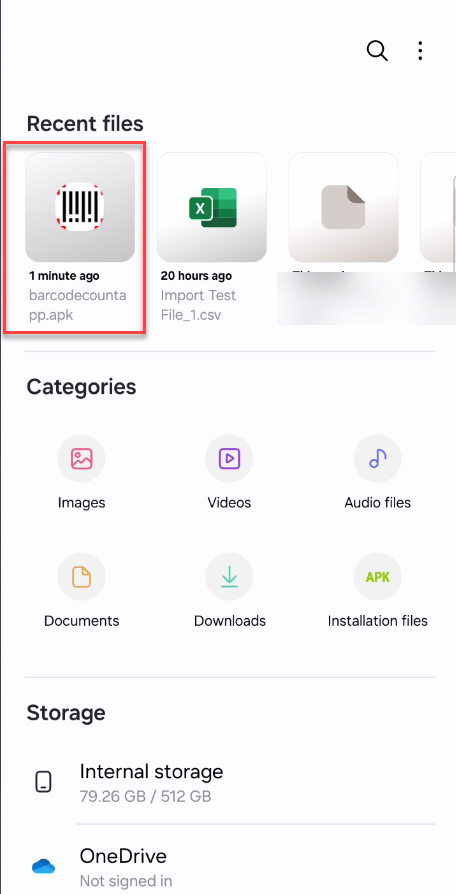](https://hugeerp10.co.za/hsofmanual/uploads/images/gallery/2024-05/df3image.png)
This will ask how you want to install, select Package Installer
[](https://hugeerp10.co.za/hsofmanual/uploads/images/gallery/2024-05/oROimage.png)
Allow security to install the file
[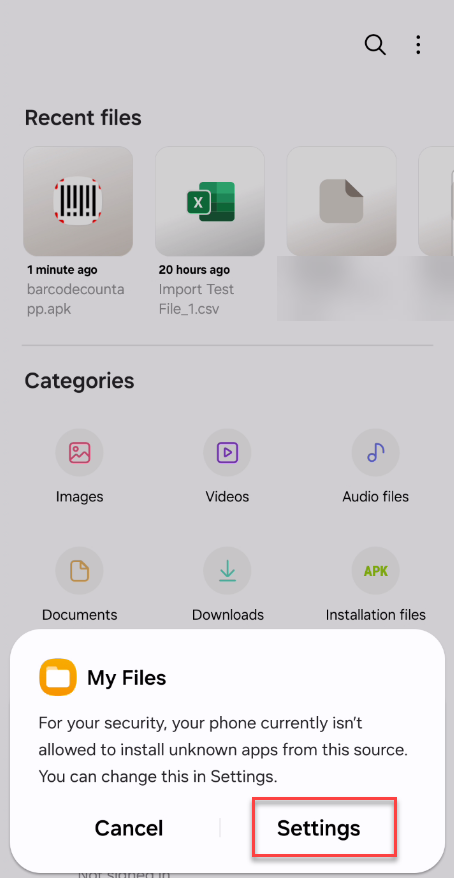](https://hugeerp10.co.za/hsofmanual/uploads/images/gallery/2024-05/oSiimage.png)
Set to allow Permission
[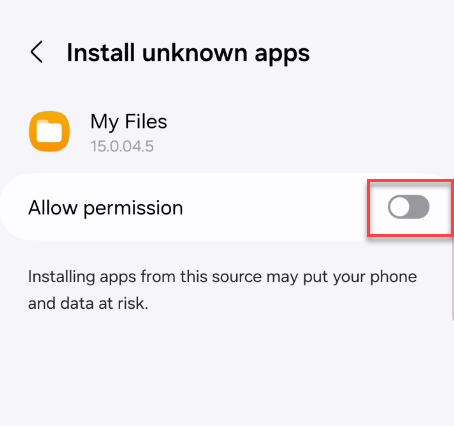](https://hugeerp10.co.za/hsofmanual/uploads/images/gallery/2024-05/C4Kimage.png)
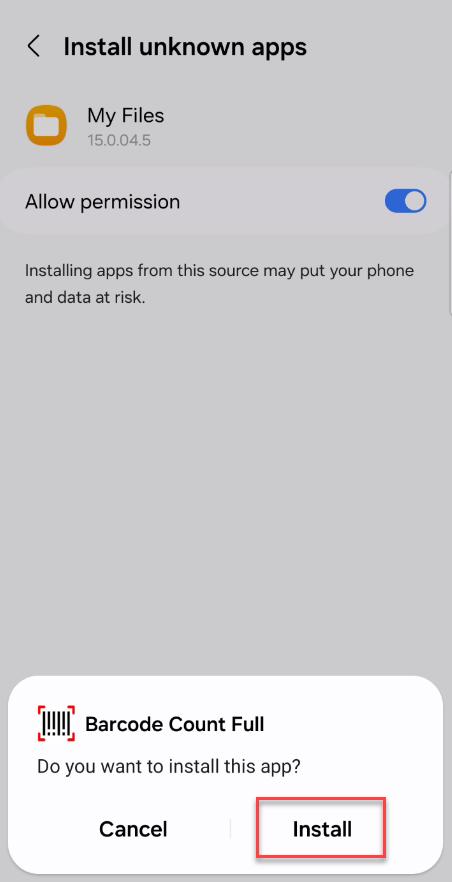
Continue to install or go back to the install file and install
[](https://hugeerp10.co.za/hsofmanual/uploads/images/gallery/2024-05/mpwimage.png)
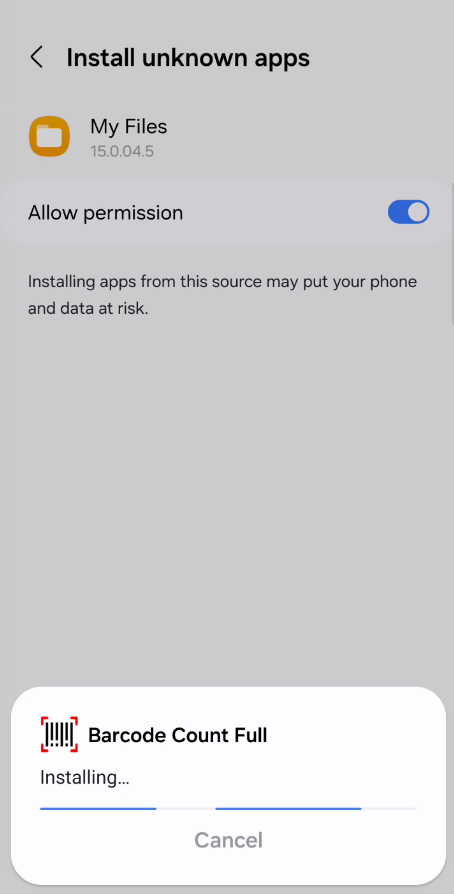
Program will install
[](https://hugeerp10.co.za/hsofmanual/uploads/images/gallery/2024-05/doKimage.png)
Once installation is done, click on Open
[](https://hugeerp10.co.za/hsofmanual/uploads/images/gallery/2024-05/3WRimage.png)
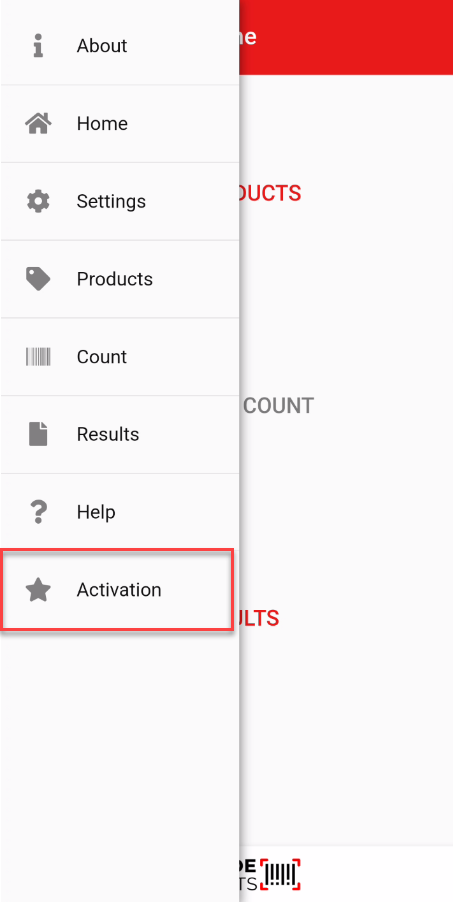
Go into app on home menu, click on activation
[](https://hugeerp10.co.za/hsofmanual/uploads/images/gallery/2024-05/MuQimage.png)
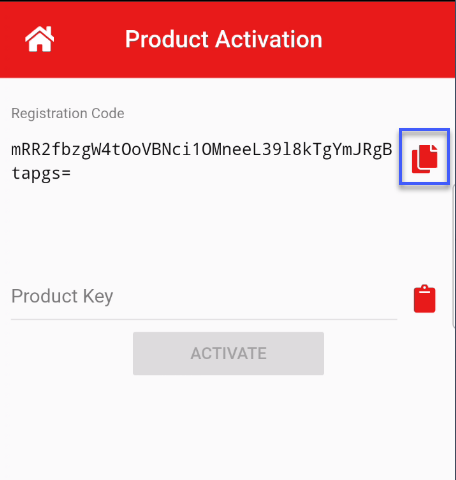
Click on the copy button to copy registration code.
Open up an email, copy the registration code in the body of the email and send to service@barcodeproducts.co.nz
[](https://hugeerp10.co.za/hsofmanual/uploads/images/gallery/2024-05/BH5image.png)
Once you have received the product key from Barcode Products.
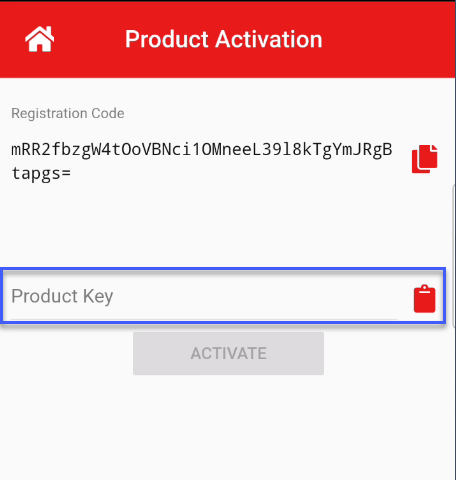
Copy from your email and paste into the Product Key
The app will become active this that device
[](https://hugeerp10.co.za/hsofmanual/uploads/images/gallery/2024-05/LTZimage.png)
# Barcode Count App Menu
Click Here - [Video](https://hugeerp10.co.za/hsofmanual/attachments/52)
The Barcode Count App allows for a basic capture of stock items with barcodes.
The app is installed as an APK file downloaded to the device.
This is manually installed on the device. Any updates would require the user to visit the website and download the latest install file.
When first accessing the app, one is presented with the basic page.
| **Products** | Upload a file with all your stock items |
| **New Count** | Begin a new count batch |
| **Results** | View results of previous scans |
[](https://hugeerp10.co.za/hsofmanual/uploads/images/gallery/2024-09/ns2image.png)
---
#### Menu defined
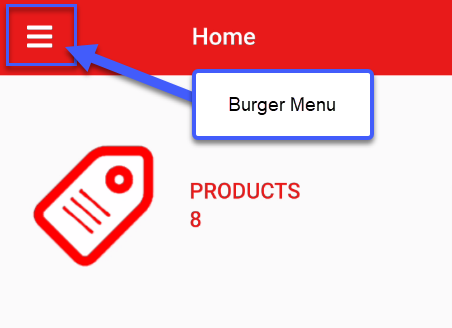
Click on the menu (burger) icon to open up options
[](https://hugeerp10.co.za/hsofmanual/uploads/images/gallery/2024-09/LBIimage.png)
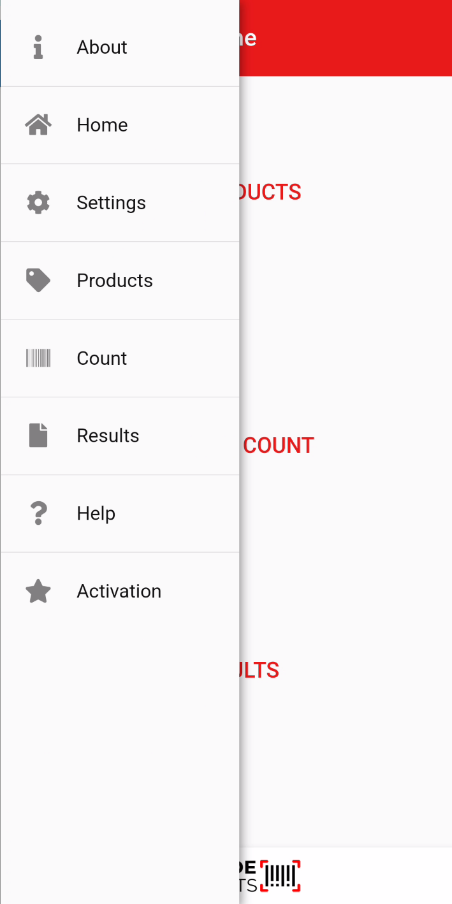
A list of options is available
[](https://hugeerp10.co.za/hsofmanual/uploads/images/gallery/2024-09/6asimage.png)
##### About
Displays information on the app
Version number is important
[](https://hugeerp10.co.za/hsofmanual/uploads/images/gallery/2024-09/VlGimage.png)
##### Settings
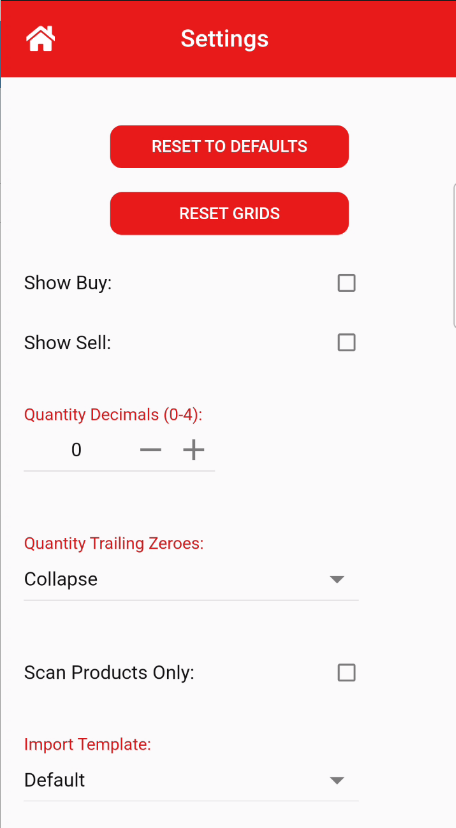
Set parameters for the app
| Reset to Defaults | Button to reset app back to defaults |
| Reset Grids | Resets the grids that the user has defined back to default |
| Show Buy | Displays the Buy price when scanning a new count |
| Show Sell | Displays the Sell price when scanning a new count |
| Quantity Decimals (0-4) | Set the Quantity decimal to up to four decimals |
| Quantity Trailing Zeroes | Hide, Collapse or Show items with zeros |
| Scan Products Only | Tick this if verifying barcode against product list
|
| Import Template | Set the import template based on the system used
Default, Infusion, Orion
|
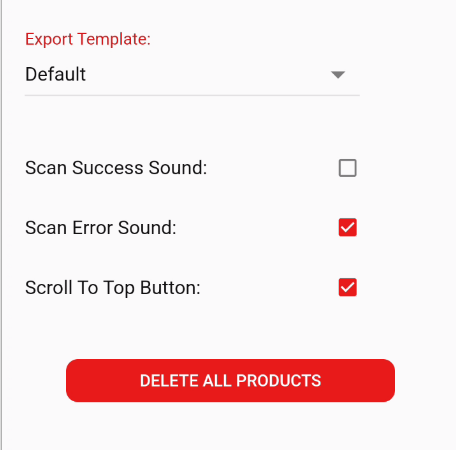
| Export Template | Set the export template based on the system used
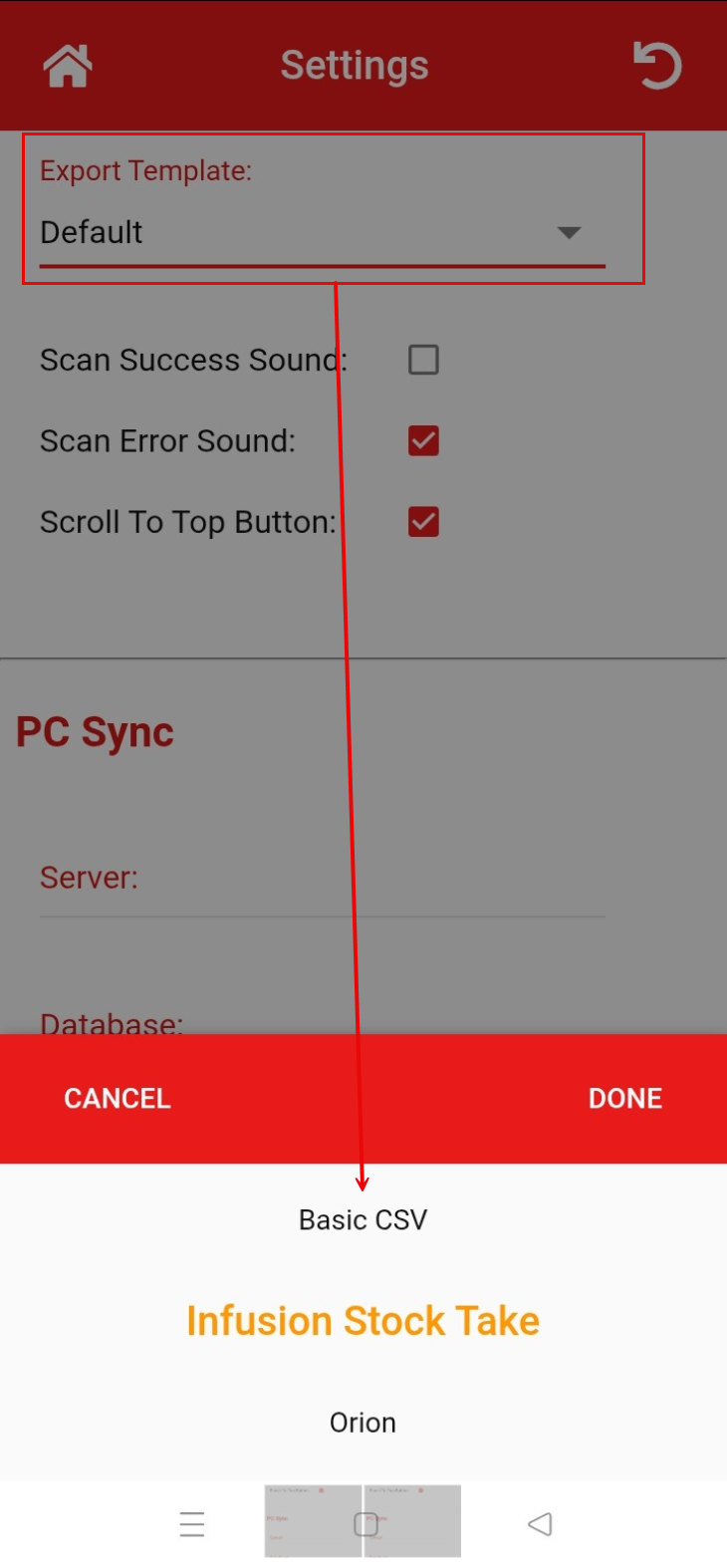
Default, Infusion stock take, Orion, Kudos V2, txt (standard), txt (Details)
|
| Scan Success Sound | Change success scan sound from default scanner sound
|
| Scan Error Sound | Will sound an error sound if something is not valid when scanning
|
| Scroll to Top Button | Allow for Scroll to top of list button to appear
|
| Delete All Products | Delete all products list
|
[](https://hugeerp10.co.za/hsofmanual/uploads/images/gallery/2024-09/Qt3image.png)
[](https://hugeerp10.co.za/hsofmanual/uploads/images/gallery/2024-09/kGiimage.png)
##### Help Topics
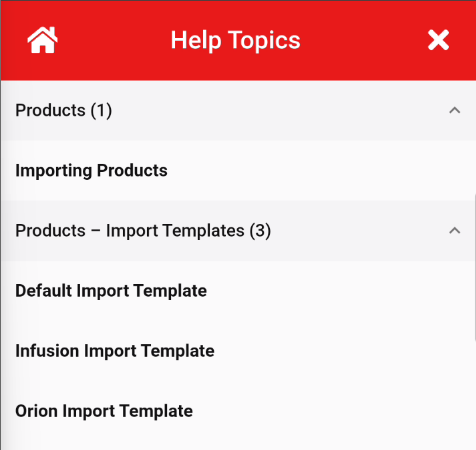
Shows some basic help files
The import templates are defined for Default, Infusion and Orion
[](https://hugeerp10.co.za/hsofmanual/uploads/images/gallery/2024-09/zcmimage.png)
##### Production Activation
Register the product
[](https://hugeerp10.co.za/hsofmanual/uploads/images/gallery/2024-09/uGmimage.png)
# Barcode Count App Import file
Create an import from accounting system.
Go to accounting system and export inventory file
Open up file in Excel and prepare the import file
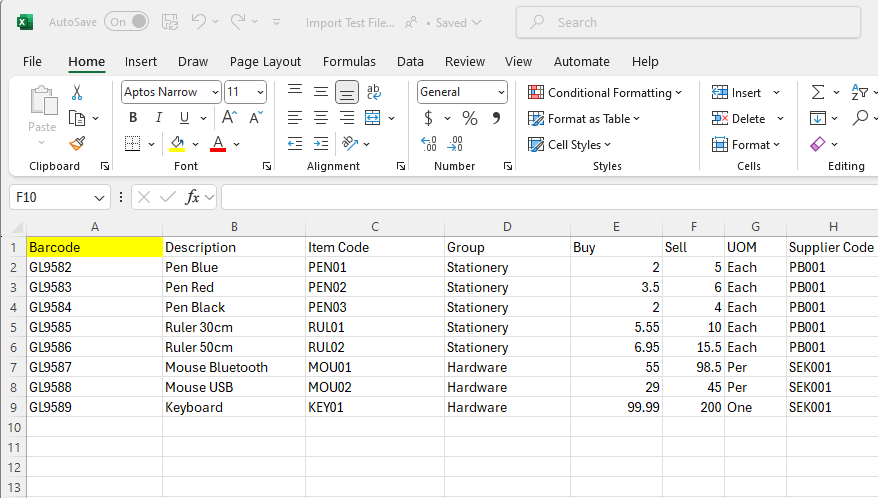
Below is the basic layout for the import file
[](https://hugeerp10.co.za/hsofmanual/uploads/images/gallery/2024-09/mzHimage.png)
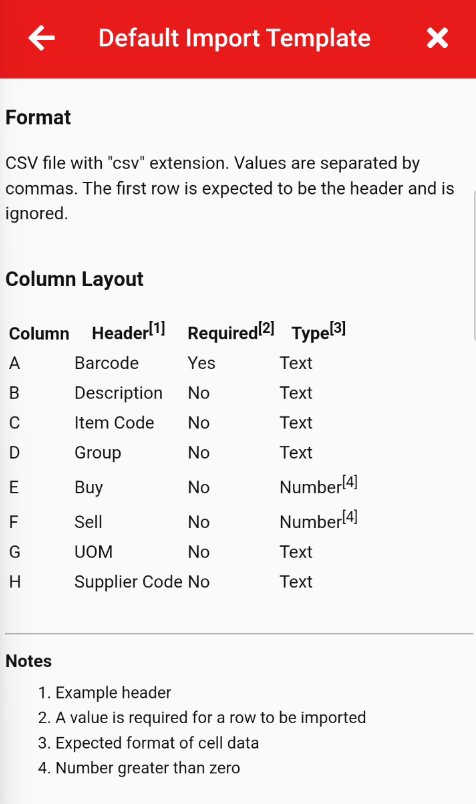
The help menu shows the required fields
[](https://hugeerp10.co.za/hsofmanual/uploads/images/gallery/2024-09/YBdimage.png)
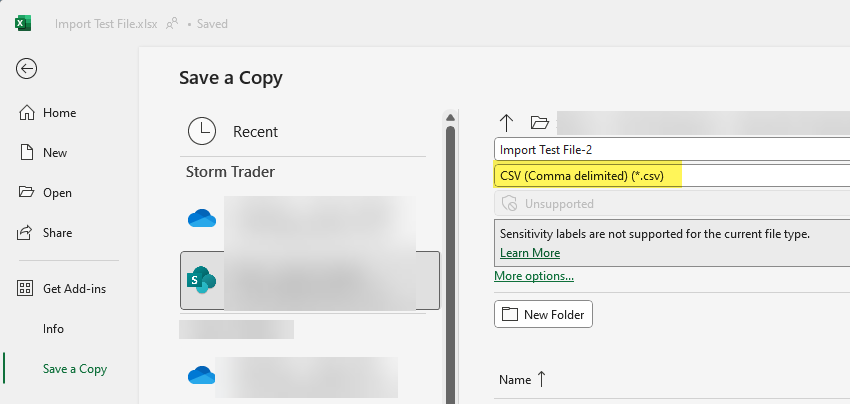
Save the Excel file as a CSV file
Close the Excel file without saving the CSV format as it has already saved.
[](https://hugeerp10.co.za/hsofmanual/uploads/images/gallery/2024-09/E9Vimage.png)
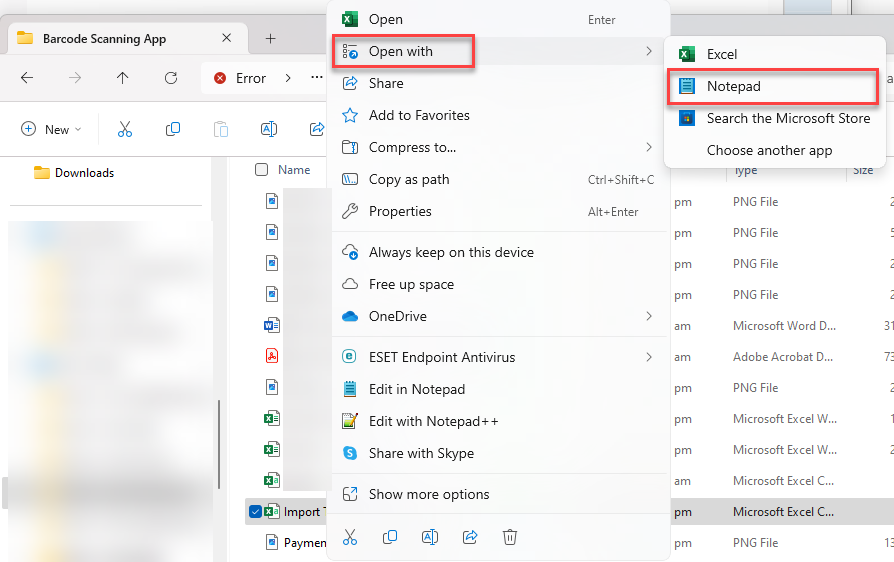
Go to file explorer to open the CSV file in Notepad
Right click on file and go to Open with - Notepad
The reason we do this is to check the separator
[](https://hugeerp10.co.za/hsofmanual/uploads/images/gallery/2024-09/Aw1image.png)
This file is comma separator which is correct for the default import
[](https://hugeerp10.co.za/hsofmanual/uploads/images/gallery/2024-09/V0Dimage.png)
Click to download video on how to import your inventory list - [Here](https://hugeerp10.co.za/hsofmanual/attachments/55)
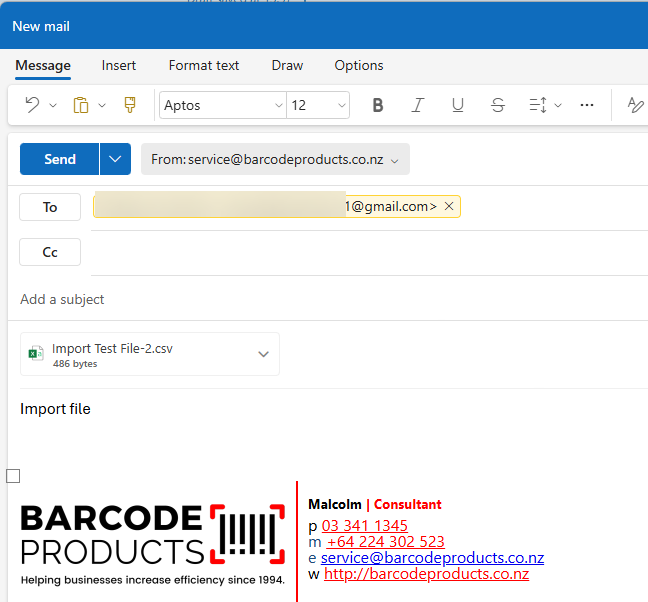
Email the file to the scanner Gmail account
[](https://hugeerp10.co.za/hsofmanual/uploads/images/gallery/2024-09/tdzimage.png)
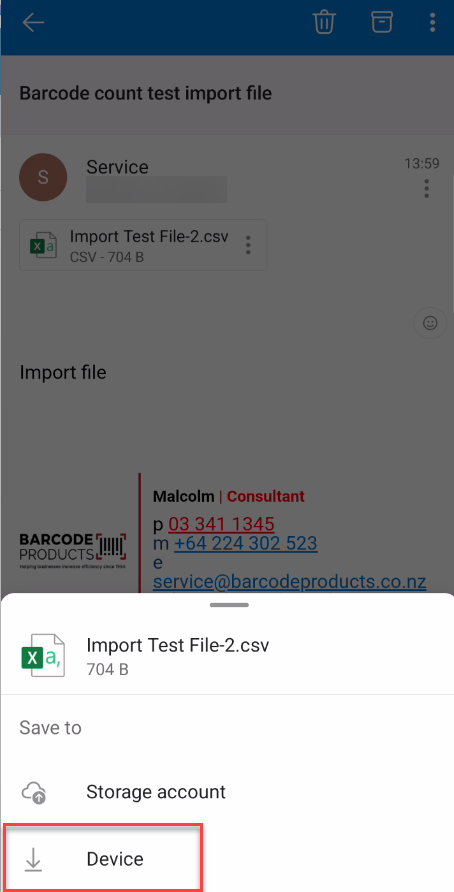
Save the file to the device
[](https://hugeerp10.co.za/hsofmanual/uploads/images/gallery/2024-09/dl3image.png)
Go to Products and click on File Import
[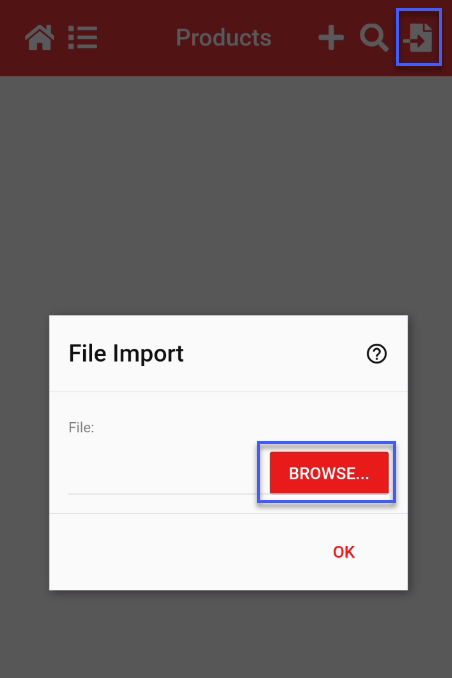](https://hugeerp10.co.za/hsofmanual/uploads/images/gallery/2024-09/zewimage.png)
Find the file that was saved to the device
[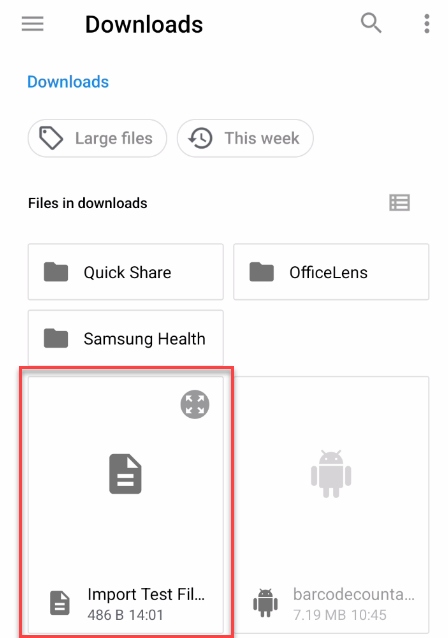](https://hugeerp10.co.za/hsofmanual/uploads/images/gallery/2024-09/lo2image.png)
Click on OK to import the data
[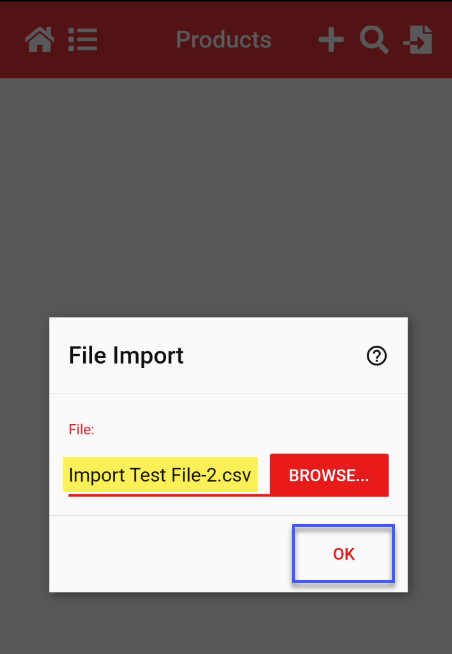](https://hugeerp10.co.za/hsofmanual/uploads/images/gallery/2024-09/bWLimage.png)
File data will be imported
[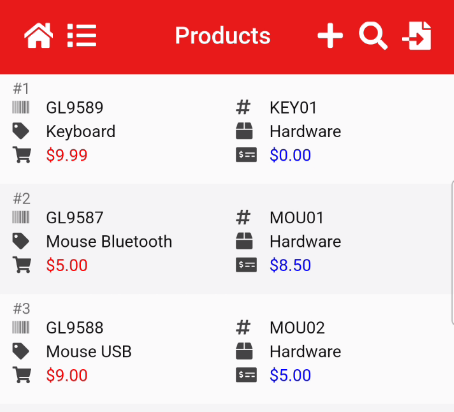](https://hugeerp10.co.za/hsofmanual/uploads/images/gallery/2024-09/wU2image.png)
# Barcode Count App Export file
Click Here to download the video - [Video](https://hugeerp10.co.za/hsofmanual/attachments/53)
##### File Export Settings
The Barcode Count app allows data to be exported and emailed to a desktop computer for import into the stock control system. When exporting, users can select from several export formats. Choosing the correct export format ensures the file is compatible with the stock control system and can be imported directly without requiring any manual adjustments to the data.
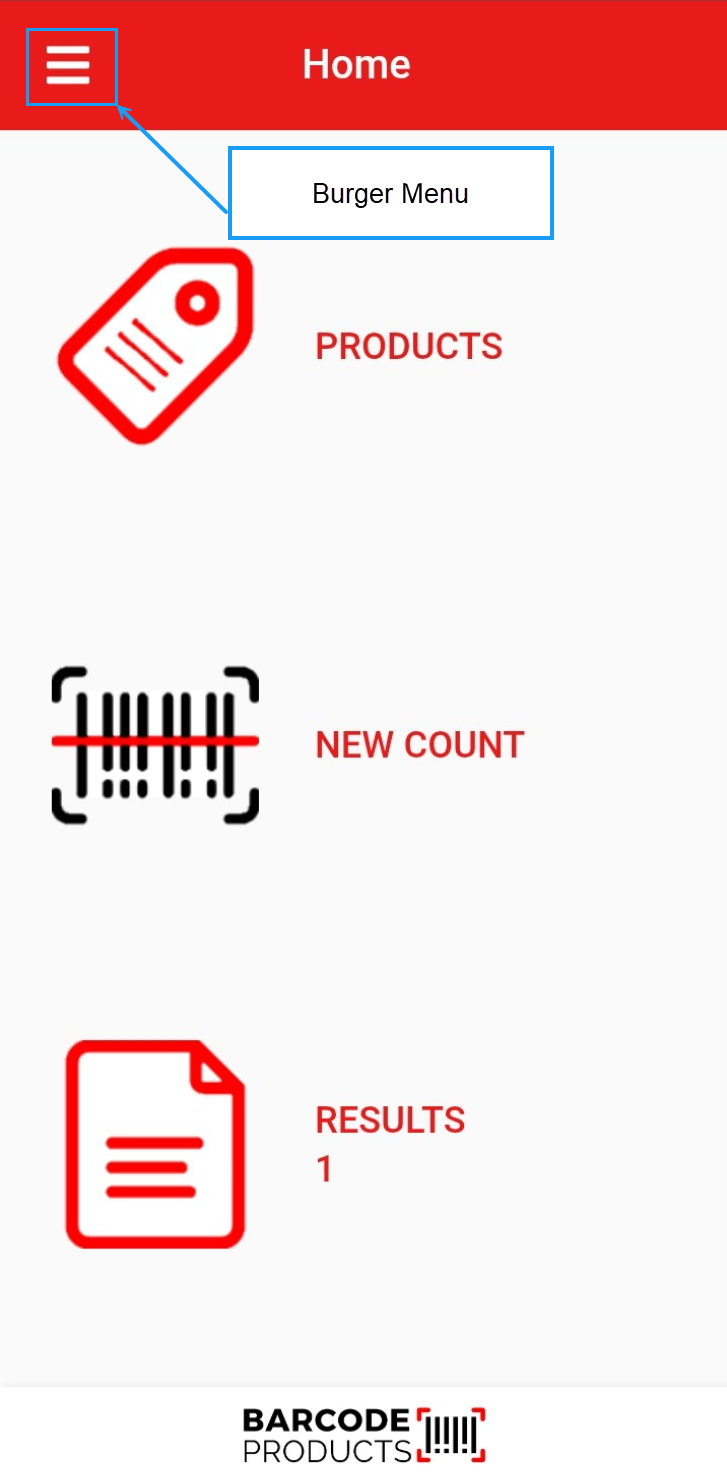
Navigate to the app settings by hitting the burger menu.
[](https://hugeerp10.co.za/hsofmanual/uploads/images/gallery/2026-01/G9Qimage.png)
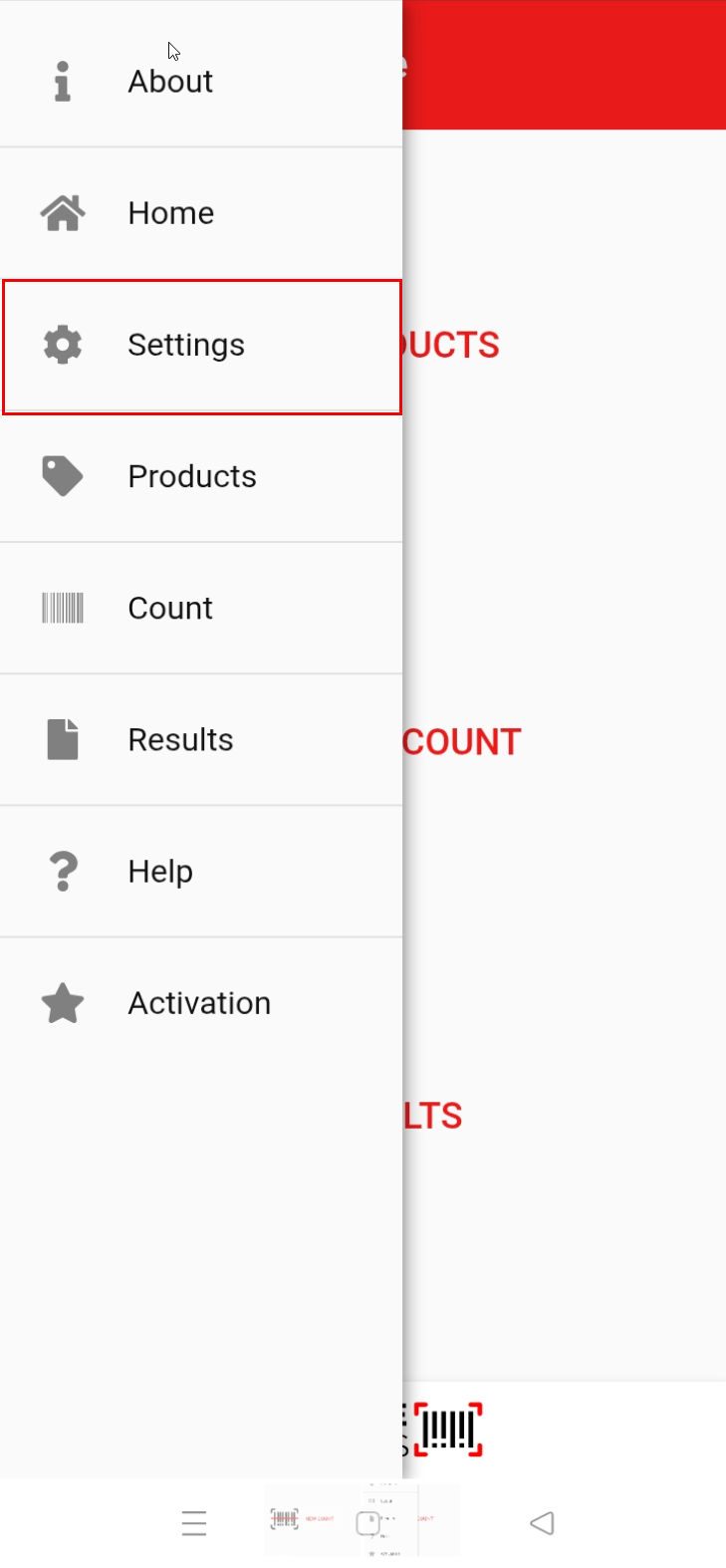
Click on "**Settings**"
[](https://hugeerp10.co.za/hsofmanual/uploads/images/gallery/2026-01/Zcgimage.png)
Scroll down to the **Export Template** section and select the required export from the dropdown menu.
[](https://hugeerp10.co.za/hsofmanual/uploads/images/gallery/2026-01/4zzimage.png)
---
##### Exporting the Data
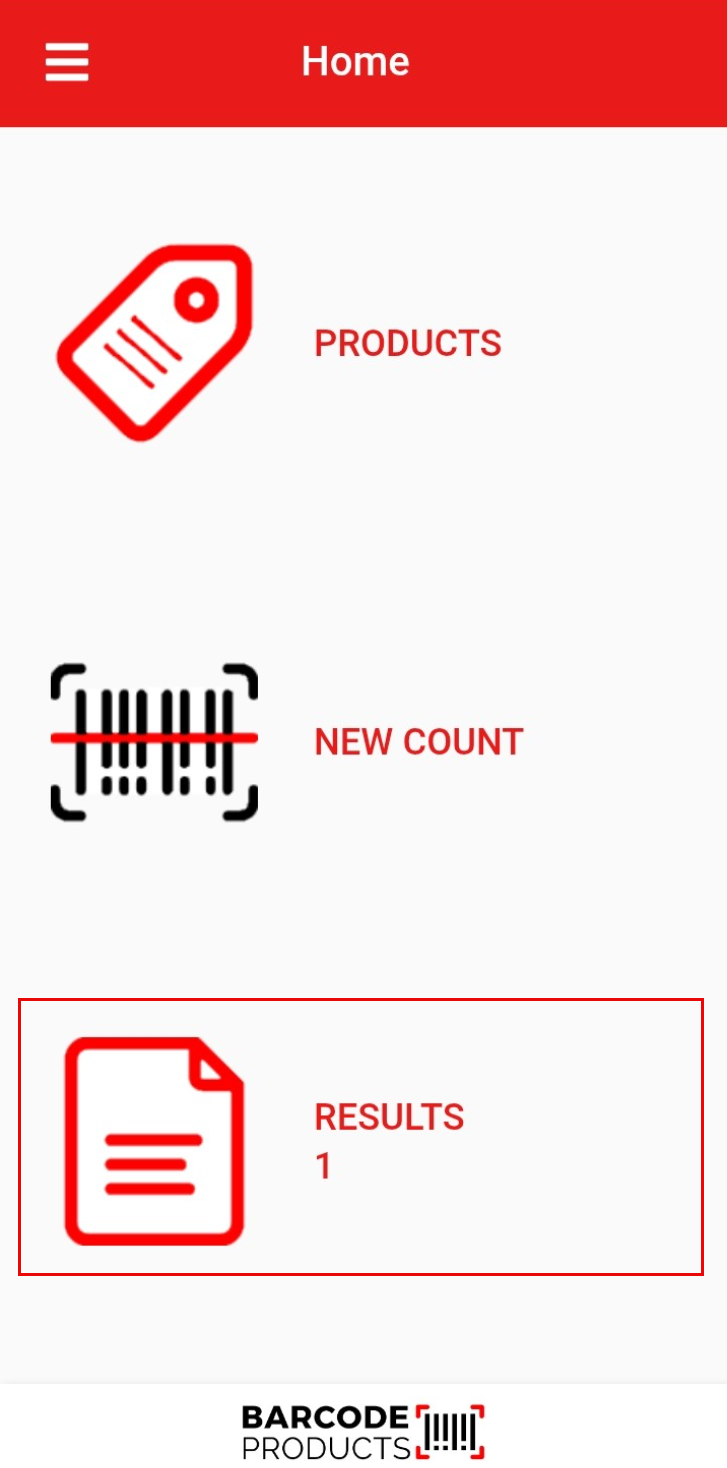
On the home screen
- Tap on the "**Results**" tab
[](https://hugeerp10.co.za/hsofmanual/uploads/images/gallery/2026-01/J4oimage.png)
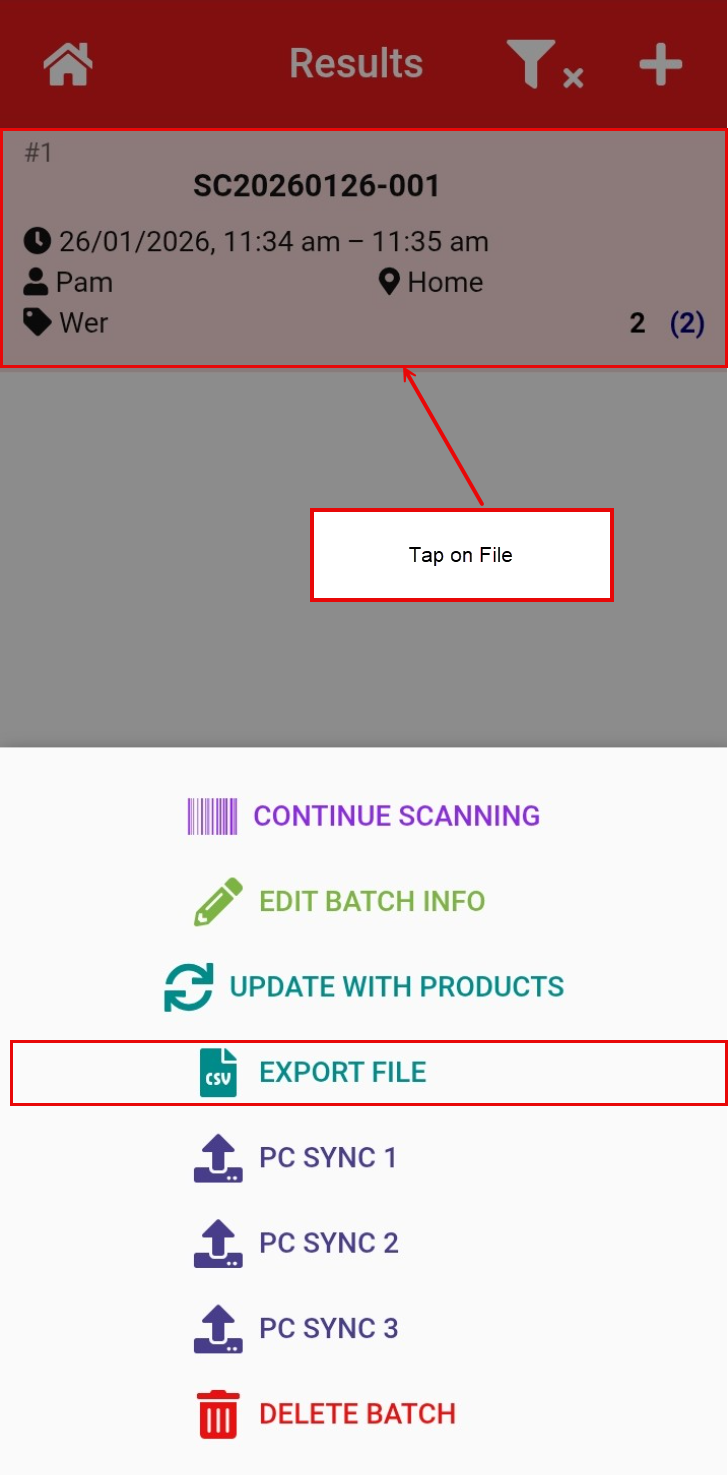
- Tap on the file you want to export
- Click on CSV Export File button
[](https://hugeerp10.co.za/hsofmanual/uploads/images/gallery/2026-01/t8Nimage.png)
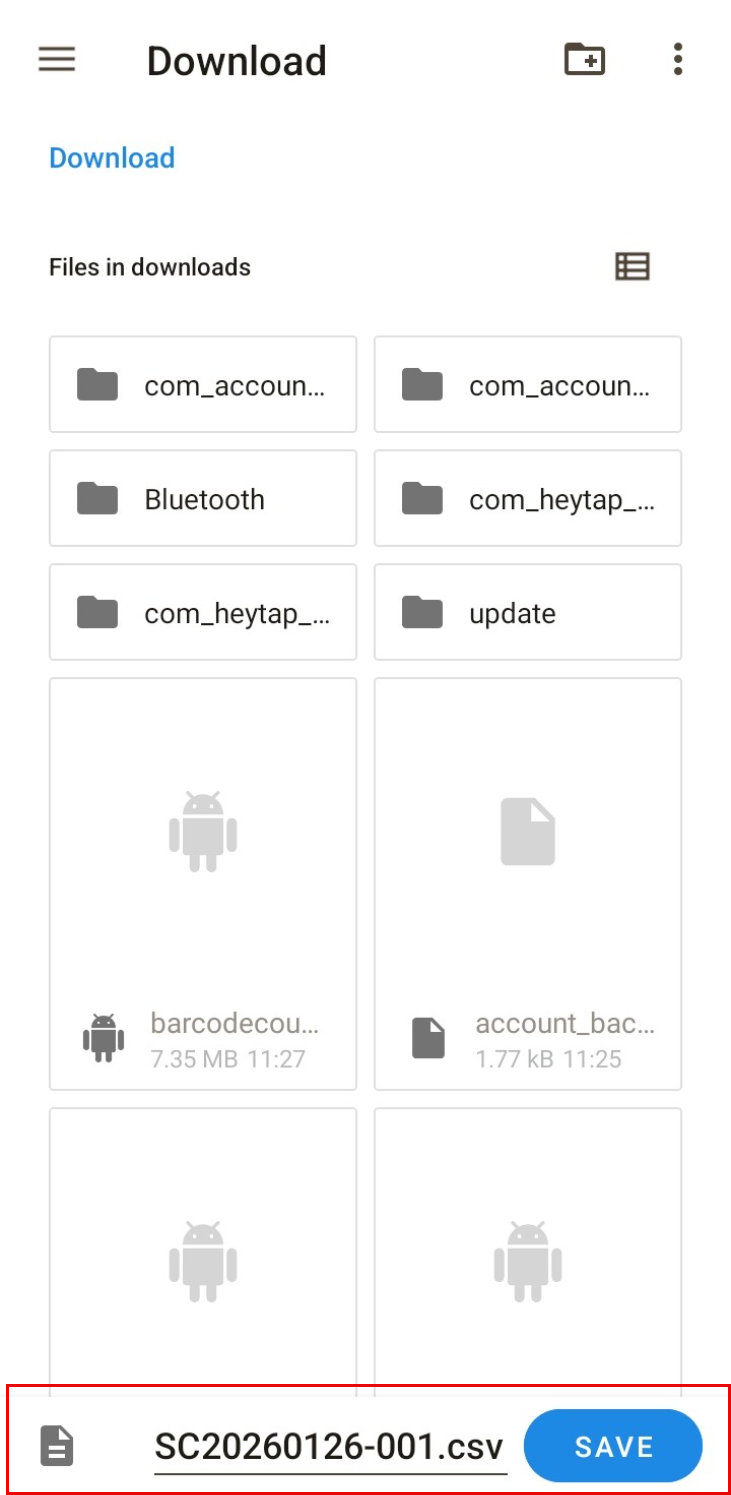
Save the exported file
[](https://hugeerp10.co.za/hsofmanual/uploads/images/gallery/2026-01/VlIimage.png)
- You can now attach the export file from your Android device to your emails.
[](https://hugeerp10.co.za/hsofmanual/uploads/images/gallery/2026-01/5HWimage.png)
# Barcode Count App Products
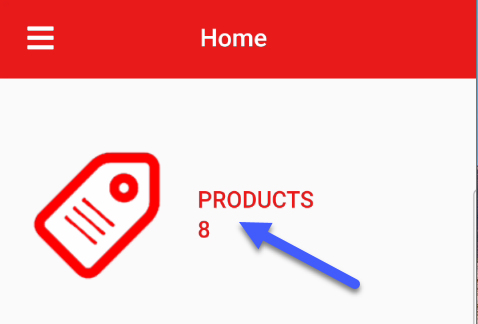
Click on the Products icon to view products imported
[](https://hugeerp10.co.za/hsofmanual/uploads/images/gallery/2024-09/F86image.png)
#### Products list
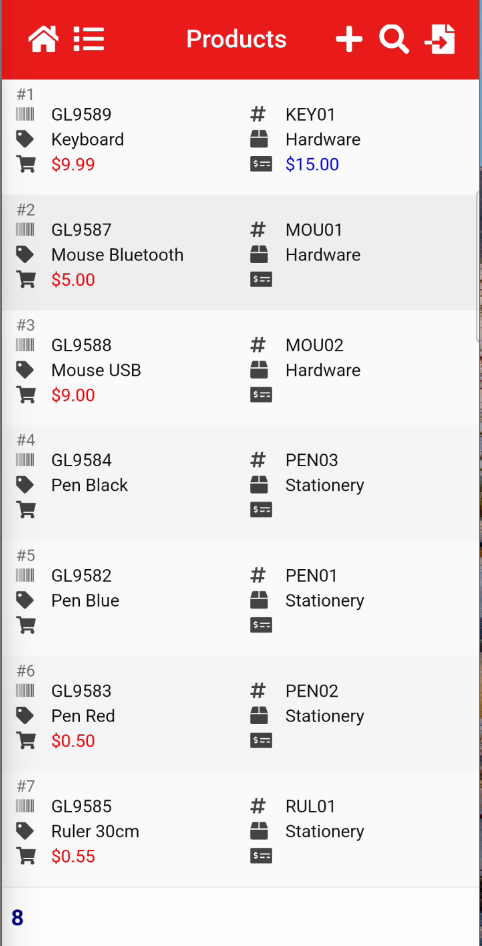
Displays all products that was imported
[](https://hugeerp10.co.za/hsofmanual/uploads/images/gallery/2024-09/UIMimage.png)
##### Icons defined
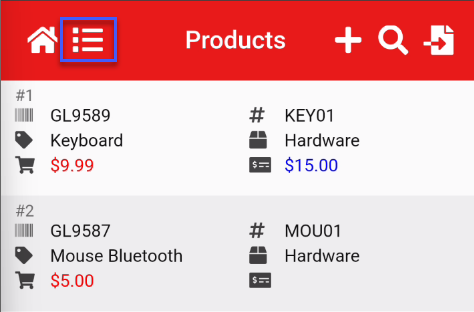
##### Detailed Grid view
View all details of item
[](https://hugeerp10.co.za/hsofmanual/uploads/images/gallery/2024-09/zinimage.png)
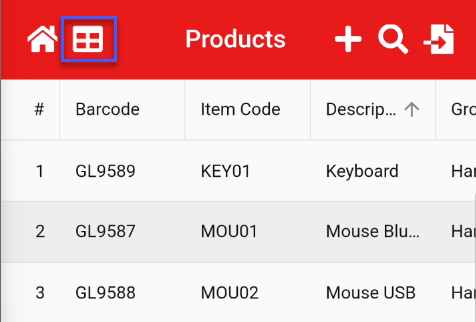
##### Compac Grid View
View Compac view
[](https://hugeerp10.co.za/hsofmanual/uploads/images/gallery/2024-09/LXtimage.png)
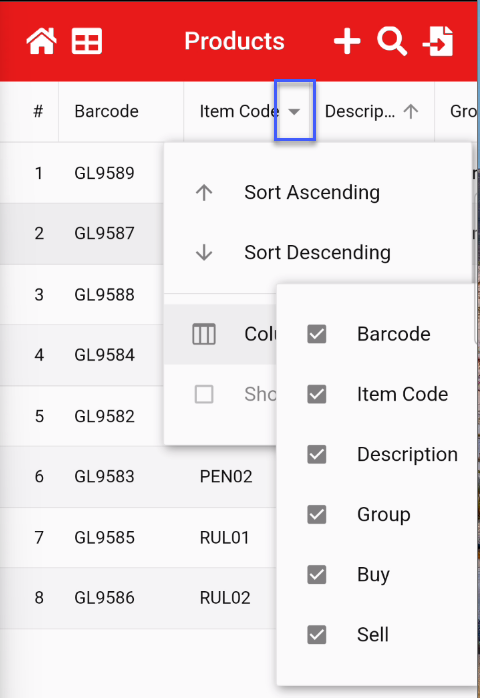
##### Adjust grid view
Tap on a grid to format
1. Sort on column
2. Show or hide columns
3. Resize columns
[](https://hugeerp10.co.za/hsofmanual/uploads/images/gallery/2024-09/RX8image.png)
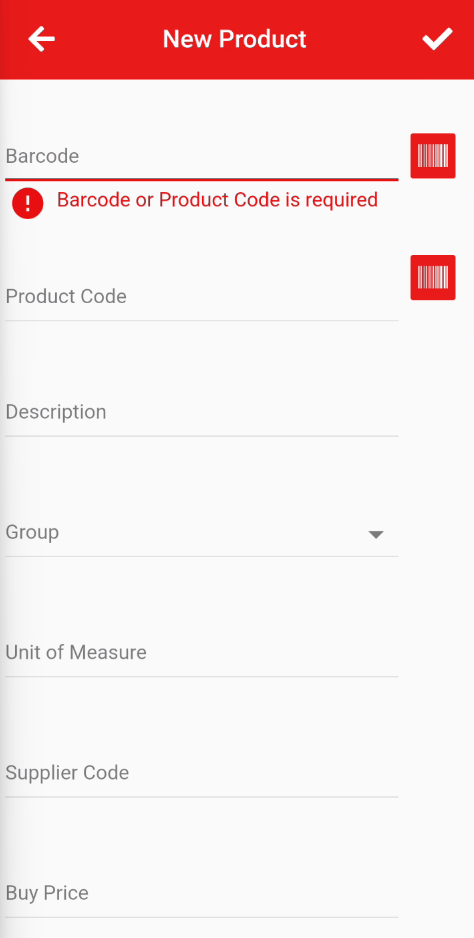
##### Add new item
Click on the Plus to add a new item
Barcode is required
Click on tick when all information is filled out
[](https://hugeerp10.co.za/hsofmanual/uploads/images/gallery/2024-09/vQPimage.png)
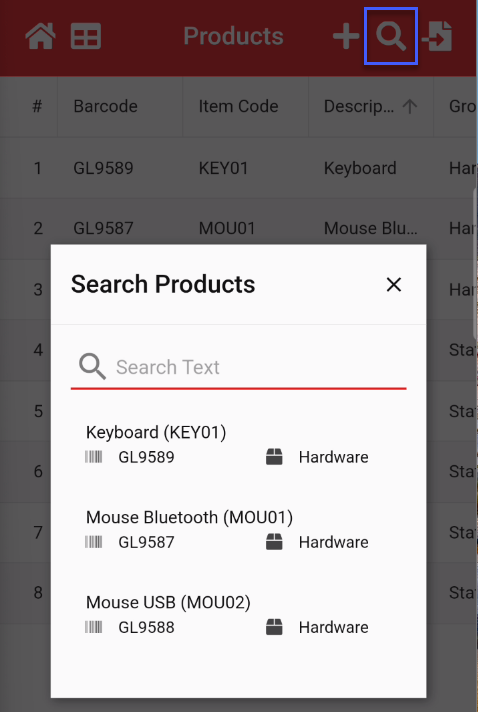
##### Search a product
Click on the magnifying icon to search for a product in the list
[](https://hugeerp10.co.za/hsofmanual/uploads/images/gallery/2024-09/UYMimage.png)
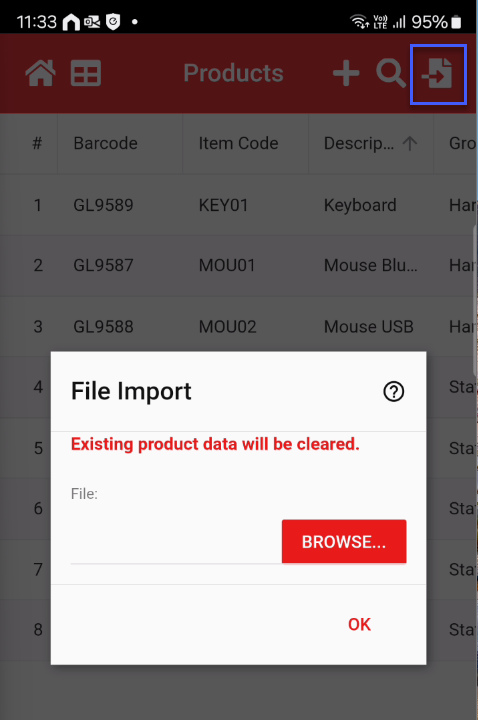
##### Import a product list
Importing a product list helps to give information when scanning products
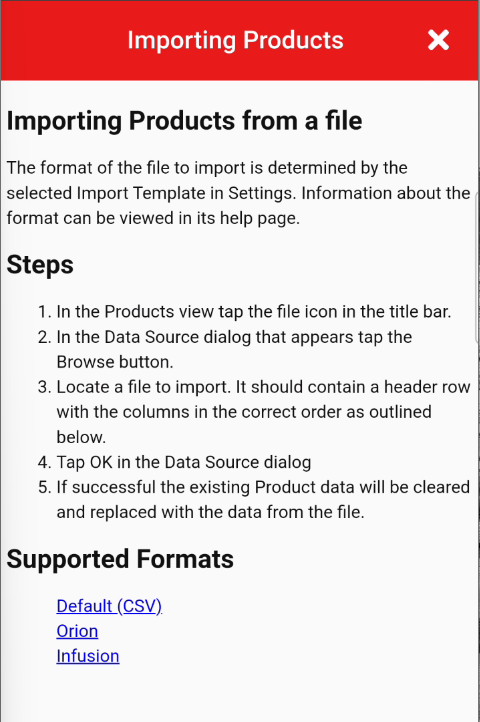
Click on the question mark icon to understand the fields required
[](https://hugeerp10.co.za/hsofmanual/uploads/images/gallery/2024-09/5kiimage.png)
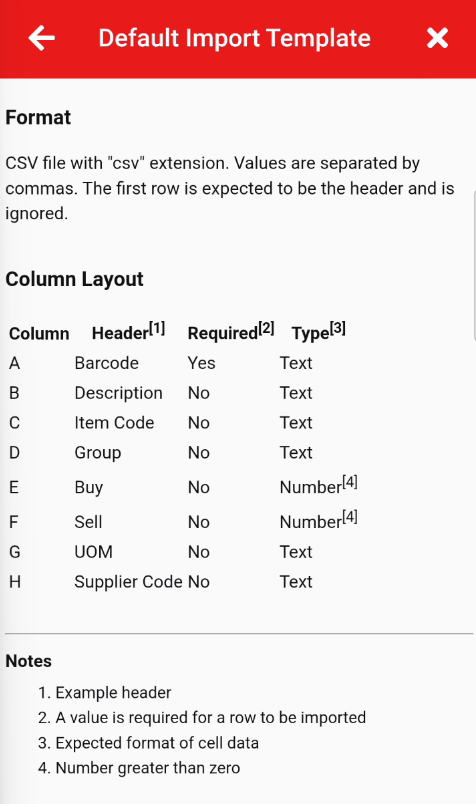
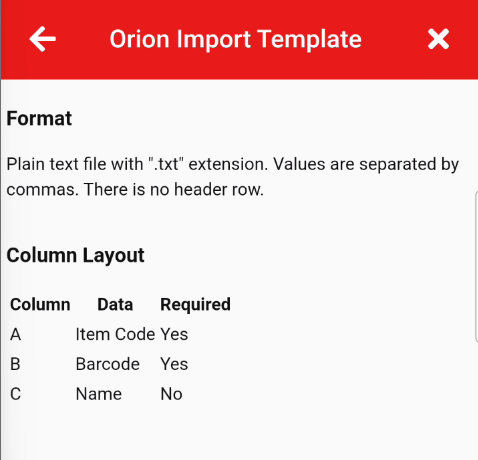
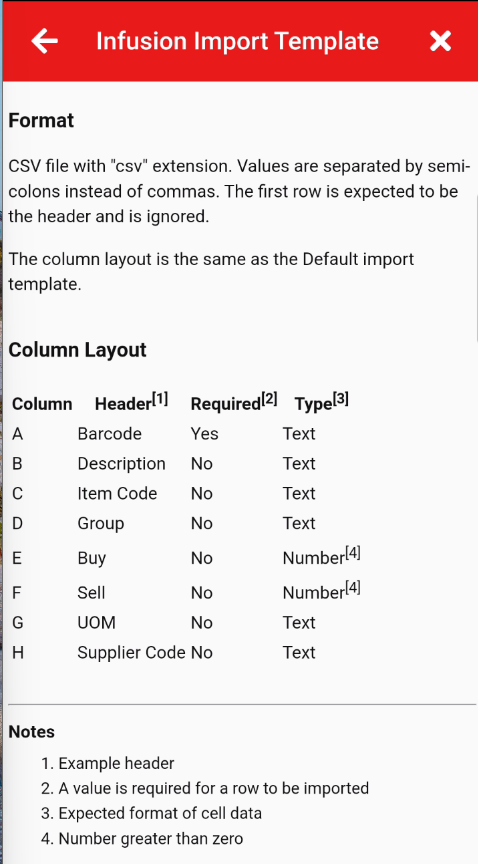
Help information for import
[](https://hugeerp10.co.za/hsofmanual/uploads/images/gallery/2024-09/q1zimage.png)
Default (CSV) layout
[](https://hugeerp10.co.za/hsofmanual/uploads/images/gallery/2024-09/hqzimage.png)
Orion Layout
[](https://hugeerp10.co.za/hsofmanual/uploads/images/gallery/2024-09/UGwimage.png)
Infusion Layout
[](https://hugeerp10.co.za/hsofmanual/uploads/images/gallery/2024-09/t6Bimage.png)
# Barcode Count Capture
##### Starting and capturing barcodes
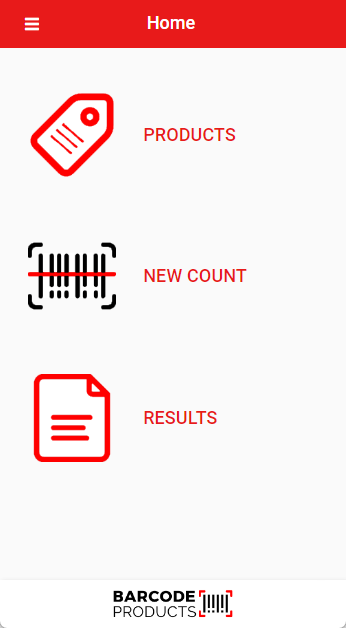
Open up the Barcode Count App
| Products | Use this area to upload your inventory list. |
| New Count | Use this section to carry out your stock counting. |
| Results | Use this section to access the files available for export from the Barcode Count App. |
To add your own inventory, see Barcode Count App Import file - [Click Here](https://hugeerp10.co.za/hsofmanual/books/barcode-count-app/page/barcode-count-app-import-file)
[](https://hugeerp10.co.za/hsofmanual/uploads/images/gallery/2024-03/9CSimage.png)
To start to capture barcodes without setting up your products, click on New Count
[](https://hugeerp10.co.za/hsofmanual/uploads/images/gallery/2026-02/h3Eimage.png)
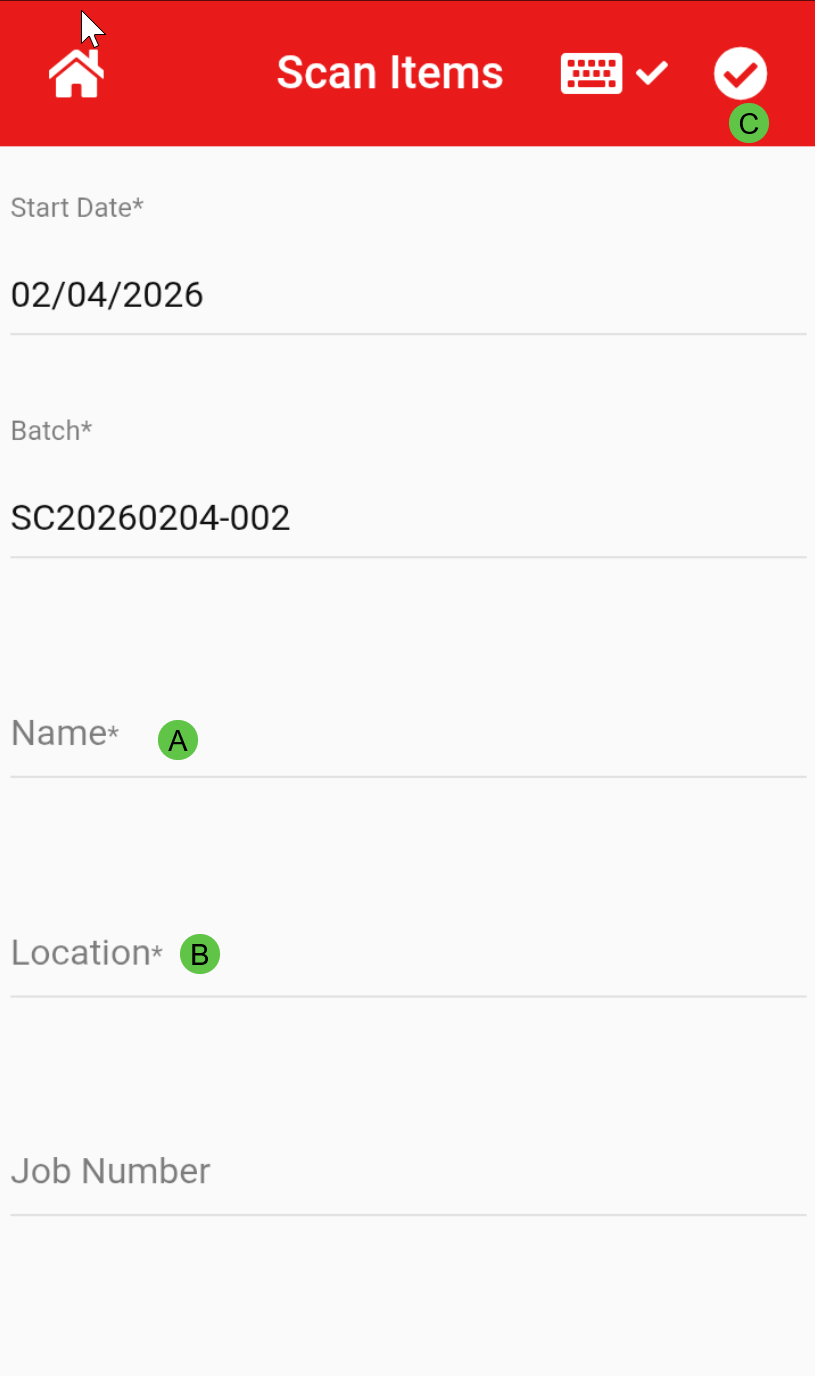
Main fields to complete:
- Person Name - who is going to capture barcodes
- Enter Location
- Tap the tick at the top right of the screen
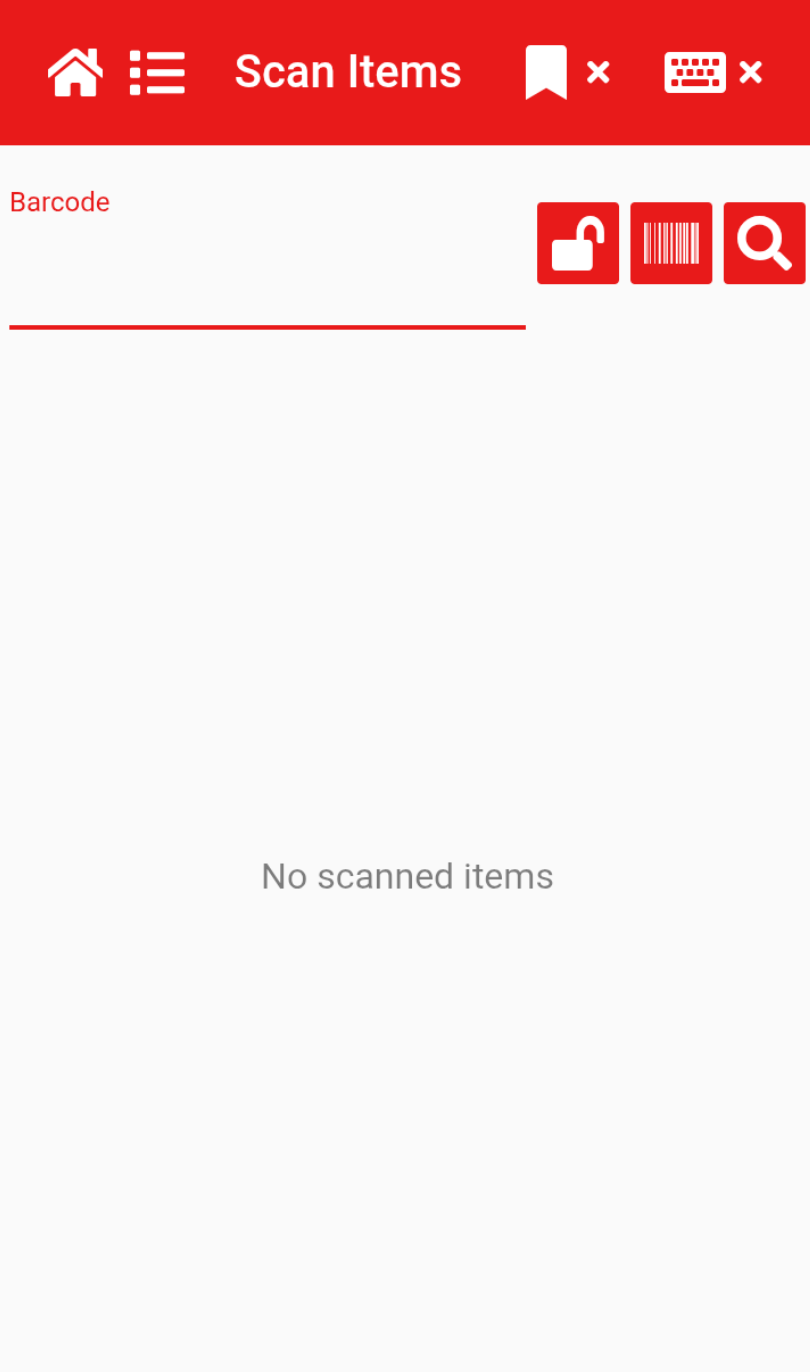
Tapping the keyboard icon at the top will toggle the on‑screen keyboard on (✓) or off (✕), allowing you to view the app in full screen
[](https://hugeerp10.co.za/hsofmanual/uploads/images/gallery/2026-02/ERdimage.png)
Now you are ready to start Scanning your barcodes
[](https://hugeerp10.co.za/hsofmanual/uploads/images/gallery/2026-02/iGqimage.png)
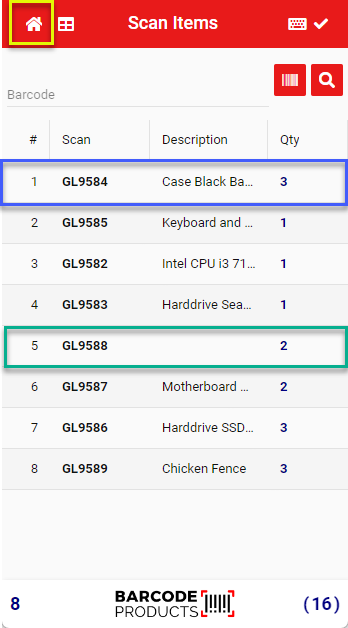
If the scanned barcode **matches** an item in the database, the item description will be displayed (see blue highlight below).
If the scanned barcode **does not match** anything in the database, only the barcode will be shown with no description (see green highlight below).
To **edit the quantity** of a scanned item, **tap the item** to open the quantity editor.
You can then **enter the new quantity** manually or use the **plus (+)** and **minus (–)** buttons to adjust the amount.
Select **OK** to confirm and save your changes.
[](https://hugeerp10.co.za/hsofmanual/uploads/images/gallery/2024-05/6APimage.png)
When complete, click Home button to go to Results
[](https://hugeerp10.co.za/hsofmanual/uploads/images/gallery/2024-03/0lBimage.png)
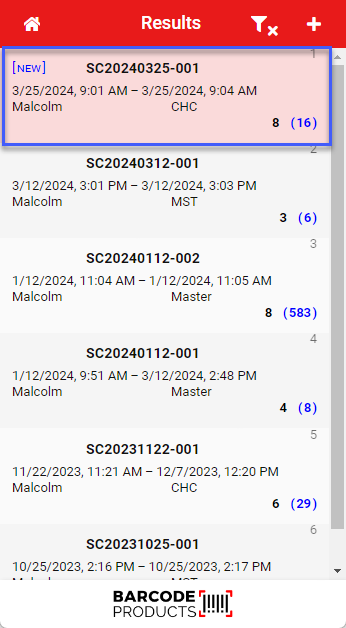
- View your scanned results by selecting the *Results* tab
[](https://hugeerp10.co.za/hsofmanual/uploads/images/gallery/2026-02/1tximage.png)
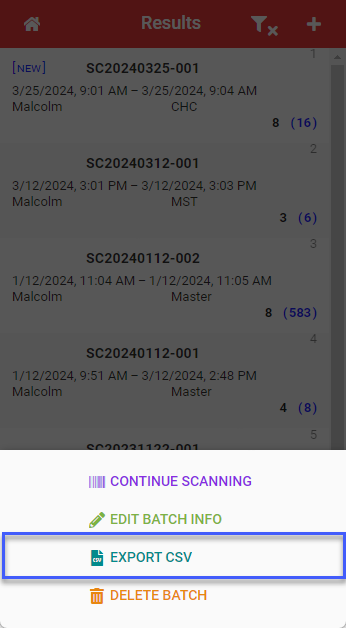
- Tap on the file you want to Export, a menu will open at the bottom of the screen.
- Save the file on the device by Clicking "**Export CSV**"
[](https://hugeerp10.co.za/hsofmanual/uploads/images/gallery/2024-03/eq6image.png)
- Save the file on the device by Clicking "**Export CSV**"
Take note of the location where you are saving your export file
[](https://hugeerp10.co.za/hsofmanual/uploads/images/gallery/2024-03/O3Nimage.png)
Open your Gmail account, attach the downloaded file, and email it to a computer
# Barcode Count Line Comment
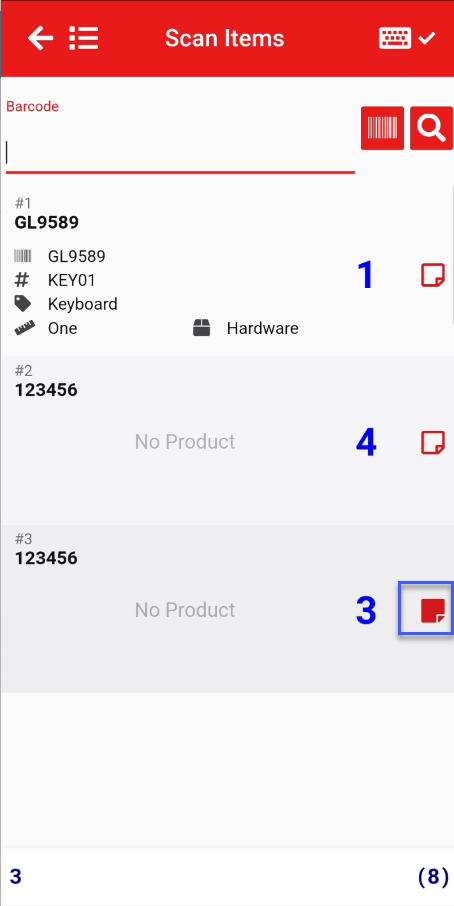
After Scanning items, one can add a comment to item lines.
This is indicated with an icon.
| [](https://hugeerp10.co.za/hsofmanual/uploads/images/gallery/2024-07/YByimage.png)
| No comment added |
| [](https://hugeerp10.co.za/hsofmanual/uploads/images/gallery/2024-07/5Caimage.png)
| Comment added to item scanned |
[](https://hugeerp10.co.za/hsofmanual/uploads/images/gallery/2024-07/YGiimage.png)
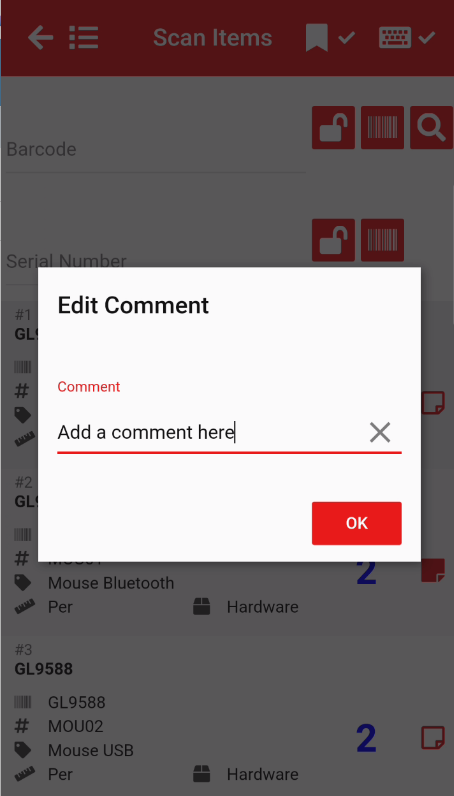
Comment window
Enter a comment
[](https://hugeerp10.co.za/hsofmanual/uploads/images/gallery/2024-09/CiOimage.png)
---
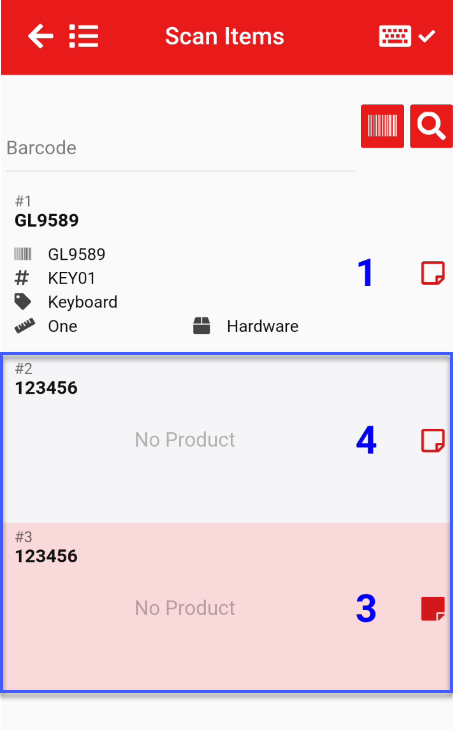
Serial number makes the item scan unique.
When a serial number is added to an item, it makes the item unique.
So if you are scanning an item with the same barcode and the one item has a serial number, the count will start a new entry.
The item that has a serial number will be indicated with a solid icon.
[](https://hugeerp10.co.za/hsofmanual/uploads/images/gallery/2024-07/g2yimage.png)
---
Exporting data (Default)
The default export will export the Part Batch number and comment
[](https://hugeerp10.co.za/hsofmanual/uploads/images/gallery/2024-07/6D5image.png)
# OLD Barcode Count App installation
No Longer used
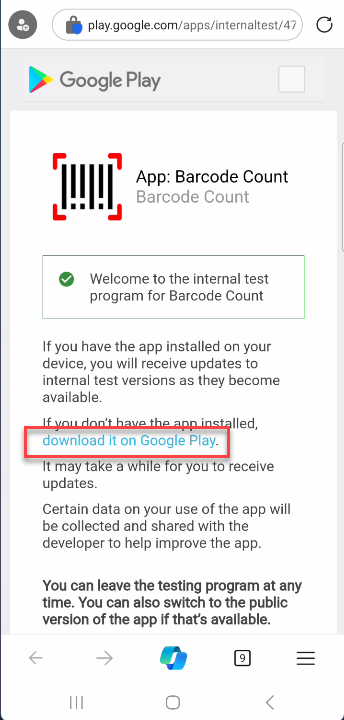
Installing the app from email link
Open up the email on the device
Click on the link
[](https://hugeerp10.co.za/hsofmanual/uploads/images/gallery/2024-02/0tnimage.png)
Click on the download it on Google Play
[](https://hugeerp10.co.za/hsofmanual/uploads/images/gallery/2024-02/sm9image.png)
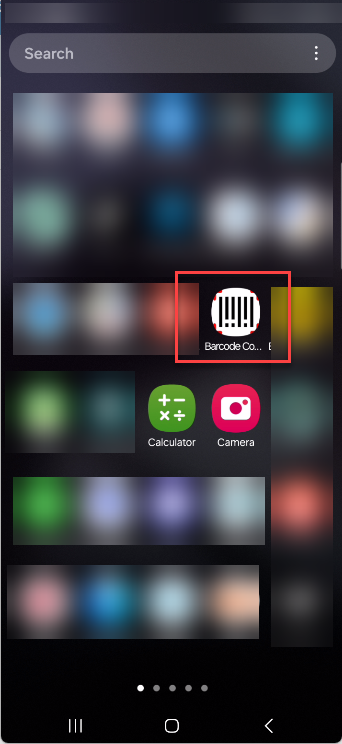
After the installation, find the icon under apps for barcode count
[](https://hugeerp10.co.za/hsofmanual/uploads/images/gallery/2024-03/I3Rimage.png)
# Tracking Buy and Sell Prices
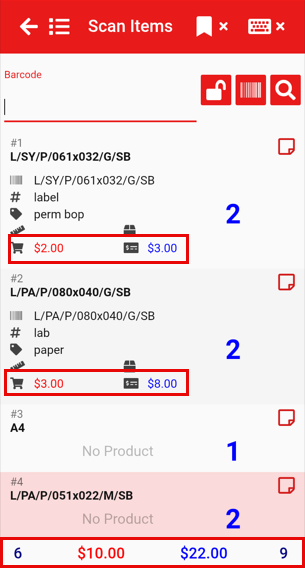
To view both the buy price and sell price of each item, along with the totals displayed at the bottom of the screen (as shown below), you’ll need to activate this feature. It can be activated on or off at any time, depending on your preference in settings.
[](https://hugeerp10.co.za/hsofmanual/uploads/images/gallery/2025-08/SyAimage.png)
[](https://hugeerp10.co.za/hsofmanual/uploads/images/gallery/2025-08/WPQhcfimage.png)
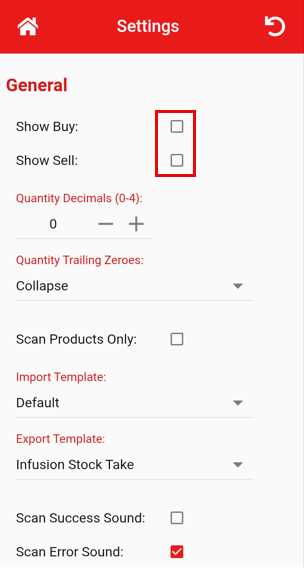
Open the **Home** menu at the top left of the screen  and select **Settings**. Under the **General** tab, tick the checkboxes to display the **Buy Price**, **Sell Price**, or both depending on your preference. This will automatically be there when you go back onto an existing count or start a new count.
[](https://hugeerp10.co.za/hsofmanual/uploads/images/gallery/2025-08/JiHimage.png)
# Adding a New Stock Item
##### Adding New Items During a Stock Take or Coun
During a stock take or inventory count, you may come across items that aren’t yet listed in your system. The **Barcode Count App** makes it easy to add these new items on the spot, ensuring your records stay accurate and up to date. This section will guide you through the steps to add a new item directly within the app, whether you're mid count or reviewing stock.
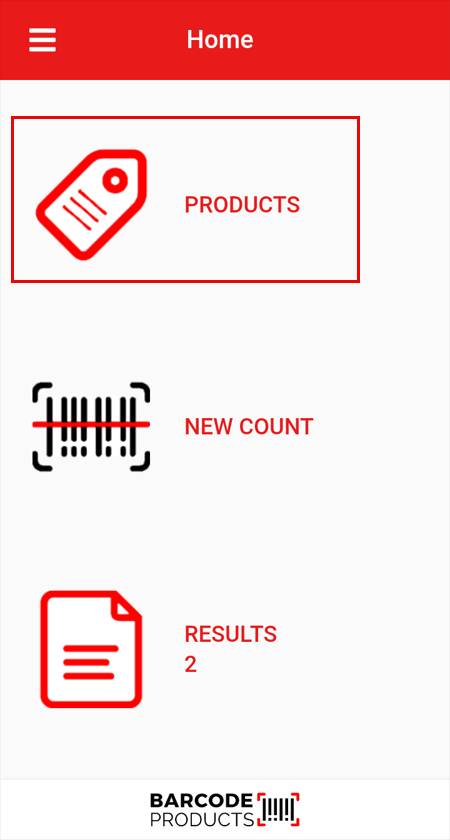
In the app navigate to the Products tab.
[](https://hugeerp10.co.za/hsofmanual/uploads/images/gallery/2025-08/RNbimage.png)
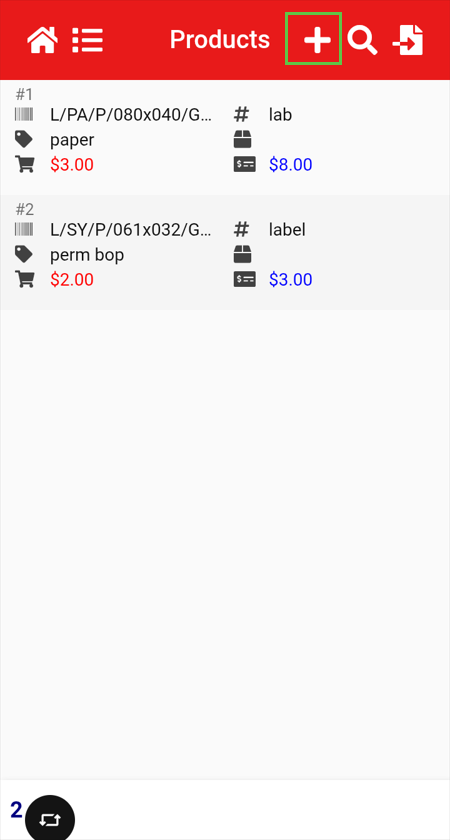
Select the add (+) icon at the top right of the screen
[](https://hugeerp10.co.za/hsofmanual/uploads/images/gallery/2025-08/tILimage.png)
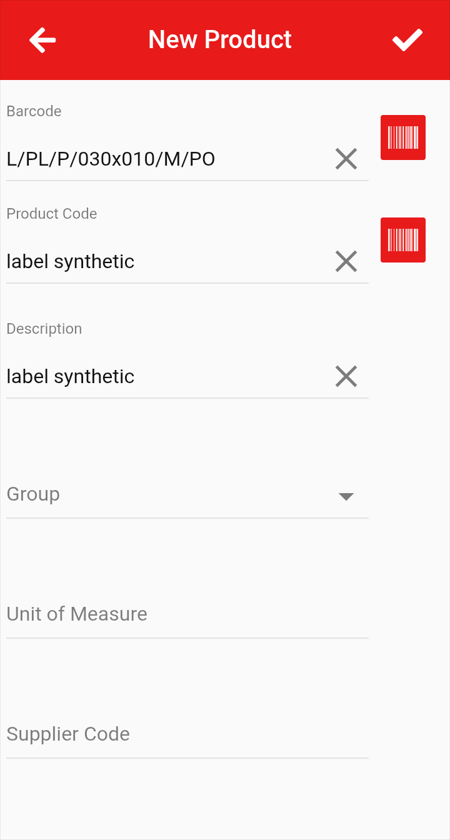
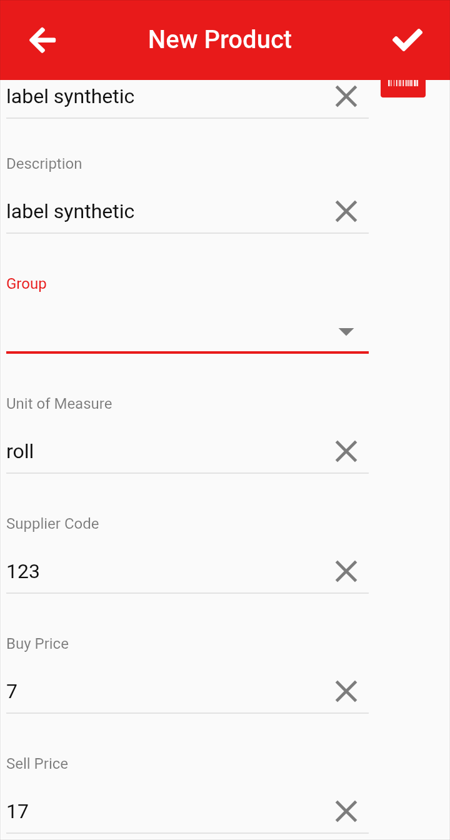
Here you will need to capture the information needed to record the item.
Barcode
Product Code
Description
Group
Unit of Measure
Supplier Code
Buy Price
Sell Price
[ ](https://hugeerp10.co.za/hsofmanual/uploads/images/gallery/2025-08/ND7image.png)
[](https://hugeerp10.co.za/hsofmanual/uploads/images/gallery/2025-08/uWOimage.png)
To save this item you will need to click the tick  at the top right of the screen.
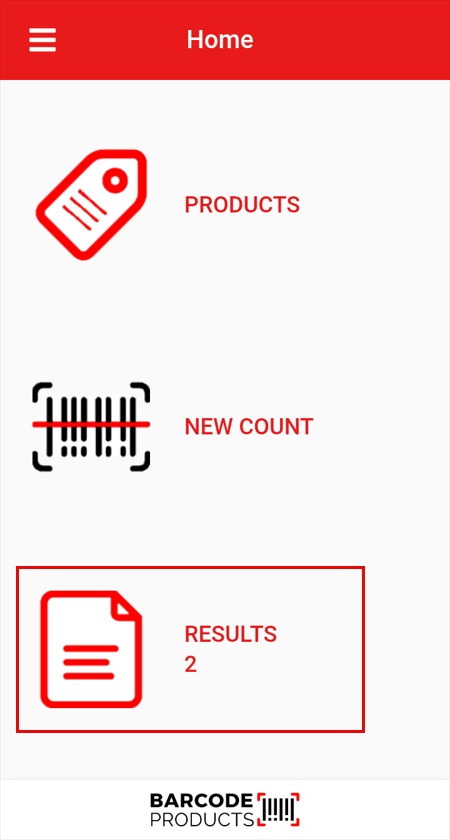
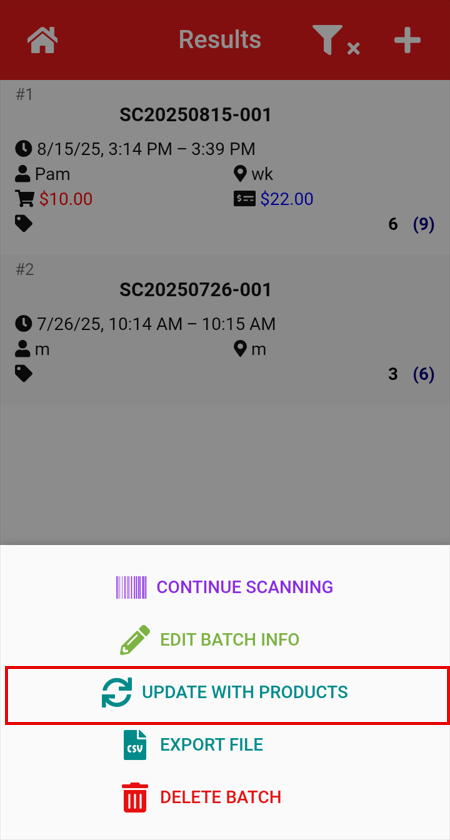
To update an existing stock count, navigate to **Results**, select the relevant count, and choose **Update with Products**.
[](https://hugeerp10.co.za/hsofmanual/uploads/images/gallery/2025-08/XRdimage.png)
[](https://hugeerp10.co.za/hsofmanual/uploads/images/gallery/2025-08/JfTimage.png)
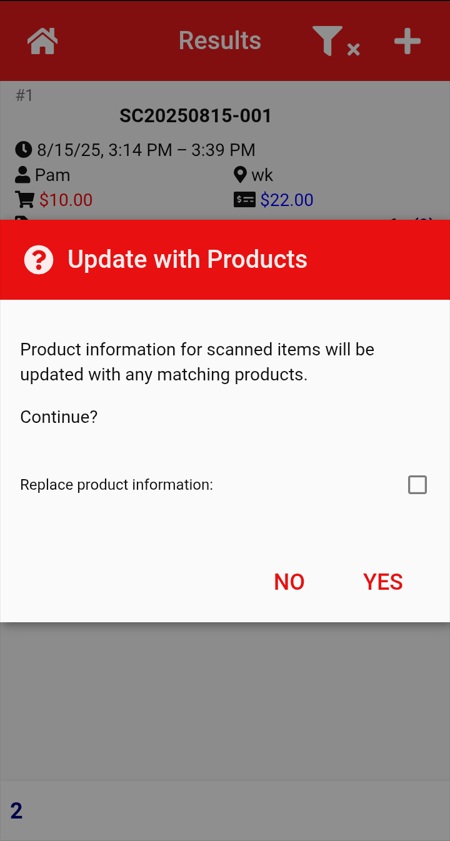
A confirmation window will appear asking if you wish to continue. Click **Yes** to proceed.
[](https://hugeerp10.co.za/hsofmanual/uploads/images/gallery/2025-08/pmXimage.png)
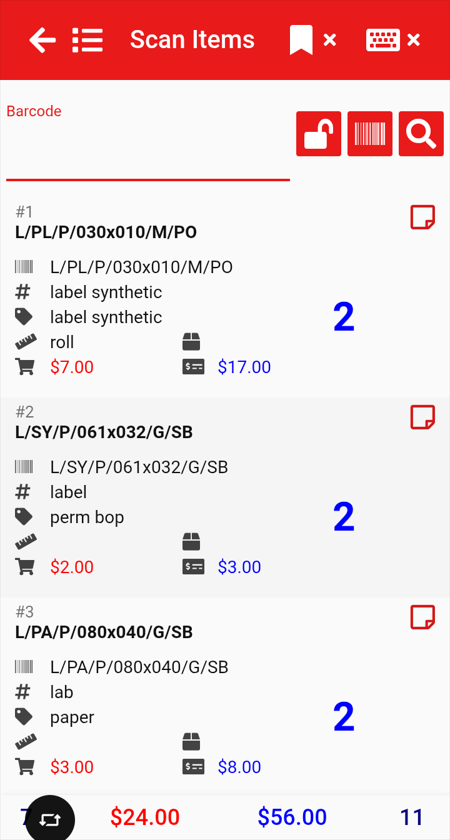
You will then be able to locate the items you updated and view the changes you made.
[](https://hugeerp10.co.za/hsofmanual/uploads/images/gallery/2025-08/2I4image.png)