# Attachments

Attachments

# Attachment and Linkit (hyper links)

#### <span class="ts0">Attachment Grid Access</span>

<span class="ts0">The system allows for attachments and hyperlinks to be added to documents.</span>

<span class="ts0">Everywhere in the system, there is either a button or paper clip symbol on the grid.</span>

<span class="ts0">![](https://hugeerp0.co.za/csp/webhelp/topics/images/image(130).png)</span>

<span class="ts0">The grid will display a paper clip which will have </span><span class="ts0">different colours indicating whether there is an attachment or hyperlink or both</span>

<table border="1" id="bkmrk-paper-clip%C2%A0grey-no-a" style="border-collapse: collapse; width: 100%; height: 119.15px;"><colgroup><col style="width: 29.7825%;"></col><col style="width: 70.3164%;"></col></colgroup><tbody><tr style="height: 29.7875px;"><td style="height: 29.7875px;"><span style="color: rgb(126, 140, 141);">**<span class="ts0">Paper clip </span><span class="ts11">Grey</span>**</span></td><td style="height: 29.7875px;"><span class="ts0">No attachments or hyper-links</span></td></tr><tr style="height: 29.7875px;"><td style="height: 29.7875px;"><span style="color: rgb(224, 62, 45);">**<span class="ts0">Paper clip </span><span class="ts11">red</span>**</span></td><td style="height: 29.7875px;"><span class="ts0">attachments present</span></td></tr><tr style="height: 29.7875px;"><td style="height: 29.7875px;"><span style="color: rgb(45, 194, 107);">**<span class="ts0">Paper clip </span><span class="ts11">green</span>**</span></td><td style="height: 29.7875px;"><span class="ts0">hyper-links present</span></td></tr><tr style="height: 29.7875px;"><td style="height: 29.7875px;"><span style="color: rgb(53, 152, 219);">**<span class="ts0">Paper clip </span><span class="ts11">blue</span>**</span></td><td style="height: 29.7875px;"><span class="ts0">both attachments and hyper-links present</span></td></tr></tbody></table>

---

#### <span class="ts0">Attachment Button</span>

The attachment button can be found across the system where there is a clipboard access.

It allows you to add additional information on a window that you are currently working on in the form of an attachment.

This can be additional documentation, for example, contracts, invoices from suppliers or documentation regarding a stock/ inventory item.

[![image.png](https://hugeerp10.co.za/hsofmanual/uploads/images/gallery/2024-05/scaled-1680-/JFnimage.png)](https://hugeerp10.co.za/hsofmanual/uploads/images/gallery/2024-05/JFnimage.png)

---

#### <span class="ts0">Attachment</span>

<span class="ts0">After clicking the attachment on the grid or on a specific window on the system it will take you to the window below. </span>

<span class="ts0">This is where you will be able to add an actual attachment or a hyperlink</span>

[![image.png](https://hugeerp10.co.za/hsofmanual/uploads/images/gallery/2024-05/scaled-1680-/52Himage.png)](https://hugeerp10.co.za/hsofmanual/uploads/images/gallery/2024-05/52Himage.png)

<span class="ts0"> </span>

<table border="1" id="bkmrk-upload-this-allows-y" style="border-collapse: collapse; width: 100%; height: 266.4px;"><colgroup><col style="width: 29.0452%;"></col><col style="width: 70.9301%;"></col></colgroup><tbody><tr style="height: 29.6px;"><td style="height: 29.6px;">**Upload**</td><td style="height: 29.6px;">This allows you to load an image by selecting it from your computer</td></tr><tr style="height: 29.6px;"><td style="height: 29.6px;">**Drag &amp; Drop**</td><td style="height: 29.6px;">This function allows you to drag and drop an image where it is saved or directly from outlook</td></tr><tr style="height: 29.6px;"><td style="height: 29.6px;">**Edit**</td><td style="height: 29.6px;">This allows you to edit image name, description or file type</td></tr><tr style="height: 29.6px;"><td style="height: 29.6px;">**View**</td><td style="height: 29.6px;">You can click view to view an attachment</td></tr><tr style="height: 29.6px;"><td style="height: 29.6px;">**Delete**</td><td style="height: 29.6px;">This button allows you to delete an attachment id you no longer need to see it </td></tr><tr style="height: 29.6px;"><td style="height: 29.6px;">**Email Self**</td><td style="height: 29.6px;">This will email the attachment directly to your outlook</td></tr><tr style="height: 29.6px;"><td style="height: 29.6px;">**Download**</td><td style="height: 29.6px;">This allows you to download the image directly to your computer</td></tr><tr style="height: 29.6px;"><td style="height: 29.6px;">**Download All**</td><td style="height: 29.6px;">If they are multiple attachments to load you can click on download all</td></tr><tr style="height: 29.6px;"><td style="height: 29.6px;">**Allow Email**</td><td style="height: 29.6px;">This button allows you to put a flag on the attachment to allow email or not allow email</td></tr><tr><td>**View Attachment**

</td><td>View Attachment shows a preview of the attachment</td></tr></tbody></table>

---

#### <span class="ts0">Linkit (hyper-links)</span>

<span class="ts0">This allows you to add a hyperlink to across the system. </span>

<span class="ts0">This can be links to more information on the debtor/ customer, Creditor/Supplier or Inventory/ Stock Item or any other document accross the system</span>

![](https://hugeerp0.co.za/csp/webhelp/topics/images/image(132).png)

<span class="ts0"> </span>

<span class="ts0"> </span>

<span class="ts0"> </span>

<span class="ts0"></span>

# Attachment Naming

<span class="ts0">The system now allows for all attachments that are uploaded and saved into the Huge software to be named with a file based on the name that you put in and it appends the date and time that you uploaded it.</span>

<span class="ts0"> An example of a good naming conversion can be seen in the naming conversion below:</span>

1. <span class="ts0"><span class="ts0">Short name for supplier, customer or inventory/ stock Item</span></span>
2. <span class="ts0"><span class="ts0">Date of Invoice</span></span>
3. <span class="ts0"><span class="ts0">Invoice Number</span></span>
4. <span class="ts0"><span class="ts0">Amount</span></span>

<span class="ts0">It is better to separate the file's name with an underscore than to have space.</span>

<span class="ts0">This is because we will remove the spaces when naming the file</span>

<span class="ts0"> </span>![](https://hugeerp0.co.za/csp/webhelp/topics/images/image(2269).png)

<span class="ts0"> </span>

<span class="ts0">The file name matches the Name field in the attachment upload</span>

<span class="ts0"> </span>![](https://hugeerp0.co.za/csp/webhelp/topics/images/image(2270).png)

<span class="ts0"> </span>

<span class="ts0">This helps for auditing purposes and if we ever have to access the uploads folder, your naming of upload files will be there so that it will be easier to find.</span>

<span class="ts0">For Purchase Orders and most other documents, all upload files are kept in categories eg Purchase Orders and when they were uploaded.</span>

<span class="ts0"> </span><span class="ts0"> </span>

![](https://hugeerp0.co.za/csp/webhelp/topics/images/image(2271).png)

<span class="ts0"> </span>

<span class="ts0"> </span>

<span class="ts0"> </span>

<span class="ts0"> </span>

<span class="ts0"></span>

# Drag and Drop on Attachment

<span class="ts0">You can now drag and drop any document into this open space to upload an attachment.</span>

<span class="ts0">You can click in open space which will then open up the File Explorer for you to select a file.</span>

<span class="ts0"> </span><span class="ts0">The system will try and determine the type of file you are uploading.</span>

<span class="ts0">Image and PDF are the most common.</span>

<span class="ts0"> </span>![](https://hugeerp0.co.za/csp/webhelp/topics/images/image(3726).png)

# Drag and Drop Process

<span class="ts0">The system allows multiple attachments to be uploaded via the Drag &amp; Drop function.</span>

<span class="ts0">This works well with email where one can drag attachments from email to system or from anywhere the attachments are saved on the computer.</span>

<p class="callout info"><span class="ts0">Note that the default setting for Don't allow emailing is set to On</span></p>

<span class="ts0"> </span><span class="ts0">Click on the button for Drag &amp; Drop</span>

<span class="ts0"> </span>![](https://hugeerp0.co.za/csp/webhelp/topics/images/image(2530).png)

<span class="ts0"> </span><span class="ts0">Select multiple files you want to upload and drag to white open window</span>

<span class="ts0"> </span>![](https://hugeerp0.co.za/csp/webhelp/topics/images/image(2531).png)

<span class="ts0"> </span><span class="ts0">Multiple files will be uploaded</span>

<span class="ts0"> </span>![](https://hugeerp0.co.za/csp/webhelp/topics/images/image(2533).png)

# Attachment Delete Button

<span class="ts0">The attachment delete buttons are disabled by default.</span>

<span class="ts0">In order to enable you to need to enable the delete button in the form's security.</span>

<span class="ts0"> </span>

<span class="ts0">If you have access to the form security, click on this</span>

<span class="ts0"> </span><span class="ts0"> </span>![](https://hugeerp0.co.za/csp/webhelp/topics/images/image(2422).png)

# Emailing Attachments

<span class="ts12">We do allow for emailing of attachments, but as a rule the default setting is OFF to allow email of the attachment.</span>

<span class="ts12">Drag and drop default is set to off to allow for emailing.</span>

<span class="ts12">However you can edit the attachment to allow for emailing of attachment</span>

![](https://hugeerp0.co.za/csp/webhelp/topics/images/image(2612).png)

<span class="ts0"> </span><span class="ts12">When emailing, you need to tick which ones you want to email that has been flagged as allow email.</span>

<span class="ts12">These are all security measures to ensure that an attachment sent to an outside company which is confidential or shows costs is not </span><span class="ts12">mistakenly </span><span class="ts12">sent off.</span>

![](https://hugeerp0.co.za/csp/webhelp/topics/images/image(2613).png)

# Email Attachment Alert

<span class="ts12">An alert will pop up on the emailing of documents where the flag to email an attachment is on</span>

<span class="ts12">If a user has uploaded an attachment and wants to email it.</span>

<span class="ts12">When we get to email and the user forgets to select the attachment he wants to send with the email.</span>

<span class="ts12">An alert to comes up to say</span>

<span class="ts12">You have uploaded attachments to be sent with this email, but you have not selected the ones you want to send with this email</span>

<span class="ts14">Continue</span><span class="ts12"> without sending any attachments</span>

<span class="ts14">Cancel </span><span class="ts12">to go and select attachments</span>

<span class="ts12">If the user has selected the attachments, then the pop up will not come up</span>

<span class="ts12">This is to help the user remember that he attached documents to send with the email, but most times people forget to select them to email.</span>

![](https://hugeerp0.co.za/csp/webhelp/topics/images/image(2614).png)

# Preview Images

<span class="ts0">Open the panel and click on any photo to preview image</span>

<span class="ts0"> </span>![](https://hugeerp0.co.za/csp/webhelp/topics/images/image(3338).png)

<span class="ts0"> </span><span class="ts0">Image view, now shows condensed view to fit screen</span>

<span class="ts0"> </span>![](https://hugeerp0.co.za/csp/webhelp/topics/images/image(3339).png)

# Cannot View an Attachment

<span class="ts0">If you cannot open an attachment, it can be due to several reasons.</span>

<span class="ts0">If your original file which contained your naming convention included multiple full stops, the system cannot determine what type of file extension it is.</span>

<span class="ts0">Try renaming your original file and only keep the full stop for the extension of the filename.</span>

<span class="ts0">The system maintains and accepts a white list of files that are all allowed to be uploaded.</span>

<span class="ts0">If you find that you cannot open a file, it could mean that it is not on the white list of accepted imported files.</span>

<span class="ts0">Please contact us to validate the type of file you are uploading so that we can add this to the white list.</span>

<span class="ts0"> </span><span class="ts0">The system maintains a white list for security purposes, it is there to ensure that no malicious files are being uploaded.</span>

<span class="ts0"> </span><span class="ts0">Here are some examples of files accepted:</span>

<span class="ts0"> </span><span class="ts0">\["apng", "avif", "gif", "jpg", "jpeg", "jfif", "pjpeg", "pjp", "png", "svg", "webp"\]</span>

<span class="ts0"> </span><span class="ts0">\["doc","docm","docx","dot","dotm","dotx","odt","rtf","wps"\]</span>

<span class="ts0"> </span><span class="ts0">\["csv","dbf","dif","ods","prn","xla","xls","xlsb","xlsm","xlsx","xlt","xltm","xltx","xlw"\]</span>

<span class="ts0"> </span><span class="ts0">\["msg", "txt"\]</span>

# Restrict File

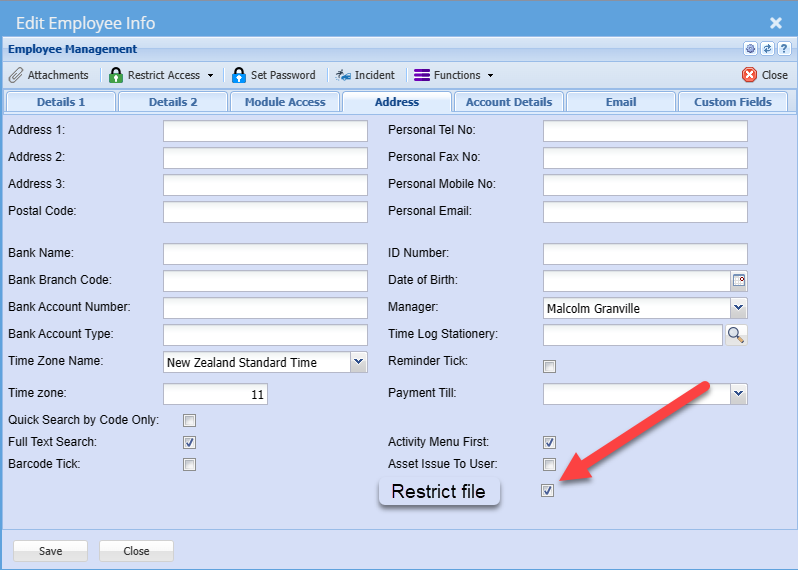
Restrict file view for users

When a user is set to active on Restrict user, they will not see that file in the grid.

Tick is active for any new users created.

[![image.png](https://hugeerp10.co.za/hsofmanual/uploads/images/gallery/2023-10/scaled-1680-/Ofhimage.png)](https://hugeerp10.co.za/hsofmanual/uploads/images/gallery/2023-10/Ofhimage.png)
---

Attachment restrict file

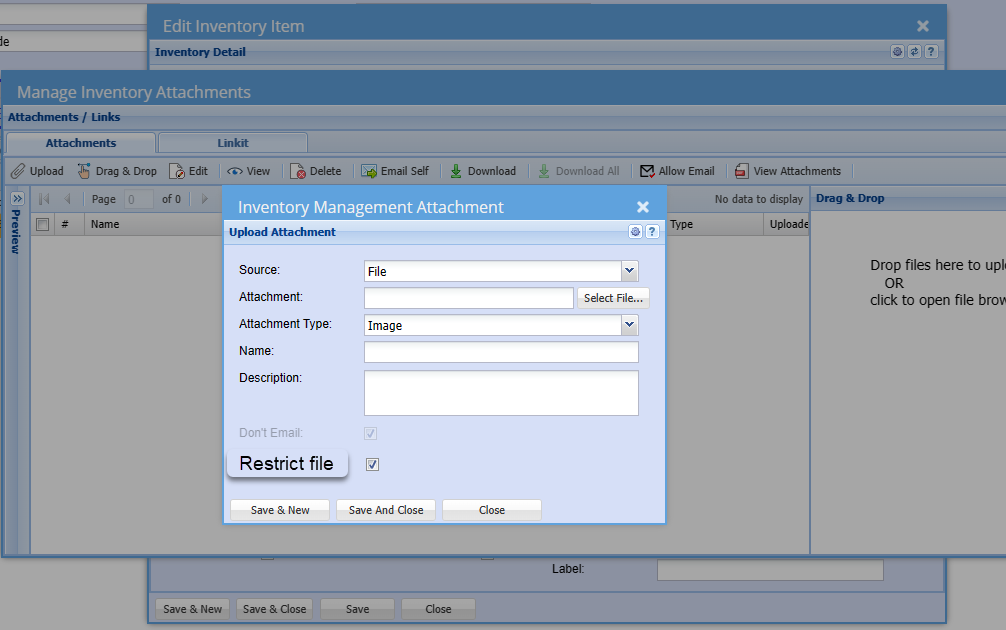
When you upload the file, mark the file as Restrict file to hide from users who don't have access to view the file.

[![image.png](https://hugeerp10.co.za/hsofmanual/uploads/images/gallery/2023-10/scaled-1680-/3QFimage.png)](https://hugeerp10.co.za/hsofmanual/uploads/images/gallery/2023-10/3QFimage.png)